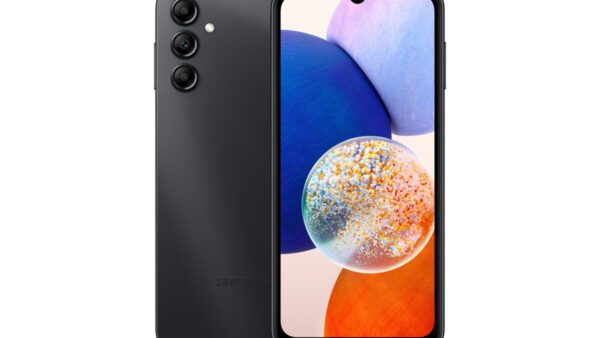
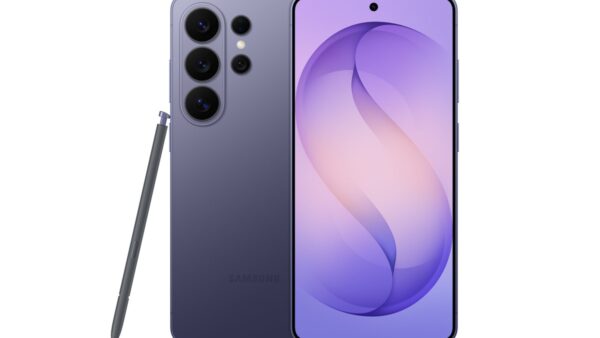
Bixby is Samsung's built-in voice assistant for Galaxy phones, tablets, watches and other Samsung devices, and it controls device settings, apps and SmartThings products when you speak or type a request.
This guide covers what Bixby does, its Voice, Vision, Reminder and Routines features, how to set it up on the side button, how it differs from Galaxy AI and Gemini, and how to turn it off.
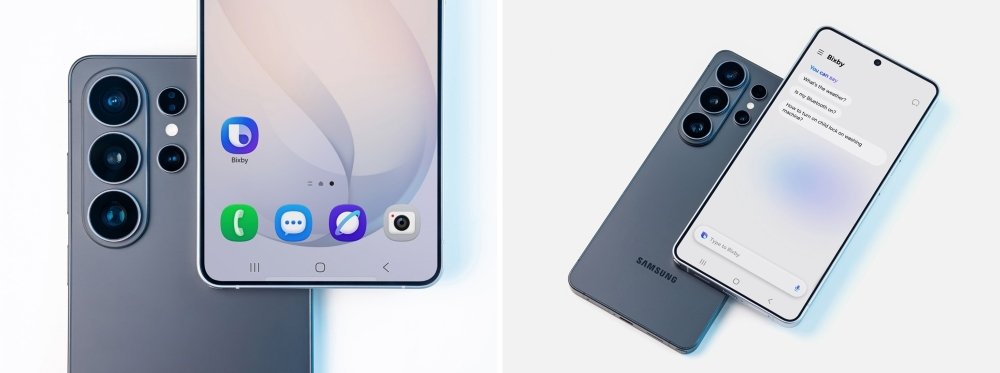
What is Bixby? Samsung’s smart assistant explained
Samsung describes Bixby as a virtual assistant that learns what you like to do and works with your apps and services. You talk to it, type to it, or point the camera at something with Bixby Vision.
In 2026 Samsung rebuilt Bixby around a large language model. With One UI 8.5 it became a conversational device agent that understands plain requests instead of fixed commands.
| Question | Short answer | Detail |
|---|---|---|
| Who makes it? | Samsung Electronics | Bixby ships on Galaxy devices and is part of the Galaxy AI line-up |
| How do you open it? | Press and hold the side button, or say "Hi Bixby" | Older phones with a separate Bixby key open it with that key |
| What does it control? | Phone settings, native apps, Galaxy wearables and SmartThings devices | Examples: texting a contact, opening the front camera, switching off all the lights |
| Does it answer questions? | Yes | The new Bixby searches the web and shows live results inside its own window |
| What does it need? | A Samsung Account and a Wi-Fi or mobile data connection | Features differ by country, language and device model |
| Is it the same as Gemini? | No | Gemini is Google's assistant; on the Galaxy S25 a side-button hold opens Gemini instead |
What can Bixby do?
Bixby works best on tasks inside the Samsung ecosystem. The new version also explains device behaviour, so you can describe a problem rather than search for a menu name.
Samsung's own examples show the range, from device settings to the lights in your home.
| Task area | What Bixby does | Example request |
|---|---|---|
| Control phone and tablet settings | Changes settings by plain description, without the exact feature name | "I don't want the screen to time out while I'm still looking at it" turns on Keep screen on while viewing |
| Explain device behaviour | Reads current settings and suggests a fix | "Why is my phone screen always on when it's inside my pocket?" brings up Accidental touch protection |
| Open apps, send messages, and make calls | Works with native Samsung apps and selected other apps | "Text Sharon, 'Where are you? The party's on!'" |
| Answer questions and search for information | Runs a real-time web search and shows results inside Bixby | "Find me hotels in Seoul that have swimming pools for kids" |
| Run shortcuts and routines | Quick commands run several actions in order from one preset phrase | "I'm leaving work" turns on Bluetooth, turns off Wi-Fi and plays a playlist |
| Control compatible SmartThings devices | Operates TVs, lights and appliances added to the SmartThings app | "Change the TV channel to 7" or "Turn on the air conditioner" |
| Use Bixby Vision with the camera and images | Identifies objects, translates text and describes scenes | "Read the text in Bixby Vision" |
| Accessibility | Switches accessibility features on or off by voice | "Turn on Screen reader" or "Set grayscale in Color adjustment" |
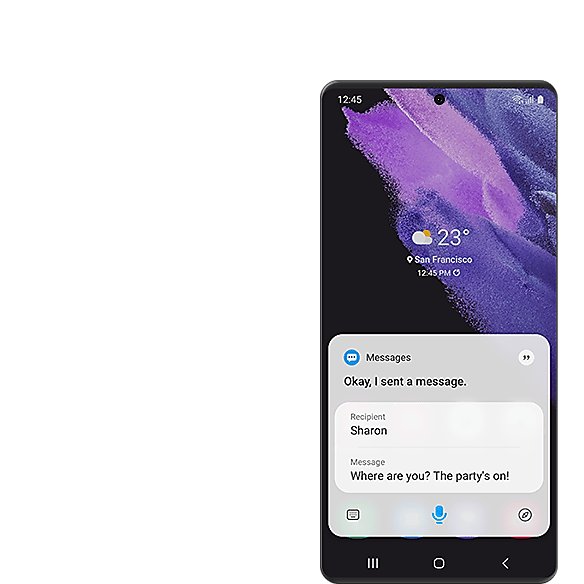
What are Bixby Voice, Bixby Vision, Reminder, and Routines?
Bixby is a group of features rather than one app. Each part handles a different kind of request, and the set available to you depends on your device and region.
| Feature | What it is | Where you find it |
|---|---|---|
| Bixby Voice | Controls the device and apps by spoken or typed commands; you can change its language and voice style | Side button hold, the Bixby key, or the "Hi Bixby" wake phrase |
| Bixby Vision | An image search feature that identifies objects and places, translates text and helps you shop for items | The Camera, Gallery and Samsung Internet apps |
| Reminder | Sets reminders by voice and can attach them to apps such as Phone or Messages | Ask Bixby by voice, then link the reminder to an app |
| Bixby Routines (now Modes and Routines) | Automates settings based on time, place or activity, such as muting notifications at work | Modes and Routines on current One UI versions |
| Bixby Home | A feed of cards with weather, events and news on older Galaxy phones | Swipe right from the home screen on models that include it |
| Bixby text call | Answers a call with Bixby's voice reading replies you type or pick | The Phone app on supported models |
Samsung notes that Bixby Routines need a signed-in Samsung account and location settings switched on. Quick commands must be created in advance before Bixby will run them.

How do you activate and set up Bixby?
Set up Bixby once on each device. If you are moving to a new phone, transfer your data with Smart Switch first, then sign in to the same Samsung Account.
- Connect the phone or tablet to Wi-Fi or mobile data.
- Press and hold the side key, or press the Bixby key on older models.
- Tap the next icon on the welcome screen.
- Sign in to your Samsung account when Bixby asks.
- Read the terms and conditions, tick the checkbox to agree, and tap the next icon.
- Follow the short tutorial that shows Bixby's main features.
- Open the Bixby menu (three dots), tap Settings, then Voice wake-up, and turn the switch on to use "Hi Bixby" hands-free.
How to set the Samsung side button to open Bixby
Recent Galaxy phones merged the Power button and the Bixby button into one side button. It can power off the phone, open Bixby or launch an app, depending on its settings.
On the Galaxy S25, Samsung sets a press and hold of the side button to open Gemini. Change it here if you want Bixby instead.
- Swipe up on the home screen and open Settings.
- Tap Advanced features.
- Tap Side key (labelled Side button on some models).
- Under press and hold, select Wake Bixby to open Bixby with a long press.
- To use a quick double press instead, turn on the double press switch and select Open Bixby.
Older phones such as the Galaxy S8, S9 and Note9 have a separate Bixby key below the volume buttons. One press opens Bixby Home, and holding it starts Bixby Voice.
Does Bixby require a Samsung account or internet connection?
Yes to both. Samsung states that Bixby needs a Samsung Account login and a Wi-Fi or mobile data connection, so it does not work offline.
| Requirement | Needed? | Notes |
|---|---|---|
| Samsung Account | Yes | Bixby prompts you to sign in to your Samsung account during setup |
| Internet connection | Yes | Wi-Fi or a mobile data network; there is no offline Bixby mode |
| Location access | For some answers and Routines | Bixby asks for consent the first time an answer depends on location |
| Supported language | Yes | English (US, UK, India), French, German, Italian, Japanese, Korean, Mandarin Chinese, Spanish (Spain and Latin America) and Portuguese (Brazil) |
| Music subscription | For full music control | Some audio features need a subscription to a music service |
| SmartThings app | For home devices | Add TVs, lights and appliances to SmartThings before Bixby can control them |
Which phones and devices support Bixby?
Bixby runs on most Galaxy phones from the Galaxy S8 onward, plus many tablets, watches, earbuds and Galaxy Book laptops. Samsung's support list is long, and features differ by model, region and One UI version.
The new conversational Bixby arrived with One UI 8.5 in select markets, including the US, UK, Germany, India, Korea and Poland.
| Device type | Examples Samsung lists | How Bixby works there |
|---|---|---|
| Galaxy phones | Galaxy S8 to S23 series and later, Note8 to Note20, Z Fold and Z Flip models, many Galaxy A and M models | Full Bixby with Voice, Vision and Routines |
| Galaxy tablets | Tab S4 to Tab S9 series, Tab A models, Tab Active models | Bixby Voice and device control |
| Galaxy Watch | Watch, Watch Active2, Watch 4 to Watch6 series | Bixby on the watch itself on select models, without the phone |
| Galaxy Buds | Buds Live, Buds Pro, Buds 2, Buds 2 Pro | Controlled through the Galaxy Wearable app on the phone |
| Galaxy Book laptops | Galaxy Book, Book2 and Book3 series, Galaxy Book Flex and Ion | Bixby on Samsung Windows laptops |
| TVs and home appliances | Samsung TVs, air conditioners, robot vacuums and lights added to SmartThings | Controlled by voice from a Galaxy device through SmartThings |
Galaxy A models get Bixby too, but Samsung notes that what it can do varies by model. This is why Bixby can behave differently on two Samsung devices.
What is the difference between Bixby and Galaxy AI?
Bixby is not the same as Galaxy AI. Galaxy AI is Samsung's umbrella name for its AI features, and Bixby is the personal device assistant inside that set.
Samsung also positions the new Bixby as a way to find and use other Galaxy AI features without knowing where they live.
| Bixby | Galaxy AI | |
|---|---|---|
| What it is | A voice and text assistant that acts on your device | A collection of AI features such as Now Brief, Writing Assist, Interpreter and Photo Assist |
| How you use it | Side button, "Hi Bixby" or the Bixby key | Runs in the background or through the four-star Galaxy AI icon in apps |
| Supported phones | Galaxy S8 and later on many models | Galaxy S24 series and later phones, plus some tablets and wearables |
| Cost | Built into supported devices | Basic features are free; Samsung says future enhanced features could be paid |
How does Bixby compare with Gemini and Google Assistant?
Gemini and Google Assistant are Google's assistants, while Bixby is Samsung's. Galaxy phones run Android, so both companies' assistants sit on the same device.
On the Galaxy S25, Samsung assigns a side-button press and hold to Gemini, which works across Samsung, Google and some third-party apps such as Spotify.
| Point | Bixby | Gemini |
|---|---|---|
| Made by | Samsung | |
| Strongest at | Galaxy settings, Samsung apps, wearables and SmartThings devices | Tasks across Google apps and third-party apps |
| Device troubleshooting | Reads current Galaxy settings and suggests or applies a fix | Not described by Samsung as a device agent |
| Default side-button hold on Galaxy S25 | No, but you can switch to Wake Bixby | Yes |
You do not have to choose one forever. Leave Gemini on the side button and use "Hi Bixby" for device control, or swap them in the side key settings.
What are the best Bixby commands to try first?
Start with commands Samsung itself uses as examples. Speak naturally; the new Bixby does not need exact setting names.
| Command | What happens |
|---|---|
| "Hi Bixby, open the front camera and take a picture" | Opens the camera, switches lenses and takes the photo |
| "Make my screen visible only to me" | Turns on Privacy Display on supported models |
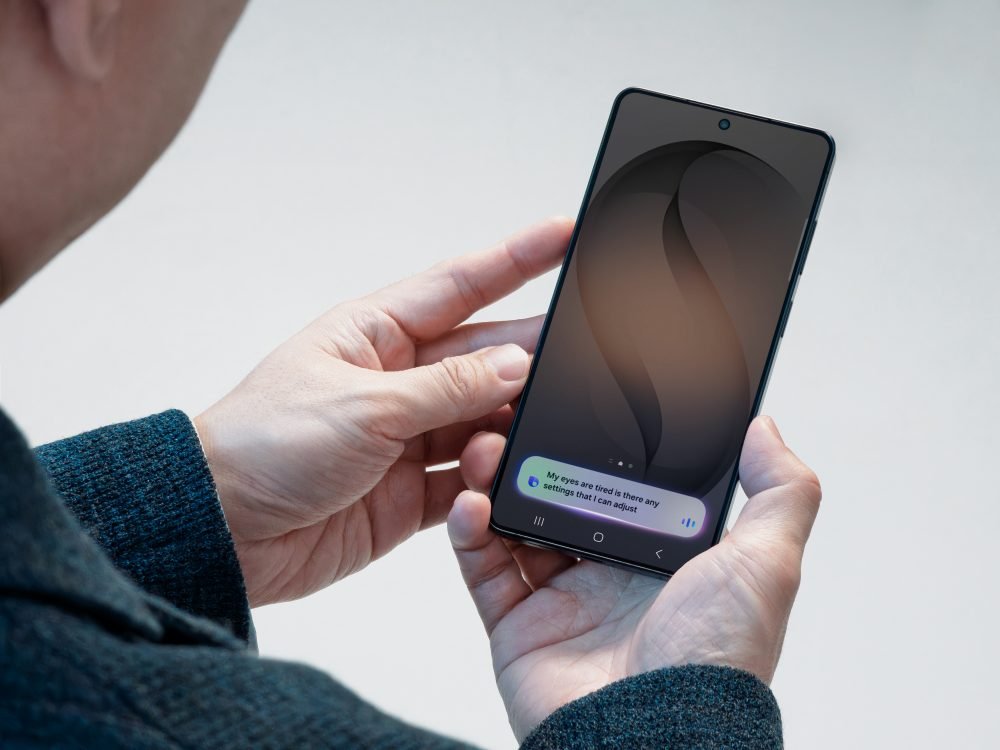
| "My eyes are tired, how can I make the screen easier to look at?" | Recommends and turns on Eye comfort shield |
| "Find Jane's phone number" | Searches your contacts |
| "What's the time difference between Paris and Seoul?" | Answers directly |
| "Start recording in interview mode" | Opens Voice Recorder in Interview mode |
| "Read my unread messages" | Reads new messages aloud |
| "Describe the scene in Bixby Vision" | Uses the camera to describe what is in front of you |
| "Switch off all the lights" | Turns off SmartThings lights |
| "Play the next song" | Skips to the next track |
How to check Bixby is set up and listening
- Press and hold the side button; Bixby should open and start listening.
- Say "What's the time difference between Paris and Seoul?" and check that Bixby answers in its own window.
- Lock the screen, say "Hi Bixby", and confirm Bixby responds if Voice wake-up is on.
- Say "Turn on Screen reader", then "Turn off Screen reader", to confirm device control works.
Why does Bixby fail to understand some commands?
Samsung states that Bixby recognises only certain accents, dialects and expressions, and that results depend on pronunciation, voice level and background noise. Most other failures come from settings or restricted modes.
Bixby mishears or does not understand a command
An unsupported language or accent, a quiet voice, or a noisy room.
- Open Bixby, tap the menu icon (three dots) and tap Settings.
- Tap Language and voice style, then Language, and pick the variant you speak, such as English (US) or English (UK).
- Repeat the request closer to the microphone in a quieter place.
- Type the request instead if voice input keeps failing.
Samsung Bixby not working at all
No Samsung Account sign-in, no data connection, or a mode that limits Bixby.
- Connect to Wi-Fi or mobile data.
- Sign in to your Samsung Account in Settings.
- Leave Maximum Power Saving mode, Emergency mode or Samsung Kids, which limit Bixby.
- Try again after a call ends or after you stop recording video, games or voice.
"Hi Bixby" gets no response
Voice wake-up is switched off.
- Press and hold the side button to open Bixby.
- Tap the menu icon (three dots), then Settings.
- Tap Voice wake-up and turn the switch on.
The side button opens Gemini or the power menu instead of Bixby
The side button's press and hold is assigned to another action.
- Open Settings and tap Advanced features.
- Tap Side key or Side button.
- Select Wake Bixby under press and hold.
Bixby keeps acting up after the fixes above
Stored Bixby Voice data is out of date or damaged.
- Open Settings and tap Apps.
- Tap Bixby Voice, then Storage.
- Tap Clear data and OK; this deletes your Bixby data, so you need to set up Bixby Voice again.
- Report persistent faults through the Samsung Members app so Samsung receives an error report.
Can Bixby be disabled or uninstalled?
You can stop Bixby from starting, but Samsung's support pages document no route to uninstall it. Bixby is part of One UI, so the practical fix is to switch off its triggers.
- Open Bixby, tap the menu icon (three dots), tap Settings, then Voice wake-up, and turn the switch off.
- Open Settings > Advanced features > Side key.
- Under press and hold, choose the power off option instead of Wake Bixby, so a long press no longer opens Bixby.
- Turn off the double press switch, or set it to open another app.
- On older phones with a Bixby key, set it to need a double press so a single press is free for another app.
To remove what Bixby has learned without disabling it, clear its data under Settings > Apps > Bixby Voice > Storage.
What are Bixby’s privacy and permission considerations?
Bixby is tied to your Samsung Account and needs a network connection, so requests leave the device. Samsung publishes specific rules for location data and gives you control over Galaxy AI processing.
| Area | What Samsung says | What you can do |
|---|---|---|
| Location | Consent is requested the first time an answer depends on location; the data is used only for that response and deleted immediately after | Decline the prompt if you do not want location-based answers |
| Account link | Bixby requires a Samsung Account login | Review your Samsung Account privacy settings |
| Learning | Bixby remembers how you interact with it to personalise results | Clear Bixby Voice data under Settings > Apps to reset it |
| Galaxy AI processing | You can choose on-device or cloud processing for Galaxy AI data | Change it in your privacy settings |
| Always-listening wake phrase | "Hi Bixby" works only when Voice wake-up is on | Turn Voice wake-up off to stop hands-free listening |
When is Bixby worth using?
| Your situation | Use Bixby? | Why |
|---|---|---|
| You want to change a setting but don't know its name | Yes | Bixby finds and applies the right setting from a plain description |
| You have SmartThings lights, a TV or appliances | Yes | Bixby controls them by voice, even when you are away from home |
| You use accessibility features | Yes | Bixby switches them on by voice and reads messages or scenes aloud |
| You own Galaxy Watch or Buds | Yes | Bixby controls them through Galaxy Wearable or on the watch itself |
| You mostly use Google apps | Use Gemini as well | Gemini works across Google and third-party apps |
| Your language is not on Samsung's list | No | Bixby recognises only the listed languages and accents |
| You want an assistant that works offline | No | Bixby needs a data connection |
Samsung Bixby frequently asked questions
What is Bixby on a Samsung phone?
Bixby is the assistant built into Galaxy phones. It changes settings, opens apps, sends messages, answers questions with web search and controls SmartThings devices. Open it by holding the side button or by saying "Hi Bixby" after you turn on Voice wake-up.
What is the Samsung Bixby app?
The Bixby app is the preinstalled interface for Bixby Voice on Galaxy devices. It holds Bixby's settings, language choice, Voice wake-up and Quick commands. It also appears as Bixby Voice under Settings > Apps, where you can clear its data.
What is the Bixby button on Samsung phones?
The Bixby button was a separate key below the volume buttons on phones such as the Galaxy S8, S9 and Note9. On recent models it was merged with the Power button into the side button, which you can set to open Bixby.
Where is the Bixby button on a Samsung phone?
On older Galaxy phones the Bixby key sits on the left edge, below the volume buttons. Newer phones have no separate key; press and hold the side button instead after selecting Wake Bixby under Settings > Advanced features > Side key.
How do I turn on Bixby on a Samsung?
Press and hold the side key, sign in to your Samsung account, accept the terms and follow the tutorial. Then turn on Voice wake-up in Bixby's Settings so "Hi Bixby" works hands-free.
How do I install Bixby on a Samsung?
Bixby comes preinstalled on supported Galaxy phones, tablets, watches and Galaxy Book laptops, so there is nothing separate to install. If you cannot find it, check that your model and region appear on Samsung's supported list.
What is Bixby Vision on a Samsung phone?
Bixby Vision is Samsung's camera-based image search. Point the camera at an object, text or place, and it identifies items, translates text or helps you shop. It works in the Camera, Gallery and Samsung Internet apps.
What is Bixby Home on a Samsung phone?
Bixby Home is a feed of cards showing weather, upcoming events, reminders and news on older Galaxy phones. Open it by swiping right from the home screen, and add, remove or turn off cards from its menu.
What is Bixby on a Samsung watch?
Bixby runs on select Galaxy Watch models, including the Watch Active2 and Watch4 to Watch6 series. It works on the watch without your phone, and Galaxy Buds are controlled through the Galaxy Wearable app.
What is Bixby on a Samsung laptop?
Samsung lists Bixby support on Galaxy Book laptops, including the Galaxy Book, Book2 and Book3 series. It gives voice control on Samsung's Windows laptops alongside the same Bixby on your Galaxy phone.
What is Bixby on a Samsung TV?
Bixby controls Samsung TVs connected to the SmartThings app, so you can say "Change the TV channel to 7" from a Galaxy device. Samsung says Bixby is expanding across its TVs and home appliances in phases.
Is Bixby free on Samsung devices?
Yes. Bixby is built into supported Samsung devices at no extra charge, and Galaxy AI basic features are free. Some music features need a subscription to a music service, and you need a Samsung Account and data connection.
Is Bixby the same as Galaxy AI?
No. Galaxy AI is Samsung's name for its whole set of AI features, such as Now Brief and Interpreter. Bixby is the personal device assistant within that set, and it helps you find and use other Galaxy AI features.
Does Bixby work without an internet connection?
No. Samsung states that Bixby requires a Samsung Account login and a Wi-Fi or mobile data connection. Without a connection, Bixby cannot process requests or search the web.
Bottom line: what is Bixby best at?
Use Bixby for controlling your Galaxy phone, wearables and SmartThings home devices by voice, especially when you know what you want but not which setting does it. Since One UI 8.5, Bixby understands plain requests, reads your current settings and applies fixes directly, which Samsung's other tools and Google's assistants do not do for Galaxy settings. Pair it with Gemini if you rely on Google apps, and switch off its triggers if you never use it.