To connect your phone to Windows with QR pairing, open Phone Link on the PC, choose Android or iPhone, and scan the QR code it shows with the Link to Windows app (Android) or the iPhone camera.
This guide gives the quick and complete setup from the PC and from the phone, what aka.ms/linkphoneqr actually opens, requirements, iPhone versus Android differences, privacy, admin policy and fixes for pairing that fails.
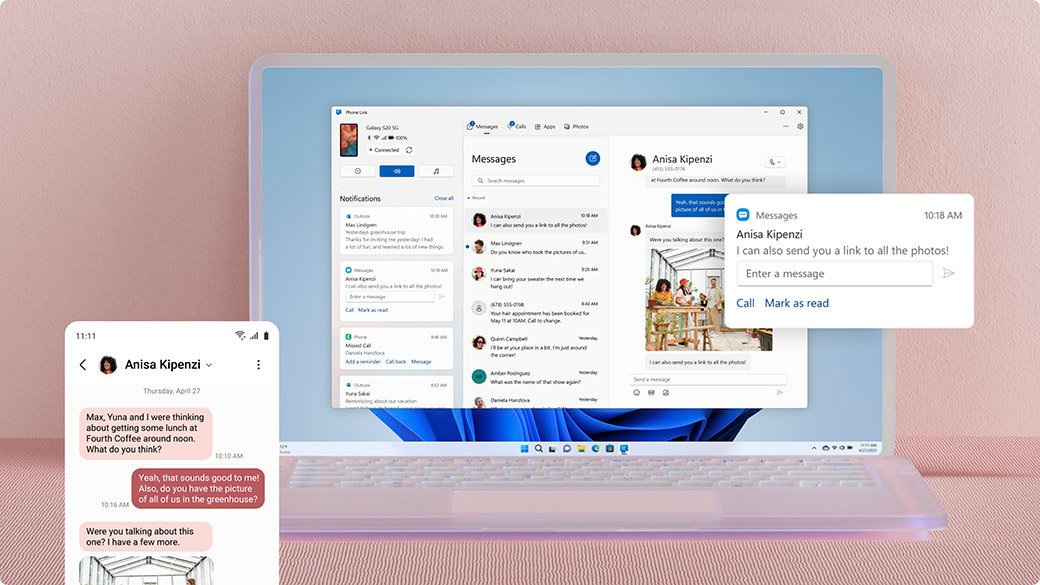
Setup starting from your Windows PC (recommended for most users)
Starting on the PC is the route Microsoft documents first, and it is the fastest for an Android phone. Keep the phone and PC connected to the same Wi-Fi network.
- Type Phone Link in the taskbar search box and open the app.
- Sign in with your Microsoft account if Phone Link asks.
- Select Android, then install or open Link to Windows on the phone using the aka.ms/yourpc address shown on the PC.
- Sign in to Link to Windows with the same Microsoft account you used on the PC.
- On the PC, tick the box confirming you have the app, then choose to pair with a QR code.
- In Link to Windows, choose the option to link your phone and PC, and scan the QR code on the PC screen.
- Accept the Android permission prompts on the phone and finish the prompts on the PC.
If you cannot scan, choose the manual option on the PC and pair with a code instead. Link to Windows comes preinstalled on many Samsung, HONOR, OPPO and other phones; elsewhere it is on Google Play or the Samsung Galaxy Store.
Setup starting from your phone (useful if Phone Link isn't available on the PC immediately)
Start on the phone when the PC is not in front of you yet, or when you are adding a second Android device to an account that is already paired.
- Install Link to Windows from Google Play if it is not already on the phone.
- Open the app and sign in with the Microsoft account you use on the PC.
- On the PC, open aka.ms/yourphoneqrc in a browser so Phone Link shows a QR code.
- When the phone asks Is there a QR code on your PC?, tap it and select Allow so the app can use the camera.
- Scan the QR code on the PC with the in-app camera.
- Accept the permissions the phone requests to finish linking.
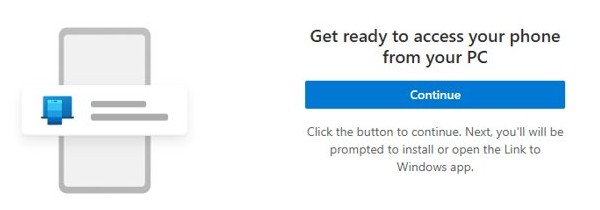
Pair an iPhone with Phone Link using the QR code
An iPhone links over Bluetooth, so the PC needs Bluetooth Low Energy support and both devices must sit near each other.
- Turn on Bluetooth on the PC and on the iPhone.
- Open Phone Link on the PC and select iPhone.
- Scan the QR code on the PC with the iPhone's default Camera app to start Bluetooth pairing.
- Confirm the pairing prompts on both devices.
- On the iPhone, turn on the sharing settings for notifications, messages and contacts so they sync to the PC.
If iPhone is greyed out in Phone Link, the PC's Bluetooth is off or missing. To pair again after removing the PC, forget the PC in the iPhone's Bluetooth settings first, then restart pairing from Phone Link.
Phone Link background and overview
Two apps do the work: one on the PC and one on the phone. Knowing which is which saves most setup confusion.
| Piece | Where it runs | What it does |
|---|---|---|
| Phone Link | Windows 10 and Windows 11 PC | Built-in app that shows your phone's messages, calls, notifications and photos; it cannot be uninstalled |
| Link to Windows | Android phone (required) or iPhone (optional) | Companion app that pairs the phone with the PC and passes content to Phone Link |
| Microsoft account | Both devices | Must be the same account on the PC and on the phone, or pairing and sync fail |
| QR code | Shown by Phone Link on the PC | Carries the pairing request, so you do not type codes or account details on the phone |
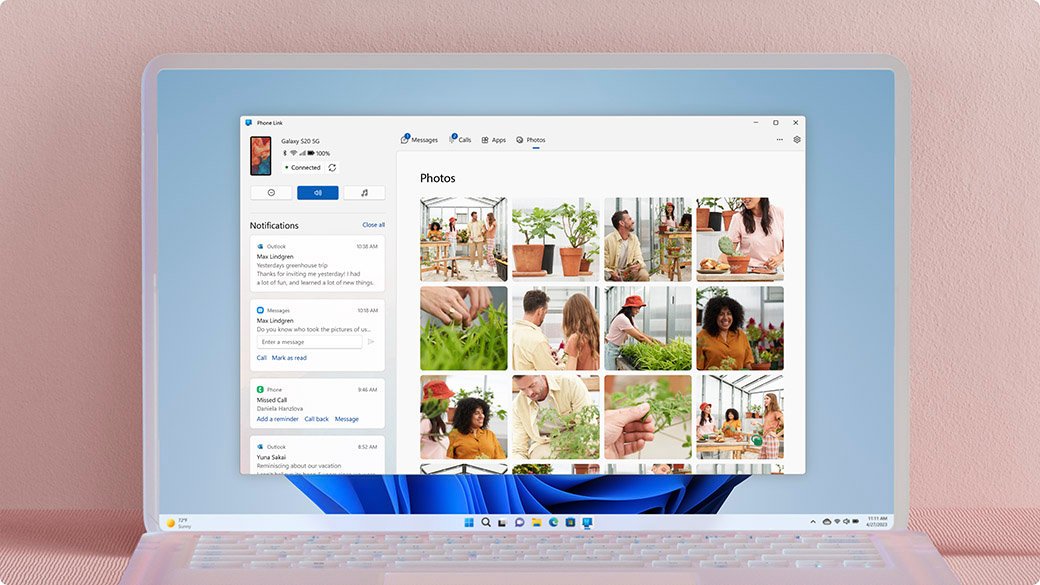
What aka.ms/linkphoneqr is — and is not
aka.ms is Microsoft's own short-link domain. aka.ms/linkphoneqr does not load a web page; it redirects to a Windows app link that hands off to Phone Link, the same way aka.ms/yourphoneqrc does.
| Short link | Open it on | What happens |
|---|---|---|
| aka.ms/linkphoneqr | The Windows PC | Hands off to the Phone Link app instead of opening a website |
| aka.ms/yourphoneqrc | The Windows PC | Phone Link shows a QR code for linking another Android device (documented by Microsoft) |
| aka.ms/yourpc | The phone | Opens a Microsoft Phone Link pairing page that prompts you to install or open Link to Windows |
| aka.ms/unlinkPL | Any browser | Leads to the page for unlinking devices from Phone Link |
None of these links is an installer, and none asks for a password on the phone. The QR code itself is generated by Phone Link, so a code from any other source is not part of the official flow.
Supported devices and system requirements
| Requirement | Android phone | iPhone |
|---|---|---|
| Windows version | Windows 10 (October 2022 Update or later) or Windows 11; Windows 11 recommended | Windows 10 (May 2019 Update or later) or Windows 11 |
| Phone OS | Android 10 or later | iOS 16 or later |
| Phone app | Link to Windows, preinstalled or from Google Play / Samsung Galaxy Store | Link to Windows optional, version 1.23031.2 or later if used |
| Connection | Phone and PC on the same Wi-Fi network | PC with Bluetooth Low Energy support |
| Account | Personal Microsoft account; work or school accounts and multiple Android profiles not supported | Personal Microsoft account; work or school accounts not supported |
Apps, Phone Screen and the Office photo feature need Android 10 or later and work only on listed devices from Samsung, HONOR, OPPO, ASUS and some other makers in select markets.
Post-setup settings to change immediately
Pairing succeeds even when a phone setting will quietly stop sync later. Run through these right after the first connection.
- In Phone Link on the PC, open Settings > Features and turn on only the features you want, such as Messages.
- Under Messages, turn on Allow this app to show text messages from my phone and the MMS attachment toggles you need.
- On Android, open the battery optimisation list for Link to Windows and set it to Don't optimize.
- On Android 13 or later, allow the notification permission for Link to Windows, which data transfer needs.
- On the PC, open Settings > Privacy > Background apps and make sure Phone Link is allowed.
- In Link to Windows on the phone, turn on Sync over mobile data only if you want sync when Wi-Fi is unavailable.
Location permission is optional; set it on the phone under Apps > Link to Windows > Permissions.
What you get: Features and real-world uses
| Feature | Real-world use | Notes |
|---|---|---|
| Messages | Reply to texts from the PC keyboard | SMS and MMS; RCS on select Samsung phones; shows the last 30 days |
| Calls | Take and place phone calls through the PC | Set up separately in Phone Link |
| Notifications | See phone alerts while working | Needs notification access on the phone |
| Photos | Drag recent phone photos into documents and emails | Android |
| Apps and Phone Screen | Run mobile apps in a PC window | Android 10 or later, select devices only |
| File transfer and File Explorer | Move files without a cable | Listed under Transfer files in Phone Link help |
| Instant Hotspot | Use the phone's data on the PC | Listed under Extend your hardware |
| Mobile device in Start menu | See your phone from the Start menu | Listed in Phone Link help |
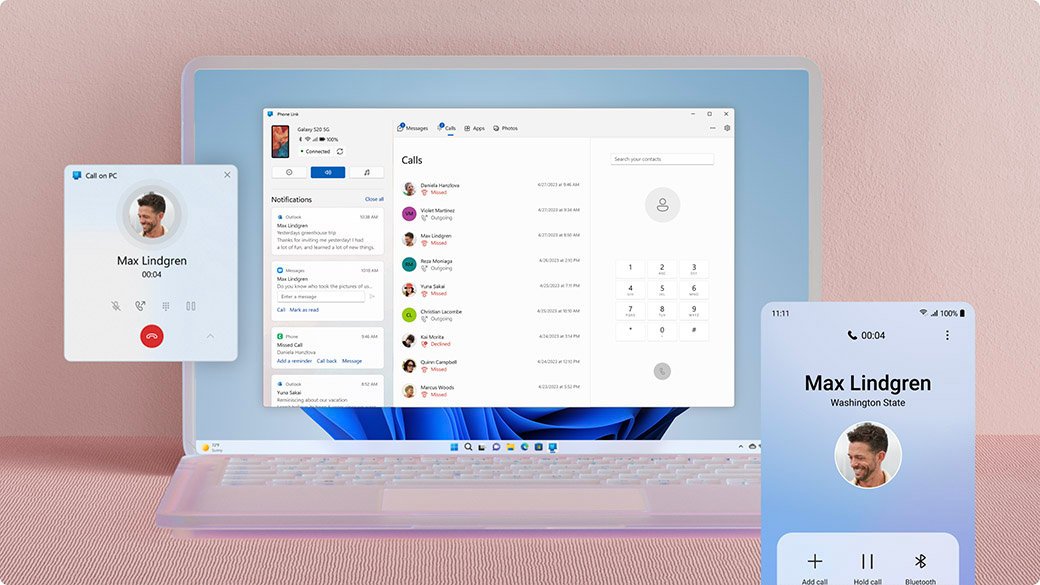
iPhone vs Android: Where parity holds and where it doesn't
| Area | Android | iPhone |
|---|---|---|
| How it pairs | QR code scanned in Link to Windows, over Wi-Fi | QR code scanned with the Camera app, then Bluetooth |
| Companion app | Required | Optional |
| Messages, notifications, contacts | Yes | Yes, after you enable sharing on the iPhone |
| Photos gallery and MMS images | Yes | Photos feature documented for Android only |
| Apps and Phone Screen | Select devices on Android 10 or later | Not documented for iPhone |
| Minimum OS | Android 10 | iOS 16 |
Parity holds for everyday alerts and texts. Where it doesn't is anything that mirrors the phone itself, which Microsoft documents for Android devices only.
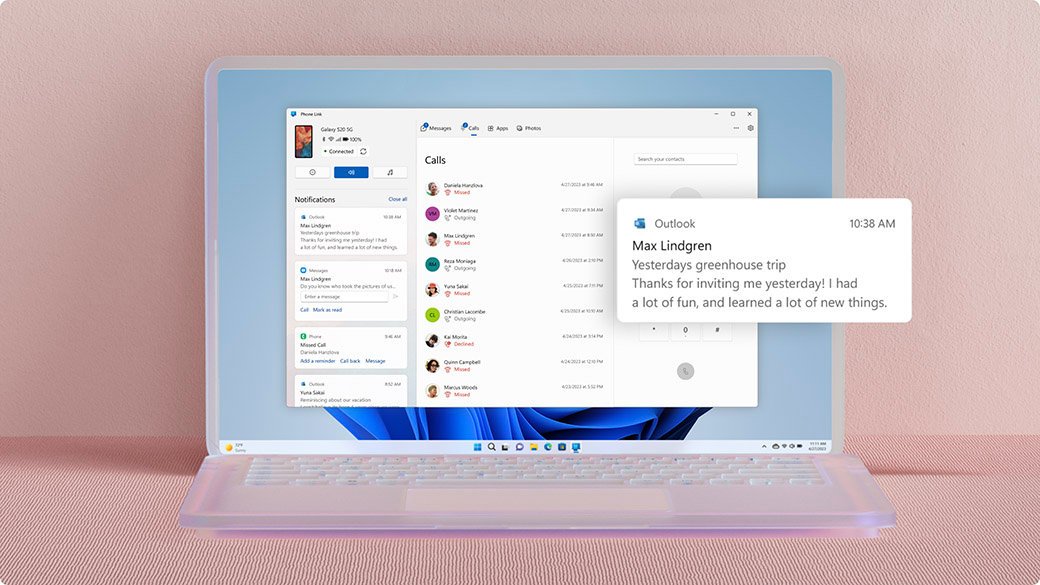
Check that Phone Link is connected
- Open Phone Link and look at the connection status next to your phone's name.
- Select the refresh button beside the status if it asks you to reconnect.
- Send yourself a test text and confirm it appears under Messages on the PC.
- Visit account.microsoft.com/devices/android-ios and confirm your phone is listed under your Microsoft account.
Troubleshooting: Common problems and fixes
The QR code will not scan
Link to Windows does not have camera permission, or the wrong camera is in use.
- On Android, tap Is there a QR code on your PC? in Link to Windows.
- Select Allow so the app can take pictures and record video.
- Scan with the in-app camera, not the phone's own Camera app (iPhone uses the default Camera app).
Codes don't match, or linking is blocked
More than three failed code-matching attempts block linking.
- Close and reopen Phone Link on the PC.
- Start setup again from the PC.
- Accept the permission prompts when asked instead of matching codes.
Paired, but the phone keeps disconnecting
Battery saver, battery optimisation or the network is cutting the link.
- Turn off Battery saver on the PC and the phone.
- Set Link to Windows to Don't optimize in Android battery optimisation.
- Put both devices on the same private Wi-Fi network; public networks in cafés or airports are not recommended.
- If they are on the same network and still fail, turn off Wireless or AP Isolation in the router's wireless settings.
- On the PC, open Settings > System > Shared experiences and select Fix now under Accounts if it appears.
Nothing syncs because of an account mismatch
The phone and the PC are signed in to different Microsoft accounts.
- In Link to Windows, open Linked Account, then Account Settings > Sign out and unlink account and confirm Unlink.
- On the PC, open Phone Link Settings > Devices and select Add new device.
- Pair again with the same account on both devices.
iPhone will not pair over Bluetooth
Bluetooth is off, not discoverable, or holds an old pairing.
- Check Bluetooth is on and discoverable on both devices.
- Remove each device from the other's Bluetooth settings.
- Turn Bluetooth off and on, then restart pairing from Phone Link.
Android notifications do not appear on the PC
Notification access is off for Link to Windows.
- On Android, open Settings > Apps > Link to Windows and enable notifications.
- Search the phone's settings for Notification access.
- Toggle Link to Windows off and on, then select Allow.
Privacy, security, and data handling — what you should know
| Topic | What applies |
|---|---|
| Who can link | Only the Microsoft account signed in on both devices; you choose it during pairing |
| Shared PCs | Microsoft recommends a separate Microsoft account for each person so Phone Link data stays private |
| Message history | Only messages sent or received in the last 30 days are shown, and you cannot delete messages from the PC |
| Permissions | Each Android permission is asked for during setup; location is optional |
| Networks | Use a trusted private Wi-Fi network rather than public Wi-Fi |
| Removing access | Unlink the device at any time from Phone Link or aka.ms/unlinkPL |
Alternatives and power-user options
| Option | What it does | Where to set it |
|---|---|---|
| Manual code pairing | Pairs without scanning a QR code | Phone Link setup screen on the PC |
| Multiple Android phones | Switch between phones on one PC | Sign in on the new phone, then pick it in Phone Link Settings |
| Multiple PCs | Link one phone to several PCs | Sign in to Phone Link on each PC, then authorize on the phone |
| Sync over mobile data | Keeps sync running off Wi-Fi | Link to Windows Settings |
| Manual updates | Check for a newer app version | Phone Link Settings > About; Link to Windows Settings > Check for Updates |
| Feature toggles | Turns individual features on or off | Phone Link Settings > Features |
Enterprise considerations
Phone Link does not support work or school accounts, and admins can switch phone linking off for managed PCs.
| Control | Setting | Effect |
|---|---|---|
| Group Policy | Computer Configuration > Administrative Templates > System > Group Policy > Phone-PC linking on this device | Disabled stops the PC linking to phones and removes it from linked phones' device lists |
| MDM (Policy CSP) | ./Device/Vendor/MSFT/Policy/Config/Connectivity/AllowPhonePCLinking, 0 = don't link | Same as the policy above; takes effect after a reboot |
| Registry value set by policy | Software\Policies\Microsoft\Windows\System, value EnableMmx | Shows whether the policy is applied |
| Cross-device resume | Connectivity/DisableCrossDeviceResume, Windows 11 24H2 and later | 1 turns off resume notifications from a linked phone |
Real-world reports and recent developments
Microsoft has not published a dated road ahead for Phone Link. These are the documented changes that shape how pairing works now.
| Change | What it means for you |
|---|---|
| Teams stopped sending SMS from Android in April 2025 | Phone Link messaging was not affected |
| Android 13 and later need a notification permission | Allow it, or data transfer stops |
| Android 15 Do Not Disturb control | Other apps or Focus modes can interfere with it |
| Cross-device resume (Windows 11 24H2) | The PC can offer to continue an activity from the linked phone |
| RCS messaging | Available on select Samsung phones using Samsung Messages, by carrier and country |
Strengths, weaknesses, and risks — critical analysis
| Type | Point |
|---|---|
| Strength | QR pairing avoids typing codes and links an Android phone in a few taps |
| Strength | Built into Windows, so there is nothing extra to install on the PC |
| Weakness | iPhone support covers alerts and texts but not apps or screen mirroring |
| Weakness | Only 30 days of messages, and no deleting messages from the PC |
| Risk | On a shared PC, anyone using your Windows profile can read your texts |
| Risk | Public Wi-Fi and router isolation can break or expose the connection |
Practical recommendations
| Your situation | Do this | Why |
|---|---|---|
| Android phone, PC in front of you | Start from Phone Link on the PC | Fastest QR route with the fewest prompts |
| Adding a second Android phone | Start from the phone and open aka.ms/yourphoneqrc on the PC | Reuses the existing account link |
| iPhone | Pair from Phone Link with the iPhone Camera app | iPhone pairing needs Bluetooth, not Wi-Fi |
| Shared family PC | Give each person their own Microsoft account | Keeps messages and photos separate |
| Work-managed PC | Ask IT before pairing | Policy can block phone linking entirely |
Phone Link QR pairing FAQ
Is aka.ms/linkphoneqr a safe link?
Yes. aka.ms is Microsoft's own short-link domain, and aka.ms/linkphoneqr hands off to the Phone Link app on your PC rather than loading a website. It never asks for a password on the phone.
Does Phone Link work with an iPhone?
Yes. An iPhone on iOS 16 or later pairs with Phone Link over Bluetooth after you scan the QR code with the Camera app. It syncs notifications, messages and contacts, while apps and screen mirroring are documented for Android only.
Do the phone and PC need to be on the same Wi-Fi?
For Android, yes. Microsoft requires the phone and PC on the same Wi-Fi network, ideally a private one. You can also turn on Sync over mobile data in Link to Windows to keep content flowing away from Wi-Fi.
Can I link more than one phone to Phone Link?
Yes. Sign in to Link to Windows on the new Android phone with the same Microsoft account, then select that device in Phone Link Settings. Multiple Android profiles and two-phone mode are not supported.
Can I use one phone with more than one PC?
Yes. Sign in to Phone Link on the second PC with the same Microsoft account, then authorize the connection on your Android phone when it asks.
How many text messages does Phone Link show?
Phone Link shows messages you sent or received in the last 30 days. You cannot manage or delete messages from the PC; delete them on the phone instead.
How do I unlink my phone from Windows?
Open aka.ms/unlinkPL or, in Link to Windows, select Linked Account, Account Settings, then Sign out and unlink account and confirm Unlink. The phone disappears from Phone Link on that PC.
Can I uninstall Phone Link?
No. Phone Link is built into Windows 10 and Windows 11 and cannot be uninstalled. You can turn individual features off under Settings, Features, or simply never pair a phone.
Final verdict on Phone Link QR pairing
Pair from the PC: open Phone Link, scan its QR code with Link to Windows or the iPhone camera, then set battery optimisation and permissions straight away. The QR route avoids typed codes, and the post-setup settings are what keep the connection alive after the first day.
If you also want Phone Link on a fresh install, you can download Phone Link for Windows from the Microsoft Store page first.