To get Google Messages for web, open messages.google.com/web in a browser on your computer, sign in with the Google Account used in Google Messages on your Android phone, then tap the matching emoji on the phone.
This guide covers the phone setup, pairing, installing Messages for web as a desktop app, unpairing, and fixes for a computer that will not pair or connect.
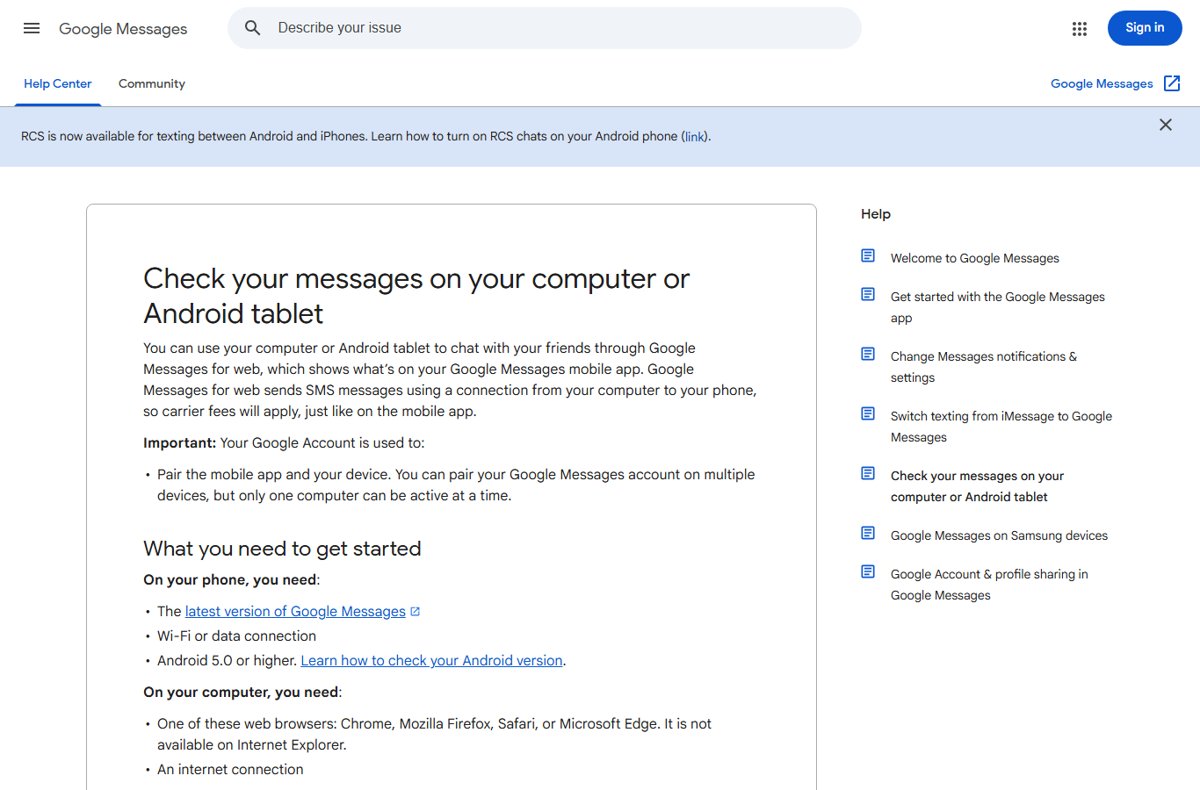
How to get Google Messages on your PC or laptop
Pairing now uses your Google Account and an emoji check. Google says QR code pairing is no longer available in the US.
- On your Android phone, open Google Messages.
- At the top right, tap your account menu, then tap Device pairing.
- If you are asked to sign in, choose the Google Account you want to use with Google Messages and continue.
- On your computer, open Chrome, Edge, Firefox or Safari and go to messages.google.com/web.
- Sign in with the same Google Account you chose on the phone.
- On the phone, tap the emoji that matches the one shown on your computer screen.
- Wait for the phone to vibrate. Your conversations then appear in the browser.
What Google Messages for web is
Google Messages for web is a browser version of the Google Messages app on your Android phone. It shows what is already in the phone app and sends through it, so it is a mirror, not a separate account.
| Question | Answer |
|---|---|
| Where do messages actually send from? | Your phone. SMS goes out over the connection from your computer to your phone. |
| Do carrier fees apply? | Yes, the same fees as texting from the phone app. |
| What gets stored on the computer? | Recent conversation threads, contacts and settings are encrypted and cached in your browser. |
| How many computers can use it? | You can pair several devices, but only one computer can be active at a time. |
| Does it work on an Android tablet? | Yes. A tablet uses the same pairing steps, and some tablets with a SIM card can text without the phone. |
| Does it time out? | Yes. If you do not use it for a few weeks, Google unpairs it automatically for security. |
If you are new to the phone app itself, start with the basics of using the Google Messages app before you pair a computer.
What you need to start Google Messages for web
| Device | Requirement | Notes |
|---|---|---|
| Phone | Android 5.0 or later | Google Messages for web needs an Android phone running Google Messages. |
| Phone | The latest version of Google Messages | Update it from Google Play before pairing. |
| Phone | Wi-Fi or mobile data | Use Wi-Fi to avoid data charges while the computer is connected. |
| Phone | A Google Account signed in to Google Messages | The same account must be used on the computer. |
| Computer | Chrome, Mozilla Firefox, Safari or Microsoft Edge | Internet Explorer is not supported. |
| Computer | An internet connection | The computer talks to your phone over the internet, not over a cable. |
Step 1: Install or update Google Messages on your Android phone
Many Android phones already ship with Google Messages. Others, including some Samsung models, use a different texting app, so check first.
- On your phone, open the Google Play Store app.
- Search for Google Messages.
- Tap Install if the app is missing, or Update if an update is waiting.
- Open Google Messages once the install finishes.
Step 2: Set Google Messages as your default messaging app
Messages for web shows what the phone app holds. If another app is your default for texting, new texts go there, and Google Messages cannot send or receive them.
- Open Google Messages on the phone.
- When you are asked to change your default messaging app, follow the on-screen prompt and pick Google Messages.
- If no prompt appears, open the phone's Settings and tap Apps.
- In the list of apps, select Google Messages, then set SMS to Google Messages.
Google notes that the first import of your message history and media can briefly raise battery use. Some of these steps need Android 6.0 or later.
Step 3: Turn on RCS chats in Google Messages for richer messaging
RCS chats are optional for Messages for web, but they add typing indicators, read receipts, high-quality photos and sending over Wi-Fi. Google advises against switching RCS on and off repeatedly, because you are removed from group chats when you do.
- Open Google Messages on the phone.
- At the top right, tap your profile picture or initial.
- Tap Messages settings, then RCS chats.
- Turn RCS chats on.
- Check the status line. Connected means RCS is ready; Connecting means your number is still being verified.
If the status reads Trouble connecting. Awaiting retry for more than 30 minutes, tap Details and then Submit feedback. If you see "RCS chats are disabled by your carrier", contact your carrier.
Step 4: Open Google Messages for web on your computer
- On your computer, open Chrome, Microsoft Edge, Firefox or Safari.
- Type messages.google.com/web in the address bar and press Enter.
- Sign in with the Google Account that is signed in to Google Messages on your phone.
- Leave the page open. It waits for the phone to confirm the pairing.
Step 5: Pair your phone with Google Messages for web in the browser
- On the phone, open Google Messages.
- At the top right, tap your account menu, then Device pairing.
- Confirm that the account shown is the one you just used in the browser.
- When a dialog with 3 emoji appears, tap the emoji that matches the one on your computer screen.
- Wait for the phone to vibrate. The web page then loads your conversations.
If you do not see your Google Account profile picture on the pairing screen, tap Switch to Google Account pairing at the top right and try again.
Step 6: Send your first message from Google Messages for web
Composing on the web works the same way as on the phone: you start a chat, pick a recipient and type. The message still leaves through your phone, so keep it switched on and online.
- In the browser tab, click the start-chat button above your conversation list.
- Type a name, phone number or email address, or pick a contact from the list.
- Type your message in the message box at the bottom.
- Press Enter or click the send button.
- Pick up your phone and open the same conversation to confirm the message is there too.
To reply to an existing thread, click it in the conversation list and type in the message box.
How to check Google Messages for web is paired
- Look at the phone right after you tap the emoji. It vibrates when pairing completes.
- Look at the browser tab. Your recent conversations should now be listed.
- On the phone, open Google Messages, tap your account menu, then Device pairing. Your computer should appear in the list of paired devices.
- Send a test text from the browser and confirm it appears in the same thread on the phone.
Using Google Messages for web day to day on a computer
Most everyday tasks work from the browser. Archiving and deleting whole conversations are documented for the phone app, and anything you change there shows up on the web.
| Task | How to do it | Where |
|---|---|---|
| Spot unread messages | Watch the Google Messages icon in the browser tab. It shows a red badge with the unread count. | Computer |
| Switch to a dark look | Click More, then Enable Dark theme. | Computer |
| Block a sender | Next to the conversation, click More options, then Block & report spam, then OK. | Computer |
| Unblock a sender | On the conversation list, click More options, then Spam & blocked, find the contact and select Unblock, then Done. | Computer |
| Archive or delete a conversation | Touch and hold the conversation, then tap Archive or Delete. Deleting is permanent. | Phone |
| Read archived messages | Open the conversation list and tap More, then Archived. | Phone |
If Google Messages for web syncs with Google Fi, Google says to use the Android steps for blocking instead.
How to install Google Messages for web as an app
Chrome and Microsoft Edge can install Messages for web as a web app. It then opens in its own window and sits on the taskbar like any other program.
| Browser | Install steps | Result |
|---|---|---|
| Install it in Google Chrome | Open messages.google.com/web, select More at the top right, then Cast, save, and share and Install page as app…. On some sites an Install icon appears at the right of the address bar instead. | A separate app window, with app shortcuts on its taskbar right-click menu |
| Install it in Microsoft Edge | Open messages.google.com/web, click the App available icon in the address bar, then click Install. | The app appears on the taskbar, in the Start menu and in Alt + Tab |
| Use it on a Chromebook | Use the same Chrome steps. Installed web apps show in the launcher. | Opens from the launcher like other apps |
In Edge, go to edge://apps to manage the installed app or set it to start when you sign in to Windows.
How Google Messages for web notifications work
| Situation | What you see |
|---|---|
| Messages for web is open in a browser tab | The tab icon shows a red notification badge with the number of unread messages. |
| Messages for web is installed as a web app | Web apps can show notifications and icon badges, depending on the browser. |
| A message arrives on the phone | The phone still alerts you with the sound, vibration or reminder set in Google Messages settings. |
| The phone loses its connection | The computer cannot send or receive until the phone is back online. |
How to unpair Google Messages for web
Unpairing stops other people from reading your texts on that computer, including two-factor verification codes. Do it on any shared or borrowed PC.
- To unpair from the computer, open messages.google.com/web, click Menu at the top left, then Unpair.
- To unpair from your Android phone, open Google Messages, tap your account menu, then Device pairing.
- To remove one computer, tap Delete next to it, then Unpair.
- To remove every computer at once, tap Unpair all computers.
Troubleshooting Google Messages for web when it will not pair or connect
Google Messages for web will not pair with your Google Account
The phone and the browser are signed in to different Google Accounts, or the phone is still set to the old pairing mode.
- On the phone, open Google Messages and tap your account menu.
- Confirm that you are signed in to Google Messages with your Google Account.
- Tap Device pairing. If your profile picture is missing, tap Switch to Google Account pairing.
- On the computer, sign in with the same Google Account and follow the on-screen instructions.
You do not see Device pairing in Google Messages
The app is out of date or another texting app is in use.
- Update Google Messages from Google Play.
- Make Google Messages your default messaging app, as in Step 2.
- Open the account menu again and look for Device pairing.
There is no QR code for Google Messages
Google has retired QR code pairing in the US in favour of Google Account pairing.
- Use the Google Account pairing steps in Step 5.
- Outside the US, where the QR option still shows, tap Device pairing, then Switch to QR pairing and QR code scanner.
- Hold the phone up to the code on the web page until the phone vibrates.
The web page says your computer cannot connect or your phone is offline
The phone has no data, background data is blocked, or a VPN, extension or battery setting cuts the connection.
- Turn the phone's Wi-Fi off and back on, and restart the phone if the signal is weak.
- Open Settings > Network & internet > Data usage > Mobile data usage, tap Google Messages and turn on Background data.
- Turn off any VPN and reconnect.
- In Chrome, turn off extensions one at a time, since some extensions block Messages for web.
- Turn off battery optimization for Google Messages. The exact menu varies by phone maker.
Messages are not sending or conversations are missing after a new phone
The computer is still paired to the old or reset phone.
- Unpair Messages for web from the computer.
- Set up Google Messages on the new phone and make it the default messaging app.
- Pair the computer again with the Device pairing steps.
Google Messages for web privacy and security tips
| Risk | What to do |
|---|---|
| Someone else uses the computer | Unpair when you finish, since texts include sign-in verification codes. |
| You lose track of old pairings | Check Device pairing on the phone and delete computers you no longer use. |
| Cached data in the browser | Conversations are encrypted and cached in the browser, so use your own browser profile, not a guest's. |
| Extensions reading the page | Keep browser extensions to ones you trust; some can also interfere with Messages for web. |
| Unencrypted SMS | Chats with other Google Messages users over RCS are end-to-end encrypted; plain SMS is not. |
Google Messages settings to check for a stable web connection
| Setting | Where to find it on the phone | Why it matters |
|---|---|---|
| Default messaging app | Settings > Apps > Google Messages > SMS | Texts only reach Messages for web if Google Messages handles them. |
| Background data | Settings > Network & internet > Data usage > Mobile data usage > Google Messages | Lets the phone relay messages while the screen is off. |
| Battery optimization | Varies by phone maker | Aggressive battery saving can drop the web connection. |
| RCS chats status | Messages settings > RCS chats | Shows whether richer chat features are Connected. |
| Paired devices | Account menu > Device pairing | Lists every computer that can read your texts. |
Google Messages for web versus Phone Link and other options
| Your situation | Use this | Why |
|---|---|---|
| Android phone, any computer with a modern browser | Google Messages for web | Works in Chrome, Edge, Firefox and Safari on Windows, Mac, Linux or ChromeOS. |
| Android phone, Windows PC, and you also want calls and photos | Microsoft Phone Link | Phone Link adds calls, notifications and your recent camera-roll photos alongside texts. |
| iPhone with a Windows 11 PC | Microsoft Phone Link | Google Messages for web needs an Android phone. Phone Link reads and replies to iPhone texts over Bluetooth, without group messaging or image sharing. |
| Android tablet | Google Messages on the tablet | It pairs with the same steps as a computer. |
Phone Link on Android needs the Link to Windows app on the phone and the same Microsoft account on both devices.
Google Messages for web: frequently asked questions
Can I get Google Messages on my PC or laptop?
Yes. Open messages.google.com/web in Chrome, Edge, Firefox or Safari on any Windows PC, Mac or laptop, sign in with the Google Account used in Google Messages on your Android phone, and tap the matching emoji on the phone to pair.
Can you get Google Messages on Windows as an app?
There is no separate Windows download from Google, but Chrome and Microsoft Edge can install messages.google.com/web as a web app. It then opens in its own window and appears on the taskbar and in the Start menu.
Can you get Google Messages for web on an iPhone?
No. Google Messages for web mirrors the Google Messages app on an Android phone running Android 5.0 or later. An iPhone cannot be the phone it pairs with. On a Windows 11 PC, iPhone owners can use Microsoft Phone Link for texts instead.
How do I get the QR code for Google Messages?
In the US you no longer need one, because Google has retired QR code pairing there. You sign in with your Google Account and tap a matching emoji instead. Where QR pairing still exists, it is under Device pairing, then Switch to QR pairing.
Does Google Messages for web work with RCS?
Yes. Messages for web shows the same conversations as the phone app, including RCS chats. Turn RCS on in the phone app under Messages settings, then RCS chats. The phone still does the sending, so it must stay online.
Does my phone need to stay on for Google Messages for web?
Yes. Messages for web sends through a connection from your computer to your phone, so the phone needs Wi-Fi or mobile data. If the phone is off or offline, the web page cannot send or receive texts.
Do Google Messages get backed up?
Yes, through Android backup on the phone. Google lists messages among the data collected in your personal backup, and end-to-end encrypted messages are included too. Messages for web itself only caches recent threads in the browser and is not a backup.
Can I use Google Messages for web on more than one computer?
You can pair several computers, but only one can be active at a time. Check and remove paired computers on the phone under your account menu, then Device pairing.
Why did Google Messages for web unpair by itself?
Google unpairs Messages for web automatically if you do not use it for a few weeks, for security. Pair again from Device pairing on the phone. Resetting or replacing the phone also needs a fresh pairing.
How do I see my Google Messages on my computer after pairing?
Open messages.google.com/web in the same browser you paired. Your recent conversations load in the list on the left. Unread messages show as a red badge with a count on the browser tab.
Is Google Messages for web worth setting up?
Set up Google Messages for web if you text from an Android phone and spend your day at a computer, and install it as an app in Chrome or Edge so it stays one click away. Pairing takes under a minute with your Google Account, it works in every major browser, and unpairing is just as quick on a shared PC. Choose Phone Link instead only if you also want calls and photos on Windows, or if your phone is an iPhone.