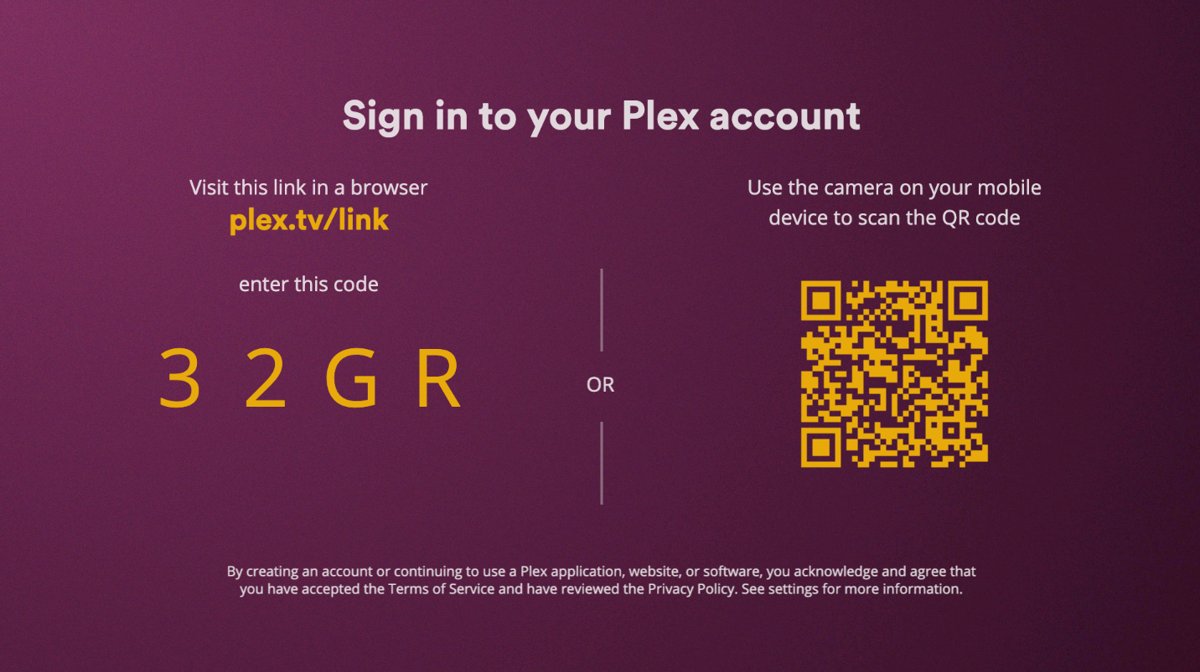
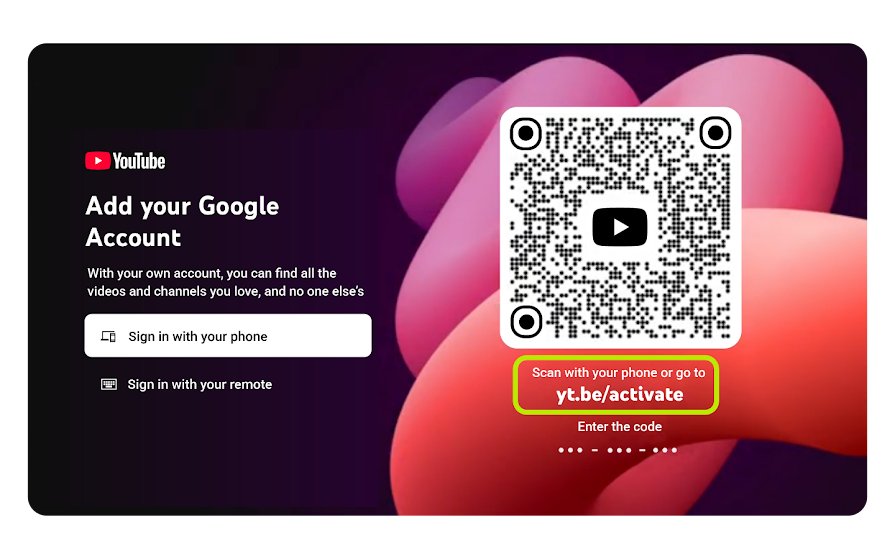
To activate a streaming app on a TV, choose the code sign-in in the app, then enter the code at the web address it shows, such as tv.youtube.com/start for YouTube TV or plex.tv/link for Plex.
Netflix, YouTube TV, Plex, Roku, Fire TV, casting and Windows apps follow, each with the short answer first.
How to activate streaming apps on your TV with a code
Start the sign-in in the TV app, open the code page on a phone or computer, sign in there and type the code the TV shows.
| Service | Code page | Notes | Full steps |
|---|---|---|---|
| YouTube TV | tv.youtube.com/start | Or scan the QR code. Choose the account with your plan, then select Allow; reload the page if the code expired | YouTube TV activation steps |
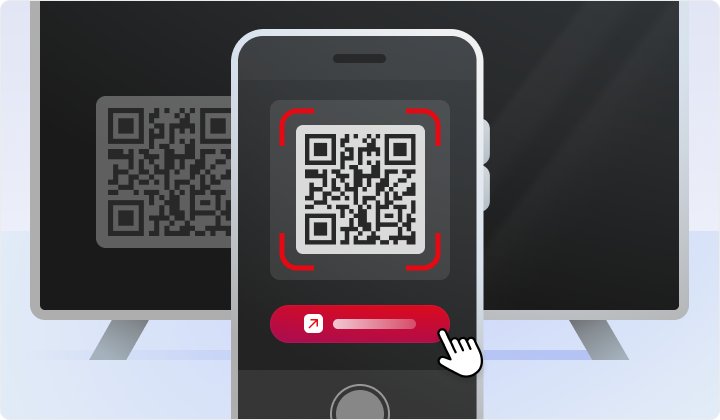
| Netflix | netflix.com/tv2 (Apple TV: netflix.com/atv) | Or scan the QR code with your phone camera and tap Sign in to TV | Next section |
| Plex | plex.tv/link | Enter the 4-character link code; the TV app links itself seconds later | Plex TV code at plex.tv/link |
| Disney+ | Shown on the TV's sign-in screen | Start the sign-in in the Disney+ TV app first | Disney Plus TV activation |
| Fubo | Shown on the TV's sign-in screen | Choose the code sign-in in the Fubo TV app | FuboTV Connect code sign-in |
| Crunchyroll | Shown on the TV's sign-in screen | Choose the activation-code login | Crunchyroll device activation |
Sign in to Netflix on a smart TV or streaming device
Netflix accepts the account email, the primary phone number, or an email added to a secondary profile.
| Device | How to sign in |
|---|---|
| Smart TV, Roku, Fire TV or a game console (Xbox, PlayStation) | Select Sign in, then scan the QR code with your phone and tap Sign in to TV, or use netflix.com/tv2 in a browser |
| Apple TV | The same, with netflix.com/atv |
| TV remote only | Toggle to Use Remote, enter your email or phone, then choose Send Sign-In Link or Use Password Instead |
| Mobile app (Android, iPhone, iPad) | Enter your email or phone, then the 4-digit code Netflix sends; it expires in 15 minutes |
| Web browser or Windows app | Go to netflix.com/login, then use the 4-digit code or your password |
Security tip for a safe login: Netflix never asks for payment details by email, text or phone.
Once you are in, you can browse every Netflix movie and show with the Shows and Movies shortcuts. Troubleshooting for login problems is further down.
What is a Netflix Household account?
| Question | Answer |
|---|---|
| Who is in my household? | Devices on the internet connection where you mainly watch. Netflix sets it from IP address, device IDs and account activity, not GPS |
| Can someone elsewhere use my account? | Only as an extra member: 1 on Standard, up to 2 on Premium, at $7.99 a month with ads or $9.99 without (US), in the same country |
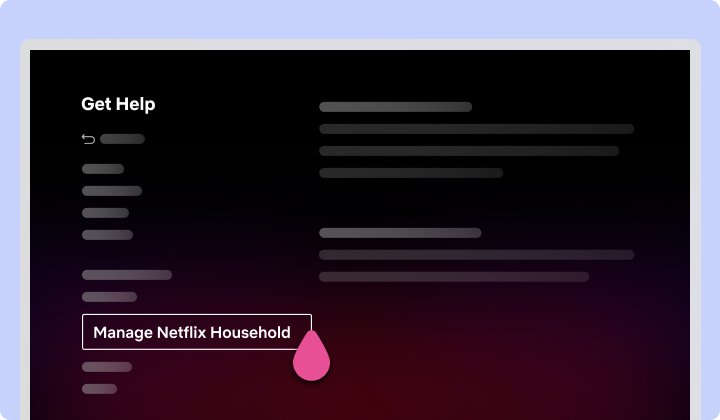
| TV isn't part of the Netflix Household | Netflix menu > Get Help or Settings > Manage Netflix Household > Update Netflix Household > Send Email, then select Yes, This Was Me in the email within 15 minutes |
| Traveling? | Phones, tablets and computers work as usual, and you can sign in to a hotel TV; titles can differ abroad |
Before you share a Netflix account with someone who lives elsewhere, check that your plan has an extra member slot.
Netflix account settings: payment method, plan and price
| Task | Where | Good to know |
|---|---|---|
| Change the payment method | Manage payment info: Update or + Add Payment Method, then Save | Partner billing changes go through that provider |
| Change your plan | Change Plan > Continue or Update > Confirm Change | Upgrades apply at once; downgrades on the next billing date |
| What Netflix costs if you come back (US) | Plans and Pricing page | Standard with ads $8.99, Standard $19.99, Premium $26.99 a month, plus tax; Basic is discontinued |
| Billing date | Your sign-up date, monthly | No annual or multi-month plans |
| Free trial | Not on the US Plans and Pricing page | — |
When a card is declined, change your Netflix payment method from the same page, and check the current Netflix free trial rules before you sign up again.
Best ways to contact Netflix
| What you need | Fastest route |
|---|---|
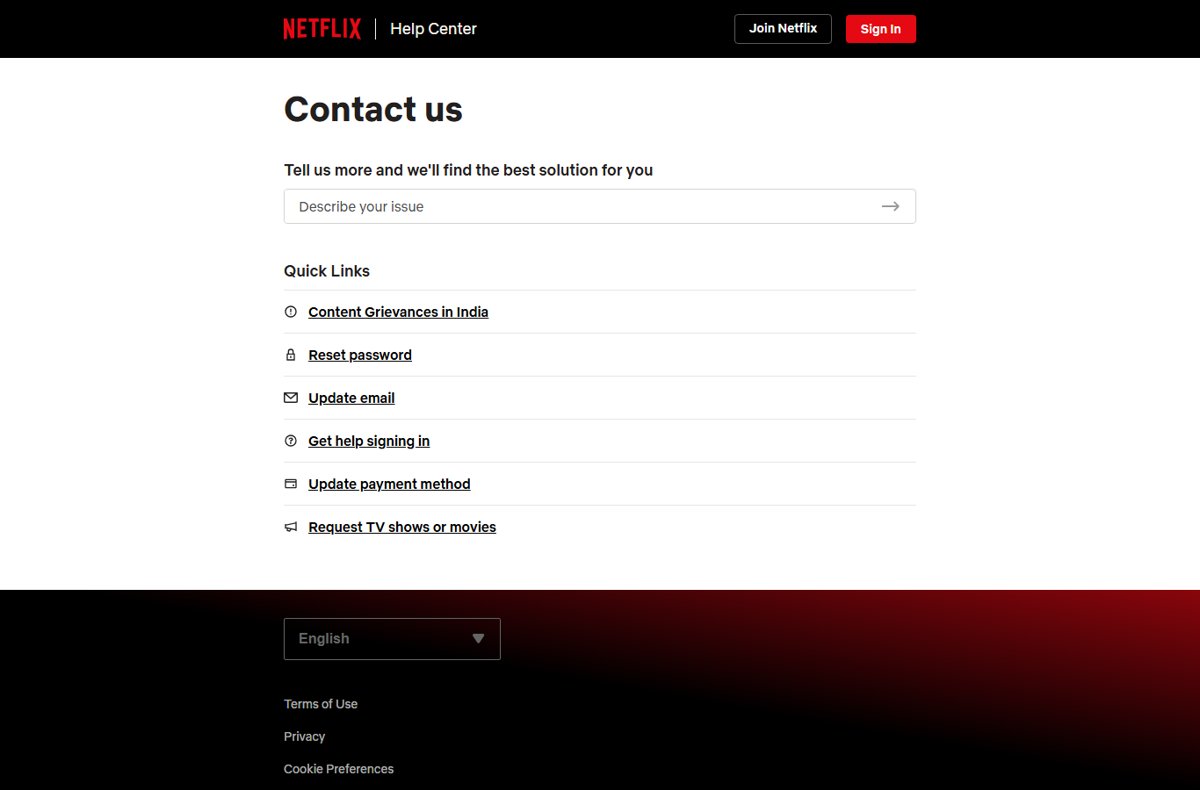
| Account or billing help | help.netflix.com/contactus: describe the issue and Netflix offers the matching option |
| Forgot the password | netflix.com/password |
| Forgot the sign-in email | netflix.com/loginhelp > I don't remember my email or phone |
| Talk to someone | The Netflix customer service phone number and safe calling options |
Why is my Netflix account not working?
Can't sign in on one device, but others work
A saved password, cookie, app data or that device's connection is at fault.
- Check the email and the case-sensitive password, then restart the device and your router.
- In a browser, clear the Netflix cookie at netflix.com/clearcookies; in the Windows app, reset the app.
- On Android, clear the Netflix app's storage, which also deletes downloads.
- Turn off any VPN, proxy or custom DNS.
Netflix can't find an account with this email address
The account uses another email or phone number, or a partner bills it.
- Go to netflix.com/loginhelp and select I don't remember my email or phone.
- Fill in the form and select Find Account.
- Partner-billed? Search the provider's name in the Netflix Help Center.
Can't sign in on any device
When no device works, the account is the problem.
- Reset the password at netflix.com/loginhelp.
- After a cancellation, choose Sign In, not Get Started, to restart the old account.
Which cancellation method should you use?
Cancel with the company that bills you, which is not always the streaming service.
| You pay for | Cancel here | Billed through a partner | Full steps |
|---|---|---|---|
| Netflix | netflix.com/cancelplan > Cancel > Finish Cancellation | No Cancel option: cancel with the payment partner | Netflix cancellation on every device |
| YouTube TV | Profile photo > Settings > Membership > Manage > Cancel membership; or pause 4 weeks to 6 months | Carrier or internet provider sign-ups: contact that provider | cancel or pause YouTube TV |
| Hulu | Your Hulu account | Roku billing: contact Hulu (877-824-4858) | Hulu cancellation steps |
| Disney+ or Sling TV | Your Disney+ or Sling account | Roku billing: Disney+ 888-905-7888, Sling 888-394-6698 | — |
| Paramount+ | Your Paramount+ account | — | Paramount+ plans and cancellation |
| Bought through Roku | my.roku.com/subscriptions > Manage subscription > Turn off auto-renew, or press Star on the app tile | Access lasts to the end of the billing cycle | — |
| Billed by Apple | iPhone Settings > your name > Subscriptions > Cancel Subscription | No Cancel button means it is already canceled | — |
| Billed by Google Play | play.google.com subscriptions > Manage > Cancel subscription | Uninstalling the app does not cancel | — |
How to cancel Netflix on a desktop or laptop browser
Before you cancel, check three things: who bills you, whether a one-month pause would do, and your downloads, which canceling deletes.
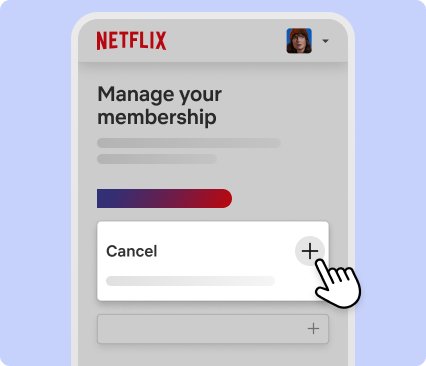
- Open netflix.com/cancelplan and sign in if asked.
- Select Cancel, then Finish Cancellation.
- Look for the confirmation email.
Netflix says this page is the only way to cancel, so from the mobile app or a smart TV, open it in a browser. Deleting the app does not cancel.
Cancelling when Netflix is billed by someone else
| Your situation | What to do |
|---|---|
| There's no Cancel button | The Membership section of your Account page links to the partner's cancellation guide or names the partner to contact |
| Netflix comes with a phone, TV or internet package | Cancel or change it with that provider |
| Moving to a package that includes Netflix | Don't cancel: link your account to the package and Netflix billing stops |
| Gift card or promo balance | Access continues for the months the balance covers |
| Account on hold | Canceling closes it immediately |
What actually happens when you cancel Netflix
| Item | What happens |
|---|---|
| Billing | No further charges unless you restart |
| Streaming | Continues to the end of the paid billing period |
| Downloads | Deleted from your devices |
| Pause instead | One month at a time, up to three in total |
To make sure the cancellation sticks, keep the confirmation email, change your password and sign out of all devices.
What happens after you cancel Netflix
| Question | Answer |
|---|---|
| Profiles, history and recommendations | Viewing activity, ratings, recommendations and account details are kept for 24 months, then Netflix deletes the account |
| Coming back | Sign in with the old email and choose Sign In to restart the same account |
| Deleting instead of canceling | Delete account at netflix.com/account/security removes it sooner |
| Billed by a partner | Cancel with the partner first; Netflix can delete the account once that cancellation takes effect |
How to download Netflix shows and movies to watch offline
| Device or plan | How |
|---|---|
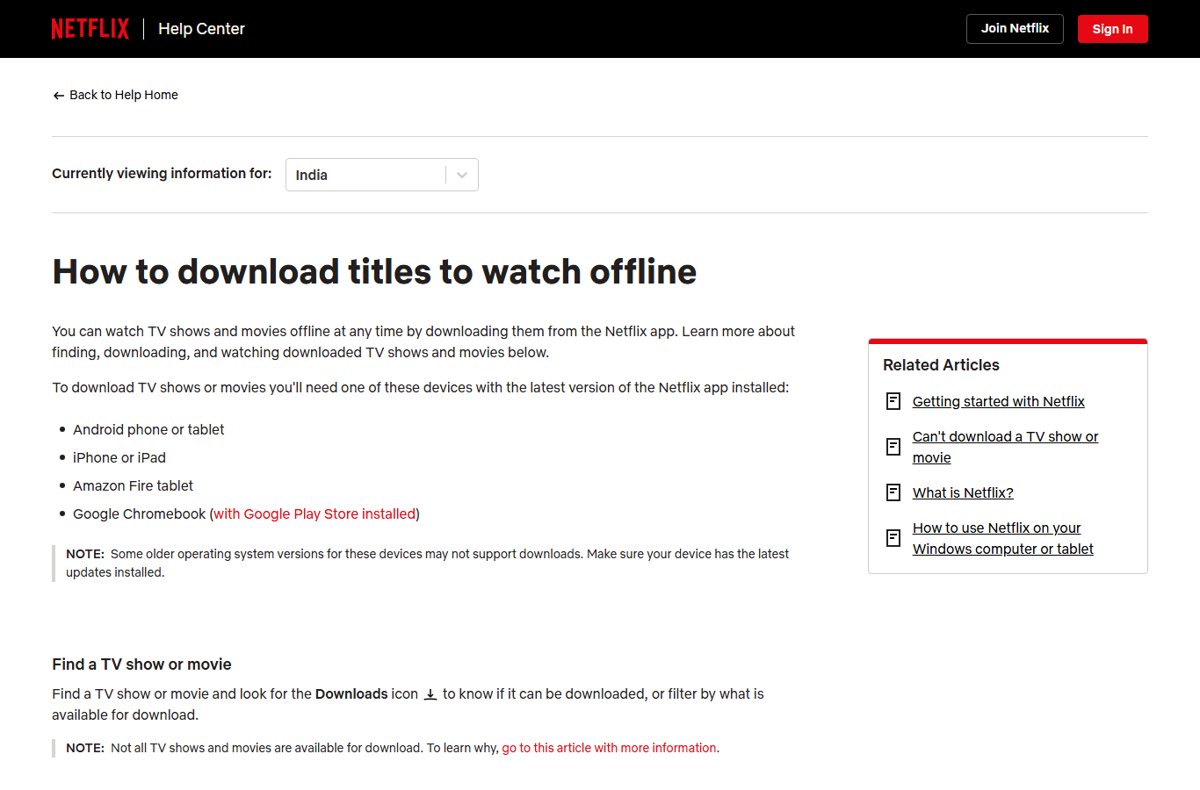
| Android, iPhone, iPad, Fire tablet | My Netflix > Downloads > See What You Can Download; up to 100 active downloads per device |
| Chromebook with Google Play | Downloads > Find More to Download |
| Windows laptop or Mac | Not on Netflix's download list; Netflix downloads on a laptop work on a Chromebook |
| Ad-supported plan | Downloads work, but Netflix Smart Downloads need an ad-free plan |
| YouTube TV | No offline mode; use the unlimited DVR |
| HBO Max, Apple TV, YouTube Premium | Each has its own offline download rules |
Signing in to YouTube TV without a Gmail address
YouTube TV needs a Google Account, not a Gmail address. Brand Accounts don't work.
- On the Google Account sign-in page, select Create account.
- Choose For my personal use and enter your basic info.
- Select Use your existing email and enter your current address.
- Enter the code Google sends to that address, then create a password.
- Sign in at tv.youtube.com, or enter the TV's code at tv.youtube.com/start.
Navigation basics: programs play from the Home, Live and Library tabs, and a long press on the remote's OK button returns to the last channel. Joining a family group is another way to sign in to YouTube TV without Gmail.
YouTube TV account settings: plans, family sharing and home area
| Setting | Where | Rules |
|---|---|---|
| Plan | Profile photo > Settings > Membership | Main plan: 100+ channels. Sports, News, Entertainment and Family plans cost differently; no single-channel picks |
| Family sharing | Settings > Family sharing > Manage | Up to 5 members aged 13+ in the manager's household |
| Home area | tv.youtube.com > profile photo > Location > Update next to Home area | Change it at most twice in 12 months, and watch at home at least once every 3 months |
| Travel | Location > Current Playback Area | You get local networks where you are, but can't record or watch your home networks |
| Streams | Automatic | Three devices at once |
Check each YouTube TV channel and add-on for your ZIP code before switching. Relatives in another home can't join; these are the options for YouTube TV in different houses.
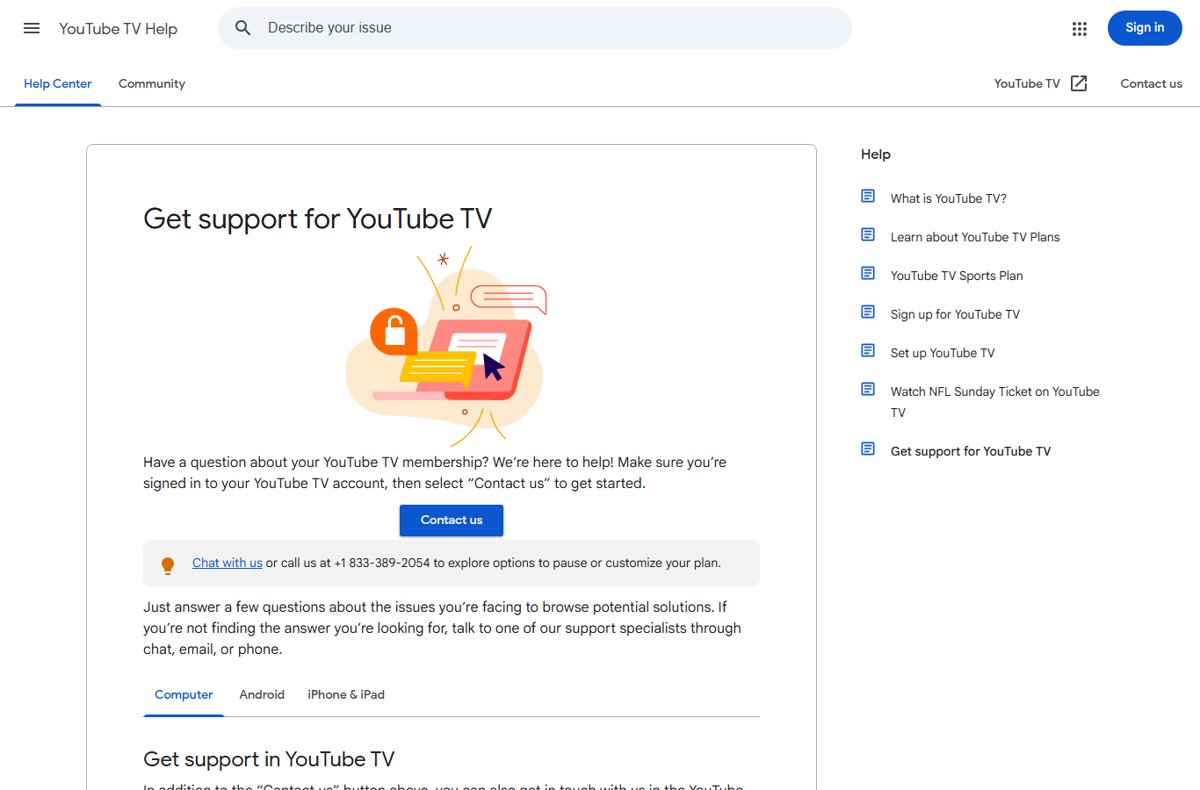
How to contact YouTube TV customer support and get help fast
- Sign in, then select Help in the navigation bar.
- Under Need more help?, select Contact us > YouTube TV.
- Describe the issue, select Next step, then choose Chat or call +1 833-389-2054.
To call YouTube TV customer service without the menus, dial that number. To send feedback instead, select your profile picture > Send feedback.
Netflix vs YouTube TV: what each streaming service includes
| Feature | Netflix | YouTube TV |
|---|---|---|
| Content | On-demand originals, movies, documentaries | Live TV from 100+ networks |
| Screens at once | 2 on Standard, 4 on Premium | 3 |
| Sharing | One household plus paid extra members | Up to 6 accounts in one household |
| Offline | Downloads on phones, tablets, Chromebooks | Unlimited DVR, no offline mode |
| US price | $8.99 with ads, $19.99 Standard, $26.99 Premium | Several plans at different price points |
| Free trial | Not on the US pricing page | New users may be eligible |
For another live TV option, compare Hulu + Live TV against YouTube TV.
Plex Media Server installation on Windows
Preparation: name movies like Avatar (2009).mp4 in a Movies folder, and episodes like Dexter s01e01.mp4 under TV Shows/Dexter/Season 01.
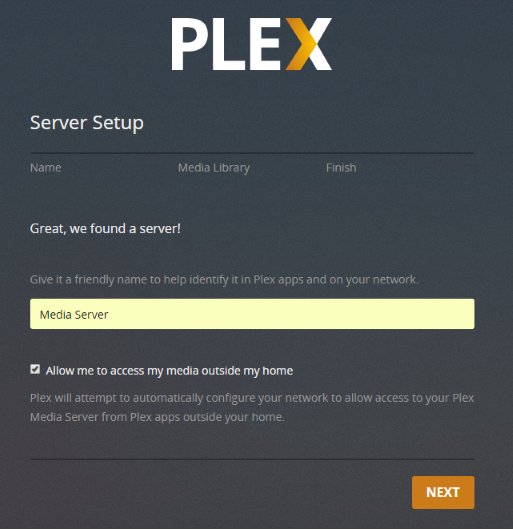
- Get the free Plex Media Server installer from the Plex Downloads page.
- Run the installer and follow the usual setup screens.
- On the final screen, click Launch; the server adds an icon to the system tray.
- Choose Open Plex… from that icon. The server has no window of its own, so setup happens in Plex Web App.
From there, set up Plex Media Server libraries, remote access and sharing.
Opening the Plex Web App on a device other than the server itself
- On the same network, browse to
http://server.local.ip.address:32400/web. - From another network, run
ssh -L 8888:127.0.0.1:32400 ip.address.of.server, then openhttp://127.0.0.1:8888/webfor the first setup.
To play files on the PC itself without a server, Windows media players and codecs handle local playback.
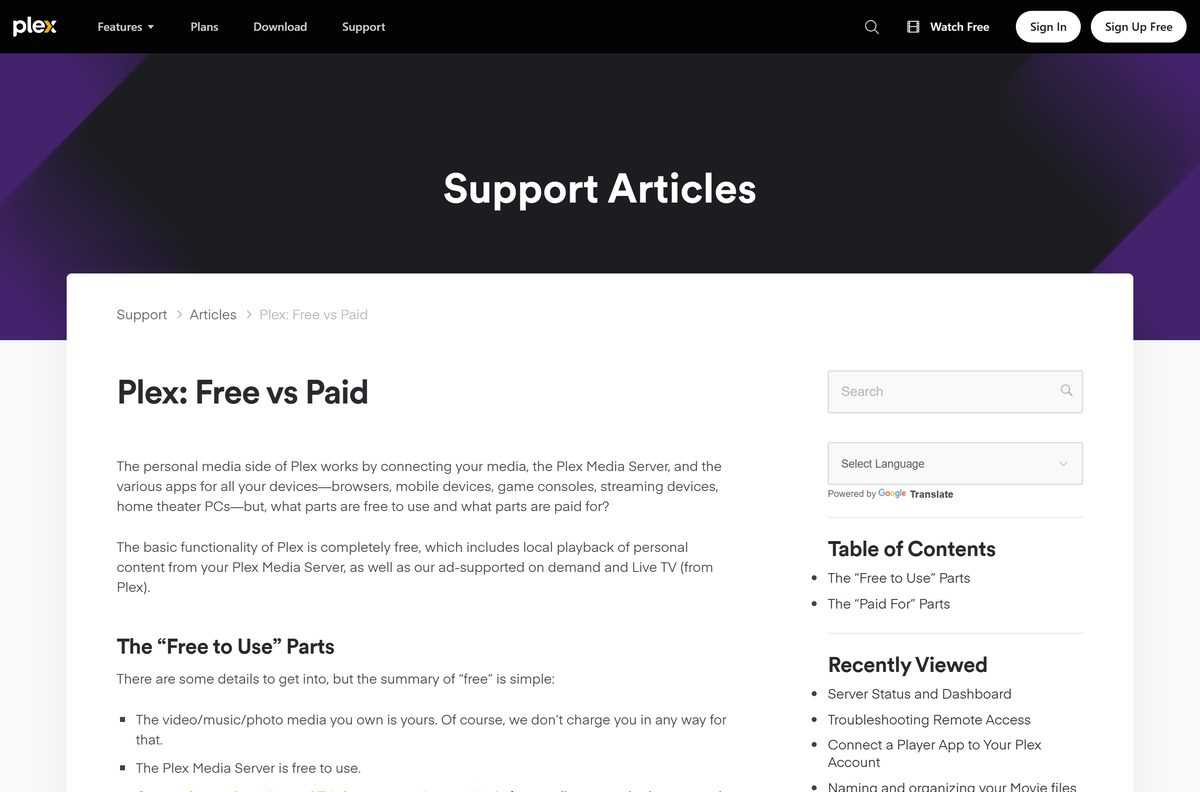
Plex free vs paid: the “free to use” and “paid for” parts
| Feature | Free or paid |
|---|---|
| Plex Media Server and your media on the home network | Free |
| Ad-supported movies, shows and Live TV on Plex | Free |
| Antenna TV through a tuner | Free to watch; recording needs Plex Pass |
| Your media away from home | Remote Watch Pass or Plex Pass |
| Skip intros and credits, hardware-accelerated transcoding, Plex Home with full accounts | Plex Pass |
| Movie rentals and purchases | Paid per title, in select countries |
How to add apps and profiles on Roku, Fire TV, Vizio and Apple TV
| Device | How | Full steps |
|---|---|---|
| Roku | Home > Store > Apps, select the app, then Add app; it appears on every Roku linked to your account | add Peacock to a Roku |
| Roku TV with an antenna | Antenna to Ant/Cable In, then Home > Live TV and scan | free local channels on Roku |
| Roku PIN | my.roku.com > PIN/Parental controls > Change PIN | find or reset your Roku PIN |
| Fire TV | Install the service's Fire TV app, then sign in | Fubo on Amazon Fire TV |
| Vizio TV | Apps on the VIZIO Home screen; WatchFree+ adds 300+ free channels | download apps on a Vizio TV |
| Apple TV 4K | Settings > Profiles and Accounts > Add New Profile; up to five managed profiles each get their own watchlist and history | multiple Apple TV profiles |
Once Peacock is installed, you can turn Peacock subtitles on or off on Roku, Fire TV or Apple TV.
The best ways to contact Roku support
| Problem | Contact |
|---|---|
| Device or account issue | Chat with us on support.roku.com |
| Disney+, Hulu or Sling billed by Roku | The service itself (numbers in the cancellation table) |
| Any other streaming app | That service's support site, from Roku's streaming services contact list |
| Roku subscription | my.roku.com/subscriptions |
If all else fails, reach out to Roku with these Roku support chat and phone numbers, and ignore numbers from ads.
Reset, restart, or update your Roku device
Before a factory reset, have your Roku account email and password, Wi-Fi password, app sign-ins and parental PIN ready.
| Fix | Steps |
|---|---|
| Restart a frozen Roku | Settings > System > Power > System restart, or unplug it for 10 seconds; settings stay |
| Network connection reset | Settings > Advanced system settings > Network connection reset > Reset connection, then set up Wi-Fi again |
| Update | Settings > System > Software update > Check Now |
| Factory reset | Settings > System > Advanced system settings > Factory reset; this erases apps and settings |
| Physical buttons | Players: hold Reset about 10 seconds. Roku TVs: Reset, or Power + Find My Remote, for 12 seconds |
How to fix Roku remote control problems
How to solve issues with the Roku simple remote
An unresponsive simple remote needs line of sight, because it uses infrared.
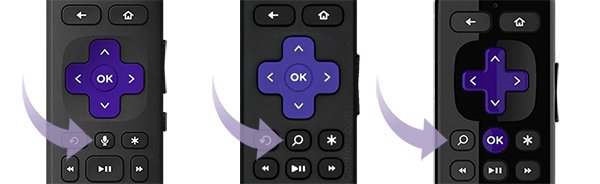
- Clear anything blocking the Roku.
- Remove the batteries, press any two buttons, then fit fresh ones.
How to solve issues with Roku voice remotes
Voice remotes use a wireless link that a restart clears.
- Remove the batteries, press any two buttons and reinsert them; on a rechargeable remote, hold the pairing button, or Back + Home, for 20 seconds.
- Unplug the Roku for 5 seconds.
How to re-pair your Roku voice remote
A remote that lost its link needs you to pair the Roku remote again.
- Restart the Roku.
- Hold the pairing button, or Back + Home, for 5 seconds until the light flashes.
- Wait for the pairing message on screen.
TV power and volume buttons not working
These buttons control the TV over infrared or HDMI-CEC.
- Point the remote at the TV's sensor; if that works, the remote uses infrared.
- Turn on CEC in your TV's settings.
- Go to Settings > Remotes & Devices > Remotes > Set up remote for TV control.
How to fix Roku Wi-Fi, audio, video, HDMI, app and hardware problems
Can't connect to the Wi-Fi network
Error 14.40 or 14.41 means a wrong password; 14.20 or 016 means a weak signal.
- Check the password, then restart the Roku and unplug the router for 10 seconds.
- Run Settings > Network > Check connection to see whether the Roku network or the internet fails.
- Check speed under Settings > Network > About: 3 Mbps for SD, 5 Mbps for HD, 25 Mbps for 4K.
- Move closer to the router, or try connecting manually with Ethernet.
No audio, or garbled or distorted sound
Check the volume, the input and the cable first.
- Unmute the TV and any soundbar or speaker, and pick the right input.
- Swap the cables one at a time.
- No sound only in surround? Set Settings > Audio > Digital output format to Stereo.
How to fix audio and video that are out of sync
TV picture processing or audio conversion pulls them apart.
- Adjust the TV's A/V Sync, Audio delay or Lip-sync setting.
- Sound before picture: turn off motion smoothing. Sound after picture: set the TV's digital audio output to PCM or turn off Game Mode.
- With a Roku Streambar or Roku speakers, use Adjust Audio Delay in the Roku mobile app's remote settings.
How to fix Roku HDCP errors
An HDMI link without HDCP shows a purple screen; 4K and HDR need HDCP 2.2.
- Unplug the HDMI cable and both devices, then reconnect firmly.
- Replace the HDMI cable with one under 6 feet, or try another input.
- Manually adjust Settings > Display type if video still fails.
How to fix Roku app problems
Several failing apps point to the network; one failing app points to that app.
- Check Now under Software update also updates apps.
- Several apps failing: run Network connection reset under Advanced system settings.
How to fix Roku hardware problems
A Roku TV still frozen after a restart needs the heavier fixes.
- Use the physical reset buttons above.
- As a last resort, use Recovery Mode to reinstall the Roku TV software.
The Roku mobile app works as a remote while you troubleshoot.
Fire TV, Apple TV, Chromecast and smart TV problems and fixes
Fire TV, Apple TV and Chromecast are the main alternatives to Roku.
| Problem | Fix | Full steps |
|---|---|---|
| Fire TV remote not responding | Reset the remote, then pair it again | Firestick remote reset for every model |
| Forgot the Fire TV PIN | Reset it through your Amazon account | remove or reset a Fire Stick PIN |
| Apple TV remote not responding | Reset: hold TV + Volume Down for 5 seconds. Pair: hold Back (or Menu) + Volume Up for 2 seconds, 3 to 4 inches from the box | Apple TV remote pairing and reset |
| Chromecast missing in Google Home | Join the phone to the ChromecastXXXX Wi-Fi network and check the app's Location and Bluetooth permissions. To factory reset, hold the button until the LED is solid white | — |
| Hisense TV blinking red light | Check the outlet and power cable first; on a Hisense Roku TV, Recovery Mode is the last resort | Hisense red light fixes |
| Lost the Vizio remote | The VIZIO mobile app controls the TV | VIZIO Mobile app |
| Samsung TV won't accept test apps | Smart Hub > Apps > App Settings, type 12345, turn on Developer mode, add the PC's IP, reboot | Samsung TV developer mode |
How to cast your phone or PC to a TV
| From | Steps | Full steps |
|---|---|---|
| Android 8.0 or later to Chromecast | Same Wi-Fi > Google Home app > hold the device tile > Cast > Cast my screen | cast a phone to a TV |
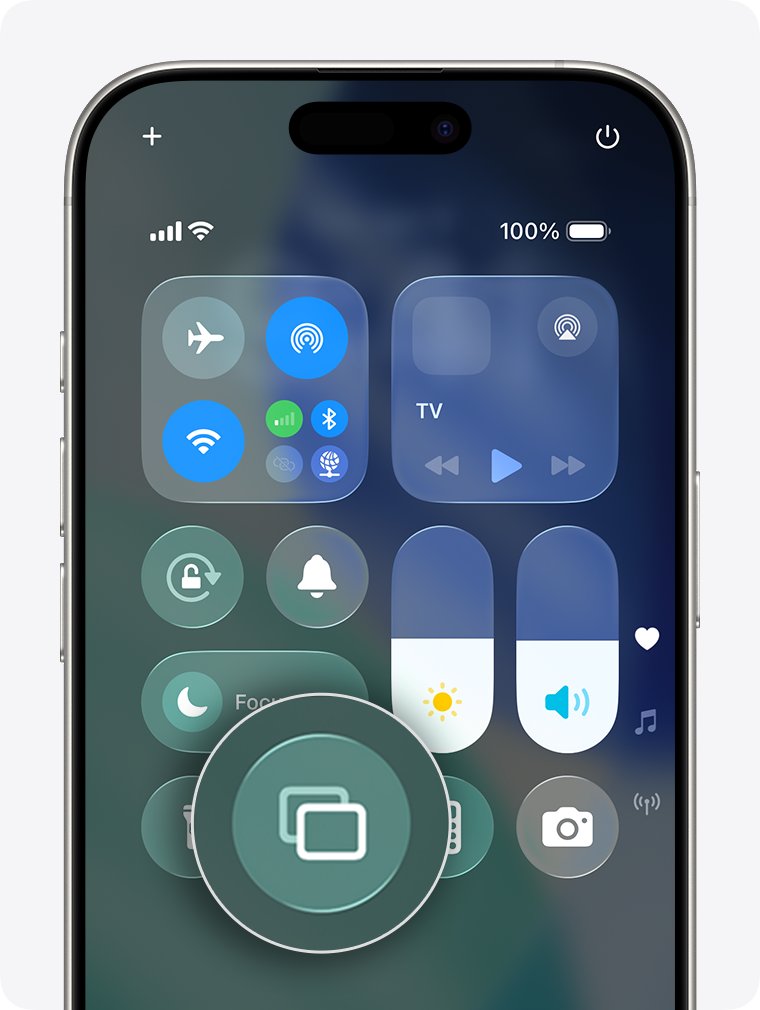
| iPhone to Apple TV or AirPlay TV | Same Wi-Fi > Control Center > Screen Mirroring > pick the TV > enter any passcode shown | mirror an iPhone to any TV |
| Windows PC to Chromecast | Chrome > More > Cast, save, and share > Cast… | PC to TV connection options |
| Phone or PC to a Vizio TV | Cast from a supported app, or mirror the screen | casting to a Vizio TV |
| New Chromecast | Google Home app on a phone > Add > Device, then scan its QR code; a computer can't run setup | Chromecast setup for beginners |
For a TV used as a second screen, adjust the Windows resolution and scaling settings. Before a Discord watch party, check what Discord Go Live can share.
Streaming TV apps for Windows 11 and Windows 10 PCs
The best streaming service depends on what you watch. Most install from the Microsoft Store, and the rest run as web apps you install from the browser.
| Service | What you watch | On Windows | Get the app |
|---|---|---|---|
| Netflix | Original shows, movies, documentaries | Microsoft Store (Windows 10 or later) | Netflix app for PC |
| YouTube TV | Live TV, replacing cable | Chrome or Firefox | YouTube TV app for PC |
| Hulu | On-demand shows | Microsoft Store | Hulu for PC |
| Disney+ | Family-friendly content | Microsoft Store | Disney+ for Windows |
| Peacock | NBCUniversal shows, sports | Web app from Edge or Chrome | Peacock for PC |
| Prime Video | On-demand shows and movies | Microsoft Store | Prime Video app for Windows |
| Paramount+ | Paramount shows | Microsoft Store | Paramount Plus for PC |
| Fubo | Live sports | From the browser | Fubo for PC |
| Crunchyroll | Anime | Microsoft Store | Crunchyroll for PC |
| HBO Max | HBO shows, popular movies | Web app | HBO Max for PC |
| Sling TV | Live TV channels | Web app from Chrome or Edge | Sling TV for PC |
| Pluto TV | Free movies and TV | Microsoft Store | Pluto TV for PC |
| Tubi | Free movies and TV | Microsoft Store | Tubi for Windows |
| Frndly TV | Subscription TV | Web app | Frndly TV for PC |
| ESPN | Sports | Microsoft Store | ESPN app for PC |
| Spectrum TV | Your Spectrum TV plan | Web app from watch.spectrum.net | Spectrum TV app for PC |
| Xfinity Stream | Your Xfinity TV plan | Web app | Xfinity app for PC |
| Apple TV | Apple TV subscription, rentals | Microsoft Store | Apple TV app for Windows |
| The Roku Channel | Free movies and TV | Desktop web app | Roku app for PC |
YouTube, WhatsApp, TikTok and iTunes are among the phone and media apps for Windows with their own install steps.
Netflix account and streaming TV FAQ
How do Netflix accounts work?
A Netflix account is one monthly membership, billed on your sign-up date, for the people in your Netflix Household. Your plan sets how many devices stream at once: 2 on Standard plans and 4 on Premium. Standard and Premium can add paid extra members who live elsewhere.
How do I delete my Netflix account?
Open netflix.com/account/security, select Delete account, complete the Security Check, tick the box and select Permanently Delete. An active membership is canceled at the end of the billing period first, and you can undo the request from the Account page until then.
How do I remove my Netflix account from a TV?
Sign out remotely from the Netflix website: open the list of devices using your account at netflix.com/manageaccountaccess and select Sign out of All Devices. Change your password at the same time so nobody signs back in with the old one.
Can I share my Netflix account with family?
Yes, with family who live with you, because the account covers your Netflix Household. Relatives elsewhere need their own account or an extra member slot, which costs $7.99 a month with ads or $9.99 without in the US.
Can I use my Netflix account overseas?
Yes. Phones, tablets and computers work as usual abroad, and you can sign in to a hotel or rental TV. The catalogue, audio and subtitle options, and some downloads change with the country you are in.
Why can't I sign into my Netflix account?
Check the email or phone number and the case-sensitive password, then reset the password at netflix.com/loginhelp. If only one device fails, restart it and your router, clear the Netflix cookie at netflix.com/clearcookies in a browser, and turn off any VPN or proxy.
What Netflix account do I have?
Your plan sits in the Membership section of the Netflix Account page. If a phone, TV or internet provider bills you, that section links to the partner's guide or tells you to manage the plan with that partner.
How do I get YouTube TV on my TV?
Open the YouTube TV app on your smart TV, streaming device or game console. Scan the QR code or go to tv.youtube.com/start on a phone or computer, enter the activation code, choose the account with your plan and select Allow.
How many channels does YouTube TV have?
The main YouTube TV plan carries more than 100 broadcast, cable and regional sports networks. The Sports, News, Entertainment and Family plans focus on those genres, and your local networks depend on the home area you set.