To cast on a Vizio TV, connect your phone or computer to the same Wi-Fi network as the TV, open a cast-enabled app, tap the Cast icon and pick your Vizio TV from the list.
This guide covers casting from Android and iPhone apps, a Chrome tab or full screen from a PC, AirPlay from Apple devices, and a wired HDMI connection, plus fixes when the TV does not show up.
How to cast phone to Vizio TV
Vizio smart TVs that support Google Cast appear as a cast receiver in apps such as YouTube and Netflix. The phone only sends the stream address, so the TV plays the video itself.
- Turn on the Vizio TV and wait for the home screen.
- Connect your phone to the same Wi-Fi network as the TV.
- Open a cast-enabled app, such as YouTube, on your phone.
- Tap the Cast icon in the app's video player.
- Select your Vizio TV from the list of devices.
- Play the video and use your phone to pause, skip or change the volume.
Which casting method should you use?
| Your device | Use this method | Why |
|---|---|---|
| Android phone, watching one app | Cast icon in the app | The TV streams directly, so the phone stays free |
| Android phone, showing the whole screen | Google Home app screen cast | Mirrors anything, needs Android 8.0 or later |
| iPhone, iPad or Mac | AirPlay or Screen Mirroring | Built into Apple devices, works with AirPlay-compatible smart TVs |
| Windows PC, Mac or Chromebook | Cast a Chrome tab or the screen | Works with any website in Chrome |
| No Wi-Fi or a laggy network | HDMI cable | No network involved, lowest delay |
How casting actually works on a Vizio TV
| Term | What happens | Phone during playback |
|---|---|---|
| Casting from an app | The TV fetches the video from the internet itself | Free to use for other apps |
| Screen mirroring | The phone or PC sends a live copy of its screen | Must stay on and on the same screen |
| Casting a Chrome tab | Chrome sends that tab to the TV; sound plays on the TV only | Other tabs and apps still play on the computer |
| AirPlay | Apple's own way to stream video or mirror the screen | Can stop at any time from the AirPlay button |
Casting and mirroring both need the sending device and the TV on the same Wi-Fi network.
How to cast to a Vizio TV step by step
These steps cover the full sequence, from the network to casting a whole Android screen or a Chrome tab from a computer.
- Step 1: Connect both devices to the same Wi-Fi network.
- Step 2: Open a cast-enabled app on your phone, such as YouTube.
- Step 3: Tap the Cast icon and select your Vizio TV.
- Step 4: Control playback from your phone; the TV keeps playing if you switch apps.
- Step 5 (optional): To cast an entire Android screen, open the Google Home app, tap and hold the TV's tile, then tap Cast > Cast my screen.
- Step 6: To cast from a computer, open Chrome, select More > Cast, save, and share > Cast…, then pick the TV.
Cast to Vizio TV from PC or laptop with Chrome
Chrome on Windows, Mac or Chromebook can send one tab or the full screen to a TV with Google Cast. Update Chrome first.
- Open Chrome on the computer connected to the TV's Wi-Fi network.
- Select More (three dots) at the top right.
- Select Cast, save, and share, then Cast….
- To share the whole screen, open Sources and select Cast screen.
- Select your Vizio TV.
- To stop, select the Cast icon to the right of the address bar, then Stop casting.
To play a local video or music file, drag it into a Chrome tab or press Ctrl + O on Windows (Command + O on Mac), then cast that tab. On macOS 15 or later, give Chrome access in system settings first.
Alternative ways to cast to a Vizio TV
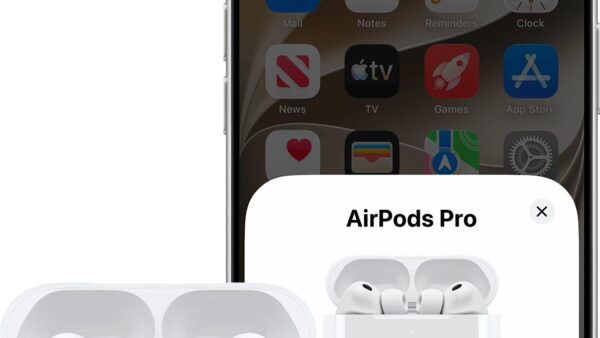
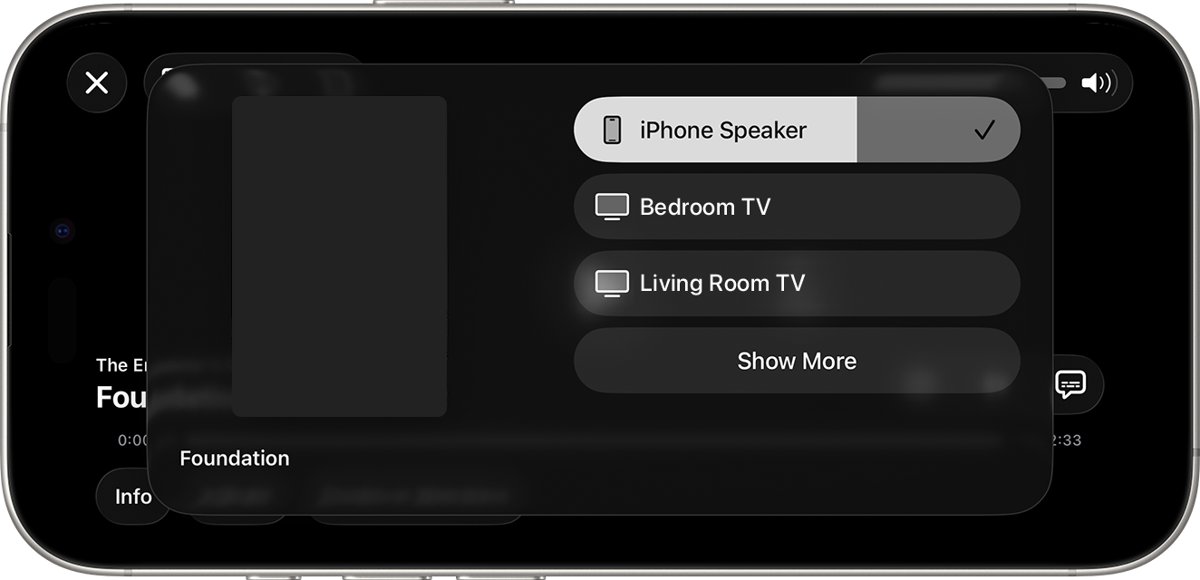
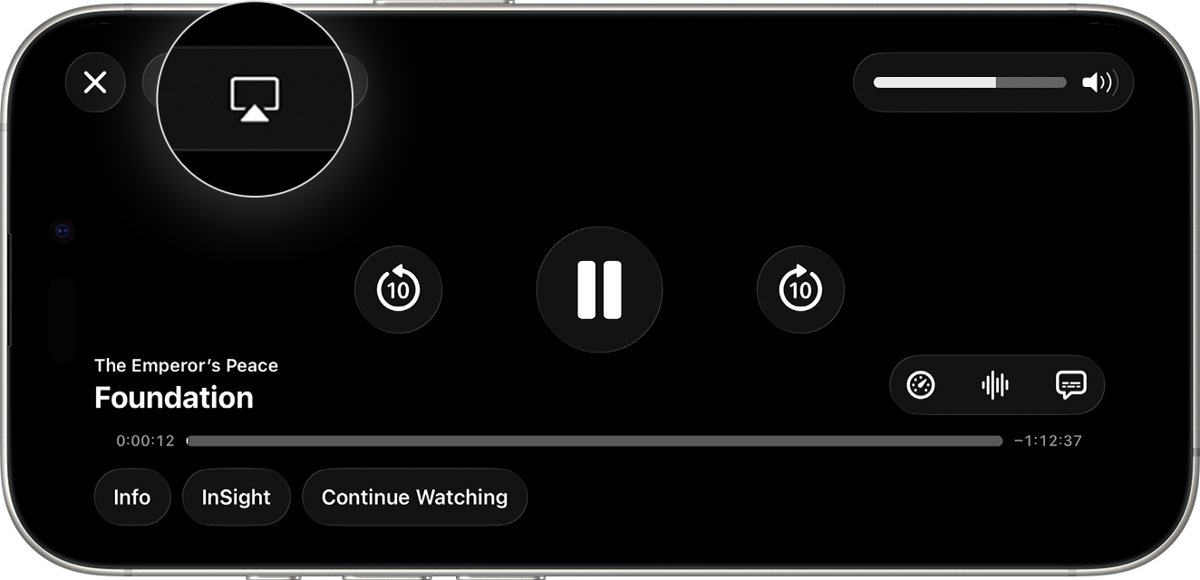
Use AirPlay from an iPhone, iPad or Mac when your Vizio TV shows up in the AirPlay list.
- AirPlay a video: connect the iPhone or iPad to the TV's Wi-Fi, open the video, tap the AirPlay button, then choose the TV.
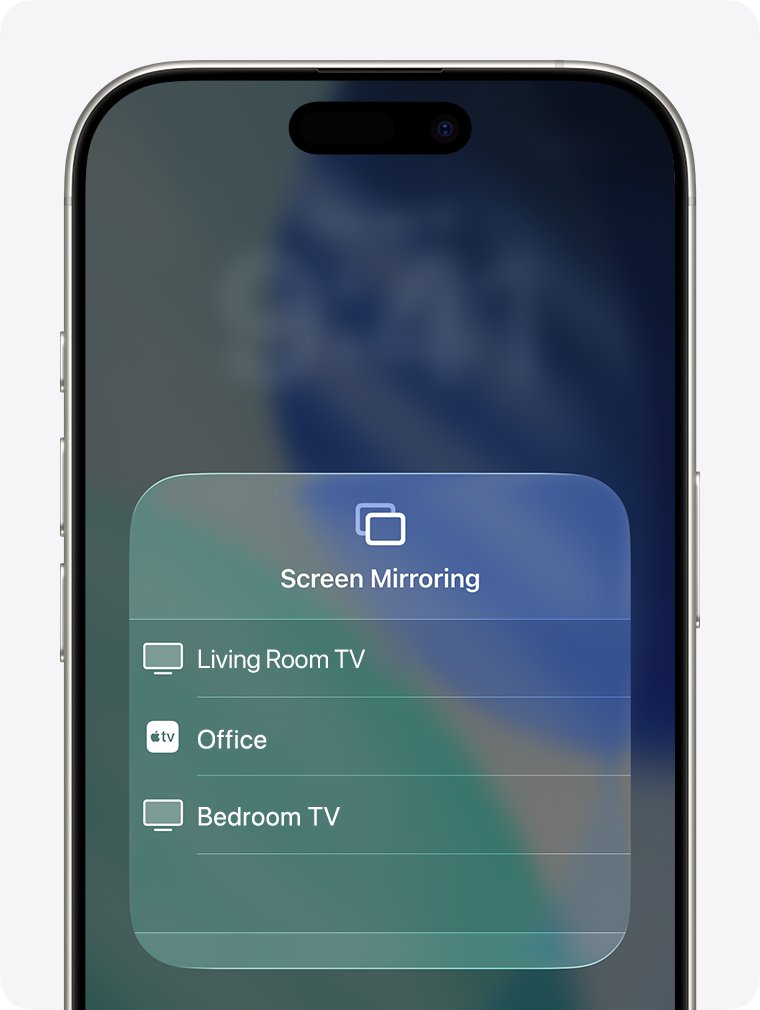
- Mirror the iPhone screen: swipe down from the upper-right corner to open Control Center, tap Screen Mirroring, then select the TV.
- Enter the passcode on the iPhone if the TV shows an AirPlay passcode.
- To stop mirroring, open Control Center, tap Screen Mirroring, then tap Stop Mirroring.
- VIZIO Mobile app: install VIZIO Mobile, pair it with your TV, then use the TV play button in the app to launch a title on the TV.
- HDMI cable: plug the laptop or phone adapter into a free HDMI port and choose that HDMI input on the TV.
Tips for a better casting experience
| Tip | Why it helps |
|---|---|
| Cast from inside the app instead of mirroring | The TV streams the video itself, so quality does not depend on the phone |
| Cast a Chrome tab instead of the whole screen | Tab audio plays on the TV; screen casts may keep audio on the computer |
| Turn on battery saver on Android before a long screen cast | Screen casting drains the phone |
| Set Automatically AirPlay on iPhone | In Settings > General > AirPlay & Continuity, choose Ask or Automatic for suggested connections |
| Keep the TV and router close or use a strong signal | Casting needs a strong Wi-Fi connection on both ends |
Still not working? Try these fixes
Vizio TV not showing up on cast
The phone or computer is on a different network or band than the TV.
- Check the Wi-Fi network name on the TV and on your phone.
- Connect both to the same network, avoiding a guest network.
- Turn the TV off and on, then close and reopen the app.
- Tap the Cast icon again and look for the TV.
Can't cast to Vizio TV from Chrome
Chrome is out of date or lacks permission on a Mac.
- Update Google Chrome to the latest version.
- On macOS 15 or later, allow Chrome access in system settings.
- Restart Chrome and try Cast… again.
Cast screen option missing on Android
Screen cast needs Android 8.0 or later and microphone permission for Google Play Services.
- Check the Android version in your phone's settings.
- Turn on microphone permission for Google Play Services.
- Open the Google Home app and try Cast my screen again.
Vizio TV casting keeps disconnecting
A weak Wi-Fi signal or another device taking over the TV.
- Move the router closer to the TV or reduce other heavy traffic.
- Remember that a new cast to a busy TV replaces the current one.
- Use an HDMI cable when the network cannot keep up.
How to know casting to Vizio TV is working
- Check that the Cast icon in the app is filled in or colored while connected.
- In Chrome, look for the Display icon on the cast tab and the Cast connected icon by the address bar.
- On iPhone, the Screen Mirroring button shows the TV name while mirroring.
Frequently asked questions
Why does my Vizio TV not show up when I try to cast?
The phone and TV are usually on different Wi-Fi networks. Connect both to the same network, restart the TV, and reopen the app. A guest network or a separate router can hide the TV from the cast list.
Can you cast to a Vizio TV?
Yes. Vizio smart TVs with Google Cast support appear in the cast list of apps like YouTube, and models that support AirPlay accept streams from iPhone, iPad and Mac. Older models without either can use an HDMI cable.
Do all Vizio TVs support casting?
No. Casting depends on the model's Google Cast or AirPlay support. Check your TV's specifications on the Vizio site. Any Vizio TV with an HDMI port can still show a laptop or phone through a cable.
What is the difference between casting and screen mirroring?
Casting sends a video link, so the TV streams it and your phone stays free. Screen mirroring sends a live copy of everything on your screen, so the phone must stay on and on that screen.
Can I cast to a Vizio TV without Wi-Fi?
Not with Google Cast or AirPlay, which both need the devices on the same Wi-Fi network. Without Wi-Fi, connect the phone or laptop to the TV with an HDMI cable or adapter and select that HDMI input. On a Windows 11 laptop, you can then choose a screen projection mode to duplicate or extend the desktop.
How do I cast my computer to a Vizio TV?
Open Chrome, select More > Cast, save, and share > Cast…, then pick the Vizio TV. To show the whole desktop, open Sources and choose Cast screen before selecting the TV.
How do I screen cast on Vizio TV from Android?
Open the Google Home app, tap and hold your TV's tile, then tap Cast > Cast my screen. The feature needs Android 8.0 or later and the phone on the same Wi-Fi network as the TV.
Why does casting keep disconnecting on my Vizio TV?
A weak Wi-Fi signal is the usual cause, or another device started casting and replaced your session. Improve the signal near the TV or switch to an HDMI cable for steady playback.
How do I enable casting on a Vizio TV?
Casting is built into supported models, so there is no separate switch for most apps. Turn the TV on, connect it to Wi-Fi, and put your phone on the same network so the TV appears in the cast list.
Quick summary
Use the Cast icon inside apps for video, AirPlay for Apple devices, Chrome for a PC, and HDMI when Wi-Fi fails. App casting lets the Vizio TV stream directly, which gives the best quality and frees your phone, while the other routes cover screens and devices apps cannot.