iCloud email is organized by thread because the Mail app groups replies into conversations, and you turn that off with Organize by Thread on iPhone or iPad and View > Organize by Conversation on a Mac.
Each app keeps its own threading setting, so this guide covers every device you read iCloud Mail on, the thread options on iCloud.com, and what to do when grouping keeps coming back.
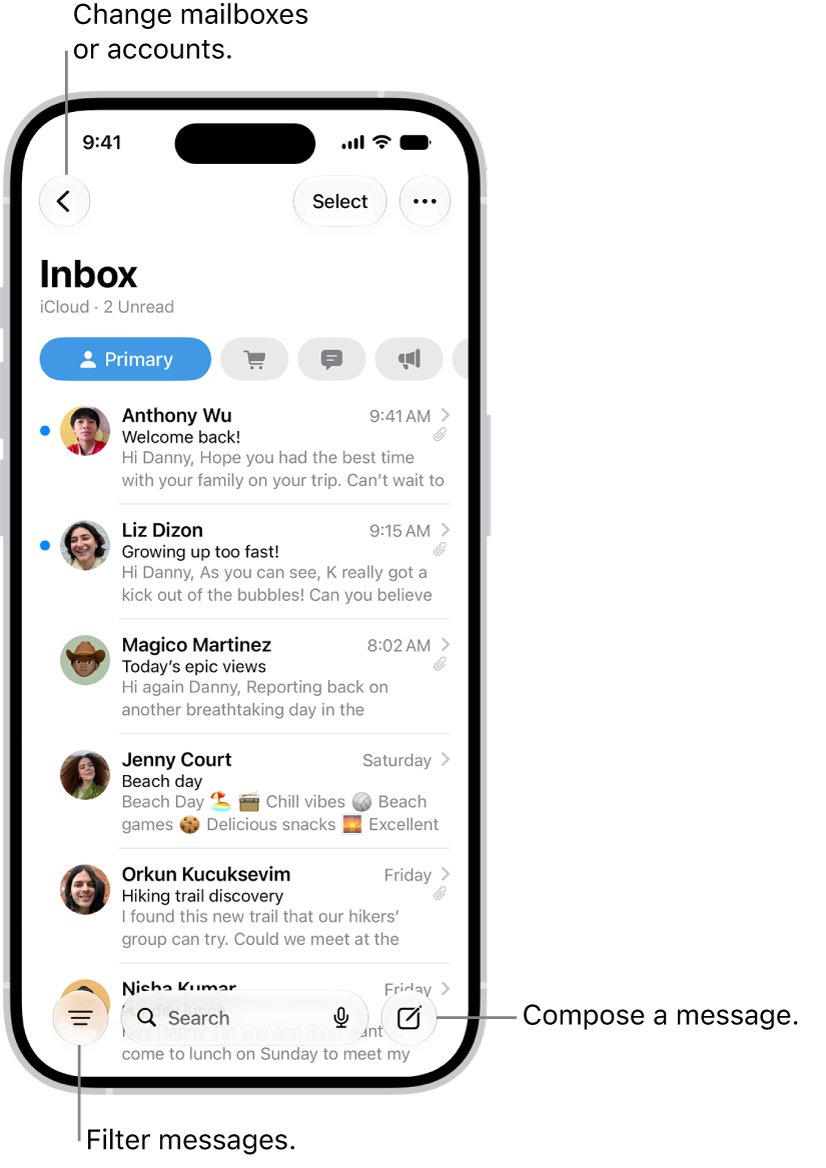
Turn off Organize by Thread for iCloud Mail on iPhone
On iPhone, thread grouping is a switch in the Settings app, not inside Mail itself. Turning it off lists every reply as its own email.
- Open the Settings app on your iPhone.
- Tap Apps, then tap Mail.
- Scroll down to the Threading group.
- Turn off Organize by Thread to list each email separately, or turn it on to group a conversation into one row.
- Open the Mail app and check your iCloud inbox.
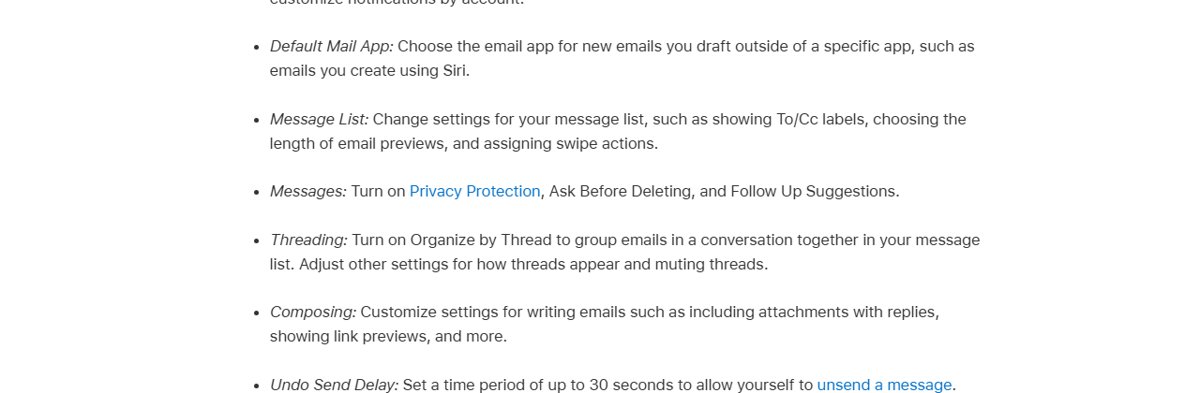
Where the iCloud Mail thread setting is on each device
Threading is a display choice made by the app you read mail in. Your messages stay the same in iCloud; only the way the list groups them changes.
| Where you read iCloud Mail | Setting to change | Path |
|---|---|---|
| Mail on iPhone | Organize by Thread | Settings > Apps > Mail > Threading |
| Mail on iPad | Organize by Thread | Settings > Apps > Mail > Threading |
| Mail on Mac | Organize by Conversation | View menu > Organize by Conversation |
| iCloud.com in a browser | Group By Thread (Transactions, Updates and Promotions) | Open a category message, select the More button, then Group By Thread |
| Windows PC | No Apple Mail app | Read iCloud Mail at icloud.com/mail and use the iCloud.com options |
Apple lists the Mail settings that iCloud Drive keeps up to date across devices: mailbox order, address suggestions, VIPs, rules, signatures and similar items. Threading is not on that list, so change it on each device separately.
Organize by Thread setting on iPad
iPadOS uses the same Mail settings as iPhone. The switch affects every account in the Mail app on that iPad, including iCloud.
- Open the Settings app on your iPad.
- Tap Apps, then tap Mail.
- Find the Threading group.
- Turn Organize by Thread off or on.
- Return to Mail and open your iCloud inbox to see the new layout.
Turn off Organize by Conversation in Mail on Mac
Mail on Mac groups messages from the same conversation by default. The switch lives in the View menu, and a checkmark shows it is on.
- Open the Mail app on your Mac.
- Select your iCloud inbox in the Mail sidebar.
- Click the View menu in the menu bar.
- Choose Organize by Conversation to remove the checkmark and list every email separately.
- Choose it again to bring conversation grouping back.
With conversations on, click the message count in the top message of a conversation to show all of its emails. Choose View > Expand All Conversations to always show every email in a conversation.
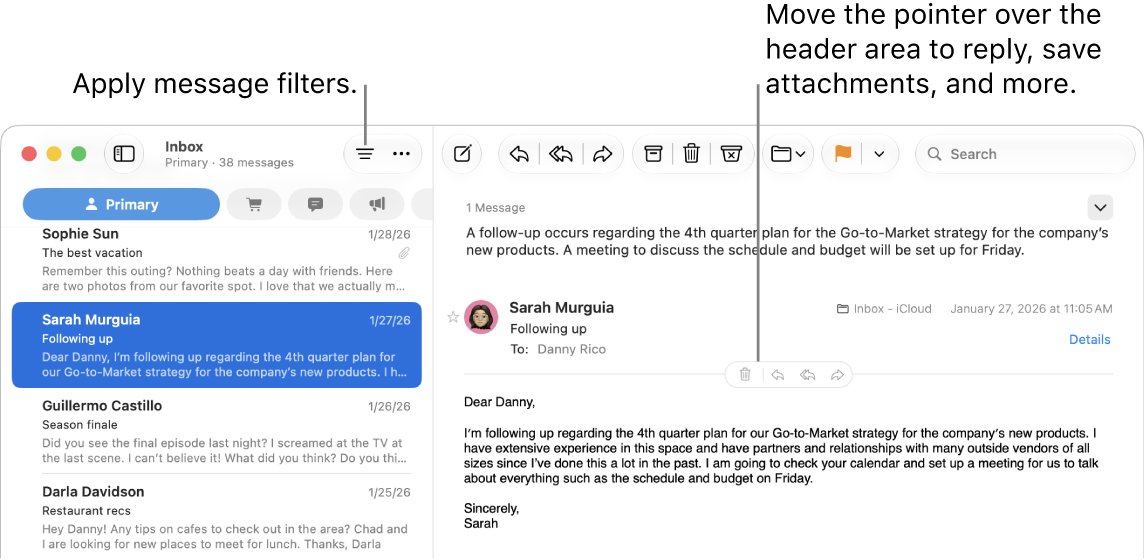
iCloud.com Mail group by thread option
Apple's iCloud.com Mail guide documents one thread control: Group By Thread, which applies to the Transactions, Updates and Promotions categories. Opening a message in those categories shows a digest of every message from that sender.
Primary messages are not grouped by sender, so the digest view only appears in the other three categories.
- Go to icloud.com/mail and sign in to your Apple Account.
- Select Transactions, Updates or Promotions in the Mailboxes list.
- Select a message to open the sender's digest view.
- Select the More button at the top, then select Group By Thread to see only one thread while you scroll.
- To see every message from that sender instead, select the More button and choose All Messages.
Other iCloud.com layout options sit under the More button at the top of the Mailboxes list > Settings > Viewing. Apple's guide documents the Show Archive button in the toolbar checkbox there and does not list a conversation switch.
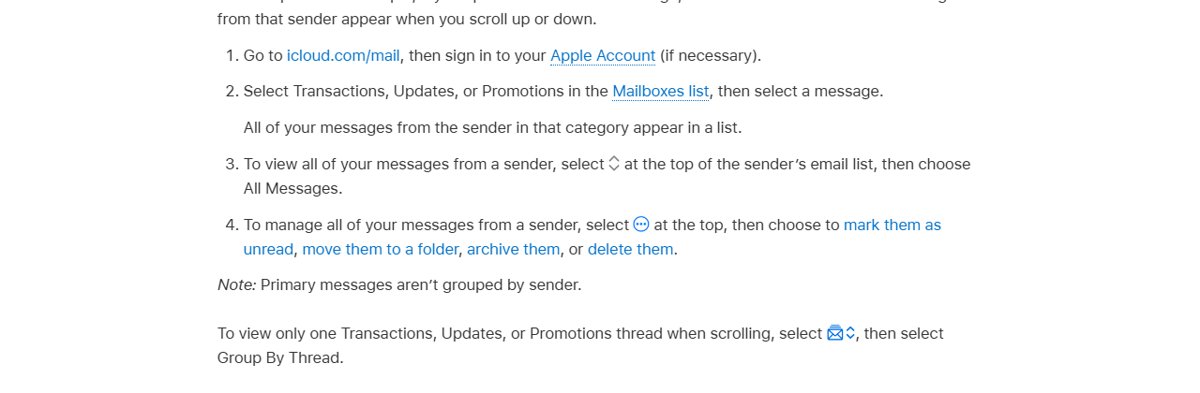
Change how iCloud Mail threads appear on iPhone and Mac
If you keep threads on, a few settings change how a conversation reads. They are useful when the problem is the order or the clutter, not the grouping itself.
| Device | Setting | What it does | Where |
|---|---|---|---|
| iPhone and iPad | Collapse Read Messages | Folds messages you already read inside a thread | Settings > Apps > Mail > Threading |
| iPhone and iPad | Most Recent Message on Top | Shows the newest reply first in an open thread | Settings > Apps > Mail > Threading |
| iPhone and iPad | Muting threads | Sets how muted threads are handled | Settings > Apps > Mail > Threading |
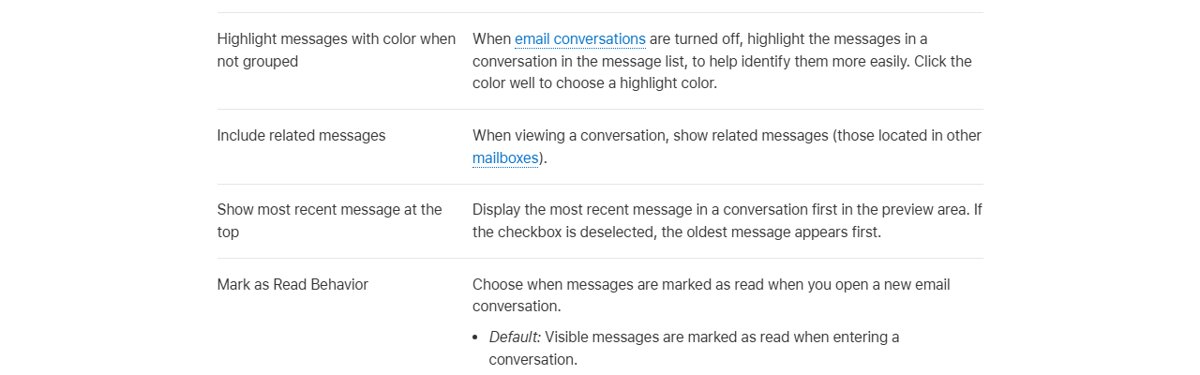
| Mac | Show most recent message at the top | Newest message first in the preview area; clear it for oldest first | Mail > Settings > Viewing |
| Mac | Include related messages | Shows replies stored in other mailboxes, such as Sent | Mail > Settings > Viewing |
| Mac | Highlight messages with color when not grouped | Colors messages from one conversation when grouping is off | Mail > Settings > Viewing |
| Mac | Mark as Read Behavior | Chooses whether opening a conversation marks visible, all or no messages as read | Mail > Settings > Viewing |
On a Mac, press Option-Up Arrow or Option-Down Arrow to step through the messages in an open conversation.
How iCloud Mail threads work
| Behaviour | What happens |
|---|---|
| Grouping | Mail groups messages that belong to the same conversation into one row instead of listing each reply |
| Mail storage | Every email stays stored in iCloud whether threading is on or off; only the list view changes |
| Changes across devices | Folders, read or unread status and deletions sync to every device with iCloud Mail on |
| Long threads | On iCloud.com, a reply to a thread that already holds 100 emails starts a new thread with the same subject |
| Selecting a thread | On Mac, selecting the top message of a conversation selects every message in it |
| Summaries | With Apple Intelligence, Summarize on an email that is part of a thread summarizes the whole thread |
Check iCloud Mail is no longer grouped by thread
- Open the inbox on the device you changed and find a conversation with several replies.
- With threading off, confirm each reply now appears as its own row with its own date.
- On iPhone or iPad, open a former thread's subject and confirm the replies now sit in the list as separate emails.
- On Mac, open the View menu and confirm Organize by Conversation has no checkmark.
- Repeat on every other device you use, because the setting does not carry across.
iCloud Mail still grouping emails by thread
Threading is off on iPhone but iCloud.com or the Mac still groups emails
Threading is a per-app setting and is not one of the Mail settings iCloud keeps in sync.
- On the Mac, choose View > Organize by Conversation to clear the checkmark.
- On iPad, go to Settings > Apps > Mail and turn off Organize by Thread.
- On iCloud.com, open a Transactions, Updates or Promotions message and use the More button to switch between Group By Thread and All Messages.
Emails from one sender are bundled together on iCloud.com
This is the category digest view, which groups Transactions, Updates and Promotions messages by sender.
- Select the More button at the top of the Mailboxes list.
- Select Hide Categories to return to a single email list.
- To stop sorting new mail into categories, choose Settings > Categories > Turn Off Categorization.
A long conversation split into two threads
On iCloud.com, a reply to a thread with 100 emails starts a new thread with the same subject.
- Search the mailbox for the subject line to find both parts.
- Choose the Subject contains suggestion below the search field to narrow the results.
- Move both threads into one folder if you want them kept together.
Replies you sent are missing from a Mac conversation
Sent replies live in the Sent mailbox, and Mail only shows them in the thread when related messages are included.
- Choose Mail > Settings, then click Viewing.
- Select Include related messages.
- Reopen the conversation in your iCloud inbox.
iCloud Mail threads FAQ
How do I stop iCloud email being organized by thread?
Turn off Organize by Thread in Settings > Apps > Mail on iPhone or iPad. On a Mac, choose View > Organize by Conversation to remove the checkmark. Each device keeps its own setting, so change it everywhere you read iCloud Mail.
What is iCloud Mail?
iCloud Mail is Apple's email service tied to your Apple Account, with an @icloud.com address. You can send and receive it on iPhone, iPad, Mac, Windows through the iCloud for Windows app and at iCloud.com. iCloud+ subscribers can also use a custom email domain.
How does iCloud Mail work?
Emails sent to your iCloud address are stored in the cloud, not only on one device. Changes you make on one device, such as moving mail to a folder or deleting it, appear on every device with iCloud Mail turned on.
Where is iCloud email on iPhone?
iCloud email is in the Mail app. Open Mail and tap a mailbox in the iCloud section. If it is missing, go to Settings > [your name] > iCloud > Mail and turn on Use on this iPhone.
Where do I log into iCloud email?
Go to icloud.com/mail in a web browser and sign in with your Apple Account. This works on a phone, tablet or computer, including Windows PCs. On Apple devices, sign in to your Apple Account and turn on iCloud Mail instead.
How do I set up an iCloud email?
Create a primary iCloud Mail address the first time you turn on iCloud Mail. On iPhone or iPad, go to Settings > [your name] > iCloud > Mail and turn on Use on this iPhone or iPad. On a Mac, turn on Sync this Mac in iCloud Mail settings.
Are emails stored in iCloud?
Yes. Mail sent to your iCloud address is stored in the cloud and counts toward your iCloud storage, although large attachments sent with Mail Drop do not. Turning threading on or off only changes how messages are listed, not where they are stored.
Does iCloud send emails about storage?
Mail counts toward your iCloud storage. If you run out of space, you cannot receive new emails at your iCloud address until you free up or buy more storage. Keep space free before long periods away from your email.