No, you cannot share one YouTube TV membership across different houses: Google requires every family group member to live in the same household as the family manager, inside the manager's home area.
This guide explains how family sharing and the home area check work, how to set up a family group, and what to do when the people you want to share with live elsewhere.
Can you share YouTube TV in different houses?
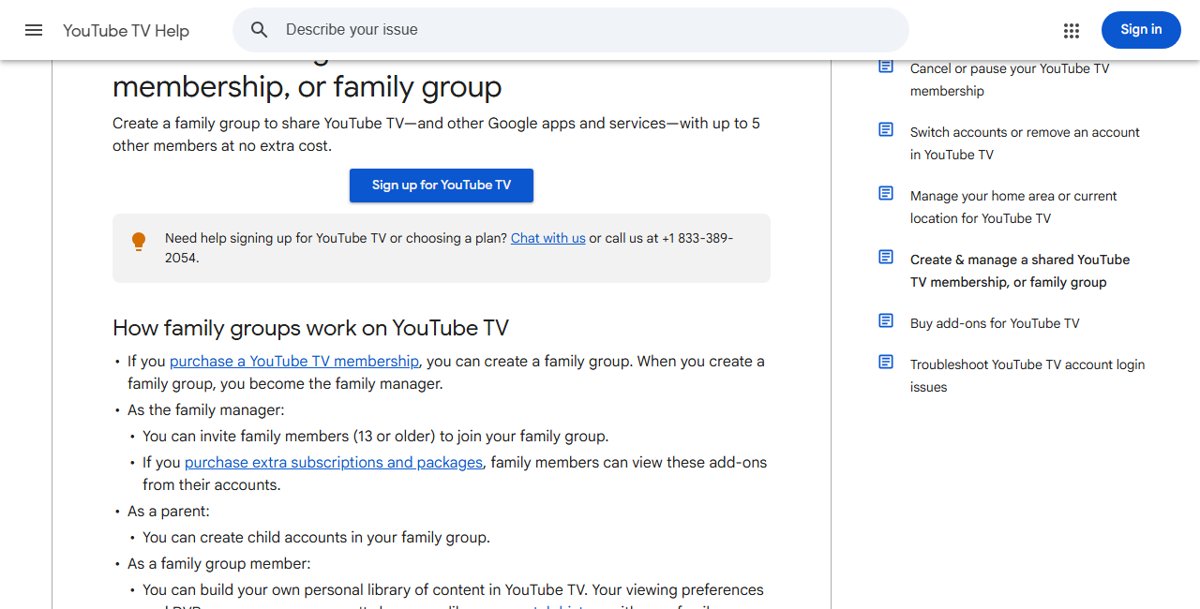
Share YouTube TV only with people in your own household; anyone living at another address, including another state, needs their own membership. Google's family group rules say each member must primarily live in the same household as the family manager, the manager sets one home area for the group, and members must use YouTube TV in that home area periodically to keep access.
Travel is different from living elsewhere. A household member who is away can still watch, but gets the local channels where they are and cannot record or watch home-area local networks.
Google lists YouTube TV as available only in the United States, so sharing with someone abroad is not possible either.
Which sharing option should you use?
| Your situation | Option | Why |
|---|---|---|
| Family members live with you | Create a YouTube TV family group | Up to 5 members share the membership and add-ons at no extra cost |
| A household member is travelling or at college for part of the year | Keep them in the family group and update the current playback area | Travel is allowed if they use YouTube TV in the home area at least once every 3 months |
| Parents, adult children or friends in another house | A separate YouTube TV membership for that household | Members must primarily live in the manager's household |
| You only want to share a single YouTube video | The YouTube Share button | Sharing a link is not sharing a YouTube TV membership |
How YouTube TV family sharing actually works
| Rule | What Google's help pages say |
|---|---|
| Group size | The family manager can invite up to 5 other members |
| Family manager | 18 or older, a Google Account, lives in the United States, not in another family group |
| Family member | 13 or older, a Google Account, lives in the same household as the manager, not in another family group |
| Home area | Set by the family manager; location requirements work the same for every member |
| Simultaneous streams | Family group members can watch on up to three separate devices at the same time |
| Library and DVR | Each member keeps their own library, DVR recordings, recommendations and watch history |
| Add-ons | Members can view extra subscriptions and packages the manager buys |
| Switching groups | You can only switch family groups once every 12 months |
Members of a family group can see each other's name, photo and email address, so only invite people you are comfortable sharing that with.
How to set up YouTube TV family sharing
Only the person who pays for YouTube TV can create the group. That person becomes the family manager.
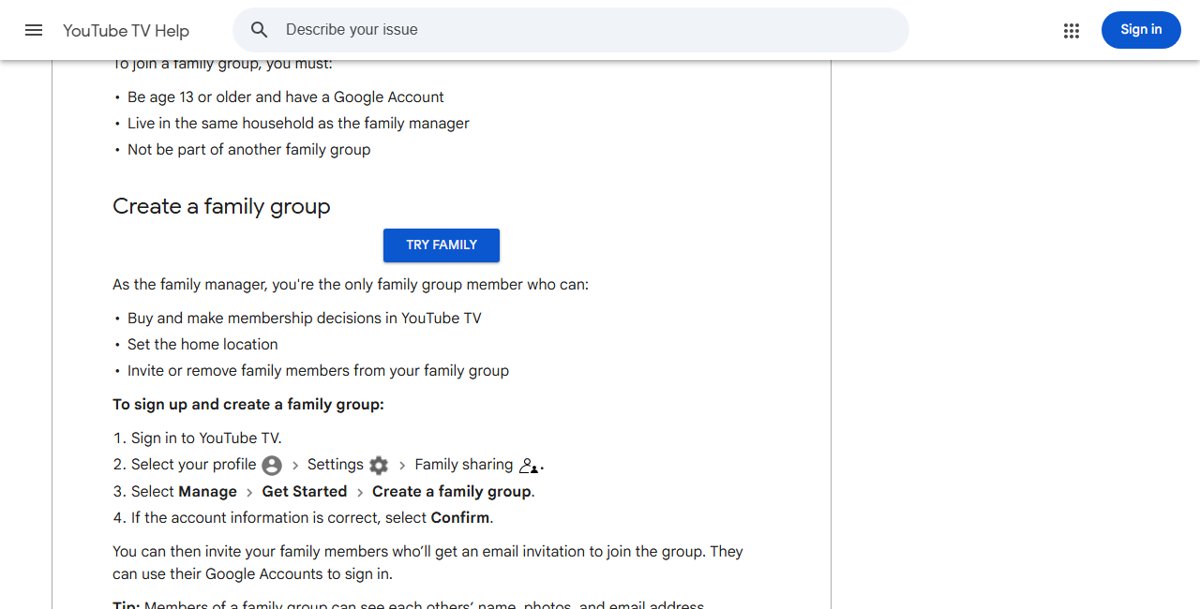
- Sign in to YouTube TV with the account that holds the membership.
- Select your profile picture, then Settings > Family sharing.
- Select Manage > Get Started > Create a family group, then select Confirm if the account details are right.
- To invite someone, select your profile picture, then Purchases and memberships, and select your membership.
- Next to Family sharing settings, select Edit, then Invite a new member.
- Enter the person's email address or phone number and select Send.
- The invitee accepts from the email and signs in with their own Google Account at home.
Each new member should first sign in from the home network so YouTube TV can confirm the location. If your TV needs a code, the steps to activate YouTube TV on a TV cover the tv.youtube.com/start sign-in.
YouTube TV home area and current playback area
Your home area decides your local networks. Your current playback area is where you are watching right now.
| Task | Where to do it | Limit |
|---|---|---|
| Change the home area (manager only) | tv.youtube.com > profile photo > Location > Update next to Home area | Twice in 12 months, and only while you are in the new area |
| Update current location on a smart TV | YouTube TV app > profile photo > Location > Current Playback Area | May send you to tv.youtube.com/verify on a phone |
| Update current location in a browser | tv.youtube.com > profile photo > Location > Update next to Current playback area | Allow the site to use your device's location |
| Keep access while travelling | Watch YouTube TV in the home area | At least once every 3 months |
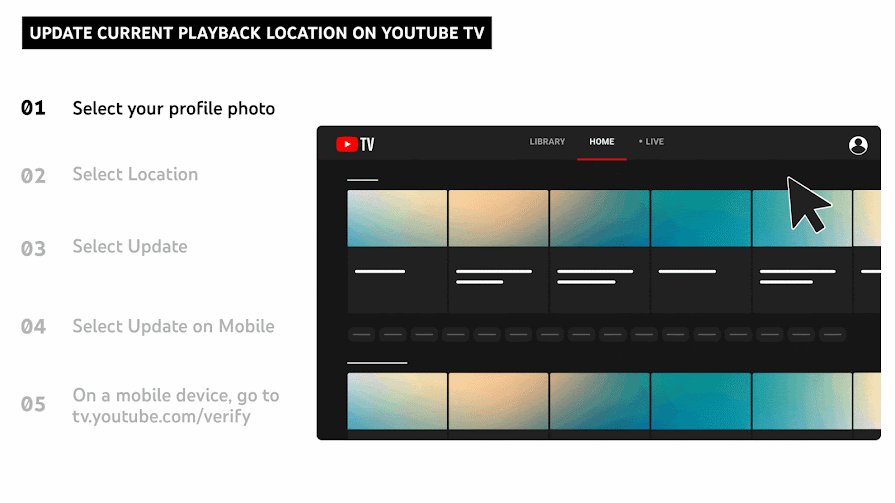
Alternative solutions for sharing across different houses
Since one membership cannot cover two addresses, these are the legitimate routes for a second household.
| Option | How it works | Best for |
|---|---|---|
| Get separate subscriptions | The second household signs up for its own YouTube TV membership with its own home area and its own family group | Parents and grown children in different homes |
| Use the travel or away rules | A household member away from home updates the current playback area and gets local channels there | Students, work trips and holidays, as long as they return within 3 months |
| Pick a smaller plan | YouTube TV now sells Sports, News, Entertainment and Family plan combinations at different prices | A second home that only wants part of the YouTube TV channel lineup |
| Consider splitting costs differently | Each household pays for its own membership, so cost sharing works only within one home | Roommates in the same household |
Logging in with the manager's password at another address is not a workaround. The location checks still apply to that account, and it breaks the household rule for family groups.
Tips for managing your YouTube TV family plan
- To remove a member, open Purchases and memberships, select Edit next to Family sharing settings, select the member's name, then Remove member.
- Expect an email to go to the removed member and the rest of the group.
- To switch the whole group's plan, go to Settings in the YouTube TV app, select Membership, and pick a new plan; add-ons carry over.
- Buy add-ons from the manager's account, because members can view what the manager purchases.
- Remind members who travel to watch from home at least once every 3 months.
- Before deleting the group, note that you can only create or join another family group one more time in the next 12 months.
If the household no longer needs the service, you can cancel or pause YouTube TV from the manager's account instead of deleting the group.
Still having trouble with YouTube TV family sharing?
A family member cannot watch from their own house
They live outside the manager's household and home area, which family groups do not allow.
- Confirm where the member primarily lives.
- If it is a different address, have that household sign up for its own membership.
- Remove them from the group so they can join or create their own family group.
Your location can't be identified
YouTube TV could not confirm your current location.
- On a phone, go to tv.youtube.com/verify.
- Allow the site to access your device's location.
- Return to the TV app and try playback again.
Playback error while a VPN or proxy is on
YouTube TV does not stream while connected to a VPN or proxy.
- Disconnect the VPN or proxy on the device or router.
- Restart the YouTube TV app.
- Update the current playback area if prompted.
Home area cannot be changed
It was already changed twice in the last 12 months, or you are not in the new area.
- Wait until the 12-month window allows another change.
- Make the change while physically in the new home area.
- If it still fails, contact YouTube TV support by phone or chat.
An invited member cannot join the group
They already belong to another family group or switched groups in the last 12 months.
- Ask them to leave their current family group at g.co/YourFamily.
- Check they are 13 or older with a Google Account.
- Resend the invitation from Family sharing settings.
Frequently asked questions
Can you share YouTube TV in different states?
No. A YouTube TV family group shares one home area set by the manager, and every member must primarily live in the manager's household. Someone in another state needs their own membership, though a household member travelling out of state can still watch temporarily.
Can YouTube TV be shared?
Yes, within one household. The membership holder creates a family group and invites up to 5 other members, each with their own Google Account, library and DVR, at no extra cost.
Can I share my YouTube TV subscription with someone who lives elsewhere?
No. Google's requirements say family members must live in the same household as the family manager. Sharing your password with another household is not a supported workaround and still faces location checks.
How does YouTube TV know where I am watching from?
YouTube TV uses your home zip code and may ask you to verify your location through your device's location permissions, for example at tv.youtube.com/verify. Your current playback area then decides which local channels you see.
How many people can watch YouTube TV at the same time?
Google says family group members can watch YouTube TV on up to three separate devices at the same time. This applies on every YouTube TV plan, not just the main plan.
Can I change my YouTube TV home area if I move?
Yes. Go to tv.youtube.com, select your profile photo, then Location, and select Update next to Home area. You can change it twice in 12 months, and only while you are in the new area.
What happens if I remove someone from my YouTube TV family group?
The removed member loses access to YouTube TV and gets an email, and the other members are notified too. A person outside a family group can sign up for an individual membership with their own Google Account.
Do family members share DVR recordings on YouTube TV?
No. Each family member has their own library, DVR recordings and watch history. Only add-ons bought by the family manager are visible to everyone in the group.
Quick summary
Use a YouTube TV family group for everyone under your roof, and give any other household its own membership. The family group covers up to 6 people in one home area at no extra cost, while members living at another address break Google's household rule and fail the home-area checks.