To contact Roku, go to support.roku.com, scroll to Need more help? and select Start chatting; the support bot answers first and can connect you to a live advisor.
This guide covers every official route, the right number when Disney+, Hulu or your TV maker handles the issue, what to have ready, fixes to try first, and how to spot fake Roku support lines.
Contacting Roku Support Directly
Chat is the contact button Roku places on its support home page and at the bottom of its help articles. Roku support is free; Roku never charges for accounts, activation or support.
- Open a browser and go to support.roku.com. Check that the address ends in roku.com.
- Select Sign in at the top and sign in with your Roku account, so the advisor can see your devices and purchases.
- Scroll to Need more help? and the Chat with us box.
- Select Start chatting.
- Describe the problem to the support bot; ask it to connect you to an advisor if its answers do not solve it.
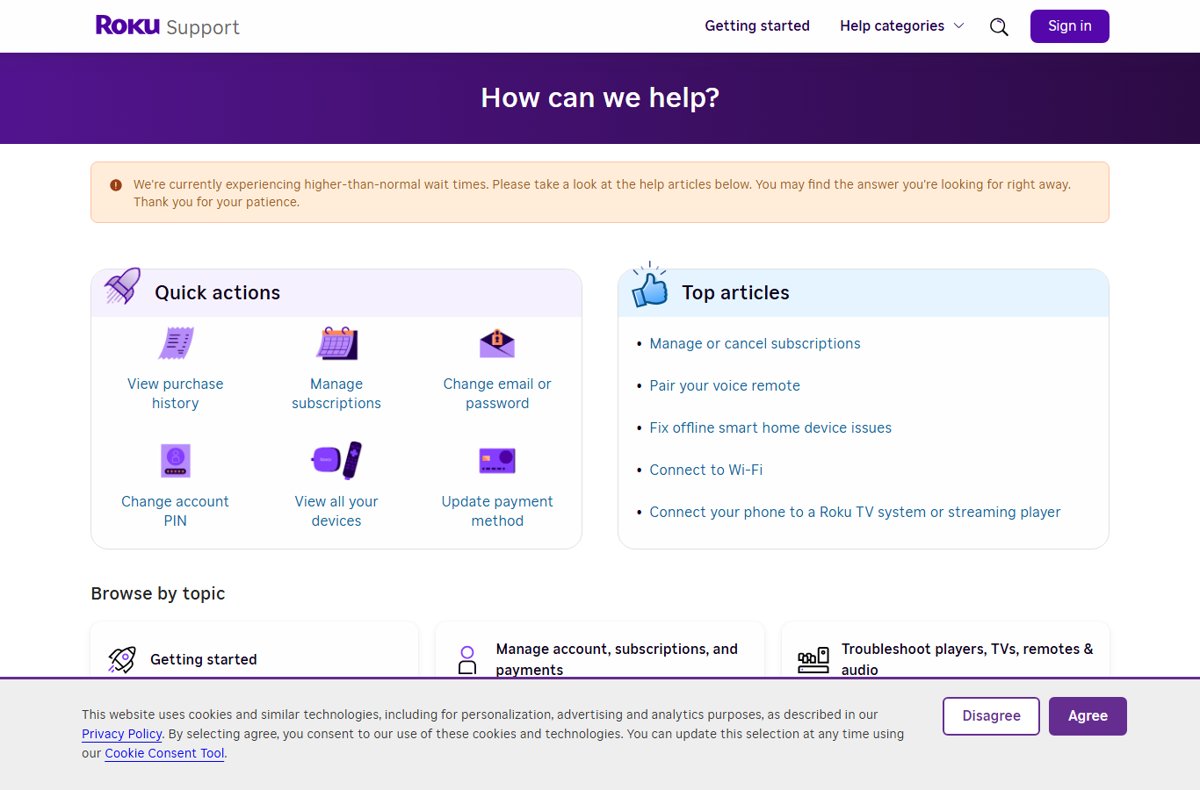
- Keep the chat window open until the advisor replies, because Roku currently warns of longer-than-normal wait times.
Understanding Roku Customer Support Options
| Channel | What it is | Best for |
|---|---|---|
| Online Support Center | Help articles at support.roku.com, grouped into Getting started, Account and payments, Troubleshoot, Wi-Fi, Apps and Smart Home | Setup, remotes, error fixes, any issue you can solve yourself |
| Live Chat and Email Support | Start chatting opens a support bot that can hand you to a live advisor; Roku's help articles list no support email address | Account problems, charges, warranty and anything the articles do not fix |
| Phone Support | Roku's support pages publish no general Roku phone number; phone help is mentioned for cases such as Select Series TV returns, arranged through support | Partner subscriptions and Roku TVs made by other brands, which have their own numbers |
| Account self-service | my.roku.com pages for subscriptions, purchase history, payment method, PIN and devices | Cancelling, refunds questions, checking charges |
| Social Media and Community Forums | community.roku.com now redirects to support.roku.com; Roku points scam victims to chat on support.roku.com | Use only links that start on roku.com |
Which contact route fits your problem?
| Your problem | Contact this | Why |
|---|---|---|
| A charge you do not recognize | Check my.roku.com/payment/purchases first, then Roku chat | Most charges are trials that renewed or another household account |
| Disney+, Hulu or Sling TV billed through Roku | Disney+ 888-905-7888, Hulu 877-824-4858, Sling TV 888-394-6698 | Roku processes the charge, but these services manage the subscription |
| Cancel a subscription bought through Roku | my.roku.com/subscriptions | You can turn off auto-renew yourself without contacting anyone |
| Roku TV made by another brand | The TV maker, shown under Settings > System > About > Roku TV support | The manufacturer handles warranty and hardware for those TVs |
| Roku player, Roku-branded TV or Roku audio device | Roku chat at support.roku.com | Roku handles its own hardware and returns |
| Forgot password, but you can reach your email | The Forgot password page on my.roku.com | The reset link arrives by email and lasts one hour |
| Locked out of the email on your Roku account | Roku chat | Roku asks you to contact support in this case |
| Someone asked you to pay for activation or support | Your bank, then ftc.gov/complaint, then Roku chat | Roku never charges for activation or support, so the caller was not Roku |
Contacting Roku via Phone
Roku's own help pages do not list a general phone number or support hours for Roku itself. Start in chat, and use these official numbers only for the services that own the problem.
| Need | Number or route | Source of the number |
|---|---|---|
| Roku Customer Support Phone Number | Not published on support.roku.com; start with Start chatting | Roku support home page |
| Support Hours | Not published; Roku currently warns of longer-than-normal waits and suggests trying later | Roku support banner |
| Disney+ billed through Roku | 888-905-7888 | Roku's Manage or cancel subscriptions article |
| Hulu billed through Roku | 877-824-4858 | Same Roku article |
| Sling TV billed through Roku | 888-394-6698 | Same Roku article |
| Roku TV from another brand | The maker's contact details under Settings > System > About > Roku TV support | On the TV itself |
Roku warns that scammers buy search ads that lead to fake Roku sites with fake support numbers. A number that does not appear on a roku.com page should be treated as a scam.
Tips for a Successful Phone Support Experience
| Tip | Why it helps |
|---|---|
| Sign in before you start the chat | The advisor can match your devices, purchases and subscriptions to your account |
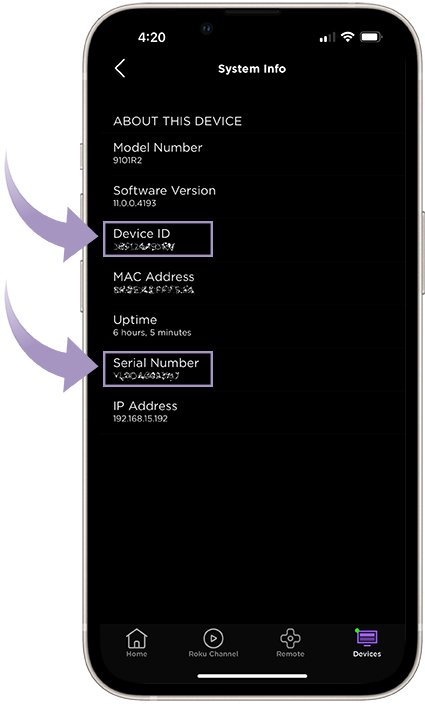
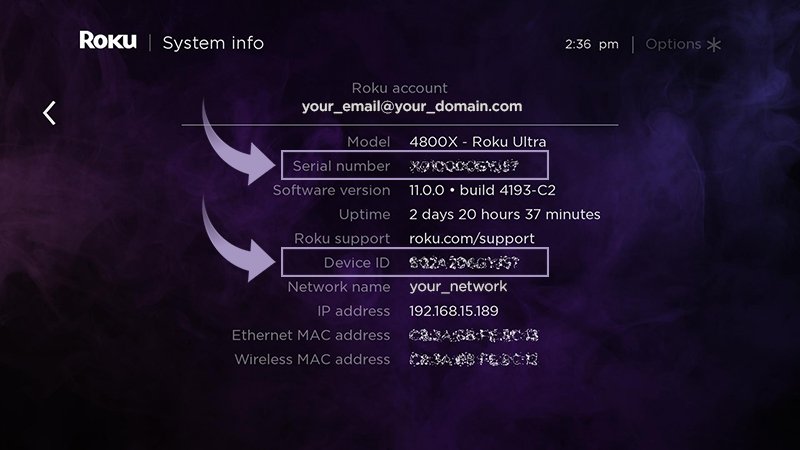
| Have the device on screen if it still works | You can read the serial number, software version and account email while you talk |
| Never give your password or Social Security number | Roku support never asks for them or asks you to install software on your computer |
| Never let anyone take control of your computer | Remote-control requests are a common scam, not Roku support |
| Write down the case details the advisor gives you | A return number or RMA number speeds up later contact |
| Try at a quieter time if wait times are long | Roku itself suggests contacting it later when queues are long |
How to Contact Roku through Email
Use chat instead of email. Roku's help articles send written questions to Start chatting on support.roku.com and list no support email address. Roku does send email for password resets, return numbers and warranty follow-ups, usually within 24 to 48 hours of a replacement request, but those messages answer requests you start in chat or on my.roku.com.
Using Roku Support Website and Help Center
Accessing the support website and searching its help center often solves the problem faster than waiting for an advisor.
- Go to support.roku.com in any browser.
- Type your problem into the How can we help? search box, or pick a topic under Browse by topic.
- Use Quick actions for account tasks: View purchase history, Manage subscriptions, Change email or password, Change account PIN, View all your devices or Update payment method.
- Open the matching article and follow its steps on your Roku device.
- Select Yes, thanks! or Not really at the bottom to rate the article.
- If the article does not fix it, select Start chatting under Need more help? on the same page.
Engaging with Roku Community Forums
Go straight to support.roku.com. The old community.roku.com address now redirects to the Roku support home page. The support site's articles and chat are where Roku's own advisors answer, so a forum post is no faster route to Roku staff.
Reaching Out via Social Media Platforms
| Rule | Reason |
|---|---|
| Do not post your account email, PIN or serial number publicly | Anyone can read public replies, including scammers impersonating Roku |
| Ignore replies that send you to a site not ending in roku.com | Roku says real Roku sites end in roku.com, such as support.roku.com and my.roku.com |
| Never pay a "Roku agent" who contacts you first | Roku never charges for activation, setup help or support |
| Move the conversation to chat on support.roku.com | Roku directs people who think they were scammed to its official chat |
Preparing Information for Effective Communication with Roku
| What to gather | Where to find it |
|---|---|
| Gather Your Account Details: the email on your Roku account | Settings > System > About on the device |
| Serial number and device ID | Settings > System > About, a label on the device or box, or the Roku mobile app under Devices > Options > View System Info |
| Model and Roku TV maker | Settings > System > About shows Model and Roku TV support |
| Software version | Settings > System > Software update shows the current software and build |
| Document the Issue: what happens, when it started, and any error code | Note it or photograph the screen |
| Steps you already tried | List the restarts, updates and resets from the next section |
| Additional Supporting Information: order number and purchase date | Your Roku.com order email or retailer receipt; needed for returns and warranty |
| Charge details | my.roku.com/payment/purchases and your card statement line, such as "Roku for ____" |
Troubleshooting Common Issues Before Contacting Support
Video freezes, cuts out or looks pixelated (Check Your Internet Connection)
Usually the home network or the HDMI cable, not the Roku device.
- Stream a video on a phone or laptop on the same network; if it also stutters, fix the Wi-Fi first.
- Try a different HDMI cable, at least temporarily.
- Reset the network: Settings > Advanced system settings > Network connection reset > Reset connection, then set up Wi-Fi again.
Device frozen or stuck at the Roku logo (Restart Your Roku Device)
The operating system has stopped responding.
- Put fresh batteries in the remote, or recharge a rechargeable remote. If it still does not respond, pair the Roku remote again.
- Unplug the Roku device's power cord for at least 10 seconds, then plug it back in.
- Or press Home and go to Settings > System > Power > System restart (skip Power if it is not listed).
A feature is missing or the device has been offline a long time (Update Firmware)
The device has not installed the latest Roku OS.
- Press Home and go to Settings > System > Software update.
- Select Check Now.
- Let the device download, install and reboot on its own.
Only one streaming app misbehaves (Reinstall or Reset the App)
The problem is inside that app, not the Roku device.
- Highlight the app on the Home screen, press Star and select Check for updates.
- Press Star again and select Restart to restart the app.
- If it still fails, press Star, select Remove app, restart the Roku device and add the app again from the Streaming Store.
- If Remove app is missing, turn off auto-renew for that app's subscription first.
Charges you do not expect or you cannot sign in (Verify Account Details)
A free trial renewed, another account was used, or the wrong email is linked.
- Check which email the device uses under Settings > System > About.
- Review my.roku.com/payment/purchases and my.roku.com/subscriptions.
- Reset a forgotten password from the Forgot password page; the email link is valid for one hour.
How to cancel a Roku subscription without contacting support
- Go to my.roku.com/subscriptions and sign in.
- Under Active subscriptions, select the subscription.
- Select Manage subscription, then Turn off auto-renew.
- On the TV instead, press Home, highlight the app, press Star, select Manage subscription and Turn off auto-renew.
- Enter your Roku PIN if you set one for purchases. Access continues until the billing cycle ends.
Disney+, Hulu and Sling TV must be cancelled with those services even when Roku bills you, and services you signed up for directly must be cancelled with that service.
Frequently asked questions
How do I contact Roku support?
Go to support.roku.com, scroll to Need more help? and select Start chatting. A support bot answers first and can connect you to a live advisor. Sign in first so the advisor can see your devices, subscriptions and purchases.
Can I contact Roku by phone?
Roku's support pages do not publish a general phone number, so start with chat at support.roku.com. Roku TVs made by other brands list their maker's contact details under Settings > System > About > Roku TV support. Treat any Roku number found only in a search ad as a likely scam.
How do I talk to a live person at Roku?
Select Start chatting on support.roku.com and ask the support bot to connect you to an advisor. Roku describes the chat as a way to get help from its bot or connect to an advisor, and wait times can be longer than usual at busy periods.
How do I contact Roku about charges?
Check my.roku.com/payment/purchases first, because most surprise charges are free trials that renewed or purchases on another account. For Disney+, Hulu or Sling TV charges, call those services: 888-905-7888, 877-824-4858 or 888-394-6698. For other Roku charges, use chat at support.roku.com.
How do I contact Roku to cancel a subscription?
You do not need to contact Roku. Go to my.roku.com/subscriptions, select the subscription, choose Manage subscription and Turn off auto-renew. You keep access until the billing cycle ends. Disney+, Hulu and Sling TV must be cancelled with those services directly.
How do I contact Roku TV support?
It depends on who made the TV. For Roku-branded TVs, use chat at support.roku.com. For Roku TVs made by other brands, press Home and go to Settings > System > About, where Roku TV support shows the manufacturer's contact information.
How do I contact The Roku Channel?
The Roku Channel is run by Roku, so use the same chat at support.roku.com. The channel itself is free; a charge labelled The Roku Channel is a paid subscription such as AMC+, which you can cancel at my.roku.com/subscriptions.
Does Roku charge for customer support?
No. Roku never charges for accounts, device activation or customer support. Anyone asking you to pay for activation, a support plan or lifetime channel access is a scammer, and you should contact your bank and report it at ftc.gov/complaint.
Why does my Roku talk to me?
The text-to-speech screen reader, formerly called Audio Guide, is turned on. Press the Star button on the remote four times quickly to turn it off, or go to Settings > Accessibility > Screen reader.
Additional Resources and Tips for Contacting Roku
- Roku Support home and chat — Help articles and the Start chatting button
- Manage subscriptions — Turn off auto-renew
- Purchase history — Check unrecognized charges
- Change email or password — Account details
- Protect yourself from scams — How fake Roku support works
- Return or replace a Roku device — Warranty and RMA steps
- FTC complaint — Report a support scam
Bottom line
Start with Start chatting on support.roku.com, use my.roku.com for cancellations and charges, and call only numbers that appear on roku.com or on your TV's About screen. Roku publishes chat as its contact channel, and fake Roku phone numbers in search ads are a documented scam.