Discord's Go Live can share an application window or a whole screen, but a DRM-protected player such as Netflix, Prime Video or Disney Plus appears as a black area to everyone watching.
This guide covers what Go Live actually carries, the watch-party route each service offers instead, the terms that govern group viewing, and the fixes for lag, audio and black-screen problems.
The fastest way to watch a streaming service with friends on Discord
Playback stays inside the licensed player on each person's own account, and Discord carries only the conversation.
- Pick a service every participant can already open on their own subscription.
- Open that service in a supported web browser and sign in.
- Start the service's own watch-party feature on the title's page and copy the invitation link.
- Send the link to the group and wait for everyone to join.
- Join a Discord voice channel with the same people and leave screen share off.
- Press play in the watch party, where playback stays synchronised for every participant.
Nothing here is blanked, because no capture is involved at any point.
Understanding Discord and Its Features
Go Live is the feature behind every Discord screen share, and its limits explain most of what goes wrong on movie nights.
| Feature | What it does | Detail that matters |
|---|---|---|
| Go Live | Streams an application or your screen to the others on the call | Released on desktop on 15 August 2019, then extended to web browsers, phones, and Xbox Series X|S and Xbox One |
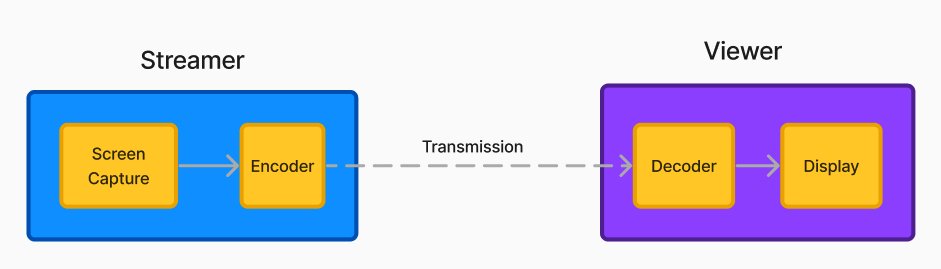
| Capture | Grabs updates to the shared application or screen | Uses the best method the operating system offers, with a fallback chain if one method fails |
| Stream quality | Sets framerate, resolution and image quality automatically | Determined by the bandwidth estimated as available, not by a fixed setting |
| Slowest viewer rule | Caps what the streamer sends | The streamer never transmits more than the slowest connection on the call can support |
| Codecs | VP8 and H264, with HEVC and AV1 on specific platforms | Renegotiated every time someone joins or leaves the voice call |
| Audio | Captures sound from the shared process and its child processes | Sound from a different application is not part of the stream |
| HD streaming | Higher-quality Go Live picture | Listed as a Nitro benefit; Nitro Basic does not include it |
Why Netflix, Prime Video and Disney Plus go black on Discord
The blackout is content protection doing its job, not a bug in Discord or a driver fault.
| Protection layer | What it does | What the call sees |
|---|---|---|
| Window content protection in Windows | An application sets its display affinity to WDA_MONITOR, so the window content is displayed only on a monitor | The shared window appears with no content, which reads as a black rectangle |
| WDA_EXCLUDEFROMCAPTURE | A stronger value supported from Windows 10 version 2004, where the window does not appear at all outside the monitor | The window is missing from the capture rather than black |
| DRM policy, for example Microsoft PlayReady | Enforces the rules chosen by the content provider, including security levels and output restrictions | Playback stops or blanks when the output is not an allowed one |
| Service terms | Netflix's Terms of Use forbid circumventing, removing, deactivating, obscuring or thwarting its content protections | Any attempt to defeat the blackout breaches the agreement you accepted |
There is no supported setting inside Discord that turns a protected player back on, and this guide does not offer one.
Legal Considerations for Streaming Content
Two sets of rules apply at once: the streaming service's subscriber terms and Discord's own policies.
Netflix's Terms of Use grant a limited, non-exclusive, non-transferable right of access, state that the service and its content are for personal, non-commercial use only, and say it may not be shared with anyone outside your household unless an Extra Member account was purchased where available. The same section bars using the service for commercial purposes or public performances, and bars reproducing, distributing, displaying or performing its content.
Keep playback inside each service's own player and use Discord for voice, not for relaying the video. Discord's Community Guidelines forbid sharing content that violates anyone's intellectual property rights, and its Terms of Service list infringing another party's intellectual property rights among the things you may not use the service to do. A screen share of a subscription title to a room of people who have not licensed it runs into both sets of rules at the same time.
Preparing Your Discord Server
Most failed movie nights come from a missing subscription or an unsupported device, not from Discord settings.
| What you need | Why it matters | How to check |
|---|---|---|
| A voice channel the group can join | Go Live streams to the people already on the call | Open the channel and confirm the other names appear in it |
| A subscription per viewer | Netflix content may not be shared outside your household unless the account owner bought an Extra Member account where available | Each person signs in and opens the title on their own account |
| A supported device for Go Live | Go Live runs on desktop, in web browsers, on phones, and on Xbox Series X|S and Xbox One | Start a test share of a non-protected window |
| A supported browser for the service | Netflix lists Chrome, Edge, Firefox, Opera and Safari as supported browsers | See Netflix supported browsers and system requirements |
| The service's desktop or mobile app, where one exists | An app avoids browser playback limits entirely | For Disney Plus, see Download Disney+ (Disney Plus) for PC, Windows 11 and 10 |
| Nitro, only if you want HD Go Live | HD streaming appears under Nitro and not under Nitro Basic | Compare the two plans on Discord Nitro |
| Upload headroom on the host PC | The encoder picks quality from the bandwidth it estimates is available | Close other uploads before the call starts |
Streaming on Discord: Step-by-Step Guide
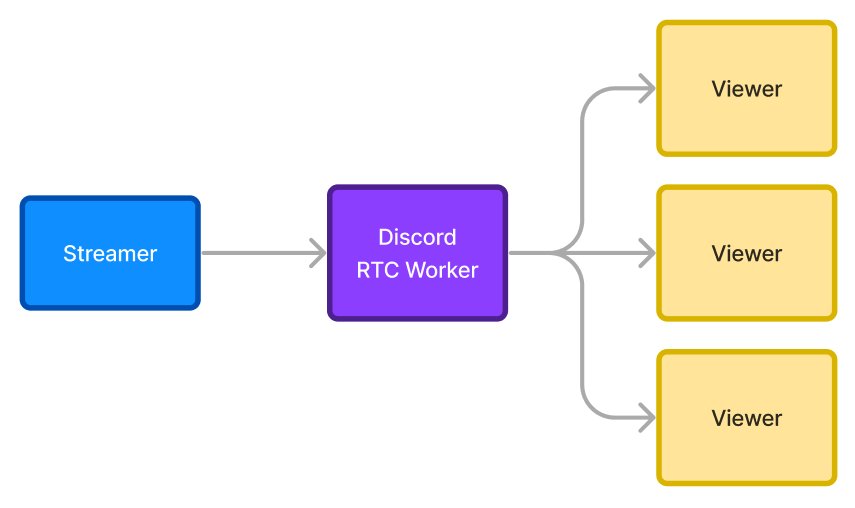
This is the route for content Discord can legitimately carry: a game, your own footage, a slide deck, or a web page without a protected player.
- Open Discord and join the voice channel where the group is waiting.
- Open the application you intend to share, so it is running before the stream starts.
- Start Go Live and choose the application window, or the screen, you want to share.
- Confirm the picture with one viewer, since Go Live transmits only while at least one person is watching.
- Keep the talking on the voice channel, because Go Live audio is not synchronised with the voice chat.
- Stop the stream when the session ends, which frees the upload bandwidth again.
If the shared window holds Netflix, Prime Video or Disney Plus, viewers see a black area at this point and the player's own controls may be all that survives the capture.
Second method: start the service's own watch party
Hulu documents the whole flow, and it is the clearest worked example of the pattern every watch-party feature follows.
- Visit Hulu.com in a supported web browser and sign in.
- Open the Details page of the show or movie and look for the Watch Party icon.
- Select the Watch Party icon, or choose Watch Party from the context menu of a specific episode for a TV series.
- Click Start the Party.
- Select the chain icon to copy the link, then send it to the other participants so they can join.
- Join a Discord voice channel with the same people while the party plays.
Up to 8 people can join one Hulu Watch Party, every participant needs a Hulu subscription, and everyone must be at least 18 years old. Hulu subscribers on an iOS or tvOS device can use SharePlay during a FaceTime call instead.
Netflix, Prime Video and Disney Plus each publish their own group-viewing rules on their help sites, and availability differs by country and by title, so check the service you actually pay for.
Which method should you use?
| Your situation | Use this | Why |
|---|---|---|
| Everyone subscribes to the same service | That service's own watch party, with Discord voice alongside | Playback never leaves the licensed player, so nothing is blanked |
| Only you subscribe | Press play separately after everyone gets their own access | Netflix content may not be shared outside your household unless an Extra Member account was bought |
| You want to share a game or your own video | Discord Go Live | No content protection is applied to that window |
| Someone watches on a phone or an Xbox | Go Live, or the service's own app on that device | Go Live added web browsers, phones and Xbox support after its 2019 desktop release |
| You need a sharper Go Live picture | A Nitro subscription, plus free upload bandwidth | HD streaming is a Nitro benefit and quality still follows the bandwidth estimate |
| A protected player shows black | Switch to the watch party route | The blackout is the service's content protection and is meant to happen |
How to check it worked
- Ask one viewer to describe what is on screen, rather than whether the stream is listed.
- Confirm the moving picture reaches them, not only the player's controls or a static frame.
- Check that every watch-party participant opened the title on their own account.
- Play thirty seconds and ask whether the sound arrives with the picture.
- Ask the person on the slowest connection last, since their link caps the stream for everyone.
Tips for Enhancing Your Streaming Experience
| Tip | What to do | Why it helps |
|---|---|---|
| Optimise your internet connection | Stop other uploads and large downloads on the host PC before starting | The encoder's output quality follows the bandwidth it estimates is available |
| Use quality headphones | Wear headphones in the voice channel instead of speakers | Keeps shared audio out of your microphone and out of the stream |
| Experiment with video quality | Compare the desktop app against a browser, and check your Nitro plan | HD streaming sits under Nitro, and the rest of the picture quality is set by bandwidth |
| Communicate effectively | Keep commentary in the voice channel and pause for late joiners | Go Live video is not synchronised with the voice chat |
| Schedule watch parties | Agree a start time and send the invitation link just before it | Participants can only join through the host's link |
| Create themed nights | Pick titles every participant can open on their own subscription | A watch-party participant needs access to the title in their own account |
| Record sessions | Do not record the service's video | Netflix's terms bar reproducing, distributing or publishing its content; record only your own voice session, with the group's agreement |
Addressing Common Technical Issues
Black Screen While Streaming
The player has set its window to display only on a monitor, so everywhere else the window appears with no content.
- Share a window with no protected video, such as a text editor, to confirm Go Live itself is working.
- Check whether the player's controls still appear while the video area stays black, which points straight at content protection.
- Switch the group to the service's own watch party and keep Discord for voice.
- Leave the protection alone: Netflix's terms bar thwarting its content protections, and Discord's guidelines bar sharing content that violates intellectual property rights.
Lag or Buffering
Go Live cannot buffer several seconds ahead the way a streaming service does, and the streamer sends no more than the slowest viewer's connection supports.
- Close other uploads, backups and downloads on the streaming PC.
- Ask viewers who are not watching to close the stream, since data is transmitted only to people actually viewing it.
- Identify the participant on the slowest link and have them rejoin, because their bandwidth caps the whole stream.
- Move the host PC to a wired connection where one is available.
- Expect the encoder to drop frames while congestion lasts, then recover as the estimate improves.
Audio Issues
Discord captures sound from the shared process and its child processes, so audio produced by a different application never reaches the call.
- Share the window of the application that is producing the sound, not a different one.
- Restart the share after opening the application, so capture attaches to the running process.
- Ask a viewer whether voice chat is audible while the shared audio is missing, which separates the two paths.
- Accept a small offset between stream and voice, because the Go Live stream is not synchronised with the voice chat.
Frequently asked questions
These questions come from Bing autocomplete for this topic, plus the black-screen and audio questions the same pages cover.
How do you stream Netflix on Discord?
You cannot pass Netflix video through a Discord screen share. The player protects its window so it shows only on a monitor, which leaves a black area in the capture. Use Netflix in its own player and keep Discord for the voice call.
How do you stream on Prime Video with friends?
Group viewing on Prime Video happens inside Prime Video itself, not through a Discord capture, and every participant needs their own access to the title. Amazon's help pages set out the current rules, devices and country limits for that feature.
How do you stream Prime Video to a TV?
Use the service's own app on the television or its casting feature. Discord's Go Live sends a stream to the people on the voice call, so it is not a route from a computer to a TV in the living room.
Can you watch Netflix on Prime?
No. Netflix is a separate service that requires its own Netflix account and subscription, and an Amazon Prime membership does not grant access to the Netflix catalogue. Each service bills and licenses its titles independently.
How does Netflix stream video online?
Netflix delivers video to its apps and to supported browsers under a digital rights management system. That system enforces the rules the content provider chose, including security levels and output restrictions, which is why captures come out blank.
How do you stream a movie on Netflix on a computer?
Sign in on a supported browser, open the title and press play. Netflix lists Chrome, Edge, Firefox, Opera and Safari as supported browsers, and each has its own system and version requirements on the Netflix Help Center.
How do you stream Netflix on TV during a Discord call?
Play the title on the television through the Netflix app, and join the Discord voice channel on your phone or computer for the conversation. Nothing has to pass through Discord for the group to watch at the same time.
What is streaming on Prime Video right now?
The catalogue changes constantly and differs by country, so check the Prime Video app or website for what is currently included. Titles offered for rent or purchase sit alongside the ones included with a membership.
Why is my Discord stream a black screen?
A protected player sets its window to display only on a monitor, so everywhere else the window appears with no content. Sharing a window without protected video confirms Go Live is otherwise working normally.
Does Discord Nitro fix streaming quality?
Nitro adds HD streaming, which Nitro Basic does not include. It does not remove the bandwidth ceiling: the encoder still picks framerate and resolution from the bandwidth available, capped by the slowest viewer on the call.
Bottom line
Run the film in each service's own watch party and run Discord next to it as the voice channel. That route keeps playback inside the licensed player for every participant, stays within the subscriber terms and Discord's guidelines, and avoids the black screen that content protection produces in any capture.