To mirror an iPhone to a TV, join both to the same Wi-Fi, open Control Center, tap Screen Mirroring and pick the TV; on a TV without AirPlay, use an AirPlay receiver app or an HDMI adapter.
This guide covers AirPlay on Apple TV and AirPlay-compatible smart TVs, the receiver-app route for other TVs, the wired adapter route, and fixes when the TV will not mirror.
Method 1: Mirror iPhone to TV using AirPlay
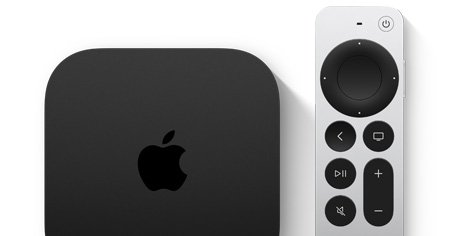
AirPlay works with Apple TV and AirPlay-compatible smart TVs. Apple lists Samsung, LG, Sony and Vizio among the TV makers building AirPlay into their sets.
- Connect the iPhone to the same Wi-Fi network as the Apple TV or smart TV.
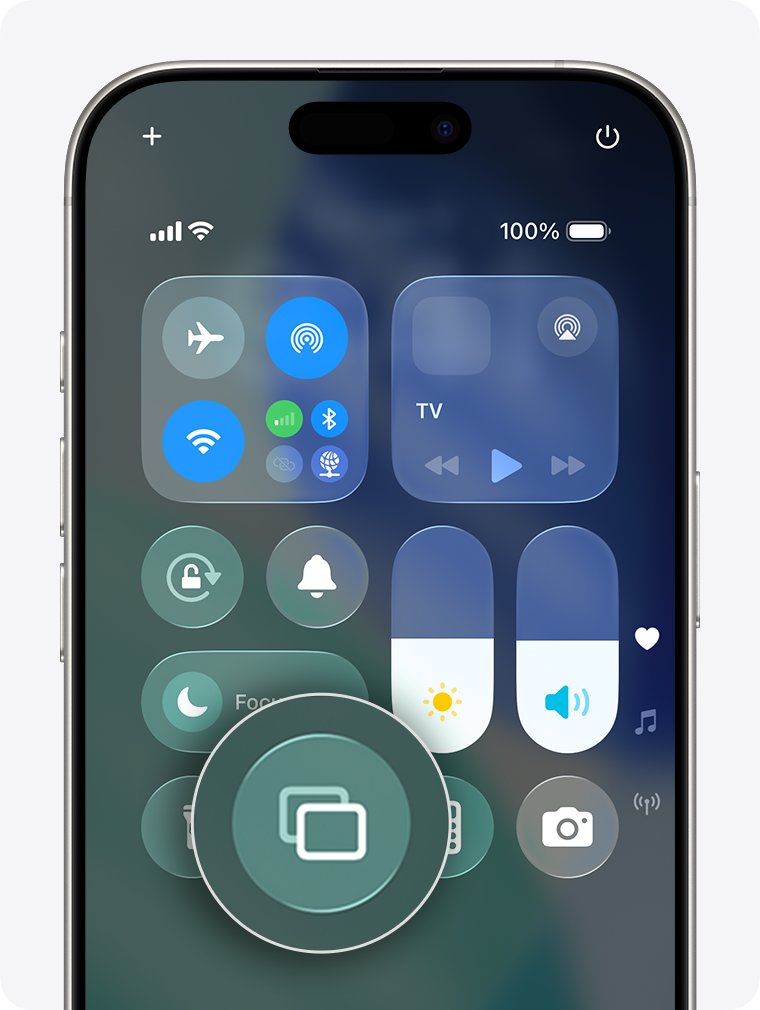
- Open Control Center: swipe down from the upper-right corner on iPhone X or later, or up from the bottom edge on iPhone 8 or earlier.
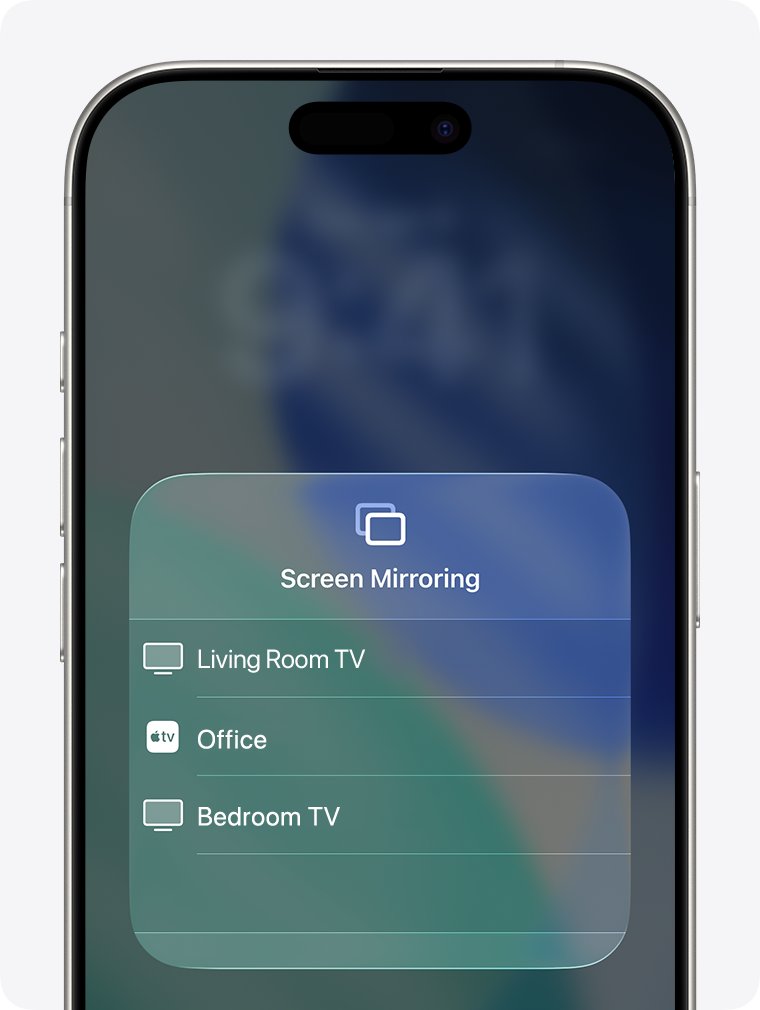
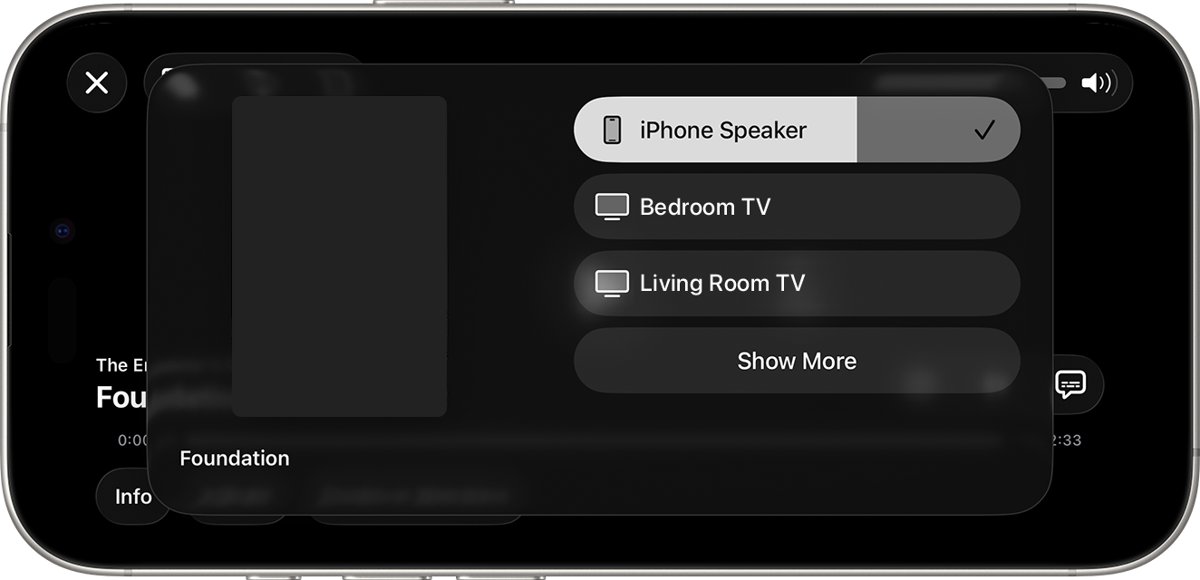
- Tap the Screen Mirroring button.
- Select your TV from the list.
- If an AirPlay passcode appears on the TV, enter it on the iPhone.
- To stop, open Control Center, tap Screen Mirroring, then tap Stop Mirroring.
Which mirroring method should you use?
| Your TV | Use this | Why |
|---|---|---|
| Apple TV box, or a Samsung, LG, Sony or Vizio TV with AirPlay | AirPlay from Control Center | Built in, no extra hardware |
| Smart TV without AirPlay, Fire TV or Android TV | AirPlay receiver app such as AirScreen | The app makes the TV appear as an AirPlay target |
| Any TV with an HDMI port, including non-smart TVs | Digital AV (HDMI) adapter | Works with no Wi-Fi and carries audio |
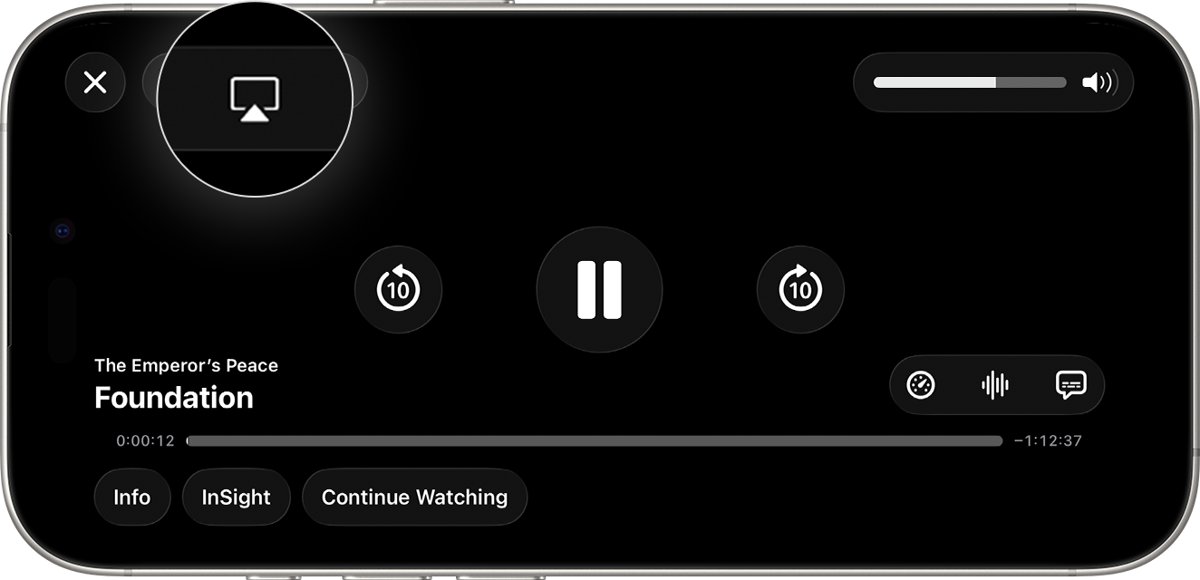
| You only want a video on the TV | AirPlay button inside the video app | Streams the video instead of the whole screen |
How iPhone screen mirroring actually works
| Mode | What the TV shows | Connection |
|---|---|---|
| Screen Mirroring | Exactly what is on the iPhone screen | AirPlay over the same Wi-Fi network |
| AirPlay streaming | Only the video or photos from one app | AirPlay over the same Wi-Fi network |
| Wired adapter | The iPhone screen over HDMI | Adapter matching the USB-C or Lightning port |
Some video apps do not support AirPlay. If one will not stream, check whether the same app is in the App Store on your Apple TV.
Method 2: Mirror iPhone to a non-AirPlay TV using AirScreen
AirScreen is a third-party receiver app installed on the TV, not the iPhone. Once it runs, the TV shows up in the iPhone's AirPlay list like any AirPlay TV.
- Open your TV's app store, such as the Amazon Appstore on Fire TV or Google Play on Android TV.
- Search for AirScreen and install it.
- Open the app on the TV and leave it on its waiting screen.
- Connect the iPhone to the same Wi-Fi network as the TV.
- On the iPhone, open Control Center, tap Screen Mirroring and select the name the app shows.
Method 3: Mirror iPhone to TV with an HDMI adapter
A cable works on any TV with an HDMI input. Use a Digital AV adapter with the same connector as your iPhone: USB-C or Lightning.
- Buy a Digital AV adapter that matches your iPhone's port; it has an HDMI port and carries audio.
- Plug the adapter into the iPhone.
- Connect an HDMI cable from the adapter to the TV.
- Switch the TV input to that HDMI port.
- Unlock the iPhone; the screen appears on the TV.
VGA adapters carry no audio, and converters to DVI, Composite or Component are not compatible.
Alternative ways to get your iPhone on the big screen
| Goal | Option | How |
|---|---|---|
| Play one video full size | AirPlay streaming | Tap the AirPlay button in the video app and choose the TV |
| Show photos | AirPlay from Photos | Tap Share, then AirPlay, then the TV |
| Mirror to a Mac | AirPlay to Mac | Choose the Mac in the Screen Mirroring list |
| Connect automatically to a TV you use often | Automatically AirPlay | Settings > General > AirPlay & Continuity > Automatically AirPlay |
Tips for better mirroring quality
- For video, use the app's AirPlay button instead of Screen Mirroring, so only the video goes to the TV.
- Keep the iPhone and TV on the same Wi-Fi network, ideally close to the router.
- Update the iPhone to the latest iOS version.
- Set Automatically AirPlay to Ask or Automatic under Settings > General > AirPlay & Continuity for quicker reconnects.
- Use a Digital AV adapter when Wi-Fi is weak or busy.
Still not working?
Why won't my TV mirror my iPhone? The TV is not in the list
The iPhone and TV are on different networks, or the TV has no AirPlay.
- Connect both devices to the same Wi-Fi network.
- Confirm the TV supports AirPlay; if not, install a receiver app or use an adapter.
- Reopen Control Center and tap Screen Mirroring again.
Why can't I mirror my iPhone to my TV with an HDMI adapter?
A loose connection, faulty cable, or an extension or converter in the chain.
- Unplug the adapter from the iPhone and the TV, then reconnect both.
- Try another HDMI cable.
- Remove extension cables and converters.
- Update the iPhone to the latest iOS.
Video plays on the iPhone but shows black or an HDCP message on the TV
The content is protected and the connection cannot play it.
- Use an HDMI Digital AV adapter rather than VGA.
- Or stream the video with the app's AirPlay button if the app supports it.
Why won't my iPhone screen mirror to my TV from one app?
Some video apps do not support AirPlay.
- Check whether the app is in the App Store on your Apple TV and play it there.
- Or use a wired Digital AV adapter.
Frequently asked questions
How do I mirror my iPhone to a Samsung TV?
Samsung is among the TV makers Apple lists with AirPlay. Connect both to the same Wi-Fi, open Control Center, tap Screen Mirroring and choose the Samsung TV. Enter the passcode if the TV shows one.
How do I mirror my iPhone to a Roku TV?
If your Roku shows up in the iPhone's Screen Mirroring list, select it after joining the same Wi-Fi. If it does not appear, connect the iPhone with a Digital AV adapter to the TV's HDMI port instead.
How do I mirror my iPhone to a TV with an HDMI adapter?
Plug a Digital AV adapter that matches your iPhone's USB-C or Lightning port into the phone, run an HDMI cable to the TV, and switch the TV to that HDMI input. The screen and audio appear on the TV.
How do I mirror my iPhone to a TV with Apple TV?
Join the iPhone and Apple TV to the same Wi-Fi, open Control Center, tap Screen Mirroring and select the Apple TV. Press the Menu button on the Apple TV Remote or tap Stop Mirroring to end it.
How do I mirror my iPhone to a TV with a Firestick?
Install an AirPlay receiver app such as AirScreen from the Amazon Appstore on the Fire TV, open it, then tap Screen Mirroring on the iPhone and select the name the app shows.
How do I get iPhone mirroring full screen on my TV?
Mirroring copies the phone's screen shape. For a video that fills the TV, tap the AirPlay button inside the video app instead, which streams the video itself rather than the whole iPhone screen.
Can I mirror my iPhone to a TV without Wi-Fi?
Yes. A Digital AV adapter with an HDMI port connects the iPhone to the TV by cable, so no Wi-Fi network is needed. AirPlay mirroring needs both devices on the same Wi-Fi network.
Quick summary
Use AirPlay Screen Mirroring if the TV supports it, an AirPlay receiver app if it does not, and a Digital AV adapter for any TV with HDMI or no Wi-Fi. Those three routes cover every TV: AirPlay is built in, the receiver app adds AirPlay to other smart TVs, and the HDMI adapter needs nothing but a port.