To activate Disney Plus on your TV, open the Disney+ app on the TV, start the log-in, then type the code the TV shows into the Disney+ page at disneyplus.com/begin on your phone or computer.
This guide covers device compatibility, installing the app, getting and entering the code, provider bundles such as Verizon and Hulu, fake activation sites, and fixes when the code will not work.
The fastest way to activate Disney Plus on your TV
You need an active Disney+ subscription, your Disney+ email and password, and a phone or computer with a browser.
- Open the Disney+ app on your smart TV, streaming stick or console.
- Choose the log-in option on the welcome screen, not the sign-up option.
- Leave the TV on the screen that shows a web address and an activation code.
- On your phone or computer, type
disneyplus.com/begininto the address bar yourself. - Enter the code from the TV exactly as shown, then sign in with your Disney+ email and password.
- Look back at the TV. It leaves the code screen and opens Disney+ once the code is accepted.
If the TV shows a different address from the one above, use the one on your screen. The code only works on the address the app asks for.
Other streaming apps pair the same way, so once you activate YouTube TV with a TV code or link Plex to your TV, the steps feel familiar.
Disney Plus activation through Verizon, Xfinity, Hulu or app-store billing
The TV log-in is the same for everyone. What changes is where your subscription comes from, and a provider subscription has to be set up before the TV will accept your account.
| Your situation | Do this first | Then |
|---|---|---|
| You pay Disney+ directly | Nothing extra | Follow the steps above on the TV |
| Disney+ comes with a Verizon mobile plan | Enroll on the Service & perks page in My Verizon (Account Owner or Account Manager only) and finish the Disney+ account setup it sends you to | Log in on the TV with the email you used during enrollment |
| Disney+ comes from Xfinity or another TV, phone or internet provider | Finish the provider's own Disney+ enrollment, then check the provider article in Disney+ Help | Log in on the TV with the Disney+ email the provider linked |
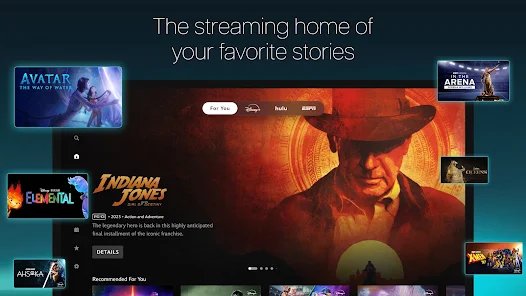
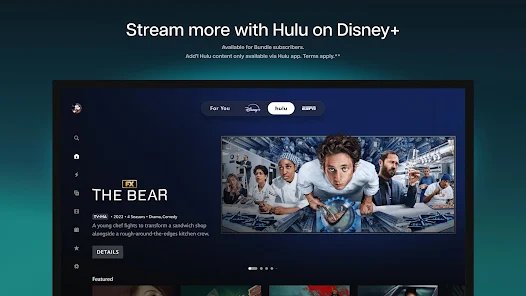
| You have the Disney+ and Hulu bundle | Make sure Hulu is activated on the same account (see the Hulu fix below) | Watch Hulu inside the Disney+ app, or activate the separate Hulu app |
| You bought Disney+ through Apple, Google, Roku or Amazon billing | Nothing extra; the billing stays with that store | Log in on the TV with the Disney+ email tied to that purchase |
| You have no subscription yet | Subscribe in the Disney+ app or on disneyplus.com | Return to the TV and log in |
Check Disney Plus compatibility on your TV or streaming device
Disney+ runs as an app, so your TV or streaming device must offer the Disney+ app in its own app store. Disney keeps the current list in the supported devices section of Disney+ Help.
The quickest compatibility test is to search the device's app store for Disney+. If it is not listed there, that device cannot run it.
| Device | Where the app comes from | What to confirm before activation |
|---|---|---|
| Apple TV | App Store on the Apple TV | tvOS 16.5 or later, per the App Store listing |
| Android TV and Google TV devices | Google Play on the TV | The Disney+ listing by Disney appears in Google Play on the TV |
| Other smart TVs (Samsung, LG and others) | The TV maker's own app store | Disney+ appears when you search the store; update the TV's software if it does not |
| Roku, Fire TV and game consoles | That platform's channel or app store | Disney+ appears in the store for your model and region |
| Any device | n/a | An active Disney+ plan, your Disney+ email and password, a working internet connection, and a phone or computer for the code |
Disney+ content varies by country, and the Hulu and ESPN hubs inside the app are for US subscribers aged 18 or over.
On a Windows computer there is no TV code: you can install the Disney+ app on Windows and sign in with your email and password.
Install and open the Disney Plus app
Skip this section if Disney+ is already on your TV's home screen.
- Press the home button on your TV or streaming device remote.
- Open the device's app store, such as the App Store on Apple TV or Google Play on Google TV.
- Search for Disney+ and pick the app published by Disney.
- Select install or download and wait for it to finish.
- Open Disney+ from the app store page or from your home screen.
Check the publisher before you install. On the App Store the seller is Disney Electronic Content, Inc., and on Google Play the developer is Disney.
Sign in and get the Disney Plus activation code
The code is what links the TV to your account, so you never have to type your email and password with the remote.
- Open Disney+ on the TV and choose the log-in option.
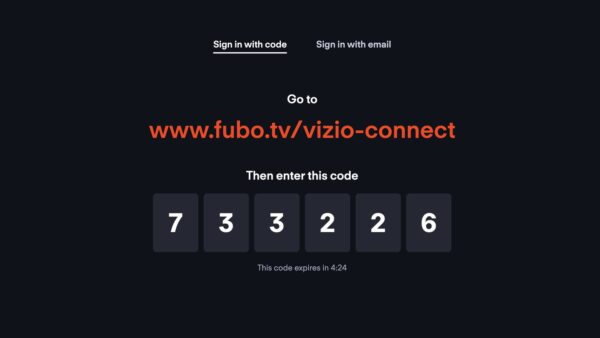
- Wait for the screen that shows a web address and a code.
- Keep that screen open while you use your phone or computer.
- Note the web address exactly as the TV shows it.
- If you leave the screen or the code stops working, start the log-in again to get a fresh code.
Activate Disney Plus at disneyplus.com/begin
Do this part on a phone, tablet or computer while the TV still shows the code.
- Open a browser and type
disneyplus.com/begininto the address bar. Do not search for it. - Check the address bar shows
disneyplus.combefore you type anything else. - Enter the code from your TV screen and continue.
- Sign in with the email and password of the Disney+ account that holds your subscription.
- Wait for the confirmation on the web page, then look at your TV.
Use the same email your subscription is attached to. If you signed up through a provider, that is the email you gave the provider during enrollment.
Start streaming Disney Plus on your TV
A successful activation is easy to spot: the TV leaves the code screen on its own without another button press.
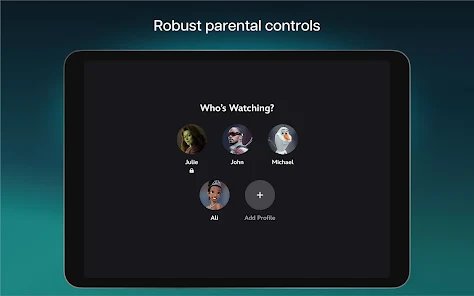
- Confirm the TV has moved from the code screen to the Disney+ profile picker.
- Select your profile to reach the Disney+ home screen.
- Play any title for a few seconds to confirm streaming works.
- To confirm a provider plan, open your Profile icon, choose Account, and read the plan name under Subscription. A Verizon plan shows as "Verizon subscription".
- Set a Profile PIN or parental controls on each profile once you are in, especially if children use the TV.
How to spot a fake Disney Plus activation site
Search results for "Disney Plus activate" include lookalike sites that copy the code screen. Disney's code page lives on disneyplus.com, and nothing else can link your TV.
| Red flag | What it means | What to do |
|---|---|---|
| The address bar shows any domain other than disneyplus.com | The page is not Disney's | Close it and type disneyplus.com/begin yourself |
| The page asks for a fee to "activate" your TV | The page is selling something Disney does not sell | Leave the page and pay only inside the Disney+ app, on disneyplus.com or through your provider |
| A pop-up gives a phone number for "activation support" | A scam call-centre lure | Use the contact options in Disney+ Help instead |
| The page asks for remote access to your computer | Nobody needs remote access to enter a TV code | Refuse, close the page and change your Disney+ password if you entered it |
If you typed your password into a fake site, change it on disneyplus.com at once.
Troubleshoot Disney Plus activation problems
The Disney Plus activation code does not work
The code expired, was mistyped, or was entered on a site other than disneyplus.com.
- Check the address bar shows
disneyplus.comon the page where you typed the code. - On the TV, press back and start the log-in again to get a fresh code.
- Enter the new code straight away, reading each character from the TV screen.
- Restart the TV or streaming device and try once more if the TV still does not respond. If an Apple TV ignores its remote, pair or reset the Apple TV remote first.
- Work through Disney's log-in issues article if it keeps failing.
The Disney Plus app is missing from the smart TV
The app is not installed, the TV software is out of date, or the model is not supported.
- Search the TV's app store for Disney+ rather than scrolling the home screen.
- Install any pending system update from the TV's settings, then search again.
- Check the model in Disney's supported devices list.
- If the TV is not supported, use a supported streaming device such as Apple TV or a Google TV device plugged into an HDMI port.
You can't activate Hulu with Disney Plus
Hulu is a separate service in the bundle and needs its own activation on the same account.
- Confirm your plan is a bundle. All subscribers see a limited Hulu selection, but full Hulu on Disney+ needs Hulu bundled with your plan.
- For a Verizon plan, select Activate Hulu during Disney Bundle enrollment, or use the activation email Disney sends afterwards.
- If you already have a Hulu account, log in to Hulu with that existing email and password when asked.
- Open the Hulu hub inside the Disney+ app on your TV to check that Hulu titles now play.
Disney Plus through Verizon, Xfinity or another provider does not activate
The provider enrollment is unfinished, or the TV is signed in with a different email.
- Finish enrollment on the provider's side first. On Verizon this is the Service & perks page, and only the Account Owner or Account Manager can do it.
- Use the same email for the provider enrollment and the TV log-in.
- If sign-up says the email already has a subscription, follow the setup email the provider sends. Verizon pauses a direct Disney+ subscription and resumes it when the perk ends.
- If you pay through Apple, Google, Roku or Amazon, cancel that billing yourself; a Verizon perk does not replace it automatically.
- Read Disney's provider articles for Verizon and Xfinity for the remaining steps.
Disney Plus TV activation: bottom line
Activate the TV with the code method: start the log-in on the TV, then type disneyplus.com/begin yourself on your phone and enter the code. It avoids typing your password with a remote, and typing the address yourself is the simplest defence against lookalike activation sites. If you get Disney+ from a provider, finish that provider's enrollment first.
Disney Plus TV activation: frequently asked questions
How do I activate Disney Plus on my TV?
Open the Disney+ app on the TV and choose the log-in option. Then go to disneyplus.com/begin on your phone or computer, enter the code shown on the TV, and sign in with your Disney+ email and password.
Where do I enter the Disney Plus activation code from my TV?
Enter it at disneyplus.com/begin, or at whatever address your TV screen shows. Type the address into the browser yourself rather than searching for it, because lookalike sites copy Disney's code page.
What should I do if my Disney Plus activation code does not work?
Start the log-in again on the TV to get a fresh code and enter it straight away. Check that the page is on disneyplus.com, then restart the TV if it still does not respond.
Can I activate Disney Plus on Roku, Fire TV, Apple TV, or a game console?
Yes, on any device whose app store offers the Disney+ app. Apple TV needs tvOS 16.5 or later. Check Disney's supported devices list for your exact model.
Do I need a Disney Plus subscription before activating it on my TV?
Yes. The code links the TV to an account with an active plan. You can subscribe inside the Disney+ app, on disneyplus.com, or through a provider such as Verizon.
How do I activate Disney Plus on Verizon?
Enroll on the Service & perks page in My Verizon as the Account Owner or Account Manager with an eligible plan. Then set up your Disney+ account and log in on the TV with that email.
How do I activate Disney Plus on Xfinity, Spectrum or DIRECTV?
Finish that provider's own Disney+ enrollment first, then log in on the TV with the email the provider linked. Disney+ Help keeps provider articles, including one for Xfinity.
Why can't I activate Hulu with Disney Plus?
Hulu needs its own activation on the same account, and full Hulu on Disney+ requires Hulu to be bundled with your plan. On Verizon, use Activate Hulu during enrollment or the activation email Disney sends.
How do I activate my Disney Plus account?
Create or sign in to your Disney+ account with your email and a password, and choose a plan. If a provider supplies Disney+, follow the setup email it sends. Then log in on your devices.
What can I do if the Disney Plus app is missing from my smart TV?
Search the TV's app store for Disney+ and install it. If it does not appear after a system update, the TV is not supported; use a supported streaming device on an HDMI port instead.