iCloud shows no devices in Find My when Find My is turned off on your devices or when you signed in to icloud.com/find with a different Apple Account from the one on your iPhone.
This guide covers turning on Find My for iPhone, iPad and Mac, matching the Apple Account, Location Services, family devices, what Offline and No location found mean, and fixes when a device still will not appear.
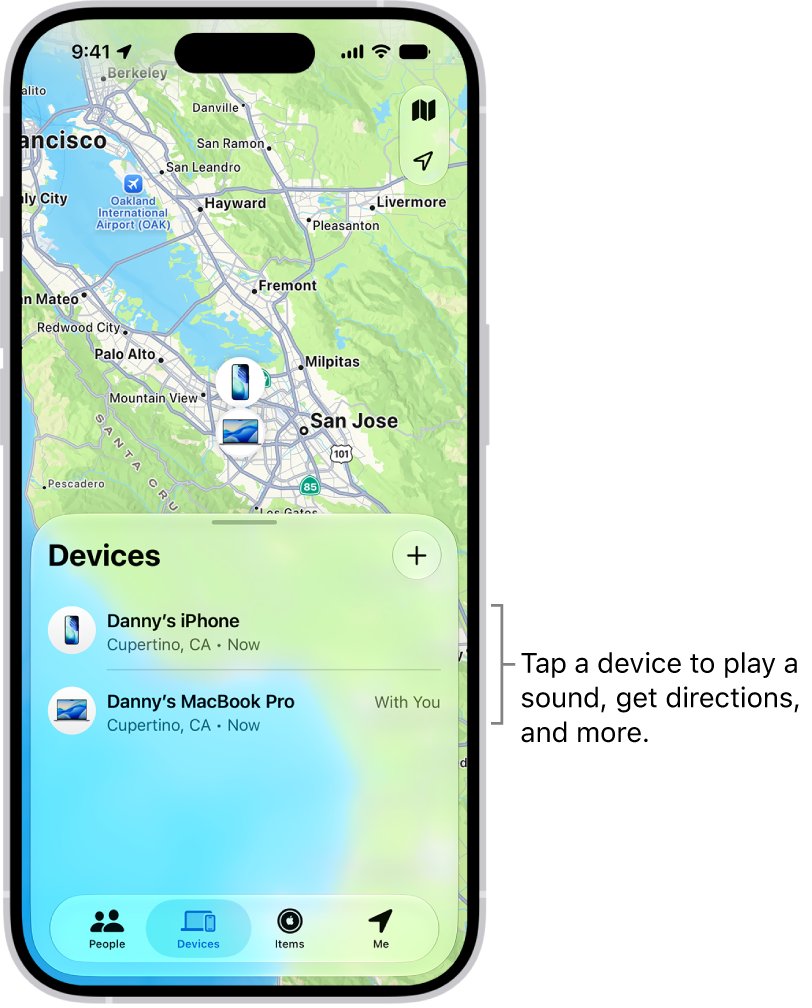
Fix iCloud Find My showing no devices
A device appears in Find Devices on iCloud.com only after Find My is set up on that device. Check that first, then check the account.
- On your iPhone, open Settings and tap your name at the top. Note the email address shown under your name.
- Tap Find My, tap Find My iPhone, then turn on Find My iPhone.
- Turn on Find My network and Send Last Location on the same screen.
- On a computer, go to icloud.com/find and sign in with the same email address you noted in step 1.
- If you are asked for a verification code, select the Find Devices button at the bottom of the window instead.
- Select All Devices and confirm your iPhone is listed.
Repeat the Find My steps on every iPad, Mac and Apple Watch you want to see in the list.
Why iCloud Find Devices says no devices
The device list at icloud.com/find is empty or incomplete for a small set of reasons. Match what you see to a row and apply the fix.
| Cause | How to tell | Fix |
|---|---|---|
| Find My was never turned on | Settings > your name > Find My shows Find My iPhone as off | Turn on Find My iPhone, then reload icloud.com/find |
| Signed in to a different Apple Account | The email under your name in Settings differs from the one used on iCloud.com | Sign out of iCloud.com and sign in with the account on the device |
| Signed in with a web-only account | The account has never been used to sign in on an Apple device | Sign in on the iPhone with that account, or use the account the iPhone already uses |
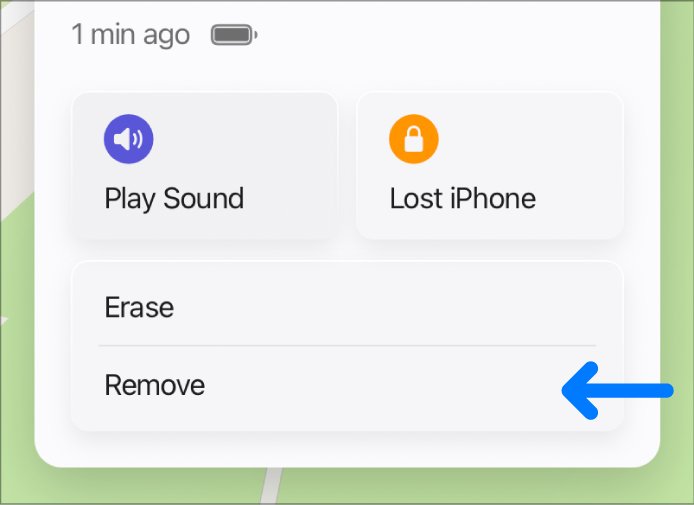
| Device was removed from Find My | You selected Remove This Device or signed out of the Apple Account on the device | Sign in to the Apple Account on the device again and turn Find My back on |
| Device belongs to a family member | It is set up with another person's Apple Account | Ask them to share their location through Family Sharing |
| Device belongs to a friend | It is not in your Family Sharing group | Friends' devices cannot be added; they sign in at icloud.com/find themselves |
Turn on Find My iPhone in Settings
Find My has to be on before a device goes missing. If it was off when the device was lost, the device will not appear at icloud.com/find or in the Find My app.
- Open the Settings app on the iPhone or iPad.
- Tap your name, then tap Find My.
- Tap Find My iPhone (or Find My iPad).
- Turn on Find My iPhone.
- Turn on Find My network so the device can be located even when it is offline.
- Turn on Send Last Location so the device sends its location to Apple when the battery is low.
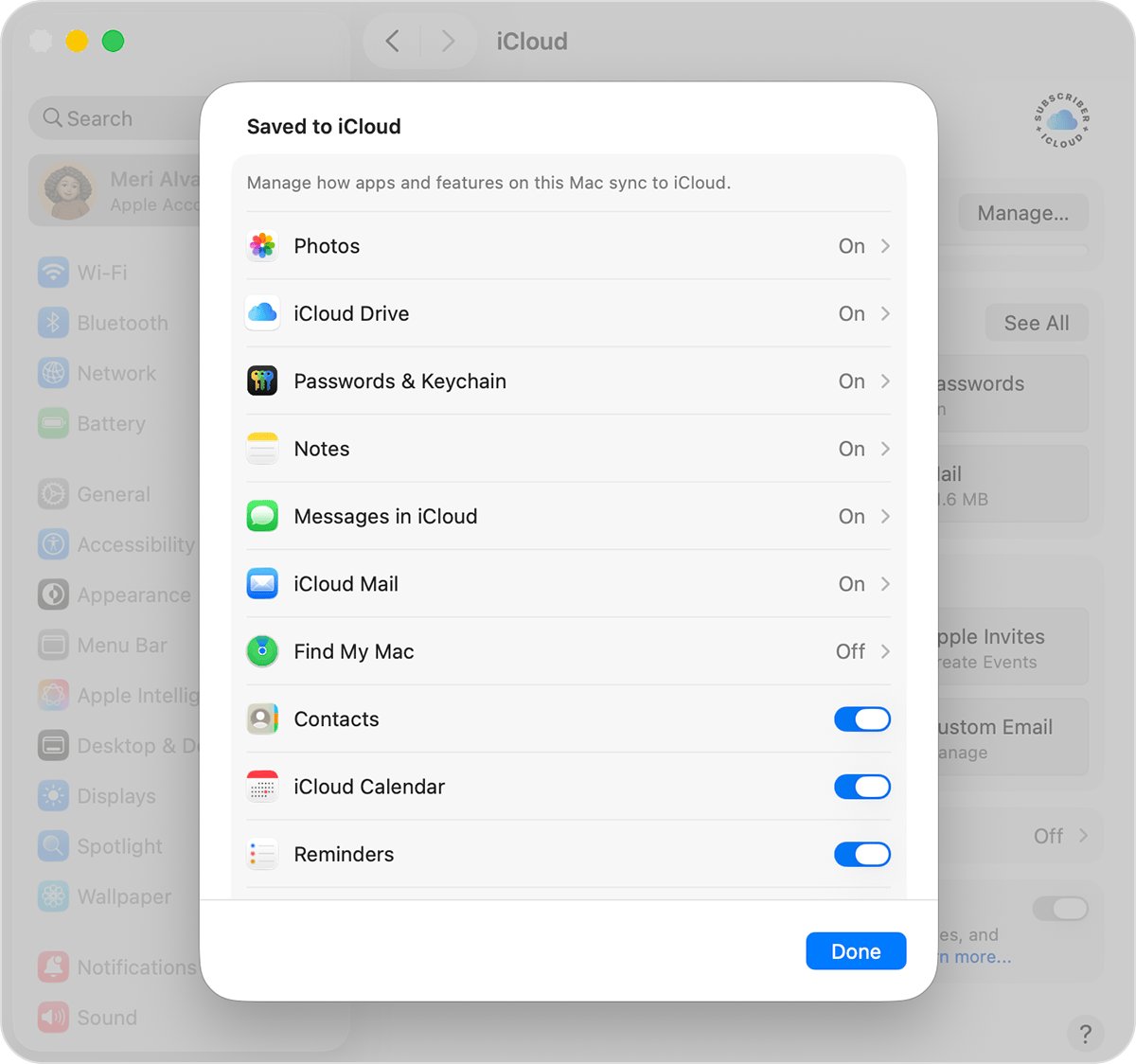
Turn on Find My Mac in System Settings
- Choose Apple menu > System Settings.
- Click your name, then click iCloud.
- Click See All, scroll down and click Find My Mac.
- Click Turn On and enter your Apple Account password if asked.
- Click Turn On again, then click Allow so Find My Mac can use the Mac's location.
Location Services must also be on for Find My on the Mac, or the Mac appears without a position on the map.
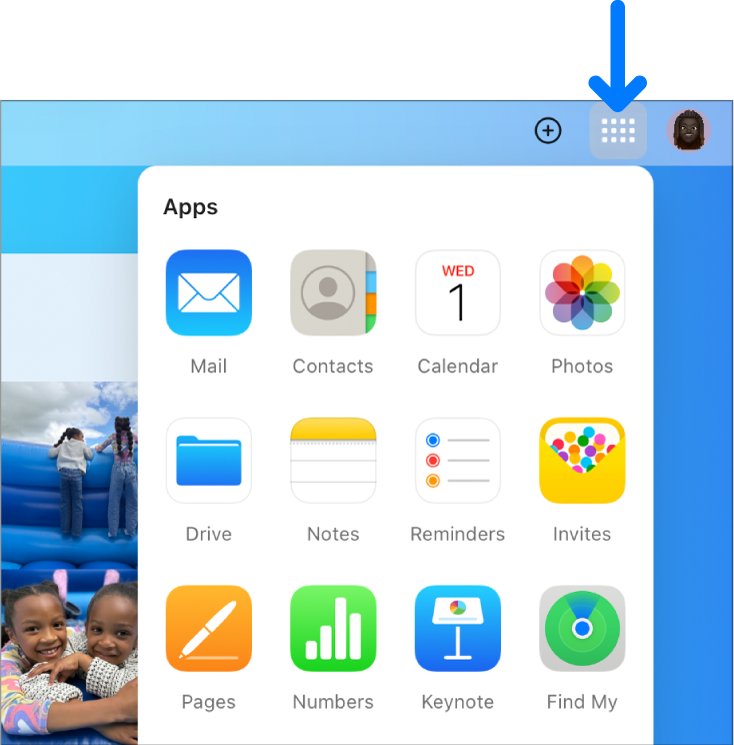
Sign in to icloud.com/find with the right Apple Account
If you have more than one Apple Account, iCloud.com only shows the devices tied to the account you signed in with. Sign in with the account you used to set up Find My on the device.
- On the iPhone, open Settings and tap your name to see the Apple Account email in use.
- On iCloud.com, select your account photo in the top-right corner and choose Sign Out.
- Go to icloud.com/find.
- Sign in with the email address shown on the iPhone.
- Select Find Devices if a verification code prompt appears and your trusted device is the one you are looking for.
- Open All Devices and pick the device from the list.
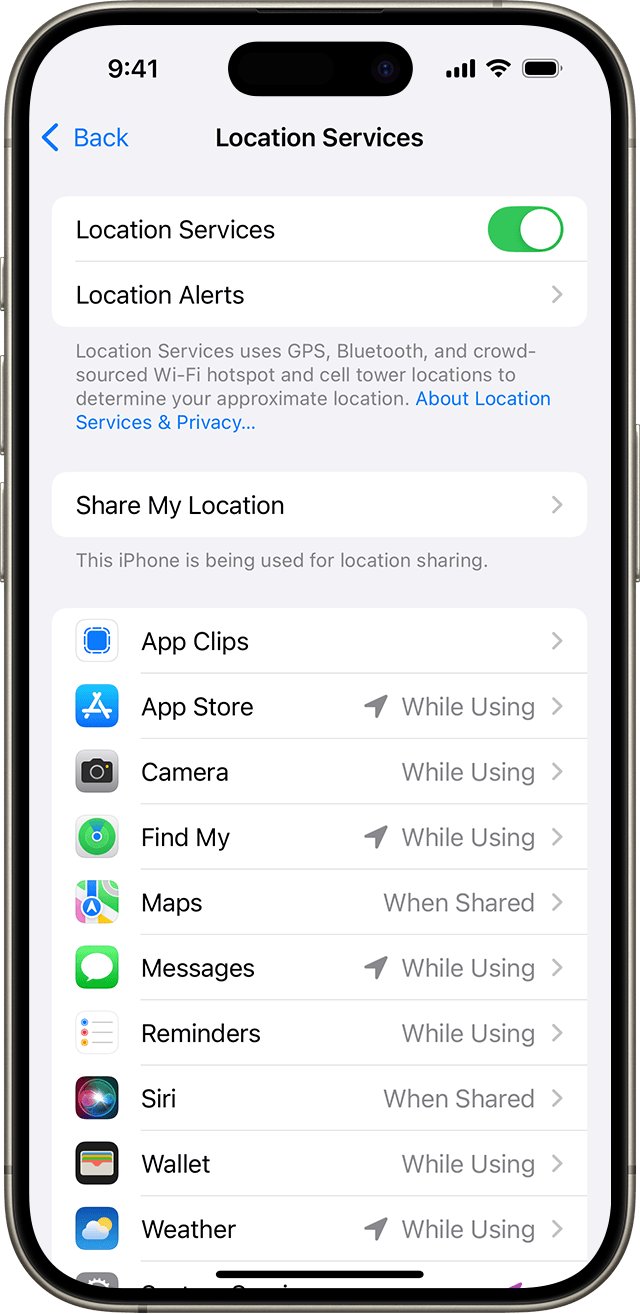
Turn on Location Services for Find My on iPhone
If Location Services has a problem, a device can be online but still show no position. Find My then reports Not sharing location next to Online.
- Open Settings and go to Privacy & Security > Location Services.
- Turn on Location Services.
- Scroll the app list and tap Find My.
- Choose an access option that allows location use, and leave Precise Location on.
- Open icloud.com/find again and select the device.
See a family member's devices in Find Devices
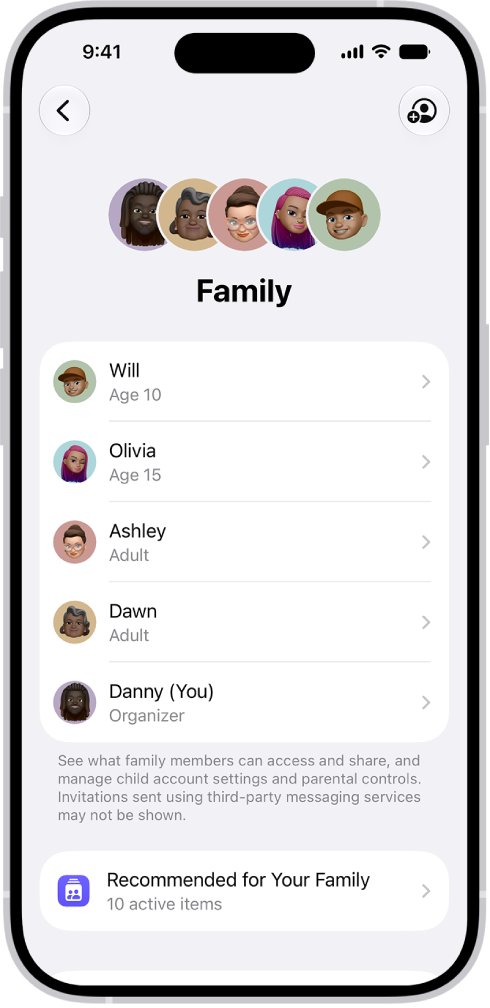
In a Family Sharing group, family members' devices appear below yours in the All Devices list. Each member must share their location from their iPhone first.
- Ask the family member to set up location sharing with the family on their own device.
- Confirm Find My is on for their device under Settings > [their name] > Find My.
- Sign in to icloud.com/find with your own Apple Account.
- Open All Devices and look below your devices for theirs.
Find My offline, no location found and not sharing location meaning
| Status you see | What it means | What to do |
|---|---|---|
| Offline | The device is listed but has no network connection or is turned off | Select Notify me when found to get an email when it comes online |
| Last known location | iCloud.com keeps a location for up to 24 hours; the Find My app can show it for up to 7 days through the Find My network | Go to the last spot shown while it is still available |
| No location found | More than seven days have passed since the device last sent its location | Turn on Notify When Found in the Find My app |
| Not sharing location, Online | The device is online but cannot send its location | Check Location Services on that device |
| No location after a password change | Stolen Device Protection can hide locations for a period after the password changes | Wait and check again later |
| Device missing from the list | Find My is off, the account differs, or the device was removed | Use the fixes in the table above |
Check your devices appear in iCloud Find Devices
- Go to icloud.com/find and sign in.
- Select All Devices. Each device with Find My turned on is listed under your account.
- Select your iPhone. If it is online, it appears on the map.
- Select Play Sound and confirm the iPhone plays a tone and shows a Find My iPhone alert.
- Dismiss the alert on the iPhone by pressing a side or volume button.
Apple also emails the Apple Account address to confirm a sound was played, which shows the request reached the right account.
Why can't iCloud find my phone: fixes by symptom
Find My iPhone says no devices on iCloud.com
Find My is off on the iPhone, or iCloud.com is signed in to another Apple Account.
- Turn on Find My iPhone in Settings > your name > Find My.
- Compare the Apple Account email on the iPhone with the one on iCloud.com.
- Sign out of iCloud.com and sign in with the matching account.
iCloud find devices shows no location found
The device has not sent a location for more than seven days, often because the battery ran out.
- Open the Find My app on another Apple device and select the device.
- Turn on Notify When Found.
- Mark the device as lost from Lost [device] if you think it is gone.
Device shows as offline
The device is turned off or has no Wi-Fi or cellular connection.
- Check the last known location shown under the device name.
- Select Notify me when found on iCloud.com.
- Turn on Find My network on your other devices so offline devices can be found later.
A new device or AirTag is not listed in Find My
The device runs an older operating system.
- Update the device to the latest iOS, iPadOS, macOS or watchOS.
- Open Find My again after the update.
- Note that AirTag and other Find My network accessories only appear in the Find My app, not on iCloud.com.
iCloud.com asks for a code from the phone you lost
Normal iCloud sign-in requires two-factor authentication on a trusted device.
- Go to icloud.com/find instead of the iCloud.com home page.
- Select the Find Devices button at the bottom of the sign-in window.
- Sign in with your Apple Account password only.
iCloud.com shows only Find My iPhone and iCloud Settings
Advanced Data Protection is on and web access to iCloud data is off.
- Use Find My iPhone on iCloud.com as normal; it still works.
- To see other apps on the web, turn on Access iCloud Data on the Web in iCloud settings on your device.
iCloud Find My no devices FAQ
How do I find my devices on iCloud?
Go to icloud.com/find, sign in with your Apple Account and select All Devices. Every iPhone, iPad, Mac, Apple Watch, AirPods or Beats product with Find My turned on and signed in to that account appears in the list.
How do I see my devices in iCloud?
Sign in at icloud.com/find and open All Devices. You can also open the Find My app on any Apple device signed in to the same Apple Account and tap Devices. One account can hold up to 100 devices.
How do I check which devices are on my iCloud account?
Open icloud.com/find and select All Devices to see each device using Find My. On an iPhone, open Settings and tap your name to see the Apple Account that the phone is signed in to.
Why can't iCloud find my phone?
iCloud cannot find a phone that never had Find My turned on, is signed in to a different Apple Account, or is offline. An offline phone shows its last known location for up to 24 hours on iCloud.com.
How can I find my iPhone without iCloud?
Open the Find My app on another Apple device signed in to your Apple Account and tap Devices. If you are in a Family Sharing group, a family member's Find My app can also show your iPhone below their own devices.
How do I locate an iPhone without iCloud.com?
Use the Find My app on an iPad, Mac or another iPhone that uses your Apple Account, or a family member's device. The Find My app can show a last known location for up to seven days through the Find My network.
Why is my iCloud not showing my devices?
Your device list stays empty when Find My is off on the devices, when you signed in with another Apple Account or a web-only account, or when the devices were removed from Find My. Turn on Find My and sign in with the matching account.
Why is my iCloud not working on the web?
If Advanced Data Protection is on, iCloud.com shows only Find My iPhone and iCloud Settings. Turn on Access iCloud Data on the Web on your device to see the rest, or sign in with the Apple Account your devices use.
Can I add a friend's iPhone to my Find Devices list?
No. You cannot add a friend's device to Find Devices on iCloud.com. Your friend can sign in at icloud.com/find with their own Apple Account to locate their device.