Your Roku PIN lives in your Roku account: sign in at my.roku.com, open PIN/Parental controls, and select Change PIN to set a new one if you cannot remember the old one.
This guide covers where the PIN is managed, how to create, reset or remove it, the separate parental control PIN on Roku TVs, and fixes when the PIN prompt misbehaves.
How to find your Roku PIN
The Roku PIN belongs to your Roku account, not to the TV or streaming stick. You manage it on the Roku website from a phone or computer. Amazon works the same way: you reset a forgotten Fire Stick PIN at amazon.com/pin, not on the stick itself.
Roku's own instructions offer no option to display a saved PIN. If you have forgotten it, the fix is to set a new one with Change PIN.
- Open a web browser and go to my.roku.com.
- Sign in with the email and password of the Roku account linked to your Roku device.
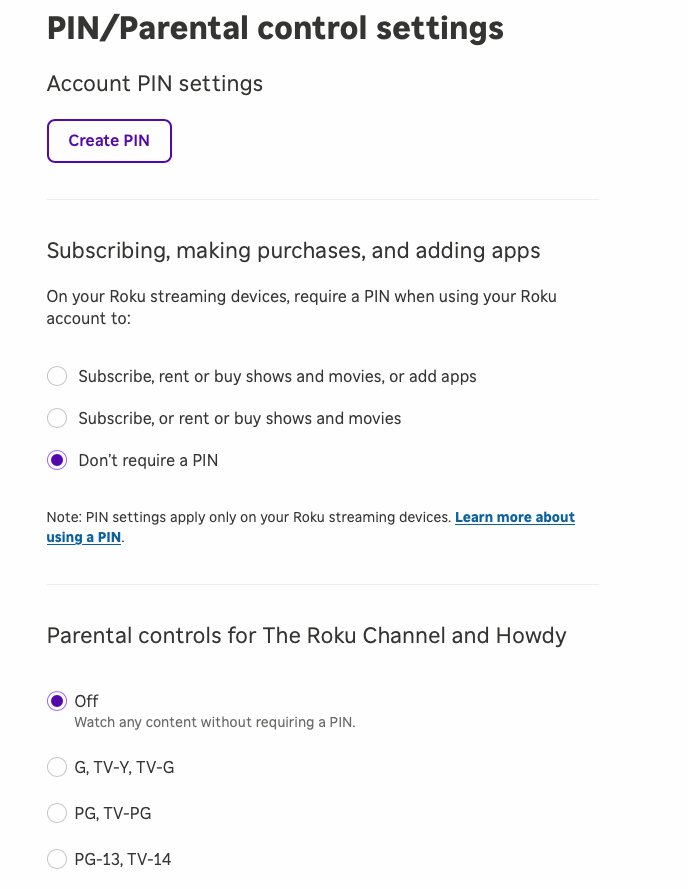
- Under My Account > Profile & Settings, select PIN/Parental controls.
- Check the PIN preference shown there to confirm whether a PIN is required for purchases and adding apps.
- If you remember the PIN, close the page. If you do not, select Change PIN, enter a new 4-digit number and select Save.
If you forgot which email the Roku account uses, press Home on the remote, then go to Settings > System > About to see it on the TV screen.
Which Roku PIN is your TV asking for?
Roku devices can ask for more than one kind of PIN. Match the screen you are on to a row before you reset anything.
| Where the PIN prompt appears | Which PIN it is | Where to find or change it |
|---|---|---|
| Adding an app, subscribing, renting or buying a movie or show | Roku account PIN | my.roku.com > PIN/Parental controls > Change PIN |
| Turning auto-renew on or off for a subscription on the device | Roku account PIN | my.roku.com > PIN/Parental controls |
| Playing a rated movie or show on The Roku Channel or Howdy | Roku account PIN, through parental controls | my.roku.com > PIN/Parental controls > parental controls for The Roku Channel and Howdy |
| Opening Parental controls on a Roku TV, or unblocking a Live TV antenna program | Roku TV parental control PIN, which is different from the Roku PIN | On the TV: Settings > Parental controls > Change PIN |
| Inside another streaming app's own profile or kids settings | That service's PIN, not a Roku PIN | The streaming service's own account settings |
Understanding Roku PIN: What is it and why is it important?
A Roku PIN is an optional 4-digit number tied to your Roku account. Roku recommends one when more than one person in the household uses the same Roku device.
| What the Roku PIN controls | Why it matters |
|---|---|
| Adding apps to your Roku streaming device | Stops anyone in the house from installing apps you have not approved |
| Subscriptions, rentals and purchases made with your Roku account | Blocks charges to the payment method saved in your account |
| Turning auto-renew on or off from the device | Prevents someone from cancelling or restarting a subscription without you |
| Parental controls on The Roku Channel and Howdy | Requires the PIN before content above your chosen rating plays |
| What it does not control | The Roku website, the Roku mobile app, Guest Mode, and subscriptions bought directly from a streaming service |
How to create, find, reset or delete Roku PIN?
Every Roku account PIN task happens on the same page of the Roku website. This table shows the exact choice for each one.
| What you want | Where | What to select |
|---|---|---|
| Create a Roku PIN for the first time | my.roku.com > PIN/Parental controls | Create a PIN, then a PIN preference, then Save |
| Find out whether a PIN is set | my.roku.com > PIN/Parental controls | Read the current PIN preference for subscribing, purchases and adding apps |
| Reset a forgotten or old PIN | my.roku.com > PIN/Parental controls | Change PIN, enter a new 4-digit number, then Save |
| Delete the PIN requirement | my.roku.com > PIN/Parental controls | Don't require a PIN, parental controls Off, then Save |
| Change the Roku TV Live TV PIN | The TV: Settings > Parental controls | Change PIN |
How to create a Roku PIN on my.roku.com
- Go to my.roku.com and sign in to your Roku account.
- Under My Account > Profile & Settings, select PIN/Parental controls.
- Select Create a PIN and enter a 4-digit number you will remember.
- Under the settings for subscribing, making purchases and adding apps, pick when the PIN is required.
- Optionally set a rating limit under parental controls for The Roku Channel and Howdy.
- Select Save.
From now on, your Roku devices signed in to this account ask for the PIN before the actions you chose. For example, before you add Peacock to your Roku, the device asks for the PIN if apps are protected.
How to reset your Roku PIN
Resetting is how you recover a forgotten Roku PIN. You only need your Roku account email and password.
- Sign in at my.roku.com.
- Under My Account > Profile & Settings, select PIN/Parental controls.
- Select Change PIN.
- Enter the new 4-digit PIN.
- Check that the PIN preference is still the one you want.
- Select Save, then use the new PIN on your Roku device.
If you cannot sign in, select Forgot password on the sign-in page and enter your account email. The reset email is valid for one hour, and its link opens a Create password page.
How to find the Roku PIN on a Roku TV for parental controls
Roku TVs have a second, separate 4-digit PIN that guards the Parental controls menu and blocked Live TV programs. You create it on the TV the first time you open that menu, and the website cannot change it.
- Press Home on the Roku TV remote.
- Scroll and select Settings.
- Select Parental controls.
- Enter your parental control PIN, or create one if this is the first visit.
- To change it, select Change PIN and enter a new PIN.
- To clear every parental control setting, including the PIN, highlight Reset parental controls and follow the on-screen instructions.
Parental controls for Live TV need the TV tuner set up first. Select TV tuner and let the TV scan for channels, then the options appear.
How to set Roku PIN parental controls for Roku Channel and Howdy
The Roku PIN also works as a parental lock on The Roku Channel and Howdy. Every title still shows up in search, but restricted ones need the PIN to play.
- Sign in at my.roku.com and open PIN/Parental controls.
- Go to the parental controls for The Roku Channel and Howdy.
- Select Off, G, TV-Y, TV-G, PG, TV-PG, or PG-13 and TV-14.
- Select Save.
- Make sure the Roku device is signed in to this Roku account, because the controls do not apply in Guest Mode.
These controls cover only The Roku Channel and Howdy on the Roku device. Other streaming services use their own parental controls.
How to check your Roku PIN is working
- On the Roku device, press Home and go to Settings > System > About to confirm it shows the same account email you used on the website.
- Open the Streaming Store and try to add a free app you do not have yet.
- Confirm that a PIN prompt appears if your preference covers adding apps.
- Enter the new PIN and check the app installs.
- On The Roku Channel, open a title above your chosen rating and confirm it asks for the PIN.
Additional tips for managing your Roku PIN
The PIN preference decides exactly which actions are locked. Roku offers three settings, and the PIN length is fixed at 4 digits.
| PIN preference on my.roku.com | What needs the PIN on your Roku devices | Good for |
|---|---|---|
| Subscribe, rent or buy shows and movies, or add apps | Subscriptions, rentals, purchases and adding apps | Homes with children or shared devices |
| Subscribe or rent or buy shows and movies | Spending only; apps can be added freely | Adults who share a device but want charges approved |
| Don't require a PIN | Nothing; this disables the PIN restriction for purchases | A single-user device |
Review these settings now and then, especially after you add a new Roku device or a family member starts using one.
How to remove or delete a Roku PIN
- Sign in at my.roku.com.
- Under Device settings, select PIN/Parental controls.
- Under subscribing, making purchases and adding apps, select Don't require a PIN.
- Under parental controls for The Roku Channel and Howdy, select Off.
- Select Save. Your Roku devices no longer ask for a PIN.
Troubleshooting common Roku PIN issues
Forgotten Roku PIN
The PIN is stored in your Roku account, and Roku's steps offer no way to display it.
- Sign in at my.roku.com and open PIN/Parental controls.
- Select Change PIN and set a new 4-digit PIN.
- Select Save and use the new PIN on the device.
Roku PIN not accepted
The prompt may be asking for a different PIN, or the device is linked to another Roku account.
- If the prompt is in the Roku TV Parental controls menu or on a blocked Live TV program, enter the TV's parental control PIN instead.
- Go to Settings > System > About on the device and note the account email.
- Sign in to that account at my.roku.com and set a new PIN with Change PIN.
Unable to change Roku PIN
You cannot sign in to the Roku account that owns the PIN.
- Find the account email on the device under Settings > System > About, or in the Roku Smart Home app under Account.
- Select Forgot password on the sign-in page and enter that email.
- Open the reset link within one hour, create a new password and select Submit.
- Sign in and select Change PIN.
PIN prompt not appearing when adding channels
The PIN preference does not cover apps, the device uses another account, or it is in Guest Mode.
- On my.roku.com, set the preference to Subscribe, rent or buy shows and movies, or add apps and select Save.
- Check that every Roku device in the house is linked to the same account with a PIN set.
- Sign the device in to your Roku account; PIN controls do not work in Guest Mode.
- Remember that purchases on the Roku website, the mobile app, or directly with a streaming service never ask for the Roku PIN.
A purchase went through without the PIN
Another Roku account or device without a PIN made it, or the subscription was bought from the streaming service directly.
- Sign in to your Roku account and review your purchase history.
- Open PIN Preference > Update and confirm a PIN is required.
- Link all your Roku devices to one account so the same PIN covers them.
- Contact the streaming service about charges made through its own billing.
Security best practices for your Roku PIN
| Practice | Why |
|---|---|
| Keep the PIN confidential and pick digits that are not obvious | Anyone who knows it can rent, buy, subscribe and add apps on your account |
| Use a strong, unique Roku account password | The password unlocks Change PIN, so it protects the PIN itself; Roku recommends at least 8 characters mixing cases, numbers and symbols |
| Turn on two-step verification for your Roku account | Adds a second check before anyone can sign in and reset your PIN |
| Link every household Roku device to one account | A device on a second account without a PIN can make purchases unchecked |
| Review your Roku charges and purchase history regularly | Spots unexpected rentals or subscriptions early |
| Ignore sites or calls that ask for a fee or your account details | Roku never charges to create an account, activate a device or provide support |
If a message asking for your Roku details looks suspicious, contact Roku support through its official channels before you reply.
Roku PIN FAQ
Where is my Roku PIN?
Your Roku PIN is stored in your Roku account, not on the device. Sign in at my.roku.com and open PIN/Parental controls under My Account > Profile & Settings. From there you can create, change or remove the PIN.
How do I get my Roku PIN if I forgot it?
Set a new one. Sign in at my.roku.com, open PIN/Parental controls, select Change PIN, enter a new 4-digit number and select Save. Roku's instructions offer no option to show the old PIN.
How do I find my Roku PIN on the TV?
The Roku account PIN is not shown on the TV. The TV only shows the account email under Settings > System > About. Roku TVs do have a separate parental control PIN under Settings > Parental controls.
How do I get a Roku PIN number?
Create one in your Roku account. Sign in at my.roku.com, open PIN/Parental controls, select Create a PIN, choose when the PIN is required and select Save. A Roku PIN is always 4 digits.
How many digits is a Roku PIN?
A Roku PIN is a 4-digit number. The separate parental control PIN on a Roku TV is also 4 digits, but it is a different PIN that you create on the TV itself.
Is the Roku PIN the same as my Roku password?
No. The password signs you in to your Roku account, while the 4-digit PIN approves purchases, subscriptions, app installs and parental controls on your Roku devices. You change the PIN from inside the account.
Do I need a Roku PIN?
No, the Roku PIN is optional. Roku recommends it when more than one person uses your Roku device, because it stops others from making purchases or adding apps with your account.
Is the Roku TV parental control PIN the same as the Roku PIN?
No. The Roku TV parental control PIN guards the TV's Parental controls menu and blocked Live TV programs. You change it on the TV with Change PIN, not on my.roku.com.
Bottom line: how do you get your Roku PIN back?
Sign in at my.roku.com, open PIN/Parental controls and select Change PIN to replace a forgotten Roku PIN. The PIN lives in your Roku account, and resetting it there takes effect on every Roku device signed in to that account. Only the Roku TV parental control PIN is handled on the TV itself.

![Unable to accept invite in Discord [Fix]](https://techdows.com/wp-content/uploads/2026/10/Unable-to-accept-invite-in-Discord-Fix-1-600x338.jpg)