To remove the Fire Stick PIN, open Settings > Preferences > Parental Controls and turn parental controls off; to reset a forgotten PIN, sign in at amazon.com/pin and set a new one.
This guide covers both routes, the separate Prime Video PIN and restrictions, how to confirm the change, and why a factory reset is the wrong tool for a forgotten PIN.
Quick answer
The PIN only appears when Fire TV parental controls are on. Turn them off and the PIN prompt stops.
- Press the Home button on the Fire TV remote.
- Open Settings from the home screen menu.
- Select Preferences.
- Select Parental Controls.
- Switch Parental Controls to OFF and enter your current PIN when Fire TV asks for it.
If you do not know the current PIN, skip to the forgotten-PIN section below and reset it first.
What the Amazon Fire Stick PIN Controls
Two separate systems ask for a PIN on a Fire Stick. Knowing which one is blocking you saves a wasted reset.
| What is locked | Which setting controls it | Where you change it |
|---|---|---|
| Opening a Live channel from On Now, the Live tab, search or the Channel Guide | Fire TV Parental Controls | On the Fire Stick: Settings > Preferences > Parental Controls |
| Live channel previews on the home screen (they stop playing and show a still image) | Fire TV Parental Controls | On the Fire Stick: Settings > Preferences > Parental Controls |
| Prime Video titles above an age rating on a chosen device | Prime Video viewing restrictions | In a browser: Prime Video Settings > Permissions |
| Buying or renting Prime Video titles | Prime Video purchase restrictions (apply to every profile on the account) | In a browser: Prime Video Settings > Permissions |
| The PIN itself | Your Amazon account's Prime Video Parental Controls page | In a browser: amazon.com/pin |
Amazon states that Fire TV devices have their own Parental Control settings, separate from Prime Video's web restrictions. Turning one off does not turn the other off.
Which fix matches your situation
| Your situation | Do this | Why |
|---|---|---|
| You know the PIN and want no more prompts | Turn off Parental Controls on the Fire Stick | Removes the prompt without touching the account |
| You know the PIN and want a different one | Set a new PIN at amazon.com/pin | The PIN is stored on your Amazon account |
| You forgot the PIN | Sign in at amazon.com/pin and set a new PIN | No device wipe and nothing to reinstall |
| Prime Video titles still ask for a PIN | Check Prime Video Settings > Permissions in a browser | Prime Video restrictions are separate from Fire TV Parental Controls |
| You were about to factory-reset just for the PIN | Stop and use amazon.com/pin instead | A reset wipes apps and sign-ins but is not a PIN recovery route |
How to check the parental-controls settings
Check the current state before changing anything. It tells you whether the Fire Stick or Prime Video is asking for the PIN.
- On the Fire Stick, go to Settings > Preferences > Parental Controls.
- Read the switch at the top: ON means Fire TV itself is asking for the PIN.
- On a PC or Mac, sign in to Amazon and open Prime Video Settings > Permissions.
- Note the age restriction and which devices it applies to.
- If your Fire Stick is listed there, Prime Video restrictions also apply to it.
How to Change or Remove the PIN on Fire Stick
Removing the PIN and disabling parental controls on Fire Stick are the same action. With the switch off, Fire TV no longer asks for the PIN for Live channels.
Changing the PIN happens on your Amazon account, not on the stick.
- To remove the PIN, open Settings > Preferences > Parental Controls on the Fire Stick.
- Switch Parental Controls to OFF and confirm with the current PIN if prompted.
- To change the PIN instead, open a browser on a phone or computer and go to amazon.com/pin.
- Sign in with the same Amazon account that is registered to the Fire Stick.
- On the Prime Video Parental Controls page that opens, enter a new PIN and save it.
- Use the new PIN the next time the Fire Stick asks for one.
Turning parental controls off also brings back live channel previews on the home screen, because Fire TV disables them while parental controls are on.
How to Reset a Forgotten Fire Stick PIN
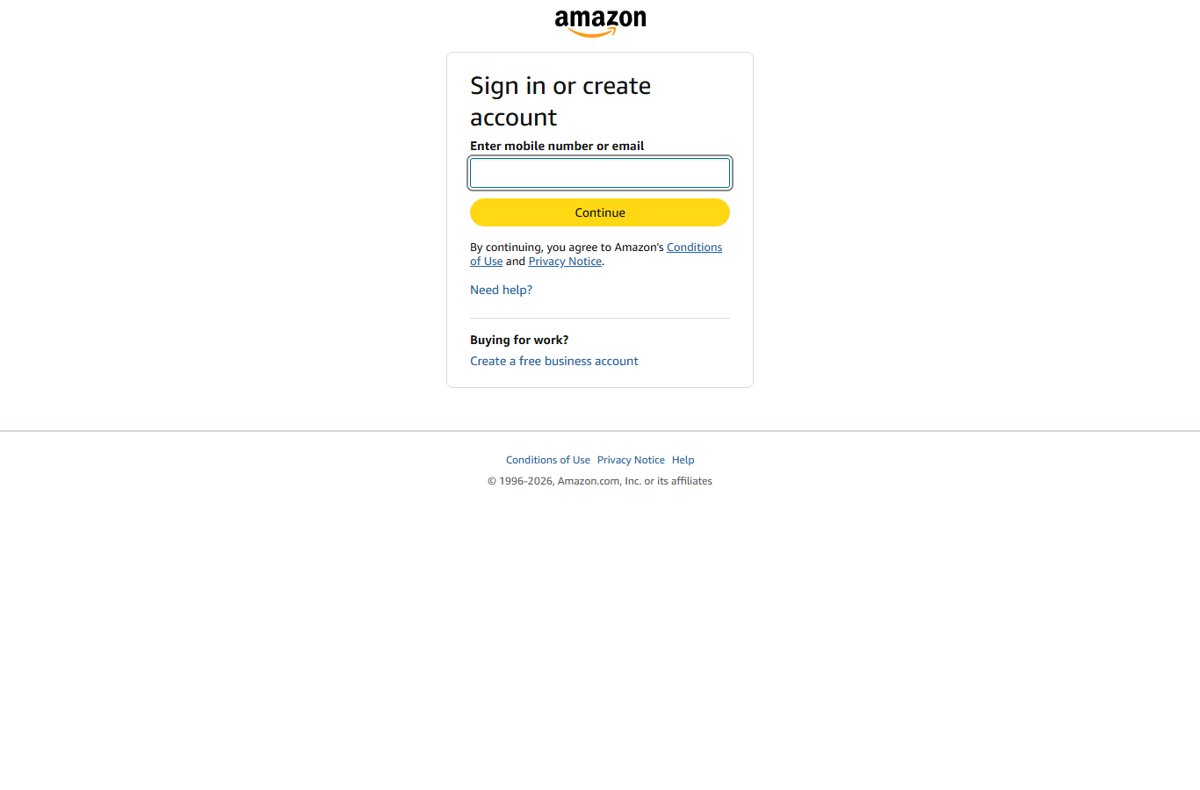
If you forgot the Fire Stick PIN, you do not need the old one. Amazon's short link amazon.com/pin sends you, after sign-in, to the Prime Video Parental Controls settings for your account.
- On a phone or computer, open a browser and go to amazon.com/pin.
- Sign in with the Amazon account used on the Fire Stick.
- Wait for the Prime Video Parental Controls settings page to load.
- Enter a new PIN and save it.
- On the Fire Stick, open Settings > Preferences > Parental Controls and enter the new PIN.
- Leave parental controls on with the new PIN, or switch them OFF to stop the prompts.
The account holder has to do this. Someone without the Amazon password cannot reset the PIN, which is what keeps the lock useful.
How to Change Your Prime Video PIN
The Prime Video PIN and its restrictions are managed on the web. Use this when Prime Video titles still ask for a PIN after Fire TV parental controls are off.
- On a PC or Mac, go to amazon.com/pin and sign in.
- On the Prime Video Parental Controls page, enter the new PIN and save it.
- Open Prime Video Settings > Permissions.
- Select an age restriction, or remove it, and pick the devices it should apply to.
- Click Save.
Viewing restrictions only apply to the device that set them up. Purchase restrictions apply to every profile on the account, so a purchase PIN can still appear on the Fire Stick.
How to check the PIN is gone
- Go back to Settings > Preferences > Parental Controls and confirm the switch reads OFF.
- Press Home and open a channel from the On Now row or the Live tab.
- Confirm the channel plays with no PIN prompt.
- Hover over a live channel tile on the home screen and confirm the preview starts playing.
- If you reset the PIN instead, turn parental controls back on and confirm the new PIN is accepted.
Do not confuse Fire TV parental controls with Amazon Kids
Fire TV Parental Controls, Prime Video restrictions and Amazon Kids are three different things. Changing one leaves the other two as they were.
| Setting | Where it lives | What it locks |
|---|---|---|
| Fire TV Parental Controls | Fire Stick: Settings > Preferences > Parental Controls | Live channels and home-screen previews on that device |
| Prime Video restrictions | Browser: Prime Video Settings > Permissions | Prime Video titles by age rating, and purchases |
| Amazon Kids | Amazon Kids' own settings for a child profile | The child's profile and its content, separate from the two above |
If a child profile is in use, turning off Fire TV Parental Controls does not unlock that profile. Manage it through Amazon Kids.
Unsupported shortcuts to avoid
Some guides suggest workarounds that either do nothing for the PIN or cost you far more than the PIN does.
| Shortcut | What actually happens | Use instead |
|---|---|---|
| An ADB command to clear the PIN | Amazon's ADB documentation covers installing and debugging apps through Developer Options; it lists no PIN or parental-controls command | amazon.com/pin |
| Factory reset to wipe the PIN | Erases apps, sign-ins and settings on the stick; it is not a documented PIN recovery route | amazon.com/pin |
| Removing Prime Video restrictions to kill the Fire TV PIN | Prime Video restrictions are separate; Fire TV Parental Controls stay on | Settings > Preferences > Parental Controls |
Should you factory-reset the Fire Stick?
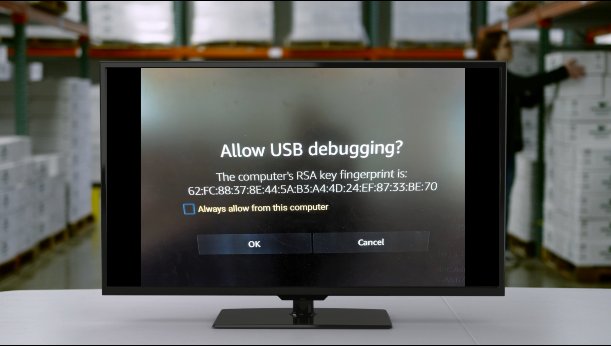
No. Do not factory-reset a Fire Stick just because you forgot the PIN. The PIN reset at amazon.com/pin takes a minute and erases nothing, while a factory reset removes every app, sign-in and setting on the stick and still leaves you signing back in to the same Amazon account. Keep the factory reset for a stick that is failing or being given away.
Troubleshooting PIN Problems on Fire Stick
Prime Video still asks for a PIN after parental controls are off
Prime Video viewing or purchase restrictions are set separately on the web.
- On a PC or Mac, open Prime Video Settings > Permissions.
- Remove the age restriction or clear the Fire Stick from the device list.
- Click Save, then reopen Prime Video on the stick.
amazon.com/pin asks you to sign in or reset your Amazon password
The PIN page sits behind your Amazon account sign-in.
- Sign in with the account registered to the Fire Stick, not a family member's account.
- If Amazon asks you to reset your password, complete that first on the Amazon sign-in page.
- Go back to amazon.com/pin and set the new PIN.
The new PIN is not accepted on the Fire Stick
The stick is signed in to a different Amazon account, or it has not picked up the change yet.
- Confirm the stick is registered to the account you used at amazon.com/pin.
- Restart the stick from Settings > Device > Restart (the menu is named My Fire TV or System on some versions).
- Enter the new PIN again at Settings > Preferences > Parental Controls.
Live channel previews do not play on the home screen
Fire TV disables live previews while parental controls are on.
- Open Settings > Preferences > Parental Controls.
- Switch Parental Controls to OFF.
- Return to Home and focus a live channel tile to confirm the preview plays.
Once the PIN is off, live TV apps open straight away, including services covered in how to watch FuboTV on your Amazon Fire.
Frequently Asked Questions
Can I remove the Fire Stick PIN without knowing it?
Yes, by resetting it first. Sign in at amazon.com/pin with the account on the Fire Stick, set a new PIN, then use it to switch Parental Controls off under Settings > Preferences > Parental Controls. Without the Amazon account password, the PIN cannot be removed.
Where are Fire TV parental controls located?
Fire TV parental controls are under Settings > Preferences > Parental Controls on the device. Press Home, open Settings, choose Preferences, then Parental Controls. The switch there turns the PIN prompt on or off for that Fire Stick.
Does a factory reset remove the Fire TV PIN?
A factory reset is not the route Amazon provides for a forgotten PIN, and it erases every app and setting on the stick. The PIN route is amazon.com/pin, which sets a new PIN from your Amazon account in about a minute without wiping anything.
Is the Amazon Kids PIN the same as the Fire TV parental-controls PIN?
Treat them as separate settings. Fire TV Parental Controls live under Settings > Preferences on the device, while Amazon Kids manages child profiles through its own settings. Turning off Fire TV Parental Controls does not unlock an Amazon Kids profile.
Is there an ADB command to reset the Fire Stick PIN?
No documented one. Amazon's ADB documentation for Fire TV covers enabling Developer Options, installing apps and debugging, and contains no PIN or parental-controls command. Reset the PIN at amazon.com/pin instead.
How do I reset my Amazon Fire Stick PIN if I only want a new one?
Go to amazon.com/pin in a browser, sign in with the Amazon account on the Fire Stick, and save a new PIN on the Prime Video Parental Controls page. The Fire Stick then accepts the new PIN at Settings > Preferences > Parental Controls.
Does turning off Prime Video restrictions remove the Fire TV PIN?
No. Amazon states that Fire TV devices have their own Parental Control settings. Prime Video restrictions under Prime Video Settings > Permissions only cover Prime Video titles and purchases, so turn off the Fire TV switch separately under Settings > Preferences > Parental Controls.
Why is Amazon asking me to reset my password when I open amazon.com/pin?
The PIN page sits behind your Amazon account sign-in, so Amazon's normal sign-in checks apply. Complete the password step on Amazon's sign-in page, then return to amazon.com/pin to set the new PIN.
The Bottom Line
Turn the PIN off at Settings > Preferences > Parental Controls if you know it, and reset it at amazon.com/pin if you do not. Both routes take under a minute and keep your apps and sign-ins intact. If a PIN still appears afterwards, it is coming from Prime Video restrictions, which you clear in Prime Video Settings > Permissions.