To pair a Roku voice remote, restart your Roku device, then hold the pairing button for 5 seconds, or hold Back and Home together for 5 seconds if there is no pairing button, until the remote's light flashes.
A Roku simple remote needs no pairing at all, so this guide starts with telling the two apart, then covers TV power and volume setup, the phone app, and fixes for a remote that will not pair.
Quick Summary
These steps work for any Roku voice remote on a Roku streaming player or a Roku TV. Keep the remote close to the Roku device while it pairs.
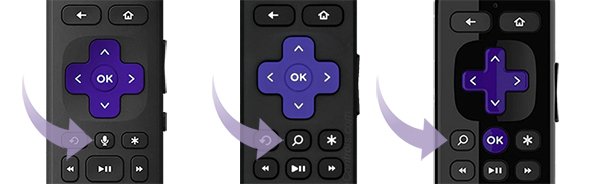
- Check the remote for a voice button with a microphone or magnifying glass icon. No voice button means a simple remote, which works as soon as it has batteries.
- Unplug your Roku device or Roku TV from power, wait 5 seconds, plug it back in and wait for the Home screen.
- If your remote has a pairing button, hold it for 5 seconds until the light on the remote flashes.
- If it has no pairing button, hold Back and Home together for 5 seconds until the light flashes.
- Wait for the pairing message on the TV screen, then follow any prompts it shows.
Understanding Roku Remote Types
Roku ships two families of remote, and only one of them pairs. Identify yours first, because the right fix depends on it.
| Remote type | How to recognise it | How it talks to the Roku | Needs pairing? |
|---|---|---|---|
| Simple remote (also called standard, IR, Roku Players or Roku TV remote) | No voice button; channel shortcut buttons; the Roku TV version adds TV power, volume, mute and sleep timer | Infrared, so it must point at the device with nothing in the way | No. There is no pairing button |
| Roku voice remote (handheld) | A voice button near the purple directional pad with a microphone or magnifying glass icon | Some models use wireless signals, so you do not have to aim them | Yes |
| Roku Voice Remote Pro (1st or 2nd edition) | Voice button plus a hands-free voice slider; rechargeable | Wireless; hands-free commands such as "Hey Roku" when the slider is green | Yes |
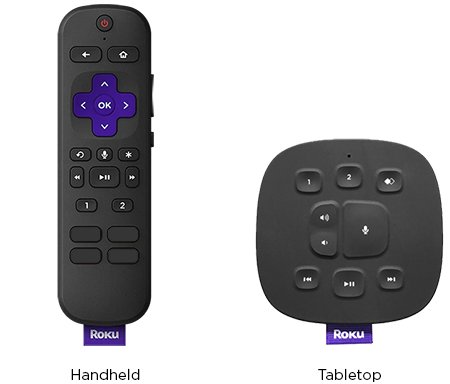
| Roku Touch tabletop remote | A tabletop voice remote rather than a handheld one | Wireless | Yes, with its own setup article from Roku |
Voice remotes with TV controls, such as the Roku Voice Remote and Voice Remote Pro, also add dedicated TV power and volume buttons.
Which Pairing Method Should You Use?
| Your situation | Do this | Why |
|---|---|---|
| Remote has no voice button | Fit fresh batteries or pull the battery tab and point it at the Roku | Simple remotes use infrared and never pair |
| Voice remote with a pairing button | Hold the pairing button for 5 seconds | Puts the remote into pairing mode |
| Voice remote without a pairing button | Hold Back + Home for 5 seconds | The button combination replaces the pairing button |
| Remote is lost, or you are waiting for a new one | Use the Roku mobile app as a remote | Works as long as the Roku is already on your Wi-Fi |
| Remote works the Roku but not the TV volume or power | Run Set up remote for TV control | TV control is a separate setup from pairing |
| Roku stick plugged into a Samsung, LG or Vizio TV | Pair the remote to the Roku stick, then set up TV control | The remote pairs with the Roku device, not the TV |
Why Roku Remotes Lose Their Pairing
Most "lost pairing" cases are really a weak signal or a flat battery. The table covers the common reasons you need to pair or re-pair a Roku remote, and what Roku support says to do about each.
| Situation | What is going on | What to do |
|---|---|---|
| New or replacement voice remote | It has never been paired with this Roku | Pair it with the pairing button or Back + Home |
| Batteries are low or the rechargeable remote is flat | Weak power makes buttons slow or unresponsive | Fit a fresh matching pair, or charge for at least 5 hours |
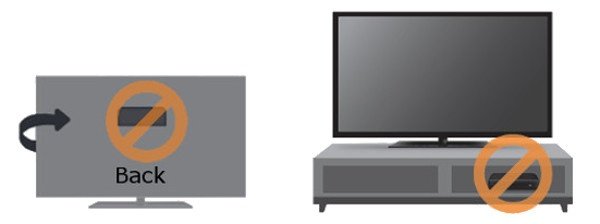
| Roku Streaming Stick hidden behind the TV | The TV and nearby electronics interfere with the wireless signal | Use the wireless receiver built into the USB power cable, or a free HDMI extender from Roku |
| Another Roku remote nearby is still active | An unused remote can cause problems for the one you use | Remove its batteries or hold Back + Home + Mute for 5 seconds |
| Simple remote seems "unpaired" | Something blocks the infrared line of sight | Clear the path; do not hide the Roku in a cabinet or behind the TV |
| Voice remote controls the Roku but not the TV | TV control uses IR or HDMI-CEC, which is set up separately | Turn on CEC on the TV and set up TV control again |
How to Pair a Roku Remote: A Step-by-Step Process
This is the full step-by-step tutorial for a new or re-paired voice remote, from fresh batteries to TV control. The two sections after it cover the pairing step itself for each remote design.
- Turn on your TV and Roku device and wait for the Roku Home screen.
- Remove the old batteries, press any two buttons on the remote, then insert a fresh matching pair, negative end first. For a rechargeable remote, charge it with its own cable instead.
- Unplug the Roku device from power, wait 5 seconds, then plug it back in and wait for the Home screen.
- Hold the remote close to the Roku device.
- Hold the pairing button for 5 seconds, or Back + Home if there is no pairing button, until the remote's light flashes.
- Wait for the pairing message on screen.
- When the Roku asks whether the remote should control your TV's power and volume, turn the TV volume up, point the remote at the TV and follow the sound prompts.
How to Pair a Roku Remote With a Pairing Button
Many voice remotes have a dedicated pairing button. If you cannot find one, use the next section instead.
- Power on the Roku and reach the Home screen.
- Find the pairing button on the remote.
- Hold the pairing button for 5 seconds, until the light on the remote starts to flash.
- Release the button and keep the remote near the Roku device while it connects.
- Confirm the pairing message on the TV screen.
Holding the same button for 20 seconds does something different: it restarts a rechargeable remote. Stick to 5 seconds for pairing.
How to Pair a Roku Remote Without a Pairing Button
Voice remotes without a pairing button use a two-button combination instead.
- Fit fresh batteries and confirm the remote has a voice button. A remote without one is a simple remote and does not pair.
- Restart the Roku device: unplug it, wait 5 seconds and plug it back in.
- When the Home screen appears, press and hold Back and Home together for 5 seconds.
- Release both buttons when the light on the remote flashes.
- Wait for the Roku player to detect the remote and show the pairing message.
How to Pair a Roku Remote to Your TV for Power and Volume
A Roku remote pairs with the Roku device, not with a Samsung, LG, Vizio or TCL TV. Controlling the TV's power and volume is a separate setup that uses infrared (IR) or HDMI-CEC.
Only voice remotes with TV controls can do this: the Roku Voice Remote, Voice Remote Pro and Voice Remote Pro 2nd Edition.
- Turn on HDMI-CEC in your TV's settings. Brands name it differently, for example SIMPLINK on LG and Anynet on Samsung.
- On a Roku streaming player, go to Settings > System > Control other devices and turn on 1-Touch Play, TV power and TV volume.
- If the Roku is connected through a soundbar or receiver, connect it directly to the TV for this setup.
- Press Home, then go to Settings > Remotes & devices > Remotes.
- Choose your voice remote, then select Set up remote for TV control.
- Turn the TV volume up, point the remote at the TV and answer whether you can hear the music until setup finishes.
Some TVs accept CEC commands for power but not volume. Voice commands such as "turn off the TV" only work over CEC, never over IR.
Alternative Ways to Control and Pair Your Roku
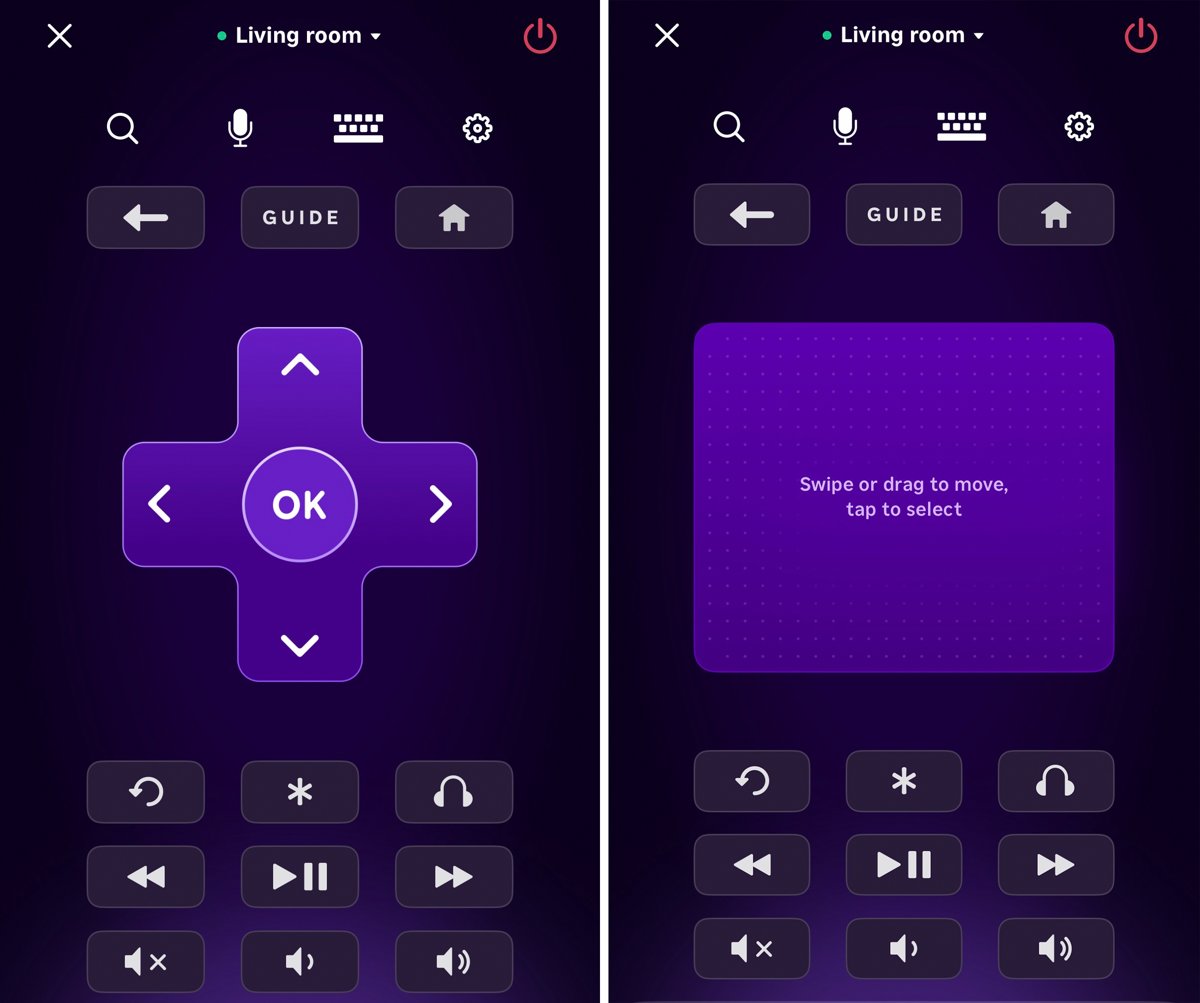
The free Roku mobile app for iOS and Android works as a full remote while you fix or replace the physical one. It needs the Roku already connected to your home Wi-Fi, and your phone on the same network.
The app cannot find a Roku that has just been reset or is being set up for the first time. Wi-Fi setup needs a physical Roku remote.
- Install the Roku remote app from the App Store or Google Play. On iPhone it needs iOS 14.0 or newer.
- Sign in to the app with your Roku account.
- Connect the app to your Roku device from the device list.
- Select Remote to open the on-screen remote.
- To add a physical replacement remote with the app, go to Settings > Remotes & devices > Remotes > Add a new remote and follow the prompts.
How to check the remote is paired
- Watch for the on-screen pairing message right after the light on the remote stops flashing.
- Press the directional pad and check that the cursor on the Home screen moves without delay.
- Go to Settings > Remotes & devices > Remotes and check that your remote is listed.
- Select your remote, then About, to see its battery level.
- Press the remote's volume button. If the TV volume changes only when you aim at the TV, the remote is using IR for TV control rather than CEC.
Tips That Keep Roku Remotes Paired
| Tip | Why it helps |
|---|---|
| Use a fresh, matching pair of batteries | Mixed or weak batteries cause delayed or missed button presses |
| Keep the Roku out of cabinets and not behind the TV | Simple remotes need line of sight; voice remotes still suffer from blocked signals |
| On a Streaming Stick, use the wireless receiver on the USB power cable or an HDMI extender | Moves the stick away from TV interference |
| Switch off spare remotes (remove batteries, or hold Back + Home + Mute for 5 seconds) | Stops an idle remote from interfering |
| Power the Roku player from a wall outlet, not the TV's USB port | A USB-powered player turns off with the TV and cannot send the signal to turn it back on |
| Keep Roku OS updated via Settings > System > System update > Check now | Updates fix remote and TV-control problems |
Maintaining Your Roku Remote
| Task | How |
|---|---|
| Check battery level | Settings > Remotes & devices > Remotes > your remote > About |
| Recharge a rechargeable remote | Use the cable that came with it, plug into USB power or a computer, and charge for at least 5 hours |
| Restart a battery remote | Remove both batteries, press any two buttons, reinsert the batteries negative end first |
| Restart a rechargeable remote | Hold the pairing button for 20 seconds, or Back + Home for 20 seconds, until the light stops flashing |
| Keep the TV's IR receiver clear | A soundbar placed in front of the TV can block it; moving it a few inches is often enough |
Tips: Enhancing Your Experience with Roku Remote
Once the remote is paired, these voice remote features are worth setting up. Availability depends on the model.
| Feature | How to use it |
|---|---|
| Personal shortcuts | Press and hold 1 or 2 for 5 seconds to save an app, the Live TV guide or a voice command |
| Lost remote finder | Trigger it from the Roku device or the mobile app, and the remote plays a sound |
| Hands-free voice (Voice Remote Pro) | Move the slider to green and say "Hey Roku" followed by a command |
| Headphone mode | Plug headphones into the jack on select voice remotes; the TV speakers mute automatically |
| Quick Launch button | Set it to open any app or turn on captions |
| TV voice commands | Say "turn up the volume" or "turn off the TV" once CEC is on |
Troubleshooting Common Problems
Roku remote won't pair, or the light flashes but never pairs
Weak batteries, a remote that needs a restart, or a Roku device that needs a restart.
- Remove the batteries, press any two buttons, and insert a fresh matching pair negative end first.
- For a rechargeable remote, hold the pairing button, or Back + Home, for 20 seconds until the light stops flashing, then charge it for at least 5 hours.
- Unplug the Roku device, wait 5 seconds and plug it back in.
- At the Home screen, hold the pairing button, or Back + Home, for 5 seconds and wait for the pairing message.
Simple remote does nothing, even with new batteries
Infrared needs a clear line of sight, and simple remotes cannot pair.
- Check the battery orientation.
- Clear anything in front of the Roku device and bring it out of any cabinet.
- Point the remote directly at the device and try a few angles.
- Restart the Roku device.
Roku remote won't control TV volume or power (Samsung, LG, Vizio, TCL)
TV control uses IR or HDMI-CEC, and CEC may be off or the wrong TV code was picked.
- Point the remote at the TV's sensor on the front. If the volume now works, the remote is using IR.
- Turn on CEC in the TV's settings.
- Update the Roku via Settings > System > System update > Check now.
- Go to Settings > Remotes & devices > Remotes, choose your remote and select Set up remote for TV control again.
- If only power or only volume works, repeat the sound test and select No at the code you already tried so the Roku tests the next one.
Remote on a Roku Streaming Stick keeps dropping out
The stick sits behind the TV, where the signal meets interference.
- Connect the stick through the wireless receiver built into its USB power cable.
- Request Roku's free HDMI extender to move the stick away from the TV.
- Pair the remote again after moving the stick.
Remote still shows low battery
The remote has not reset after new batteries or a charge, or an unused remote is still active.
- Restart the remote as described above.
- Remove the batteries or disconnect the charger, then reconnect.
- Switch off unused remotes by removing their batteries or holding Back + Home + Mute for 5 seconds.
Still Not Working? Try These Next
Pairing fails after every fix above
Outdated Roku software or a remote that is at fault.
- Control the Roku with the mobile app and run Settings > System > System update > Check now.
- Try the pairing steps once more after the update restarts the device.
- If there is a spare Roku remote in the house, try it. If it pairs, the original remote is at fault.
Voice commands work for the Roku but not for the TV
TV voice commands need CEC and ignore IR.
- Turn on CEC on the TV.
- On a Roku TV, go to Settings > System > Control other devices (CEC) and turn on One-Touch Play.
- Set up the voice remote again under Settings > Remotes & devices > Remotes.
- Test with "Hey Roku, what time is it?" on a Voice Remote Pro.
The Roku is new or reset and you have no working remote
The mobile app cannot find a Roku that is not on Wi-Fi yet.
- Get a remote that matches your device: simple or voice.
- Use it to finish Wi-Fi setup, then switch to the app if you prefer.
When to Seek Professional Help
| Sign | What to do |
|---|---|
| Remote feels warm or hot | Stop using it, unplug the charger, and do not remove hot batteries. Put it on a hard, non-flammable surface such as tile and let it cool |
| Remote stays hot | Contact Roku support |
| New batteries, restarts and re-pairing all fail | Contact Roku support through chat at support.roku.com; the remote may be faulty |
| Remote is lost or broken | Buy a matching replacement from Roku accessories or a major retailer |
Frequently Asked Questions
Do all Roku remotes need to be paired?
No. Only Roku voice remotes pair. A Roku simple remote has no pairing button and uses infrared, so it works as soon as you insert fresh batteries or pull the battery tab and point it at the Roku device.
How do I pair a Roku remote to a Roku stick?
Restart the Roku Streaming Stick, then hold the remote's pairing button, or Back + Home, for 5 seconds until the light flashes. If the remote keeps dropping out, use the wireless receiver on the stick's USB power cable or Roku's free HDMI extender.
How do I pair a Roku remote to a Roku Ultra or Roku box?
The steps are the same as any Roku player. Restart the box from the power cable, wait for the Home screen, then hold the pairing button, or Back + Home, for 5 seconds. Wait for the pairing message on screen.
How do I pair a Roku remote to a Roku TV or TCL TV?
On a Roku TV, including TCL Roku TV models, pair a voice remote the same way: restart the TV, then hold the pairing button, or Back + Home, for 5 seconds. A Roku TV simple remote needs only batteries and a clear line of sight.
How do I pair a Roku remote to a Samsung, LG or Vizio TV?
You pair the remote with the Roku device plugged into the TV, not with the TV. For TV power and volume, turn on HDMI-CEC on the TV, then choose Set up remote for TV control under Settings > Remotes & devices > Remotes.
How do I pair my Roku remote to control TV volume?
Press Home, go to Settings > Remotes & devices > Remotes, choose your voice remote and select Set up remote for TV control. Turn the TV volume up and follow the sound test. Only remotes with TV control buttons support this.
Why won't my Roku remote pair with my TV?
Usually the batteries are weak or the Roku needs a restart. Fit fresh batteries, unplug the Roku for 5 seconds, then pair again. If only TV volume fails, turn on CEC on the TV and rerun the TV-control setup.
Why will my Roku remote not pair with an LG TV?
The remote pairs with the Roku, and controls the LG TV through IR or CEC. Turn on SIMPLINK, LG's name for HDMI-CEC, then set up TV control again from Settings > Remotes & devices > Remotes.
Can I use my phone instead of a Roku remote?
Yes. The free Roku mobile app for iOS and Android has a full remote. Your Roku must already be on Wi-Fi and your phone on the same network. The app cannot set up Wi-Fi on a new or reset Roku.
Final Tips
Check for a voice button first, then restart the Roku and pair with a 5-second hold on the pairing button or Back + Home. Most failures come from treating a simple remote as a pairing remote, weak batteries, or confusing TV volume control with pairing, and each has a quick, separate fix.



How to get Peacock on Roku in seconds! - Techdows
[…] your Roku remote stops responding mid-setup, pair the Roku remote again before you […]
How to contact Roku - Techdows
[…] Put fresh batteries in the remote, or recharge a rechargeable remote. If it still does not respond, pair the Roku remote again. […]