Type shutdown /s /t 0 in Command Prompt to shut Windows down at once, or shutdown /r /t 0 to restart it; in PowerShell, Stop-Computer and Restart-Computer do the same.
This guide covers every useful switch, timed shutdowns, restarting into firmware or recovery, remote computers, and how to cancel a shutdown you started by mistake.
How to shut down or restart Windows from Command Prompt
These commands work the same on Windows 11 and Windows 10, and no administrator window is needed on your own PC. You can open Command Prompt from Start search or the Run box.
- Save your work and close open files.
- Open Command Prompt, PowerShell or Terminal.
- To shut down, type
shutdown /s /t 0and press Enter. - To restart instead, type
shutdown /r /t 0and press Enter. - Leave out
/t 0if you want the default 30-second countdown before Windows closes.
The /t value is in seconds. Any value above 0 also forces running apps to close, so unsaved work in them is lost. If the PC is frozen and no window accepts a command, force a restart with the power button instead.
Shutdown command cheat sheet for CMD and PowerShell
Use this quick reference card for the common jobs: each row pairs a task with command examples for both shells.
| What you want | Command Prompt | PowerShell |
|---|---|---|
| Shut down now | shutdown /s /t 0 |
Stop-Computer |
| Restart now | shutdown /r /t 0 |
Restart-Computer |
| Force apps to close | add /f |
add -Force |
| Shut down after a delay | shutdown /s /t 3600 (one hour) |
Run the same shutdown command in PowerShell |
| Cancel a pending shutdown | shutdown /a |
shutdown /a |
| Turn off with no warning | shutdown /p |
Stop-Computer -Force |
| Sign out | shutdown /l |
shutdown /l |
| Hibernate | shutdown /h |
shutdown /h |
| Restart a remote PC | shutdown /r /m \\PC01 /t 0 |
Restart-Computer -ComputerName PC01 |
shutdown.exe runs from PowerShell exactly as it does from Command Prompt, so every switch below is available in both shells.
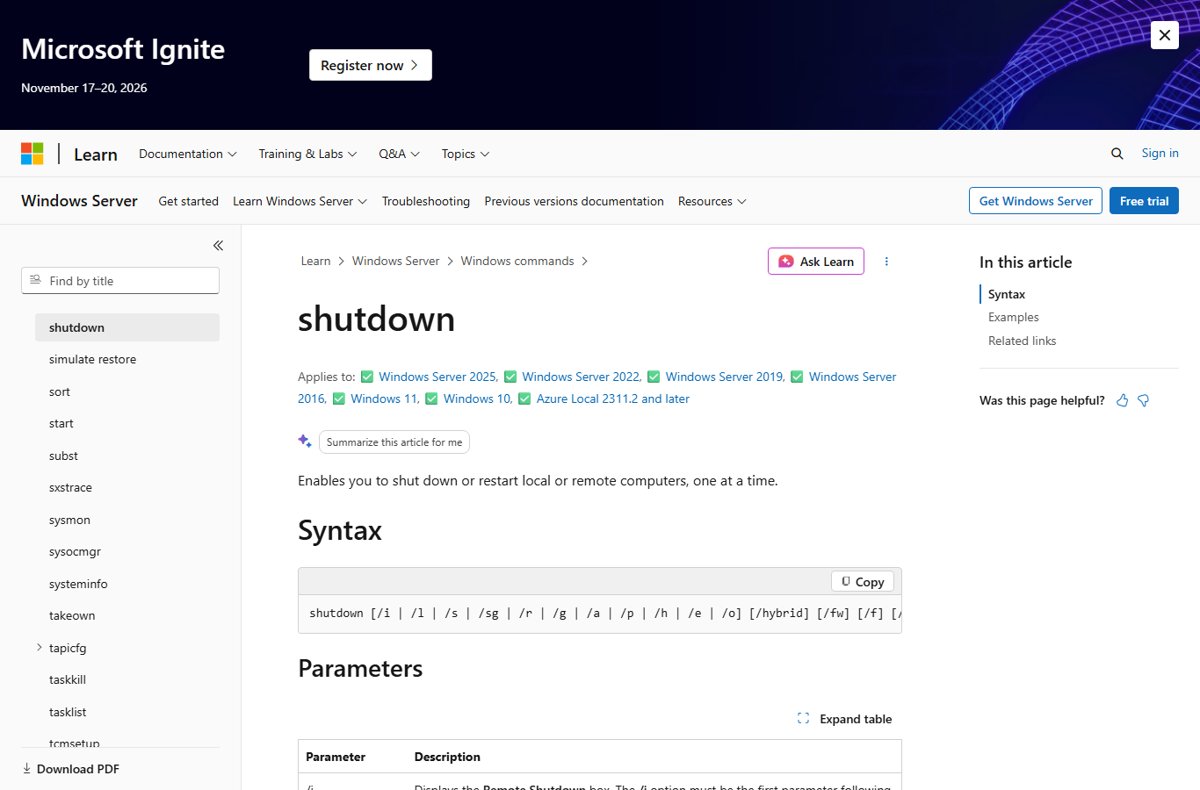
Using the shutdown command on Windows
The syntax is shutdown followed by one action switch and any options. Run shutdown /? to print the full help, including the reason codes defined on your PC. It sits alongside the other entries in the list of Command Prompt commands.
Availability: shutdown.exe ships with Windows 11, Windows 10 and Windows Server 2016 through 2025, so the same syntax works on desktops and servers without installing anything.
| Switch | What it does | Notes |
|---|---|---|
/s |
Shuts down the computer | The main shutdown action |
/r |
Restarts the computer after shutdown | The main restart action |
/g |
Fully shuts down and restarts, then restarts registered apps | Signs in and locks automatically if Automatic Restart Sign-On is on |
/sg |
Shuts down; on next boot restarts registered apps | Uses Automatic Restart Sign-On if enabled |
/p |
Turns off the local computer with no time-out or warning | Works only with /d or /f, never on a remote PC |
/h |
Hibernates the local computer | Only if hibernation is enabled |
/l |
Signs out the current user immediately | Cannot be combined with other switches |
/hybrid |
Shuts down and prepares for fast startup | Must be used with /s |
/fw |
Makes the next restart open the firmware (UEFI) settings | Combine with /r or /s |
/o |
Restarts into the Advanced boot options menu | Must be used with /r |
/f |
Forces running apps to close without warning | Unsaved data can be lost |
/t xxx |
Sets the delay in seconds | 0 to 315360000 (10 years); default 30 |
/m \\computer |
Targets another computer | Needs rights on that PC |
/c "comment" |
Adds a custom reason for the shutdown or restart | Up to 512 characters, in double quotes |
/d p:xx:yy |
Records a planned reason code | For example p:4:1 is Application: Maintenance (Planned) |
/a |
Aborts a pending shutdown | Only during the time-out period |
/i |
Opens the Remote Shutdown box | Must be the first switch; other switches are ignored |
How to force restart Windows 11 using CMD
A forced restart or shutdown closes running apps without asking them to save, which helps when an app blocks the normal shutdown. The same command works on Windows 10.
shutdown /r /f /t 0/r restarts, /f forces running applications to close without warning users, and /t 0 starts at once. For a force shut down using CMD, replace /r with /s: shutdown /s /f /t 0.
You should see: Open apps close without a save prompt and Windows restarts (or powers off with /s) straight away.
Save your work first, because unsaved data in the closed apps is lost. Any /t value above 0 already implies /f, so shutdown /r /t 60 also forces apps closed when the minute is up.
Schedule a shutdown with a timer in Command Prompt
A timed shutdown is useful when a download or backup needs to finish first. Multiply minutes by 60 to get the seconds value.
shutdown /s /t 3600 /c "PC shuts down in one hour"/s shuts down, /t 3600 waits 3,600 seconds (one hour) and /c records your reason for the shutdown. Use /r instead of /s for a timed restart.
You should see: The command returns without an error, Windows warns that it is going to shut down, and the PC powers off when the timer runs out.
Common values are 600 for 10 minutes, 1800 for 30 minutes and 7200 for two hours. A shutdown at the same time every day belongs in Task Scheduler rather than a long /t value.
How to schedule a restart or shutdown using a CMD command
For a shutdown that repeats every day, create a scheduled task from Command Prompt with schtasks. Run the command in a Command Prompt opened as administrator.
schtasks /create /sc daily /tn "Daily shutdown" /tr "shutdown /s /t 60" /st 23:00/sc daily runs the task every day, /tn names it, /tr is the command the task runs, and /st sets the start time in 24-hour HH:mm format. Use /r in place of /s for a daily restart, or /sc weekly /d FRI to run it only on Fridays.
You should see: Command Prompt reports that the scheduled task was created, and the task appears in Task Scheduler > Task Scheduler Library.
The /t 60 countdown gives you a minute to run shutdown /a on nights you want the PC to stay on. To stop the schedule for good, open Task Scheduler, right-click the task and select Delete.
Restart into UEFI firmware or advanced boot options from CMD
Two switches change where the PC goes after the restart. Both are handy when the boot is too fast to press a firmware key.
- Save your work and close apps.
- Open Command Prompt or Terminal as administrator.
- To open the UEFI firmware settings, run
shutdown /r /fw /t 0. - To open the Advanced boot options menu with the Windows recovery tools, run
shutdown /r /o /t 0. - Wait for the PC to restart into the screen you chose.
If you set a delay with /fw and change your mind, shutdown /a /fw cancels the shutdown and clears the pending boot to firmware.
Restart or shutdown Windows with PowerShell
PowerShell has two cmdlets for this. They work on the local PC and on remote PCs, and on Windows they need the shut down privilege for the account you use.
| Task | PowerShell command | What it does |
|---|---|---|
| Restart this PC | Restart-Computer |
Restarts the local computer |
| Force a restart | Restart-Computer -Force |
Restarts immediately even if apps or users are open |
| Shut down this PC | Stop-Computer |
Shuts down the local computer |
| Force a shutdown | Stop-Computer -Force |
Shuts down immediately |
| Preview without acting | Stop-Computer -WhatIf |
Shows what would happen; nothing shuts down |
| Restart several PCs | Restart-Computer -ComputerName Server01, Server02 |
Restarts each named computer |
| Restart PCs listed in a file | Get-Content -Path C:\Domain01.txt | Restart-Computer |
Reads one computer name per line and restarts each |
Neither cmdlet has a delay parameter. For a countdown, run shutdown /s /t <seconds> from the same PowerShell window. In PowerShell 7.1 and later, both cmdlets also work on Linux and macOS, where they call /sbin/shutdown.
How to shutdown or restart a remote Windows computer?
Your account needs the Force shutdown from a remote system user right on the target PC. On Windows 11 and Windows 10 that right belongs to the Administrators group by default.
- Open Command Prompt or PowerShell with an account that is an administrator on the remote PC.
- To restart it with a warning, run
shutdown /r /m \\PC01 /t 60 /c "Restarting for updates", replacing PC01 with the computer name. - To shut it down instead, use
/sin place of/r. - To use PowerShell with other credentials, run
Restart-Computer -ComputerName PC01 -Credential Domain01\Admin01and enter the password when asked. - To wait until the remote PC is back, add
-Wait -For PowerShell -Timeout 300 -Delay 2to theRestart-Computercommand. - To pick several computers in a window, run
shutdown /ito open the Remote Shutdown box.
The -ComputerName parameter does not rely on PowerShell remoting, so it works even when the target is not set up for remote commands. Microsoft's example for a logged planned restart is shutdown /r /m \\myremoteserver /t 60 /c "Reconfiguring myapp.exe" /f /d p:4:1.
How to check the shutdown or restart command worked
- For a timed shutdown, look for the Windows warning that the PC is about to shut down.
- For a local restart, sign back in and confirm open apps were closed and the PC booted fresh.
- For a remote restart, run
Test-Connection PC01and watch replies stop, then return. - In a script, use
Restart-Computer -ComputerName PC01 -Wait -For WinRMso the next line runs only once the PC accepts remote sessions again.
How to cancel a shutdown command
A pending shutdown can be stopped only while its countdown is still running. Commands with /t 0, /p or -Force act at once, so there is nothing to cancel.
shutdown /aAborts the pending system shutdown or restart. Run it in a new Command Prompt or PowerShell window during the time-out period. To cancel one on another PC, add /m \\PC01.
You should see: The pending shutdown is cancelled and Windows keeps running past the original deadline.
Fix shutdown command not working in Windows
shutdown /a does not stop the shutdown
The command ran with /t 0, /p or /f and no countdown, or the time-out had already ended.
- Use a delay such as
/t 60next time so there is a window to cancel. - Run
shutdown /ain a separate window as soon as the shutdown warning appears. - For PowerShell, run
Stop-Computer -WhatIffirst to preview the effect before running it for real.
Remote shutdown or restart is refused
Your account lacks the Force shutdown from a remote system right on the target computer.
- Sign in with an account that is in the target PC's Administrators group.
- Pass that account with
Restart-Computer -ComputerName PC01 -Credential Domain01\Admin01. - On the target PC, check Computer Configuration > Windows Settings > Security Settings > Local Policies > User Rights Assignment > Force shutdown from a remote system.
- On a domain, ask the administrator; a Group Policy setting overrides the local one.
shutdown /p gives an error or is ignored
/p works only on the local computer and only alone or with /d or /f.
- Remove
/tand/mfrom the command. - Run
shutdown /pon its own, orshutdown /p /f. - For a delayed or remote power-off, use
shutdown /swith/tor/minstead.
PC restarts or stays powered on instead of shutting down
Hardware without power-off support shuts Windows down but leaves the power on with /p; other cases are usually settings or drivers.
- Check you used
/sand not/ror/g. - Try
shutdown /s /t 0instead of/p. - If Windows still restarts on its own, work through the fixes for a PC that restarts instead of shutting down.
Windows shutdown command FAQ
What is the shutdown command in Windows 11?
It is shutdown.exe, run as shutdown /s to shut down or shutdown /r to restart. Add /t 0 to act immediately. The same command works in Windows 10, Command Prompt, PowerShell and the Run box.
How do I shut down using Command Prompt?
Open Command Prompt, type shutdown /s /t 0 and press Enter. Windows closes apps and powers off straight away. Without /t 0, it waits the default 30 seconds first.
How do I cancel a shutdown command?
Open a new Command Prompt or PowerShell window and run shutdown /a before the countdown ends. It aborts the pending shutdown or restart. Commands with /t 0 or /p cannot be cancelled because they have no time-out.
How do I abort or stop a shutdown command on another PC?
Run shutdown /a /m \\PC01 during the time-out period, replacing PC01 with the computer name. Your account needs rights on that computer, which administrators have by default.
How do I restart Windows with PowerShell?
Run Restart-Computer to restart the local PC, or Restart-Computer -Force to restart even if apps are open. Add -ComputerName followed by names to restart remote computers.
How do I shut down with PowerShell?
Run Stop-Computer. Add -Force for an immediate shutdown, or -ComputerName Server01, Server02 to shut down remote computers. Use -WhatIf to preview the command without shutting anything down.
How do I set a shutdown timer with a command?
Run shutdown /s /t followed by the delay in seconds, such as shutdown /s /t 3600 for one hour. Replace /s with /r for a timed restart, and cancel with shutdown /a.
What does shutdown /s /f /t 0 do?
It shuts down immediately and forces running apps to close without warning. Unsaved work in those apps is lost, so save first. Any /t value above 0 already implies /f.
Bottom line: shutdown.exe or PowerShell cmdlets?
Use shutdown /s or /r with a /t delay for everyday shutdowns and timers, and switch to Restart-Computer when you manage several PCs from a script. shutdown.exe offers countdowns, cancel, firmware and recovery restarts in both shells, while Restart-Computer adds credentials, pipeline input and a wait for the PC to come back.