To fix “running scripts is disabled on this system” on Windows 10, run Set-ExecutionPolicy -ExecutionPolicy RemoteSigned -Scope CurrentUser in PowerShell, then run your script again.
The error appears because Windows 10 ships with the Restricted execution policy, which allows single commands but blocks every script file. This guide covers the RemoteSigned fix, unblocking one downloaded script, one-session fixes, Group Policy overrides and the cases where the change seems to do nothing.
Fastest fix for running scripts is disabled in PowerShell
This changes the policy for your own Windows account only, so it does not need administrator rights. The change takes effect immediately, without restarting PowerShell.
- Select Start, type
PowerShell, and open Windows PowerShell. - Run
Set-ExecutionPolicy -ExecutionPolicy RemoteSigned -Scope CurrentUser. - Confirm the change when PowerShell asks you to.
- Run
Get-ExecutionPolicyand check that it returnsRemoteSigned. - Run your script again, for example
.\MyScript.ps1from the script's folder.
If the script was downloaded from the internet and now fails with “is not digitally signed”, the policy is working as designed. Review the file, then unblock it with Unblock-File as shown in method 3.
Which PowerShell execution policy fix should you use?
| Your situation | Use this | Why |
|---|---|---|
| You write or run your own scripts on your account | RemoteSigned, CurrentUser scope | Local scripts run; unsigned downloaded scripts stay blocked; no admin rights needed |
| Every user on the PC must run local scripts | RemoteSigned, LocalMachine scope (as administrator) | Applies to all accounts that have no CurrentUser setting of their own |
| You need one script to run once | RemoteSigned or Bypass, Process scope | The setting disappears when you close that PowerShell window |
| A trusted script came from a website, email or chat | Unblock-File on that one file |
Removes the internet mark from one file without weakening the policy |
| Set-ExecutionPolicy reports that Group Policy overrides it | Ask the PC administrator | MachinePolicy and UserPolicy beat every scope you can set |
| You only want to run trusted, signed code | AllSigned | Every script, including your own, must carry a trusted signature |
1. Check the effective execution policy
Start by seeing which policy is blocking you and at which scope it is set. PowerShell applies the first scope in the list that is not Undefined.
Get-ExecutionPolicy -ListLists the policy set at each scope in precedence order: MachinePolicy, UserPolicy, Process, CurrentUser, LocalMachine. Get-ExecutionPolicy on its own returns only the effective policy for the current session.
You should see: On an untouched Windows 10 PC every row reads Undefined, which means the effective policy is Restricted. After the fix, CurrentUser reads RemoteSigned.
To read one scope only, run Get-ExecutionPolicy -Scope CurrentUser. A value in the MachinePolicy or UserPolicy row comes from Group Policy and cannot be changed with Set-ExecutionPolicy.
2. Recommended fix: use RemoteSigned
RemoteSigned runs scripts written on your PC without a signature. Scripts downloaded from the internet, email or instant messaging must be signed by a trusted publisher, or unblocked first.
Use the CurrentUser scope for your own account. Use the LocalMachine scope only when every user on the PC needs the change.
- Fix for your user account: open Windows PowerShell normally and run
Set-ExecutionPolicy -ExecutionPolicy RemoteSigned -Scope CurrentUser. - Fix for every user on the computer: right-click Windows PowerShell in the Start menu and select Run as administrator.
- In the administrator window, run
Set-ExecutionPolicy -ExecutionPolicy RemoteSigned -Scope LocalMachine. - Confirm the change when prompted. In scripts, the
-Forceparameter suppresses the confirmation prompt. - Run
Get-ExecutionPolicy -Listand check the scope you changed now readsRemoteSigned. - Run the script again from a new or the same PowerShell window.
The LocalMachine change fails without elevation, so run PowerShell as administrator for that scope. A CurrentUser value still takes precedence over LocalMachine for that user.
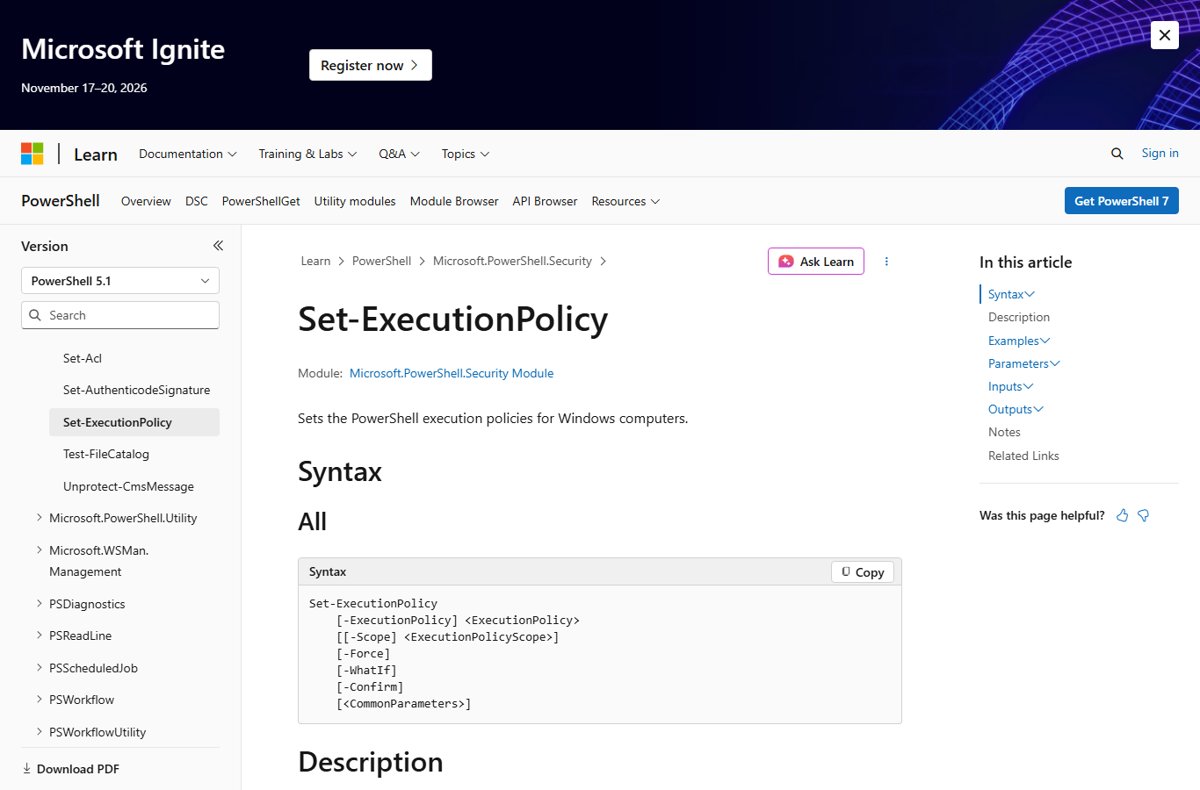
Temporary fix for the current PowerShell window
The Process scope changes the policy for the open PowerShell session and its child processes only. Nothing is saved, and the setting is deleted when you close the window.
Set-ExecutionPolicy -ExecutionPolicy RemoteSigned -Scope ProcessStores RemoteSigned in the $Env:PSExecutionPolicyPreference environment variable for this session. Process has the highest precedence of the scopes you can set yourself, but Group Policy still overrides it.
You should see: Get-ExecutionPolicy -List shows RemoteSigned on the Process row, and your script runs in that window.
To start a new session with its own policy from Command Prompt, run powershell.exe -ExecutionPolicy RemoteSigned. In PowerShell 7 the equivalent is pwsh.exe -ExecutionPolicy RemoteSigned.
3. Unblock one downloaded script instead of weakening the policy
Microsoft Edge and other programs add a Zone.Identifier stream to downloaded files, which marks them as coming from the internet. Under RemoteSigned, an unsigned marked script fails with “is not digitally signed. The script will not execute on the system.”
Unblock-File removes that mark from one file. It does not change the execution policy.
- Open the script in a text editor and read it. Unblock only code from a source you trust.
- In PowerShell, change to the script's folder with
cd, for examplecd $HOME\Downloads. - Run
Get-Item * -Stream "Zone.Identifier" -ErrorAction SilentlyContinueto list the files that carry the internet mark. - Run
Unblock-File -Path .\MyScript.ps1, using your script's file name. - Run
.\MyScript.ps1again; it now runs under RemoteSigned.
Without PowerShell, right-click the file in File Explorer, select Properties, and use the Unblock option in that dialog. Running Unblock-File on a file that is not blocked does nothing and returns no error.
6. Make sure you are changing the shell you actually use
Windows 10 includes Windows PowerShell (powershell.exe). PowerShell 7 (pwsh.exe) is a separate install, and it keeps its own execution policy settings. Changing one does not change the other.
| Shell | Program | CurrentUser setting stored in | LocalMachine setting stored in |
|---|---|---|---|
| Windows PowerShell 5.1 | powershell.exe | Registry: HKCU:\Software\Microsoft\PowerShell\1\ShellIds\Microsoft.PowerShell, value ExecutionPolicy |
Registry: HKLM:\Software\Microsoft\PowerShell\1\ShellIds\Microsoft.PowerShell, value ExecutionPolicy |
| PowerShell 7 | pwsh.exe | The user-specific powershell.config.json file |
$PSHOME\powershell.config.json |
| Either shell, one session | powershell.exe or pwsh.exe | $Env:PSExecutionPolicyPreference (Process scope, not saved) |
Not applicable |
Run $PSVersionTable.PSVersion in the window that shows the error to see which version you are in, then run the fix in that same shell. If you installed PowerShell 7 alongside the built-in version, set the policy in both if you use both.
PowerShell execution policy types compared
The execution policy is a safety feature, not a security boundary. It stops scripts running by accident; anyone can still paste a script's contents into the console.
| Policy | What it allows | When to use it |
|---|---|---|
| Restricted | Individual commands only; no .ps1, .psm1 or .ps1xml files and no profile scripts | Default on Windows 10 and other Windows client editions |
| RemoteSigned | Local scripts run; downloaded scripts need a trusted signature or must be unblocked | The recommended fix for this error |
| AllSigned | Only scripts signed by a trusted publisher, including your own | Locked-down PCs that run signed code only |
| Unrestricted | All scripts run; warns before running unsigned scripts from outside the local intranet zone | Not recommended as a default |
| Bypass | Nothing is blocked and there are no warnings | Apps that embed PowerShell and have their own security model |
| Undefined | No policy at that scope; if all scopes are Undefined, Windows 10 falls back to Restricted | Removing a policy you set earlier |
7. Less common Windows cases
| Case | What happens | What to do |
|---|---|---|
| Group Policy sets the policy | Turn on Script Execution under Administrative Templates\Windows Components\Windows PowerShell overrides every scope; if it is disabled, no scripts run | On a work PC, ask the administrator. On your own PC with the Local Group Policy Editor, set it to Not Configured or Allow local scripts and remote signed scripts |
| Script on a network share (UNC path) | On systems that do not tell UNC paths from internet paths, RemoteSigned can block the script | Copy the script to a local folder, review it, and run it from there |
| Script downloaded with curl.exe, Invoke-WebRequest or Invoke-RestMethod | These tools may not add the internet mark, so RemoteSigned treats the file as local | Review downloaded code before running it, whatever the policy says |
| “AuthorizationManager check failed” in a logon script | PowerShell needs the Windows desktop shell to check a file's zone; at sign-in it may not be ready | This is a different error from running scripts is disabled; AllSigned avoids the zone check |
| Policy shows RemoteSigned but one script still fails | The script is marked as downloaded and unsigned | Unblock that file after reviewing it |
How to check PowerShell scripts can run now
- Open a new Windows PowerShell window, so no Process-scope setting carries over.
- Run
Get-ExecutionPolicyand check it returnsRemoteSigned. - Run
Get-ExecutionPolicy -Listand check MachinePolicy and UserPolicy readUndefined. - Run your script with its relative or full path, for example
.\MyScript.ps1. - Check that the script's output appears with no red “running scripts is disabled” error.
8. A practical troubleshooting sequence
Work through these in order. Each step either fixes the error or tells you which scope or file is responsible.
- Run
$PSVersionTable.PSVersionto confirm which shell shows the error. - Run
Get-ExecutionPolicy -Listin that shell and note the first scope that is not Undefined. - If MachinePolicy or UserPolicy is set, stop here; Group Policy controls it.
- If Process is set to Restricted or AllSigned, close the window and open a new one.
- Run
Set-ExecutionPolicy -ExecutionPolicy RemoteSigned -Scope CurrentUser. - If the error changes to “is not digitally signed”, review the script and run
Unblock-Fileon it. - If only one user can run scripts, repeat the CurrentUser fix for the other account, or set LocalMachine as administrator.
How to reset the PowerShell execution policy to default
Setting a scope to Undefined removes the policy you set there. If every scope is Undefined, Windows 10 returns to Restricted.
- Open Windows PowerShell.
- Run
Set-ExecutionPolicy -ExecutionPolicy Undefined -Scope CurrentUserto remove your user setting. - To remove the machine-wide setting, open PowerShell with Run as administrator and run
Set-ExecutionPolicy -ExecutionPolicy Undefined -Scope LocalMachine. - Run
Get-ExecutionPolicyand check that it returnsRestricted.
4. If Set-ExecutionPolicy appears to do nothing
A Set-ExecutionPolicy command can succeed and still leave the effective policy unchanged. These are the causes Microsoft documents.
The command succeeds but scripts are still disabled
A higher-precedence scope, usually CurrentUser or Process, still holds Restricted or AllSigned.
- Run
Get-ExecutionPolicy -List. - Find the first scope above the one you changed that is not Undefined.
- Run
Set-ExecutionPolicy -ExecutionPolicy RemoteSigned -Scope CurrentUser, or set that scope to Undefined. - Close and reopen PowerShell if the Process row was the one set.
“The setting is overridden by the Group Policy applied to your system”
Turn on Script Execution is configured in Group Policy, which overrides every scope.
- Run
Get-ExecutionPolicy -Listand check the MachinePolicy and UserPolicy rows. - On a work or school PC, contact the administrator; the setting cannot be changed from PowerShell.
- On your own PC, open the Local Group Policy Editor and go to Computer Configuration > Administrative Templates > Windows Components > Windows PowerShell.
- Open Turn on Script Execution, select Not Configured or enable it with Allow local scripts and remote signed scripts, and select OK.
- Repeat under User Configuration if the UserPolicy row was set.
The LocalMachine change fails with an access error
Changing the LocalMachine scope requires an elevated PowerShell window.
- Close the current window.
- Right-click Windows PowerShell in the Start menu and select Run as administrator.
- Run
Set-ExecutionPolicy -ExecutionPolicy RemoteSigned -Scope LocalMachineagain. - Or skip elevation and use
-Scope CurrentUserinstead.
Why can't I run this script after changing the policy?
You changed Windows PowerShell but run the script in PowerShell 7, or the reverse, or the file is still marked as downloaded.
- Run
$PSVersionTable.PSVersionin the window that fails. - Run the Set-ExecutionPolicy fix in that same shell.
- If the error says the file “is not digitally signed”, review it and run
Unblock-File -Path .\MyScript.ps1.
5. Do not use Unrestricted or Bypass as the default fix
Both policies clear the error, but they remove the check that stops unsigned downloaded scripts. Bypass gives no warnings or prompts at all, and setting it at LocalMachine applies to every account on the PC.
Use RemoteSigned at the CurrentUser scope and unblock individual trusted scripts; keep Bypass to the Process scope for a single run, and never set Unrestricted or Bypass machine-wide. Microsoft designed Bypass for apps that embed PowerShell and have their own security model, and Unrestricted risks running malicious scripts. RemoteSigned fixes the error for local scripts while still blocking unsigned code from the internet.
Running scripts is disabled in PowerShell FAQ
Why is running scripts disabled in PowerShell on Windows 10?
Windows 10 uses the Restricted execution policy by default. Restricted lets you type individual commands but blocks every script file, including .ps1 scripts, .psm1 modules and profile scripts. Changing the policy to RemoteSigned for your account removes the error for scripts written on your PC.
How do I enable running scripts on my system?
Open Windows PowerShell and run Set-ExecutionPolicy -ExecutionPolicy RemoteSigned -Scope CurrentUser. The change applies immediately to your account. To enable scripts for every account, run the same command with -Scope LocalMachine in a PowerShell window opened with Run as administrator.
How do I allow running scripts for one session only?
Run Set-ExecutionPolicy -ExecutionPolicy RemoteSigned -Scope Process. The policy lives in the $Env:PSExecutionPolicyPreference variable and is deleted when you close the window. From Command Prompt, powershell.exe -ExecutionPolicy RemoteSigned starts a new session with that policy.
Do I need administrator rights to fix the error?
No, not for your own account. The CurrentUser scope does not need elevation. Administrator rights are needed only to change the LocalMachine scope, which affects every user on the PC. Group Policy settings need an administrator or the Local Group Policy Editor.
Should I set the policy to Unrestricted?
No. Unrestricted runs unsigned scripts from the internet after a warning, which risks running malicious code. RemoteSigned fixes the error for scripts you write and still blocks unsigned downloads until you review and unblock them.
Does Unblock-File change PowerShell's execution policy?
No. Unblock-File only removes the Zone.Identifier stream that marks one file as downloaded from the internet. The execution policy stays the same, so other downloaded scripts remain blocked until you unblock them individually.
Why did Set-ExecutionPolicy succeed but the error remain?
A higher-precedence scope still holds a stricter policy. Group Policy beats every scope, then Process, then CurrentUser, then LocalMachine. Run Get-ExecutionPolicy -List to find the first scope that is not Undefined and change or clear that one.
What is the difference between PowerShell 7 and Windows PowerShell 5.1 for this error?
The error and the fix are the same, but the settings are separate. Windows PowerShell 5.1 stores the policy in the registry, while PowerShell 7 stores it in powershell.config.json. Run the fix in the shell that shows the error.
How do I turn off running scripts again?
Run Set-ExecutionPolicy -ExecutionPolicy Undefined -Scope CurrentUser, and do the same for LocalMachine as administrator if you set it. With every scope Undefined, Windows 10 returns to Restricted. You can also set Restricted explicitly at the CurrentUser scope.
How do I check which execution policy is set on Windows?
Run Get-ExecutionPolicy to see the effective policy for the current session. Run Get-ExecutionPolicy -List to see the value at every scope, in precedence order, so you can tell whether Group Policy, your account or the whole machine sets it.
The bottom line on fixing running scripts is disabled
Run Set-ExecutionPolicy -ExecutionPolicy RemoteSigned -Scope CurrentUser in the shell that shows the error, and use Unblock-File for trusted downloaded scripts. It needs no administrator rights, affects only your account, and keeps the protection against unsigned internet scripts that Unrestricted and Bypass remove.