Press Windows key + R, type a command such as msinfo32, services.msc or ms-settings:windowsupdate, and press Enter to open that tool directly on Windows 11.
The tables below group every documented Run command by job: everyday tools, Settings and Control Panel pages, admin consoles, networking and repair tools, and folder locations.
How to Open and Use the Run Dialog in Windows 11
The Run box launches a program, console, Settings page or folder by name. It skips the Start menu, the search results and every click in between.
- Press Windows key + R to open the Run dialog box.
- Type the command, for example
winverto see your Windows version. - Add any switch the tool accepts after a space, such as
perfmon /relfor Reliability Monitor. - Press Enter or select OK to launch it.
- Approve the User Account Control prompt if the tool needs administrator rights.
The same names also work in the Start search box. Microsoft's own documentation opens tools such as wf.msc and secpol.msc that way, so use it when the Run shortcut is not available.
Which kind of Run command do you need?
Run commands come in five shapes. Match what you want to open to a row, then jump to that table.
| What you want to open | Command type | Example | Why this type |
|---|---|---|---|
| A page in the Settings app | ms-settings: URI |
ms-settings:bluetooth |
Lands on the exact page, not the Settings home screen |
| A classic Control Panel item | .cpl file or control /name |
appwiz.cpl |
Opens the legacy applet that Settings has not fully replaced |
| An admin console such as Services | .msc snap-in |
services.msc |
Loads the Microsoft Management Console with that tool only |
| A standalone program | Program name | msinfo32 |
Built-in programs such as Dxdiag.exe live in System32 |
| A folder in your profile | Environment variable or path | %temp% |
Works on any PC, whatever the user name is |
Essential Windows 11 Run Commands
These are the commands worth memorising first. Each one replaces three or four clicks through Start, Settings or Control Panel.
| Command | What it opens | Use it to |
|---|---|---|
winver |
About Windows | See your Windows 11 version and OS build |
msinfo32 |
System Information | Check hardware, components and software details |
control |
Control Panel | Reach classic applets that are not in Settings |
ms-settings:about |
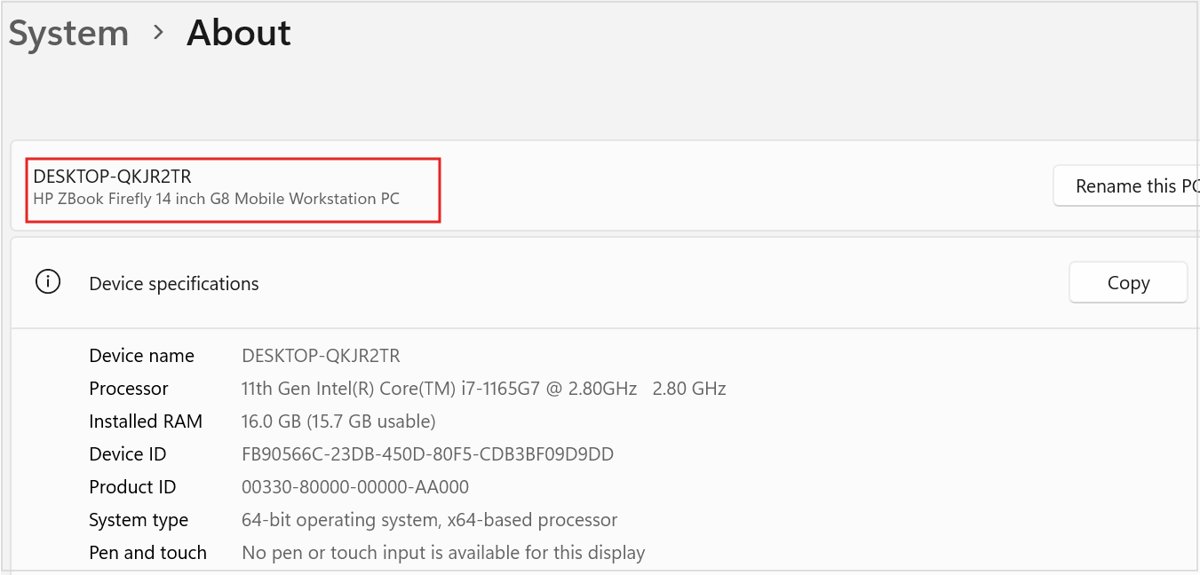
Settings > System > About | Read edition, version and device name |
cmd |
Command Prompt | Run command-line tools such as ipconfig |
powershell |
Windows PowerShell | Run cmdlets; on some builds it opens inside Windows Terminal |
regedit |
Registry Editor | View or edit registry keys (back up first) |
msconfig |
System Configuration | Change startup mode and boot options |
services.msc |
Services | Start, stop or change the startup type of a service |
devmgmt.msc |
Device Manager | Update, roll back or disable a device driver |
diskmgmt.msc |
Disk Management | Create, format or resize partitions |
eventvwr.msc |
Event Viewer | Read error and warning logs |
cleanmgr |
Disk Cleanup | Delete temporary and system files |
dxdiag |
DirectX Diagnostic Tool | Check graphics, display and sound details |
appwiz.cpl |
Programs and Features | Uninstall or repair desktop programs |
ncpa.cpl |
Network Connections | Enable, disable or configure a network adapter |
perfmon /rel |
Reliability Monitor | See a timeline of app failures and system problems |
Task Manager has no better Run command than its shortcut: press Ctrl + Shift + Esc. For a full walkthrough of the DirectX tool, see how to open and run dxdiag on Windows 10/11.
Run Commands for Settings and Control Panel Tools
Windows 11 Settings pages open with the ms-settings: URI scheme. Type the full URI, colon included, into Run and the matching page opens.
Microsoft notes that some pages exist only on certain hardware or editions. ms-settings:batterysaver needs a battery, for example, and ms-settings:network-wifi needs a Wi-Fi adapter.
| Command | Opens | Area |
|---|---|---|
ms-settings:windowsupdate |
Windows Update | Settings |
ms-settings:windowsupdate-history |
Update history | Settings |
ms-settings:windowsupdate-optionalupdates |
Optional updates | Settings |
ms-settings:display |
Display | Settings |
ms-settings:nightlight |
Night light | Settings |
ms-settings:sound |
Sound | Settings |
ms-settings:apps-volume |
Volume mixer | Settings |
ms-settings:bluetooth |
Bluetooth & devices | Settings |
ms-settings:printers |
Printers & scanners | Settings |
ms-settings:mousetouchpad |
Mouse and touchpad | Settings |
ms-settings:appsfeatures |
Installed apps | Settings |
ms-settings:defaultapps |
Default apps | Settings |
ms-settings:startupapps |
Startup apps | Settings |
ms-settings:optionalfeatures |
Optional features | Settings |
ms-settings:personalization-background |
Background | Settings |
ms-settings:themes |
Themes | Settings |
ms-settings:taskbar |
Taskbar | Settings |
ms-settings:lockscreen |
Lock screen | Settings |
ms-settings:signinoptions |
Sign-in options | Settings |
ms-settings:yourinfo |
Your info | Settings |
ms-settings:dateandtime |
Date & time | Settings |
ms-settings:regionformatting |
Region | Settings |
ms-settings:privacy |
Privacy & security (general) | Settings |
ms-settings:privacy-webcam |
Camera permissions | Settings |
ms-settings:privacy-microphone |
Microphone permissions | Settings |
ms-settings:privacy-location |
Location permissions | Settings |
ms-settings:windowsdefender |
Windows Security | Settings |
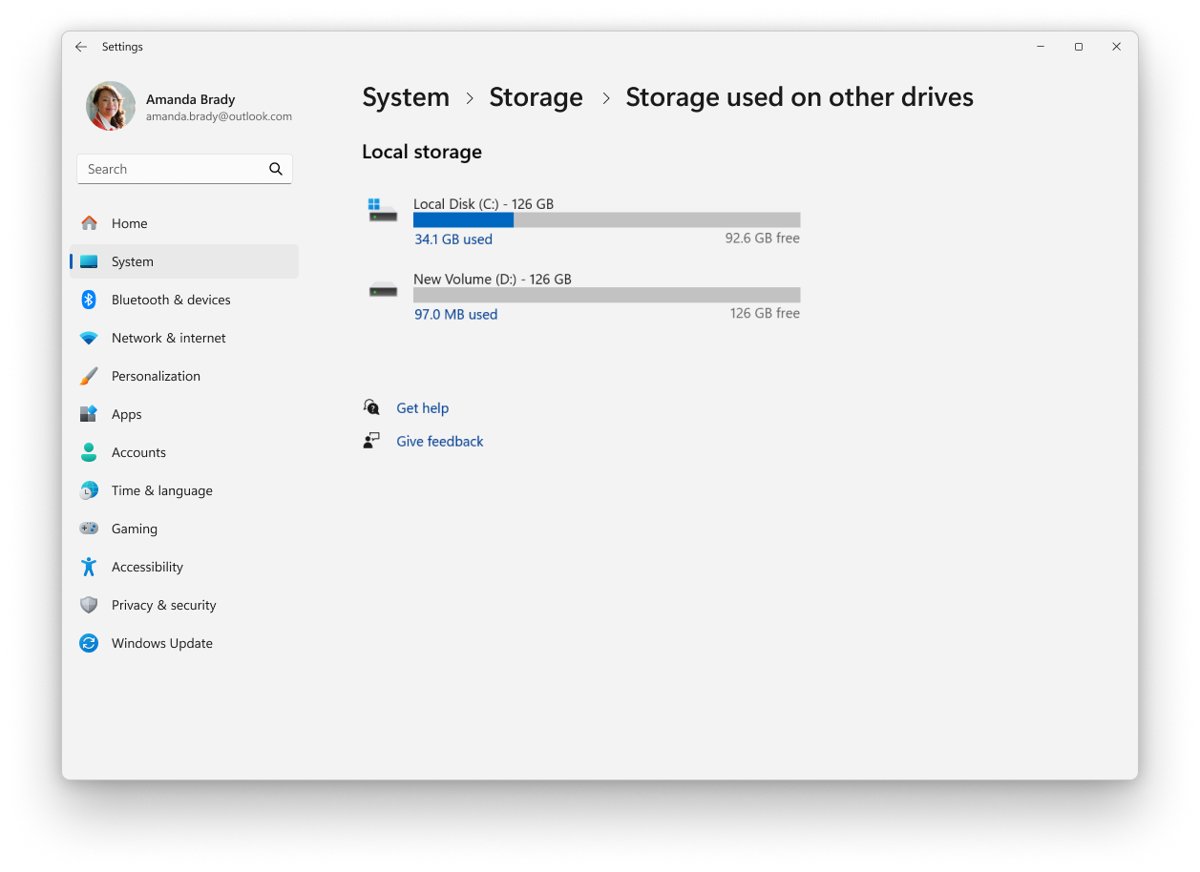
ms-settings:storagesense |
Storage | Settings |
ms-settings:powersleep |
Power & sleep | Settings |
ms-settings:clipboard |
Clipboard | Settings |
ms-settings:remotedesktop |
Remote Desktop | Settings |
ms-settings:activation |
Activation | Settings |
ms-settings:recovery |
Recovery | Settings |
ms-settings:developers |
For developers | Settings |
appwiz.cpl |
Programs and Features | Control Panel |
sysdm.cpl |
System Properties | Control Panel |
timedate.cpl |
Date and Time | Control Panel |
intl.cpl |
Region | Control Panel |
main.cpl |
Mouse Properties | Control Panel |
mmsys.cpl |
Sound | Control Panel |
inetcpl.cpl |
Internet Properties | Control Panel |
firewall.cpl |
Windows Defender Firewall | Control Panel |
control /name Microsoft.CredentialManager |
Credential Manager | Control Panel |
control /name Microsoft.PowerOptions |
Power Options | Control Panel |
control /name Microsoft.DeviceManager |
Device Manager | Control Panel |
control /name Microsoft.FolderOptions |
Folder Options | Control Panel |
control fonts |
Fonts folder | Control Panel |
control userpasswords |
User Accounts | Control Panel |
Microsoft's canonical-name reference was last revised for Windows 8.1. Items that have moved to Settings may open the Settings page or the Control Panel home instead of the old applet.
Run Commands for System Administration and Management
Most of these open a Microsoft Management Console (.msc) snap-in. They read settings for a standard user, but changing anything usually needs an administrator account.
| Command | Opens | Typical job |
|---|---|---|
compmgmt.msc |
Computer Management | One window with Event Viewer, Disk Management, Services and more |
services.msc |
Services | Set a service to Automatic, Manual or Disabled |
devmgmt.msc |
Device Manager | Find a device with a yellow warning icon |
diskmgmt.msc |
Disk Management | Assign a drive letter or initialise a new disk |
eventvwr.msc |
Event Viewer | Trace a crash to its error event |
taskschd.msc |
Task Scheduler | Create or disable a scheduled task |
gpedit.msc |
Local Group Policy Editor | Change policy settings on the local PC |
secpol.msc |
Local Security Policy | Edit account and audit policies |
lusrmgr.msc |
Local Users and Groups | Add a user to a local group |
certmgr.msc |
Certificates (current user) | View or remove personal certificates |
certlm.msc |
Certificates (local computer) | Manage machine-wide certificates |
tpm.msc |
TPM Management | Check the Trusted Platform Module status |
wf.msc |
Windows Defender Firewall with Advanced Security | Create inbound and outbound rules |
perfmon |
Performance Monitor | Add live performance counters |
perfmon /res |
Resource Monitor | See which process uses CPU, disk or network |
perfmon /report |
System Diagnostics report | Run the System Diagnostics data collector set and show its report |
mmc |
Empty Microsoft Management Console | Build a custom console from several snap-ins |
regedit |
Registry Editor | Edit a registry value |
msconfig |
System Configuration | Set a diagnostic or selective startup |
SystemPropertiesAdvanced.exe |
System Properties > Advanced | Open the Advanced tab directly |
SystemPropertiesProtection.exe |
System Properties > System Protection | Manage System Restore protection |
SystemPropertiesRemote.exe |
System Properties > Remote | Open the remote access settings |
SystemPropertiesComputerName.exe |
System Properties > Computer Name | Open the computer name settings |
SystemPropertiesPerformance.exe |
Performance Options | Adjust performance settings |
OptionalFeatures.exe |
Windows Features | Turn Windows components on or off |
Some combinations save real time. cleanmgr /sageset:1 stores a Disk Cleanup profile and cleanmgr /sagerun:1 runs those saved tasks later. msinfo32 /report C:\temp\sysinfo.txt writes the full System Information report to a text file you can send to support.
Run Commands for Networking and Troubleshooting
The graphical network tools open straight from Run. The command-line tools, such as ipconfig and ping, print their output in a console, so open cmd first and run them there.
Graphical tools: ncpa.cpl (Network Connections), firewall.cpl (Firewall), wf.msc (advanced firewall rules), inetcpl.cpl (Internet Properties and proxy), ms-settings:network-status, ms-settings:network-wifi, ms-settings:network-proxy, ms-settings:network-vpn, ms-settings:network-advancedsettings and mstsc (Remote Desktop Connection).
Diagnostics, logs and repair: perfmon /rel (Reliability Monitor), eventvwr.msc, msinfo32, dxdiag, rstrui (System Restore), cleanmgr, msconfig, ms-settings:troubleshoot and ms-settings:recovery. For the troubleshooter list, see how to run any troubleshooter on Windows 10 and 11.
ipconfig /allType cmd in Run, press Enter, then run this command. It lists every network adapter with its IP address, DNS servers and physical (MAC) address. Other console tools from the same window: ping tests whether a host answers, tracert and pathping show the route to it, nslookup queries DNS, netstat lists open connections, getmac prints MAC addresses and netsh configures the network stack. sfc /scannow scans the integrity of protected system files and repairs them when possible; run it from a Command Prompt opened as administrator.
You should see: Each adapter appears under its own heading with an IPv4 Address line. The full switch list is in the ipconfig all commands guide.
To reach a remote PC, mstsc /v:computer1 opens Remote Desktop Connection already pointed at that computer. Replace computer1 with the PC name or IP address. Disk errors are a separate job: see the list of all chkdsk commands.
Run Commands for Files, Folders, and User Locations
Type an environment variable or a full path into Run and File Explorer opens that folder. Variables beat typed paths because they resolve to the right folder whatever the user name or drive letter is.
| Type this | Opens | Typical path |
|---|---|---|
%userprofile% |
Your user profile folder | C:\Users\<username> |
%userprofile%\Desktop |
Desktop | C:\Users\<username>\Desktop |
%userprofile%\Documents |
Documents | C:\Users\<username>\Documents |
%userprofile%\Downloads |
Downloads | C:\Users\<username>\Downloads |
%userprofile%\Pictures |
Pictures | C:\Users\<username>\Pictures |
%appdata% |
Roaming app data | C:\Users\<username>\AppData\Roaming |
%userprofile%\AppData\Local |
Local app data | C:\Users\<username>\AppData\Local |
%temp% |
Your temporary files | %USERPROFILE%\AppData\Local\Temp |
%appdata%\Microsoft\Windows\Start Menu\Programs\Startup |
Your Startup folder | Programs here start when you sign in |
%appdata%\Microsoft\Windows\SendTo |
Send To menu items | Add a shortcut to extend the right-click Send to menu |
%appdata%\Microsoft\Windows\Recent |
Recent items | Shortcuts to recently opened files |
C:\ProgramData |
App data for all users | Typical path for shared application data |
C:\ProgramData\Microsoft\Windows\Start Menu\Programs\Startup |
Startup folder for all users | Programs here start for every account |
%programfiles% |
Program Files | C:\Program Files |
%programfiles(x86)% |
32-bit Program Files | C:\Program Files (x86) on 64-bit Windows |
%windir% |
Windows folder | C:\Windows |
%windir%\System32 |
System32 | C:\Windows\System32 |
%windir%\Fonts |
Installed fonts | C:\Windows\Fonts |
%systemdrive% |
The drive Windows is installed on | Usually C: |
C:\Users\Public |
Public folders | Shared by every account on the PC |
For drives, type the letter with a colon and backslash, such as D:\.
How to check a Run command worked
- Look at the title bar of the new window. It names the tool, such as Services or Device Manager, so you know the right one opened.
- For a Settings URI, check the page heading.
ms-settings:windowsupdateshould land on Windows Update, not the Settings home page. - For a folder, check the File Explorer address bar. It shows the resolved path, such as C:\Users\<username>\AppData\Roaming for
%appdata%. - For an elevated PowerShell window, check the title bar starts with Administrator:. That confirms the console is running with administrator rights.
- Run
winveras a quick test. The About Windows box confirms the Run dialog itself works.
Tips for Using Run Commands More Efficiently
| Tip | How to do it | Why it helps |
|---|---|---|
| Use variables, not typed paths | Type %temp% instead of the full AppData path |
Works on every account and every drive letter |
| Add switches to jump deeper | perfmon /rel, perfmon /res, control /name Microsoft.PowerOptions /page pagePlanSettings |
Skips the first screen and opens the exact view |
| Open a specific Control Panel tab | control.exe sysdm.cpl,,3 opens System Properties on a numbered tab |
Saves a click inside the applet |
| Start a tool as administrator | Type the name in Start search, right-click the result and select Run as administrator | Consoles such as Task Scheduler need it to change system-wide items |
| Keep elevation short | Close an elevated console once the change is done | Anything launched from an elevated console also runs elevated |
Fix Run commands that do not open
You cannot find Run on Windows 11
The shortcut depends on the Windows key, so it fails on a keyboard without a working one.
- Press Windows key + R on a keyboard that has a Windows key.
- If that does nothing, select Start and type the command, such as
wf.msc, directly into the search box. - Press Enter to launch the top result.
The tool opens but says access is denied or will not save changes
Some consoles need administrator rights to change system-wide items. Microsoft requires an administrator for System Configuration and for managing tasks other users created in Task Scheduler.
- Select Start and type the command name, for example
taskschd.msc. - Right-click the result and select Run as administrator.
- Approve the User Account Control prompt, or enter an administrator password if asked.
- Repeat the change in the elevated window.
An old Windows 10 command opens the wrong page or nothing
Microsoft has retired or remapped some commands. ms-settings:backup now opens Sync, ms-settings:tabletmode was removed in Windows 11, and several Control Panel names now point to newer items.
- Check the command against the Settings table above and use the current URI instead.
- For a Control Panel item, try its
ms-settings:equivalent, such asms-settings:appsfeaturesin place of an old Programs and Features link. - If a page depends on hardware, such as
ms-settings:batterysaverorms-settings:network-wifi, confirm the device has a battery or a Wi-Fi adapter.
Frequently Asked Questions
The first seven questions come from Bing autocomplete. The last three come from the headings of pages already ranking for this topic.
How do I start Run in Windows 11?
Press Windows key + R and the Run dialog box opens. Type a command such as msinfo32 and press Enter. If your keyboard has no Windows key, type the same command into the Start search box instead.
Where is Run on Windows 11?
Run is a small dialog box that you open with Windows key + R. Windows 11 also accepts the same command names in Start search, which is the fallback when the shortcut does not respond.
What version of Windows 11 am I running?
Press Windows key + R, type winver and press Enter. The About Windows box shows the version, such as 24H2, and the OS build. For edition and device details, run ms-settings:about or msinfo32 instead.
Which Windows 11 do I have: Home or Pro?
Run ms-settings:about and read the Edition line, which sits next to the version and OS build. msinfo32 opens System Information, which also names the edition alongside hardware details such as installed memory.
Is this computer running Windows 11?
Type winver in Run and press Enter. The About Windows box names the product, so it reads Windows 11 or Windows 10. The systeminfo command in Command Prompt prints the same OS name if you prefer text output.
Can my PC run Windows 11?
Compare it with Microsoft's minimum requirements: a compatible 64-bit processor with two or more cores at 1 GHz, 4 GB of RAM, 64 GB of storage, UEFI with Secure Boot, and TPM 2.0. On Windows 10, the PC Health Check app checks this for you, and tpm.msc shows the TPM status.
How do I run a program in Windows 11 without the Start menu?
Open Run with Windows key + R, type the program's name and press Enter. Built-in tools live in the Windows System32 folder, so names such as cmd, regedit and mstsc open without a full path.
Do Windows 10 Run commands still work in Windows 11?
Most do, because .msc, .cpl and program names such as services.msc and appwiz.cpl are unchanged. A few Settings URIs changed: ms-settings:tabletmode was removed and ms-settings:backup now opens Sync, so check older lists before relying on them.
Which Run commands require administrator permission?
Tools that change the whole PC need an administrator. Microsoft states this for msconfig, and taskschd.msc needs it to manage tasks other users created. Start these from Start search with Run as administrator, or approve the User Account Control prompt when it appears.
Can I use Run commands to open specific Settings pages?
Yes. Type an ms-settings: URI, such as ms-settings:windowsupdate, ms-settings:bluetooth or ms-settings:defaultapps, and the Settings app opens on that page. Some pages only exist on matching hardware, such as battery settings on laptops.
Bottom Line
Learn five commands first: winver, msinfo32, services.msc, devmgmt.msc and ms-settings:windowsupdate, then use environment variables such as %temp% for folders. Those cover the version check, hardware details, services, drivers and updates behind most Windows 11 support tasks. The ms-settings: URIs are the part most likely to change between releases, so check them against the Settings table when an older command stops working.






45 handy Chrome OS commands to run in Crosh (2026) - Techdows
[…] of three command lines on a Chromebook, and each reaches a different layer. It works much like the Windows 11 Run commands do on a PC: short names that open tools the regular interface […]