To open Local Security Policy on Windows 11, press Win + R, type secpol.msc and press Enter.
This guide covers four ways to open the console, which Windows editions include it, whether you need administrator rights, and what to do when Windows cannot find secpol.msc.
Method 1: Open Local Security Policy with Run
The Run dialog box is the quickest route because it launches the console file directly. It works the same way on Windows 11 and Windows 10 Pro, Enterprise and Education.
- Press Win + R to open the Run dialog.
- Type
secpol.mscin the Open box. - Press Enter or select OK.
- Select Yes if User Account Control asks for permission.
- Expand Security Settings in the left pane to reach Account Policies and Local Policies.
The console opens with Security Settings at the top of the tree. Every category you can edit sits underneath it.
Which way to open Local Security Policy should you use?
| Your situation | Use this method | Why |
|---|---|---|
| Keyboard works and you know the file name | Run box with secpol.msc | Two keystrokes and one command |
| You prefer clicking to typing | Start search for Local Security Policy | No file name to remember |
| You are already in a terminal or writing a script | Command Prompt or PowerShell | Opens without leaving the shell |
| You want to browse every admin console | Windows Tools or Administrative Tools | Shows Local Security Policy beside related tools |
| You also need other policy areas | Local Group Policy Editor | The same Security Settings node sits under Computer Configuration |
Check your Windows edition first
Microsoft lists security policy settings as supported on Windows Pro, Enterprise, Pro Education/SE and Education. Windows 11 Home and Windows 10 Home are not on that list, which is why secpol.msc is missing there.
- Press Win + I to open Settings.
- Select System, then Activation.
- Read the edition name shown at the top of the page next to the Windows logo.
- Continue with any method below if it says Pro, Enterprise or Education.
- Skip to the troubleshooting section if it says Home.
Method 2: Use Start search
- Select Start or press the Windows key.
- Type
local security policy. - Select Local Security Policy in the results, or choose Run as administrator in the right pane.
- Select Yes at the User Account Control prompt.
Typing secpol.msc into Start search also works and matches the instruction in Microsoft's own documentation.
Method 3: Launch it from Command Prompt or PowerShell
Typing the console name into a terminal opens the same window as the Run box. Start the terminal as administrator so the console opens with full rights.
secpol.mscRight-click Start, choose Terminal (Admin), then type the command in either a Command Prompt or a PowerShell tab and press Enter.
You should see: The Local Security Policy window opens with Security Settings in the left pane, and the terminal returns to a new prompt.
Method 4: Open it from Windows Tools or Administrative Tools
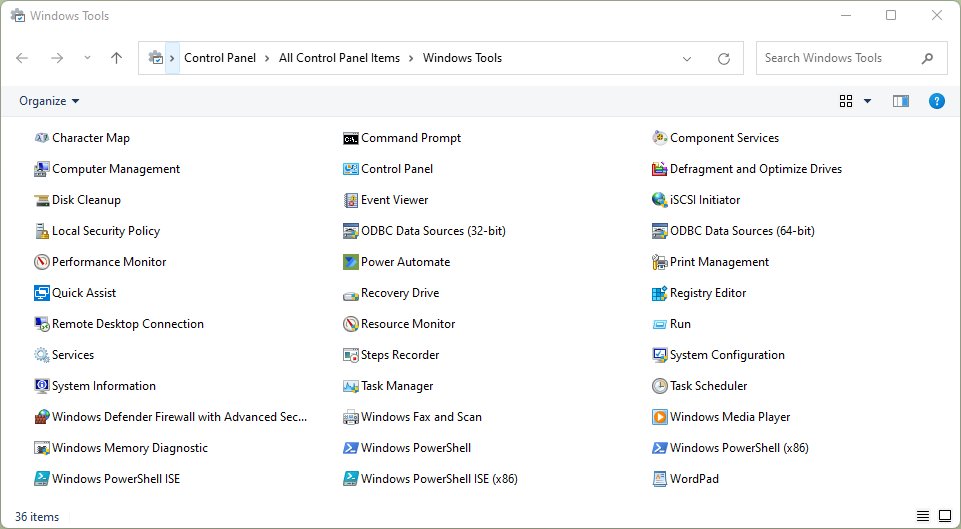
Windows Tools is the Control Panel folder for administrator consoles on Windows 11. Windows 10 calls the same folder Administrative Tools. The tools inside vary by edition.
- Select Start and type
control panel, then open Control Panel. - Set View by to Large icons or Small icons.
- Select Windows Tools on Windows 11, or Administrative Tools on Windows 10.
- Double-click Local Security Policy in the folder.
- Select Yes at the User Account Control prompt.
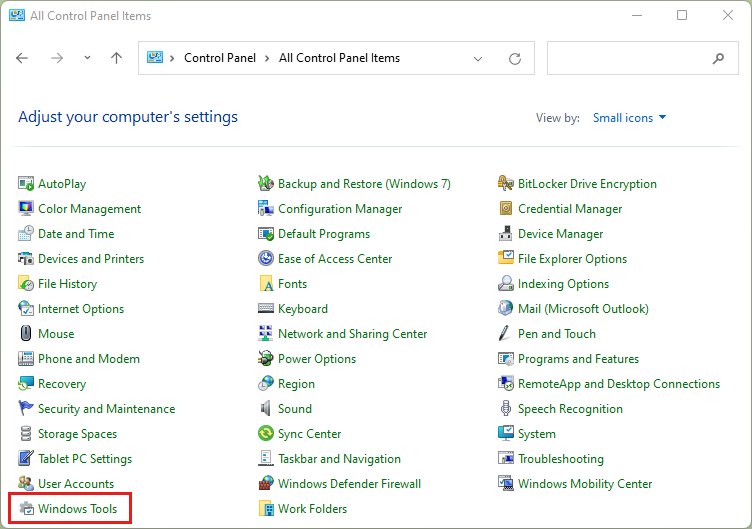
Open the tools folder with a command
Control Panel items accept a canonical name with the /name switch. The canonical name for the admin tools folder is Microsoft.AdministrativeTools.
control /name Microsoft.AdministrativeToolsPaste it into the Run box (Win + R), Command Prompt or PowerShell. control starts Control Panel and /name jumps straight to the named item.
You should see: The Windows Tools folder opens on Windows 11, or Administrative Tools on Windows 10, with Local Security Policy listed inside.
Open security settings in Local Group Policy Editor
The Local Group Policy Editor contains the same security settings, so it works as a fifth route when you are already editing other policies. You can also open the Group Policy Editor first and then drill down.
- Press Win + R, type
gpedit.mscand press Enter. - Expand Computer Configuration, then Windows Settings.
- Select Security Settings.
- Open Account Policies for password and lockout rules, or Local Policies for audit, user rights and security options.
- Double-click a setting, change it and select OK.
If a setting here has never been defined, tick Define these policy settings before you change its value.
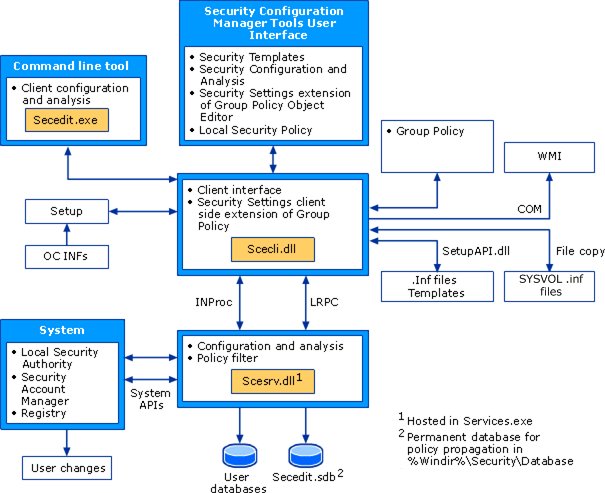
How to check Local Security Policy opened correctly
- Confirm the window title reads Local Security Policy.
- Check that the left pane shows Security Settings with Account Policies and Local Policies beneath it.
- Select Local Policies, then Security Options, and confirm a list of settings appears in the right pane.
- Double-click any setting and check that its value can be changed rather than shown greyed out.
A greyed-out setting means a Group Policy Object controls it, not that the console failed to open.
What you can configure in Local Security Policy
Security policy settings are rules that control how people authenticate, what they can access, and what Windows records in the event log. The console groups them into these nodes.
| Node | What it controls |
|---|---|
| Account Policies > Password Policy | Password enforcement and lifetimes |
| Account Policies > Account Lockout Policy | When and for how long an account locks after failed sign-ins |
| Local Policies > Audit Policy | Which security events go to the Security log: success, failure or both |
| Local Policies > User Rights Assignment | Which users or groups have sign-in rights or privileges |
| Local Policies > Security Options | Administrator and Guest account names, driver installation, sign-in prompts and similar |
| Windows Defender Firewall with Advanced Security | Which network traffic can pass between the device and the network |
| Network List Manager Policies | How networks are listed and displayed |
| Public Key Policies | Encrypting File System, Data Protection and BitLocker certificate settings |
| Software Restriction Policies | Which software can run on the device |
| Application Control Policies | Which users or groups can run particular apps, based on file identity |
| IP Security Policies on Local Computer | IPsec rules for encrypted traffic between IP addresses |
| Advanced Audit Policy Configuration | Finer-grained audit logging than the basic Audit Policy node |
Microsoft recommends the Advanced Audit Policy Configuration settings over the older Audit Policy node on Windows 7 and later.
Do you need administrator rights?
Yes. Changing a setting in Local Security Policy requires Administrators rights on the local device. Microsoft's procedure states that you must be a local administrator, or hold permission to edit the Group Policy Object on a domain controller, before you can configure these settings. Sign in with an administrator account or approve the User Account Control prompt with administrator credentials.
When a policy is controlled by a domain
On a work or school PC joined to a domain, some settings come from a Group Policy Object that IT manages centrally. Microsoft states that an inaccessible local setting indicates a GPO currently controls it.
| What you see | What it means | What to do |
|---|---|---|
| A setting is greyed out | A domain GPO overrides the local value | Ask your IT administrator to change the GPO |
| Your change reverts after a while | The next Group Policy refresh reapplies the domain value | Change it in the domain GPO, not locally |
| A setting is editable on a home PC | No domain policy applies | Change it locally in secpol.msc |
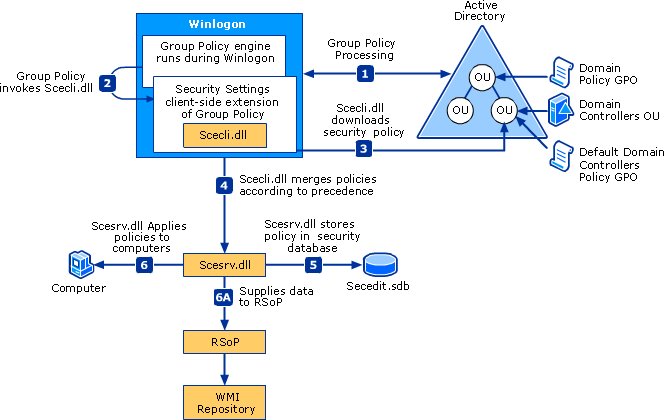
When policy changes take effect
| Type of change | When it applies |
|---|---|
| Most security options | After you select OK, though some need a restart |
| User Rights Assignment | The next time that account signs in |
| Settings delivered by a GPO on a workstation | At the regular background refresh, with a random offset of up to 30 minutes |
| Any GPO security settings | Also refreshed every 16 hours, changed or not |
| When you need it now | Run gpupdate /force in an administrator terminal to reapply all policy settings |
gpupdate /force reapplies every policy setting, not only the ones that changed. Add /boot to restart the PC when a setting only applies at startup.
Why Windows cannot find secpol.msc
Windows says it cannot find secpol.msc
The PC runs Windows 11 Home or Windows 10 Home, which do not include security policy settings.
- Open Settings > System > Activation and confirm the edition.
- Expand Upgrade your edition of Windows if you need Local Security Policy.
- Select Open Store next to Upgrade in the Microsoft app, or select Change next to Change product key if you already have a Pro key.
- Restart when prompted, then press Win + R and run
secpol.mscagain.
Can't open Local Security Policy on Windows 11 Pro
The command was mistyped, or the account lacks administrator rights.
- Type
secpol.mscexactly, with the.mscextension and no spaces. - Right-click Start and choose Terminal (Admin), then run
secpol.mscfrom there. - Sign in with an administrator account if the User Account Control prompt asks for a password you do not have.
Settings are greyed out or keep changing back
A domain Group Policy Object manages those settings.
- Check Settings > Accounts > Access work or school for a connected organization.
- Ask your IT administrator to change the setting in the domain GPO.
- Run
gpupdate /forceafter IT changes it to pull the new value.
Windows Home also lacks the Local Group Policy Editor. You can enable gpedit.msc on Windows 11 Home as a separate project, but Microsoft does not list security policy settings as supported on Home.
Local Security Policy FAQ
How do I open Local Security Policy on Windows 10?
Press Win + R, type secpol.msc and press Enter, exactly as on Windows 11. You can also open Control Panel, select Administrative Tools and double-click Local Security Policy. Windows 10 Home does not include the console.
How do I open Local Security Policy using CMD?
Open Command Prompt as administrator, type secpol.msc and press Enter. The same command works in PowerShell and Windows Terminal. The terminal returns to a prompt while the Local Security Policy window stays open.
Why don't I have Local Security Policy?
The PC most likely runs a Home edition. Microsoft lists security policy settings as supported on Windows Pro, Enterprise, Pro Education/SE and Education only. Check your edition under Settings > System > Activation.
How do I install or enable Local Security Policy?
There is nothing to install on Pro, Enterprise or Education, because secpol.msc ships with those editions. On Home, the supported route is to upgrade Windows 11 Home to Pro from Settings > System > Activation.
Where do I find Local Security Policy?
Search Start for Local Security Policy, or open Control Panel and select Windows Tools on Windows 11 or Administrative Tools on Windows 10. The console is listed inside that folder with the other administrator tools.
How do I access Local Security Policy settings?
Open secpol.msc and expand Security Settings. Select Account Policies for password and lockout rules, or Local Policies for audit, user rights and security options. Double-click a setting in the right pane to change it.
Is the Local Security Policy editor the same as Group Policy Editor?
No. Local Security Policy shows only the Security Settings branch. The Local Group Policy Editor, gpedit.msc, contains that same branch under Computer Configuration > Windows Settings, plus administrative templates and user settings.
Where is Local Group Policy Editor in Windows 11?
Press Win + R, type gpedit.msc and press Enter, or search for it in the Start menu. Like secpol.msc, it is not available on Windows 11 Home.
Do Local Security Policy changes need a restart?
Some do. Microsoft notes that certain security settings need a restart, and User Rights Assignment changes apply the next time the account signs in. Other settings apply as soon as you select OK.
The bottom line on opening secpol.msc
Press Win + R, type secpol.msc and press Enter; use Start search or Windows Tools only when you prefer clicking. The Run box opens the console directly on every edition that includes it. If Windows cannot find the file, check your edition before anything else, because Home editions do not ship Local Security Policy. For other admin consoles, the same Run approach can open Computer Management with compmgmt.msc.

![How do I find saved passwords on my computer [Windows 11/10]](https://techdows.com/wp-content/uploads/2026/10/How-Do-I-Find-Saved-Passwords-on-My-Computer-Windows-1110.jpg)