To create a batch file, type Command Prompt commands into Notepad, save the file with a .bat extension, and double-click it to run it on Windows 10 or 11.
This guide covers the basic file, every way to run it (including as administrator), safe examples, variables, input, arguments, scheduling with schtasks, startup, and fixes for the usual errors.
How to create a batch file (.bat) on Windows 11
A batch file is plain text, so Notepad is all you need. These steps create hello.bat on your desktop and run it.
- Type notepad in the search box on the taskbar and select Notepad in the results.
- Type these three lines exactly:
@echo off, thenecho Hello from my first batch file, thenpause. - Save the file to your Desktop as
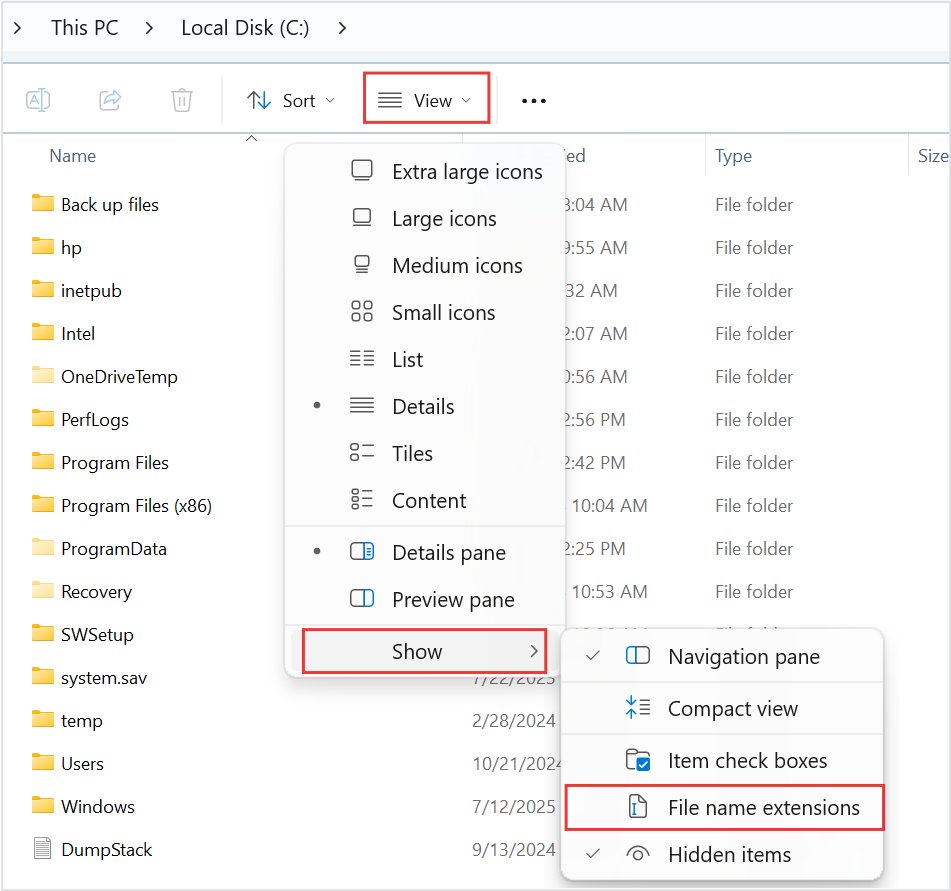
hello.txt. - Open File Explorer and turn on View > Show > File name extensions so you can see the
.txtending. - Rename
hello.txttohello.baton your desktop and confirm the change if Windows asks. - Double-click
hello.bat. A console window shows Hello from my first batch file and Press any key to continue . . . - Press any key to close the window.
@echo off hides the commands themselves, echo prints text, and pause keeps the window open until you press a key. Without pause, a double-clicked batch file closes as soon as its last line finishes.
You can skip the rename step: in Notepad's Save as dialog, set Save as type to All files and type the name with .bat at the end. The next sections cover saving, every way to run the file, and what each command does.
What is a batch file?
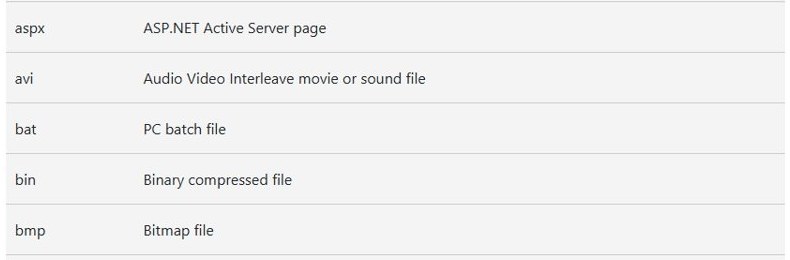
A batch file is a text file of Command Prompt commands that cmd.exe runs one line at a time, top to bottom. Microsoft lists the .bat extension as a "PC batch file".
| Property | What it means for you |
|---|---|
| File type | Plain text. Any text editor can create or edit it; Notepad ships with Windows 10 and 11. |
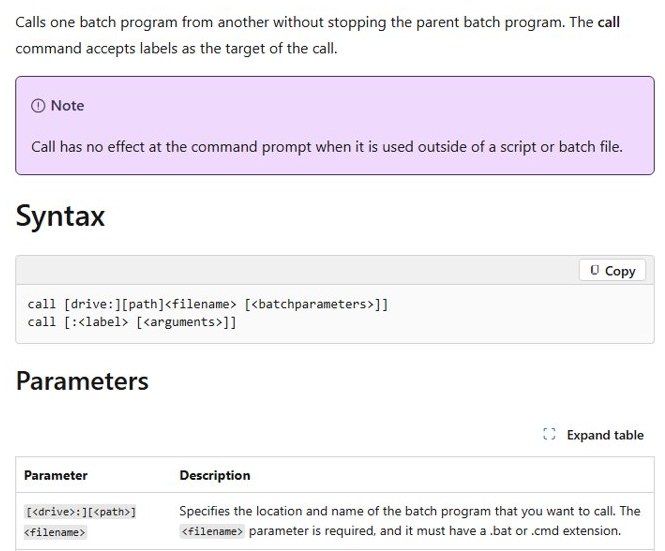
| Extensions | .bat or .cmd. The call command accepts either, and both appear in the default PATHEXT list (.COM;.EXE;.BAT;.CMD;...). |
| What runs it | The Command Prompt interpreter, cmd.exe. Commands such as echo, set, if, for and goto are built into it. |
| Order of execution | Line by line, top to bottom, unless goto or call sends processing to a label. |
| Permissions | The file runs with your account's rights. It gets administrator rights only when you run it elevated. |
| Stopping it | Press Ctrl + C, then Y at the Terminate batch job (Y/N)? prompt. |
Understanding how batch files work (CMD, commands, and execution flow)
When you double-click a .bat file, Windows starts cmd.exe, the Command Prompt interpreter, and hands it the file. Cmd reads one line, expands any variables in it, runs it, and moves to the next line. That has a few practical effects:
- Built-in vs external commands.
echo,set,if,for,goto,callandstartare built into cmd. Anything else, such asrobocopy,pingorsysteminfo, is a separate program that cmd finds through the current folder and thePATHlist. - Top-to-bottom order. Lines run in order unless
gotojumps to a:labelorcallruns a label or another script and returns. - Echo. By default cmd prints each command before running it;
@echo offturns that off so only your messages show. - Exit codes. Most commands set
%errorlevel%:0usually means success, and anything else is a problem your script can test withif. - The window. When the last line finishes, cmd exits and a double-clicked window closes.
pauseor running the file from an open Command Prompt keeps the output visible.
Preparing your Windows 11 system to work with batch files safely
| Item | What you need to know |
|---|---|
| Editor | Notepad is enough. Save the file as plain text, not in a word processor format such as .docx. |
| Visible extensions | Turn on file name extensions first, or Windows may hide a .txt ending and leave you with hello.bat.txt. |
| Admin rights | Not needed for the examples in this guide. Elevate only when a command genuinely needs it. |
| Command extensions | Enabled by default in Windows 10 and 11. set /p, if /i, for /l and goto :eof depend on them. |
| Spaces in paths | Wrap any path that contains a space in double quotes, for example "C:\Program Files". |
| Destructive commands | Commands such as del, format and reg act immediately with no undo. Read any batch file you did not write before you run it. |
Step-by-step: How to save and name a batch file correctly in Windows 11
Most failed first scripts are saved wrongly, not written wrongly. Notepad in Windows 11 saves as UTF-8 by default, which is fine for plain English commands.
- In Notepad, select File > Save as (or press Ctrl + Shift + S).
- Choose a folder that is easy to find and has no spaces in its path, such as
C:\Scriptsor your desktop. - Set Save as type to All files (*.*). Left on Text documents, Notepad may add
.txtto the name. - Type the file name with the extension, for example
backup.bat. Use short names without spaces or symbols so the file is easy to run from Command Prompt. - Leave Encoding at UTF-8 for plain English commands. If the script prints accented or non-English characters as garbage, save it as ANSI instead.
- Select Save, then confirm in File Explorer that the icon has changed to the batch file gear icon and the name ends in
.bat.
Microsoft's list of common file name extensions describes .bat as a "PC batch file", which is the type label File Explorer shows in the Type column.
How to show file extensions in Windows
Hidden extensions are the most common reason a new batch file refuses to run: it is really hello.bat.txt and opens in Notepad. Microsoft gives the same route for Windows 11 and Windows 10.
- Type file explorer in the search box on the taskbar and select File Explorer.
- Select View > Show > File name extensions.
- Look at your batch file: it should now read
hello.bat, nothello.bat.txt. - If you see
.bat.txt, rename the file and delete the.txtending.
Changing an extension only renames the file; it does not convert anything. That is exactly why renaming hello.txt to hello.bat works: the content was already plain text.
Step-by-step: How to run a batch file in Windows 11 (multiple methods)
Double-click the file in File Explorer to run it, or type its full path in Command Prompt to keep the output on screen. The table lists every method and when to use it.
| Your situation | Run it this way | Why |
|---|---|---|
| You just want it to run | Double-click the .bat file in File Explorer or on the desktop. |
Fastest route. Add pause at the end or the window closes when the script finishes. |
| You want to read the output or errors | Open Command Prompt, type the full path in quotes, for example "%USERPROFILE%\Desktop\hello.bat", and press Enter. |
The window stays open after the script ends, so error messages stay on screen. |
| You work in Windows Terminal or PowerShell | cd to the folder, then type .\hello.bat and press Enter. |
PowerShell does not run files from the current folder unless you prefix them with .\. |
| The script changes system settings | Run it as administrator (next section). | Commands that need elevation fail with access errors in a normal window. |
| You want a quick launch without File Explorer | Press Windows + R, type the full path to the .bat file and press Enter. |
The Run dialog starts it like a double-click. |
| You want to feed it a file | Drag a file onto the batch file's icon. | Windows passes the dropped file's path as %1. |
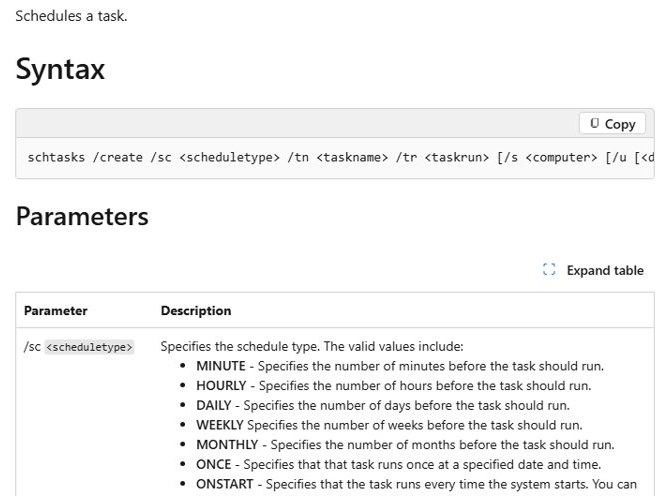
| It must run on a schedule or at sign-in | Use schtasks or the Startup folder (sections below). |
No need to remember to launch it. |
| You want to start it from another batch file | call other.bat |
call runs the second file and then returns to the first one. |
New to the prompt? Here is how to open Command Prompt in Windows 11.
Running batch files as administrator and handling permissions
Elevate only scripts you wrote or have read line by line. An elevated batch file can change anything on the PC.
- Right-click the
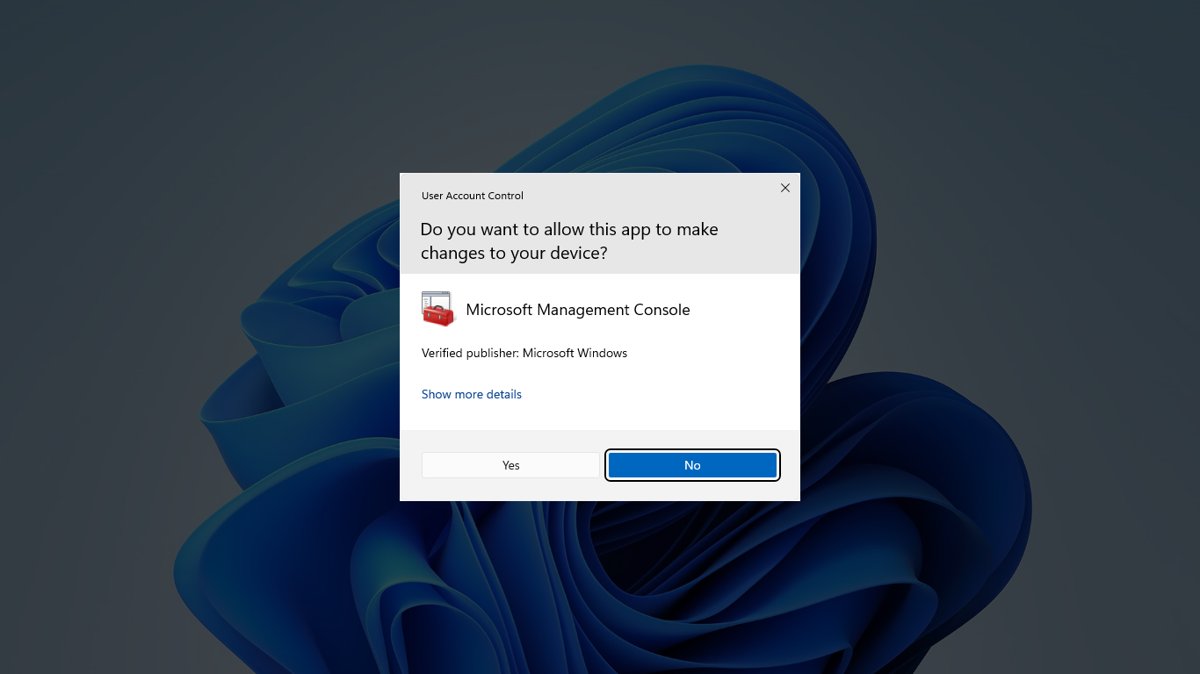
.batfile and select Run as administrator. If your account is not an administrator, Windows asks for an administrator user name and password. - Select Yes at the User Account Control prompt.
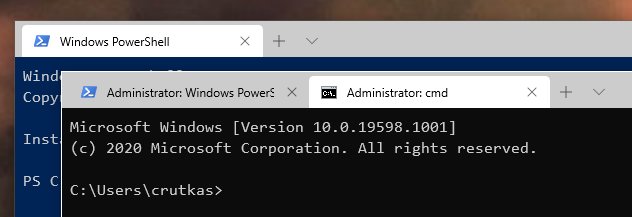
- To keep the output on screen instead, type command prompt in the taskbar search box, select Run as administrator, then Yes.
- On Windows 11 you can also press Windows key + X and select Terminal (Admin); the same menu is one of the ways to run PowerShell as administrator.
- In the elevated window, type the full path to the batch file in quotes and press Enter. In a PowerShell tab,
cdto the folder and type.\hello.bat. - Check the title bar: an elevated window shows Administrator.
Always run as administrator from a shortcut: a .bat file's Properties have no compatibility option for this, so create a shortcut to it, right-click the shortcut, select Properties > Shortcut > Advanced, tick Run as administrator and select OK twice. Every launch from that shortcut then shows the UAC prompt.
Elevated scripts start in System32: a batch file run as administrator usually starts with C:\Windows\System32 as the current folder, so relative paths break. Put cd /d "%~dp0" on the second line to switch back to the script's own folder.
Practical examples: useful batch files for everyday automation
Each example below is safe to run: it opens, copies or displays things and deletes nothing. Save each one as its own .bat file.
Open your daily work apps and websites
@echo off
title Start my workday
rem Open apps, a folder and a website in one go
start notepad
start "" "%USERPROFILE%\Documents"
start "" "https://www.bing.com"
start "" "https://learn.microsoft.com"
Open several programs at once and open websites in your default browser. start launches each item without waiting for it to close. The empty "" matters: start treats the first quoted string as the window title, so without it a quoted path or URL becomes the title and nothing opens. A folder path opens in File Explorer, and a URL opens in the default browser.
You should see: Notepad, your Documents folder and two browser tabs open, and the batch window closes by itself.
Create a simple backup script
@echo off
rem Copy Documents to a backup folder. Change D:\Backup to a drive you own.
robocopy "%USERPROFILE%\Documents" "D:\Backup\Documents" /e /log:"%USERPROFILE%\Desktop\backup.log"
if %errorlevel% GEQ 8 (
  echo Some files failed to copy. Open backup.log on your desktop.
) else (
  echo Backup finished.
)
pause
robocopy ... /e copies every file and subfolder, including empty folders, and never deletes anything at the source. /log: writes a report you can read later. Robocopy exit codes of 8 or higher mean at least one file failed, which is what the if %errorlevel% GEQ 8 line checks. Avoid /mir in a first script: it mirrors the source and removes extra files from the destination.
You should see: Backup finished. on screen, a D:\Backup\Documents folder with your files, and a backup.log file on the desktop.
Display system information
@echo off
title System summary
echo Signed in as %USERNAME%
ver
echo.
systeminfo /fo list
pause
%USERNAME% expands to your account name, ver prints the Windows version number, echo. prints a blank line, and systeminfo /fo list lists OS, memory, network card and hardware details one per line.
You should see: Your user name, the Windows version number, then a long list of system details, with the window held open by pause.
Check network connectivity and log the result
@echo off
rem Ping a website and keep a dated log on the desktop
ping -n 4 www.bing.com > "%USERPROFILE%\Desktop\ping-log.txt"
if %errorlevel% EQU 0 (
  echo Network is up. Results saved to ping-log.txt.
) else (
  echo No reply. Check Wi-Fi or the cable, then run ipconfig.
)
pause
ping -n 4 sends four echo requests, and > writes the output to a text file instead of the screen. If the name does not resolve even though the network is up, flush the DNS cache with ipconfig and try again.
You should see: Network is up. and a ping-log.txt file on your desktop with the four replies.
Essential batch file commands every beginner should know
| Command | What it does | Example |
|---|---|---|
@ |
Hides the echo of a single line. | @echo off |
echo |
Prints text; echo off hides the commands that follow. echo. prints a blank line. |
echo Backup started |
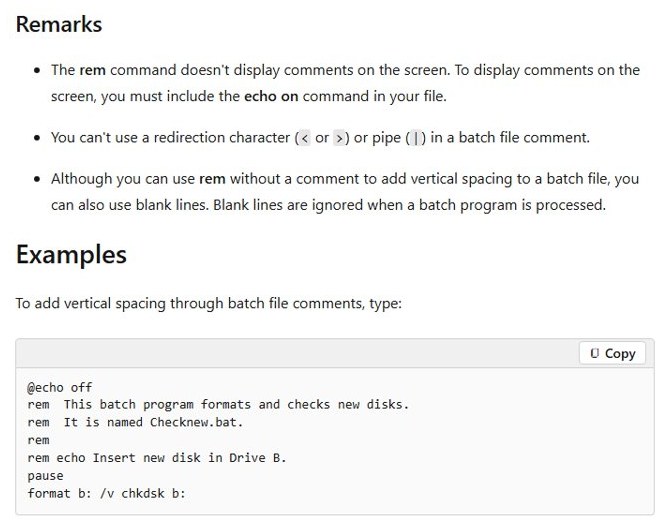
rem |
Adds a comment that is never run or shown. | rem Runs every Friday |
pause |
Stops and shows Press any key to continue . . . | pause |
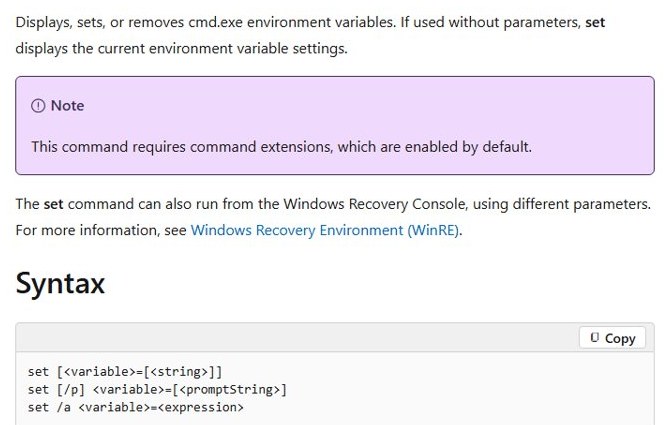
set |
Creates or changes a variable; /p asks for input, /a does arithmetic. |
set /a total=5+3 |
if |
Runs a command only when a condition is true, with an optional else. |
if exist notes.txt echo Found it |
for |
Repeats a command for each file, string or number. Use %% in a batch file, % at the prompt. |
for %%f in (*.txt) do echo %%f |
goto |
Jumps to a label that starts with a colon; goto :eof ends the script. |
goto end |
call |
Runs another batch file or a label, then comes back. | call backup.bat |
start |
Opens a program, folder or URL in a separate process. | start "" "https://www.bing.com" |
cmd |
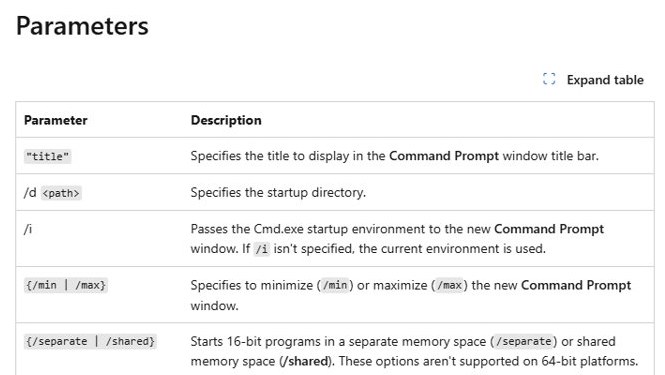
Starts a new interpreter; /c runs a command and exits, /k keeps the window open. |
cmd /k hello.bat |
title |
Sets the text in the console window's title bar. | title Nightly backup |
timeout |
Waits a number of seconds; /nobreak ignores key presses. |
timeout /t 10 |
cls |
Clears the console window. | cls |
dir |
Lists the files and folders in a folder. | dir /b *.txt |
exit |
Closes cmd; exit /b leaves only the batch file and can return a code. |
exit /b 1 |
cd /d |
Changes the current folder, including the drive. | cd /d "%~dp0" |
For the full command set, keep our list of Command Prompt commands handy; each one works inside a batch file.
Open batch file (.bat) on Windows 11
Opening a batch file to read it is different from running it. Use any of these to view the code without executing a single line.
- Using File Explorer: select the file and press Alt + P to turn on the preview pane, which shows the text of many plain-text files. If nothing appears, use Notepad.
- Opening with Notepad: right-click the file and select Edit (Windows 11: Show more options > Edit), or Open with > Notepad.
- Using command-line tools: in Command Prompt, type
type "C:\Scripts\backup.bat"; in PowerShell,Get-Content C:\Scripts\backup.bat. Both print the file without running it. - Using a browser: drag the file into a browser tab, or type its
file:///path, to read it as plain text. - Using Microsoft PowerToys: the PowerToys Peek tool previews many file types with Ctrl + Space in File Explorer.
How to edit a batch file
Double-clicking a batch file runs it, so open it in an editor instead whenever you want to read or change it.
- Right-click the
.batfile and select Open with > Choose another app. - Select Notepad from the list and open the file.
- Make your changes and save the file. Notepad keeps the
.batname. - Run the file again from a Command Prompt window so any new error stays on screen.
How to add comments to a batch file
@echo off
rem Purpose: open the tools I use every morning
rem Author: your name, last changed 2026-09-19
:: Lines that start with a colon are labels, so :: also works as a comment
start notepad
rem lines are skipped and never shown while echo is off. A line that begins with a colon is treated as a label and ignored, which is why :: is a common shorthand. You cannot put a pipe | or redirection < > character inside a rem comment.
You should see: Only Notepad opens; none of the comment text appears in the window.
Advanced usage: adding variables, user input, and conditional logic
Variables, prompts and if tests turn a fixed list of commands into a script that adapts to the PC and the person running it.
How to use variables in batch files
@echo off
set folder=%USERPROFILE%\Documents
set /a files=0
for %%f in ("%folder%\*.txt") do set /a files+=1
echo %folder% holds %files% text files.
pause
set name=value creates a variable and %name% reads it back. Everything after the equal sign becomes the value, so do not add spaces around =. set /a treats the value as a number, and += adds to it. Inside a for loop in a batch file, the loop variable uses two percent signs (%%f).
You should see: A line such as C:\Users\Alex\Documents holds 4 text files.
How to ask for user input
@echo off
set /p name=What is your name?
echo Hello, %name%.
set /p answer=Open your Documents folder (y/n)?
if /i "%answer%"=="y" (
  start "" "%USERPROFILE%\Documents"
) else (
  echo Skipped.
)
pause
set /p shows the prompt text and stores whatever the user types. if /i compares the answer without caring about case, so Y and y both match. Quotes around both sides keep the comparison working when the user just presses Enter.
You should see: The script greets you by name, then either opens Documents or prints Skipped.
Use IF to check for files, folders and errors
@echo off
if not exist "D:\Backup\" (
  echo The backup drive is not connected.
  pause
  exit /b 1
)
if exist "%USERPROFILE%\Desktop\notes.txt" echo notes.txt is on the desktop.
if exist and if not exist test for a file or folder (a trailing backslash checks for a folder). exit /b 1 stops only the batch file and returns 1 as its exit code, which a calling script or Task Scheduler can read. Use if %errorlevel% NEQ 0 right after a command to react to failures.
Variables inside loops: delayed expansion
Cmd expands %name% once, when it reads a whole if or for block, so a variable changed inside the block shows its old value. Add setlocal enabledelayedexpansion near the top and read the variable as !name! inside the block to get the current value.
Automating tasks: running batch files with Task Scheduler
In the Task Scheduler app, select Create Basic Task, name it, pick a trigger (daily, at log on, at startup), choose Start a program, browse to the .bat file and fill Start in with the script's folder so relative paths work. schtasks creates the same kind of task you would build in the Task Scheduler app, from one line. Put your script in a folder without spaces, such as C:\Scripts, and use its full path.
schtasks /create /tn "Daily Backup" /tr C:\Scripts\backup.bat /sc daily /st 18:00/tn names the task, /tr is the full path to the batch file, /sc daily sets the schedule and /st 18:00 is the start time in 24-hour format. Swap /sc daily for /sc weekly, /sc onlogon (whenever any user signs in) or /sc onstart (every time the PC starts). Add /rl highest if the script needs administrator rights; the default is limited. Test it at once with schtasks /run /tn "Daily Backup", and remove it later with schtasks /delete /tn "Daily Backup".
You should see: No error message, and schtasks /query /tn "Daily Backup" lists the task with its next run time. It also appears under the Task Scheduler Library folder in the Task Scheduler app.
How to make a batch file run at startup
The Startup folder runs a shortcut each time you sign in. For a script that must run before anyone signs in, use schtasks ... /sc onstart from the previous section instead. Task Scheduler can also launch scripts at logon, with a delay or administrator rights that the Startup folder cannot give.
- Right-click Start and select Run.
- Type
shell:startupand press Enter. For every user on the PC, typeshell:common startupinstead. - Create a shortcut to the batch file (see the next section), then drag that shortcut into the Startup folder. Keep the original
.batwhere it is. - Sign out and back in to confirm the script runs.
The current-user folder is %userprofile%\AppData\Roaming\Microsoft\Windows\Start Menu\Programs\Startup. To stop the script running at sign-in, delete the shortcut from that folder; the batch file itself stays untouched. You can also view all startup programs in Windows to confirm it is listed.
How to create a desktop shortcut for a batch file
- Open the folder that holds your batch file in File Explorer.
- On Windows 11, right-click the
.batfile and select Show more options > Send to > Desktop (create shortcut). - On Windows 10, right-click the
.batfile and select Send to > Desktop (create shortcut). - Double-click the new desktop shortcut to run the script.
A shortcut keeps your script in a safe folder such as C:\Scripts while you launch it from the desktop. Moving or renaming the original file breaks the shortcut.
How to pass arguments to a batch file
@echo off
rem Save as greet.bat, then run:  greet.bat Alex "New York"
if "%~1"=="" (
  echo Usage: greet.bat Name City
  goto :eof
)
echo Hello, %~1 from %~2.
echo All arguments: %*
echo This script lives in %~dp0
%1 to %9 hold the words typed after the file name, and %* holds all of them. The ~ in %~1 strips surrounding quotes, so "New York" prints as New York. %0 is the batch file itself, and %~dp0 expands it to the drive and folder the script lives in. Use shift to read more than nine arguments.
You should see: greet.bat Alex "New York" prints Hello, Alex from New York. Running it with no arguments prints the usage line and stops.
Common errors and troubleshooting batch files on Windows 11
Start every fix the same way: run the script where you can read its output.
- Open Command Prompt and run the script by its full path in quotes, so the window stays open after the last line.
- Read every line of output. A message such as 'xyz' is not recognized as an internal or external command points to the exact line that failed.
- Type
echo %errorlevel%and press Enter.0means the last command reported success; any other number means it reported a problem (for robocopy, 8 or higher). - For a scheduled script, run
schtasks /query /tn "Daily Backup" /fo LIST /vand check the schedule, next run time and last result. - Run
schtasks /run /tn "Daily Backup"to trigger it immediately, then confirm the result it produces, such as new files or a log.
The window opens and closes immediately
A double-clicked batch file closes as soon as it finishes or hits an error.
- Add
pauseas the last line to hold the window open. - Better, run the file from an open Command Prompt window so the error stays visible.
- Fix the line named in the error, then remove
pauseif you no longer need it.
The file opens in Notepad instead of running
The file is really name.bat.txt, because Windows hid the .txt ending.
- In File Explorer, select View > Show > File name extensions.
- Rename the file so it ends in
.batonly. - Double-click it again.
Paths with spaces do not work
Command Prompt splits unquoted text at spaces, so C:\Program Files becomes two words.
- Wrap every path that contains a space in double quotes.
- With
start, add an empty title first:start "" "C:\My Folder\report.txt". - Quote variables that may hold spaces, for example
"%folder%".
Commands fail because of the wrong folder
Relative file names resolve against the current folder, which is not always the folder that holds the script.
- Add
cd /d "%~dp0"near the top to switch to the script's own folder. - Or use full paths for every file the script touches.
- Use a full path for the script itself in
schtasks /tr; without one, schtasks looks in the System32 folder.
The script needs administrator permission
Commands that change system settings return Access is denied in a normal window.
- Right-click the file and select Run as administrator, then Yes.
- For a scheduled task, recreate it with
/rl highest. - Keep the elevated part as small as possible; everyday scripts should not need it.
Special characters break the script
&, |, <, > and ^ are command characters to Command Prompt, not plain text.
- Put a caret before the character in
echotext:echo Tom ^& Jerry. - Type two carets
^^to print one caret. - Inside an
iforforblock in parentheses, escape parentheses in text as^(and^).
"ECHO is off." appears instead of a value
The variable after echo is empty or was never set.
- Check the variable name with
set nameat the prompt. - Use
echo:%name%to print a blank line instead of the message when the value is empty.
Commands not recognized as internal or external
Cmd cannot find the program named on that line.
- Check the spelling of the command.
- Use the program's full path in quotes, for example
"C:\Program Files\7-Zip\7z.exe". - Run
where nameat the prompt to see whether the program is on thePATH.
Forgetting to use call when running another batch file
Typing second.bat on its own hands control to it, and the rest of the first script never runs. Write call second.bat so cmd returns to the next line afterwards.
Confusing set and setx
set changes a variable for the current window only. setx saves it permanently for future windows but does not change the current one, so a script that runs setx and then reads the variable still sees the old value.
Antivirus or SmartScreen blocking execution
Batch files downloaded from the internet can be blocked or quarantined. Open the file in Notepad, check every line, and only then select More info > Run anyway if Windows SmartScreen stops it. Never turn off protection to run a script you did not write.
Security and permissions: running batch files safely on Windows 11
| Tip | Why it matters |
|---|---|
| Open unknown batch files in Notepad before running them | Double-clicking runs every line immediately, with no preview and no undo. |
Test risky lines with echo first |
Writing echo copy ... instead of copy ... shows what would happen without doing it. |
| Run without admin rights first | An elevated script can change system files and settings; a normal one cannot. |
Never run del, format or reg lines you do not understand |
They act at once. format erases a whole drive. |
Keep scripts in one folder such as C:\Scripts |
Easier to back up, audit and point scheduled tasks at. |
| Do not hard-code passwords | A batch file is plain text that anyone with access can read. |
Best practices: organizing, commenting, and maintaining batch files
- Use a clear folder structure. Keep scripts in one place such as
C:\Scripts, with alogssubfolder for output. - Choose descriptive file names.
backup-documents.battells you more in a year thantest2.bat. - Comment early and often. Start each file with
remlines for its purpose, author and last change. - Standardise variable names and quote every path.
- Handle errors consistently. Check
%errorlevel%after commands that can fail and end withexit /bplus a code. - Start small and test one command at a time, with
echoleft on while you learn, then turn it off. - Keep a copy of the last working version before you change a script that runs on a schedule.
- Know when to move on. For complex logic, objects or remote management, Microsoft points to PowerShell.
Batch file .bat vs .cmd
Use .bat unless your team already standardises on .cmd. Both extensions run in the same interpreter, both are accepted by call, and both sit in the default PATHEXT list, where .BAT comes before .CMD. Microsoft's own list of file types names .bat as the PC batch file, so it is the extension readers and colleagues recognise. Every example in this guide behaves the same under either name.
Batch file FAQ
How do I create and run a batch file in Windows 11?
Type your commands in Notepad, save the file, and rename it so it ends in .bat with file name extensions visible. Then double-click the file, or run it by its full path in Command Prompt to keep the output on screen.
Why does my batch file close immediately?
A double-clicked batch file closes as soon as its last line runs or an error stops it. Add pause as the final line, or run the file from an open Command Prompt window so the output and any error message stay visible.
How do I run a batch file from PowerShell or Windows Terminal?
Change to the file's folder with cd, then type .\name.bat and press Enter. PowerShell does not run files from the current folder without the .\ prefix. Running it from Command Prompt instead needs only the file name or full path.
Is a batch file the same as a PowerShell script?
No. A batch file (.bat or .cmd) runs Command Prompt commands through cmd.exe, while a PowerShell script (.ps1) runs PowerShell commands. Microsoft points users who need more advanced scripting and automation towards PowerShell.
How do I stop a batch file that is running?
Click the console window and press Ctrl + C. Windows asks Terminate batch job (Y/N)?, and pressing Y ends the script and returns control to the prompt. Closing the console window also stops it.
Can a batch file run another batch file?
Yes. Use call other.bat inside the first file. call runs the second script and then returns to the next line of the first. Typing the second file's name without call hands control over and never comes back.
How do I hide the commands in a batch file window?
Put @echo off on the first line. echo off stops each command from being printed, and the @ hides the echo off line itself. Only the text you print with echo and any command output will appear.
How do I make a batch file wait before the next command?
Use timeout /t 10 to wait ten seconds, or timeout /t 10 /nobreak to ignore key presses during the wait. Use pause when the script should wait until someone presses a key.
Can I run a batch file automatically at a set time?
Yes. Run schtasks /create /tn "My Task" /tr C:\Scripts\task.bat /sc daily /st 09:00 to run it every day at 9:00. Use /sc onlogon for every sign-in, and test the task with schtasks /run /tn "My Task".
Where can I see a real-world batch file in use?
Many Windows fixes ship as short batch files that chain several commands. One example: you can remove OneDrive from Windows 10 with a batch file. Read any script like that in Notepad before you run it, and understand every line first.







How to use Windows Terminal in Windows 11/10: Beginners Guide - Techdows
[…] a Name, then set Command line to the program, such as cmd.exe or a batch file […]
cmd.exe Windows Command Processor: All you need to know - Techdows
[…] batch file is a text file of cmd.exe commands that runs top to bottom. Creating and running a batch file has the […]
How to use DISKPART commands in Windows 11/10 - Techdows
[…] Wait at least 15 seconds before starting a second DISKPART script, or add timeout /t 15 between them in a batch file. […]
How to Run the Classic Windows File Manager on Windows 10 and 11 - Techdows
[…] Chain them into a script when the same file job repeats: How to Create and Run a Batch File in Windows 10 and 11. […]