Chkdsk has 19 parameters, and the one most people need is chkdsk C: /f, run from an administrator Command Prompt to find and fix file system errors.
This guide lists every switch in Microsoft's chkdsk reference with its meaning, then covers examples, scans at restart, reading the results and fixing common chkdsk errors on Windows 11 and Windows 10.
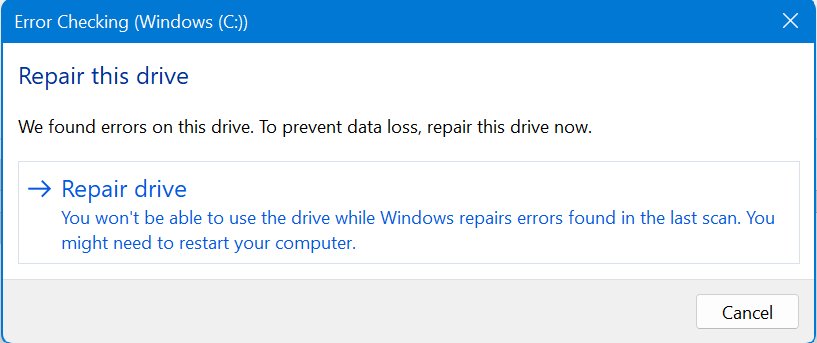
How to Run Chkdsk from Command Prompt
You need membership in the local Administrators group to run chkdsk. A normal Command Prompt window is not enough.
- Open Start and type
cmd. - Right-click Command Prompt and select Run as administrator.
- Select Yes at the User Account Control prompt.
- Type
chkdsk C:and press Enter for a read-only check that reports problems without fixing them. - Type
chkdsk C: /fand press Enter to fix file system errors. ReplaceC:with the letter of the drive you want to check. - Press Y and Enter if chkdsk says the volume is in use and asks to schedule the check for the next restart.
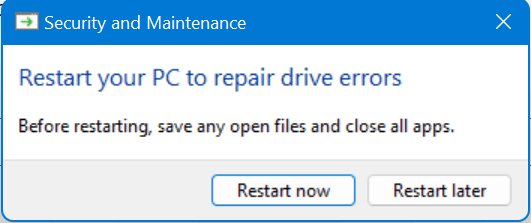
- Restart the PC so chkdsk runs before Windows loads.
A data drive such as D: is checked straight away when no files on it are open. The Windows drive is always in use, so a fix on C: runs at the next restart, and Windows restarts again automatically when the check on the boot partition finishes.
What Chkdsk Does
Chkdsk (Check Disk) checks the file system and file system metadata of a volume for logical and physical errors. Without parameters, it only reports the volume's status and fixes nothing.
| Job | Switches that do it | What changes on the disk |
|---|---|---|
| Report the volume's status only | none | Nothing. Chkdsk reads and reports. |
| Fix logical file system errors | /f, /x |
File system structures are repaired. The drive must be locked. |
| Find bad sectors and recover readable data | /r, /b |
Every sector is read; data from damaged sectors is moved where possible. |
| Scan an NTFS volume while it stays online | /scan, /perf, /forceofflinefix |
Problems are found while you keep working; repairs can be queued. |
| Repair queued problems with little downtime | /spotfix, /offlinescanandfix |
The volume goes offline briefly for the repair. |
| Speed up an NTFS check by skipping work | /i, /c |
Fewer checks run, so the scan finishes sooner. |
| Housekeeping | /l, /sdcleanup, /freeorphanedchains, /markclean |
Log file size, security descriptor cleanup, FAT cluster chains, clean flag. |
Chkdsk works only on local disks. It cannot check a drive letter that is redirected over the network.
Chkdsk Command Syntax
Every chkdsk command follows the same pattern: the command, an optional volume, then one or more switches separated by spaces.
chkdsk [<volume>[[<path>]<filename>]] [/f] [/v] [/r] [/x] [/i] [/c] [/l[:<size>]] [/b] [/scan] [/forceofflinefix] [/perf] [/spotfix] [/sdcleanup] [/offlinescanandfix] [/freeorphanedchains] [/markclean] [/?]<volume> is a drive letter followed by a colon (such as D:), a mount point or a volume name. [<path>]<filename> works only on FAT and FAT32 and names files to check for fragmentation; the wildcards ? and * are allowed.
You should see: Chkdsk ends with a status report for the volume. Type chkdsk /? to print the built-in help and confirm the switches your Windows build supports.
Complete List of Chkdsk Commands and Switches
This is the full parameter list from Microsoft's chkdsk reference for Windows 11, Windows 10 and Windows Server 2016 and later. The File systems column shows where a switch applies.
| Switch | File systems | What it does |
|---|---|---|
<volume> |
All | Drive letter with a colon, mount point or volume name to check. |
[<path>]<filename> |
FAT, FAT32 | Checks the named file or files for fragmentation. Accepts ? and *. |
/f |
All | Fixes errors on the disk. The disk must be locked; if it cannot be, chkdsk offers to run at the next restart. |
/v |
All | Displays the name of each file in every directory as the disk is checked. |
/r |
All | Locates bad sectors and recovers readable information. Includes everything /f does. The disk must be locked. |
/x |
All | Forces the volume to dismount first if necessary and invalidates all open handles. Includes /f. |
/i |
NTFS | Performs a less vigorous check of index entries to cut scan time. |
/c |
NTFS | Skips checking cycles within the folder structure to cut scan time. |
/l[:<size>] |
NTFS | Changes the log file size. Without a size, shows the current size. |
/b |
NTFS | Clears the bad cluster list and rescans all allocated and free clusters. Includes /r. Use it after imaging a volume to a new hard disk. |
/scan |
NTFS | Runs an online scan; the volume stays available. |
/forceofflinefix |
NTFS, with /scan |
Skips all online repair and queues every defect for offline repair, such as /spotfix. |
/perf |
NTFS, with /scan |
Uses more system resources to finish the scan faster, which slows other running tasks. |
/spotfix |
NTFS | Runs spot fixing on the volume, repairing the problems already logged. |
/sdcleanup |
NTFS | Garbage-collects unneeded security descriptor data. Implies /f. |
/offlinescanandfix |
Not restricted in the reference | Runs an offline scan and fix on the volume. |
/freeorphanedchains |
FAT, FAT32, exFAT | Frees orphaned cluster chains instead of recovering their contents. |
/markclean |
FAT, FAT32, exFAT | Marks the volume clean if no corruption was found, even without /f. |
/? |
All | Displays help at the command prompt. |
Microsoft names /f, /r, /x and /b as the switches that fix errors in a full check, while /spotfix, /sdcleanup and /offlinescanandfix carry out their own targeted repairs. The rest report, scan or tune the scan.
Before You Run Chkdsk: Important Safety Tips
Chkdsk repairs change the file system, and on a drive with hardware faults a repair cannot bring back what the disk has already lost. Microsoft's own troubleshooting guidance starts with one rule: back up all critical data before you repair or modify any disk.
| Tip | Why it matters |
|---|---|
Back up important files first, especially before /f or /r on a drive that clicks, disconnects or throws read errors |
If chkdsk cannot fix the errors, Microsoft's guidance is to restore the data from a backup. A backup made after a failed repair is too late. |
Run a read-only check or /scan before a repair |
Both report problems without changing anything, so you learn how bad things are first. |
| Use the right command for the situation | /r and /b read every sector, which can take hours on a large hard disk. /f alone is enough for logical errors. |
| Expect a reboot for the Windows drive | Chkdsk cannot lock C: while Windows runs, so /f and /r on it are scheduled for the next restart. |
| Close programs and files on a data drive | Chkdsk needs to lock the drive to fix it. /x forces a dismount, which can lose unsaved work in open files. |
| Do not interrupt a running repair | Microsoft does not recommend it. Interrupting should not leave the volume more corrupt than before, but you must run chkdsk again to finish. |
| Avoid repeated full scans on an SSD | Microsoft notes repeated full-surface scans, especially with /r, add write/erase cycles. Occasional checks are fine. |
Microsoft also notes that a failing hard disk read head can make chkdsk behave unpredictably, including finishing a full scan suspiciously fast. Treat that as a hardware warning, copy your files off and check the drive with its maker's tools.
How to Run Chkdsk from PowerShell or Windows Terminal
Chkdsk is a standard executable, so the same commands work in PowerShell and in Windows Terminal as long as the window runs as administrator. PowerShell also has its own cmdlet, Repair-Volume, that maps to chkdsk's online repair switches.
- Open Start and type
PowerShellorTerminal. - Right-click the result and select Run as administrator, then select Yes.
- Type
chkdsk D: /fand press Enter to check and fix drive D. - Type
Repair-Volume -DriveLetter D -Scanand press Enter for an online scan, the same aschkdsk D: /scan. - Type
Repair-Volume -DriveLetter D -SpotFixand press Enter to fix the problems the scan logged, the same aschkdsk D: /spotfix. - Type
Repair-Volume -DriveLetter D -OfflineScanAndFixand press Enter for a full offline repair, the same aschkdsk D: /f.
Repair-Volume -DriveLetter GHI -Scan checks drives G, H and I in one command, which chkdsk itself cannot do. The cmdlet has no equivalent of /r or /b, so use chkdsk for a bad sector scan.
How to Run Chkdsk When Windows Will Not Boot
If Windows cannot start, run chkdsk from the Command Prompt in the Windows Recovery Environment (WinRE). Microsoft's startup troubleshooting guide uses chkdsk /f /r for disk corruption in exactly this situation. Windows opens WinRE on its own after two failed starts in a row.
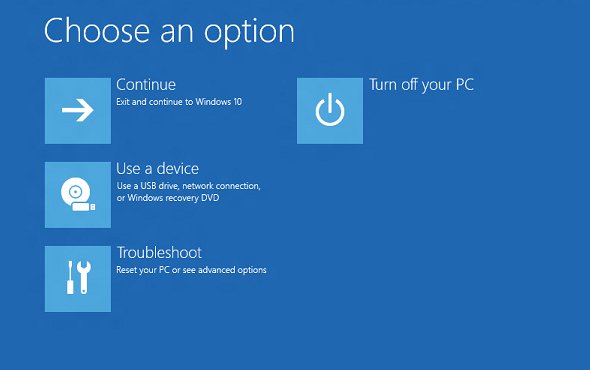
- Let WinRE open after failed starts, or start the PC from Windows installation media and select Next > Repair your computer.
- On the Choose an option screen, select Troubleshoot.
- On the Advanced options screen, open Command Prompt. From installation media you can also press Shift + F10 on the setup screen.
- Type
chkdsk C: /scanand press Enter to see whether the drive has errors. If Windows lives on a different letter here, use that letter. - Type
chkdsk C: /f /rand press Enter to repair file system errors and recover data from bad sectors. - Wait for the report, type
exit, and restart the PC to try Windows again.
If a drive repair crashes the PC with a stop error on every restart, Microsoft's advice is to back up the drive, then attach it to another Windows PC and run chkdsk there.
Most Useful Chkdsk Commands with Examples
These are the commands that cover almost every real job. Run each one from an administrator Command Prompt and change the drive letter to match yours.
| Command | What it does | Use it when |
|---|---|---|
chkdsk C: |
Basic read-only check. Reports errors, fixes nothing. | You want to know if a drive has problems. On an active drive it can report spurious errors because it cannot lock the volume. |
chkdsk D: /f |
Standard repair of file system errors. | A read-only check or Windows reported errors. |
chkdsk D: /r |
Repair plus a bad sector scan that recovers readable data. | Files fail to open, copy or read, or you suspect physical damage. Back up first. |
chkdsk D: /x |
Forces the volume to dismount, then repairs. | Chkdsk says the volume is in use and you want the fix now, not at restart. |
chkdsk C: /scan |
Online NTFS scan; the drive stays usable. | You want a health check without downtime. |
chkdsk C: /scan /perf |
Faster online NTFS scan that uses more resources. | The PC is otherwise idle and you want the result sooner. |
chkdsk C: /scan /forceofflinefix |
Queues every problem found for offline repair. | You want to scan now and repair during planned downtime. |
chkdsk C: /spotfix |
Spot fixes the NTFS problems already logged. | An earlier scan found problems; this repair takes the volume offline only briefly. |
chkdsk D: /offlinescanandfix |
Offline scan and fix of the volume. | You want a full offline repair of a volume in one step. |
chkdsk D: /b |
Clears the bad cluster list and rechecks every cluster. Includes /r. |
You imaged a volume onto a new hard disk. |
chkdsk D: /f /v |
Repair with verbose output listing every file. | You need to see which files were checked. |
chkdsk D: /f /i /c |
Faster but less thorough NTFS check. | A full /f would take too long on a volume with millions of files. |
chkdsk *.* |
Lists files in the current folder on a FAT disk with noncontiguous blocks. | Checking fragmentation on a FAT or FAT32 drive. |
Which Chkdsk Command Should You Use?
Match your situation to a row and run that command. Start with the least invasive option that answers your question.
| Your situation | Run this | Why |
|---|---|---|
| You only want to know if the drive is healthy | chkdsk C: /scan |
Online scan, no downtime, no changes. |
| Windows or an app reported file system corruption | chkdsk C: /f |
Fixes logical errors; runs at restart on the Windows drive. |
| Files are unreadable or the drive makes read errors | Back up, then chkdsk D: /r |
Adds a bad sector scan and recovers readable data. |
| A data drive is locked by open files | chkdsk D: /x |
Forces a dismount so the fix runs now. |
| A server or PC cannot afford long downtime | chkdsk C: /scan then chkdsk C: /spotfix |
Scan online, then repair with a short offline window. |
| Windows will not start | chkdsk C: /f /r from WinRE Command Prompt |
Runs outside Windows, so nothing holds the drive. |
| You copied a volume to a new hard disk | chkdsk D: /b |
Rebuilds the bad cluster list for the new disk. |
| A USB stick or SD card uses FAT32 or exFAT | chkdsk E: /f |
Standard repair works on FAT file systems too. |
| You prefer not to type commands | The drive's properties in File Explorer | Windows has a graphical disk check there, but Microsoft's chkdsk reference documents only the command line, and only the command line exposes these switches. |
How to Find Chkdsk Results After a Restart
A check that runs at restart finishes before you sign in, so its report never appears on screen. Windows saves it in the Application event log under the Chkdsk and Wininit sources.
- Press Win + R, type
eventvwr.mscand select OK. - Expand Windows Logs in the left pane.
- Right-click Application and select Filter Current Log.
- Open the Event sources drop-down and select Chkdsk and Wininit.
- Select OK, then open the newest event and read its General tab for the full chkdsk report.
To read the same log in PowerShell, run get-winevent -FilterHashTable @{logname="Application"} | ?{$_.providername -match "wininit"} | fl timecreated, message. Replace wininit with chkdsk for the other source, and add | out-file "$env:userprofile\Desktop\Chkdsk_Log.txt" to save it as a text file.
Understanding Chkdsk Output
Chkdsk ends every run with a status report of the errors it found in the file system, plus an exit code from 0 to 3.
| Exit code or message | What it means | What to do |
|---|---|---|
Exit code 0 |
No errors were found. | Nothing. The file system is healthy. |
Exit code 1 |
Errors were found and fixed. | Run a read-only check again to confirm the volume is now clean. |
Exit code 2 |
Disk cleanup such as garbage collection was performed, or skipped because /f was not specified. |
Run with /f if you want the cleanup done. |
Exit code 3 |
The disk could not be checked, errors could not be fixed, or errors were not fixed because /f was not specified. |
Rerun with /f. If it still fails, back up and look at the drive's hardware. |
| "Convert lost chains to files?" | A FAT repair found lost allocation units. | Press Y to save them as File<nnnn>.chk files in the root folder, or N to discard their contents. |
Lost allocation units reported without /f |
Files were open and not yet recorded in the allocation table. | If the count is large, run a repair with /f. |
| "Chkdsk cannot run because the volume is in use by another process" | Chkdsk cannot lock the drive to fix it. | Answer Y to schedule the check at restart. |
If you pressed Y for lost chains, open the .chk files after chkdsk finishes to see whether they hold data you need.
How to Cancel a Scheduled Chkdsk
Use the chkntfs command to see and change what runs at startup. It needs an administrator Command Prompt too.
- Open Command Prompt as administrator.
- Type
chkntfs C:and press Enter. If a check is scheduled, the output says whether the drive is dirty or has been manually scheduled. - Type
chkntfs /x C:and press Enter to exclude drive C from the check at the next startup, even if it is marked as needing chkdsk. - To exclude several drives, list them in one command, such as
chkntfs /x C: D:. Each new/xreplaces the previous one. - Type
chkntfs /dand press Enter later to restore the default, where Windows checks every dirty volume at startup.
Cancelling does not repair anything. If the drive is dirty, fix it with chkdsk /f as soon as you can. Run chkntfs /t to see how many seconds the startup countdown lasts before a scheduled check begins. Never set it to zero, because that removes the chance to cancel a long check at boot.
Common Chkdsk Problems and Fixes
"Access Denied" or "You Do Not Have Sufficient Privileges"
The window is not elevated. Chkdsk needs local Administrators group membership.
- Close the current window.
- Right-click Command Prompt in Start and select Run as administrator.
- Run the chkdsk command again.
"Chkdsk Cannot Run Because the Volume Is in Use"
Files on the drive are open, so chkdsk cannot lock it for a repair.
- Press Y and Enter to schedule the check for the next restart.
- For a data drive, close programs using it, or run
chkdsk D: /xto force a dismount. - For the Windows drive, restart and let the check finish before Windows loads.
Chkdsk runs every time Windows starts
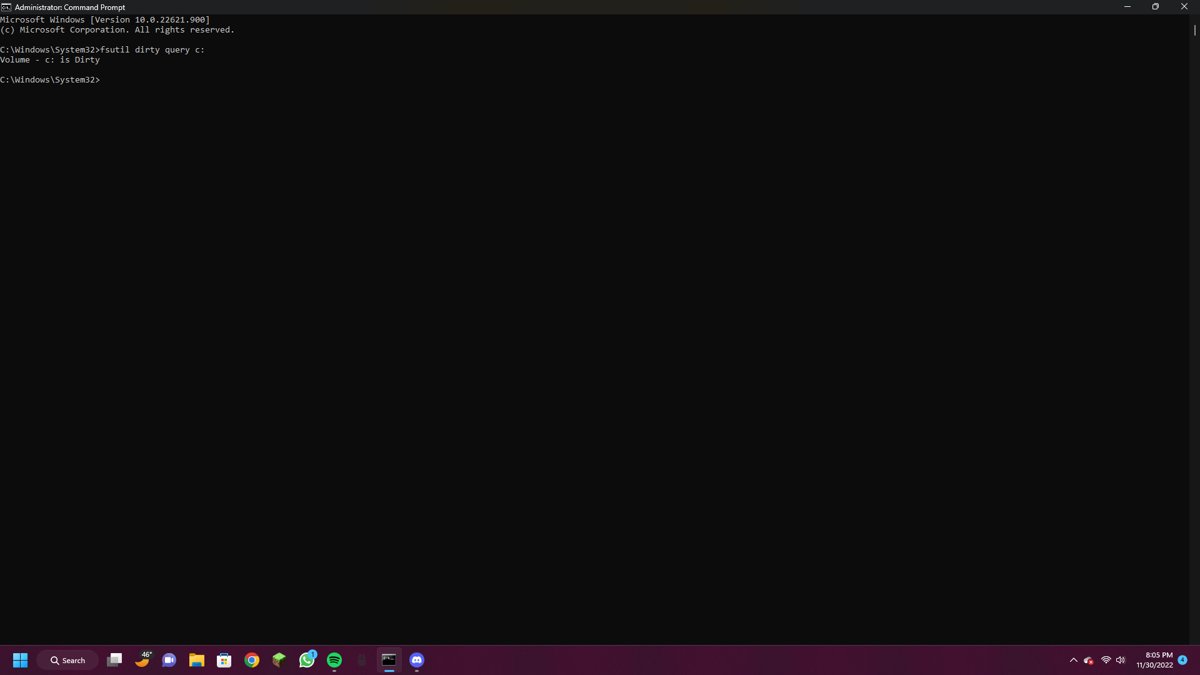
The volume's dirty bit is set, so Windows keeps running chkdsk at startup until a repair clears it.
- Type
fsutil dirty query C:in an administrator Command Prompt to see whether the volume is dirty. - Run
chkdsk C: /f, press Y, and restart so the repair completes. - Check the Wininit event in Event Viewer to confirm the repair finished.
- If the drive stays dirty after repairs, back up your data and test the drive hardware.
Chkdsk says it cannot run in read-only mode or reports errors it will not fix
Chkdsk corrects errors only when you add /f, and a check without /f on an active drive can report spurious errors.
- Rerun the command with
/f, for examplechkdsk D: /f. - Accept the restart prompt if the drive is in use.
A full /r scan finishes suspiciously fast or takes many hours
A /r or /b scan reads every sector; hours are normal on a large hard disk, while a very short run can mean chkdsk did only an online scan or the disk has a hardware fault.
- Read the chkdsk and Wininit events to see what the scan actually did.
- Make sure the repair ran offline, at restart or from WinRE, rather than as an online scan.
- If the run was short on a large hard disk that also shows read errors, back up now.
Windows asks to repair a drive at restart, then crashes
File system corruption or disk integrity problems stop the repair from finishing.
- Back up all data on the affected drive.
- Run
chkdsk X: /scan, replacingXwith the drive letter, to check its health. - Run
chkdsk X: /fto fix the errors. - If the drive is mounted and the fix cannot run, attach the drive to another Windows PC and run chkdsk there.
Chkdsk vs. SFC and DISM
The three tools fix different layers. Chkdsk repairs the file system on the disk. SFC repairs Windows system files. DISM repairs the Windows image that SFC copies good files from.
| Tool | What it checks and repairs | Typical command | Run it when |
|---|---|---|---|
| Chkdsk | File system and metadata on a volume, plus bad sectors with /r |
chkdsk C: /f |
Drive errors, corrupt folders, unreadable files, boot-time disk check prompts |
| SFC | Protected Windows system files, replacing incorrect versions | sfc /scannow |
Windows features or built-in apps crash or behave oddly |
| DISM | The Windows component store, so SFC has good sources | DISM /Online /Cleanup-Image /RestoreHealth |
SFC cannot repair files, or Windows Update fails |
When you run all three, fix the disk first with chkdsk, since the other two read from it. Then follow the SFC /scannow step-by-step guide and, if SFC reports files it could not fix, the DISM RestoreHealth guide.
Frequently Asked Questions About Chkdsk
What is the chkdsk command?
Chkdsk (Check Disk) is a built-in Windows command that checks a volume's file system and metadata for logical and physical errors. Run without parameters, it only reports the volume's status. With /f, /r, /x or /b, it fixes the errors it finds.
How do I use the chkdsk command?
Open Command Prompt as administrator, type chkdsk, a space, the drive letter with a colon, and any switches, then press Enter. For example, chkdsk D: /f checks drive D and fixes file system errors. Type chkdsk /? to list every switch.
How do I run chkdsk in Command Prompt?
Right-click Command Prompt in the Start menu, select Run as administrator, then type chkdsk C: /f and press Enter. Because Windows is using drive C, chkdsk asks to schedule the check; press Y and restart the PC to let it run.
What does chkdsk do in Command Prompt?
In Command Prompt, chkdsk examines disk space and disk use and prints a status report of errors in the file system. It changes nothing unless you add a repair switch such as /f or /r, and it returns an exit code from 0 (no errors) to 3 (could not check or fix).
Why does chkdsk run when my computer starts?
Windows runs chkdsk at startup when a volume's dirty bit is set, meaning corruption was detected, or when you scheduled a repair on a drive that was in use. Run fsutil dirty query C: to check the flag, and chkntfs /x C: to skip the next startup check.
Is there a chkdsk command for all drives?
No. Chkdsk checks one volume per command, so run it once for each drive letter. In PowerShell, Repair-Volume -DriveLetter CDE -Scan scans several drives in one command, and chkntfs /c C: D: schedules several drives for a check at startup.
What is the difference between chkdsk /f and chkdsk /r?
/f fixes logical file system errors. /r does everything /f does and also locates bad sectors and recovers readable information from them. Because /r reads every sector, it takes much longer, so back up your data before running it on a drive you suspect is failing.
Can I stop chkdsk once it has started?
You can, but Microsoft does not recommend it. Interrupting chkdsk should not leave the volume more corrupt than it was before, and running chkdsk again checks and repairs any remaining corruption.
Is it safe to run chkdsk on an SSD?
Yes. Microsoft says running chkdsk on an SSD is not dangerous. Repeated full-surface scans with /r add write/erase cycles that slightly reduce SSD lifespan, but occasional checks are not a significant concern.
Where do I find chkdsk results after a restart?
Open Event Viewer with eventvwr.msc, expand Windows Logs, right-click Application, select Filter Current Log, and choose the Chkdsk and Wininit event sources. The newest event holds the full report from the check that ran at startup.







Complete List of Windows 11 Run Commands - Techdows
[…] To reach a remote PC, mstsc /v:computer1 opens Remote Desktop Connection already pointed at that computer. Replace computer1 with the PC name or IP address. Disk errors are a separate job: see the list of all chkdsk commands. […]