To run Device Manager as admin, press Win + R, type devmgmt.msc and press Ctrl + Shift + Enter, or type devmgmt.msc in a Command Prompt or PowerShell window opened with Run as administrator.
The steps below work on Windows 11 and Windows 10 and cover the Run box, CMD, PowerShell, Windows Terminal, a desktop shortcut, Windows Tools, runas for another account, and what to do when elevation fails.
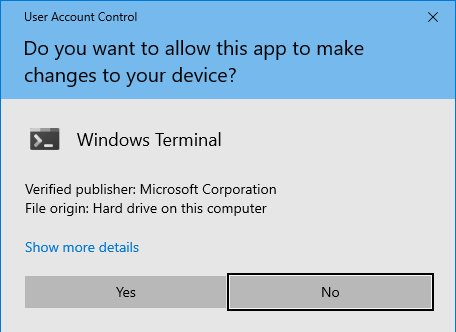
Method 1: Run Device Manager as Admin from the Run Box
The Run box is the quickest route because Ctrl + Shift + Enter tells Windows to start the command as administrator instead of as your normal user.
- Press Win + R to open the Run dialog.
- Type
devmgmt.mscin the Open box. - Press Ctrl + Shift + Enter instead of plain Enter.
- Select Yes on the User Account Control prompt, or enter an administrator password if Windows asks for one.
- Device Manager opens with administrator rights, ready for driver updates, rollbacks and uninstalls.
The Run box also accepts mmc devmgmt.msc, which starts the same console through the Microsoft Management Console host.
What “Run Device Manager as Admin” Means
Device Manager is a Microsoft Management Console snap-in saved as devmgmt.msc in the System32 folder. Any account can open it, but only members of the Administrators group can change devices.
What you get depends on the account you are signed in with.
| Your account | What happens | Can you change drivers? |
|---|---|---|
| Member of the Administrators group | Windows asks for approval through User Account Control before it grants admin rights | Yes, after you approve |
| Standard user | A message says you cannot make changes to the devices; select OK to open Device Manager in read-only mode | No, unless you launch it with an administrator account's credentials |
| Built-in Administrator account | Device Manager opens directly | Yes |
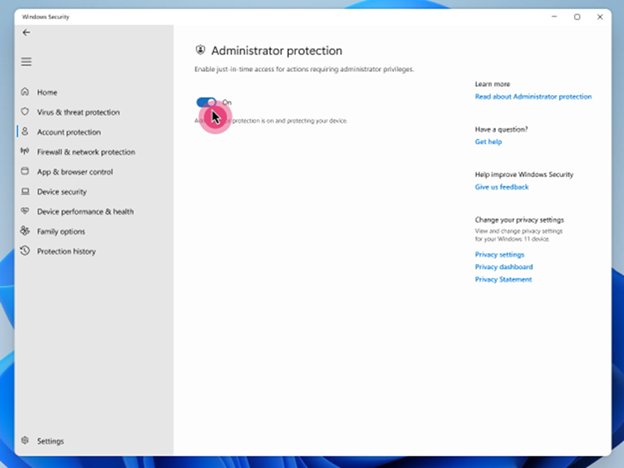
| Windows 11 with Administrator protection turned on | Windows asks you to verify with Windows Hello, then issues a temporary admin token that is discarded when Device Manager closes | Yes, after verification |
Administrator protection arrived with update KB5120998 and is off by default, so most PCs still show the classic User Account Control prompt.
Which route should you use?
| Your situation | Use this | Why |
|---|---|---|
| You want it open in five seconds | Method 1: Run box with Ctrl + Shift + Enter | No menus and no console window left behind |
| You already work in an admin console | Method 2 or 3: type devmgmt.msc in CMD or PowerShell |
Device Manager inherits the console's administrator rights |
| You script or support other PCs | Method 3: Start-Process with -Verb RunAs |
One line elevates from a normal PowerShell window |
| You open it several times a week | Method 5: a desktop shortcut set to run as administrator | A double-click replaces the whole routine |
| You are signed in as a standard user | Method 7: runas or Run as different user |
It borrows an administrator account without signing out |
| Explorer or the taskbar is frozen | Press Ctrl + Shift + Esc for Task Manager, then use the Run box or an admin terminal | Microsoft does not document a Task Manager route to run Device Manager as admin, so the documented routes are safer |
Method 2: Run Device Manager as Admin from Command Prompt
An elevated Command Prompt passes its rights to anything you start from it, including Device Manager.
- Select Start and type
cmd. - Right-click Command Prompt in the results and select Run as administrator, or press Ctrl + Shift + Enter while it is highlighted.
- Select Yes on the User Account Control prompt.
- Confirm the window title begins with Administrator:.
- Type
devmgmt.mscand press Enter. - Make your driver or device change in the window that opens.
To open Computer Management instead, type compmgmt.msc. Device Manager sits under System Tools in its left pane.
Method 3: Run Device Manager as Admin from PowerShell
On Windows 11, the admin terminal is one keyboard shortcut away. You can also elevate from a normal PowerShell window with a single command.
- Press Win + X to open the Quick Link menu.
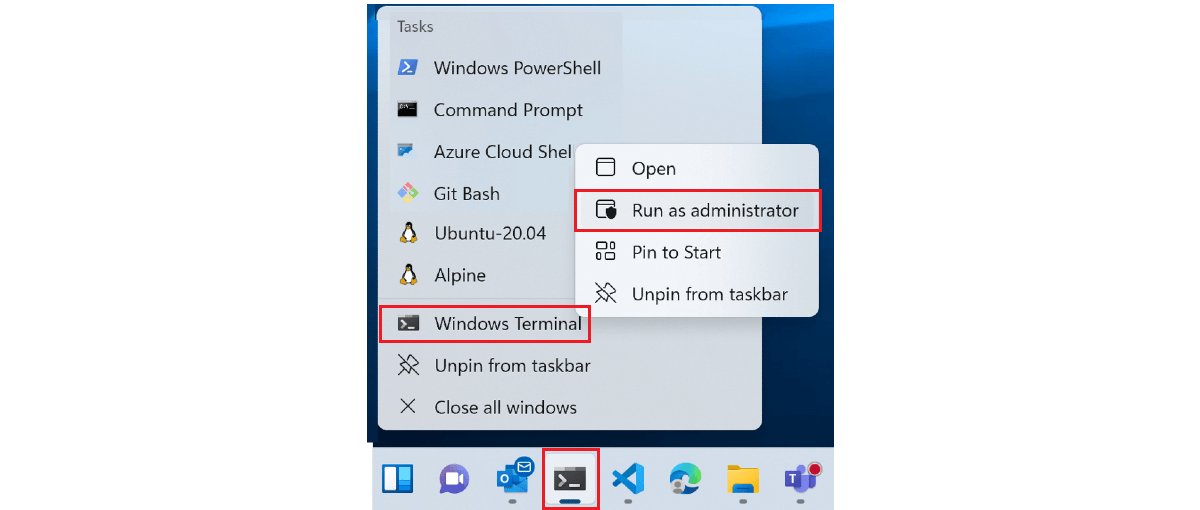
- Select Windows Terminal (Admin), then select Yes on the prompt.
- Check that the tab title shows Administrator.
- Type
devmgmt.mscand press Enter. - From a PowerShell window that is not elevated, run
Start-Process -FilePath "mmc.exe" -ArgumentList "$env:windir\system32\devmgmt.msc" -Verb RunAsinstead, then approve the prompt.
-Verb RunAs is the documented Run as administrator verb for .exe files, which is why the command starts mmc.exe and hands it the console path. Windows Terminal cannot mix elevated and normal tabs, so an admin terminal always opens in its own window.
On Windows 10, search Start for PowerShell, right-click Windows PowerShell and select Run as administrator.
Method 4: Run Device Manager as Admin from File Explorer
The console file itself can be elevated from File Explorer, which helps when search is broken.
- Press Win + E to open File Explorer.
- Paste
%windir%\System32into the address bar and press Enter. - Type
devmgmtin the folder's search box and wait fordevmgmt.mscto appear. - Right-click
devmgmt.msc. On Windows 11, select Show more options if Run as administrator is not visible. - Select Run as administrator and approve the prompt.
File Explorer also has a route without elevation: right-click This PC, select Manage, then select Device Manager under System Tools.
Method 5: Create a Desktop Shortcut That Opens Device Manager as Admin
A shortcut that points at mmc.exe can be marked to always run as administrator, using the same basic steps as creating a Device Manager shortcut.
- Right-click an empty area of the desktop and select New > Shortcut.
- Enter
%windir%\system32\mmc.exe %windir%\system32\devmgmt.mscas the location and select Next. - Name it
Device Manager (Admin)and select Finish. - Right-click the new shortcut and select Properties.
- On the Shortcut tab, select Advanced.
- Tick Run as administrator, then select OK twice.
- Double-click the shortcut and approve the prompt to open Device Manager elevated.
The target starts mmc.exe, the program that hosts the console, and hands it the full path to devmgmt.msc.
Method 6: Open Device Manager as Admin from the Start Menu or Windows Tools
Ctrl + Shift + Enter works in Start search as well as in the Run box. Windows Tools gives you a mouse-only route through Computer Management.
- Select Start and type
devmgmt.msc. - With the result highlighted, press Ctrl + Shift + Enter and approve the prompt.
- For the mouse route, open Control Panel and select Windows Tools (called Administrative Tools on Windows 10).
- Right-click Computer Management and select Run as administrator.
- In the left pane, expand System Tools and select Device Manager.
Right-clicking Start and selecting Device Manager is the quickest way to reach the tool for reading. When you need elevation, use the Windows Terminal (Admin) entry in the same menu and follow Method 3.
Method 7: Run Device Manager as a different user
On a standard account, borrow an administrator account's credentials without signing out. The runas command accepts saved MMC consoles such as devmgmt.msc.
- Open a normal Command Prompt from Start.
- Run
runas /user:<ComputerName>\<AdminAccount> "mmc %windir%\system32\devmgmt.msc", replacing the two placeholders. - Use
<Domain>\<AdminAccount>instead on a work PC joined to a domain. - Type the administrator password when prompted and press Enter.
- For the mouse route, hold Shift, right-click the shortcut from Method 5, and select Run as different user.
- Enter the administrator user name and password in the Windows Security window and select OK.
How to Tell Whether Device Manager Is Running as Administrator
Device Manager has no admin badge of its own, so check how it was launched and whether admin-only actions work.
- If you launched it from a console, confirm that console's title bar says Administrator.
- Recall whether a User Account Control or Windows Hello prompt appeared and you approved it.
- Watch for a message saying you cannot make changes to the devices when Device Manager opens. That message means read-only mode.
- If you launched it with
runasor Run as different user, confirm you typed the administrator account, not your own. - Make the change you came for, such as Update driver or Roll Back Driver. Microsoft requires administrator permissions for a rollback, so a rollback that completes proves the session is elevated.
Common Device Manager Admin Commands
Every command below is typed exactly as shown. The pnputil rows change devices without the graphical console and need an elevated prompt.
| Command | What it does | Where to run it |
|---|---|---|
devmgmt.msc |
Opens Device Manager | Run box, CMD, PowerShell or Start search |
mmc devmgmt.msc |
Opens Device Manager through the MMC host | Run box, CMD or Start search |
compmgmt.msc |
Opens Computer Management, which contains Device Manager | Run box, CMD or PowerShell |
Start-Process -FilePath "mmc.exe" -ArgumentList "$env:windir\system32\devmgmt.msc" -Verb RunAs |
Starts Device Manager elevated from a normal session | PowerShell |
runas /user:<ComputerName>\<AdminAccount> "mmc %windir%\system32\devmgmt.msc" |
Starts Device Manager under another account | CMD |
pnputil /enum-devices /problem |
Lists devices that have a problem (Windows 10 version 1903 and later) | Elevated CMD or PowerShell |
pnputil /scan-devices |
Scans the system for device hardware changes (Windows 10 version 2004 and later) | Elevated CMD or PowerShell |
pnputil /restart-device "<instance ID>" |
Restarts one device by its instance ID (Windows 10 version 2004 and later) | Elevated CMD or PowerShell |
When You Actually Need Admin Rights in Device Manager
Reading device information never needs elevation. Changing a device or its driver does.
| Task in Device Manager | Admin rights needed? |
|---|---|
| Browse devices, check status and read the General or Details tabs | No, read-only mode is enough |
| Spot a yellow exclamation mark and read its error message | No |
| Update driver, including Browse my computer for drivers | Yes |
| Roll Back Driver on the Driver tab | Yes, Microsoft states it outright |
| Uninstall device, disable or enable a device | Yes |
| Change settings on a device's Advanced or power tabs | Yes |
If you only need to read a hardware ID or check an error code, open Device Manager normally and skip the prompt.
What to Do If Device Manager Will Not Run as Admin
Device Manager says you cannot make changes to the devices
You are signed in with a standard account, so Device Manager opened read-only.
- Close Device Manager.
- Start it again with Method 7 and an administrator account's credentials.
- If you do not know an administrator password, ask the person who manages the PC.
Ctrl + Shift + Enter does not elevate Device Manager
The key combination only elevates while the Run box or a Start search result has focus.
- Press Win + X and select Windows Terminal (Admin).
- Approve the prompt and check for Administrator in the title.
- Type
devmgmt.mscand press Enter.
runas fails or rejects the password
The Secondary Logon service is not running, or the account name or password is wrong.
- Run
compmgmt.msc, expand Services and Applications and select Services. - Find Secondary Logon and check its status.
- Retype the account as
<ComputerName>\<AdminAccount>or<Domain>\<AdminAccount>. - Test the account by signing in with it once.
Run as administrator is missing from the right-click menu
Windows 11 hides some classic items behind the compact menu.
- Right-click the file or shortcut again.
- Select Show more options.
- Select Run as administrator.
Windows asks for Windows Hello instead of Yes or No
Administrator protection is turned on in Windows 11. This is expected behaviour, not a fault.
- Verify with your PIN, fingerprint or face.
- Keep Device Manager open until you finish; the temporary admin token ends when the process closes.
Admin Safety Tips Before Changing Devices or Drivers
| Before you | Know this | Safer habit |
|---|---|---|
| Update a driver manually | A driver must match your Windows version and 32-bit or 64-bit architecture | Download it from the device maker's own site |
| Uninstall or disable a storage or boot device | A problem with a device the PC needs to boot can stop Windows from starting | Leave boot-critical controllers alone unless you have a recovery plan |
Run pnputil with /force |
It disables or removes a device even when that device provides critical system functionality | Omit /force unless you know exactly why you need it |
| Tick Run as administrator on a shortcut | Microsoft advises against always running apps as administrator because it can expose the system to security risks | Keep one admin shortcut for Device Manager and use normal launches for everything else |
| Replace a working driver | Roll Back Driver on the Driver tab is the way back, and it also needs admin rights | Change one device at a time and test before moving on |
Frequently Asked Questions
How do I run Device Manager as administrator?
Press Win + R, type devmgmt.msc and press Ctrl + Shift + Enter, then approve the User Account Control prompt. You can also type devmgmt.msc into a Command Prompt or PowerShell window opened with Run as administrator, because Device Manager inherits that window's rights.
How do I run Device Manager as admin on Windows 11?
On Windows 11, press Win + X, select Windows Terminal (Admin), approve the prompt and type devmgmt.msc. The Run box with Ctrl + Shift + Enter also works. If Administrator protection is on, Windows asks for Windows Hello verification instead of a Yes button.
How do I run Device Manager as admin on Windows 10?
On Windows 10, search Start for cmd, right-click Command Prompt, select Run as administrator and type devmgmt.msc. The Run box shortcut, Win + R then devmgmt.msc then Ctrl + Shift + Enter, works the same way it does on Windows 11.
How do I run Device Manager as admin from CMD?
Open Command Prompt with Run as administrator, confirm the title bar starts with Administrator, type devmgmt.msc and press Enter. From a normal Command Prompt, use runas /user:<ComputerName>\<AdminAccount> "mmc %windir%\system32\devmgmt.msc" and enter that account's password when asked.
How do I run Device Manager as admin in PowerShell?
In an elevated PowerShell window, type devmgmt.msc and press Enter. From a normal window, run Start-Process -FilePath "mmc.exe" -ArgumentList "$env:windir\system32\devmgmt.msc" -Verb RunAs and approve the prompt. RunAs is PowerShell's documented Run as administrator verb.
What is the Run command for Device Manager?
The Run command for Device Manager is devmgmt.msc. Press Win + R, type it and press Enter to open Device Manager normally, or press Ctrl + Shift + Enter to open it as administrator. The longer form mmc devmgmt.msc opens the same console.
How do I run Device Manager as a different user?
Hold Shift, right-click a Device Manager shortcut that points to mmc.exe, select Run as different user and enter the other account's user name and password. From Command Prompt, the runas command with /user: does the same job and prompts for the password.
Why can't I run Device Manager as admin?
Usually your account is a standard user, so Device Manager opens read-only and says you cannot make changes. Start it with an administrator account through runas or Run as different user. If runas fails, check that the Secondary Logon service is running and the account name is correct.
What is the purpose of Device Manager?
Device Manager lists every device installed in the PC and shows its type, status, manufacturer, properties and driver details. It flags faulty hardware with a yellow exclamation mark and an error message, and lets administrators update, roll back, disable or uninstall drivers.
How do I get to Device Manager?
Right-click the Start button and select Device Manager, or search Start for Device Manager. In File Explorer you can also right-click This PC, select Manage and pick Device Manager under System Tools. These routes open it without forcing administrator rights.

![How to Enable & Use Thunderbolt on Windows 11 [Easy Guide]](https://techdows.com/wp-content/uploads/2026/10/How-to-Enable-Use-Thunderbolt-on-Windows-11-Easy-Guide-600x338.jpg)





How to fix “Windows has stopped this device” Code 43 errors in Windows - Techdows
[…] does not always show a pop-up for Code 43. The device simply stops working, so open Device Manager as an administrator and confirm the code before changing […]