To use DISKPART in Windows 11 or Windows 10, open Command Prompt as administrator, type diskpart, run list disk, pick a target with select disk <n>, and then type the command you need.
This guide lists every DISKPART command, walks through the common jobs such as wiping a USB drive or resizing a volume, and covers scripts, safety rules, errors and two related tools: sxstrace and WMIC.
How to use Diskpart command in Windows 11/10?
DISKPART works on focus: you list objects, select one, and every later command acts on that selection until you pick another.
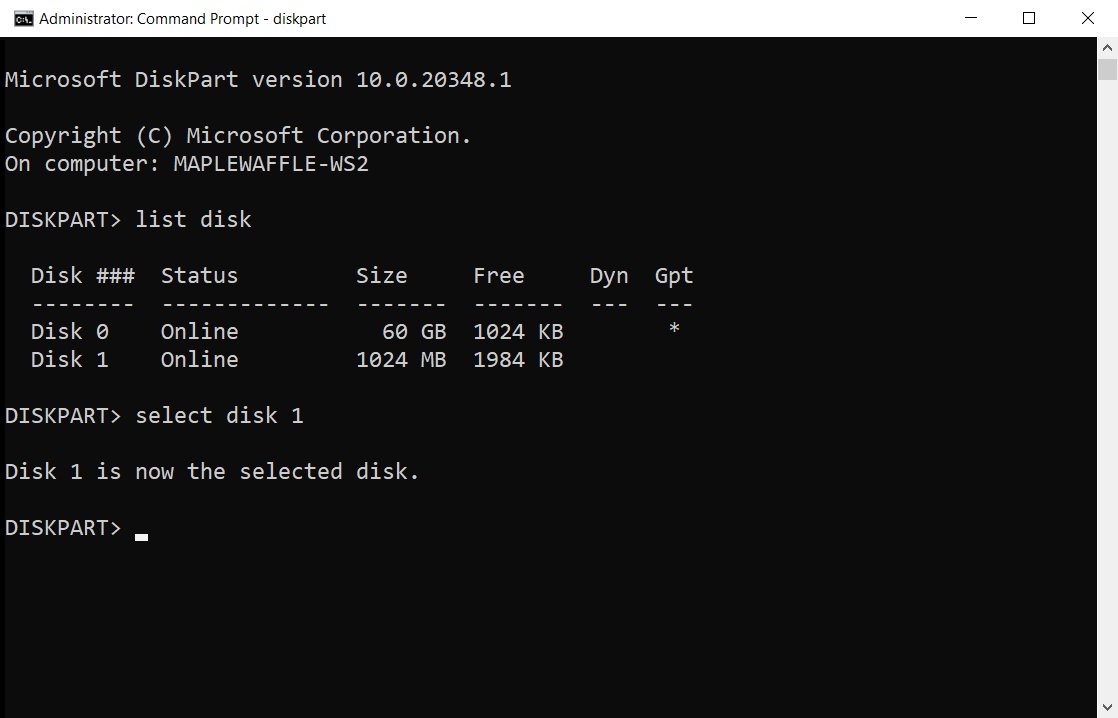
The sequence below formats an empty disk as NTFS, which is the example Microsoft uses in its own reference.
- Select Start, type
cmd, then select Run as administrator and choose Yes in the User Account Control prompt. - Type
diskpartand press Enter. The prompt changes toDISKPART>. - Type
list diskand press Enter to see every disk with its number, size and free space. - Type
select disk 1(use your own disk number) and press Enter. An asterisk marks the selected disk in the next listing. - Type
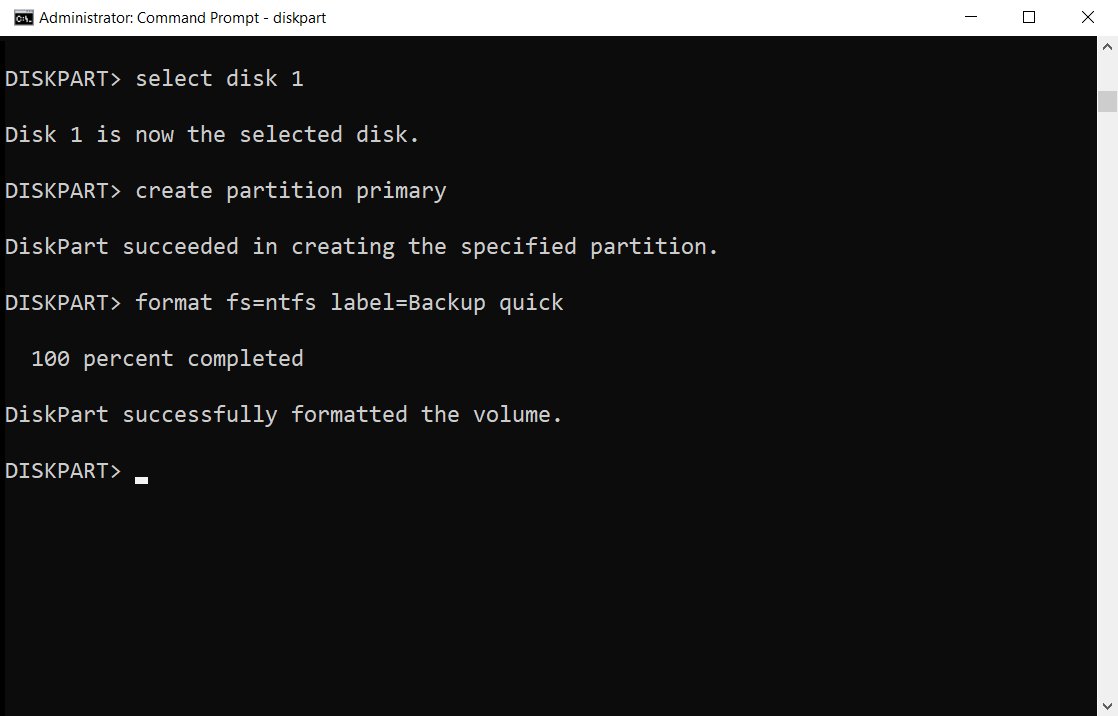
create partition primaryto create a partition across the free space. - Type
format fs=ntfs label=Backup quickto quick-format it as NTFS with the label Backup. - Type
assignto give the new volume the next free drive letter, then typeexitto leave DISKPART.
Check the disk number twice before step 4. DISKPART does not ask for confirmation, so a wrong number hits the wrong drive.
What is DISKPART?
DISKPART is the built-in command interpreter for managing disks, partitions, volumes and virtual hard disks (VHDs). It ships with Windows 11, Windows 10 and Windows Server.
| Fact | Detail |
|---|---|
| Permission needed | Membership of the local Administrators group, or a group with similar rights |
| How it targets objects | You give an object focus with select; commands then act on that object |
| Automatic focus changes | Creating a partition moves focus to the new partition |
| Linked focus | Selecting a volume on a basic disk also selects its partition and disk |
| Focus marker | An asterisk (*) appears next to the selected object after any list command |
| Missing disks | A missing disk shows with an M prefix, for example M0 |
Accessing DISKPART in Windows 11/10
Every route needs an elevated session, because DISKPART refuses to run without administrator rights.
| Where you start | What to do | Result |
|---|---|---|
| Start menu | Search cmd, select Run as administrator, then type diskpart |
Interactive DISKPART session inside Command Prompt |
| Windows Terminal or PowerShell | Open it as administrator and type diskpart |
Same session; DISKPART runs inside PowerShell |
| Run dialog | Press Win + R, type diskpart, press Enter and approve the prompt |
DISKPART opens in its own console window |
| A saved script | Run diskpart /s scriptname.txt from an elevated prompt |
Commands run unattended, one per line |
For more quick-launch names like this, see the complete list of Windows 11 Run commands.
List of Diskpart Commands in Windows 11/10
Type help inside DISKPART to print this list, or help <command> for the syntax of one command.
| Command | What it does |
|---|---|
| active | Marks the partition with focus as active |
| add | Mirrors the simple volume with focus to another disk |
| assign | Assigns a drive letter or mount point to the volume with focus |
| attach vdisk | Mounts a VHD so it appears as a local disk |
| attributes | Displays, sets or clears disk or volume attributes such as read-only |
| automount | Turns the automount feature on or off |
| break | Splits a mirrored volume into two simple volumes |
| clean | Removes all partition or volume formatting from the disk with focus |
| compact vdisk | Reduces the physical size of a dynamically expanding VHD file |
| convert | Changes a disk between MBR and GPT, or basic and dynamic |
| create | Creates a partition, a volume or a VHD |
| delete | Deletes a partition or a volume |
| detach vdisk | Stops a VHD from appearing as a local disk |
| detail | Shows information about the selected disk, partition, volume or VHD |
| exit | Closes DISKPART |
| expand vdisk | Grows a VHD to the size you set |
| extend | Extends the volume or partition with focus into free space that follows it |
| filesystems | Shows the current file system and the ones available for formatting |
| format | Formats the volume with focus so it can store files |
| gpt | Assigns GPT attributes to the partition with focus |
| help | Lists commands or shows help for one command |
| import | Imports a foreign disk group |
| inactive | Marks the system or boot partition as inactive on MBR disks |
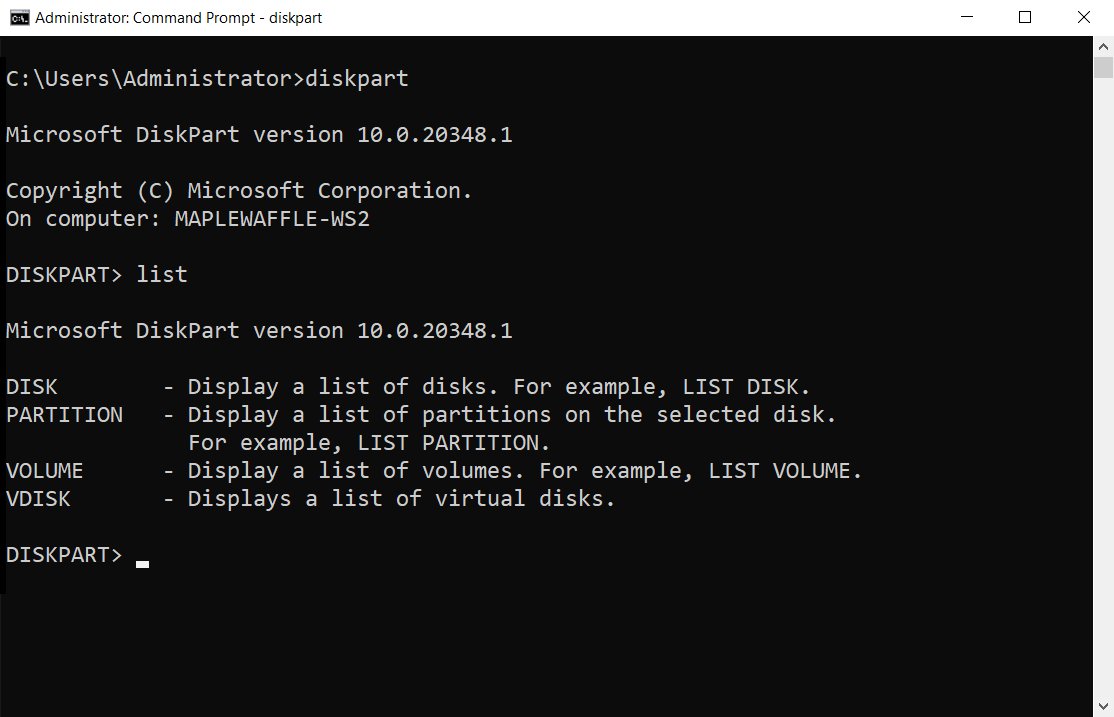
| list | Lists disks, partitions, volumes or VHDs |
| merge vdisk | Merges a differencing VHD with its parent |
| offline / online | Takes a disk or volume offline, or brings it back online |
| recover | Refreshes disks in a disk group and resynchronises mirrored and RAID-5 volumes |
| rem | Marks a comment line in a script |
| remove | Removes a drive letter or mount point |
| repair | Repairs a RAID-5 volume by replacing the failed disk region |
| rescan | Looks for newly added disks |
| retain | Prepares a dynamic simple volume for use as a boot or system volume |
| san | Displays or sets the storage area network policy |
| select | Moves focus to a disk, partition, volume or VHD |
| set id | Changes the partition type field |
| shrink | Reduces the size of the selected volume |
| uniqueid | Displays or sets the GPT identifier or MBR signature of a disk |
Basic Commands and Usage
Four commands do most of the work: list to see objects, select to focus one, detail to inspect it, and exit to leave.
list disk shows size, free space, basic or dynamic type and MBR or GPT style. list volume shows volumes on all disks, and list partition shows partitions on the selected disk.
list volume
select volume=c
detail volume
list volume numbers every volume. select volume= accepts the volume number, a drive letter or a mount-point path. detail volume then prints the disks and attributes behind the selected volume.
You should see: DISKPART replies "Volume N is the selected volume", and the next list volume shows an asterisk beside it.
Practical Usage Scenarios
Match your job to a row, select the object shown in the second column first, then run the commands in order.
| What you want to do | Select first | Commands to run |
|---|---|---|
| List drives and see free space | Nothing | list disk, then list volume |
| Wipe and reformat a USB drive or spare disk | select disk <n> |
clean, create partition primary, format fs=ntfs quick, assign |
| Delete a volume or partition | select volume <n> or select partition <n> |
delete volume or delete partition |
| Assign a drive letter to a partition with none | select volume <n> |
assign letter=e |
| Remove a drive letter | select volume <n> |
remove letter=e |
| Reduce the size of a partition | select volume <n> |
shrink querymax, then shrink desired=<MB> |
| Grow a volume into free space after it | select volume <n> |
extend or extend size=<MB> |
| Erase a disk so data cannot be read back | select disk <n> |
clean all (writes zeros to every sector) |
| Convert an empty MBR disk to GPT | select disk <n> |
clean, then convert gpt |
| Clear a write-protected disk flag | select disk <n> |
attributes disk clear readonly |
clean erases only the partition table, which makes the data unreachable but not overwritten. clean all zeroes every sector and takes far longer on large drives.
Advanced Commands and Techniques
Scripts let you repeat a disk layout exactly, which is how Windows deployment teams build recovery partitions. Put one command per line with no blank lines, and start comment lines with rem.
Add noerr to a command in a script to keep going after an error. DISKPART still stops on syntax errors, whatever noerr says.
- Open Notepad and type the commands, for example
select disk 1,clean,convert gpt,create partition primary size=300,format quick fs=ntfs label=Toolsandassign letter=T, each on its own line. - Save the file as
layout.txtin a folder you can reach, such asD:\scripts. - Open Command Prompt as administrator.
- Run
diskpart /s D:\scripts\layout.txtto execute the script. - Run
diskpart /s D:\scripts\layout.txt > D:\scripts\log.txtinstead when you want the output saved to a log file. - Wait at least 15 seconds before starting a second DISKPART script, or add
timeout /t 15between them in a batch file.
Other advanced commands: attach vdisk and detach vdisk mount and unmount VHD files, san sets the policy for newly found disks, and uniqueid disk reads or changes a disk signature. PowerShell covers the same ground with storage cmdlets such as Clear-Disk and Resize-Partition.
Safety Precautions and Best Practices
DISKPART acts immediately and has no undo, so the checks happen before you press Enter.
| Risk | What happens | Precaution |
|---|---|---|
| Wrong disk selected | clean wipes the partition table of whatever disk has focus |
Run list disk and match the size before select disk; unplug drives you do not need |
| Deleting partitions on a dynamic disk | Can delete every dynamic volume on the disk and leave it corrupt | Use delete volume for dynamic volumes, never delete partition |
delete partition override |
Removes any partition type, including OEM and recovery partitions | Use it only when you know what the partition holds |
create partition ... id= |
A wrong partition type can stop the PC from starting | Leave id= out; use create partition efi or msr for those types |
| Converting to GPT | Fails unless the disk is empty | Back up data first, then clean the disk |
| Shrinking a volume | Only NTFS or unformatted volumes shrink | Run shrink querymax to see the safe maximum first |
How to check a DISKPART change worked
- Type
list diskand confirm the free space column changed as expected. - Type
list volumeand check the drive letter, file system (NTFS, FAT32) and size of the new or resized volume. - Type
detail diskwith the disk still selected to see every volume on it. - Type
exit, then open File Explorer and confirm the drive appears under This PC with its new label. - Right-click the drive, select Properties and check Capacity matches the size you set.
Common Errors and Troubleshooting
DISKPART will not open from Command Prompt
The session is not elevated; DISKPART needs local administrator rights.
- Close the current window.
- Select Start, type
cmdand select Run as administrator. - Choose Yes at the prompt, then type
diskpartagain.
Cannot delete a partition or volume
DISKPART blocks the system, boot, paging-file and crash-dump partitions, and non-data partitions without override.
- Run
detail partitionto see the partition type. - Stop if it is the Windows, boot or EFI partition; deleting it leaves the PC unbootable.
- For a known data partition of another type, run
delete partition override.
Extend fails or the option is unavailable
On a basic disk the free space must sit right after the volume on the same disk, and the volume must be NTFS or unformatted.
- Run
list partitionand check that unallocated space follows the target partition. - Move or delete the partition that sits in between, after backing it up.
- Select the volume again and run
extend.
Shrink returns zero or fails
Shrink works only on NTFS or unformatted volumes and never on OEM, EFI or recovery partitions.
- Run
filesystemsto confirm the volume is NTFS. - Run
shrink querymaxto read the largest possible reduction. - Use a
desired=value at or below that number.
convert gpt says the disk is not empty
Conversion to GPT requires a disk with no partitions or volumes.
- Back up anything on the disk.
- Run
cleanon the selected disk. - Run
convert gptagain.
The disk is write-protected or online disk fails
The read-only attribute is set, and online disk fails on a read-only disk.
- Select the disk and run
attributes diskto view its flags. - Run
attributes disk clear readonly. - Run
online diskto bring it online.
assign reports the drive letter is in use
Another volume already holds that letter.
- Run
list volumeto find which volume has the letter. - Pick a free letter, for example
assign letter=r, or runassignalone for the next free one.
If the file system itself is damaged rather than the partition layout, run a disk check instead; see all chkdsk commands and how to use them.
Final Tips and Best Practices
Use DISKPART when Disk Management cannot do the job, such as cleaning a stubborn USB drive, converting a disk to GPT or scripting a layout, and always run list disk before select disk. DISKPART acts on whatever has focus with no confirmation and no undo, so the only safeguard is checking the target before each destructive command.
Frequently Asked Questions
What is the DISKPART command used for?
DISKPART manages disks, partitions, volumes and virtual hard disks from the command line. It creates, deletes, formats, shrinks and extends partitions, assigns drive letters, converts disks between MBR and GPT, and wipes disks with the clean command.
How do I run DISKPART in Command Prompt?
Open Command Prompt as administrator, type diskpart and press Enter. The prompt changes to DISKPART>, and every command you type after that goes to DISKPART until you type exit. A normal, non-elevated Command Prompt cannot run it.
How do I use DISKPART commands in Windows 10?
The commands are identical in Windows 10 and Windows 11. Start with list disk, select the target with select disk and a number, then run the action, such as clean, create partition primary, format fs=ntfs quick or assign.
What is the command for DISKPART?
The command is simply diskpart, typed at an elevated prompt. To run a prepared file of commands instead of typing them, use diskpart /s followed by the script file name, for example diskpart /s layout.txt.
Which DISKPART command shows all disks?
Type list disk. It shows each disk number, status, size, free space, whether the disk is dynamic, and whether it uses GPT. Use list volume to see drive letters and file systems across all disks.
Does DISKPART clean delete all data?
The clean command removes the partition table, so files become unreachable, but it does not overwrite them. clean all writes zeros to every sector, which deletes the data completely and takes much longer on large drives.
Can DISKPART delete the C drive partition?
No. DISKPART refuses to delete the system partition, the boot partition, and any partition holding the active paging file or crash dump information while Windows is running from it.
Is DISKPART safe to use?
It is safe when you select the correct object. DISKPART never asks for confirmation, so a wrong disk number wipes the wrong drive. Run list disk, match the size, and back up data before clean, delete or convert.

5 Ways to Open Disk Management on Windows 10 or 11 - Techdows
[…] Management is the graphical tool where you right-click a disk or volume. DiskPart is a command-line interpreter that needs local administrator rights and acts on whichever object you select, which suits scripts […]