Press Windows key + R, type control and press Enter to open the Control Panel on Windows 11 and Windows 10.
Below are twelve routes in one reference table, the commands that open a single applet directly, how to pin Control Panel, which settings now live in the Settings app, and fixes for when a policy blocks it.
The fastest way to open Control Panel
The Run command works the same on Windows 11 and Windows 10, from the desktop or with any app in front.
- Press Windows key + R to open the Run box.
- Type
control. - Press Enter or select OK. The Control Panel window opens.
Pick the fastest of the 12 ways for your situation
Every row below is a separate route. The last four open one applet directly instead of the Control Panel home page, which saves a click when you already know the tool you need.
| # | Route | Keys or steps | Fastest when |
|---|---|---|---|
| 1 | Run box | Windows key + R, type control, press Enter |
Your hands are on the keyboard |
| 2 | Taskbar search box | Type control panel in the search box on the taskbar, select Control Panel | You use a mouse and the search box is visible |
| 3 | Start menu | Select Start, type Control Panel, press Enter | Start is already open |
| 4 | Command Prompt | Type control and press Enter |
You are already working at a command prompt |
| 5 | PowerShell or Windows Terminal | Type control and press Enter |
You are already in a PowerShell session |
| 6 | Task Manager | Ctrl + Shift + Esc, then File > Run new task, type control |
The taskbar or Windows Explorer is not responding |
| 7 | Taskbar pin | Search for Control Panel, right-click it, select Pin to taskbar | You open it several times a day |
| 8 | Start pin | Search for Control Panel, right-click it, select Pin to Start | You prefer a clean taskbar |
| 9 | Search for the applet's own name | Type the tool name, such as credential manager, and pick the result | You know which tool you need but not its command |
| 10 | Canonical name | control /name Microsoft.DevicesAndPrinters |
Scripts, shortcuts and repeat jobs |
| 11 | Module file | control appwiz.cpl |
You remember the short .cpl file name |
| 12 | Legacy keyword | control printers or control fonts |
You need a classic folder in one word |
Open Control Panel with Windows Search or the Start menu
Search is the route Microsoft's own support articles use on both Windows 11 and Windows 10. It also finds individual Control Panel items by name.
- Select the Search box on the taskbar, or select Start.
- Type control panel.
- Select Control Panel in the results, or press Enter when it is highlighted.
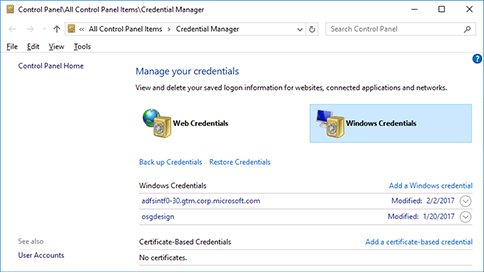
- To skip the home page, type the item's name instead, for example credential manager.
- Select the result labelled Control panel to open that item directly.
Open Control Panel from Run, Command Prompt, PowerShell or Task Manager
Control Panel's program file is control.exe in %systemroot%\system32. Any box that launches programs can start it, including the Run new task dialog in Task Manager.
Task Manager is the useful fallback when the taskbar has frozen: open it with Ctrl + Shift + Esc, select File > Run new task, type control and press Enter.
controlType it in the Run box (Windows key + R), a Command Prompt window, PowerShell, Windows Terminal or Task Manager's Run new task box, then press Enter. The full form %systemroot%\system32\control.exe does the same thing.
You should see: a Control Panel window titled Control Panel opens, with a View by menu at the top right.
Pin Control Panel to the taskbar or Start menu
Pinning turns Control Panel into a one-click shortcut. The steps are the same Microsoft uses for any app on Windows 11 and Windows 10.
- Type control panel in the Search box on the taskbar.
- Right-click Control Panel in the results, or press and hold it on a touch screen.
- Select Pin to taskbar to add an icon next to your other taskbar apps.
- Repeat the search and select Pin to Start if you also want it in the Start menu.
- While Control Panel is open, you can also right-click its taskbar icon and select Pin to taskbar.
Open a specific Control Panel applet with control /name
Canonical names are the non-localized names Windows gives each Control Panel item. They are always in English, even on a non-English copy of Windows, so a script or shortcut built on them works everywhere.
Microsoft's reference list was last revised for Windows 8.1. The same names are what Windows 10 and Windows 11 policies use to hide items, but a few now hand off to the Settings app instead of a classic window.
| To open | Run this command | Notes |
|---|---|---|
| Programs and Features | control /name Microsoft.ProgramsAndFeatures |
Uninstall or change desktop programs |
| Devices and Printers | control /name Microsoft.DevicesAndPrinters |
Connected printers and devices |
| Sound | control /name Microsoft.Sound |
Playback and Recording tabs, default device |
| Mouse | control /name Microsoft.Mouse |
Pointers, Pointer Options, Wheel and Hardware tabs |
| Power Options | control /name Microsoft.PowerOptions |
Add /page pagePlanSettings to edit the current plan |
| Network and Sharing Center | control /name Microsoft.NetworkAndSharingCenter |
Add /page Advanced for Advanced sharing settings |
| User Accounts | control /name Microsoft.UserAccounts |
Classic account options |
| Credential Manager | control /name Microsoft.CredentialManager |
Web Credentials and Windows Credentials |
| Device Manager | control /name Microsoft.DeviceManager |
Drivers and hardware |
| Date and Time | control /name Microsoft.DateAndTime |
Add /page 1 for Additional Clocks |
| Region | control /name Microsoft.RegionAndLanguage |
Opens the Region item |
| File History | control /name Microsoft.FileHistory |
Use instead of the removed Backup and Restore name |
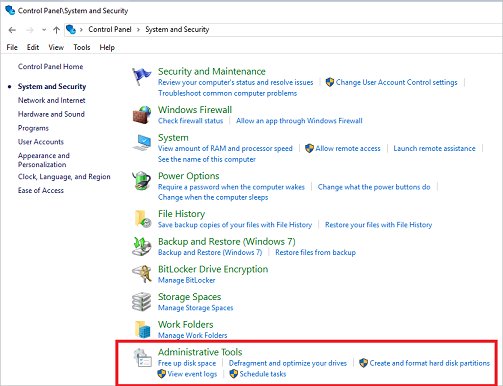
| Windows Tools / Administrative Tools | control /name Microsoft.AdministrativeTools |
Called Windows Tools in Windows 11 |
| System | control /name Microsoft.System |
Opens the Settings app on Windows 10 and Windows 11 |
The general form is control /name CanonicalName /page PageName. Run it from the Run box, Command Prompt or PowerShell.
Open an applet with a .cpl file name or a legacy keyword
Older applets are also reachable by their module file, and a comma syntax jumps to a tab. Microsoft's example control sysdm.cpl,,3 opens System Properties on its third tab in Windows Vista and later.
The one-word keywords predate Windows Vista. Microsoft still documents them, but the window you land on in Windows 10 or 11 can look different from the name in the table.
| Command | Opens | Type |
|---|---|---|
control appwiz.cpl |
Programs and Features | Module file |
control timedate.cpl |
Date and Time | Module file |
control main.cpl |
Mouse properties | Module file |
control mmsys.cpl |
Sound | Module file |
control inetcpl.cpl |
Internet Options | Module file |
control intl.cpl |
Region | Module file |
control sysdm.cpl |
System Properties | Module file |
control powercfg.cpl,,3 |
Power Options advanced settings | Module file with tab |
control printers |
Printers folder | Legacy keyword |
control fonts |
Fonts folder | Legacy keyword |
control admintools |
Administrative Tools folder | Legacy keyword |
control userpasswords |
User Accounts | Legacy keyword |
control folders |
Folder Options | Legacy keyword |
control netconnections |
Network Connections folder | Legacy keyword |
control mouse / control keyboard |
Mouse or Keyboard properties | Legacy keyword |
System Properties tabs also have their own programs, such as SystemPropertiesAdvanced, which Microsoft lists as the Run command for Advanced System Settings.
What moved from Control Panel to Settings in Windows 11 and Windows 10
Microsoft says Control Panel stays for compatibility and for settings that have not migrated yet, and recommends Settings wherever possible. The migration is gradual, so check this table before hunting for a page that has moved.
| Setting | Where it lives now | Status |
|---|---|---|
| System (Control Panel item) | Opens the Settings app on Windows 10 and Windows 11 | Released |
| Uninstall apps | Settings, but some apps can only be removed from Programs > Programs and Features | Both still in use |
| Join a domain | Settings > Accounts > Access work or school, or Control Panel System and Security > System | Both still in use |
| Additional clocks, time server | Settings > Time & language > Date & time | Windows 11 Insider Dev Channel, August 2025 |
| Number and currency format, UTF-8 toggle | Settings > Time & language > Language & region | Windows 11 Insider Dev Channel, August 2025 |
| Character repeat delay and rate | Settings > Accessibility > Keyboard | Windows 11 Insider Dev Channel, August 2025 |
| Cursor blink rate | Settings > Accessibility > Text cursor | Windows 11 Insider Dev Channel, August 2025 |
| Sound devices, enhancements, formats | Control Panel Hardware and Sound > Sound | Still Control Panel |
| Turn Windows features on or off | Control Panel Programs > Programs and Features | Still Control Panel |
| Credential Manager | Control Panel item, found by searching its name | Still Control Panel |
| Windows Tools (Administrative Tools in Windows 10) | A folder inside Control Panel | Still Control Panel |
Insider features roll out gradually and can change before they reach a public release, so a PC on a regular release may still show the old Control Panel page.
Switch View by between Category and Large icons
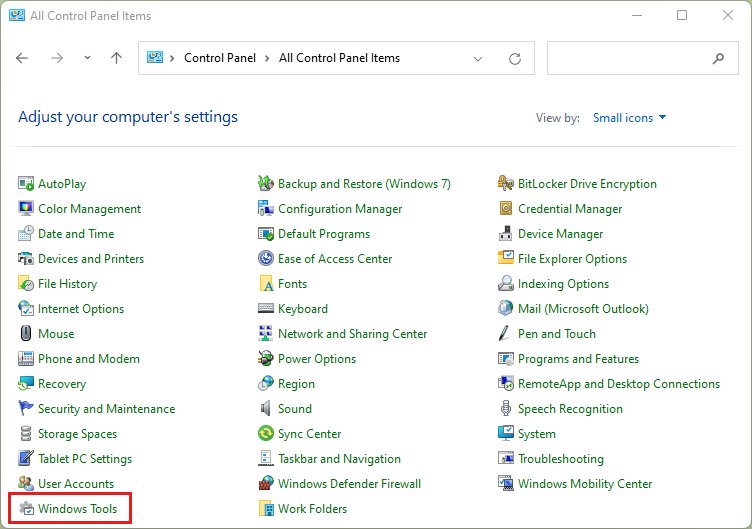
Control Panel opens in whichever view you used last. Category groups items under headings such as System and Security and Hardware and Sound, while Large icons lists every item alphabetically.
- Open Control Panel with Windows key + R and
control. - Find the View by drop-down menu at the top right of the window.
- Select Category to follow Microsoft instructions written as paths, such as Network and Internet > Network and Sharing Center.
- Select Large icons or Small icons to see every item at once, such as Credential Manager or Windows Tools.
- Close the window. Control Panel reopens in the view you picked.
If the view always resets to icons, the Always open All Control Panel Items when opening Control Panel policy is enabled on that PC.
How to check you are in the classic Control Panel
- Look at the window title. It reads Control Panel, not Settings.
- Check the top right corner for the View by drop-down menu.
- In Category view, confirm you see headings such as System and Security, Network and Internet, Hardware and Sound and Programs.
- If a command opened Settings instead, that item has moved. Use the table in the previous section to find its new page.
Fix Control Panel when it will not open or looks different
Control Panel is not on the Win + X menu
Microsoft's current list of right-click Start entries covers Settings, Task Manager, Computer Management and Event Viewer. For Control Panel, it points you to Search or the Run box instead.
- Press Windows key + R, type
controland press Enter. - Once it is open, right-click its taskbar icon and select Pin to taskbar for one-click access.
- Use Windows key + I when you need the Settings app instead.
A message says a setting or restriction prevents the action
The Prohibit access to Control Panel and PC settings policy is enabled. It stops control.exe and SystemSettings.exe from starting and removes Control Panel from Start and File Explorer.
- On a work or school PC, contact your IT admin. The policy is usually set deliberately.
- On your own PC with Group Policy Editor, press Windows key + R, type
gpedit.mscand press Enter. - Go to User Configuration > Administrative Templates > Control Panel.
- Double-click Prohibit access to Control Panel and PC settings.
- Select Not Configured, then select OK.
- Without Group Policy Editor, back up the registry first, then open
regeditand go toHKEY_CURRENT_USER\Software\Microsoft\Windows\CurrentVersion\Policies\Explorer. - Right-click the NoControlPanel value and select Delete.
One applet is missing or its command does nothing
The Hide specified Control Panel items or Show only specified Control Panel items policy lists canonical names. These also block control.exe command lines for those items.
- Open
gpedit.mscand go to User Configuration > Administrative Templates > Control Panel. - Open Hide specified Control Panel items and select Show to see the blocked names, such as
Microsoft.Mouse. - Set the policy to Not Configured to clear the list, or Disabled to keep the entries but lift the restriction.
- Check Show only specified Control Panel items the same way. If both are enabled, the hide list wins.
- In the registry, the matching values are DisallowCpl and RestrictCpl under the same
Policies\Explorerkey.
A Control Panel item opens Settings instead of the old page
Microsoft has migrated that page. On Windows 10 and Windows 11, the System item opens Settings by design.
- Press Windows key + R, type
SystemPropertiesAdvancedand press Enter to reach System Properties directly. - For other items, use the
.cplcommand from the table above, for examplecontrol sysdm.cpl.
Before any registry edit, follow Microsoft's registry backup instructions.
Frequently asked questions
How do I open the Control Panel in Windows 10?
Press Windows key + R, type control and press Enter. You can also type control panel in the search box on the taskbar and select Control Panel. Both routes work the same way on Windows 10 and Windows 11.
What is the Control Panel in Windows 10?
Control Panel is the long-standing central place to view and change system settings in Windows. Microsoft keeps it in Windows 10 and Windows 11 for compatibility and for settings not yet moved to the Settings app, which it recommends where possible.
What is the keyboard shortcut for Control Panel?
There is no single dedicated key combination. The fastest keyboard route is Windows key + R, then typing control and pressing Enter. Windows key + I opens the Settings app, which is a different program.
Does Windows 11 still have Control Panel?
Yes. Windows 11 still includes Control Panel, and its Windows Tools folder lives inside it. Microsoft is gradually moving settings to the Settings app, so some items, such as System, now open Settings instead of a classic window.
How do I open a specific Control Panel tool directly?
Run control /name followed by the item's canonical name, for example control /name Microsoft.DevicesAndPrinters. Older tools also accept a module file, such as control appwiz.cpl for Programs and Features. Type either in the Run box or a command prompt.
How do I open Control Panel from Command Prompt?
Type control and press Enter in Command Prompt, PowerShell or Windows Terminal. The command starts control.exe from the System32 folder. Add /name and a canonical name to open one item, such as control /name Microsoft.Sound.
Why does Control Panel open Settings instead of the old page?
Microsoft has migrated that page to the Settings app. On Windows 10 and Windows 11, selecting System in Control Panel opens Settings by design. For classic System Properties, run SystemPropertiesAdvanced or control sysdm.cpl from the Run box.
Can I put a Control Panel shortcut on the taskbar or Start menu?
Yes. Type control panel in the taskbar search box, right-click the result and select Pin to taskbar or Pin to Start. While Control Panel is open, you can also right-click its taskbar icon and pin it from there.
How do I open mouse settings in Control Panel?
Press Windows key + R, type control /name Microsoft.Mouse and press Enter. The Mouse properties window opens with the Pointers, Pointer Options, Wheel and Hardware tabs. The shorter control main.cpl and control mouse commands reach the same window.
Why is Control Panel blocked on my PC?
The Prohibit access to Control Panel and PC settings policy is enabled. It stops Control Panel and Settings from starting. On a work device, ask your IT admin; on your own PC, set the policy to Not Configured in Group Policy Editor.






ncpa.cpl command: A Guide to Network Connections in Windows - Techdows
[…] For every other way into Control Panel itself, see 12 Ways to Open the Control Panel in Windows 10/11. […]
How To Access Internet Options In Microsoft Edge - Techdows
[…] Win + R, type the command, and press Enter. control is the Control Panel launcher, and inetcpl.cpl is the Internet Properties applet […]
How to Uninstall or Remove AVG Antivirus Free 2015 from your computer? - Techdows
[…] Note: Only use this tool, if you can’t uninstall AVG using the Control Panel. […]
How to open thrustmaster control panel Windows 11 - Techdows
[…] generic Windows list is the same one described in 12 ways to open the Control Panel in Windows 10 and 11, which covers every route into Control Panel […]
How to disable Fast Startup on Windows 11, 10 - Techdows
[…] checkbox lives in the Power Options page of Control Panel on both Windows 11 and Windows 10. You need an administrator account to change […]