Press Windows key + R, type control appwiz.cpl and press Enter to open Programs and Features, the Control Panel page where you uninstall, change or repair desktop programs in Windows 11 and Windows 10.
Below: every way to open it, the uninstall and repair steps, installed updates, Windows features, how it compares with Settings > Apps, a command reference, and fixes for when it is blocked.
The fastest way to open Programs and Features
The Run box works the same on Windows 11 and Windows 10, from the desktop or with any app in front.
- Press Windows key + R to open the Run box.
- Type
control appwiz.cpl. - Press Enter or select OK. Programs and Features opens with the list of installed programs.
- Right-click a program and select Uninstall, Change or Repair, whichever the program offers.
What Is appwiz.cpl in Windows?
appwiz.cpl is the Control Panel module file behind Programs and Features. Microsoft's reference lists it as the module for the item with the canonical name Microsoft.ProgramsAndFeatures, and its old command table calls the same file Add/Remove Programs.
The page is still part of Windows 11. Microsoft's current uninstall instructions for Windows 11 send you to Control Panel > Programs > Programs and Features for apps the Settings app cannot remove.
| What you can manage with appwiz.cpl | Where it is on the page | What it does |
|---|---|---|
| Installed desktop programs | The main list | Uninstall a program, or run its Change or Repair option when the installer provides one |
| Installed updates | View installed updates link on the left | Lists updates from Windows Update and program publishers so you can remove one |
| Windows features | Turn Windows features on or off link on the left | Opens the Windows Features dialog to switch built-in components on or off |
| Canonical name | Microsoft.ProgramsAndFeatures |
Opens the same page with control /name, including from scripts |
| Module file | %systemroot%\system32\appwiz.cpl |
The file Control Panel loads when you run control appwiz.cpl |
If you want to add software rather than remove it, installing apps on a Windows PC is covered separately.
How to Open Programs and Features with appwiz.cpl
Each route below lands on the same page. Pick the one that matches where your hands already are.
| Route | What to do | Best when |
|---|---|---|
| Open appwiz.cpl from the Run dialog | Windows key + R, type control appwiz.cpl, press Enter |
Your hands are on the keyboard |
| Open appwiz.cpl from Command Prompt, PowerShell, or Windows Terminal | Type control appwiz.cpl and press Enter |
You are already at a prompt or writing a script |
| Open it from Windows Search and Control Panel | Type Control Panel in the taskbar search box, open it, then select Programs > Programs and Features | You prefer the mouse and Category view |
| Open it by canonical name | Run control /name Microsoft.ProgramsAndFeatures |
You want a command that does not depend on the module file name |
| Open it from Task Manager | Ctrl + Shift + Esc, File > Run new task, type control appwiz.cpl |
The taskbar or Start menu is not responding |
Every other route into Control Panel itself is covered in 12 ways to open Control Panel.
How to Uninstall, Change, or Repair Programs
Before removing software, check two things. If the program only misbehaves, Microsoft suggests trying a repair first, and some built-in Windows apps cannot be removed at all.
Not every program offers Change or Repair. The options you see come from the program's own installer.
- Open Programs and Features with Windows key + R and
control appwiz.cpl. - Find the program in the list of installed programs.
- Right-click the program, or press and hold it on a touch screen.
- To remove it, select Uninstall or Uninstall/Change.
- To fix a broken install, select Repair. If there is no Repair, select Change and look for a repair option in the installer.
- Approve the User Account Control prompt if Windows shows one.
- Follow the program's own on-screen instructions until it reports that it has finished.
Some installers ask you to restart before the entry disappears from the list. Restart when prompted, then reopen the page to confirm.
How to view and uninstall installed updates
The View installed updates link lists updates from Windows Update and from program publishers. On current Windows 11 builds, Microsoft documents update removal through the Settings app, so use these steps.
- In Programs and Features, select View installed updates on the left, or go straight to Settings.
- On Windows 11, select Start > Settings > Windows Update.
- Under More options, select Update history.
- Under Related settings, select Uninstall updates.
- Find the update you want to remove and select Uninstall.
- On Windows 10, select Start > Settings > Update & Security > Windows Update > View your update history > Uninstall updates, then select the update and Uninstall.
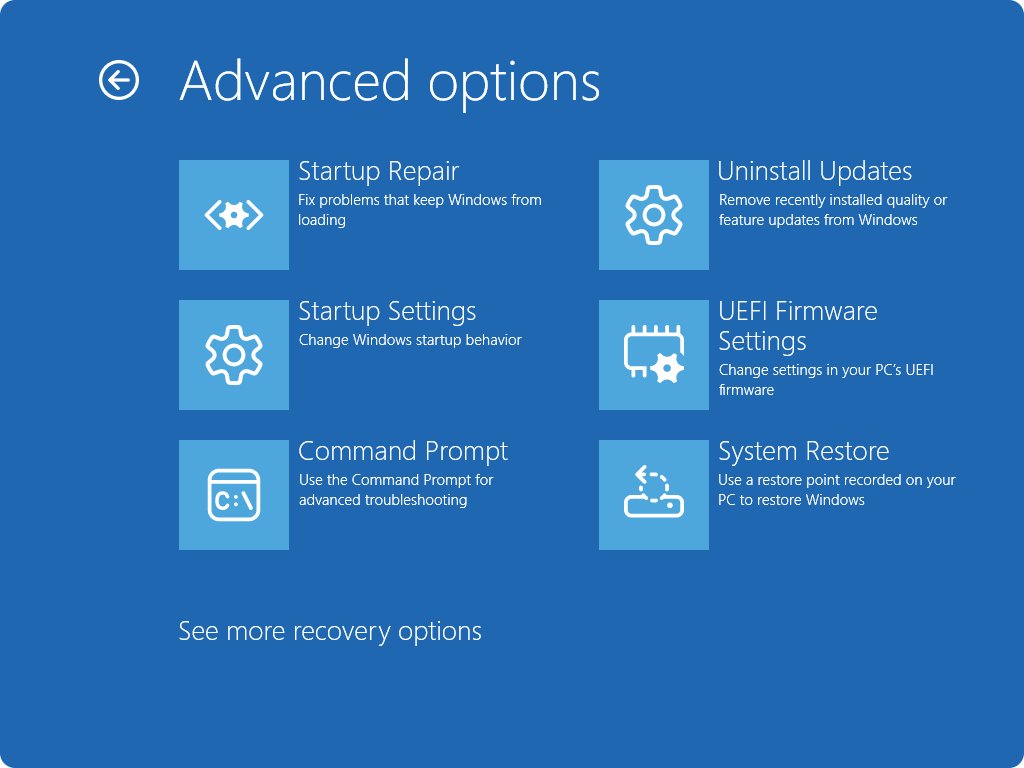
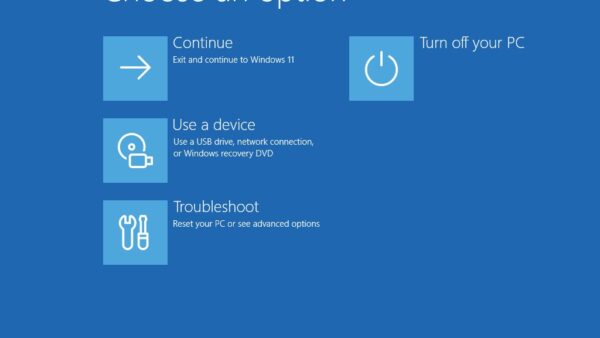
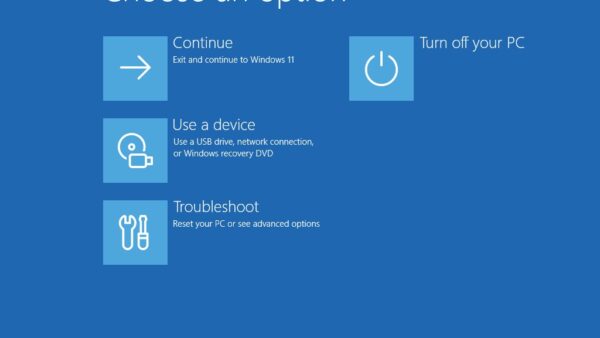
Some updates cannot be uninstalled. Microsoft advises understanding the risk before removing a security update. If Windows no longer starts, use Troubleshoot > Advanced options > Uninstall Updates in the Windows Recovery Environment.
How to turn Windows features on or off
The Windows Features dialog switches built-in components on and off, such as Virtual Machine Platform. It is separate from the program list.
- In Programs and Features, select Turn Windows features on or off on the left. Or select Start, type Windows features and select Turn Windows features on or off.
- Approve the User Account Control prompt if Windows shows one.
- In the Windows Features window, select the box next to the feature you want to turn on.
- Clear the box next to a feature you want to turn off.
- Select OK and wait while Windows applies the change.
- Restart the PC if Windows asks you to.
Features on Demand, such as language resources and handwriting support, live in Settings instead. On Windows 11, go to Settings > System > Optional features and select View features next to Add an optional feature. The PC must be online because Windows Update downloads them.
appwiz.cpl vs Windows Settings Apps Page in 2026
Microsoft recommends the Settings app where possible, but it also says some apps cannot be uninstalled from Settings yet. Use this table to pick the right page for each job.
| Job | Settings app | Programs and Features (appwiz.cpl) |
|---|---|---|
| Uninstall a desktop program | Windows 11: Settings > Apps > Installed apps, More (…) > Uninstall. Windows 10: Apps > Apps & features | Right-click the program > Uninstall |
| An app Settings will not remove | Not available | Microsoft's fallback: Control Panel > Programs > Programs and Features |
| Microsoft Store app | Installed apps, or right-click it in Start > All apps and select Uninstall | Use Settings or Start if the app is not in the list |
| Repair a broken app | More > Advanced options > Repair, or Reset if there is no Repair | Right-click > Repair, or Change if there is no Repair |
| Remove an update | Windows Update > Update history > Uninstall updates | View installed updates link |
| Built-in Windows components | System > Optional features for Features on Demand | Turn Windows features on or off |
| Open it by command | ms-settings:appsfeatures |
control appwiz.cpl |
| Blocked by policy | The Hide "Programs and Features" page policy also hides the Apps area of Settings | Same policy, plus Hide the Programs Control Panel |
Common appwiz.cpl Commands and Shortcuts
All of these work in the Run box, Command Prompt, PowerShell and Windows Terminal. The ms-settings: links open pages in the Settings app instead of Control Panel.
| Command | Opens | Use it when |
|---|---|---|
control appwiz.cpl |
Programs and Features | The most useful way to run appwiz.cpl day to day |
control /name Microsoft.ProgramsAndFeatures |
Programs and Features | Scripts and shortcuts; canonical names stay in English on every language of Windows |
%windir%\system32\control.exe /name Microsoft.ProgramsAndFeatures |
Programs and Features | A full path for a shortcut target or Task Manager's Run new task |
OptionalFeatures.exe |
The Windows Features dialog | You only want to turn a Windows feature on or off |
ms-settings:appsfeatures |
Installed apps (Windows 11) or Apps & features (Windows 10) | You want the Settings version of the program list |
ms-settings:optionalfeatures |
Optional features in Settings | Adding or removing Features on Demand |
ms-settings:windowsupdate-history |
Update history in Settings | Removing an update |
control /name Microsoft.DefaultPrograms |
Default Programs | A related Control Panel shortcut for file associations |
winget list |
A list of installed apps in the terminal | Finding the exact name before a command-line uninstall |
winget uninstall --name <app name> |
Uninstalls the named app | Removing an app without opening any window |
Microsoft notes that winget list shows more than apps installed with WinGet, so winget uninstall can also remove programs you installed another way. Add --source winget to skip a Microsoft Store agreement prompt.
How to check the change worked
- After an uninstall, close Programs and Features and reopen it with
control appwiz.cpl. The program should no longer be in the list. - Open Settings > Apps > Installed apps and search for the same name. It should be gone there too.
- After a repair, start the program and repeat the action that failed before.
- After removing an update, return to Uninstall updates. The update should no longer be listed.
- After changing Windows features, reopen Turn Windows features on or off and confirm the box is selected or cleared as you left it.
Troubleshooting appwiz.cpl Not Opening or Not Working
Quick checks to try first: restart the PC, run control appwiz.cpl from the Run box rather than a pinned shortcut, and check whether the PC is managed by a work or school account.
appwiz.cpl does not open, or a message says restrictions are in effect
A policy hides the page. Hide the Programs Control Panel and Hide "Programs and Features" page block it, and Prohibit access to Control Panel and PC settings blocks Control Panel entirely.
- On a work or school PC, contact your IT admin. These policies are usually set deliberately.
- On your own PC with Group Policy Editor, press Windows key + R, type
gpedit.mscand press Enter. - Go to User Configuration > Administrative Templates > Control Panel > Programs.
- Set Hide the Programs Control Panel and Hide "Programs and Features" page to Not Configured, then select OK.
- Go up one level to Control Panel and check Prohibit access to Control Panel and PC settings the same way.
- Without Group Policy Editor, back up the registry first. The matching values are NoProgramsCPL and NoProgramsAndFeatures under
HKEY_CURRENT_USER\Software\Microsoft\Windows\CurrentVersion\Policies\Programs, and NoControlPanel under...\Policies\Explorer.
A program will not uninstall
Microsoft names corrupt registry keys, incomplete installs, corrupted app data and malware as common causes.
- Restart the PC with Start > Power > Restart, then try again.
- On Windows 11, open Settings > Apps > Installed apps, select More > Advanced options, and run Repair or Reset if offered.
- Try the uninstall from Settings instead of Programs and Features, or the other way round.
- On Windows 10, run Microsoft's Program Install and Uninstall troubleshooter from its support page. It repairs corrupt registry keys that block removal.
- If you suspect malware, run a scan in Windows Security and remove the app only after threats are cleaned.
A program appears in Settings but not in appwiz.cpl
Settings, Start and Programs and Features do not always list the same apps, and Microsoft documents all three as uninstall routes.
- Open Settings > Apps > Installed apps, select More (…) next to the app, then Uninstall.
- Or select Start > All apps, right-click the app and select Uninstall.
- From a terminal, run
winget listto find the exact name, thenwinget uninstall --namewith that name.
There is no Repair or Change option
Microsoft says repair, change and modify options are not available for all apps and programs. The installer decides.
- Check Settings > Apps > Installed apps > More > Advanced options for a Repair or Reset button.
- If neither page offers a repair, uninstall the program, restart, and install it again from the publisher's official site.
Turn Windows features on or off or View installed updates is missing
The Hide "Windows Features" or Hide "Installed Updates" page policy is enabled.
- Open
gpedit.mscand go to User Configuration > Administrative Templates > Control Panel > Programs. - Set Hide "Windows Features" and Hide "Installed Updates" page to Not Configured.
- In the meantime, run
OptionalFeatures.exeor use Settings > Windows Update > Update history > Uninstall updates.
Before any registry edit, follow Microsoft's registry backup instructions. Windows 10 support ended on October 14, 2025, so its troubleshooter is the last Windows 10-only fix in this list.
Frequently Asked Questions
Is appwiz.cpl still available in Windows 11 in 2026?
Yes. Programs and Features is still part of Windows 11, and Microsoft's current uninstall instructions point to Control Panel > Programs > Programs and Features for apps that the Settings app cannot remove. Run control appwiz.cpl from the Run box to open it.
What is the fastest way to open appwiz.cpl?
Press Windows key + R, type control appwiz.cpl and press Enter. Programs and Features opens straight away on Windows 11 and Windows 10. The same command works in Command Prompt, PowerShell, Windows Terminal and Task Manager's Run new task box.
Can I uninstall Microsoft Store apps with appwiz.cpl?
Use Settings or Start instead. Open Settings > Apps > Installed apps, select More next to the app and choose Uninstall, or right-click the app in Start > All apps and select Uninstall. If the app is not in the Programs and Features list, those two routes remove it.
What should I do if appwiz.cpl does not open?
Check for a policy first. Hide the Programs Control Panel, Hide Programs and Features page and Prohibit access to Control Panel and PC settings all block it. On a work PC, ask IT; on your own PC, set them to Not Configured in gpedit.msc.
Why does a program appear in Settings but not in appwiz.cpl?
Settings and Programs and Features do not always list the same apps, and Microsoft documents both as uninstall routes. Uninstall the app from Settings > Apps > Installed apps or from its Start menu entry, or use winget uninstall from a terminal.
How do I open Turn Windows features on or off?
Select Start, type Windows features and select Turn Windows features on or off. You can also run OptionalFeatures.exe, or open Programs and Features and select the link on the left. Select or clear a box, select OK, and restart if asked.
How do I uninstall a Windows update?
On Windows 11, go to Settings > Windows Update > Update history > Uninstall updates, then select Uninstall next to the update. On Windows 10, the path is Update & Security > Windows Update > View your update history > Uninstall updates. Some updates cannot be removed.
Can I uninstall programs from the command line?
Yes. Run winget list to find the program's exact name, then winget uninstall –name followed by that name. Microsoft notes that winget can remove apps it did not install. Add –source winget to avoid a Microsoft Store agreement prompt.
Bottom Line
Use Settings > Apps > Installed apps for everyday removals and Store apps, and keep control appwiz.cpl for everything else. Programs and Features is still the fallback for programs Settings will not remove, the place installers expose Change and Repair, and the fastest door to the Windows Features dialog. Memorise control appwiz.cpl; it works on every current version of Windows 11 and Windows 10.

mmsys.cpl: Step-by-Step Guide to Windows Multimedia Control Panel - Techdows
[…] Windows 11 still ships it. The Settings app links straight to it from System > Sound > More sound settings, because several device options exist only here. It is one of several .cpl modules still in Windows, alongside appwiz.cpl for Programs and Features. […]