To run SFC, open Command Prompt as administrator, type sfc /scannow and press Enter; Microsoft recommends running DISM.exe /Online /Cleanup-image /Restorehealth first so SFC has healthy files to repair from.
This guide covers both commands on Windows 11 and Windows 10, what each SFC result message means, how to read CBS.log, and what to do when SFC cannot finish or cannot repair a file.
The fastest way to run SFC /scannow
These steps follow Microsoft's own repair order: DISM restores the component store, then SFC uses it to fix protected system files. Both commands need an administrator window.
- Type cmd in the search box on the taskbar.
- Right-click Command Prompt in the results and select Run as administrator.
- Select Yes or enter an administrator password when User Account Control asks.
- Type
DISM.exe /Online /Cleanup-image /Restorehealthand press Enter. Wait for it to finish; this can take several minutes. - Type
sfc /scannowand press Enter. - Leave the window open until verification reaches 100%, then read the result message.
- Restart the PC if SFC reports that it repaired files.
The message Windows Resource Protection did not find any integrity violations means your system files are intact. Any other message is explained in the results table below.
What SFC /scannow Does in Windows 10 and Windows 11
System File Checker scans every protected Windows system file and replaces incorrect versions with correct ones. Microsoft's sfc reference lists the same command for Windows 11, Windows 10 and Windows Server 2016 through 2025.
/scannow is one of several switches. The others let you check without repairing, target one file, or repair a Windows installation that is not running.
| Switch | What it does | Repairs files? |
|---|---|---|
/scannow |
Scans all protected system files and repairs problems when possible | Yes |
/verifyonly |
Scans all protected system files without repairing anything | No |
/scanfile=<file> |
Scans one file (full path) and repairs it if a problem is found | Yes |
/verifyfile=<file> |
Checks one file (full path) without repairing it | No |
/offwindir= and /offbootdir= |
Point SFC at an offline Windows folder and boot drive, for repair from recovery | Yes, with /scannow or /scanfile |
/offlogfile=<path> |
Saves the offline scan log somewhere other than the default | Not applicable |
SFC only works from an account in the Administrators group. A standard, non-elevated window cannot run it.
When You Should Run System File Checker
Microsoft points to SFC when Windows features stop working, system errors appear, or Windows freezes or stops responding. It is not the right first tool for every problem, so match your case to a row.
| Your situation | Run this | Why |
|---|---|---|
| Built-in Windows features fail, system errors appear, or Windows freezes | DISM /RestoreHealth, then sfc /scannow |
The standard repair pair for damaged system files |
| You only want to know whether files are damaged | sfc /verifyonly |
Reports problems without changing anything |
| One named system file is suspect, such as a DLL | sfc /scanfile= with the full path |
Checks and repairs that file only |
| Windows will not start to the desktop | Offline SFC from Windows Recovery Environment | sfc /scannow needs a running Windows; the offline switches do not |
| The disk reports read errors or files vanish | chkdsk with /f first |
SFC repairs Windows files, not the file system underneath them |
| A single installed app is broken but Windows is fine | The app's own repair or reinstall | SFC only checks protected Windows system files, not third-party programs |
What you need before you start
| Requirement | Why it matters |
|---|---|
| An administrator account | sfc runs only for members of the Administrators group, and Microsoft runs DISM from an elevated window too |
| An internet connection for DISM | DISM uses Windows Update as its default repair source |
| Your BitLocker recovery key, if the drive is encrypted | Windows RE asks for it before some tools, such as Startup Settings |
| Time to leave the window open | Microsoft warns not to close the window until verification is 100% complete |
How to Run SFC /scannow from Command Prompt or PowerShell
sfc is a standard Windows command, so it runs the same way in Command Prompt, Windows PowerShell and Windows Terminal. The only requirement is that the window runs as administrator.
- Type cmd in the taskbar search box. Type powershell or terminal instead if you prefer those.
- Right-click the result and select Run as administrator, then approve the User Account Control prompt.
- Type
sfc /scannowand press Enter. - Wait for the percentage to reach 100% without closing the window.
- Read the final line, which starts with Windows Resource Protection.
To check a single file instead, type the full path, for example sfc /verifyfile=c:\windows\system32\kernel32.dll. That example comes from Microsoft's sfc reference and changes nothing.
Check and repair the Windows image with DISM first
SFC replaces damaged files with a cached copy. If that cache is damaged too, SFC reports files it cannot fix. DISM repairs the cache, which is why Microsoft says to run it before SFC.
- Open Command Prompt as administrator.
- Type
Dism /Online /Cleanup-Image /CheckHealthand press Enter for a quick report on whether corruption has already been detected. - Type
Dism /Online /Cleanup-Image /ScanHealthand press Enter for a full scan. This takes several minutes. - Type
DISM.exe /Online /Cleanup-Image /RestoreHealthand press Enter to repair the image from Windows Update. - Run
sfc /scannowonce DISM reports that the operation completed.
DISM reports the image as healthy, repairable or non-repairable. /RestoreHealth is the step that fixes a repairable image.
How to Use SFC in Safe Mode or Windows Recovery Environment
Microsoft's fix for Windows Resource Protection could not perform the requested operation is to run the scan in Safe Mode. Safe Mode starts Windows with a limited set of files and drivers.
- Open Settings > System > Recovery. On Windows 10, open Settings > Update & Security > Recovery.
- Next to Advanced startup, select Restart now. Holding Shift while you select Power > Restart does the same.
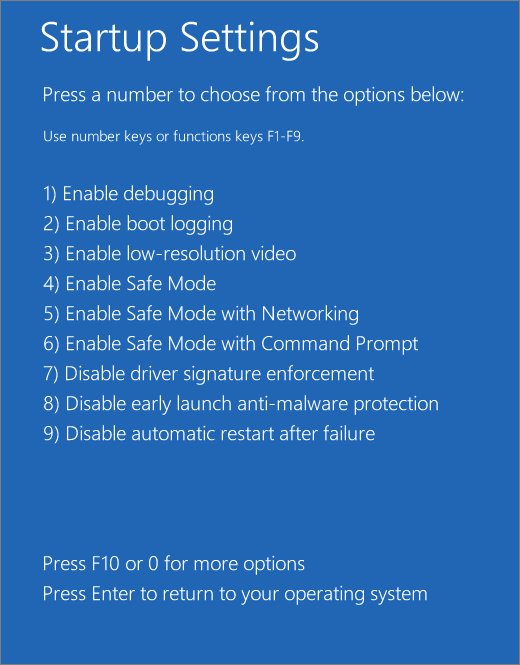
- In Windows RE, select Troubleshoot > Advanced options > Startup Settings > Restart.
- On the Startup Settings screen, press the number or function key for Enable Safe Mode or Safe Mode with Command Prompt.
- Sign in, open Command Prompt as administrator if one is not already open, and run
sfc /scannow. - Restart the PC normally when the scan finishes.
If the PC keeps starting in Safe Mode, press Windows key + R, type msconfig, select OK, and clear Safe boot under Boot options.
Run an offline SFC scan when Windows will not start
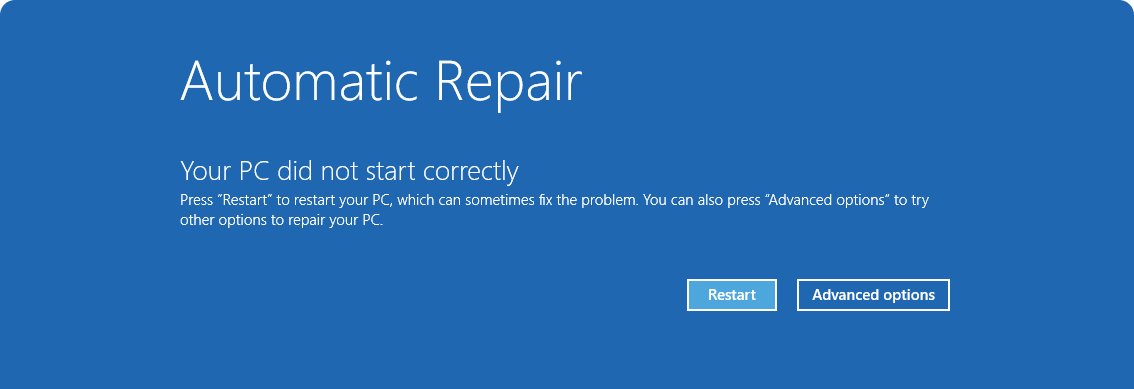
Windows opens Windows RE by itself after it fails to start several times. You can also force it by interrupting startup twice with the power button, or by booting from a recovery drive or Windows installation media.
- Start the PC and hold the power button as soon as the Windows logo appears. Repeat once more.
- Turn the PC on a third time and wait for the Automatic Repair screen.
- Open the Windows RE menu and select Troubleshoot > Advanced options > Command Prompt. Enter your BitLocker recovery key if asked.
- Find the drive that holds the Windows folder. In recovery, it can have a different letter than usual.
- Type
sfc /scannow /offbootdir=D:\ /offwindir=D:\Windows, replacing D: with that drive letter, and press Enter. - Close Command Prompt and restart the PC.
Microsoft's sfc reference shows the offline switches with /scanfile on drive D:. The same /offbootdir and /offwindir pair applies to a full /scannow scan.
Understanding SFC Scan Results and CBS.log
SFC ends with one of four messages. Each one tells you what to do next.
| Result message | What it means | What to do |
|---|---|---|
| Windows Resource Protection did not find any integrity violations. | No missing or corrupted system files | Nothing; look elsewhere for the cause of your problem |
| Windows Resource Protection found corrupt files and successfully repaired them. | The repair worked | Restart, then review the details in CBS.log if you want the file list |
| Windows Resource Protection found corrupt files but was unable to fix some of them. | The cached copy of some files is also bad | Run DISM /RestoreHealth, run SFC again, then replace any remaining file by hand |
| Windows Resource Protection could not perform the requested operation. | SFC could not complete in normal mode | Run SFC in Safe Mode and check the PendingDeletes and PendingRenames folders |
SFC writes its details to %windir%\Logs\CBS\CBS.log. Its own lines carry the tag [SR], and the next section pulls just those lines into a readable file.
How to check what SFC repaired in CBS.log
CBS.log is large and mixes SFC entries with Windows servicing entries. Microsoft's command copies only the SFC lines to a text file on your desktop.
findstr /c:"[SR]" %windir%\Logs\CBS\CBS.log >"%userprofile%\Desktop\sfcdetails.txt"Run it in an administrator Command Prompt on one line. It searches CBS.log for every line tagged [SR] and writes them to sfcdetails.txt on your desktop.
You should see: An sfcdetails.txt file appears on the desktop. Each line starts with a date and time, and a file SFC could not fix shows a line containing "Cannot repair member file" followed by the file name.
The file includes every SFC run on this PC, not just the latest. Match the date and time to your last scan before acting on any entry.
How to Fix SFC /scannow Failed or Could Not Repair Files
SFC found corrupt files but could not repair some of them
The local cache SFC copies from is damaged as well.
- Open Command Prompt as administrator.
- Run
DISM.exe /Online /Cleanup-Image /RestoreHealthand wait for it to finish. - Run
sfc /scannowagain. - If the same message returns, create sfcdetails.txt with the
findstrcommand above and note the file names marked Cannot repair member file. - Replace those files by hand using the steps in the next section.
DISM cannot download the repair files
DISM uses Windows Update by default, and a broken Windows Update client blocks it.
- Mount or connect a source with the same Windows version, such as Windows installation media or a network share.
- Open Command Prompt as administrator.
- Run
DISM.exe /Online /Cleanup-Image /RestoreHealth /Source:C:\RepairSource\Windows /LimitAccess, replacingC:\RepairSource\Windowswith the Windows folder on your source. - Run
sfc /scannowafter DISM completes.
Windows Resource Protection could not perform the requested operation
SFC cannot finish while normal Windows is running, or its temporary folders are missing.
- Open File Explorer and go to
C:\Windows\WinSxS\Temp. - Check that the PendingDeletes and PendingRenames folders both exist.
- Restart in Safe Mode using the steps above.
- Run
sfc /scannowfrom an administrator Command Prompt.
SFC still fails after DISM and Safe Mode
The Windows installation or the disk under it is damaged beyond what SFC can fix.
- Run the offline scan from Windows RE described above.
- Run
chkdsk C: /ffrom an administrator Command Prompt. Type Y when it offers to check the drive at the next restart, then restart. - Run
sfc /scannowagain after the disk check. - If files still fail, reinstall Windows using one of Microsoft's recovery options, such as reinstalling the current version of Windows.
How to replace a corrupted system file manually
Microsoft's last-resort fix is copying a known good file from another PC that runs the same Windows version. Run sfc /scannow on that PC first so you know its copy is good.
- Find the damaged file's full path in sfcdetails.txt, for example
C:\windows\system32\jscript.dll. - Open Command Prompt as administrator.
- Take ownership with
takeown /f C:\windows\system32\jscript.dll. - Give administrators full access with
icacls C:\windows\system32\jscript.dll /grant administrators:F. - Copy the good file over it with
copy E:\temp\jscript.dll C:\windows\system32\jscript.dll, using your own source path. - Run
sfc /verifyfile=with the same path to confirm the file now passes.
Best Practices After Running System File Checker
- Restart the PC after any repair so Windows loads the replaced files.
- Repeat whatever failed before the scan, such as opening the broken feature, and confirm it now behaves normally.
- Run
sfc /verifyonlyonce more; it should report no integrity violations. - Use DISM before repeating SFC if a second scan finds problems again, rather than running SFC over and over.
- Save sfcdetails.txt with a note of the date, the commands you ran and what changed, so you have a record if the problem returns.
- Install pending updates from Settings > Windows Update once the system is stable.
Frequently Asked Questions
How do I use sfc /scannow on Windows 11?
Type cmd in the taskbar search, right-click Command Prompt and select Run as administrator. Run DISM.exe /Online /Cleanup-image /Restorehealth first, then type sfc /scannow and press Enter. Keep the window open until verification reaches 100%.
How do I run sfc /scannow on Windows 10?
The steps are the same as on Windows 11. Open Command Prompt as administrator from search, run DISM with /RestoreHealth, then run sfc /scannow. Windows 10 reached end of support on October 14, 2025, but SFC still works on it.
Can I run sfc /scannow in PowerShell or Windows Terminal?
Yes. sfc runs the same way in PowerShell and Windows Terminal as in Command Prompt. The window must be opened with Run as administrator, because SFC only runs for members of the Administrators group.
Is it safe to run SFC /scannow on Windows 10 or Windows 11?
Yes. SFC is Microsoft's built-in repair tool, and it only checks protected Windows system files, replacing incorrect versions with correct ones. Use sfc /verifyonly if you want a report without any changes.
Should I run DISM or SFC first?
Run DISM first. Microsoft's support article says DISM provides the files SFC needs to repair corruption, so run DISM.exe /Online /Cleanup-image /Restorehealth before sfc /scannow.
How long should SFC /scannow take to finish?
There is no fixed time; it depends on the PC and how much it finds. Microsoft's only instruction is to keep the Command Prompt window open until verification is 100% complete. DISM, run first, can take several minutes on its own.
What should I do if SFC says it found corrupt files but could not fix some of them?
Run DISM.exe /Online /Cleanup-Image /RestoreHealth, then run sfc /scannow again. If the message returns, extract the SFC entries from CBS.log, find the files marked "Cannot repair member file", and replace them with good copies from a PC on the same Windows version.
Where can I find the SFC scan log?
SFC logs to %windir%\Logs\CBS\CBS.log, usually C:\Windows\Logs\CBS\CBS.log. Run findstr /c:"[SR]" %windir%\Logs\CBS\CBS.log >"%userprofile%\Desktop\sfcdetails.txt" in an administrator Command Prompt to copy only the SFC lines to your desktop.
How do I properly use sfc /scannow if Windows will not start?
Open Windows Recovery Environment, select Troubleshoot > Advanced options > Command Prompt, and run sfc /scannow /offbootdir=D:\ /offwindir=D:\Windows with the letter of the drive that holds Windows.
Bottom Line
Run DISM.exe /Online /Cleanup-image /Restorehealth and then sfc /scannow from an administrator Command Prompt, and move to Safe Mode or an offline scan only when the result message tells you to. DISM repairs the cache that SFC copies from, so running it first turns most "unable to fix" results into clean repairs on the first pass.







List of All Chkdsk Commands and How to Use Them - Techdows
[…] run all three, fix the disk first with chkdsk, since the other two read from it. Then follow the SFC /scannow step-by-step guide and, if SFC reports files it could not fix, the DISM RestoreHealth […]
Windows Image Repair using dism /online /cleanup image /restorehealth (guide) - Techdows
[…] For every SFC result message, safe-mode runs and reading its log, see the sfc /scannow guide. […]
6 Ways to open System 32 folder on Windows 11 or 10 - Techdows
[…] download System32 files or DLLs from websites, because they can be the wrong version or malware. Run sfc /scannow from an administrator Command Prompt instead; it restores protected system files with correct […]
Download AMD Software for PC, Windows 11 and Windows 10 (Free) - Techdows
[…] SFC /SCANNOW […]
[Solved]: How to fix IRQL NOT LESS OR EQUAL in Windows 10/11 - Techdows
[…] For every SFC switch and result message, see the SFC /scannow step-by-step guide. […]