Press Windows logo key + R, type gpedit.msc and press Enter to open Local Group Policy Editor in Windows 11 Pro, Enterprise or Education.
This guide covers every route to the editor, how to check your edition, what to do on Windows 11 Home, two common policy changes and the fixes when the editor or a policy will not work.
Open Group Policy Editor in Windows 11
The Run box is the quickest route. It works the same way on Windows 10.
- Press Windows logo key + R to open the Run box.
- Type
gpedit.mscin the Open field. - Press Enter or select OK.
- Approve the User Account Control prompt with an administrator account if one appears.
- Expand Computer Configuration or User Configuration in the left pane to browse policies.
If Windows says it cannot find gpedit.msc, your PC is almost certainly running Windows 11 Home. Jump to the section on why gpedit.msc is missing.
Which method should you use?
| Your situation | Use this | Why |
|---|---|---|
| You want the editor now | Run box with gpedit.msc |
Two keystrokes and one command |
| You prefer the mouse | Start search for gpedit |
No command to remember |
| You already have a terminal open | Type gpedit.msc in Command Prompt or PowerShell |
Opens with that window's rights, including an elevated one |
| You want a saved console or per-user policy | Microsoft Management Console (mmc) snap-in |
Lets you pick this computer, another computer, or Administrators, Non-Administrators and per-user objects |
| You manage a domain | Group Policy Management Console from RSAT | Edits domain GPOs, which the local editor cannot |
| You run Windows 11 Home | None of the above | Home does not include the editor; see the Home section |
Check Whether Local Group Policy Editor Is Available on Your Windows 11 Edition
The editor ships with Pro-class editions only, so check the edition before troubleshooting anything else.
- Open Settings with Windows logo key + I.
- Select System, then Activation.
- Read the edition name shown at the top, such as Windows 11 Home or Windows 11 Pro.
- If it says Pro, Enterprise or Education, use any method in this guide.
- If it says Home, read the Home and upgrade sections below instead.
Which Windows 11 editions include Local Group Policy Editor?
Microsoft's policy reference lists Administrative Templates settings as applicable to Pro, Enterprise, Education and IoT Enterprise. Home is not listed, and Microsoft's edition comparison places Group Policy under Pro.
| Windows 11 edition | gpedit.msc included | What to do |
|---|---|---|
| Home | No | Upgrade to Pro, or change the setting in Settings where one exists |
| Pro and Pro for Workstations | Yes | Open with gpedit.msc |
| Enterprise | Yes | Open with gpedit.msc; domain policy may override local changes |
| Education | Yes | Open with gpedit.msc; school policy may override local changes |
| IoT Enterprise / IoT Enterprise LTSC | Yes | Open with gpedit.msc |
Open Group Policy Editor from Start search
- Select Start or press the Windows logo key.
- Type
gpedit. - Select the Group Policy result at the top of the list.
- Approve the User Account Control prompt if Windows shows one.
Typing the full gpedit.msc in the search box also works and avoids picking a web result by mistake.
Launch Local Group Policy Editor via Command Prompt or PowerShell
Both shells hand .msc files to Microsoft Management Console, so the same command works in either. Start the shell with Run as administrator if you want the editor to open already elevated.
gpedit.mscOpens Local Group Policy Editor from Command Prompt, PowerShell or Windows Terminal. The editor inherits the rights of the window that launched it.
You should see: The Local Group Policy Editor window opens with Computer Configuration and User Configuration in the left pane.
How do you load it through Microsoft Management Console?
Loading the editor as a snap-in lets you target a different Group Policy object, including another computer on your network or the policy for specific local users.
- Press Windows logo key + R, type
mmcand press Enter. - On the File menu, select Add/Remove Snap-in.
- In the Add or Remove Snap-ins dialog box, select the Group Policy editor snap-in and select Add.
- In the Select Group Policy Object dialog box, select Browse.
- Choose This computer, or Another computer to edit a remote PC's local policy.
- Open the Users tab instead to edit the Administrators, Non-Administrators or a single user's policy object.
- Select Finish, then OK, to load the editor in the console.
To save a console that can be pointed at other objects from the command line, tick Allow the focus of the Group Policy Snap-in to be changed when launching from the command line before you select Finish.
Open Group Policy Management Editor for domain policy
Group Policy Management Editor is a different tool from gpedit.msc. It edits domain GPOs and comes with the Remote Server Administration Tools (RSAT), which install only on Pro or Enterprise.
- Open Settings and select System.
- Select Optional features, then the Add a feature option.
- Type
Remotein the search box and select RSAT: Group Policy Management Tools. - Install it, then type
Group Policy Managementin Start search and open the console. - Right-click a GPO in the console and select Edit to open Group Policy Management Editor.
How to disable Background Processing of Registry Policy in Windows 11
By default, Windows refreshes policy in the background about every 90 minutes, plus a random offset of up to 30 minutes. This setting stops Administrative Templates and other registry-based policies from updating while the PC is in use.
- Open Local Group Policy Editor with
gpedit.msc. - Go to Computer Configuration > Administrative Templates > System > Group Policy.
- Double-click Configure registry policy processing.
- Select Enabled.
- Tick Do not apply during periodic background processing.
- Leave Process even if the Group Policy objects have not changed clear unless you want unchanged policies reapplied.
- Select Apply, then OK.
With background updates off, registry policy changes take effect only at the next sign-in or restart. To stop every background refresh instead, enable Turn off background refresh of Group Policy in the same folder.
Prevent System Volume Information folder creation on USB in Windows 11
The usual fix for this is a Windows Search policy that stops USB drives from being indexed or added to libraries. Microsoft's description of the setting does not mention System Volume Information, so treat it as a way to keep Windows Search off removable drives rather than a guaranteed block on that folder.
- Open Local Group Policy Editor with
gpedit.msc. - Go to Computer Configuration > Administrative Templates > Windows Components > Search.
- Double-click Do not allow locations on removable drives to be added to libraries.
- Select Enabled, then OK.
- Restart the PC, then connect the USB drive again.
Once enabled, locations on removable drives cannot be added to libraries and cannot be indexed. Do not delete an existing System Volume Information folder on an internal drive; Windows uses it.
How to check a policy change applied
An edit in the editor is saved at once, but Windows applies it at the next refresh, sign-in or restart. Force it and read the result instead of waiting.
- Open Command Prompt with Run as administrator.
- Run
gpupdate /forceto reapply every policy setting now. - Run
gpresult /r /scope computerto list the computer policy objects that applied. - Run
gpresult /r /scope userto do the same for your user account. - Test the behaviour the policy controls, such as the blocked option or changed setting.
For every switch of the refresh command, see how to force update Group Policy from the command line.
What does Local Group Policy Editor do?
It is a Microsoft Management Console snap-in that edits the Group Policy object stored on the PC itself. Each Administrative Templates setting shows its supported Windows versions and what enabling or disabling it does.
| Node | Applies to | When Windows applies it | Typical contents |
|---|---|---|---|
| Computer Configuration | The PC, for every user | At startup and during background refresh | Administrative Templates, Windows Settings, security settings |
| User Configuration | Users who sign in | At sign-in and during background refresh | Administrative Templates, Windows Settings, folder redirection |
What is the difference between Local Group Policy and domain policy?
| Local Group Policy | Domain policy | |
|---|---|---|
| Where it is stored | On the PC itself | In Active Directory and the SYSVOL folder on domain controllers |
| Tool that edits it | Local Group Policy Editor (gpedit.msc) |
Group Policy Management Console and Group Policy Management Editor |
| Processing order | Applied first | Site, then domain, then organizational unit policies apply after it |
| When settings conflict | Loses | Settings from GPOs linked to Active Directory containers override local settings |
| Who uses it | Stand-alone and home office PCs | Work and school PCs joined to a domain |
What are the alternatives to Local Group Policy Editor?
| Alternative | Works on Home | Best for | Catch |
|---|---|---|---|
| Settings app | Yes | Everyday options such as updates, privacy and sign-in | Covers far fewer options than policy |
Registry Editor (regedit) |
Yes | A single documented value from a Microsoft article | A wrong edit can stop Windows working; back up the key first |
| Group Policy Management Console (RSAT) | No | Domain GPOs | Pro or Enterprise, and a domain |
| Mobile device management (Policy CSP, for example Intune) | No | Managing many PCs from the cloud | Most policies list Pro, Enterprise and Education only |
Microsoft recommends using the Windows interface over manual registry edits, and exporting any key before you change it.
Can you install Group Policy Editor on Windows 11 Home?
No. Microsoft offers no supported way to add gpedit.msc to Windows 11 Home, and RSAT cannot be installed on Home editions either. Scripts that copy editor files onto Home are not from Microsoft, and policies aimed at Pro and above are not listed as applying to Home. The supported route is an upgrade to Windows 11 Pro.
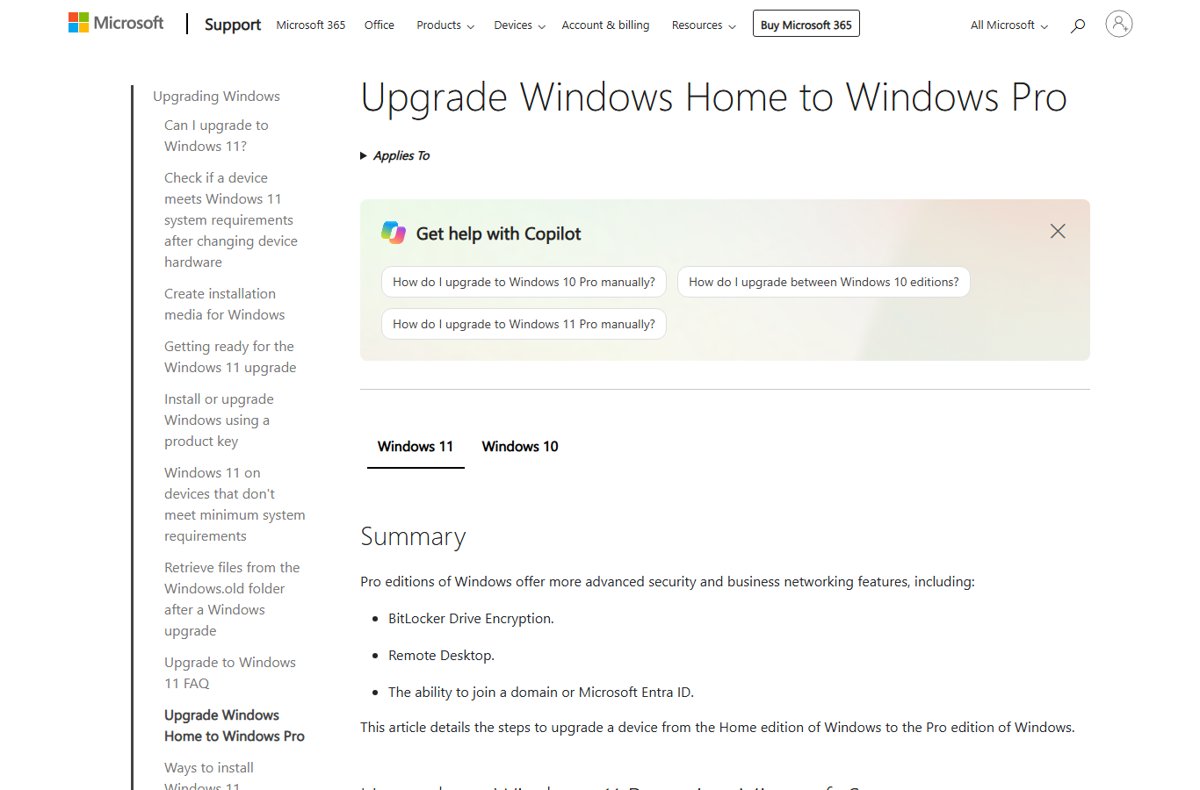
Should you upgrade Windows 11 Home to Pro for Group Policy Editor?
Upgrade if you need several policies, BitLocker, Remote Desktop hosting or domain join. If you need one setting that also exists in Settings, stay on Home.
- Open Settings > System > Activation.
- With a Pro product key, select Change next to Change product key, enter the 25-character key and select Next.
- Without a key, expand Upgrade your edition of Windows and select Open Store.
- Buy Windows 11 Pro in the Microsoft Store while signed in with your Microsoft account.
- Install the upgrade and restart when prompted.
- Run
gpedit.mscto confirm the editor now opens.
Why is gpedit.msc missing in Windows 11?
Run or Command Prompt says it cannot find gpedit.msc
The PC runs Windows 11 Home, which does not include the editor.
- Open Settings > System > Activation and read the edition name.
- If it says Home, look for the same option in Settings first.
- Upgrade to Pro with Change product key or Open Store if you need policy control.
Start search shows no Group Policy result
Search looks for app names, and Home has no editor to find.
- Type the full name
gpedit.mscin the search box. - If nothing appears on a Pro PC, press Windows logo key + R and run
gpedit.mscinstead. - If Run also fails, confirm the edition in Settings > System > Activation.
Group Policy Editor not opening in Windows 11
Can't open Group Policy Editor from a standard account
Editing local policy needs administrator rights.
- Run
gpedit.mscand enter an administrator's credentials at the User Account Control prompt. - Or open Command Prompt with Run as administrator and run
gpedit.mscfrom there. - Ask the PC owner to sign in if you do not have an administrator password.
Can't open Local Group Policy Editor on a work or school PC
Your organization manages the PC, and its domain or device management policy takes precedence.
- Run
gpresult /rto see which domain policy objects apply. - Ask your IT administrator to change the setting in the domain policy.
- Do not try to undo managed settings locally; domain policy overrides them at the next refresh.
What should you do if a Group Policy change does not work?
The setting is saved but nothing changes
Windows has not refreshed policy yet; background refresh runs about every 90 minutes.
- Open an elevated Command Prompt and run
gpupdate /force. - Run
gpupdate /logofffor user settings that apply only at sign-in. - Run
gpupdate /bootfor computer settings that apply only at startup.
The change applies, then reverts
A domain policy linked in Active Directory overrides local policy.
- Run
gpresult /r /scope computerand note any domain objects listed. - Run
gpresult /h %Temp%\GPResult.htmfrom an elevated prompt for a full report. - Ask your administrator to change the domain policy instead.
The policy has no effect on this edition
Some policies apply only to certain editions or Windows versions.
- Select the policy in the editor and read the operating system requirements shown in its description.
- Check your edition in Settings > System > Activation.
- Use a different policy or update Windows if your version is not listed.
Frequently Asked Questions
How do I open Group Policy Editor in Windows 11?
Press Windows logo key + R, type gpedit.msc and press Enter. The editor opens on Windows 11 Pro, Enterprise and Education. Windows 11 Home does not include it, so the command reports that the file cannot be found.
How do I open Group Policy Editor in Windows 10?
Use the same command: press Windows logo key + R, type gpedit.msc and press Enter. Windows 10 Pro, Enterprise and Education include the editor, while Windows 10 Home does not.
How do I open Group Policy Editor as admin?
Open Command Prompt or PowerShell with Run as administrator, then type gpedit.msc and press Enter. The editor inherits the elevated rights of that window. Launching it from Run as a standard user shows a User Account Control prompt for administrator credentials.
How do I open Group Policy Editor in CMD?
Type gpedit.msc at the Command Prompt and press Enter. The same command works in PowerShell and Windows Terminal. Start the shell as administrator first if you want to make changes without a separate elevation prompt.
How do I open Group Policy Editor remotely?
Run mmc, add the Group Policy editor snap-in, select Browse in the Select Group Policy Object dialog, then choose Another computer and enter the PC name. Select Finish to load that computer's local policy in the console.
How do I open Group Policy Management Editor?
Install RSAT: Group Policy Management Tools from Settings > System > Optional features, open Group Policy Management, then right-click a GPO and select Edit. It edits domain policy and installs only on Pro or Enterprise editions.
Why can't I open Group Policy Editor?
The most common reason is Windows 11 Home, which does not include gpedit.msc. Check your edition in Settings > System > Activation. On Pro and above, a standard account also needs administrator credentials before the editor opens.
Why can't I open Local Group Policy Editor on a work PC?
Organizations often manage work PCs through domain policy or device management, and those settings override local policy. Run gpresult /r to see which policies apply, and ask your IT administrator to make the change centrally.
Is Local Group Policy Editor the same as Group Policy Management Editor?
No. Local Group Policy Editor (gpedit.msc) edits the policy stored on one PC. Group Policy Management Editor opens from the Group Policy Management Console and edits domain policy objects stored in Active Directory.
Do I need to restart after changing a Group Policy setting?
Not always. Run gpupdate /force from an elevated Command Prompt to apply most changes immediately. Some settings apply only at sign-in or startup, and gpupdate /logoff or gpupdate /boot handles those.
Bottom Line
Use Windows logo key + R and gpedit.msc on Windows 11 Pro, Enterprise or Education, and switch to the MMC snap-in only when you need another computer or a per-user policy. The Run route opens the editor in two steps on every supported edition. On Windows 11 Home, the only supported path to the editor is an upgrade to Pro.

How to Completely Turn off Cortana in Windows 10 Anniversary Update? - Techdows
[…] If you’re using Windows 10 Pro, open Group Policy Editor by typing gpedit.msc in Run […]
How to Force Update Group Policy (Command) Windows 11/10 - Techdows
[…] PC that is not joined to a domain only has its Local Group Policy Object. Changes made in the Local Group Policy Editor apply at the next background refresh, or immediately when you force […]
How to enable Local Group Policy Editor in Windows 11 Home (gpedit.msc) - Techdows
[…] you are on Pro, the editor opens the same way every time. A full walkthrough of the ways to open Group Policy Editor in Windows 11 covers Run, search and Command […]
How to show or hide Copilot button on the toolbar in Microsoft Edge - Techdows
[…] Open the Group Policy Editor and go to Administrative Templates > Microsoft Edge. Use Microsoft Edge – Default Settings (users can override) instead if users should be able to change it back. […]
Configure Microsoft Edge for Windows with policy settings - Techdows
[…] route uses Local Group Policy Editor and affects only the computer you are sitting […]
How to disable clear browsing data when Microsoft Edge closes - Techdows
[…] An administrator, or you with Local Group Policy Editor […]