Certutil.exe is the command-line certificate utility built into Windows 11, Windows 10 and Windows Server, used to view, verify, import and export certificates, manage certification authorities, and hash or encode files.
This guide covers how to run it, its syntax, the store and CA commands, file hashing and Base64 encoding, how attackers abuse it, and fixes for its common errors.
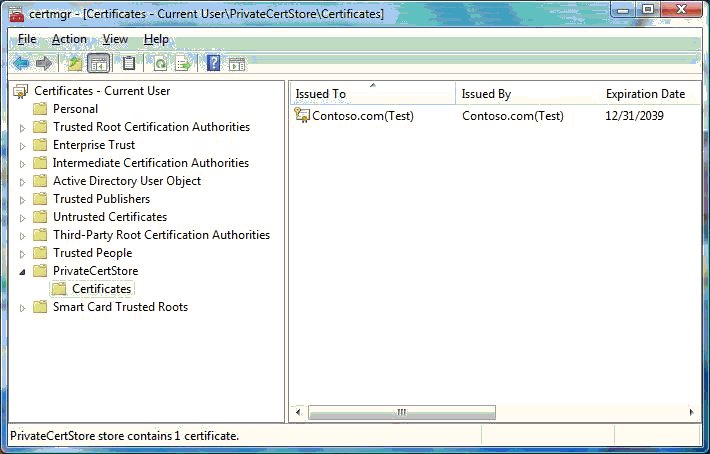
How to run certutil in Command Prompt
Certutil needs no download or installation. It runs from Command Prompt or PowerShell on any supported Windows 10 or Windows 11 PC.
- Press Win + R, type
cmdand press Enter to open Command Prompt. - Type
certutil -?and press Enter to list every verb your version supports. - Type
certutil -store -user Myand press Enter to list the certificates in your personal store. - Type
certutil <verb> -?, for examplecertutil -hashfile -?, to see the exact syntax of one verb. - For commands that change a local machine store or a CA, close the window and open Command Prompt with Run as administrator instead.
Run with no parameters on an ordinary PC, certutil defaults to certutil -dump. On a certification authority, the same bare command shows the CA's current configuration.
What is certutil.exe and where is it used?
Microsoft describes certutil.exe as a command-line program installed as part of Certificate Services. It displays CA configuration, configures Certificate Services, backs up and restores CA components, and verifies certificates, key pairs and certificate chains.
Microsoft also warns that certutil is not recommended for production code and carries no guarantee of application compatibility. It is a tool for developers and IT administrators, not a library to build products on.
| Question | Answer |
|---|---|
| What it is | Microsoft's built-in certificate and PKI command-line utility |
| Supported systems | Windows 11, Windows 10, Windows Server 2016, 2019, 2022 and 2025, and Azure Local 2311.2 and later |
| Do you need to install it? | No. It ships with Windows; run where certutil to print the folder it runs from |
| Common environments where certutil is used | Help desks checking user certificates, server admins installing TLS and root certificates, Active Directory Certificate Services (AD CS) administrators running a CA, and anyone checking a download's hash |
| What it works on | Certificate stores, .cer, .crt and .pfx files, certificate revocation lists (CRLs), the CA database and ordinary files (hashes and Base64) |
| Does every version support every verb? | No. Microsoft notes that not all versions provide all parameters, so check yours with certutil -? |
| Is it safe? | The genuine tool is a signed part of Windows, but attackers also abuse it, so security tools watch how it is used |
Core certutil syntax and command structure
Every certutil command follows one pattern: certutil [options] -verb [arguments]. The verb names the job, such as -store or -hashfile, and options change where or how it runs.
Getting built-in help is the fastest way to confirm a verb on your build. certutil -? lists the verbs, certutil -? -v gives a verbose list, and certutil -v -uSAGE shows complete help including hidden verbs. The uSAGE switch is case-sensitive.
| Common syntax element | What it does | Example |
|---|---|---|
-user |
Uses the current user's keys or certificate store instead of the machine store | certutil -user -store My |
-enterprise |
Uses the local machine enterprise registry certificate store | certutil -enterprise -store NTAuth |
-service and -GroupPolicy |
Use the machine service store or the Group Policy certificate store | certutil -GroupPolicy -store Root |
-config Machine\CAName |
Targets a specific CA by computer and CA name | certutil -config SERVER1\ContosoCA -ping |
-f |
Forces an overwrite or a fresh fetch | certutil -f -encode in.bin out.txt |
-p password |
Supplies a password, for example for a PFX file | certutil -p <password> -importPFX cert.pfx |
-split |
Splits embedded ASN.1 elements and saves them to files | certutil -split -dump cert.cer |
-v |
Gives more detailed (verbose) output | certutil -v -dump cert.cer |
-t timeout |
Sets the URL fetch timeout in milliseconds | certutil -t 10000 -URL cert.cer |
-gmt and -seconds |
Show times in GMT, or with seconds and milliseconds | certutil -gmt -dump cert.cer |
A CertId tells store verbs which certificate you mean. It can be a serial number, a SHA-1 thumbprint, a numeric index such as 0 or 1, the subject common name, an email address, a DNS name or a template name. Several of these can match more than one certificate, so prefer the serial number or thumbprint.
Managing certificates, stores, and certificate authorities with certutil
Store names are short: My is the Personal store, Root holds trusted root CAs, and CA holds intermediate CAs. Without -user, store verbs work on the local machine store, which every user on the PC shares.
Adding and removing certificates from stores takes one verb each. -addstore adds a certificate or CRL file; -delstore removes the certificate that matches the CertId you give.
| Task | Command | Notes |
|---|---|---|
| List certificates in a store | certutil -store My |
Add -user for your own Personal store |
| List the stores on a computer | certutil -enumstore |
Add \\MachineName to query a remote PC |
| Add a root certificate to the machine store | certutil -addstore Root rootca.cer |
Run from an administrator Command Prompt |
| Add a certificate to your user store | certutil -user -addstore My cert.cer |
Affects only your account |
| Delete a certificate from a store | certutil -delstore My <SerialNumber> |
Confirm the serial number with -store first |
| Verify a certificate already in a store | certutil -verifystore My <CertId> |
Checks the certificate and its chain |
| Import a PFX with its private key | certutil -p <password> -importPFX My cert.pfx |
Defaults to the personal machine store; add NoExport to make the key non-exportable |
| Export a certificate and private key to PFX | certutil -p <password> -exportPFX My <CertId> backup.pfx |
The key must be exportable |
| Repair a certificate's private key link | certutil -repairstore My <SerialNumber> |
Restores the key association after an import |
Working with certificate authorities uses a second set of verbs, and most of them take -config Machine\CAName to pick the CA. These only work against an AD CS server and usually need CA administrator rights.
Key CA verbs: -ping checks the CA's request interface, -CAInfo displays CA properties, -ca.cert and -ca.chain save the CA certificate or chain, -CRL publishes new revocation lists, -revoke SerialNumber Reason revokes a certificate, -deny and -resubmit handle pending requests, -view dumps the CA database, and -backup and -restore protect the CA.
Encoding, decoding, hashing, and file operations with certutil
Certutil works on ordinary files too. Generating file hashes with -hashfile is the most common use outside certificate work, because it checks a download against the hash the publisher lists.
Supported hash algorithms are MD2, MD4, MD5, SHA1, SHA256, SHA384 and SHA512. Always name the algorithm the publisher used, such as SHA256, so the two values are comparable.
| Job | Command | Result |
|---|---|---|
| Get a SHA-256 hash of a file | certutil -hashfile setup.iso SHA256 |
Prints the file's SHA-256 hash value |
| Encode a file to Base64 | certutil -encode input.bin output.txt |
Writes a Base64 text file |
| Decode a Base64 file | certutil -decode output.txt restored.bin |
Writes the original binary file |
| Encode a file in hexadecimal | certutil -encodehex input.bin hex.txt |
Writes a hex dump |
| Decode a hexadecimal file | certutil -decodehex hex.txt restored.bin |
Rebuilds the binary from the hex dump |
| Inspect a certificate file | certutil -dump cert.cer |
Shows subject, issuer, serial number, validity dates and extensions |
| Inspect a PFX file | certutil -dumpPFX cert.pfx |
Shows the PFX structure; add -p for the password |
| Parse a file as ASN.1 | certutil -asn cert.der |
Works on .cer, .der and PKCS #7 files |
| Overwrite an existing output file | Add -f, for example certutil -f -decode in.txt out.bin |
-f forces the overwrite |
Inspecting certificate and PKI files with -dump is safe on any file: it only reads. Adding -split also saves each embedded ASN.1 element to its own file for closer study.
Common certutil commands and practical examples
These examples cover the jobs administrators run most. Replace the sample names, serial numbers and CA names with your own.
| Goal | Command | What to look for |
|---|---|---|
| Inspect certificates, stores, and CA configuration | certutil -store -user My and certutil -getconfig |
Each certificate's serial number, expiry date and whether a private key is present; the default CA configuration string |
| Check a certificate chain and revocation | certutil -verify -urlfetch cert.cer |
-urlfetch retrieves AIA certificates and CDP CRLs, so revocation is actually checked |
| Test that certificate and CRL URLs answer | certutil -URL cert.cer |
Verifies each certificate and CRL URL in the file, so you can see which one fails |
| Import, export, and repair certificates | certutil -importPFX, certutil -exportPFX and certutil -repairstore |
The certificate's serial number in the -store output after the change |
| Hash, encode, decode, and retrieve files | certutil -hashfile file SHA256, -encode, -decode, -URLcache |
A matching hash, or a new output file; -URLcache lists cached certificate and CRL URLs |
| Clear cached CRLs after a revocation change | certutil -URLcache CRL delete |
Deletes cached CRL URLs from the current user's cache |
| CA administration examples: check the CA is reachable | certutil -config SERVER1\ContosoCA -ping |
The interface responds without an error code |
| Publish a fresh CRL | certutil -CRL |
A new CRL is published; -CRL republish reissues the most recent one |
| Trigger certificate autoenrollment | certutil -pulse |
Pulses an autoenrollment event; add -user for user certificates |
| Check when trusted root lists last synced | certutil -verifyctl AuthRoot | findstr /i "lastsynctime" |
The date Windows last updated its trusted root CTL |
Microsoft notes that -store slows down on stores holding more than 10 certificates, because a CertId is matched against every identifier type. For large stores, PowerShell's certificate provider matches only the type you ask for.
Certutil vs PowerShell Get-FileHash and the Certificates snap-in
Certutil overlaps with two other built-in tools. Pick the one that fits the job and the people who will repeat it.
| Your situation | Use this | Why |
|---|---|---|
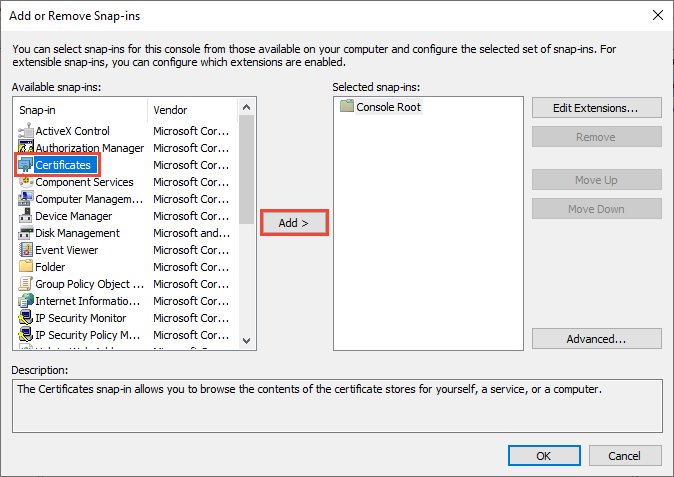
| You want to click through certificates and run an import wizard | Certificates snap-in in MMC | Press Win + R, type mmc, then File > Add/Remove Snap-in > Certificates |
| You need a file hash in Command Prompt or a batch file | certutil -hashfile |
Works in plain cmd scripts with no PowerShell |
| You need a file hash in a PowerShell script | Get-FileHash |
Returns an object; SHA256 is the default algorithm |
| You manage an AD CS certification authority | certutil | CA backup, CRL publishing, revocation and database views have no simpler built-in equivalent |
| You search large certificate stores often | PowerShell | Microsoft recommends it over -store for performance |
How to check a certutil command worked
Check the last line of the output for a failure code, then confirm the change itself.
- If the last line says
command FAILEDfollowed by a hexadecimal code such as0x80070002, the change did not happen. - After
-addstoreor-importPFX, runcertutil -store My(orRoot) and confirm the new serial number is listed. - After
-delstore, run the same-storecommand and confirm the serial number is gone. - After
-hashfile, compare the printed hash with the publisher's value character by character; any difference means a different file.
Certutil security risks, abuse techniques, and defensive monitoring
Certutil is a signed Windows binary, which makes it attractive to attackers who want to avoid dropping their own tools. Microsoft Defender for Cloud ships dedicated alerts for this abuse.
Microsoft's alert text describes the pattern: certutil.exe used to download a binary or decode an executable instead of its mainstream purpose of handling certificate data, so the decoded file can then be run.
| Behaviors defenders should monitor | Why it matters | Microsoft detection |
|---|---|---|
| Certutil retrieving an executable from a URL | Uses the URL cache feature to fetch a payload past simple download filters | Defender for Cloud: Suspicious download using Certutil detected (Medium) |
-decode or -decodehex producing an .exe or .dll |
Base64 hides a payload inside a text file, then certutil rebuilds it | Defender for Cloud: Detected decoding of an executable using built-in certutil.exe tool (High) |
| Base64-encoded executables on a command line | Splits an attack across commands so no single one looks malicious | Defender for Cloud: Detected encoded executable in command line data (High) |
-addstore Root run by a non-admin script or unknown process |
A rogue root certificate lets an attacker's certificates be trusted | Review new entries with certutil -store Root |
| Certutil started by Office, a browser or a script host | Ordinary users rarely run certutil at all | Process-creation logging in your endpoint protection |
Do not delete certutil.exe: it is a protected part of Windows, and admins use it for certificate work. Monitor and alert on unusual use instead.
If you spot a certutil process you did not start, you can list running processes with tasklist to note its PID and owner, then run a full Microsoft Defender scan.
Troubleshooting certutil errors and best practices
Best practices first: test store changes with -user before touching the machine store, back up a certificate with -exportPFX before deleting it, and always pass the hash algorithm to -hashfile.
"certutil is not recognized as an internal or external command"
The command was mistyped, run outside Windows, or the shell cannot find the system folder on its path.
- Check the spelling: the command is one word,
certutil, with no space or extra letters. - Open a fresh Command Prompt with Win + R,
cmd, Enter, and runcertutil -?. - Run
where certutilto see whether Windows can find the file on its search path. - If it still is not found, open Command Prompt as administrator and run
sfc /scannowto repair protected system files, then restart.
"The system cannot find the file specified" (0x80070002)
An input file or destination folder in the command does not exist at that path.
- Run
dirin the current folder and confirm the input file name, including its extension. - Put any path that contains spaces inside double quotes, for example
"C:\My Certs\cert.cer". - For
-syncWithWUand other verbs that write to a folder, create the destination folder first. - Run the command again and confirm no FAILED line appears.
"Access is denied" or certutil cannot open a certificate store
The command targets the local machine store or a CA, which every user shares, from a standard Command Prompt.
- Select Start, type
cmd, right-click Command Prompt and choose Run as administrator. - Run the same command again from the elevated window.
- If you only need your own certificates, add
-userto work in the current user store instead. - For CA verbs, confirm with your PKI administrator that your account holds CA administrator rights.
"Can't create a file when that file already exists" (0x800700b7)
The output file or files already exist and certutil does not overwrite by default.
- Choose a new output file name, or delete the old file after checking you no longer need it.
- To overwrite on purpose, add
-f, for examplecertutil -f -encode in.bin out.txt.
`-verify` reports a revocation or chain error
The PC cannot reach the CRL or AIA URLs, or a cached CRL is out of date.
- Run
certutil -URL cert.cerand check which URL fails to retrieve. - Clear cached CRLs with
certutil -URLcache CRL delete. - Run
certutil -verify -urlfetch cert.ceragain to force fresh downloads of the chain and CRLs.
Certutil.exe frequently asked questions
What is certutil in Windows?
Certutil is Microsoft's built-in command-line certificate utility for Windows 11, Windows 10 and Windows Server. It displays and verifies certificates, adds and removes them from certificate stores, manages certification authorities, and can hash or Base64-encode ordinary files. It runs from Command Prompt or PowerShell.
What is the use of certutil.exe?
Administrators use certutil.exe to inspect certificate files, list and change certificate stores, import and export PFX files, check certificate chains and revocation, and run AD CS tasks such as publishing CRLs or backing up a CA. Everyday users mostly use certutil -hashfile to check a download's hash.
How do I use the certutil command?
Open Command Prompt and type certutil followed by a verb and its arguments, for example certutil -store -user My or certutil -hashfile file.zip SHA256. Type certutil -? for every verb, and certutil <verb> -? for the syntax of one verb.
How do I install certutil?
You do not need to. Certutil.exe ships with Windows 11, Windows 10 and Windows Server, so it is already present. If certutil -? returns a "not recognized" error, check the spelling, then repair system files with sfc /scannow from an administrator Command Prompt.
How do I run certutil as administrator?
Select Start, type cmd, right-click Command Prompt and choose Run as administrator, then type your certutil command. Administrator rights matter when you change the local machine store or a CA. Commands that read files or your own -user store work in a normal window.
How do I use certutil to check a file hash?
Run certutil -hashfile <path to file> SHA256 in Command Prompt and compare the printed value with the hash the publisher lists. Swap SHA256 for MD5, SHA1, SHA384 or SHA512 if the publisher used a different algorithm. Matching values mean the file is unchanged.
Can certutil import and export certificates?
Yes. Use certutil -addstore <store> file.cer for a certificate without a key, certutil -importPFX file.pfx for a certificate with its private key, and certutil -exportPFX <store> <CertId> out.pfx to back one up. Add -p to supply the PFX password.
What does certutil.exe -addstore do?
It adds a certificate or CRL file to the store you name, such as Root, CA or My. Without -user it changes the local machine store, which affects every account on the PC. Adding to Root makes Windows trust everything that certificate signs, so add only roots you know.
What is certutil -config used for?
The -config Machine\CAName option tells certutil which certification authority to talk to, for example certutil -config SERVER1\ContosoCA -ping. It applies to CA verbs such as -ping, -CAInfo, -revoke and -view. certutil -getconfig prints the default configuration string.
Can certutil download a file?
Its URL cache verb fetches certificate and CRL URLs, and attackers misuse it to pull down executables, which Microsoft Defender for Cloud flags as a suspicious download. Download software from the publisher's site in a browser instead, and treat unexplained certutil downloads on a PC as a security warning.
Is certutil.exe dangerous or safe to allow?
The genuine certutil.exe is a safe, signed part of Windows that Windows itself relies on. The risk is misuse: attackers use it to download and decode malicious files. Keep it allowed, but have security tools alert on downloads and on decoding of executables.
Bottom line: when to use certutil.exe
Use certutil when you need certificate or CA work from the command line, such as store changes, PFX imports, chain checks and CRL publishing, and for quick file hashes in Command Prompt; use the Certificates snap-in for one-off clicks and PowerShell for large-store scripts. Certutil is already on every supported Windows PC and is the only built-in tool that covers AD CS administration, but Microsoft does not support it inside production code, and attackers' misuse means unusual runs deserve a security review.