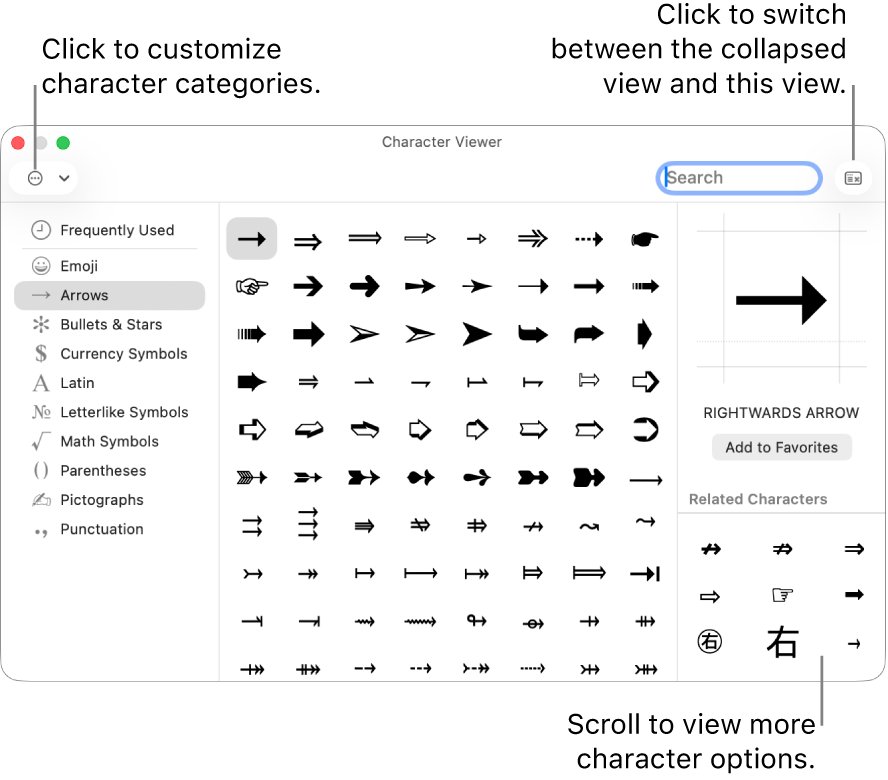
On a Mac using the Polish Pro layout, the quickest way to type the Apple icon is to open the Character Viewer with Control-Command-Space bar, search for its code F8FF, and double-click the logo.
This guide also shows how to check whether Polish Pro has a key for it, how to set a text replacement on Mac and iPhone, and why the logo looks different on Windows and Android.
How to type the Apple logo on Mac with Polish Pro
The Character Viewer search field accepts a Unicode name or code, so it finds the logo whatever keyboard layout is active.
- Click in the document, message or field where you want the logo.
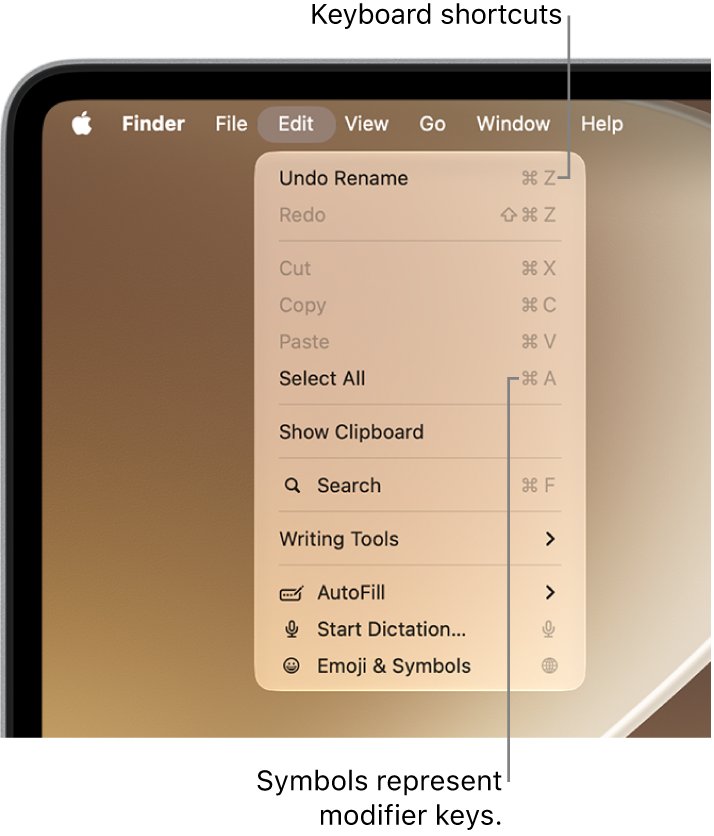
- Press Control-Command-Space bar, or choose Edit > Emoji & Symbols.
- If the viewer is small, click the expand button in its upper-right corner.
- Type
F8FFin the search field at the top. - Double-click the Apple logo in the results to insert it.
- Select the logo in the viewer and click Add to Favorites so it stays at the top next time.
apple.com uses this same character, U+F8FF, for the Apple logo in its own page footers.
How to add the Polish Pro keyboard on Mac
Polish Pro is a macOS input source. Add it once, then switch to it from the Input menu or with a shortcut.
- Choose Apple menu > System Settings, then click Keyboard in the sidebar.
- Go to Text Input, then click Edit.
- Click the add button, then search for Polish.
- Select Polish Pro and click Add.
- Switch to it from the Input menu in the menu bar, or press Control-Space bar to return to the last input source you used.
If Polish Pro is dimmed in the Input menu, the current app does not support that input source.
Find the Apple logo key on the Polish Pro keyboard layout
Each layout puts symbols such as the degree symbol on different Option and Shift combinations. The layout preview in Keyboard settings shows exactly where Polish Pro places them.
- Choose Apple menu > System Settings, then click Keyboard.
- Go to Text Input, then click Edit.
- Select Polish Pro in the sidebar to show its keyboard layout.
- Press and hold Option, then Shift, then Option and Shift together, and watch the keys change.
- If the Apple logo appears on a key, press that key with the same modifiers to type it.
- If it does not appear on any layer, use the Character Viewer search or a text replacement instead.
You can see the same layers in the Keyboard Viewer: click the Input menu and choose Show Keyboard Viewer, then hold the modifier keys.
How to make a text replacement for the Apple logo on Mac
A text replacement turns a short code you type into the logo. It works with any input source, including Polish Pro.
- Insert the logo once from the Character Viewer, select it and press Command-C to copy it.
- Choose Apple menu > System Settings, then click Keyboard.
- Click Text Replacements.
- Click the add button, type a short code such as
;applein the Replace column, and paste the logo as the replacement. - Click Add, then click Done.
- Type the code followed by a space in Notes, Mail or Messages to check that it turns into the logo.
Text replacements are not available in every app. In an app that supports them, Edit > Substitutions > Text Replacement shows a checkmark when they are on.
How to type the Apple logo on iPhone
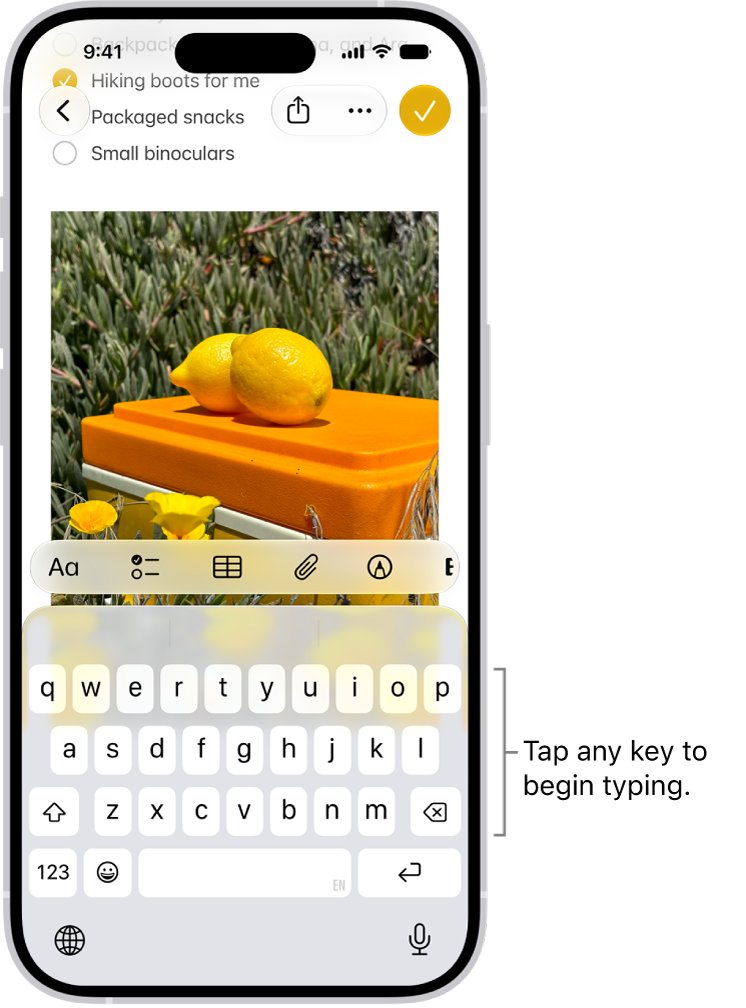
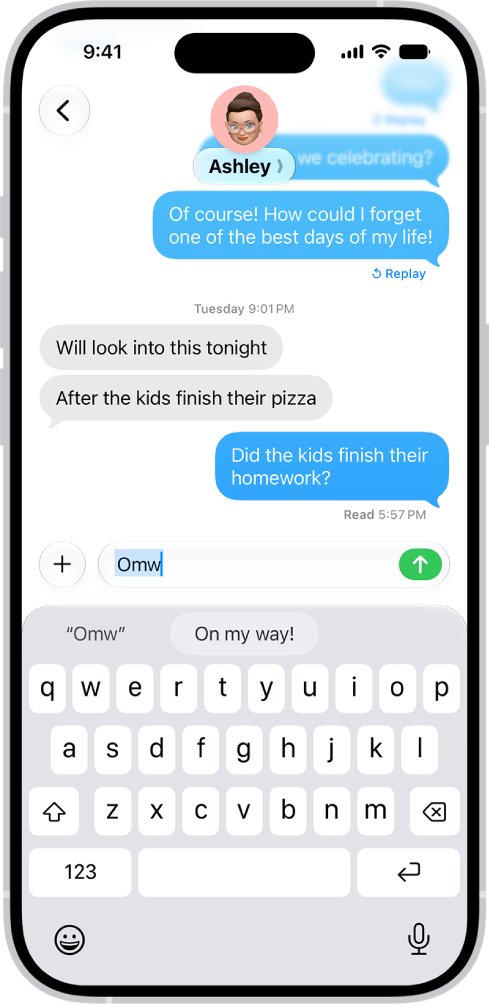
The iPhone keyboard has no Option layer, so a text replacement is the practical route.
- Copy the Apple logo from a note or message that already contains it.
- Open the Settings app and tap General.
- Tap Keyboard, then tap Text Replacement.
- Tap the add button.
- Paste the logo in the Phrase field and type a code such as
;applein the Shortcut field. - Save the entry, then type the code in any text field to insert the logo.
You can also reach this screen from the keyboard: touch and hold the emoji or globe key, tap Keyboard Settings, then tap Text Replacement.
Is the Apple logo an emoji?
No. The Apple icon is a private-use character, not one of the standard emoji, and that difference decides who can see it.
| Question | Apple logo | Standard emoji |
|---|---|---|
| Code point | U+F8FF, in the Unicode private use area (U+E000 to U+F8FF) | Assigned code points shared by all vendors |
| Who defines the picture | The font that contains it | Unicode defines the meaning; each vendor draws its own style |
| Where to insert it on Mac | Character Viewer search for F8FF, a layout key, or a text replacement | Emoji & Symbols, Fn/Globe-E or Control-Command-Space bar |
| How it looks to the recipient | Only appears if their font defines that code point | Shown in the recipient's own emoji style |
Microsoft's documentation states that a private-use code point cannot be assumed to mean the same character in every implementation, and that a reader needs the right font to see it.
How to get emoji on Mac with a keyboard shortcut
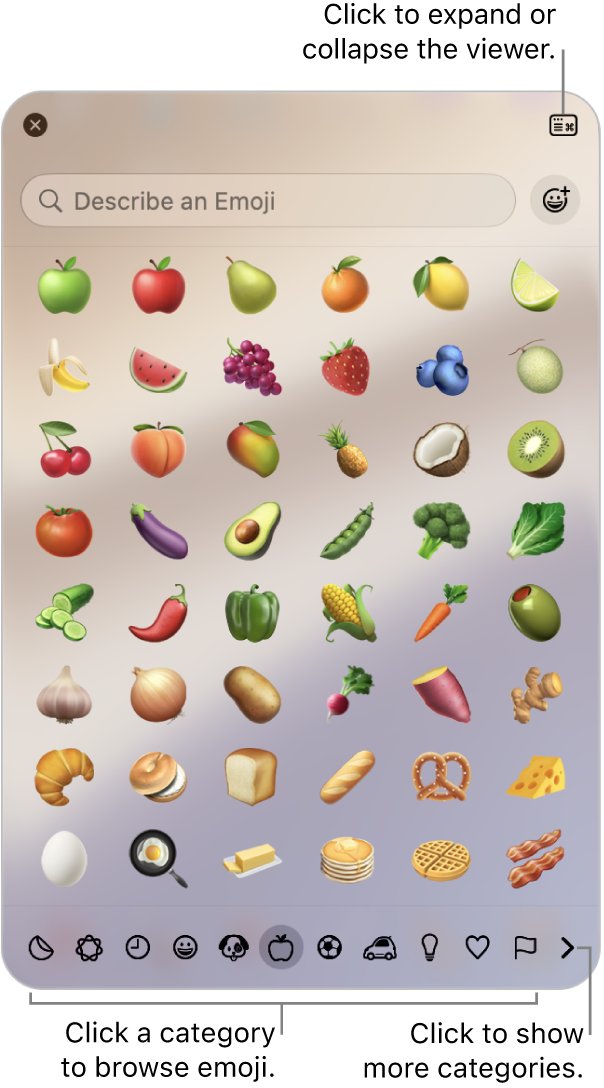
The same Character Viewer that holds the logo also holds every emoji, including the fingers crossed emoji. Pick the shortcut that suits your keyboard.
| Route | What it opens | Notes |
|---|---|---|
| Fn/Globe-E | Emoji suggestions for the word you just typed, or the Character Viewer | Press Return to accept a suggestion |
| Control-Command-Space bar | Character Viewer at the insertion point | Works in Pages, TextEdit and most text fields |
| Edit > Emoji & Symbols | Character Viewer | Menu route when shortcuts are hard to reach |
| Input menu > Show Emoji & Symbols | Character Viewer from the desktop | Turn on Show Input menu in menu bar in Keyboard settings first |
| Fn or Globe key alone | Emoji & Symbols | Set Press fn key to or Press Globe key to to Show Emoji & Symbols in Keyboard settings |
Skin tones, Genmoji and the other Mac emoji keyboard shortcuts all start from this same viewer.
Apple logo emoji not showing on Mac, iPhone or Windows
The Apple logo shows as a box or blank on Windows or Android
The recipient's font does not define the private-use code point U+F8FF.
- Ask the recipient which device and app they use, because the logo depends on the font that app shows.
- Write the word Apple instead when the reader is on Windows or Android.
Searching for F8FF in the Character Viewer finds nothing
The viewer is collapsed, so the full character search and code tables are hidden.
- Click the expand button in the upper-right corner of the viewer.
- Scroll up to the search field and type
F8FFagain. - Open the Action menu, choose Customize List, and turn on the code table categories if you prefer to browse.
Fn-E or the Globe key does not open emoji on Mac
The Fn or Globe key is set to another action.
- Choose Apple menu > System Settings, then click Keyboard.
- Open the Press fn key to or Press Globe key to menu.
- Choose Show Emoji & Symbols.
The emoji keyboard is missing on iPhone or iPad
The Emoji keyboard was removed from the keyboard list.
- Open Settings and tap General.
- Tap Keyboard, then tap Keyboards.
- Tap Add New Keyboard, then tap Emoji.
Apple icon emoji FAQ
How do I get emoji on a Mac?
Press Fn/Globe-E or Control-Command-Space bar, or choose Edit > Emoji & Symbols, to open the Character Viewer. Type a word such as heart in the search field and click the emoji to insert it. Hold an emoji to pick another skin tone.
How do I do emojis on an Apple computer?
Every Mac app with a text field supports the Character Viewer. Click where you want the emoji, press Control-Command-Space bar, then search or browse the categories. Add emoji you use often to Favorites so they appear at the top.
How do I get emoji on iPhone?
Tap a text field, then tap the emoji button or the globe key on the keyboard. Swipe through the categories or use the Search Emoji field. If the button is missing, add the Emoji keyboard in Settings > General > Keyboard > Keyboards > Add New Keyboard.
Where are the emojis on my iPad?
The iPad keyboard has the same emoji button or globe key as iPhone. Tap a text field, tap that key, and choose an emoji. Touch and hold an emoji to change its skin tone, or tap the clock to see recent ones.
How do I use Apple emojis on Windows?
Windows has its own emoji panel: press the Windows key + period while typing to open the Windows emoji keyboard. It shows Microsoft's emoji designs, and the Apple logo character only displays if the font in use defines U+F8FF.
Is an emoji an icon?
An emoji is a standard Unicode character that each platform draws in its own style. The Apple logo is different: it is a private-use character, U+F8FF, so it is not an emoji and appears only where the font defines it.
How do I use emojis in Mac apps like Mail and Messages?
Click the emoji button in Mail or Messages to add one directly, or press Fn/Globe-E after typing a word to get emoji suggestions. Press Return to accept the suggested emoji.
How do I create an emoji icon on a Mac or iPhone?
With Apple Intelligence on a supported device, you can create custom emoji called Genmoji in supported apps. Apple Intelligence is not available in every language or region, and usage limits can apply.