Open Terminal as administrator, run chkdsk C: /scan to look for file system errors, then run chkdsk C: /f and restart to repair them.
This guide explains why chkdsk is worth running, which switch to pick for each problem, how to read the results, and what to do when the check will not run or cannot repair the drive.
How to run chkdsk on Windows 11 to scan and repair the C: drive
Chkdsk needs administrator rights, so start from an elevated window. The scan step is read-only and safe to run while you work.
- Press the Windows key, type
cmd, and press Ctrl + Shift + Enter. - Select Yes in the User Account Control prompt.
- Type
chkdsk C: /scanand press Enter to scan the drive online without taking it offline. - If the report lists problems, type
chkdsk C: /fand press Enter. - When chkdsk says the volume is in use and asks to check it at the next restart, type
Yand press Enter. - Restart the PC. Windows pauses before loading the desktop, repairs the drive, and then finishes starting up.
For a second drive such as D:, replace C: with its letter. A data drive is usually not in use, so the repair runs straight away instead of waiting for a restart.
What CHKDSK does and when you should run it
Chkdsk checks the file system and its metadata on a volume for logical and physical errors. Run without switches, it only reports the volume's status and fixes nothing.
It repairs the structure that tracks your files, such as the master file table, folder indexes and free-space records. It does not scan for malware or replace damaged Windows system files.
| Sign you see | Why chkdsk helps | Switch to start with |
|---|---|---|
| Windows reports a drive needs to be scanned or repaired | The volume's dirty bit is set and NTFS wants a repair | /f |
| Event Viewer logs Ntfs event 55 or 98 | These events say the file system is corrupt and ask for chkdsk | /f, then /r |
| Files or folders will not open, or show as corrupt | Damaged index or file records can make files unreadable | /scan, then /f |
| Reads are slow and copy jobs stall on certain files | Bad sectors can force repeated retries | /r |
| The PC lost power or a USB drive was pulled out mid-write | Interrupted writes can leave the file system inconsistent | /scan |
| Routine maintenance on an older hard drive | An occasional read-only check catches problems early | No switch or /scan |
Chkdsk does not look for viruses. If files are changing or disappearing for no clear reason, run a Microsoft Defender full scan as well.
Chkdsk requirements: backups, admin rights, and drive health warnings
A repair rewrites file system records, so protect your data first. On FAT drives, a repair can change the file allocation table and sometimes loses data.
| Check | Why it matters | How to do it |
|---|---|---|
| Back up important files | If chkdsk cannot fix the volume, a backup is the only way to recover the data | Copy your files to another drive or cloud storage before running /f or /r |
| Administrator access | Membership in the local Administrators group is the minimum required to run chkdsk | Open Command Prompt or Terminal with Run as administrator |
| Drive access | Chkdsk works only on local disks, not on a drive letter redirected over the network | Run it on the PC that physically holds the drive |
| Close open files | Chkdsk must lock the drive to fix errors | Close apps that use files on the drive, or let the check run at restart |
| Drive health warnings | A critical warning means the drive itself is wearing out, which chkdsk cannot repair | Open Settings > System > Storage > Advanced storage settings > Disks & volumes, then select Properties for the drive |
| Laptop power | A long /r scan on a large hard drive can take hours | Plug the laptop into mains power |
The drive health page shows Estimated remaining life, Available spare and Temperature. Windows monitors only NVMe SSDs here, so SATA SSDs and hard disk drives show no health warnings in Settings.
Run CHKDSK from File Explorer in Windows 11
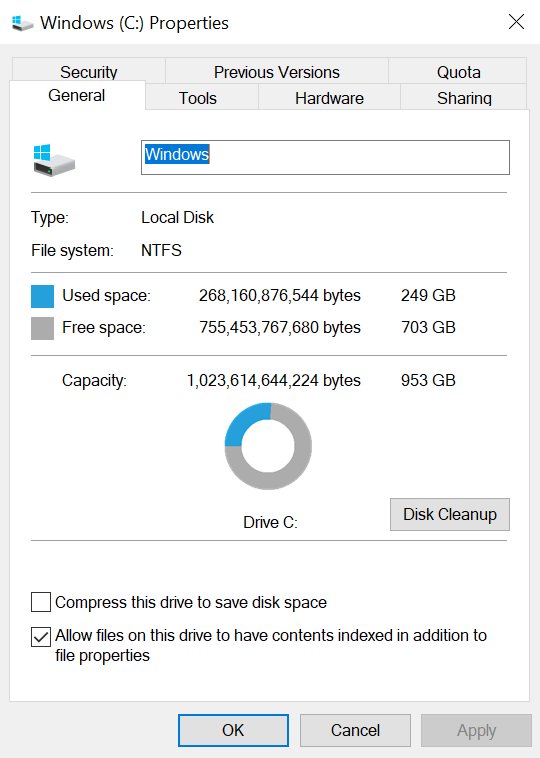
File Explorer offers a graphical error check in each drive's Properties dialog. It suits a quick check when you would rather not type commands.
- Press Windows + E to open File Explorer.
- Select This PC in the left pane.
- Right-click the drive you want to check, for example Local Disk (C:), and select Properties.
- Open the error-checking option in the Properties dialog and start the check.
- Approve the administrator prompt if Windows shows one.
- Wait for the scan to finish and read the result message.
The graphical check offers no switch choice. For a bad sector scan or to read exit codes, use the command line route below.
Run CHKDSK from Command Prompt or Windows Terminal
Command Prompt, Windows Terminal and PowerShell all run the same chkdsk.exe. The only requirement is an elevated window.
- Select Start, type
command, right-click Command Prompt and select Run as administrator. In Windows Terminal, open the same menu and choose Run as administrator instead. - Select Yes at the User Account Control prompt.
- Type
chkdsk D:and press Enter for a read-only status report on drive D:. - Type
chkdsk D: /fand press Enter to fix file system errors. - Type
chkdsk D: /rinstead when you suspect bad sectors. - If the drive is in use, type
Yto schedule the check, then restart the PC. - Read the summary at the end of the output before closing the window.
While chkdsk runs on a drive, you cannot open files on that drive. Interrupting it is not recommended, though Microsoft states that cancelling should not leave the volume more corrupt than before.
Run chkdsk from PowerShell with Repair-Volume
PowerShell's Repair-Volume cmdlet calls the same repair engine with readable switch names. Run it in an elevated PowerShell or Terminal window.
| Your goal | Repair-Volume command | Same as chkdsk |
|---|---|---|
| Scan online and log problems without repairing | Repair-Volume -DriveLetter C -Scan |
chkdsk C: /scan |
| Briefly take the volume offline and fix only logged problems | Repair-Volume -DriveLetter C -SpotFix |
chkdsk C: /spotfix |
| Take the volume offline and fix every error found | Repair-Volume -DriveLetter D -OfflineScanAndFix |
chkdsk D: /f |
Chkdsk command syntax
Every chkdsk command follows one pattern: the drive letter first, then the switches. Switches can be combined, and /r already includes /f.
| Part | Example | Meaning |
|---|---|---|
| Command | chkdsk | Runs Check Disk |
| Volume | C: | The drive letter followed by a colon, a mount point, or a volume name |
| Repair switch | /f | Fixes file system errors; the disk must be locked |
| Surface switch | /r | Finds bad sectors and recovers readable data; includes /f |
| Help | /? | Lists every switch at the command prompt |
The full syntax adds about twenty switches for NTFS log size, FAT chains and speed tuning. The complete list of chkdsk commands explains each one with examples.
Understand common CHKDSK commands and repair options
Most Windows 11 users need only four commands. Pick the row that matches your problem.
| Command | What it does | Takes the drive offline? | Use it when |
|---|---|---|---|
| chkdsk C: /scan | Runs an online scan of an NTFS volume and queues problems it cannot fix online | No | You want a safe first look without a restart |
| chkdsk C: /spotfix | Fixes only the problems logged by a previous scan | Briefly | A /scan run found errors and you want the shortest repair |
| chkdsk C: /f | Fixes file system errors | Yes; on C: it runs at restart | Windows reports corruption or files will not open |
| chkdsk C: /r | Does everything /f does and also scans for bad sectors, recovering readable data | Yes; on C: it runs at restart | You suspect physical damage on a hard drive |
| chkdsk D: /x | Forces the volume to dismount first, then fixes errors like /f | Yes, immediately | A data drive stays locked by an app |
| chkdsk D: /scan /perf | Uses more system resources so the online scan finishes faster | No | You can spare the PC while it scans |
Use /x with care: it invalidates every open handle to the drive, so unsaved work in apps using that drive is lost.
Scan for file system corruption with chkdsk /scan
An online scan checks the NTFS structure while Windows keeps running. Microsoft recommends this read-only scan as the first step when looking for storage problems.
chkdsk C: /scanScans the C: volume online. Problems it cannot fix while the drive is mounted are queued for an offline repair with /spotfix or /f.
You should see: The summary reports whether problems were found and, if any were, which offline repair is needed next.
Scan and repair bad sectors with chkdsk /r
The /r switch reads every sector to find physical damage, then recovers what it can and marks bad clusters so Windows stops using them. On large hard drives this can take hours; on SSDs it finishes faster because there is no seek time.
chkdsk C: /rLocates bad sectors and recovers readable information. It includes everything /f does, so you do not need to add /f. On the system drive, type Y to schedule it and restart.
You should see: After the restart, the log shows the scan stages completing and lists any bad clusters added to the bad cluster file.
Avoid running /r on an SSD over and over. Microsoft notes that repeated full-surface scans add write/erase cycles, though an occasional check is not a concern.
How to stop a scheduled chkdsk check on Windows 11
A check queued for the next restart can be removed before it starts. Microsoft does not recommend interrupting a check that is already running, but says doing so should not leave the volume more corrupt than before.
- To see whether a check is queued, open an elevated Command Prompt, type
chkntfs C:and press Enter. The output says if the drive is dirty or scheduled for a check. - To skip the queued check at the next startup, type
chkntfs /x C:and press Enter. - To restore the default boot-time checking later, type
chkntfs /dand press Enter. - Run chkdsk again when convenient, because the original errors remain until a repair finishes.
If the volume is marked dirty, excluding it only postpones the repair. The /x setting is not cumulative, so list every drive to exclude in one command, for example chkntfs /x d: e:.
How to tell if chkdsk is running and find chkdsk results
A check that runs at restart closes before the desktop appears, so its report goes to the Application log. Event Viewer shows it under two sources.
- Press Windows + R, type
eventvwr.mscand select OK. - Expand Windows Logs, right-click Application and select Filter Current Log.
- Open the Event sources list and tick Chkdsk and Wininit.
- Select OK, then open the newest entry to read the full chkdsk report.
- Check the summary: a run that found and fixed errors says so, and a clean run says no problems were found.
- For a check queued at restart, run
chkntfs C:beforehand; the output confirms the drive is scheduled.
In PowerShell, get-winevent -FilterHashTable @{logname="Application"} | ?{$_.providername -match "chkdsk"} | fl timecreated, message prints the latest report. Swap "chkdsk" for "wininit" to see the report from a boot-time check.
Scripts can read the exit code instead: 0 means no errors, 1 means errors were found and fixed, 2 means cleanup ran or was skipped without /f, and 3 means the disk could not be checked or the errors were not fixed.
Why won't chkdsk run on Windows 11?
"Chkdsk cannot run because the volume is in use by another process"
Chkdsk needs to lock the drive to fix errors, and Windows or an app has files open on it.
- Type
Yand press Enter to schedule the check for the next restart. - Restart the PC and let the check finish without pressing a key.
- For a data drive, close apps using it or run
chkdsk D: /xto force a dismount.
Access denied or "You do not have enough privileges"
The window is not elevated; chkdsk requires the local Administrators group.
- Close the window.
- Press the Windows key, type
cmdand press Ctrl + Shift + Enter. - Select Yes at the User Account Control prompt and run the command again.
Chkdsk will not run on a network drive
Chkdsk works only on local disks, not on drive letters redirected over the network.
- Sign in to the PC or server that holds the drive.
- Run chkdsk there from an elevated window.
The scheduled check never runs at restart
The drive may be excluded from boot-time checking by an earlier chkntfs /x command.
- Run
chkntfs /dfrom an elevated Command Prompt to restore the defaults. - Run
chkdsk C: /fagain and typeY. - Restart the PC.
Chkdsk finishes far too quickly on a large drive
The run was only an online scan, did not reach every sector, or the drive was locked by another process.
- Run
chkdsk C: /rand schedule it for the restart, so the scan runs offline. - Read the report in Event Viewer under the Wininit source after Windows starts.
- If the hard drive still behaves unpredictably, suspect a failing read head and back up your files.
Windows will not start, so chkdsk cannot be opened
File system damage on C: can stop Windows from booting.
- Hold Shift while you select Power > Restart to open Windows Recovery Environment.
- Open Command Prompt from the recovery tools.
- Run
chkdsk C: /fto repair the Windows drive, then restart.
What to do if CHKDSK finds errors or cannot repair the drive
Chkdsk reports errors but says it did not fix them
The run was read-only, because /f, /r or /scan with a follow-up repair was not used.
- Run
chkdsk C: /ffrom an elevated window. - Type
Yif asked to schedule the check, then restart. - Run
chkdsk C: /scanafterwards to confirm the volume is clean.
Chkdsk cannot repair the drive or the same errors return
Failing hardware, an outdated storage driver or firmware, or bad sectors keep damaging the file system.
- Back up everything readable on the drive right away.
- Run
chkdsk C: /ronce to recover readable data from damaged sectors. - Update the storage controller driver and the drive firmware from the PC or drive maker.
- Check Settings > System > Storage > Advanced storage settings > Disks & volumes > Properties for a critical warning on an NVMe SSD.
- Replace the drive and restore from your backup if errors keep coming back.
Files went missing after chkdsk on a USB stick or FAT drive
On FAT drives, chkdsk can save recovered fragments from lost chains as files instead of their original names.
- Open the root folder of the drive.
- Look for files named File0000.chk, File0001.chk and so on.
- Open them in a suitable app or rename them with the right extension to check whether they hold your data.
Chkdsk runs at every startup
The volume stays marked dirty because the repair did not complete.
- Let one check finish completely without interrupting it.
- Run
fsutil dirty query C:in an elevated window to see whether the volume is still dirty. - If it stays dirty, run
chkdsk C: /rand back up the drive, as the hardware may be failing.
Chkdsk on Windows 11 FAQ
How do I run chkdsk on the C: drive?
Open Command Prompt as administrator, type chkdsk C: /f and press Enter. Because Windows is using C:, chkdsk asks to schedule the check; type Y, then restart the PC. The repair runs before the desktop loads.
Should I run chkdsk /f, /r, or /scan in Windows 11?
Start with /scan, which checks the drive online without a restart. Use /f to fix file system errors it finds. Use /r only when you suspect bad sectors, because it reads every sector and takes much longer on hard drives.
Does chkdsk fix problems on an SSD, or is it only for hard drives?
Chkdsk repairs the file system on SSDs and hard drives alike. On an SSD, /r runs faster because there is no seek time, and marking clusters bad is a logical change. Avoid repeated /r runs, which add write cycles.
Can chkdsk delete files or make data loss worse?
Repairs on FAT drives change the file allocation table and sometimes lose data, and lost fragments may be saved as .chk files. Cancelling it does not add corruption, according to Microsoft. Back up important files before running /f or /r.
Why does Command Prompt run chkdsk at startup?
Windows runs chkdsk at startup when a check was scheduled with Y, or when the volume's dirty bit is set after corruption is detected. Run chkntfs C: to see whether the drive is dirty or scheduled for a check.
How do I tell if chkdsk is running?
A running check shows progress in its Command Prompt window, or as a full-screen check before Windows loads. Afterwards, Event Viewer's Application log holds the report under the Chkdsk or Wininit source.
How do I stop chkdsk while it is running?
To stop a check queued for the next startup, run chkntfs /x C: as administrator. Microsoft advises against interrupting a running check, though doing so should not add corruption. The original errors stay until a repair finishes.
How does chkdsk work?
Chkdsk reads the file system's records, such as file entries, folder indexes and free-space maps, and checks that they agree with each other. With /f it corrects mismatches, and with /r it also reads every sector to find physical damage.
How long does chkdsk take?
A /scan or /f run on an SSD often completes quickly. A /r scan on a large hard drive reads every sector, and Microsoft notes runs of several hours are not unusual. Drives with millions of files also take longer.
What should I do if chkdsk finds errors but cannot repair them?
Back up the drive straight away, then run chkdsk /r once to recover readable data. Update storage drivers and firmware. If errors keep returning, the drive is likely failing and should be replaced, then restored from backup.
Bottom line: when to run chkdsk on a Windows 11 hard drive
Run chkdsk C: /scan whenever Windows reports drive errors or files will not open, follow it with /f to repair, and keep /r for suspected bad sectors on a hard drive. The online scan is read-only and needs no restart, /f fixes the file system safely at boot, and /r is the slow full-surface pass that only physical damage justifies. Back up first, because chkdsk repairs structure, not failing hardware.