Microsoft states that the Local Group Policy Editor is not available on Windows Home edition, so the supported way to enable gpedit.msc on Windows 11 Home is to upgrade to Windows 11 Pro through Settings > System > Activation.
This guide covers checking your edition, the upgrade, the unofficial batch-file scripts and their risks, the registry alternative, and fixes for common gpedit.msc errors.
Should you upgrade to Windows 11 Pro instead?
Yes, if you need Group Policy regularly. Microsoft calls the Microsoft Store the best way to upgrade from Windows 11 Home to Pro, and Pro also adds BitLocker Drive Encryption, Remote Desktop and domain or Microsoft Entra ID join.
- Select Start > Settings > System > Activation.
- Confirm the edition at the top says Windows 11 Home and Activation state shows it is activated.
- If you have a Windows 11 Pro product key, select Change next to Change product key, enter the 25-character key and select Next.
- If you do not have a key, expand Upgrade your edition of Windows and select Open Store, then buy Windows 11 Pro while signed in with your Microsoft account.
- Restart when prompted, then press Windows + R, type
gpedit.mscand press Enter.
If Windows 11 Home is not activated, Microsoft recommends activating it before you upgrade.
What is Local Group Policy Editor?
The Local Group Policy Editor is a Microsoft Management Console (MMC) snap-in that gives one interface for every setting in the local Group Policy object. Microsoft recommends that only experienced administrators use it, because changes can significantly affect how the PC works.
| Edition | gpedit.msc included? | Your options |
|---|---|---|
| Windows 11 Home | No | Upgrade to Pro, or set individual policies in the registry |
| Windows 11 Pro | Yes | Press Windows + R and run gpedit.msc |
| Windows 11 Enterprise and Education | Yes | Same as Pro; some policies apply only to these editions |
Check your Windows 11 edition first
- Select Start > Settings > System > Activation.
- Read the edition shown at the top of the window next to the Windows logo.
- Check Activation state shows the copy is activated.
- If the edition already says Pro, Enterprise or Education, gpedit.msc is included; open it with Windows + R and
gpedit.msc.
Important limitations on Windows 11 Home
Scripts circulate online that claim to add gpedit.msc to Home, usually as Method 1, a batch file, or Method 2, the same commands typed into Command Prompt. Microsoft does not document or support either route.
| Route | Supported by Microsoft? | What to expect |
|---|---|---|
| Method 1: Enable gpedit.msc using a batch file | No | Runs package commands as administrator; results vary and a Windows update can undo or break them |
| Method 2: Enable gpedit.msc manually with Command Prompt | No | Same commands typed by hand, with the same risks |
| Upgrade to Windows 11 Pro | Yes | gpedit.msc included and supported |
| Edit the registry | Yes, per policy | Works only for policies that list Home as a supported edition |
Even where gpedit.msc appears on Home, many policies list only Pro, Enterprise and Education as supported editions and have no effect on Home.
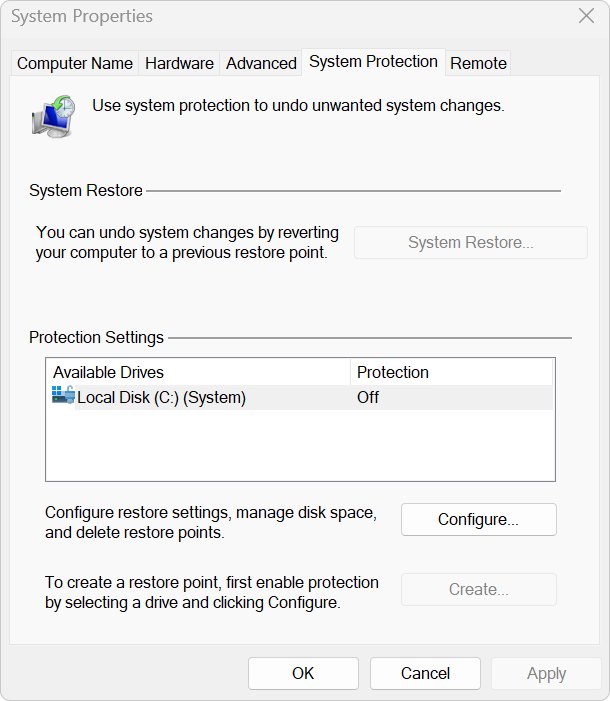
Create a restore point before you begin
Create one before any policy or registry change. A restore point captures system files, installed apps, the registry and system settings.
- Select Start, type Create a restore point and open the result.
- On the System Protection tab, select your system drive and select Configure… if protection is off.
- Select Turn on system protection, set the disk space slider and select Apply.
- Back on the System Protection tab, select Create…, type a description and select Create.
How to use gpedit.msc after enabling it
Once you are on Pro, the editor opens the same way every time. A full walkthrough of the ways to open Group Policy Editor in Windows 11 covers Run, search and Command Prompt.
- Press Windows + R, type
gpedit.mscand press Enter. - Expand Computer Configuration for machine-wide policies or User Configuration for per-user ones.
- Open Administrative Templates and browse to the area you need, such as Windows Components.
- Double-click a policy, choose enabled or disabled, and select OK. Choosing not configured returns it to the default.
- Open Command Prompt and run
gpupdate /forceto reapply all policy settings now.
Apply policy changes immediately
gpupdate /force/force reapplies all policy settings; without it, only changed settings apply. Add /target:computer or /target:user to refresh only one side. Some extensions apply only at startup; /boot restarts the PC when they need it.
You should see: The command finishes without errors and the policy you changed takes effect.
Where Group Policy settings are stored
| Item | Location | What it holds |
|---|---|---|
| Registry.pol files | Folders under C:\Windows\System32\GroupPolicy | One file for computer settings and one for user settings; the editor saves to them on exit |
| Policy registry values | Registry keys such as SOFTWARE\Policies under HKEY_LOCAL_MACHINE or HKEY_CURRENT_USER | The values Windows reads; each policy's documentation names its key and value |
| Administrative templates | C:\Windows\PolicyDefinitions | .admx files and language-specific .adml files that define the settings the editor shows |
Alternative: edit the registry directly
This is the supported way to set an individual policy on Home. Microsoft warns that improper registry changes can stop Windows from starting, so back up first.
- Find the policy in Microsoft's Policy CSP documentation on Microsoft Learn and check its Editions list includes Home.
- Note the Registry Key Name and Registry Value Name the page lists.
- Create a restore point, then press Windows + R, type
regeditand press Enter. - Browse to the key under HKEY_LOCAL_MACHINE, creating any missing keys.
- Create the value with the name and data the documentation gives.
- Restart the PC or run
gpupdate /force, then check the setting took effect.
Alternative: use Policy Plus
Treat Policy Plus as a third-party tool, not a Microsoft product, and prefer the Pro upgrade or documented registry values. Microsoft does not publish or support Policy Plus, and no editor can make a policy work on an edition that Microsoft does not list as supported for it.
How to check gpedit.msc is working
- Press Windows + R, type
gpedit.mscand press Enter; the Local Group Policy Editor window should open. - Confirm both Computer Configuration and User Configuration appear in the left pane.
- Expand Administrative Templates and check folders such as Windows Components are listed.
- Change a harmless policy, run
gpupdate /force, and confirm the change takes effect.
Fix: “Windows cannot find gpedit.msc” after running the script
"Windows cannot find 'gpedit.msc'"
The PC runs Windows 11 Home, which does not include the editor, or an unofficial script did not install it.
- Check the edition in Settings > System > Activation.
- If it says Home, upgrade to Pro or use the registry alternative.
- If it says Pro, run
DISM.exe /Online /Cleanup-image /Restorehealthand thensfc /scannowin an administrator Command Prompt, and restart.
Fix: gpedit.msc opens but shows missing templates
Administrative Templates are empty or report .admx errors
The .admx and .adml files in C:\Windows\PolicyDefinitions are missing, mismatched or incomplete.
- Install all pending updates from Settings > Windows Update, which service the built-in templates.
- Run
DISM.exe /Online /Cleanup-image /Restorehealth, thensfc /scannow, as administrator. - Do not copy downloaded .admx packages over C:\Windows\PolicyDefinitions; Microsoft says replacing files there is not supported.
Fix: “MMC could not create the snap-in”
MMC opens but the Group Policy snap-in fails to load
System files the snap-in depends on are damaged, often after an unofficial script.
- Select Search, type cmd, right-click Command Prompt and select Run as administrator.
- Run
DISM.exe /Online /Cleanup-image /Restorehealth. - Run
sfc /scannowand leave the window open until verification reaches 100%. - Restart and open
gpedit.mscagain. If it still fails, restore the restore point you created.
How to undo the gpedit.msc enablement
- To undo a single policy, open it in
gpedit.msc, choose not configured and select OK, then rungpupdate /force. - To undo a registry-based policy, delete the value you created in regedit and restart.
- To undo an unofficial script or several changes at once, select Start, type Create a restore point, run System Restore from the System Protection tab, and pick the restore point from before the change.
- After an upgrade to Pro, gpedit.msc stays available; there is nothing to remove.
Best practices when changing local Group Policy
- Create a restore point before each round of changes.
- Change one policy at a time and test it before the next.
- Write down every policy you change and its old state.
- Check each policy's supported editions before relying on it.
- Use
gpupdate /forceinstead of repeated restarts to apply changes. - Return policies to not configured when you no longer need them.
Frequently asked questions
How do I enable Local Group Policy Editor in Windows 11?
On Windows 11 Pro, Enterprise or Education it is already there: press Windows + R and run gpedit.msc. On Windows 11 Home it is not included, so upgrade to Pro in Settings > System > Activation to get it.
How do I open Local Group Policy?
Press Windows + R, type gpedit.msc and press Enter, or search for it from the Start menu. It opens only on Pro, Enterprise and Education editions of Windows.
How do I enable Group Policy on Windows 11 Home?
Microsoft does not offer Group Policy Editor on Home. Upgrade to Windows 11 Pro for full support, or set individual policies with the registry values listed in Microsoft's Policy CSP documentation when Home is a supported edition.
How do I apply local Group Policy changes?
Most changes apply at the next background refresh or restart. To apply them now, run gpupdate /force in Command Prompt, which reapplies all policy settings. Some settings still need a restart.
How do I disable a local Group Policy?
Open the policy in gpedit.msc and set it to disabled to turn its feature off, or to not configured to return to the Windows default. Run gpupdate /force so the change applies immediately.
How do I create a local Group Policy?
gpedit.msc edits the local Group Policy object. Rather than creating a new policy, you configure the existing settings inside it under Computer Configuration or User Configuration.
Where are local Group Policy settings stored?
The editor saves registry-based settings in two Registry.pol files in folders under C:\Windows\System32\GroupPolicy, one for computer settings and one for user settings, and Windows applies them as registry values.
Is it safe to run a script to enable gpedit.msc on Home?
Microsoft does not document or support those scripts. They run as administrator, can break with updates, and many policies still do not apply to Home. Upgrading to Pro is the supported option.