Press Windows key + R, type compmgmt.msc and press Enter to open the Computer Management console on Windows 11 and Windows 10.
This guide covers the Start menu, Run, Command Prompt, PowerShell, Control Panel and shortcut routes, how to launch it as administrator, how to point it at another PC, and what to do when it will not open.
Fastest way to open Computer Management with compmgmt.msc
The Run command is identical on Windows 11 and Windows 10, and it works even when Start menu search is slow.
- Press Windows key + R to open the Run box.
- Type
compmgmt.mscin the Open field. - Press Enter or select OK.
- Wait for the Computer Management window to appear with Computer Management (Local) at the top of the left pane.
A mouse-only alternative is just as quick: right-click the Start button and select Computer Management.
Ways to open Computer Management compared
| Your situation | Use this | Why |
|---|---|---|
| Keyboard works and you know the command | Windows key + R, then compmgmt.msc |
Two keystrokes and one word, same on every edition |
| Mouse only | Right-click Start > Computer Management | No typing at all |
| You do not remember the command name | Search Computer Management from Start | Search matches the plain name |
| You are already in a terminal | Type compmgmt.msc at the prompt |
Works in Command Prompt, PowerShell and Windows Terminal |
| You need Disk Management or other admin-only actions | Search result > Run as administrator | Starts the console elevated so changes are allowed |
| You manage another PC or a server | Right-click Computer Management (Local) > Connect to another computer | One console manages the remote machine |
| You open it every day | Desktop shortcut, or pin it to Start or the taskbar | One click from then on |
What is Computer Management and when should you use it?
Computer Management is a Microsoft Management Console (MMC) snap-in that gathers the main administrative tools for disks, services, devices, shared folders and users into one window.
MMC is the framework that hosts these tools, and compmgmt.msc is the saved console file that loads this particular set. It manages the local computer by default and can also connect to a remote one.
| Job you want to do | Where it sits in Computer Management | Standalone console |
|---|---|---|
| Initialize a disk, create or format a volume, change a drive letter | Storage > Disk Management | diskmgmt.msc |
| Start, stop or change the startup type of a Windows service | Services | services.msc |
| Update, disable or roll back a device driver | Device Manager | devmgmt.msc |
| Read system, security and application logs after a crash | Event Viewer | eventvwr.msc |
| See which folders this PC shares and who has them open | Shared Folders | Inside Computer Management |
| Create local accounts and edit group membership | Local Users and Groups | Inside Computer Management |
Use Computer Management when a job touches more than one of these areas, such as checking a driver in Device Manager and then the matching error in Event Viewer. For one task only, the standalone console opens faster; you can also open Disk Management or manage Windows services with services.msc on their own.
Open Computer Management from the Start menu or Windows Search
Both Windows 11 and Windows 10 list Computer Management in the Start button's right-click menu, also called the power-user menu, and in search results.
| Route | Steps | Works on |
|---|---|---|
| Power-user menu | Right-click Start (or press Windows key + X), then select Computer Management | Windows 11 and Windows 10 |
| Windows Search on Windows 11 | Select Start or the search box, type Computer Management, then select the Computer Management result | Windows 11 |
| Windows Search on Windows 10 | Type Computer Management in the search box on the taskbar, then select the result | Windows 10 |
| Search by command name | Type compmgmt.msc in search and press Enter |
Windows 11 and Windows 10 |
Open compmgmt.msc with Run, Command Prompt, PowerShell, or Windows Terminal
Microsoft documents that an MMC command works in the Run box, in any command-prompt window, in shortcuts and in batch files. The same single word therefore opens the console from every shell.
In Command Prompt, PowerShell or a Windows Terminal tab, type the command and press Enter. To open Command Prompt first, type cmd in the search box and select Command Prompt.
compmgmt.mscRuns the Computer Management saved console in MMC. The long form mmc %SystemRoot%\system32\compmgmt.msc does the same thing with the full path to the console file, which suits scripts and shortcuts.
You should see: A window titled Computer Management opens and the prompt returns immediately, ready for the next command.
In the Run box you can also type mmc on its own. That opens an empty console, not Computer Management, so add snap-ins from File > Add/Remove Snap-in or use compmgmt.msc instead.
Open Computer Management from File Explorer, Control Panel, or the PC icon
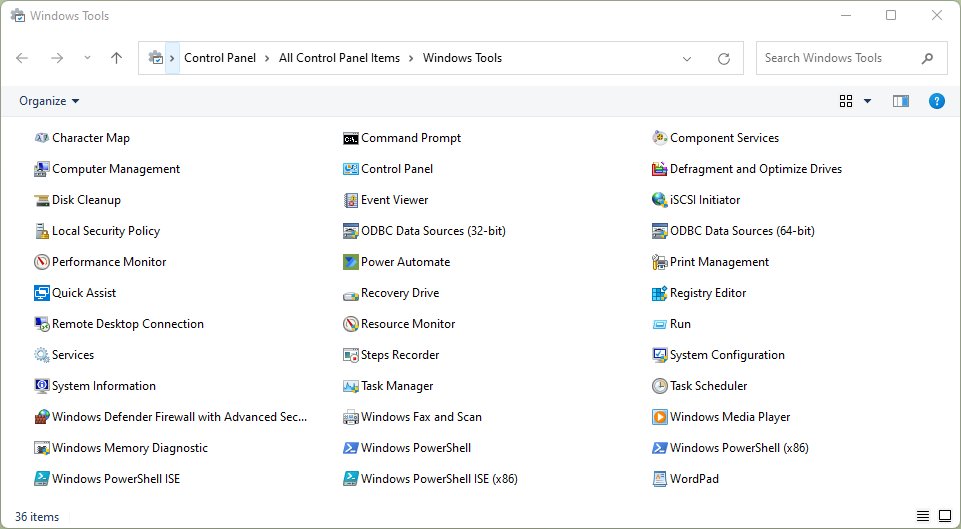
These routes help when you already have one of these windows open. Microsoft names the Control Panel folder Windows Tools on Windows 11 and Administrative Tools on Windows 10, and its contents vary by edition.
| Starting point | Steps |
|---|---|
| Control Panel on Windows 11 | Open Control Panel, select Windows Tools, then double-click Computer Management |
| Control Panel on Windows 10 | Open Control Panel, select Administrative Tools, then double-click Computer Management |
| File Explorer address bar | Click the address bar, type compmgmt.msc and press Enter |
| File Explorer folder | Browse to C:\Windows\System32 and double-click compmgmt.msc |
| This PC on Windows 11 | Right-click This PC, select Show more options, then select Manage |
| This PC on Windows 10 | Right-click This PC on the desktop or in File Explorer, then select Manage |
To open Control Panel quickly, press Windows key + R, type control and press Enter. Set View by to Large icons if Windows Tools or Administrative Tools is not listed in Category view.
Create a desktop, taskbar, or Start shortcut for compmgmt.msc
A shortcut turns Computer Management into a one-click launch. The third group creates a shortcut that always asks for administrator access.
| Shortcut | Steps |
|---|---|
| Desktop shortcut | Right-click an empty part of the desktop, select New > Shortcut, type compmgmt.msc as the location, select Next, name it Computer Management and select Finish |
| Pin to Start | Search Computer Management, right-click the result and select Pin to Start |
| Pin to the taskbar | Search Computer Management, right-click the result and select Pin to taskbar |
| Shortcut that always asks for admin access | Create a desktop shortcut with the location mmc.exe %SystemRoot%\system32\compmgmt.msc, then right-click it, select Properties > Shortcut > Advanced, tick Run as administrator and select OK twice |
Using %SystemRoot% instead of C:\Windows keeps the shortcut working if you copy it to a PC where Windows lives on another drive.
Run Computer Management as administrator
Computer Management opens for any user, but changes such as creating a partition in Disk Management require an administrator account. If a tool inside the console reports that access is denied, close it and launch it elevated with one of these routes.
- Select Start and type Computer Management.
- Right-click Computer Management in the results list.
- Select Run as administrator.
- Select Yes in the User Account Control prompt, or type an administrator password if Windows asks for one.
- Alternatively, right-click Start, select Terminal (Admin) on Windows 11 or Windows PowerShell (Admin) on Windows 10, then type
compmgmt.mscand press Enter; the console inherits the terminal's administrator rights. - From an existing PowerShell window, run
Start-Process mmc.exe -ArgumentList "$env:SystemRoot\system32\compmgmt.msc" -Verb RunAsto get the same elevation prompt.
Connect Computer Management to another computer or Windows Server
The same console manages a remote PC or a Server Core installation that has no desktop. Both machines must be on the same network, and your account needs administrator rights on the remote one.
- Open Computer Management on your own PC with
compmgmt.msc. - In the left pane, right-click Computer Management (Local).
- Select Connect to another computer.
- In Another computer, type the remote computer name and select OK.
- If the remote machine is not in your domain, first store its credentials by running
cmdkey /add:<ServerName> /user:<UserName>in Command Prompt, then repeat steps 2 to 4. - If a tool fails to connect, run
Enable-NetFirewallRule -DisplayGroup "Windows Remote Management"in an elevated PowerShell window on the remote machine to allow MMC snap-ins through its firewall.
Disk Management needs extra setup for remote use: the Virtual Disk Service must be running on the remote computer. Microsoft's rule groups for single tools are Remote Event Log Management (Event Viewer), Remote Service Management (Services), File and Printer Sharing (Shared Folders) and Remote Volume Management (Disk Management).
How to check Computer Management opened with admin rights
- Look at the window title: it reads Computer Management.
- Check the top of the left pane: it shows Computer Management (Local), or the remote computer's name if you connected to one.
- Expand Storage and select Disk Management: the lower pane lists every disk and its volumes.
- Right-click an unallocated region and check that New Simple Volume is available, then press Esc to close the menu without changing anything.
- If you launched it from Terminal (Admin), the terminal title bar reads Administrator, which confirms that the console started from it is elevated too.
Fix compmgmt.msc not opening on Windows 10 or Windows 11
Windows says it cannot find compmgmt.msc
A typo in the command, or a damaged console file in the system folder.
- Retype the command exactly as
compmgmt.msc, with no spaces and the.mscextension. - Try the direct launch
mmc %SystemRoot%\system32\compmgmt.mscfrom the Run box. - If both fail, open the console from right-click Start > Computer Management to rule out the Run box itself.
- If no route works, repair system files with the DISM and SFC steps under the next symptom.
Computer Management opens but a tool says access is denied
The console is running without administrator permissions.
- Close Computer Management.
- Search Computer Management, right-click the result and select Run as administrator > Yes.
- If no Yes button appears and Windows asks for a password, sign in with an administrator account or ask the person who manages the PC.
Computer Management crashes, closes straight away or opens blank
Missing or corrupted Windows system files that MMC depends on.
- Type
cmdin the search box, right-click Command Prompt and select Run as administrator. - Run
DISM.exe /Online /Cleanup-image /Restorehealthand wait for it to finish; it can take several minutes. - Run
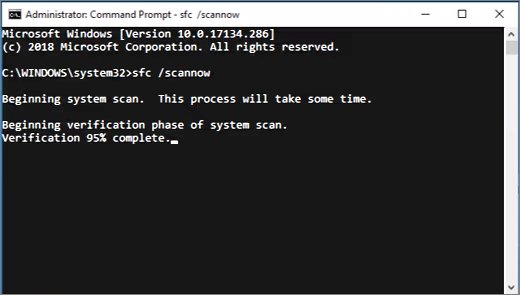
sfc /scannowand keep the window open until verification reaches 100%. - Restart the PC and run
compmgmt.mscagain. - If SFC reports Windows Resource Protection could not perform the requested operation, run the same scan again in Safe Mode.
A message says policy is prohibiting the use of this snap-in
Group Policy has prohibited the Computer Management snap-in, or restricts users to an explicit list of permitted snap-ins.
- On a work or school PC, contact your IT department, because they set this policy deliberately.
- On your own Pro, Enterprise or Education PC, press Windows key + R, type
gpedit.mscand press Enter. - Go to User Configuration > Administrative Templates > Windows Components > Microsoft Management Console.
- Open Restrict users to the explicitly permitted list of snap-ins and set it to Not Configured unless you want that restriction.
- Open Restricted/Permitted snap-ins, double-click Computer Management, select Not Configured or Enabled, and select OK.
- Run
compmgmt.mscagain.
Computer Management works for another account but not yours
A problem in your user profile or a startup program, not in Windows itself.
- Sign in with another administrator account, or create a test account from Settings > Accounts.
- Run
compmgmt.mscfrom that account. - If it opens there, the fault is tied to your profile, so move your files to the new account or repair the old one.
- If it fails everywhere, start Windows in Safe Mode and try again: success in Safe Mode points to a third-party program or driver that loads at startup.
The Local Group Policy Editor is not available on Windows Home, so the policy fix above applies to Pro, Enterprise and Education editions.
Computer Management (compmgmt.msc) FAQ
How do I open Microsoft Management Console?
Press Windows key + R, type mmc and press Enter. That opens an empty Microsoft Management Console where you add snap-ins from File > Add/Remove Snap-in. To open a ready-made console instead, type its file name, such as compmgmt.msc for Computer Management.
What is the command to launch the Computer Management console?
The command is compmgmt.msc. Type it in the Run box, Command Prompt, PowerShell or Windows Terminal and press Enter. The longer form mmc %SystemRoot%\system32\compmgmt.msc does the same and suits scripts and shortcuts because it names the full console path.
What is a management console in Windows?
A management console is an MMC window that hosts one or more administrative tools called snap-ins. Computer Management, Event Viewer and the Local Group Policy Editor are all MMC consoles, and you can build a custom console that contains only the snap-ins you use.
Where do I find Microsoft Management Console?
Microsoft Management Console has no Start menu tile of its own. Open it by typing mmc in the Run box or the search box. Ready-made consoles such as Computer Management sit in the Windows Tools folder of Control Panel on Windows 11, or Administrative Tools on Windows 10.
How do I open the management console on Windows Server?
On a Windows Server with a desktop, press Windows key + R and run compmgmt.msc, exactly as on Windows 11. For Server Core, open Computer Management on another computer, right-click Computer Management (Local), select Connect to another computer and type the server name.
How do I open Computer Management on a laptop?
Laptops use the same routes as desktops. Right-click the Start button and select Computer Management, or press Windows key + R, type compmgmt.msc and press Enter. On a touchscreen, press and hold the Start button instead of right-clicking it.
How do I open the command console on a PC?
Type cmd in the search box on the taskbar and select Command Prompt, or right-click it and choose Run as administrator for an elevated window. From that console you can type compmgmt.msc to open Computer Management without returning to the Start menu.
Can I open Computer Management without administrator rights?
Yes. A standard user can open Computer Management and view most information, but changes such as creating or formatting a volume in Disk Management require an administrator account. Use Run as administrator, or ask an administrator to sign in, when a tool reports access denied.
Is Computer Management available on Windows 11 Home?
Yes. Computer Management opens on Home, Pro, Enterprise and Education editions with compmgmt.msc or the Start button's right-click menu. Microsoft notes that the tools in the Windows Tools folder vary by edition, and the Local Group Policy Editor is missing from Home.
How do I start Computer Management for a remote computer?
Open Computer Management locally, right-click Computer Management (Local) in the left pane and select Connect to another computer. Type the remote computer name and select OK. Your account needs administrator rights on that computer, and its firewall must allow remote management.
Bottom line: best way to open Computer Management on Windows 11 and 10
Learn compmgmt.msc and launch it from the Run box with Windows key + R; switch to Run as administrator from Start search whenever you plan to change disks, services or accounts. The Run command is identical on Windows 10, Windows 11 and Windows Server, it bypasses search and menu changes between builds, and the same name works in every terminal, shortcut and script.
If Task Manager is the tool you reach for first when something hangs, the Task Manager keyboard shortcuts are worth learning alongside this one.

![Error applying hard drive changes in Hyper-V [Fix]](https://techdows.com/wp-content/uploads/2026/10/Error-applying-hard-drive-changes-in-Hyper-V-Fix-1-600x338.jpg)





Open Task Scheduler in Windows 10 & 11 - Techdows
[…] Management, which you can open with compmgmt.msc, is an MMC console that groups Task Scheduler with Event Viewer, Device Manager, Disk Management […]