To open Local Users and Groups on Windows 11, press Windows logo key + R, type lusrmgr.msc and press Enter.
This guide covers every route to the console, the common user and group tasks inside it, and the command-line alternatives when the snap-in is not available.
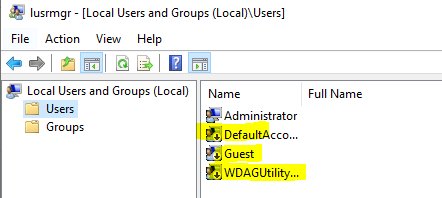
1. Run box (fastest)
- Press Windows logo key + R to open the Run dialog box.
- Type
lusrmgr.msc. - Press Enter or select OK.
- Select Users or Groups in the left pane to see the accounts on the PC.
Changes inside the console need administrator rights. If you are signed in as a standard user, Windows asks for an administrator's credentials before it applies them.
The same Run box opens other admin consoles, such as the Group Policy Editor with gpedit.msc.
Open Local Users and Groups on Windows 11/10
Every route opens the same console. Pick the one that matches where you already are.
| Your situation | Use this | Why |
|---|---|---|
| Keyboard handy, fastest route | Run box: lusrmgr.msc |
One command, opens the console on its own |
| You also need Disk Management, Event Viewer or Services | Computer Management | Local Users and Groups sits under System Tools next to them |
| You already have an admin terminal open | Command Prompt or PowerShell: lusrmgr.msc |
Opens the console already elevated |
| You prefer menus to commands | Control Panel > Windows Tools > Computer Management | No typing; Windows Tools replaced Administrative Tools in Windows 11 |
| Windows 11 Pro PC with an administrator account | Run box or Computer Management | Access to Local Users and Groups works through every route in this guide |
| You only want to search for it | Start search: lusrmgr.msc |
No shortcut to remember |
| Windows 10 PC | Any of the above | The same lusrmgr.msc command and Computer Management path work on Windows 10 |
Background / overview of Local Users and Groups
Local Users and Groups is a Microsoft Management Console (MMC) snap-in for the accounts stored on this PC only. Local accounts have rights only on that device, and the PC itself is the security authority.
| Item | What it is | Default state |
|---|---|---|
| Users folder | Every local user account, including the built-in ones and those you create | Lists Administrator, Guest, DefaultAccount, WDAGUtilityAccount and your own accounts |
| Groups folder | Local security groups; rights given to a group apply to every member | Includes Administrators, Users and Guests |
| Built-in Administrator | Full control of the PC; can't be deleted or locked out, but can be renamed or disabled | Disabled by Windows setup |
| Guest | Temporary sign-in with limited rights | Disabled, with a blank password |
| DefaultAccount | System-managed account used by multi-user-aware apps | Disabled; Microsoft advises leaving it that way |
| WSIAccount | Windows 11 account used for web sign-in tasks from the lock screen | Member of the Users group |
Default local system accounts
Windows also keeps system accounts that services use to sign in internally. They don't appear in the Users folder of Local Users and Groups, and you don't manage them there.
| Account | Well-known SID | What it does |
|---|---|---|
| SYSTEM | S-1-5-18 | Used by the operating system and Windows services. Windows manages its user rights, and it can't be added to any group. It has Full Control of NTFS files by default. |
| LOCAL SERVICE | S-1-5-19 | Used by the service control manager. It has minimum privileges on the PC and presents anonymous credentials on the network. |
| NETWORK SERVICE | S-1-5-20 | Used by the service control manager. A service running as this account presents the computer's credentials to remote servers. |
Microsoft advises against removing the SYSTEM account's permissions from files, even though Windows allows it.
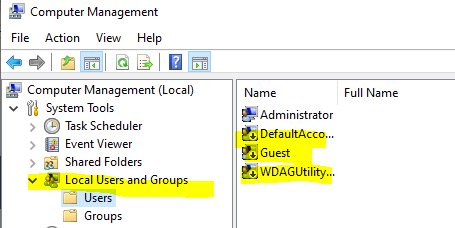
2. Computer Management
- Select Start, type Computer Management and open it.
- In the console tree, expand System Tools.
- Expand Local Users and Groups.
- Select Users or Groups to manage accounts in the middle pane.
You can also open Computer Management from the Run box with compmgmt.msc.
3. Command Prompt (elevated)
- Select Start and type cmd.
- Right-click Command Prompt and select Run as administrator.
- Select Yes on the User Account Control prompt.
- Type
lusrmgr.mscand press Enter.
Launching from an elevated prompt means the console starts with administrator rights, so edits apply without a second prompt.
4. PowerShell (elevated)
- Select Start and type PowerShell.
- Right-click Windows PowerShell and select Run as administrator, then approve the User Account Control prompt.
- Type
lusrmgr.mscand press Enter. - To list accounts without opening the console, run
Get-LocalUserinstead.
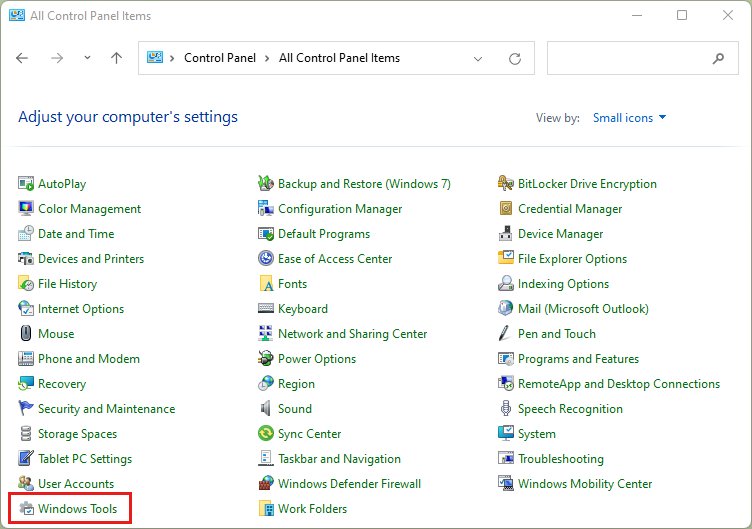
5. Control Panel → Windows Tools (formerly Administrative Tools)
Windows 11 renamed the Control Panel's Administrative Tools folder to Windows Tools. Windows 10 still calls it Administrative Tools.
- Select Start, type Control Panel and open it.
- Switch Control Panel to an icon view if needed, then select Windows Tools.
- Double-click Computer Management.
- Expand System Tools > Local Users and Groups.
6. Open Local Users and Groups by searching
- Select Start or the search box on the taskbar.
- Type
lusrmgr.mscand press Enter. - If you prefer the full console, type Computer Management instead, open it and expand System Tools > Local Users and Groups.
Search is handy when you don't remember a keyboard shortcut. Opening it this way runs the console with your current rights, so a standard user still gets an administrator prompt before changes apply.
Create a new local user (MMC)
This is one of the common tasks, step by step. You need to be a member of the Administrators group, or supply an administrator's credentials when asked.
- Open
lusrmgr.mscand select Users in the console tree. - On the Action menu, select New User.
- Enter a user name of up to 20 characters, then the password in Password and Confirm password.
- Select or clear User must change password at next logon, User cannot change password, Password never expires and Account is disabled.
- Select Create, then Close.
User names can't contain " / \ [ ] : ; | = , + * ? < > @ and can't consist only of periods or spaces.
Add or remove users from group
- In
lusrmgr.msc, select Groups in the console tree. - Right-click the group, for example Administrators, and select Add to Group.
- Select Add.
- Under Enter the object names to select, type the user name and select OK.
- To remove someone, select the account under Members and select Remove.
- Select OK to save the group.
From an elevated Command Prompt, net localgroup Administrators username /add adds a member and net localgroup Administrators username /delete removes one. In PowerShell, use Add-LocalGroupMember -Group "Administrators" -Member "username" and Remove-LocalGroupMember with the same parameters.
Disable or enable built-in Administrator
Windows setup leaves the built-in Administrator disabled and creates a separate admin account. Keep it disabled unless you need it, because the account is known to exist on every Windows PC.
net user Administrator /active:yesRun it in an elevated Command Prompt to enable the account; use /active:no to disable it again. In the console, open the account's Properties and select or clear Account is disabled.
You should see: Run net user Administrator afterwards to see the account details with its active status updated. In the console, a disabled account shows an X on its icon.
When the snap-in is missing (Windows 11 Home and other cases)
If lusrmgr.msc shows an error or Computer Management has no Local Users and Groups node, the edition or a policy is blocking the console. On Windows 11 Home this is the usual cause, and the accounts are still manageable by other means.
Home editions also ship without gpedit.msc, although you can enable the Local Group Policy Editor on Home separately.
| What you see | Likely reason | What to use instead |
|---|---|---|
Snap-in error when lusrmgr.msc opens |
The edition does not include the console | Settings, net user / net localgroup, or PowerShell LocalAccounts cmdlets |
| Computer Management opens, but Local Users and Groups is absent | Same edition limit | The same command-line tools |
| Console opens, but changes are refused | You are not signed in as an administrator | Run the console from an elevated prompt |
| PC is a domain controller | Local Users and Groups can't manage accounts on a DC | Active Directory tools for domain accounts |
Alternatives when Local Users and Groups is unavailable
| Task | Settings app | Command line |
|---|---|---|
| Add a local user | Settings > Accounts > Other user > Add account > I don't have this person's sign-in information > Add a user without a Microsoft account | net user name * /add or New-LocalUser |
| Make a user an administrator | Other user > select the account > Change account type > Administrator > OK | net localgroup Administrators name /add or Add-LocalGroupMember |
| Remove an account | Other user > select the account > Remove | net user name /delete or Remove-LocalUser |
| Enable or disable an account | Not available | net user name /active:no or Disable-LocalUser |
| List users and groups | Other user shows people only | net user, net localgroup or Get-LocalUser |
The same Settings page opens directly with ms-settings:otherusers.
Manage local user and group management in Windows Home using command line
net user and net localgroup are built into every edition, including Windows 11 Home. Run them in Command Prompt opened with Run as administrator.
net user jays * /add
net localgroup Users
net localgroup Administrators jays /add
net user jays /active:no
net user jays /delete
Line 1 creates user jays and prompts for a password (the asterisk keeps it off screen). Line 2 lists the members of the Users group. Line 3 adds jays to Administrators. Line 4 disables the account, and line 5 deletes it. Run net user on its own to list every local account.
You should see: Run net user jays after each change to confirm the account details, or net user to confirm the account is gone after the delete.
Workarounds and automation (for power users and IT)
The Microsoft.PowerShell.LocalAccounts module does in scripts what the console does by hand. It runs in 64-bit Windows PowerShell, not in 32-bit PowerShell on a 64-bit system.
| Cmdlet | What it does | Example |
|---|---|---|
| New-LocalUser | Creates a local user | $Password = Read-Host -AsSecureString then New-LocalUser -Name 'User03' -Password $Password -FullName 'Third User' |
| Add-LocalGroupMember | Adds users or groups to a local group | Add-LocalGroupMember -Group "Administrators" -Member "User03" |
| Remove-LocalGroupMember | Removes members from a local group | Remove-LocalGroupMember -Group "Administrators" -Member "User03" |
| Get-LocalGroupMember | Lists a group's members | Get-LocalGroupMember -Group "Administrators" |
| Enable-LocalUser / Disable-LocalUser | Turns an account on or off | Disable-LocalUser -Name 'User03' |
| Set-LocalUser / Rename-LocalUser | Changes or renames an account | Rename-LocalUser -Name 'User03' -NewName 'User04' |
| Remove-LocalUser | Deletes a local user | Remove-LocalUser -Name 'User04' |
Using Local Security Policy to check user rights
Local Users and Groups controls who belongs to which group. Local Security Policy (secpol.msc) controls what those users and groups are allowed to do, such as signing in locally or through Remote Desktop.
- Select Start, type
secpol.mscand press Enter. - Under Security Settings, expand Local Policies.
- Select User Rights Assignment.
- Double-click a right such as Allow log on locally, Allow log on through Remote Desktop Services or Change the system time to see which users and groups hold it.
- Make any change and select OK.
A change to a user right takes effect the next time that account signs in. If a setting is greyed out, a Group Policy object controls it. A user who can't sign in through Remote Desktop needs both membership of Remote Desktop Users in lusrmgr.msc and the matching right here.
Troubleshooting: why lusrmgr.msc fails and how to fix it
lusrmgr.msc opens with a snap-in or edition error
The installed edition, often Windows 11 Home, does not include the Local Users and Groups console.
- Select Start, type cmd, right-click Command Prompt and select Run as administrator.
- Use
net userandnet localgroupfor the task you wanted. - For add, remove and account-type changes, use Settings > Accounts > Other user.
Local Users and Groups is missing from Computer Management
Same edition limit, or the PC is a domain controller where the node can't manage local accounts.
- Open Computer Management and expand System Tools to confirm the node is absent.
- Switch to the PowerShell cmdlets such as
Get-LocalUserandAdd-LocalGroupMember. - On a domain controller, manage the accounts with Active Directory tools instead.
You can open the console but can't create or edit users
Your account is not a member of the Administrators group.
- Close the console.
- Open Command Prompt with Run as administrator and enter an administrator's credentials when asked.
- Type
lusrmgr.mscand press Enter to reopen the console elevated.
PowerShell says the LocalAccounts cmdlets are not recognized
The module isn't available in 32-bit PowerShell on a 64-bit system.
- Close the 32-bit (x86) PowerShell window.
- Select Start, type PowerShell and open Windows PowerShell, not the entry marked (x86).
- Run the cmdlet again.
Practical checklist for admins: safe steps to manage users in Windows 11
- Before a change, run
net localgroup Administratorsto record who has admin rights. - Make the change in the console, in Settings or from the command line.
- Run
net user usernameto confirm the account exists and shows the expected state. - Run
net localgroup Administratorsagain and confirm only the intended accounts are members. - Sign out and sign in with the new or changed account to prove it works.
Security and operational considerations (what to watch for)
| Risk | Why it matters | What to do |
|---|---|---|
| Too many administrators | Members of Administrators have full control of the PC | Keep the group small and use standard accounts day to day |
| Built-in Administrator enabled | The account name is known on every Windows PC | Leave it disabled; renaming keeps the same well-known SID |
| Changing the standard Windows users and groups | Built-in accounts and groups are used by Windows itself; the Administrator account can't even be removed from the Administrators group | Create your own accounts and groups for changes, and leave DefaultAccount and the built-in groups as they are |
| Guest enabled | It can provide anonymous access | Keep Guest disabled unless you truly need it |
| Shared local admin passwords | One stolen password unlocks every PC that reuses it | Give each local admin account a unique password; organisations can use Windows LAPS |
| Disabled admin in safe mode | Safe mode enables the built-in Administrator if no other admin is enabled | Keep at least one other administrator account enabled |
Local Users and Groups FAQs and quick answers
How do I open Local Users and Groups from Run?
Press Windows logo key + R, type lusrmgr.msc and press Enter. The console opens with Users and Groups folders in the left pane, and the same command works on Windows 11 and Windows 10.
How do I open Local Users and Groups as admin?
Open Command Prompt or Terminal with Run as administrator, approve the prompt, then type lusrmgr.msc and press Enter. The console inherits the elevated rights, so edits apply without another credential request.
What is the command to open Local Users and Groups in CMD?
Type lusrmgr.msc in Command Prompt and press Enter. For Computer Management with the same node under System Tools, type compmgmt.msc. Use an elevated prompt if you plan to make changes.
How do I open Local Users and Groups on Windows 10?
Use the same lusrmgr.msc command from the Run box, or open Computer Management and expand System Tools > Local Users and Groups. On Windows 10 the Control Panel folder is called Administrative Tools instead of Windows Tools.
What is a local user?
A local user is an account stored on one PC, not in a Microsoft account or a domain. The PC is its security authority, and the account has rights and permissions only on that device.
How do I create a local user on Windows 11?
Go to Settings > Accounts > Other user > Add account, select I don't have this person's sign-in information, then Add a user without a Microsoft account. In the console, use Action > New User instead.
How do I manage local users without lusrmgr.msc?
Use Settings > Accounts > Other user for adding, removing and changing account type. For everything else, net user, net localgroup and the PowerShell LocalAccounts cmdlets cover the same tasks on every edition.
How do I edit a user's groups in Local Users and Groups?
Open lusrmgr.msc, select Groups, right-click the group and select Add to Group. Select Add to add a member, or select a member and Remove to take them out, then select OK.
Closing analysis: strengths and risks
Use lusrmgr.msc from the Run box for one-off changes wherever the console is available, and switch to net user or the LocalAccounts cmdlets when the console is missing or you need to repeat a change. The console shows every user, group and account flag on one screen, which makes mistakes easy to spot. Its risk is the same as its strength: adding someone to Administrators takes three clicks, so check that group after every change.