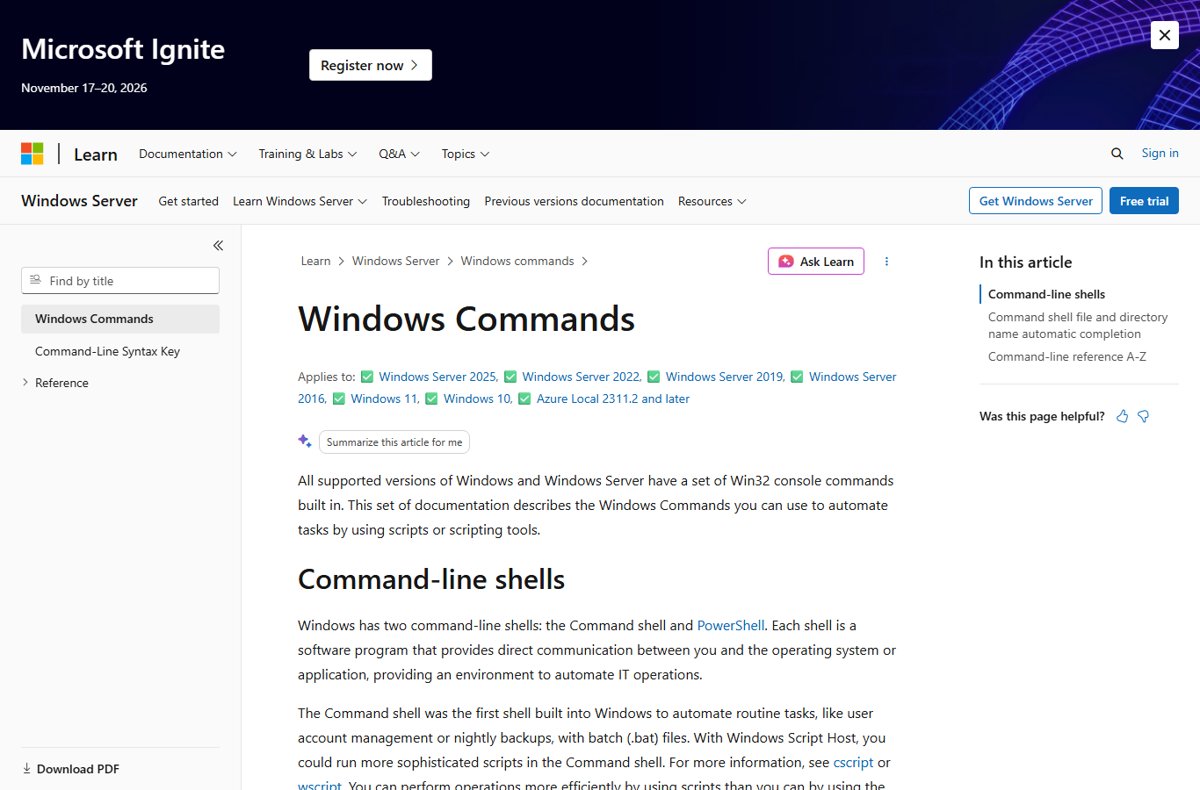
Type help in Command Prompt to print the built-in list of commands, and open Microsoft's A-Z Windows Commands reference for every command with its full syntax.
The tables below group the commands you will actually use on Windows 11 and Windows 10 by job, with the switches that matter, plus Wi-Fi, update-package and power commands.
Complete list of Command Prompt commands
Windows ships its own command list inside Command Prompt. Used without parameters, help lists and briefly describes every system command.
- Select Start, type cmd, and select Command Prompt.
- Type
helpand press Enter to print the list of built-in commands with a one-line description of each. - Type
helpfollowed by a command name, for examplehelp robocopy, to read the detailed help for that one command. - Add
/?to any command, for examplecls /?oripconfig /?, to display its syntax and switches at the prompt. - Open the Windows Commands A-Z reference on Microsoft Learn for every command, including subcommands such as
netsh wlanandbitsadmin.
The Microsoft reference applies to Windows 11, Windows 10 and Windows Server 2016 through 2025. Some entries, such as dcpromo or dnscmd, only exist on Windows Server.
Where to find the right command list for your task
| Your situation | Use this | Why |
|---|---|---|
| You want a quick overview at the prompt | help |
Lists and briefly describes the system commands without leaving Command Prompt |
| You know the command but not its switches | <command> /? |
Nearly every Windows command documents /? as "Displays help at the command prompt" |
| You need every command, including server tools | Microsoft Learn A-Z reference | Covers all Win32 console commands, with syntax, parameters and examples |
| You are inside DiskPart | help at the DISKPART> prompt |
Inside DiskPart, help lists only DiskPart commands, and help create partition primary explains one of them |
| You want PowerShell cmdlets | PowerShell, not Command Prompt | Command Prompt runs Windows Commands only; PowerShell runs both Windows Commands and cmdlets |
Which commands need an administrator Command Prompt
Many commands read information as a standard user but need elevation to change anything. Open an elevated window first when a command reports that access is denied.
| Command | Admin rights needed? | What Microsoft states |
|---|---|---|
chkdsk |
Yes | Membership in the local Administrators group is the minimum required |
sfc |
Yes | You must be logged on as a member of the Administrators group |
format |
Yes, for hard drives | You must be a member of the Administrators group to format a hard drive |
defrag |
Yes | Membership in the local Administrators group is the minimum required |
driverquery |
Yes | Enables an administrator to display installed device drivers |
shutdown /e or /d annotations |
Yes, to annotate an unexpected shutdown | Users must also hold the Shut down the system user right to shut down a computer |
ipconfig, ping, dir, help |
No | Read-only commands that run in a normal window |
To open an elevated window, right-click Command Prompt in the Start menu and select Run as administrator.
Basic Navigation Commands
These commands move you around folders and drives. Press Tab to auto-complete file and folder names as you type a path.
| Command | What it does | Example |
|---|---|---|
cd (same as chdir) |
Shows the current folder or changes to another one; cd .. goes up one level |
cd C:\Users |
cd /d |
Changes the drive as well as the folder in one step | cd /d D:\Projects |
dir |
Lists the files and subfolders in a folder, with sizes, dates and free disk space | dir /s /b *.log |
tree |
Draws the folder structure of a path; /f adds the file names |
tree C:\Tools /f |
pushd |
Saves the current folder on a stack, then changes to a new one | pushd C:\Temp |
popd |
Returns to the folder most recently saved by pushd |
popd |
cls |
Clears the Command Prompt window | cls |
help |
Lists commands or shows detailed help for one | help dir |
File Management Commands
Deleting with del or rd skips the Recycle Bin, so check the path before you press Enter.
| Command | What it does | Useful switches |
|---|---|---|
copy |
Copies one or more files to another location | /y overwrites without asking, /v verifies the copy |
xcopy |
Copies files and folders, including subfolders | /s copies subfolders, /e includes empty ones |
robocopy |
Copies file data between locations, built for large or interrupted jobs | /e copies subfolders, /mir mirrors a tree, /z restartable mode, /mt multi-threaded |
move |
Moves one or more files from one folder to another | /y suppresses the overwrite prompt |
ren (same as rename) |
Renames files or folders | ren report.txt report-old.txt |
del (same as erase) |
Deletes one or more files | /p asks first, /f removes read-only files, /s includes subfolders, /q quiet mode |
md (same as mkdir) |
Creates a folder, including any missing parent folders | md C:\Work\2026\Reports |
rd (same as rmdir) |
Deletes a folder | /s removes the whole tree, /q skips the confirmation |
type |
Displays the contents of a text file without changing it | type notes.txt |
attrib |
Shows, sets or removes file attributes such as read-only and hidden | attrib +r file.txt |
System Information Commands
Run these to identify the machine, the signed-in account and what is running. For a list of Windows services, see Get a list of Services Running on your computer.
| Command | What it shows or does | Example |
|---|---|---|
systeminfo |
Operating system configuration, product ID and hardware such as RAM and network cards | systeminfo |
ver |
The operating system version number; works in Command Prompt, not PowerShell | ver |
hostname |
The host name portion of the computer name | hostname |
whoami |
The current domain and user name; /groups and /priv add groups and privileges |
whoami /groups |
tasklist |
Running processes with their process IDs (PIDs) | tasklist /fo csv |
taskkill |
Ends a process by PID or image name; /f forces it, /t includes child processes |
taskkill /im notepad.exe /f |
driverquery |
Installed device drivers and their properties | driverquery /v |
set |
Displays, sets or removes environment variables | set path |
Network Commands
Start with ipconfig and ping for most connection problems. A full walkthrough of the DNS cache reset is in How to Use ipconfig flushdns at the Command Prompt.
| Command | What it does | Example |
|---|---|---|
ipconfig |
Shows IPv4 and IPv6 addresses, subnet mask and default gateway for every adapter | ipconfig /all |
ipconfig /release and /renew |
Drops the DHCP address, then requests a new one | ipconfig /renew |
ipconfig /flushdns |
Clears the DNS client resolver cache | ipconfig /displaydns shows the cache first |
ping |
Tests connectivity with ICMP echo requests; sends 4 by default | ping -n 10 8.8.8.8, or -t to run until Ctrl+C |
tracert |
Lists each router hop to a destination, up to 30 hops by default | tracert learn.microsoft.com |
pathping |
Measures latency and packet loss at every hop | pathping learn.microsoft.com |
netstat |
Active TCP connections and listening ports; -o adds the PID, -r shows the routing table |
netstat -ano |
nslookup |
Queries DNS to diagnose name resolution | nslookup microsoft.com |
getmac |
MAC address of each network card | getmac /v |
CMD commands to manage Wireless Networks in Windows 11
All Wi-Fi management in Command Prompt runs through netsh wlan. The same commands work on Windows 10.
| Task | Command |
|---|---|
| List Wi-Fi networks in range | netsh wlan show networks |
| List saved Wi-Fi profiles | netsh wlan show profiles |
| Show adapter status, signal and connected network | netsh wlan show interfaces |
| Connect to a saved network | netsh wlan connect name=CorpWiFi interface="Wi-Fi" |
| Disconnect from Wi-Fi | netsh wlan disconnect interface="Wi-Fi" |
| Forget (delete) a saved network | netsh wlan delete profile name="CorpWiFi" |
| Back up a profile with its key in plain text | netsh wlan export profile name="CorpWiFi" folder="C:\WiFiProfiles" key=clear |
| Import a profile from an XML file | netsh wlan add profile filename="C:\WiFiProfiles\Wi-Fi-CorpWiFi.xml" |
| Stop Windows from auto-connecting on an adapter | netsh wlan set autoconfig enabled=no interface="Wi-Fi" |
| Block a network from the list | netsh wlan add filter permission=block ssid="Name" networktype=infrastructure |
| Generate a wireless session report | netsh wlan show wlanreport |
Export with key=clear writes the password in plain text only when you run it as a local administrator. Otherwise the key stays encrypted in the XML file.
Disk Management Commands
Run these from an administrator Command Prompt. For every chkdsk switch with examples, see List of All Chkdsk Commands and How to Use Them.
| Command | What it does | Example |
|---|---|---|
chkdsk |
Checks a volume for file system errors; without switches it only reports | chkdsk C: /f fixes errors, /r also finds bad sectors |
sfc |
Scans protected system files and replaces incorrect versions | sfc /scannow, or sfc /verifyonly to scan without repairing |
diskpart |
Opens the DiskPart interpreter to manage disks, partitions and volumes | diskpart, then list disk and select disk 1 |
format |
Formats a drive to accept Windows files, erasing its contents | format E: /fs:ntfs |
defrag |
Locates and consolidates fragmented files on local volumes | defrag C: /a analyzes only |
vol |
Shows the volume label and serial number | vol C: |
label |
Creates, changes or deletes a volume label | label E: Backup |
chkdsk /f and /r need to lock the drive. On the system drive, chkdsk asks to run at the next restart instead.
Batch File Commands
A batch file is a plain text file saved with a .bat extension that runs these commands in order. Inside a batch file, for variables use two percent signs, such as %%f.
| Command | What it does | Example |
|---|---|---|
echo |
Displays a message, or turns command echoing on or off | @echo off on line 1 hides every command |
rem |
Records a comment that is not run | rem Back up the Reports folder |
pause |
Stops and shows Press any key to continue . . . | pause |
set |
Creates or changes a variable for the session | set target=D:\Backup |
if |
Runs a command only when a condition is true | if exist %target% echo Found |
for |
Runs a command for each file in a set | for %%f in (*.txt) do type %%f |
goto |
Jumps to a labeled line | goto end … :end |
call |
Runs another batch file without stopping the current one | call cleanup.bat |
setlocal / endlocal |
Keeps variable changes local to the batch file | setlocal at the top |
exit |
Quits the batch file or Command Prompt | exit /b 0 |
Power Commands
shutdown handles sign-out, restart and power-off, and powercfg handles power plans, sleep and battery reports.
| Task | Command |
|---|---|
| Shut down now | shutdown /s /t 0 |
| Restart now | shutdown /r /t 0 |
| Restart into the Advanced boot options menu | shutdown /r /o |
| Restart into UEFI firmware settings | shutdown /r /fw /t 0 |
| Sign out | shutdown /l |
| Hibernate | shutdown /h |
| Cancel a pending shutdown | shutdown /a |
| Shut down in 10 minutes | shutdown /s /t 600 |
| List power plans | powercfg /list |
| Turn hibernation on or off | powercfg /hibernate on or powercfg /hibernate off |
| Create a battery report (HTML) | powercfg /batteryreport |
| Find what woke the PC | powercfg /lastwake |
| Analyze energy-efficiency problems | powercfg /energy |
Any /t value above 0 implies /f, which closes running apps without warning. Save your work before you set a timer.
Command-line switches to deploy Microsoft software Update packages
Windows updates arrive as .msu files installed with wusa.exe or DISM, and many Microsoft installers are .msi files run by msiexec. These switches install them silently from Command Prompt.
| Package | Command | What the switches do |
|---|---|---|
.msu Windows update |
wusa.exe C:\Updates\update.msu /quiet /norestart |
/quiet runs without user interaction, /norestart stops the automatic restart |
.msu or .cab with DISM |
dism /online /add-package /packagepath:C:\Updates\update.msu |
Adds .msu packages to a running Windows 11, version 21H2 or later |
| List installed packages | dism /online /get-packages |
Shows package names for removal |
| Remove an update | dism /online /remove-package /packagename:<name> /quiet /norestart |
Removes a .cab-based package by name; .msu files can't be removed this way |
.msi installer |
msiexec /i package.msi /quiet /norestart |
/i installs, /quiet needs no interaction, /norestart blocks the reboot |
.msi progress bar only |
msiexec /i package.msi /passive |
Unattended mode that shows only a progress bar |
.msi uninstall |
msiexec /x package.msi /quiet |
/x uninstalls the package |
.msi with a log |
msiexec /i package.msi /l* C:\Logs\install.log |
/l* logs everything except verbose and debug output |
.msi restart control |
/promptrestart or /forcerestart |
Asks the user when a reboot is needed, or restarts after install |
Read the update's own KB article before you install an .msu with DISM, because some packages carry extra installation instructions.
How to clear CMD screen in Windows 11
- Click inside the Command Prompt window.
- Type
clsand press Enter. - Confirm the window is blank with only the prompt, such as
C:\Users\Name>, on the first line.
cls clears the display only. Your current folder, variables and command history stay as they were, and the command works the same on Windows 10.
How to check a command worked
When a program stops, it returns an exit code that Command Prompt stores in %errorlevel%.
- Run the command you want to check, for example
robocopy C:\Work D:\Backup /e. - Type
echo %errorlevel%and press Enter straight after it. - Read
0as success for most Windows commands; Microsoft's system error code 0 means the operation completed successfully. - Look up any other number in Microsoft's System Error Codes list, for example
5means access denied, so reopen Command Prompt as administrator. - Check the tool's own exit-code table where it has one:
robocopyreturns1when all files copied and8when several files didn't copy, whileformatreturns0on success.
Frequently Asked Questions
What are some Command Prompt commands?
Common Command Prompt commands include cd, dir, copy, del, ipconfig, ping, systeminfo, tasklist, chkdsk, sfc /scannow, shutdown and cls. Each handles one job, such as moving between folders, testing a network or repairing system files.
How do I get a list of commands in Command Prompt?
Type help and press Enter. Command Prompt lists and briefly describes its system commands. Type help plus a command name, or add /? after any command, to see its full syntax and switches.
How many Command Prompt commands are there?
There is no fixed number. Microsoft's Windows Commands reference documents hundreds of commands and subcommands, but some only exist on Windows Server. The help command shows the core set built into Command Prompt on your PC.
What is Command Prompt used for?
Command Prompt runs Windows commands to automate routine tasks, such as copying files, checking disks, managing networks and running batch (.bat) scripts. Scripts accept every command available at the command line, so repeated work runs faster than through the user interface.
What are the most important commands in Command Prompt?
The most useful day-to-day commands are cd and dir for navigation, copy and robocopy for files, ipconfig and ping for networking, sfc /scannow and chkdsk for repairs, and tasklist with taskkill for stuck programs.
Where is the official list of Command Prompt commands with examples?
Microsoft publishes it as the Windows Commands A-Z reference on Microsoft Learn. Each command page lists its syntax, every parameter and worked examples, and applies to Windows 11, Windows 10 and Windows Server.
Can Command Prompt run PowerShell commands?
No. Command Prompt runs Windows Commands only, while PowerShell runs both Windows Commands and PowerShell cmdlets. Microsoft recommends PowerShell for new automation work.
What is the difference between cmd /c and cmd /k?
cmd /c runs the command you give it and then closes the command processor. cmd /k runs the command and keeps the Command Prompt window open, which is useful for checking the output.
How do I see a command's switches without leaving Command Prompt?
Type the command followed by /?, for example robocopy /?, and press Enter. Windows prints the syntax and every parameter. For shortcuts you type in the Run box instead, see the Complete List of Windows 11 Run Commands.