XCOPY.EXE is the built-in Windows command that copies files and directories, including subdirectories; run xcopy C:\Source D:\Backup /s /e /i to copy a whole folder tree.
This guide covers its syntax, the switches that matter, worked examples, batch scripting with exit codes, common errors, and when robocopy is the better tool.
Copy a folder and all its subfolders with XCOPY
This is the command most people need. It copies every file and subfolder, including empty ones, and creates the destination folder if it does not exist.
- Select Start, type
cmdand open Command Prompt. - Type
xcopy "C:\Source" "D:\Backup\Source" /s /e /i /hand press Enter. Replace both paths with your own. - Wait for the final line, which reports how many files were copied, for example
3 File(s) copied. - Add
/yif you are re-running the copy and do not want an overwrite prompt for every existing file.
/s copies subdirectories, /e keeps empty ones, /i treats the destination as a folder, and /h includes hidden and system files.
What XCOPY.EXE Is and When to Use It
| Fact | Details |
|---|---|
| What it does | Copies files and directories, including subdirectories |
| Supported Windows versions | Windows 11, Windows 10, and Windows Server 2016 through 2025 |
| Installation | None; it ships with Windows and runs from Command Prompt or a batch file |
| Good for | Copying folder trees, updating only changed files, previewing a copy with /l, copying to disks of a different format |
| Less suited to | Mirroring folders, very large or unreliable network jobs, and copies that need logs or retries |
| Versus diskcopy | diskcopy needs identical disk formats; xcopy does not |
If you are new to the command line, the guide to cmd.exe, the Windows command processor explains how Command Prompt runs commands like this one.
XCOPY Syntax and Command Structure
The source is required and must include a drive or path. The destination is optional; if you leave it out, xcopy copies into the current directory.
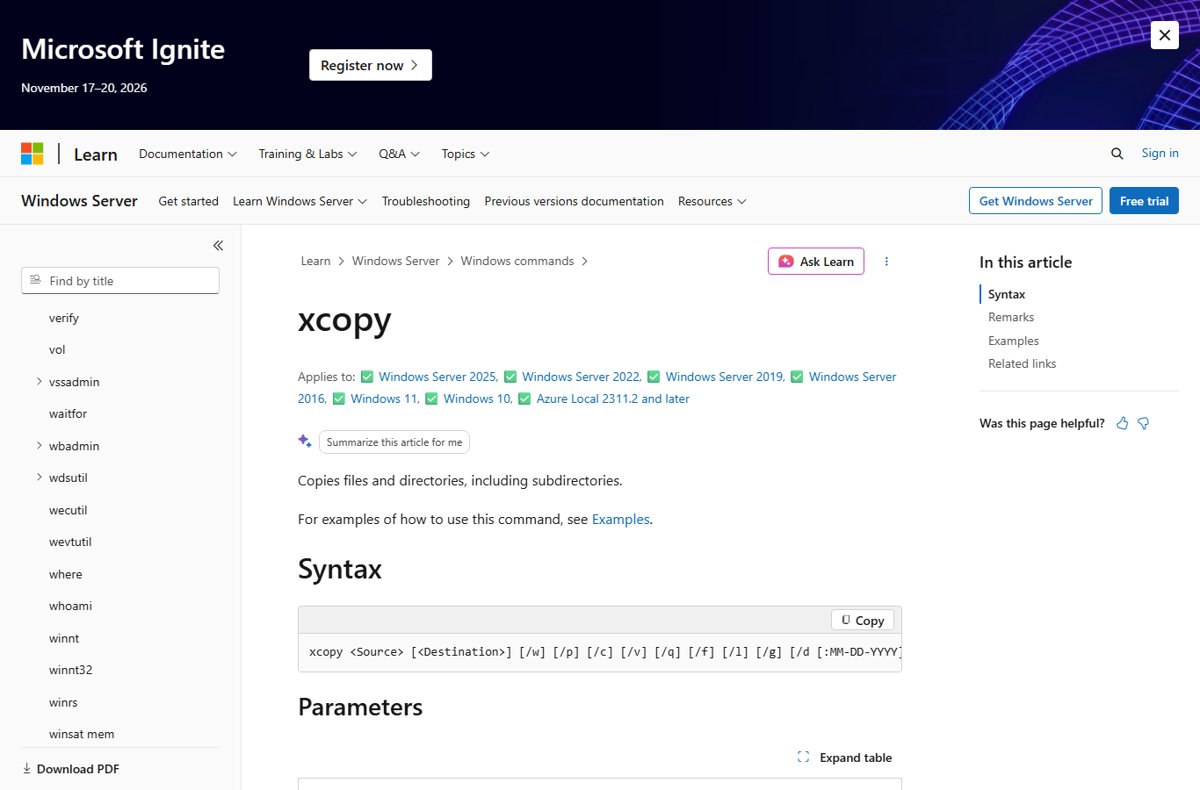
xcopy <Source> [<Destination>] [/w] [/p] [/c] [/v] [/q] [/f] [/l] [/g] [/d[:MM-DD-YYYY]] [/u] [/i] [/s [/e]] [/t] [/k] [/r] [/h] [{/a | /m}] [/n] [/o] [/x] [/exclude:File1[+File2]] [{/y | /-y}] [/z] [/b] [/j] [/compress]Source first, then the destination, then any switches in any order. Wrap paths that contain spaces in double quotes. Run xcopy /? to print the built-in help.
You should see: The command ends with a line such as 3 File(s) copied. If it asks whether the destination is a file or a directory, press D for a folder, or add /i next time.
Essential XCOPY Switches and Options
| Switch | What it does |
|---|---|
/s |
Copies directories and subdirectories, unless they are empty |
/e |
Copies all subdirectories, even empty ones; use it with /s or /t |
/i |
Assumes the destination is a directory and creates it when the source is a folder or uses wildcards |
/h |
Includes hidden and system files, which are skipped by default |
/y / /-y |
Overwrites without asking / always asks before overwriting |
/d[:MM-DD-YYYY] |
Copies files changed on or after the date; with no date, only files newer than the destination copy |
/u |
Copies only files that already exist in the destination |
/l |
Lists what would be copied without copying anything |
/c |
Keeps going when an error occurs |
/v |
Verifies each file as it is written |
/k |
Keeps the read-only attribute; by default xcopy removes it |
/r |
Overwrites read-only files |
/t |
Copies the folder structure only, no files; add /e for empty folders |
/o / /x |
Copies ownership and DACL permissions / also audit settings (SACL) |
/exclude:list.txt |
Skips any file whose path contains a string listed in the text file |
/z |
Copies over a network in restartable mode and shows per-file progress |
/j |
Copies without buffering, recommended for very large files |
/a / /m |
Copies only files with the archive attribute; /m also clears it on the source |
/q / /f |
Hides xcopy messages / shows full source and destination names |
Common XCOPY Examples for Files and Folders
| Task | Command |
|---|---|
| Copy a whole drive or folder tree with empty folders | xcopy a: b: /s /e |
| Same, including hidden and system files | xcopy a: b: /s /e /h |
| Update only files changed since a date | xcopy \rawdata \reports /d:12-29-1993 |
| Refresh files that already exist in the destination | xcopy \rawdata \reports /u |
| Preview a copy and save the list to a file | xcopy \rawdata \reports /d:12-29-1993 /l > xcopy.out |
| Copy to a network drive, keep read-only, create the folder | xcopy \customer h:\public\address /s /e /k /p /i |
| Copy files matching a pattern from every subfolder | xcopy .\toc*.yml ..\..\Copy-To\ /S /Y |
| Recreate the folder structure without files | xcopy C:\Source D:\Empty /t /e |
The wildcard example needs the asterisk; .\toc.yml on its own copies nothing from subfolders.
Using XCOPY in Batch Files and Automation
xcopy returns an exit code that a batch file reads with if errorlevel. Check the highest codes first, because if errorlevel 2 is true for 2 and anything above it.
@echo off
xcopy %1 %2 /s /e
if errorlevel 4 goto lowmemory
if errorlevel 2 goto abort
if errorlevel 0 goto exit
:lowmemory
echo Insufficient memory to copy files or
echo invalid drive or command-line syntax.
goto exit
:abort
echo You pressed CTRL+C to end the copy operation.
goto exit
:exit
Save it as copyit.bat, then run copyit c:\prgmcode b:. Windows substitutes the first path for %1 and the second for %2, and the script reports an error message based on the exit code.
You should see: With no error, the script exits silently after xcopy prints its file count.
Add /y and /i to unattended jobs so xcopy never stops to ask a question. You can also set /y in the COPYCMD environment variable; /-y on the command line overrides it.
What each XCOPY exit code means
| Exit code | Meaning |
|---|---|
| 0 | Files were copied without error |
| 1 | No files were found to copy |
| 2 | The user pressed Ctrl+C to stop xcopy |
| 4 | Initialization error: not enough memory or disk space, an invalid drive name, or invalid syntax |
| 5 | Disk write error |
How to check the copy worked
- Read the last line xcopy prints and compare the file count with what you expected.
- Run
echo %errorlevel%straight after xcopy;0means no errors. - Run the same command again with
/ladded; an empty list means nothing is left to copy with/d. - Use
/von important copies so each file is verified as it is written.
Handling Errors, Prompts, and Permissions
"Does <Destination> specify a file name or directory name on the target?"
The destination does not exist and does not end with a backslash.
- Press D to copy into a folder, or F to copy into a single file.
- Add
/ito the command, or end the destination path with\, so the prompt never appears.
An overwrite prompt appears for every file
xcopy asks before overwriting by default.
- Add
/yto overwrite without prompting. - Add
/dinstead if you only want newer files to replace older ones.
Access denied or files are skipped
Your account lacks permission, or the files are hidden, system or read-only.
- Open Command Prompt with Run as administrator and run the command again.
- Add
/hfor hidden and system files and/rto overwrite read-only files. - Add
/cto continue past the files that still fail.
"Insufficient memory" error
A file or folder path is longer than 255 characters.
- Shorten the folder names or copy from a deeper starting folder.
- Use robocopy for trees with very long paths.
Error copying encrypted files
The destination volume does not support EFS encryption.
- Add
/gto create decrypted copies on the destination. - Or copy to an NTFS volume that supports EFS.
XCOPY vs Copy vs Robocopy
| Your job | Use | Why |
|---|---|---|
| Copy or combine a few files in one folder | copy |
Simplest; it can join several files into one but does not copy subdirectories |
| Copy a folder tree, empty files or empty folders | xcopy |
Microsoft points to xcopy for 0-byte files and whole directory trees |
| Mirror a folder so the destination matches exactly | robocopy /mir |
Mirrors a tree and deletes files that no longer exist in the source |
| Large or long-running network copies | robocopy /z /mt |
Restartable mode plus multi-threading with 1 to 128 threads |
| Copies that need a log and retries | robocopy /log: /r: /w: |
Writes a log file and retries failures on a schedule |
| Files blocked by permissions | robocopy /b |
Backup mode overrides file and folder ACLs that block access |
Robocopy exit codes work differently: 0 to 7 mean success with different outcomes, and 8 or higher means at least one file failed.
Frequently Asked Questions
Does xcopy work on Windows 11?
Yes. Microsoft lists xcopy as supported on Windows 11, Windows 10 and Windows Server 2016 through 2025. Open Command Prompt and type xcopy followed by a source and destination to use it.
How do I install the xcopy command?
You do not need to. xcopy is built into Windows and runs from Command Prompt or any batch file. Type xcopy /? in Command Prompt to confirm it is there and see its help.
How do I use xcopy?
Type xcopy, the source path, the destination path and any switches, then press Enter. For example, xcopy C:\Source D:\Backup /s /e /i copies a folder with all its subfolders and creates the destination folder.
How do I copy hidden files with xcopy?
Add the /h switch. By default xcopy skips files that have hidden or system attributes, so a full backup command looks like xcopy C:\Source D:\Backup /s /e /h /i.
How do I stop xcopy asking file or directory?
Add /i to the command, or end the destination path with a backslash. With /i, xcopy assumes the destination is a directory when the source is a folder or uses wildcards, and creates it.
Can xcopy copy only new or changed files?
Yes. Use /d with no date to copy only files newer than the copies already in the destination, or /d:MM-DD-YYYY to copy files changed on or after that date.
Is robocopy better than xcopy?
For large, network or mirrored copies, yes. Robocopy adds mirroring, multi-threading, retries, logging and backup mode. xcopy remains fine for quick folder-tree copies and older batch scripts.
Bottom Line
Use xcopy source destination /s /e /i /h for everyday folder-tree copies, and switch to robocopy when you need mirroring, logs, retries or speed on big network jobs. xcopy is built into Windows 11 and 10 and needs no setup, but robocopy has the recovery and logging features long copies depend on.





![How to turn on/off ad blocker in Microsoft Edge? [step-by-step]](https://techdows.com/wp-content/uploads/2026/10/How-to-turn-onoff-ad-blocker-in-Microsoft-Edge-step-by-step-1-600x338.jpg)