To disable Quick Access, set File Explorer to open to This PC and turn off recent files; to enable it, set File Explorer back to Home (Windows 11) or Quick access (Windows 10).
This guide covers both Windows versions, pinning and unpinning folders, clearing the history, hiding Office.com files with policy, and how to bring Quick Access back when it goes missing.
Method 1: Change File Explorer to open to This PC instead of Quick Access or Home
By default, File Explorer opens to Quick access, which Windows 11 version 22H2 renamed to Home. Changing the landing page is the fastest way to stop seeing it every time you press Windows logo key + E.
Quick Access itself stays in the navigation pane. This change only controls where File Explorer starts.
Windows 11
Quick Access is now called Home, and the setting sits behind the See more menu on the command bar.
- Press Windows logo key + E to open File Explorer.
- Select See more (the three dots) on the command bar.
- Select Options.
- Open the Open File Explorer to list and select This PC.
- Select Apply, then OK.
Windows 10
The same setting lives under the View tab of the ribbon.
- Press Windows logo key + E to open File Explorer.
- Select the View tab on the ribbon.
- Select Options.
- In the Open File Explorer to list, select This PC.
- Select Apply, then OK.
To turn Quick Access back on as the start page, repeat the steps and pick Home (Windows 11) or Quick access (Windows 10).
What Quick Access does in Windows 11 and Windows 10
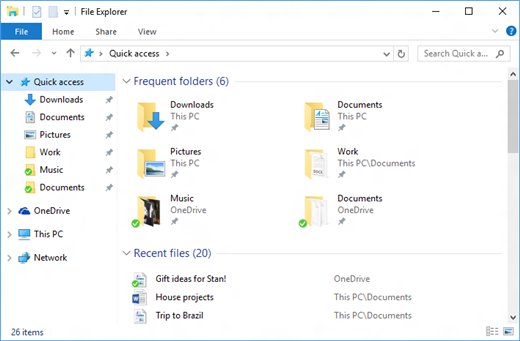
Quick Access is the section of File Explorer that holds pinned folders and, by default, the files and folders you used recently. It appears both on the start page and at the top of the navigation pane.
| Item | Windows 11 | Windows 10 |
|---|---|---|
| Name of the start page | Home (renamed from Quick access in version 22H2) | Quick access |
| Default pinned folders | Desktop, Documents, Downloads, Pictures, Music and Videos, pinned by default from version 22H2 | Folders you pin yourself |
| Automatic entries | Recently opened items, controlled from Settings > Personalization > Start | Recent files and frequent folders, controlled from the Privacy section of Options |
| Where the known folders went | Removed from under This PC, which now focuses on drives and network locations | Listed under This PC |
| Cloud content | Recent and favorited Office.com files appear on Home; search covers your PC and signed-in cloud accounts | No Office.com setting documented |
| Setting for the start page | See more > Options > Open File Explorer to | View > Options > Open File Explorer to |
| Pin and unpin commands | Pin to Quick access / Unpin from Quick access | Pin to Quick access / Remove from Quick access |
Microsoft recommends Home as the landing page because it surfaces recent Office.com files and searches the cloud faster than This PC. If you do not use those features, This PC is the cleaner start.
How to choose the right Quick Access setup
| Your situation | Do this | Why |
|---|---|---|
| Best setup for privacy on a shared computer | Method 1, Method 2 and Method 3 | Other people see only drives and your chosen pins, not what you opened |
| Best setup for productivity | Keep Home, pin your working folders (Method 4) | One click to every project folder, plus recent files for quick return |
| Best setup for a clean File Explorer | Method 1, Method 2, and unpin what you never use (Method 5) | Quick Access shrinks to a short, fixed list; pair it with disabling File Explorer tabs if you want the old single-window look |
| Work PC with Microsoft 365 files cluttering Home | Method 9 (Group Policy) or Method 7 (registry) | Stops the cloud file list without touching local history |
| Want no recent-file history anywhere in Windows | Method 8 | Covers Start, Jump Lists and File Explorer in one place |
| Quick Access disappeared and you want it back | Method 10 | Reverses every change in this guide |
Method 2: Disable recent files and frequent folders in Quick Access
This keeps Quick Access in place but stops it listing what you opened recently. Only your pinned folders remain.
Windows 11
One Settings toggle controls recent items in Start, Jump Lists and File Explorer together.
- Select Start > Settings.
- Select Personalization > Start.
- Turn off Show recently opened items in Start, Jump Lists, and File Explorer.
- Close and reopen File Explorer to see the change on Home.
Windows 10
The Privacy section of the Options dialog controls what Quick Access records.
- Open File Explorer and select the View tab.
- Select Options.
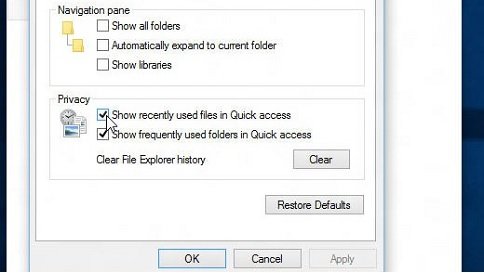
- In the Privacy section, clear the check boxes.
- Select Apply, then OK.
Microsoft describes the Windows 10 result directly: with the Privacy check boxes cleared, Quick Access displays only your pinned folders.
Method 3: Clear Quick Access history
Removing one entry takes a right-click. Clearing everything automatically at every sign-out needs a Group Policy setting, which Microsoft documents for both Windows 11 and Windows 10.
Clear history in Windows 11
Turning off recent items (Method 2) stops new entries; the policy below wipes the stored shortcuts at sign-out.
- Open the Local Group Policy Editor.
- Go to User Configuration > Administrative Templates > Start Menu and Taskbar.
- Double-click Clear history of recently opened documents on exit.
- Select Enabled, then OK.
- Sign out and sign back in to clear the list.
Clear history in Windows 10
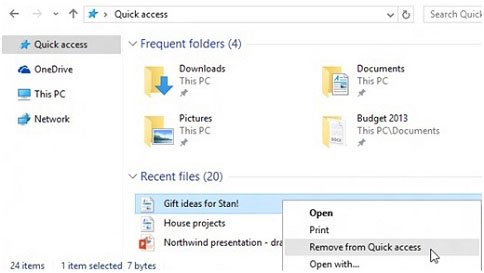
Single items can be removed from Quick Access by hand; the same policy clears the rest at sign-out.
- Open File Explorer to Quick access.
- Right-click the item you want gone and select Remove from Quick access.
- For a full clear at every sign-out, enable Clear history of recently opened documents on exit under User Configuration > Administrative Templates > Start Menu and Taskbar.
The policy deletes the document shortcuts Windows keeps in your profile's Recent folder and empties the recent and frequent entries in Jump Lists. Your actual files are not touched.
Method 4: Pin folders to Quick Access
Pinning is how you make Quick Access useful rather than removing it. A pinned folder appears on Home (or Quick access) and in the navigation pane. If you juggle several pinned folders at once, File Explorer tabs keep them open in one window.
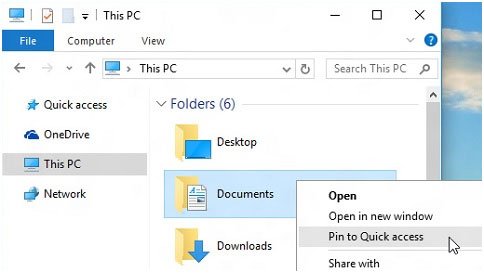
- Open File Explorer and browse to the folder you want to pin.
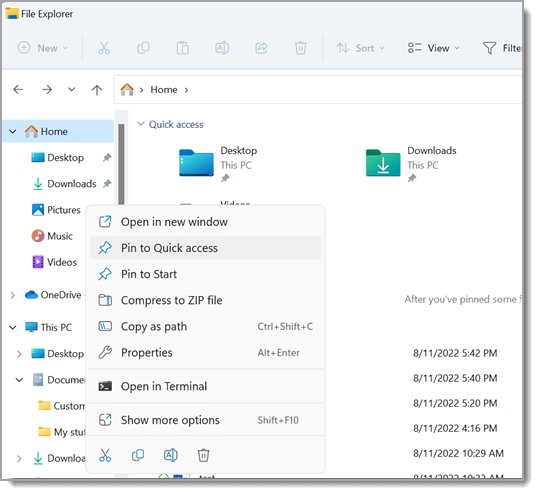
- Right-click (or press and hold) the folder.
- Select Pin to Quick access.
- Check the navigation pane: the folder now appears under Quick access with a pin icon.
Method 5: Unpin folders from Quick Access
Unpinning removes the shortcut only. The folder and its files stay where they are.
- Open File Explorer.
- Find the pinned folder on Home (Windows 11), Quick access (Windows 10) or in the navigation pane.
- Right-click (or press and hold) the folder.
- Select Unpin from Quick access.
- On Windows 10, entries that were added automatically show Remove from Quick access instead; select that to drop them.
Method 6: Remove Quick Access from the navigation pane using the Registry
Microsoft does not document any registry value that removes Quick Access or Home from the navigation pane. Tweaks that circulate for this are unsupported, so they are left out here.
The table lists what Microsoft does support for each goal.
| What you want | Supported route | Where it is covered |
|---|---|---|
| File Explorer should not open to Quick Access | Open File Explorer to > This PC | Method 1 |
| No recent files or frequent folders listed | Settings toggle (Windows 11) or Privacy check boxes (Windows 10) | Method 2 |
| No pinned folders in the pane | Unpin each folder | Method 5 |
| No Office.com files on Home | DisableGraphRecentItems policy | Methods 7 and 9 |
| No navigation pane at all | View > Show > Navigation pane (clear it) | Method 10 shows the reverse |
Method 7: Use a registry command to enable or disable Office.com files in Quick Access
The only Quick Access behaviour with a documented registry value is the cloud file list on Windows 11 Home. Instead of a .reg file, the built-in reg command sets the same policy value that Method 9 sets in Group Policy.
Run it from Command Prompt opened as administrator, because the value lives under HKEY_LOCAL_MACHINE. Microsoft documents this policy for Windows 11 version 22H2 and later on Pro, Enterprise and Education.
reg add HKLM\Software\Policies\Microsoft\Windows\Explorer /v DisableGraphRecentItems /t REG_DWORD /d 1 /fCreates the DisableGraphRecentItems value set to 1, which stops File Explorer requesting cloud file metadata and showing Office.com files on Home. /f writes it without a confirmation prompt.
You should see: The command returns without an error. After you close and reopen File Explorer, the recent and favorite cloud files no longer appear on Home.
To enable Office.com files again, delete the value: reg delete HKLM\Software\Policies\Microsoft\Windows\Explorer /v DisableGraphRecentItems /f. Setting it to 0 also restores the default behaviour.
Method 8: Disable recent items more broadly in Windows
Method 2 hides recent items. This policy stops Windows and apps from creating the shortcuts in the first place, across Start, Jump Lists and File Explorer.
- Open the Local Group Policy Editor.
- Go to User Configuration > Administrative Templates > Start Menu and Taskbar.
- Double-click Do not keep history of recently opened documents.
- Select Enabled, then OK.
- Sign out and back in so File Explorer and the taskbar pick up the change.
With this policy on, Jump Lists stop showing recent and frequent files, and apps stop listing recent documents at the bottom of their File menu. Pinned items in Jump Lists still work.
If you later disable the policy, shortcuts saved before you enabled it reappear.
Method 9: Stop Office.com files from appearing in Windows 11 File Explorer
Signed in with a work or school account, Home shows recent and favorited Office.com files. This policy switches off that cloud list, along with account-based insights in the Recent, Recommended, Favorites and Details pane views.
- Open the Local Group Policy Editor.
- Go to Computer Configuration > Administrative Templates > Windows Components > File Explorer.
- Double-click Turn off account-based insights, recent, favorite, and recommended files in File Explorer.
- Select Enabled, then OK.
- Close all File Explorer windows and open a new one.
The policy is documented for Windows 11 version 22H2 and later. Setting it to Not Configured brings the cloud files back.
Method 10: Re-enable Quick Access if it is missing
Work through these in order and stop when Quick Access is back. Each step reverses one of the changes above.
Set File Explorer to open to Home or Quick Access
The start page was switched to This PC.
- Open Options (Windows 11: See more > Options; Windows 10: View > Options).
- Set Open File Explorer to to Home (Windows 11) or Quick access (Windows 10).
- Select Apply, then OK.
Turn frequent folders and recent files back on
Recent items were switched off in Settings or in the Privacy section.
- On Windows 11, go to Settings > Personalization > Start and turn on Show recently opened items in Start, Jump Lists, and File Explorer.
- On Windows 10, open View > Options and select the check boxes in the Privacy section, then Apply.
- Set any policy from Method 3 or Method 8 back to Not Configured.
Restore the known folders you unpinned
Desktop, Documents, Downloads, Pictures, Music or Videos was unpinned on Windows 11.
- Open File Explorer and select Home in the navigation pane.
- Select the Up arrow to the left of the address bar to see all six known folders.
- Right-click the folder you want back and select Pin to Quick access.
Show the navigation pane again
The whole left pane, including Quick Access, was hidden.
- Open File Explorer and select View on the command bar.
- Select Show, then Navigation pane.
How to check Quick Access is really off (or back on)
- Close every File Explorer window, then press Windows logo key + E.
- Disabled: the window opens on This PC and shows your drives and network locations.
- Enabled: the window opens on Home (Windows 11) or Quick access (Windows 10).
- Open a document, close it, then return to Home or Quick access. With recent items off, it does not appear; with them on, it is listed.
- Right-click a folder and confirm Pin to Quick access is offered, which proves pinning still works.
Troubleshooting Quick Access problems
Recent files still appear after disabling Quick Access history
On Windows 11 the entries are often Office.com cloud files, which the recent-items toggle does not control.
- Confirm Show recently opened items in Start, Jump Lists, and File Explorer is off in Settings > Personalization > Start.
- If the remaining files come from your work or school account, apply Method 9 or Method 7.
- Close all File Explorer windows and open a new one.
A folder keeps coming back in Quick Access
It is a frequent folder, not a pinned one, so Windows re-adds it as you use it.
- Turn off recent and frequent items with Method 2.
- Right-click the folder and select Unpin from Quick access or Remove from Quick access, whichever is shown.
- If a policy manages this PC, ask your administrator, because managed settings override local choices.
Pin to Quick access is missing
The folder is already pinned, or the command sits in the full context menu.
- Right-click (or press and hold) the folder itself in its real location.
- On Windows 11, check the full menu too: select Show more options.
- If the folder is already pinned, the menu shows Unpin from Quick access instead.
Quick Access is slow to open
Home loads recent and cloud file lists each time it opens.
- Set File Explorer to open to This PC with Method 1.
- On a work or school account, turn off cloud files with Method 9.
- Unpin network folders you no longer reach, using Method 5.
Frequently asked questions
Can Quick Access be disabled?
Yes, in practice. Set File Explorer to open to This PC and turn off recent files, and Quick Access stops appearing on launch and stops tracking your activity. Microsoft does not offer a supported switch that deletes the Quick Access entry from the navigation pane itself.
How do I disable Quick Access in Windows 11?
Open File Explorer, select See more > Options, set Open File Explorer to This PC and select Apply. Then go to Settings > Personalization > Start and turn off Show recently opened items in Start, Jump Lists, and File Explorer.
How do I disable Quick Access in Windows 10?
Open File Explorer, select View > Options, and choose This PC in the Open File Explorer to list. In the Privacy section of the same dialog, clear the check boxes, then select Apply so Quick Access shows only pinned folders.
How do I turn off Quick Access automatically adding folders?
Turn off recent and frequent items. On Windows 11 that is the Show recently opened items toggle under Settings > Personalization > Start; on Windows 10, clear the Privacy check boxes in View > Options. After that, only folders you pin yourself appear.
How do I stop Quick Access from showing Office.com files?
Enable the policy Turn off account-based insights, recent, favorite, and recommended files in File Explorer under Computer Configuration > Administrative Templates > Windows Components > File Explorer. It applies to Windows 11 version 22H2 and later.
How do I enable Quick Access again?
Set Open File Explorer to back to Home on Windows 11 or Quick access on Windows 10, then turn recent items back on. If the known folders are gone, select Home, select the Up arrow, and pin them again.
Does unpinning a folder from Quick Access delete it?
No. Unpin from Quick access removes only the shortcut. The folder and everything inside it stay in their original location, and you can pin it again at any time.
Why did Desktop and Documents disappear from This PC in Windows 11?
Starting with Windows 11 version 22H2, Desktop, Documents, Downloads, Pictures, Music and Videos are pinned to Quick access by default and no longer listed under This PC. This PC now focuses on drives and network locations.




How to Add or Your C, D, E or F Drive in Navigation Pane (Home or Quick Access) of File Explorer - Techdows
[…] Home lists only the drives you pin, but This PC lists them all. Setting File Explorer to open to This PC puts C, D, E and F in front of you every time. The full walk-through of turning Home or Quick Access off is in how to enable or disable Quick Access in File Explorer. […]
How to Open Folder Options in Windows 11/10 - Techdows
[…] The Quick Access privacy options on the General tab are covered step by step in how to enable or disable Quick Access in File Explorer. […]
How to Enable God Mode in Windows 11 to Access All Settings Instantly - Techdows
[…] Drag the folder onto Quick access in the File Explorer navigation pane to reach it without going back to the desktop. If Quick access is missing, see how to enable or disable Quick Access in File Explorer of Windows 11/10. […]
How to clear recent files history in File Explorer in Windows 11 & 10 - Techdows
[…] turn these options back on later, files you removed from the list can show up again. You can also hide Quick Access in File Explorer if you never use […]
Can’t find Recycle Bin! Where is the Recycle Bin in Windows 11? - Techdows
[…] the Recycle Bin to Quick access gives the same result: it stays visible in File Explorer next to your drives and […]
How to open the Downloads folder on your computer or browser - Techdows
[…] with Windows 11, version 22H2, Downloads is pinned to Quick access in File Explorer Home and in the navigation pane, and it no longer appears under This PC. On Windows 10, it is […]