The Windows 11 Temp folder for your account is C:\Users\<username>\AppData\Local\Temp, and the fastest way to open it is to press Windows logo key + R, type %temp% and press Enter.
This guide covers the per-user and system Temp folders, how to open each from File Explorer, Run and the command line, and how to clear temporary files with the tools Microsoft documents.
Fastest Way to Open the Temp Folder
The Run dialog expands the %temp% variable for you, so you never need to know your user name or unhide AppData.
- Press Windows logo key + R to open the Run dialog.
- Type
%temp%in the Open box. - Select OK or press Enter.
- File Explorer opens your personal Temp folder, which is
C:\Users\<username>\AppData\Local\Tempon a default install.
The same %temp% shortcut works on Windows 10, because the variable and folder layout are unchanged.
Where Is the Temp Folder in Windows 11?
Windows 11 has two Temp folders that matter to most people: one per user account and one for the system itself.
Microsoft describes %TEMP% as the temporary path in the user's profile and %WINDIR%\TEMP as the temporary path for the system.
| Folder | Default path | Shortcut to type | Who writes to it |
|---|---|---|---|
| User Temp folder | C:\Users\<username>\AppData\Local\Temp |
%temp% or %tmp% |
Apps and installers you run under your account |
| System Temp folder | C:\Windows\Temp |
%windir%\Temp |
Windows components, services and setup programs |
| SYSTEM-only Temp folder | C:\Windows\SystemTemp |
None; not open to normal accounts | Processes running as SYSTEM that use the newer GetTempPath2 function |
Each account on the PC has its own user Temp folder, so another person's temp files sit under their own C:\Users\<their username> profile.
Which way to open it fits your situation
| Your situation | Use this | Why |
|---|---|---|
| You just want your own temp files | Windows logo key + R, then %temp% |
Two steps, no hidden folders to unhide |
| You are already in File Explorer | Type %temp% in the address bar |
Jumps straight there from any window |
| You need the Windows or installer logs | Run %windir%\Temp |
System-level files live there, not in your profile |
| You are working in a terminal or script | start "" "%TEMP%" in Command Prompt, ii $env:TEMP in PowerShell |
Uses the same variable the apps use |
| You only want disk space back | Settings > System > Storage > Temporary files | Windows picks what is safe to remove |
How to Access the Temp Folder Using File Explorer
Two routes work: type the variable into the address bar, or browse down through your profile. The second route needs hidden items turned on, because AppData is a hidden folder.
- Open File Explorer from the taskbar or press Windows logo key + E.
- Select the address bar, type
%temp%and press Enter. Stop here if that is all you need. - To browse manually instead, select View > Show, then select Hidden items.
- Open This PC > Local Disk (C:) > Users, then open the folder with your user name.
- Open AppData > Local > Temp.
- Right-click Temp in the navigation pane and select Pin to Quick access if you open it often.
AppData holds far more than Temp. The guide to finding the AppData folder explains its Local, LocalLow and Roaming subfolders.
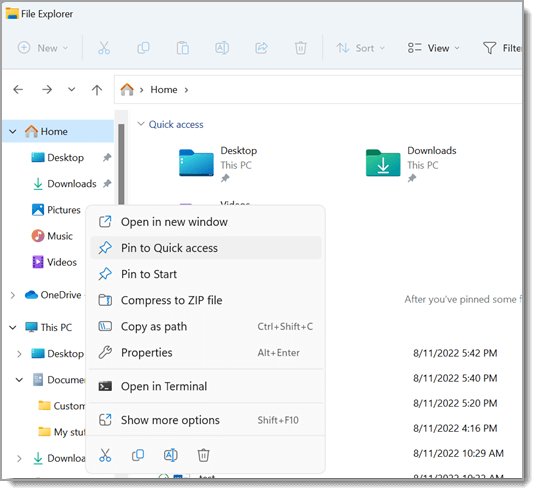
How to Open the System Temp Folder
The system Temp folder is C:\Windows\Temp. Standard accounts cannot see its contents without an administrator's approval.
- Press Windows logo key + R.
- Type
%windir%\Tempand select OK. - If Windows says you do not have permission to access the folder, approve the prompt with an administrator account.
- Leave
C:\Windows\SystemTempalone; Microsoft documents it as inaccessible to non-SYSTEM processes.
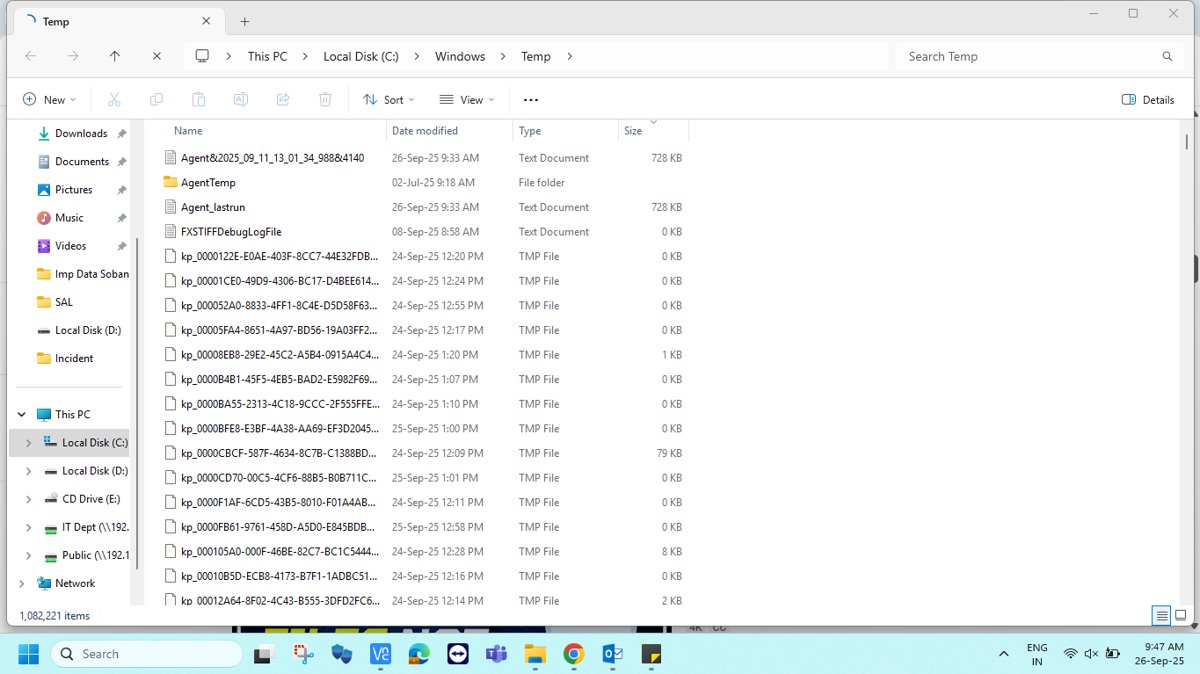
How to Open Temp Folders from Command Prompt, PowerShell, or Windows Terminal
Windows Terminal runs Command Prompt and PowerShell in tabs, so the commands below work in whichever tab you open.
When start is given a folder name, it opens File Explorer on that path. The empty "" is the window title, which start expects before a quoted path.
- In Command Prompt, run
echo %TEMP%to print the path of your user Temp folder. - Run
start "" "%TEMP%"to open that folder in File Explorer. - Run
cd /d %TEMP%to move the prompt into the folder instead. - Run
start "" "%WINDIR%\Temp"to open the system Temp folder. - In PowerShell, run
$env:TEMPto print the path;$env:TMPprints the second variable. - Run
Invoke-Item $env:TEMP(short formii $env:TEMP) to open the user Temp folder in File Explorer. - Run
Invoke-Item "$env:WINDIR\Temp"to open the system Temp folder. - To check your Temp variables, run
set tin Command Prompt; it lists every variable starting with T, including TEMP and TMP.
What Do %TEMP% and %TMP% Mean?
Both are environment variables: names that Windows swaps for a real folder path when a program or the Run dialog reads them. On a default install they point to the same folder.
| Variable | Typical value | How programs use it |
|---|---|---|
%TMP% |
%USERPROFILE%\AppData\Local\Temp |
Checked first by the Windows GetTempPath function |
%TEMP% |
%USERPROFILE%\AppData\Local\Temp |
Used if TMP is not set |
%USERPROFILE% |
C:\Users\<username> |
Fallback if neither TMP nor TEMP is set |
%WINDIR% |
C:\Windows |
Last fallback; its Temp subfolder is the system Temp folder |
SystemTemp |
Not set by default | Lets SYSTEM processes use a folder other than C:\Windows\SystemTemp |
Windows does not check that the folder in TMP or TEMP exists. If a variable points at a deleted folder, apps that need temp space fail until the folder is back.
What Is Stored in the Windows 11 Temp Folder?
| What you will find | Where it comes from | Typical example |
|---|---|---|
| Working copies of open files | Programs store temporary information while they run and usually delete it before they quit | Lock files and autosave fragments |
| Setup leftovers | Setup programs that are no longer running | Extracted installer folders with random names |
| Install and diagnostic logs | Installers and support tools | Visual Studio's collection tool writes vslogs.zip to %TEMP% |
| System-level logs | Windows components and admin-deployed apps | Teams bootstrapper writes teamsprovision.log files to C:\Windows\Temp |
| Temporary virtual disks | Profile and virtualization tools | .vhd and .vhdx difference disks under %TEMP% or %WINDIR%\TEMP |
Why You Might Need to Access the Temp Folder
| Reason | Where to look | What to do there |
|---|---|---|
| Free up storage space | Both Temp folders | Use Settings > System > Storage > Temporary files rather than deleting by hand |
| Fix a failed app installation | %TEMP% for your account, %windir%\Temp for machine-wide installers |
Sort by Date modified and open the newest log |
| Collect logs for a support ticket | %TEMP% |
Copy the log or zip file the support tool names |
| Remove leftovers after uninstalling software | %TEMP% |
Microsoft's manual Office removal steps delete the contents of %temp% as a final step |
| Check a suspicious file | Whichever Temp folder holds it | Scan it with Windows Security instead of opening it |
Is It Safe to Delete Files in the Temp Folder?
Yes for files that are not in use: Microsoft's Disk Cleanup documentation says you can safely delete temporary files that have not been modified within the last week, and Windows will not let you delete files an app still holds open. Programs normally clean up their own temp data, so what remains is leftover. Delete the contents of the Temp folders, never the Temp folders themselves, and do not delete anything else under C:\Windows.
One category needs thought. Previous Windows installation(s) in the Temporary files list is your way back to the earlier version after an upgrade, and Microsoft warns that deleting it cannot be undone.
How to Delete Temporary Files Using Windows 11 Settings
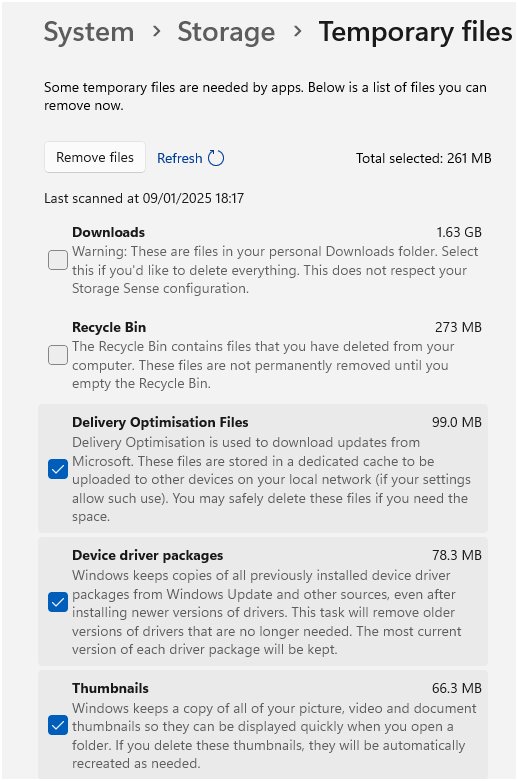
This is the safest route, because Windows only lists files it knows are safe to remove and skips anything in use.
- Select Start > Settings > System > Storage.
- Select Temporary files and wait for the size scan to finish.
- Check each category you want to remove and clear any you want to keep.
- Leave Previous Windows installation(s) unchecked if you might want to roll back a recent upgrade.
- Select Remove files and confirm.
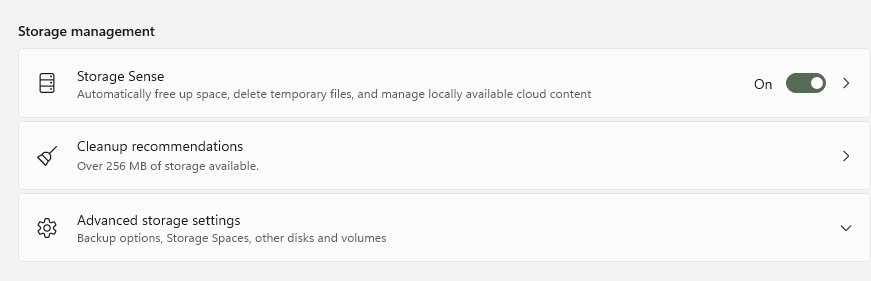
Cleanup recommendations on the same Storage page groups temporary files, large or unused files, files synced to the cloud and unused apps, each with its own Clean up button.
How to Use Storage Sense to Clean Temp Files Automatically
Storage Sense removes temporary files and old Recycle Bin items on a schedule. It leaves your Downloads folder alone unless you set it to clean there.
- Select Start > Settings > System > Storage.
- Set Storage Sense to On.
- Select Storage Sense to open its options.
- Under Run Storage Sense, choose how often it runs while you are online and signed in.
- Set Delete files in my recycle bin if they have been there for over to the age you are comfortable with.
- Leave Delete files in my Downloads folder if they haven't been opened for more than at Never unless you want Downloads cleaned too.
- Select Run Storage Sense now to run a cleanup immediately.
How to Use Disk Cleanup in Windows 11
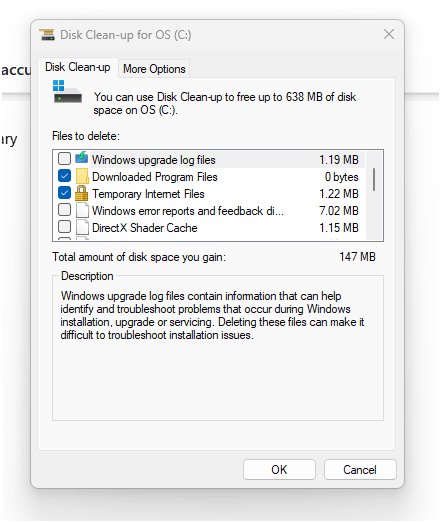
Disk Cleanup (cleanmgr) is the older tool. Microsoft's Windows 11 support pages point to the Settings route instead, but Disk Cleanup still clears Temp files and offers a system-files pass.
- Type
disk cleanupin the search box on the taskbar and select Disk Cleanup. - Choose the drive Windows is installed on, usually (C:), and select OK.
- Check Temporary files, plus any other categories you want to clear.
- Select Clean up system files and choose the same drive to include system-level items.
- Review the list again, select OK, and confirm the deletion.
Only the Windows drive shows the full list. On any other drive, Disk Cleanup offers just the Recycle Bin and content index catalog files.
How to Delete Temp Files Manually
Manual deletion is the same step Microsoft uses in its Office removal instructions. Close your open apps first so fewer files are locked.
- Save your work and close open apps.
- Press Windows logo key + R, type
%temp%and select OK. - Press Ctrl + A to select everything in the folder.
- Press Delete, or press Shift + Delete to skip the Recycle Bin.
- When Windows reports a file is open in another program, choose to skip it; that file is still in use.
- Repeat with
%windir%\Temponly if you have administrator rights, and delete only the contents, never the Temp folder.
How to Find Large Files in the Temp Folder
- Open the Temp folder with
%temp%in the Run dialog. - Select View > Details so the Size column is visible.
- Select the Size column header to sort the largest files to the top.
- Select the Date modified header to spot old files that are safe to remove.
- Remember that the Size column stays blank for folders; open a large installer folder to see what it holds.
For the whole drive rather than one folder, Settings > System > Storage shows how much space temporary files use across your PC.
How to check the cleanup worked
- Open Settings > System > Storage and compare the Temporary files figure with the number you saw before.
- Open File Explorer > This PC and check the free space shown under Devices and drives.
- Open
%temp%again; only files that were in use should remain, and new ones appear as apps run. - In Command Prompt, run
echo %TEMP%to confirm the variable still points to an existing folder.
Can You Move the Temp Folder to Another Drive?
Yes. Change the TEMP and TMP variables for your account and apps start using the new folder. Microsoft suggests this for developers who put %TEMP% and %TMP% on a Dev Drive, and warns that many programs use these variables.
- Create the new folder first, for example
D:\Temp. - Open the System Control Panel, select Advanced system settings, then open the Advanced tab.
- Select Environment Variables….
- Under the user variables for your account, select TEMP, select Edit, and enter the new folder path.
- Repeat for TMP with the same path.
- Select OK on each dialog, then restart the PC so every app picks up the new value.
- Leave the System variables entries unchanged.
If the new location is a Dev Drive, Microsoft notes that the WinSetupMon filter must be allowed on it for Windows upgrades to work.
What to Do If the Temp Folder Will Not Open
`%temp%` opens the wrong folder or an error
The TEMP or TMP variable was changed, often by an app or an old tweak.
- Run
echo %TEMP%in Command Prompt to see where it points. - Try the full path instead: type
C:\Users\<username>\AppData\Local\Tempin the File Explorer address bar. - If the variable is wrong, set TEMP and TMP back to
%USERPROFILE%\AppData\Local\Tempin Environment Variables….
The Temp folder is missing
Someone deleted the folder itself, and Windows does not check that the path in TEMP exists.
- Open
C:\Users\<username>\AppData\Localin File Explorer. - Select New > Folder and name it
Temp. - Sign out and back in, then run
%temp%again.
You cannot find AppData when browsing
AppData is a hidden folder.
- In File Explorer, select View > Show > Hidden items.
- Browse to Users > your user name > AppData > Local > Temp.
Access denied on `C:\Windows\Temp`
The system Temp folder needs administrator rights.
- Sign in with an administrator account or approve the permission prompt.
- Use Settings > System > Storage > Temporary files if you only want its space back.
What to Do If You Cannot Delete Temp Files
Windows says a file is open in another program
A running app or background process still uses the file.
- Skip the locked file and let the rest delete.
- Close every open app, or restart the PC.
- Delete the remaining files before opening other apps.
Files in `C:\Windows\Temp` will not delete
Your account does not have administrator rights, or a Windows service holds the files.
- Use Settings > System > Storage > Temporary files and select Remove files.
- Or run Disk Cleanup and select Clean up system files.
- Leave any file that stays locked and try again after a restart.
Free space does not change after deleting
Files went to the Recycle Bin instead of being removed.
- Right-click Recycle Bin on the desktop and select Empty Recycle Bin.
- Next time, use Shift + Delete or the Settings route, which removes files directly.
Should You Empty the Temp Folder Regularly?
Turn on Storage Sense and let it clear temporary files on a schedule, and open %temp% by hand only when you need a log or space runs low. Apps recreate the temp files they need, so constant manual emptying gains little, while Storage Sense removes leftovers on schedule and leaves your Downloads folder alone by default.
Frequently Asked Questions
Where is the Temp folder in Windows 11?
Your personal Temp folder is C:\Users\<username>\AppData\Local\Temp. Windows also has a system Temp folder at C:\Windows\Temp. Press Windows logo key + R and type %temp% to open your own folder without knowing the path.
Where is the Temp folder in Windows 10?
It is in the same place as Windows 11: C:\Users\<username>\AppData\Local\Temp for your account and C:\Windows\Temp for the system. The %temp% shortcut in the Run dialog opens it on both versions.
Where is the Windows system Temp folder located?
The system Temp folder is C:\Windows\Temp, which is %WINDIR%\Temp. Windows services and machine-wide installers write there. Opening it needs administrator rights. A separate C:\Windows\SystemTemp folder is reserved for processes running as SYSTEM.
What is a Temp folder in Windows?
It is a folder where programs store temporary information while they run, such as setup files, working copies and logs. Programs usually delete their own files before they quit. Windows finds the folder through the TMP and TEMP environment variables.
Where can I find my Temp folder if %temp% does not work?
Type C:\Users\<username>\AppData\Local\Temp into the File Explorer address bar, using your own account name. If that folder is missing, create a folder named Temp inside AppData\Local, then sign out and back in.
How do I clear the Temp folder in Windows 11?
Go to Start > Settings > System > Storage, select Temporary files, check the categories you want and select Remove files. You can also open %temp%, press Ctrl + A and delete. Files still in use are skipped.
Can I delete the Temp folder itself in Windows 11?
No. Delete the files inside it, not the folder. Windows does not check that the folder in the TEMP variable exists, so apps that need temporary space can fail until the Temp folder is recreated.
How do I open the Temp folder from Command Prompt?
Run start "" "%TEMP%" to open it in File Explorer, or cd /d %TEMP% to move the prompt into it. In PowerShell, run ii $env:TEMP. Both commands read the same variable apps use.
Does each user have their own Temp folder?
Yes. Every account has its own Temp folder inside its profile, at C:\Users\<username>\AppData\Local\Temp. The %temp% shortcut always opens the folder for the account you are signed in with.




How to Delete Temporary Files in Windows 10 (clear temp files) - Techdows
[…] profile and one inside the Windows folder. For their exact paths and every way to open them, see Where is the Temp Folder in Windows 11 and How to Access it; the locations are the same on Windows […]
Windows 10: What Is Windows.old Folder And Can I Delete It? - Techdows
[…] same Temporary files screen clears caches and update leftovers. Where is the Temp Folder in Windows 11 and How to Access it covers the other temporary location people confuse with […]