The hosts file in Windows 11 is at C:\Windows\System32\drivers\etc\hosts, a plain text file named hosts with no file extension.
This guide shows how to open, back up, edit and save it as administrator, flush DNS so changes apply, test an entry, and put the file back when something breaks.
Where the hosts file is located in Windows 11
Microsoft lists the path as %windir%\system32\drivers\etc\hosts. On a normal install %windir% is C:\Windows, and the path is the same on Windows 10 and Windows Server.
- Press Windows key + R to open the Run box.
- Type
%windir%\System32\drivers\etcand press Enter. - File Explorer opens the etc folder. The file named hosts is the one Windows reads.
- To change it, open it from an administrator editor, as shown in the next sections. Without administrator rights you can read it but not save changes.
The etc folder sits inside System32. If you need other routes into that folder, see 6 ways to open the System32 folder.
What the hosts file does
The hosts file is a local map of host names to IP addresses. Windows loads its entries into the DNS Client resolver cache when the DNS Client service starts, and that cache is checked before any DNS server is asked.
| Fact | What it means for you |
|---|---|
| Entries load into the DNS resolver cache | A matching hosts entry answers the lookup before your router or ISP DNS is asked |
| It works per computer | An entry only affects the PC whose hosts file you edit |
| It maps a name to one address | Useful to preview a site on a new server, point a test domain at your own PC, or block a name |
| It needs administrator rights to change | Standard users can read it but cannot save changes |
| Microsoft Defender watches it | Entries for certain Microsoft and system domains are flagged as SettingsModifier:Win32/HostsFileHijack |
Back up the hosts file before editing
A copy takes ten seconds and gives you a clean way back. Keep the copy in the same etc folder or in your Documents folder.
- Open the etc folder with Windows key + R and
%windir%\System32\drivers\etc. - Right-click hosts and select Copy.
- Open your Documents folder and press Ctrl + V.
- Rename the copy to
hosts.backupso it is clearly not the live file. - To back up from an administrator terminal instead, run
copy %windir%\System32\drivers\etc\hosts %windir%\System32\drivers\etc\hosts.backupin Command Prompt.
The PowerToys Hosts File Editor makes its own backup, named hosts_PowerToysBackup_YYYYMMDDHHMMSS, in the same folder the first time you save in a session.
How to open the hosts file safely
Open the file from an editor that is already running as administrator. That way the Save command writes to the real file instead of failing or creating a copy.
- Select Start and type
notepad. - Right-click Notepad in the results and select Run as administrator.
- Select Yes in the User Account Control prompt.
- In Notepad, select File > Open, or press Ctrl + O.
- Paste
C:\Windows\System32\drivers\etcinto the address bar and press Enter. - Change the file type list next to File name from Text documents (*.txt) to All files (*.*).
- Select hosts and select Open.
How to edit the hosts file in Windows 11
Add each entry on its own line at the bottom of the file: the IP address first, then at least one space or tab, then the host name. Leave the existing comment lines alone.
- Open the file in administrator Notepad as shown above.
- Press Ctrl + End to jump to the last line, then press Enter to start a new line.
- To point a domain to a test server, type the server address and the name, for example
203.0.113.10 www.example.com. - To create a local development domain, point a name at your own PC, for example
127.0.0.1 myapp.test. - To block a website, point its name at an address that goes nowhere, for example
0.0.0.0 ads.example.com, and add a second line forwww.if the site uses it. - Add a comment after
#on the line above to remember why the entry exists, for example# staging server for client site.
The same trick is behind the older hosts file hack for the Edge new tab page. Entries for Microsoft or Windows service domains can trigger a Defender detection, covered below.
How to save the hosts file correctly
The hosts file has no extension. Saving it as hosts.txt leaves the real file untouched, and Windows ignores the new one.
- Press Ctrl + S in the administrator Notepad window that opened the file.
- If a Save as dialog appears instead, the editor is not elevated. Cancel, close Notepad and reopen it with Run as administrator.
- If you must use Save as, set Save as type to All files (*.*) and type the name as
hostswith no extension. - Confirm the folder is
C:\Windows\System32\drivers\etcbefore selecting Save. - Select Yes if asked to replace the existing file.
- Refresh the etc folder in File Explorer and check there is no stray
hosts.txtbeside hosts.
How to edit the hosts file with Windows Terminal
An elevated terminal opens the file in an editor that already has administrator rights. If you are new to the app, the Windows Terminal beginner's guide covers tabs and profiles.
- Right-click Start and select Terminal (Admin).
- Select Yes in the User Account Control prompt.
- Run
notepad $env:windir\System32\drivers\etc\hostsin a PowerShell tab, ornotepad %windir%\System32\drivers\etc\hostsin a Command Prompt tab. - Make your changes in the Notepad window that opens and press Ctrl + S.
- To read the file without editing it, run
Get-Content $env:windir\System32\drivers\etc\hostsin PowerShell ortype %windir%\System32\drivers\etc\hostsin Command Prompt. - Run
ipconfig /flushdnsin the same window so the new entries take effect.
Edit the hosts file with the PowerToys Hosts File Editor
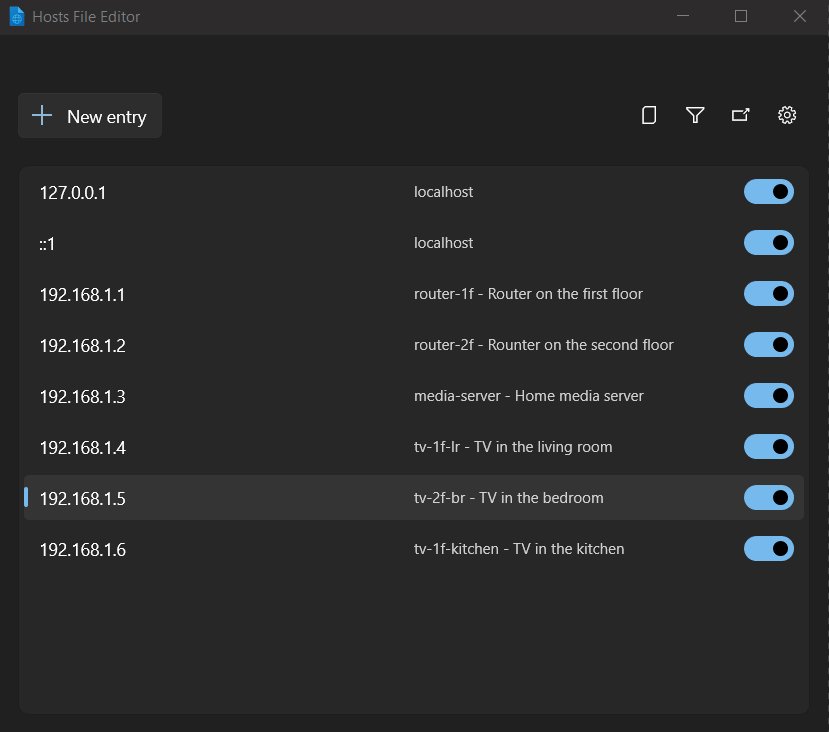
Microsoft's free PowerToys suite includes a form-based hosts editor. It starts as administrator by default and backs up the file before each editing session.
- Open PowerToys Settings and set Hosts File Editor to On.
- Select the PowerToys icon in the system tray and select Hosts File Editor. The tool has no keyboard shortcut.
- Select New entry.
- Enter the IP address, the host name and an optional comment.
- Turn on the Active toggle and select Add.
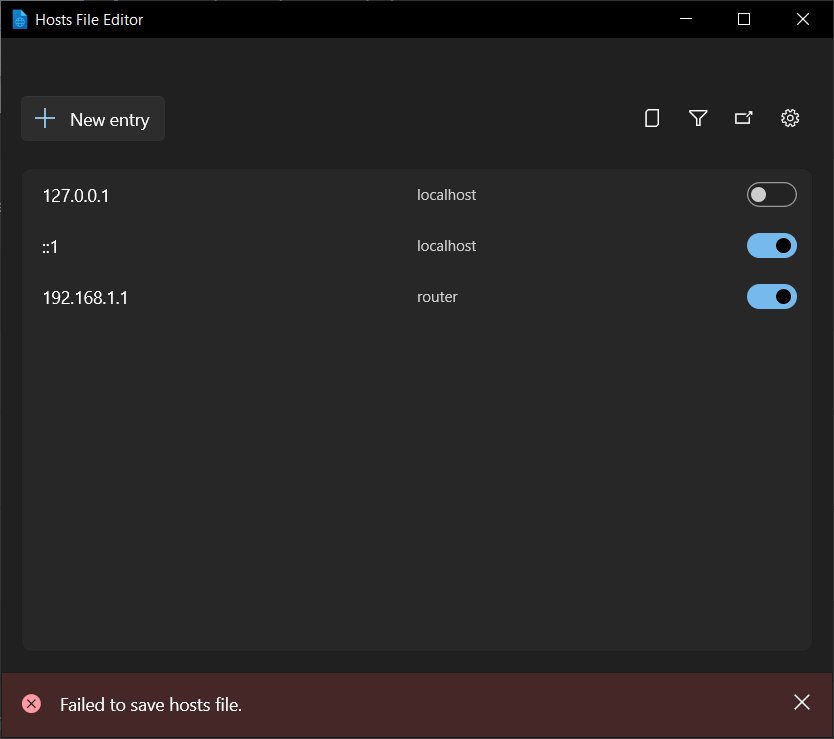
- If you see Failed to save hosts file, turn on Open as administrator in the editor's settings and reopen it.
How to flush DNS after changing the hosts file
Windows copies hosts entries into the DNS Client resolver cache, and that cache also holds recent answers, including failed lookups. Flushing it removes stale answers so the next lookup reads your new entry. The full walkthrough is in how to use ipconfig /flushdns.
ipconfig /flushdnsRun it in Command Prompt or Windows Terminal opened as administrator. It flushes and resets the DNS client resolver cache, discarding negative entries and any records added since the last lookup. Clear-DnsClientCache does the same in PowerShell.
You should see: Windows reports that the DNS resolver cache was flushed. Close and reopen your browser so it also drops the names it cached itself.
How to check whether a hosts file entry is working
Test with tools that use the Windows resolver. nslookup is the wrong tool here: it skips the client cache and asks your DNS server directly, so it never shows hosts entries.
- Open Command Prompt or Windows Terminal.
- Run
ping www.example.com, using the name you added. - Check the address in square brackets on the first line, such as
Pinging www.example.com [203.0.113.10]. It should match your hosts entry. A timeout after that line is fine; the name still resolved. - In PowerShell, run
Resolve-DnsName www.example.comand compare the address with your entry. - Run
Resolve-DnsName www.example.com -NoHostsFileto see what DNS would return without the hosts file. A different answer proves the hosts entry is doing the work. - Run
ipconfig /displaydnsand look for the name. Entries preloaded from the hosts file appear in the cache listing.
What the default Windows 11 hosts file looks like
A clean hosts file holds a header of comment lines and no active entries. Anything below that header was added later, by you, an app or, in some cases, malware.
| What you see | What it means |
|---|---|
Lines starting with # |
Comments. Windows ignores them. The Microsoft header explains the file format |
Commented example lines with 127.0.0.1 or ::1 and localhost |
Examples only. They are inactive because they start with # |
| Uncommented lines under the header | Active entries someone added. Check each one you did not write |
| Lines tagged by an app, such as a VPN or development tool | Added by that software. Remove them from the app's own settings where possible |
Hosts file formatting rules
Windows reads the file line by line. A formatting slip usually makes a single entry silently fail rather than showing an error.
| Rule | Correct | Wrong |
|---|---|---|
| IP address first, then the name | 127.0.0.1 myapp.test |
myapp.test 127.0.0.1 |
| Separate fields with spaces or a tab | 10.0.0.5 intranet.test |
10.0.0.5,intranet.test |
| Host names only, never URLs | www.example.com |
https://www.example.com/ |
| One entry per line; several names may share a line | 127.0.0.1 a.test b.test |
Two IP addresses on one line |
# starts a comment |
# test server |
Text after an entry without # |
| Each subdomain needs its own name | example.com and www.example.com listed separately |
Expecting example.com to cover www. |
| Plain text, no file extension | hosts |
hosts.txt or a Word document |
IPv4 and IPv6 entries in the hosts file
The hosts file accepts both address types. Windows asks for IPv4 and IPv6 addresses together by default, so a name mapped in only one family can still reach the real site over the other.
| Goal | IPv4 line | IPv6 line |
|---|---|---|
| Point a name at this PC | 127.0.0.1 myapp.test |
::1 myapp.test |
| Block a name | 0.0.0.0 ads.example.com |
:: ads.example.com |
| Point a name at a test server | 203.0.113.10 www.example.com |
The server's IPv6 address, if it has one |
| Test only one family | ping -4 www.example.com |
ping -6 www.example.com |
If a blocked site still loads, add the matching IPv6 line and flush DNS again.
How to restore the hosts file to default
Restoring means removing every active entry and keeping only the comment header. Start with your backup if you made one.
- Open Notepad with Run as administrator and open
C:\Windows\System32\drivers\etc\hostswith All files (*.*) selected. - If you have
hosts.backupfrom before your changes, open it in a second Notepad window, press Ctrl + A and Ctrl + C, then paste over the contents of hosts. - Without a backup, delete every line that does not start with
#, and keep the comment header. - Press Ctrl + S to save the file as
hostswith no extension. - Run
ipconfig /flushdnsfrom an administrator terminal. - If the file was altered by malware, run a full scan in Windows Security > Virus & threat protection. Microsoft Defender resets the hosts file to default when it removes the
HostsFileHijackdetection.
Why you may not be able to edit the hosts file
"Access is denied" or Notepad opens a Save as dialog
You did not open the editor as administrator.
- Close Notepad without saving.
- Right-click Notepad in Start search and select Run as administrator.
- Open the hosts file from File > Open and save again.
Your change saved, but nothing happens
You saved a copy, such as hosts.txt, instead of replacing the real file.
- Open the etc folder and look for
hosts.txtor a second hosts file. - Copy your entries into the real hosts file and save it.
- Delete the stray copy and run
ipconfig /flushdns.
Your entries disappear after a few minutes
Security software is protecting the hosts file. Microsoft Defender removes entries for certain Microsoft and system domains and restores the default file.
- Open Windows Security > Virus & threat protection > Protection history and look for
SettingsModifier:Win32/HostsFileHijack. - If the entry was yours, remove it. Microsoft states the hosts file is not a supported way to manage Windows network connections.
- Use a supported control for that goal instead, such as your router's DNS filtering or Group Policy on a managed PC.
Save fails even in an administrator editor
The file is set to read-only.
- Right-click hosts in the etc folder and select Properties.
- Clear the Read-only check box on the General tab and select OK.
- Save the file again, then tick Read-only afterwards if you want to protect it.
Why the hosts file may appear to be missing
The Open dialog shows an empty etc folder
Notepad is filtering for .txt files, and hosts has no extension.
- Change the file type list from Text documents (*.txt) to All files (*.*).
- Select hosts and select Open.
The etc folder is not where you expect
You are in the wrong System32 folder view, such as SysWOW64 or a System32 folder on another drive.
- Press Windows key + R.
- Type
%windir%\System32\drivers\etcand press Enter. The variable always points to the running copy of Windows.
There is no hosts file in the etc folder
The file was deleted or renamed, for example to hosts.old or hosts.backup.
- Look for a renamed copy in the etc folder and rename it back to
hostsif it is clean. - Otherwise, open administrator Notepad, add a comment line such as
# hosts file, and save it ashostsin the etc folder with All files (*.*) selected. - Run
ipconfig /flushdns.
Can you move the hosts file?
Leave the hosts file in %windir%\System32\drivers\etc. Microsoft's documentation for Windows 11 does not describe a supported way to relocate it. Windows, Microsoft Defender and the PowerToys editor all read that exact path. A file in any other folder is ignored, and a changed location is a common sign of tampering. If you want your entries somewhere safe, keep a copy in your Documents folder and paste it back when needed.
Hosts file changes and browsers using secure DNS
The hosts file feeds the Windows DNS Client. Microsoft Edge can instead send lookups by DNS over HTTPS, controlled by its secure DNS setting or the DnsOverHttpsMode policy, whose modes are off, automatic and secure.
When ping shows your hosts address but a browser still reaches the real site, test in a fully restarted browser before changing anything else. Microsoft does not document how Edge's DNS over HTTPS mode interacts with the hosts file, and browsers keep their own name cache. ping and Resolve-DnsName prove what Windows resolves; if those are right, the difference lies in the browser, not in your hosts entry.
Security tips for the Windows 11 hosts file
The hosts file overrides DNS for every app on the PC, which makes it a target. Microsoft describes malware that edits it to block security sites or send traffic to attacker-controlled servers.
| Tip | Why |
|---|---|
| Check the file after any unexpected software install | Unknown active lines can redirect banking, update or security sites |
| Never paste a large block list from an unknown source | One line can silently send a real domain to a fake server |
| Keep Microsoft Defender on and up to date | It detects and reverts hijacking entries automatically |
| Do not add entries for Windows Update or Microsoft service domains | Defender flags them, and Microsoft does not support the hosts file for managing Windows connections |
| Keep a clean backup | Restoring is a paste and a save instead of guesswork |
Common mistakes to avoid
| Mistake | What happens | Fix |
|---|---|---|
| Editing without administrator rights | Save fails or a copy is created elsewhere | Open the editor with Run as administrator |
Saving as hosts.txt |
Windows keeps reading the old file | Save with All files (*.*) as hosts |
| Reversing the address and name | The entry is ignored | Put the IP address first |
Typing https:// or a path |
The entry never matches | Use the bare host name |
| Skipping the DNS flush | Old answers stay in the cache | Run ipconfig /flushdns |
Testing with nslookup |
It queries DNS directly and ignores the hosts file | Test with ping or Resolve-DnsName |
| Leaving old test entries in place | A site breaks months later | Comment them out with # or delete them when finished |
Quick reference: common hosts file tasks
| Task | Do this | Notes |
|---|---|---|
| Open the hosts folder | Windows key + R, then %windir%\System32\drivers\etc |
Read-only view unless the editor is elevated |
| Open the hosts file from an admin terminal | notepad $env:windir\System32\drivers\etc\hosts in Terminal (Admin) |
Saves straight to the real file |
| Edit with a form instead of text | PowerToys Hosts File Editor | Makes automatic backups |
| Block a domain | 0.0.0.0 name.example.com |
Add :: for IPv6 and the www. variant |
| Flush the DNS cache | ipconfig /flushdns |
Run as administrator |
| Check an entry | ping name or Resolve-DnsName name |
Not nslookup |
| Undo everything | Paste your backup, or keep only # lines |
Flush DNS afterwards |
When you should use DNS instead of the hosts file
Use the hosts file for quick, single-PC overrides such as previewing a site move or a local test domain. Use DNS for anything that must work on several devices or last for months. A hosts entry affects one computer, has to be copied to every other one, and is easy to forget when the real address changes. A record on your DNS server or router updates every device at once and respects normal expiry times.
Frequently Asked Questions
Where is the hosts file in Windows 10?
The hosts file in Windows 10 is in the same place as in Windows 11: C:\Windows\System32\drivers\etc\hosts. Press Windows key + R, type %windir%\System32\drivers\etc and press Enter to open the folder that contains it.
Where is the hosts file in Windows Server?
Windows Server keeps the hosts file at %windir%\System32\drivers\etc\hosts, which is C:\Windows\System32\drivers\etc\hosts on a standard install. Edit it from an elevated editor, then run ipconfig /flushdns so the DNS Client cache reloads the entries.
Where is the Windows hosts file located if Windows is not on drive C?
The hosts file always sits under the Windows folder, so use the variable instead of a drive letter. Type %windir%\System32\drivers\etc in the Run box, and Windows opens the correct folder on whatever drive it is installed.
Does the hosts file have a file extension?
No. The file is named hosts with no extension. If you save it as hosts.txt, Windows ignores the new file and keeps reading the original, so choose All files (*.*) in the save dialog.
Do I need to restart Windows after editing the hosts file?
A restart is not needed. Run ipconfig /flushdns from an administrator terminal to clear old cached answers, then close and reopen your browser so it drops the names it cached.
Why does Microsoft Defender change my hosts file?
Defender flags entries for certain Microsoft and system domains as SettingsModifier:Win32/HostsFileHijack, removes them and resets the file to default. Microsoft states the hosts file is not a supported way to manage network connections for Windows.
Why can't I save the hosts file in Windows 11?
Saving fails because the editor is not running as administrator, or the file is marked read-only. Reopen Notepad with Run as administrator, open the file with All files (*.*) selected, and clear Read-only in the file's Properties if needed.
Why does nslookup ignore my hosts file entry?
nslookup queries your DNS server directly and does not use the Windows DNS client cache, which is where hosts entries are loaded. Check an entry with ping or Resolve-DnsName instead.


How to Use ipconfig flushdns at the Command Prompt - Techdows
[…] Run ipconfig /flushdns once more after fixing the server or Hosts entry. […]