Install Windows File Manager from the Microsoft Store to run the classic File Manager on Windows 10 and Windows 11.
Microsoft open-sourced the original File Manager code in April 2018 and publishes it as a signed desktop app for x86, x64 and Arm64.
The install routes, the settings file, the keyboard shortcuts and the fixes are all below.
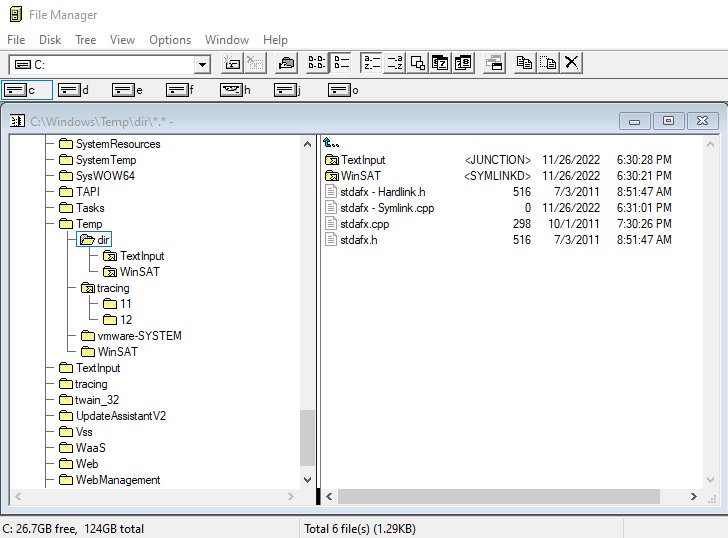
The fastest way to run the classic File Manager
Microsoft publishes the rebuilt app on the Microsoft Store under the name Windows File Manager.
It installs beside File Explorer and changes nothing about the Windows shell.
- Open Microsoft Store from the Start menu.
- Search for Windows File Manager.
- Open the listing and select Get.
- Wait for the install to finish, then select Open.
Microsoft's own repository points at the same listing: Windows File Manager on the Microsoft Store.
Understanding the Evolution of Windows File Manager
The app has a 35-year history and one long gap in the middle of it.
| Release | What happened | What it means now |
|---|---|---|
| Windows 3.0, early 1990s | File Manager shipped as the standard way to browse drives | The folder tree beside a file list dates from here |
| Windows NT 4.0 | The last Microsoft revision of the original source | Published later as the original_plus tag |
| Windows 95 onward | Windows Explorer became the shell | File Manager was retired from later Windows releases |
| April 2018 | Microsoft published the source on GitHub under the MIT licence | Release v10.0 was the first rebuilt binary |
| December 2022 to February 2025 | v10.2, v10.3 and v10.4 added shortcuts, symbolic links and translations | v10.4.0.0 is the current release |
| 4 March 2025 | Microsoft archived the repository | The app still installs and runs, but Microsoft no longer maintains it |
Why Use the Classic Windows File Manager?
The rebuilt version keeps the original layout and adds keyboard routes the 1990s build never had.
| What you get | How it works | Why it matters |
|---|---|---|
| The original directory window | A folder tree beside the file list in a single window | Two directory windows sit side by side for dragging |
| A shell in the current folder | Ctrl + K opens a command shell where you are standing |
No switching to a separate terminal and retyping the path |
| Elevated launches | Ctrl + Enter runs the selected file as administrator |
Admin tasks start from the file list itself |
| Symbolic links by drag | Hold Ctrl + Shift while dragging to create a symbolic link |
No typing full paths into mklink |
| Long path support | Paths up to 1024 characters on Windows 10 version 1607 and later | Deep folder trees stay reachable |
| Native on every architecture | x86, x64 and Arm64 builds | Runs on Arm-based Windows 11 PCs without emulation |
Methods to Run the Classic Windows File Manager on Windows 10 and 11
Four routes lead to the same app. Pick by how you like to install software.
| Your situation | Use this | Why |
|---|---|---|
| You want the simplest install | Microsoft Store | Signed by Microsoft and updated through the Store |
| You prefer typing to clicking | winget install "Windows File Manager" |
One command, no Store window |
| You want a portable copy | The zip on the GitHub releases page | Extract it and run winfile.exe from any folder |
| You want the untouched NT 4.0 code | The original_plus tag in the repository |
Minimal changes, built to compile in Visual Studio |
| You still need File Explorer features | Install it and change nothing else | Windows File Manager runs alongside File Explorer, not over it |
1. Using Third-Party Software: Classic Shells and File Manager Emulators
Microsoft's own build removes the reason to install a third-party classic shell or a File Manager emulator.
Windows File Manager is the original source code published by Microsoft under the MIT licence, not a clone of it.
| What you actually want back | Third-party route | Better route |
|---|---|---|
| The Windows 3.x file manager itself | An emulator or a look-alike clone | Microsoft's own Windows File Manager from the Store |
| A classic Start menu | A classic shell replacement program | The Start settings built into Windows 11 |
| Old-style file menus and toolbars | A shell extension pack | Windows File Manager, which keeps the original menus |
| A classic theme across the whole desktop | A theme patcher | Not available; Windows 11 has no classic theme switch |
Software that patches the shell is unsigned, unsupported and breaks on feature updates.
2. Restoring the Original File Manager Executable
Windows 10 and Windows 11 contain no winfile.exe, so there is no system copy to repair or restore.
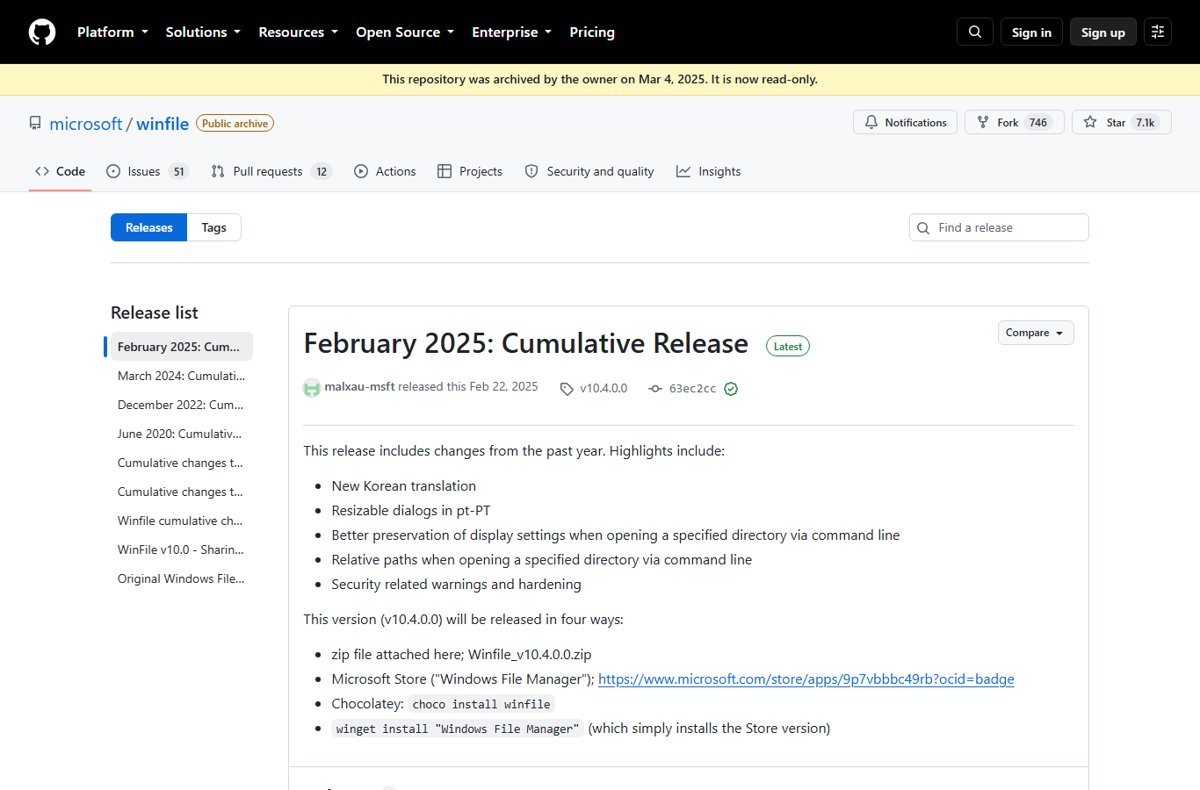
The replacement is a fresh build of the original source, published on Microsoft's GitHub repository.
- Open the Windows File Manager releases page.
- Select the latest release, v10.4.0.0 from 22 February 2025.
- Get
Winfile_v10.4.0.0.zipfrom that release's assets. - Extract the zip into a folder you control, such as one under your user profile.
- Run
winfile.exefrom the extracted folder. - For the untouched Windows NT 4.0 code instead, choose the original_plus release.
The zip build carries no installer and no updater, so repeat these steps for each new version.
Install Windows File Manager with winget
The Windows Package Manager installs the same package without opening the Store.
winget install "Windows File Manager"winget install takes the package name as a positional query and matches it as a case-insensitive substring of the name, ID and moniker. Quote the name because it contains spaces.
You should see: winget resolves the query to a single package, downloads it and finishes without asking you to narrow the search.
If more than one package matches, winget lists the candidates instead of guessing.
Rerun it as winget install --id <Id> -e to pin the exact package, and add -s msstore to force the Microsoft Store source.
3. Tweaking Windows Registry and System Settings
No registry edit is needed to install Windows File Manager, and none is needed to keep it running.
The app stores its own options in an INI file inside the Microsoft\WinFile folder in your roaming AppData folder.
| Setting | Section | What it controls |
|---|---|---|
EditorPath |
[Settings] |
The editor that F12 opens on the selected file |
CachedPath |
[Settings] |
The default path offered by the Goto dialog, C:\ until you change it |
GotoCachePunctuation |
[Settings] |
Characters treated as word delimiters while matching a path, - _ by default |
ScrollOnExpand |
[Settings] |
Whether the tree view scrolls when you expand a folder |
One Windows registry value does affect the shell that Ctrl + K opens: HKEY_LOCAL_MACHINE\SOFTWARE\Microsoft\Command Processor\CompletionChar and PathCompletionChar set the file and directory completion keys.
Back up the registry before you change either value.
4. Using the Command Prompt or PowerShell for File Management
Windows File Manager opens a shell in the current directory with Ctrl + K, and an elevated one with Shift + Ctrl + K.
These documented commands do from the keyboard what the directory window does with the mouse.
| Job | Command | Notes |
|---|---|---|
| List the files in a folder | dir |
Runs in Command Prompt and in PowerShell |
| See the folder structure | tree |
Prints the directory tree as text |
| Copy files | copy, xcopy |
Both are in the Windows commands reference |
| Mirror a whole folder | robocopy |
The command Microsoft documents for bulk copying |
| Move or rename | move, ren |
Same outcome as dragging inside a directory window |
| Remove files | del |
Deletes from the command line rather than the Recycle Bin |
| Change file attributes | attrib |
Read-only, hidden, system and archive flags |
| Create a symbolic link | mklink |
The typed equivalent of a Ctrl + Shift drag |
PowerShell runs every one of these commands as well as its own cmdlets.
Chain them into a script when the same file job repeats: How to Create and Run a Batch File in Windows 10 and 11.
5. Creating a Custom Classic-Style File Manager Shortcut
A desktop shortcut starts the app without opening the Start menu first.
- Press the Windows key.
- Select All to show the full app list on Windows 11.
- Find Windows File Manager in the list.
- Left-click its name and drag it onto your desktop.
- Double-click the new shortcut to start the app.
Version 10.3 added the ability to name a starting directory when the app opens, so a shortcut can land straight in a working folder.
To make a shortcut to a file rather than the app, right-click the file and select Create shortcut; on Windows 11 select Show more options first.
How to check the classic File Manager is installed
The Windows Package Manager lists apps installed by any route, including the Microsoft Store.
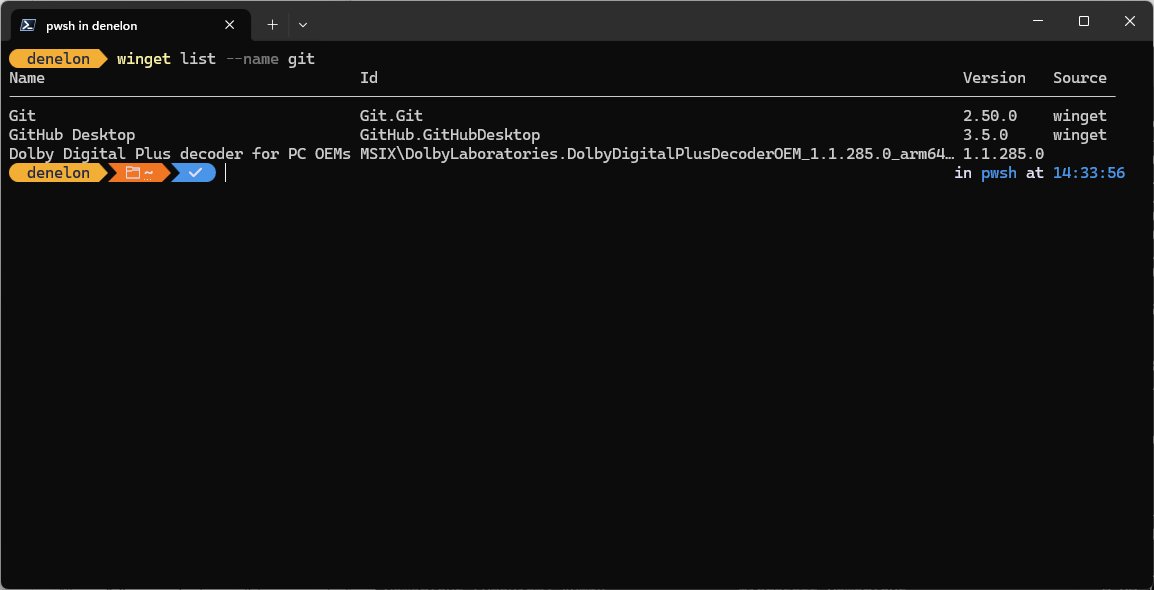
winget list --name "Windows File Manager"winget list shows every installed app, not only the ones winget installed. --name limits the output to the application name.
You should see: One row for Windows File Manager with a version number in the Version column.
The window is the other proof: the folder tree sits beside the file list, the way the original File Manager laid it out.
A zip copy will not appear in this list, because nothing registers it as an installed package.
Additional Tips and Best Practices
The v10 releases added keyboard shortcuts that the original never had.
| Shortcut | What it does |
|---|---|
Ctrl + C |
Copies the path of the selected item to the clipboard |
Ctrl + K |
Opens a command shell in the current directory |
Shift + Ctrl + K |
Opens an elevated command shell |
Ctrl + Enter |
Runs the selected file as administrator |
F12 |
Opens the selected file in the editor named by EditorPath |
Ctrl + Alt and a drive letter |
Switches the window to that drive |
Ctrl + Shift while dragging |
Creates a symbolic link instead of copying |
Ctrl + Shift + Alt while dragging |
Creates a hard link or a junction |
Page Up and Page Down |
Page through the results in the Goto dialog |
Duplicate files get an automatic – Copy suffix, and symbolic links are flagged with >SYMLINK< in the listing.
Version 10.3 also added menu items that launch an administrator command prompt or Explorer in the current directory, the same elevation idea as How to Run Device Manager as Admin.
Protected locations open in it as well, such as the folder described in Where Is the hosts file in Windows 11.
Fix the classic File Manager when it will not run
winget stops and lists several packages instead of installing
The query matched more than one package, and winget refuses to guess which one you meant.
- Run
winget search "Windows File Manager"and read the exact Id column. - Rerun the install as
winget install --id <Id> -e. - Add
-s msstoreor-s wingetwhen the same package appears in both sources.
The app will not install from the Microsoft Store
The Store package needs a supported Windows build and a signed-in, working Store app.
- Install any pending Windows updates and restart.
- Sign in to the Microsoft Store with your Microsoft account.
- Run the built-in troubleshooter for Store apps, using How to Run Any Troubleshooter on Windows 10 and 11.
- If the Store still refuses, install with
winget install "Windows File Manager"instead. - As a last route, extract the zip from the releases page and run
winfile.exedirectly.
Windows 11 has no setting to switch to the classic view
Windows 11 ships no classic view or classic theme switch; only the file manager itself comes back as a separate app.
- Install Windows File Manager and use it for the file jobs that want the old layout.
- Leave File Explorer in place for the rest of the shell.
- Ignore theme patchers, which are unsigned and break at the next feature update.
Old Windows programs still will not run after installing it
Windows File Manager is a file browser, not a compatibility layer for old applications.
- Check the software vendor for a build that supports current Windows.
- Run software from the 16-bit era inside a supported virtual machine instead.
- Use Windows File Manager only for browsing, copying and linking files.
The app has stopped receiving updates
Microsoft archived the repository on 4 March 2025 and stated it no longer has the resources to maintain the project.
- Treat v10.4.0.0 as the final release Microsoft published.
- Keep File Explorer as the default handler for anything that needs current Windows features.
- Read the archived notes at github.com/microsoft/winfile before trusting any fork.
Frequently Asked Questions
How do you get Microsoft's classic file manager?
Install Windows File Manager from the Microsoft Store, or run winget install "Windows File Manager". Both deliver Microsoft's own build of the original File Manager source. A portable zip is also published on the GitHub releases page for the project.
How do you set Windows to classic view?
Windows 11 has no classic view or classic theme switch. The one classic component Microsoft still publishes is Windows File Manager, installed as a separate app. It restores the old file window without changing the desktop, taskbar or Start menu.
How do you run Classic Shell on Windows 11?
Classic Shell is not a Microsoft product and is not needed for the classic File Manager. Install Windows File Manager from the Microsoft Store instead, which Microsoft signs and publishes, and leave the Windows 11 shell untouched.
Does it replace File Explorer?
No. Windows File Manager installs as an ordinary desktop app beside File Explorer. File Explorer stays the default for the taskbar, the desktop and file associations, and both can be open at the same time.
Which versions of Windows does it run on?
Microsoft states it runs as a native x86, x64 and Arm64 desktop app on every currently supported version of Windows, including Windows 11. That covers supported Windows 10 builds and every Windows 11 build.
Is Windows File Manager free?
Yes. The source is published under the MIT License with copyright held by Microsoft Corporation, and the Microsoft Store listing is a free install. No licence key, subscription or account purchase is involved.
How do you run old Windows programs with it?
You do not. Windows File Manager browses and copies files; it adds no compatibility layer. Software from the 16-bit era needs a supported virtual machine or a current build from its vendor, not a different file manager.
Why is the classic File Manager still worth using?
It is small, keyboard-driven and native on all three architectures. Ctrl + K opens a shell in the current folder, Ctrl + Enter runs a file as administrator, and a Ctrl + Shift drag creates a symbolic link.
Where does it keep its settings?
In an INI file inside the Microsoft\WinFile folder in your roaming AppData folder. The [Settings] section holds EditorPath, CachedPath, GotoCachePunctuation and ScrollOnExpand, so the settings survive an app update.
Is it still maintained by Microsoft?
No. Microsoft archived the repository on 4 March 2025, saying it does not have the expertise or resources to keep maintaining the project. Version 10.4.0.0 from February 2025 is the last release Microsoft published.
Final Thoughts
Install Windows File Manager from the Microsoft Store and keep File Explorer as the default. The Store build is Microsoft's signed package of the original source, it needs no maintenance, and it runs beside File Explorer rather than over it. Use the GitHub zip only when you want a portable copy, and treat v10.4.0.0 as the last release Microsoft shipped.