To recover files after emptying the Recycle Bin in Windows 11, restore them from a backup such as File History or OneDrive first, and if no backup exists, run Microsoft's free Windows File Recovery app before the free space gets overwritten.
This guide covers each recovery route in the order to try them, what to do on USB drives and SD cards, how to restore a file that is still in the Recycle Bin, and the Recycle Bin settings that stop this happening again.
Recover files after emptying the Recycle Bin with File History
Stop using the PC as much as you can before you start. Windows marks a deleted file's space as free, and any new file written to the drive can overwrite it.
If File History was backing up to an external drive or network location, the file is still in that backup. Connect the backup drive, then restore from the folder that held the file.
- Open File Explorer and go to the folder that used to contain the deleted file.
- Right-click the folder and select Restore previous versions. For a folder at the top of a drive, such as
C:\, right-click the drive instead. - On the Previous Versions tab, select a version dated before you deleted the file.
- Expand Open and select Open in File History to check the file is there.
- Expand Restore and select Restore to…, then pick a different location so nothing current is overwritten.
Restoring to the original location replaces the current version, and that replacement can't be undone. Use Restore to… when in doubt.
Can you recover deleted files after emptying the Recycle Bin?
Yes, often. Emptying the Recycle Bin does not wipe the data straight away, but the chance of recovery drops every time the drive writes new data. Pick the route that matches what you had set up.
| Your situation | Try this | What to know |
|---|---|---|
| File History was turned on | Restore previous versions in File Explorer | Needs the backup drive or network location connected |
| File was in a OneDrive-synced folder (Desktop, Documents, Pictures) | OneDrive recycle bin at onedrive.com | 30 days for personal accounts, 93 days for work or school accounts |
| File came from SharePoint or Teams | The site's recycle bin | 93 days, then the site collection recycle bin |
| No backup, local drive | Windows File Recovery (winfr) |
Free from the Microsoft Store; works on internal, external and USB drives |
| Deleted within the last few days, nothing else worked | Point-in-time restore from Windows Recovery Environment | Reverts the whole PC, not one file; restore points kept about 72 hours |
Recover permanently deleted files with Windows File Recovery
Windows File Recovery is Microsoft's own command line app. It recovers files deleted from local storage, including internal drives, external drives and USB devices, that can't be restored from the Recycle Bin. It does not work on cloud storage or network shares.
You need a second drive to save the recovered files to, because the source and destination must be different. A USB drive works.
- Install Windows File Recovery from the Microsoft Store if it is not already on the PC.
- Press the Windows key, type
Windows File Recoveryand select the app. - Select Yes when asked to allow the app to make changes.
- Type a command in the form
winfr source-drive: destination-drive: /mode /switches, for examplewinfr C: E: /regular /n \Users\<username>\Documents\to recover your Documents folder to drive E. - Enter Y when asked to confirm, then wait; press Ctrl + C to stop.
- Open the destination drive and look in the Recovery_ folder named with the date and time.
Start with Regular mode on an NTFS drive for a recent deletion. If the file does not come back, run the same command again with /extensive.
Windows File Recovery commands for common recovery jobs
| Goal | Command | Mode |
|---|---|---|
| Recover PDF and Word files from C: to E: | winfr C: E: /regular /n *.pdf /n *.docx |
Regular |
| Recover any file with invoice in its name from E: to C: | winfr E: C: /extensive /n *invoice* |
Extensive |
| Recover JPEG and PNG photos from Pictures | winfr C: E: /extensive /n \Users\<username>\Pictures\*.JPEG /n \Users\<username>\Pictures\*.PNG |
Extensive |
| Recover a file whose name has spaces | winfr C: E: /regular /n "\Users\<username>\Documents\Quarterly Statement.docx" |
Regular |
| Show all switches | winfr /? or winfr /! |
All |
Replace <username> with your account folder name; type C:\users in the File Explorer address bar to see it. Add a backslash at the end of a folder name, and add the /u switch in NTFS mode to also recover undeleted files such as items still in the Recycle Bin.
Which Windows File Recovery mode to use
| File system | Circumstances | Recommended mode |
|---|---|---|
| NTFS (PC drives, external hard drives, USB drives over 4 GB) | Deleted recently | Regular |
| NTFS | Deleted a while ago | Extensive |
| NTFS | After formatting a disk | Extensive |
| NTFS | Corrupted disk | Extensive |
| FAT and exFAT (SD cards, USB drives under 4 GB) | Any | Extensive |
To check a drive's file system, right-click it in File Explorer and select Properties. Non-NTFS drives such as most SD cards and pen drives are only supported in Extensive mode.
Restore deleted files from the OneDrive recycle bin
OneDrive keeps its own recycle bin online, separate from the one on your desktop. If the file sat in a synced folder, emptying the Windows Recycle Bin does not touch the online copy.
- Go to onedrive.com and sign in with your Microsoft account or work or school account.
- Select Recycle bin in the navigation pane.
- Point to each file you want back and select its circle check box.
- Select Restore.
- Check the file's original folder on the PC once OneDrive syncs it back.
Files permanently deleted from the OneDrive recycle bin can't be restored there, so it is worth keeping a separate OneDrive backup. Microsoft 365 subscribers can also roll back the entire OneDrive to any point in the last 30 days.
Recover files with point-in-time restore in Windows 11
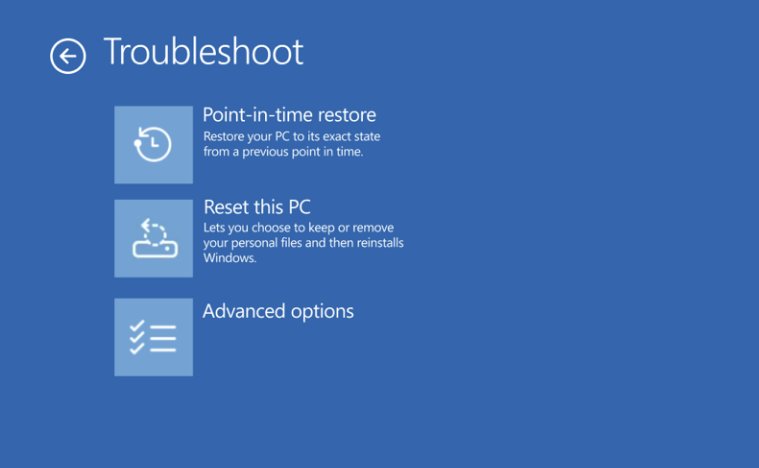
Point-in-time restore returns the whole PC, including local files, to a restore point from the last 72 hours. Treat it as a last resort: everything changed after the restore point, including newer files, settings and passwords, is lost. OneDrive data is not affected.
- Copy any files created since the deletion to a USB drive or OneDrive.
- Open Settings > System > Recovery and select Advanced startup.
- In Windows Recovery Environment, select Troubleshoot > Point-in-time restore.
- Enter your BitLocker recovery key if asked.
- Choose a restore point from before the deletion and select Continue.
- Review the restore point and data loss warning, then select Restore.
The feature is on by default only on Home and unmanaged Pro PCs with an OS drive of 200 GB or more, and restore points disappear when free space falls to 20 GB or less.
How to recover deleted files from Recycle Bin
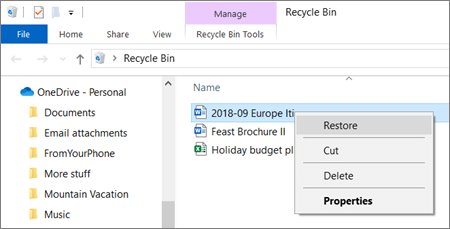
If you have not emptied the Recycle Bin yet, the file is still there and can go straight back to the folder it came from.
- Double-click the Recycle Bin icon on the desktop.
- Find the file you want back, or select multiple files to restore several at once.
- Right-click the file and select Restore.
- Open the original folder to confirm the file is back.
If the Recycle Bin icon is missing, right-click the desktop, select View and make sure Show desktop icons is ticked.
How to change Recycle Bin storage size settings in Windows 11
Each drive has its own Recycle Bin with a maximum size, and Storage Sense can also empty it on a schedule. Raising the limit and lengthening the Storage Sense period keeps deleted files recoverable for longer.
- Right-click the Recycle Bin icon on the desktop and select Properties.
- Select the drive you want to change in the list.
- Select Custom size and enter a larger maximum size in MB.
- Select OK.
- Open Settings > System > Storage > Storage Sense and set Delete files in my recycle bin if they have been there for over to a longer period, or turn it off.
How to remove Recycle Bin from Desktop in Windows 11
Removing the icon only hides it; deleted files still go to the Recycle Bin. Use the same steps with the box ticked to bring a missing icon back.
- Open Settings and select Personalization > Themes.
- Select Desktop icon settings.
- Clear the Recycle Bin check box to remove the icon, or tick it to show the icon again.
- Select OK.
Check recovered files open correctly
- Open the restore location: the original folder, the folder you chose in Restore to…, or the Recovery_ folder from Windows File Recovery.
- Open each recovered file in its usual app, not just its thumbnail.
- Compare the size and modified date with what you expected.
- Copy good files back to their normal folder and to a backup before deleting anything else.
Windows File Recovery can bring back extra files from the system drive. Files recovered from the Recycle Bin appear as $files.xxx inside a $RECYCLE.BIN folder.
Why deleted files won't recover in Windows 11 and fixes
Windows File Recovery finds nothing or returns damaged files
The free space was overwritten, which happens quickly on solid-state drives.
- Run the same command again with
/extensiveinstead of/regular. - Stop installing apps or saving files to the source drive.
- If recovery still fails, restore from File History or OneDrive instead.
Error: Source and Destination cannot refer to the same physical partition
The command saves to the same drive it scans.
- Connect a USB or external hard drive.
- Use that drive's letter as the destination in the command.
- Do not create a new partition on the source drive after losing data.
Destination disk is full during recovery
The recovered files and logs need more space than the destination drive has.
- Free up space on the destination drive.
- Choose R to resume, S to skip the file or A to abort.
- Narrow the next run with
/nfilters so fewer files are recovered.
No Previous Versions listed for the folder
File History was never turned on, or the backup drive is not connected.
- Connect the drive or network location File History used.
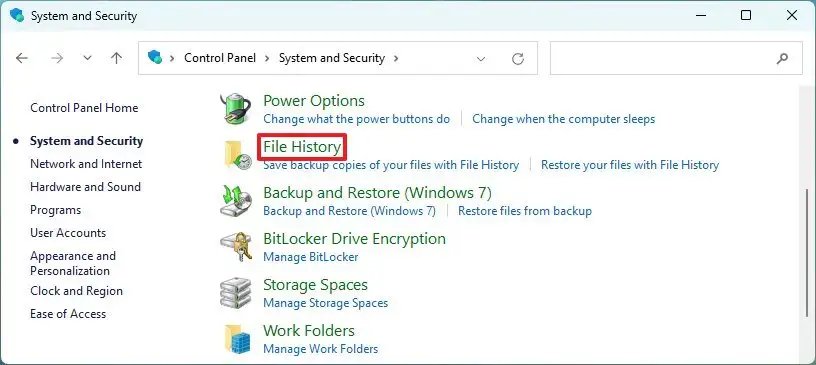
- Check Control Panel > System and Security > Save backup copies of your files with File History.
- If File History was off, use OneDrive or Windows File Recovery instead.
The Recycle Bin on a drive is corrupted
The drive's $Recycle.bin folder is damaged, so Windows offers to empty it.
- Recover any files you need from that drive first, using the methods above.
- Open Command Prompt as administrator.
- Run
RD <Drive>$Recycle.bin /s /q, replacing<Drive>with the drive letter and colon, for exampleRD C:\$Recycle.bin /s /q. - Restart the PC.
Turn on File History so emptied files can be recovered next time
A backup makes the next accidental deletion a two-minute fix. File History backs up Documents, Pictures, Videos, Desktop and other libraries to an external drive or network location. You can also set up Windows 11 Backup to OneDrive.
- Connect an external drive or set up a network location.
- Open Control Panel and, under System and Security, select Save backup copies of your files with File History.
- Select Turn on.
- If needed, select Select drive, choose the drive or network location and select OK.
- To back up another folder, right-click it, select Show more options > Include in library.
Recover deleted files in Windows 11 FAQ
Can deleted files be recovered after emptying the Recycle Bin?
Often, yes. Windows marks the space as free rather than erasing it, so File History, OneDrive or Windows File Recovery can bring the file back if new data has not overwritten that space yet.
How do I recover permanently deleted files without software?
Use what Windows already has: Restore previous versions in File Explorer if File History was on, the OneDrive recycle bin for synced folders, or point-in-time restore for very recent deletions. Windows File Recovery is free from Microsoft if those fail.
How do I recover deleted files from OneDrive?
Sign in at onedrive.com, select Recycle bin, tick the files and select Restore. Personal accounts keep deleted files for 30 days and work or school accounts for 93 days, unless an administrator changed that.
How do I recover deleted files from SharePoint or Teams?
Open the SharePoint site the file was deleted from; in Teams, use the channel's Files tab and Open in SharePoint. Open the recycle bin, select the items and select Restore. Items are kept for 93 days.
How do I recover deleted files from a USB pen drive or SD card?
Use Windows File Recovery in Extensive mode, saving to a different drive, for example winfr E: C: /extensive /n *.jpg. FAT and exFAT drives, common on SD cards and small USB drives, only support Extensive mode.
How do I recover deleted files from the Desktop or Downloads folder?
Check the Recycle Bin first, then right-click the Desktop or Downloads folder and select Restore previous versions. If Desktop syncs to OneDrive, check the OneDrive recycle bin. Otherwise run Windows File Recovery with an /n filter for that folder.
Why can't I recover my deleted files?
The space the file used has probably been overwritten, which happens fast on SSDs and on a drive that stays in use. Try Extensive mode, then backups; if nothing has a copy, the file is gone.
How do I recover deleted files quickly?
Restore from the Recycle Bin if it is not empty, or from the OneDrive recycle bin if the file was synced. Both take under a minute. Windows File Recovery is slower because it scans the whole drive.
Can I recover deleted files from the Recycle Bin after a restart?
Yes. Restarting does not empty the Recycle Bin, so files stay there until you empty it, the size limit pushes them out, or Storage Sense deletes them after the period you set.
Best way to recover files after emptying the Recycle Bin
Check File History and the OneDrive recycle bin first, then run Windows File Recovery to a separate drive, and keep point-in-time restore for a deletion from the last few days that nothing else recovers. Backups return an exact copy with no scanning, while recovery tools depend on the deleted data not yet being overwritten.