To get to Program Files on Windows 11, open File Explorer, select This PC > Local Disk (C:) and open Program Files, or press Windows + R, type %ProgramFiles% and press Enter.
This guide covers seven ways in, the difference between Program Files and Program Files (x86), how to find a single app's folder, and what to do when the folder is missing or access is denied.
Method 1: Open Program Files from File Explorer
Program Files lives at C:\Program Files on the system drive. File Explorer gets you there in a few clicks.
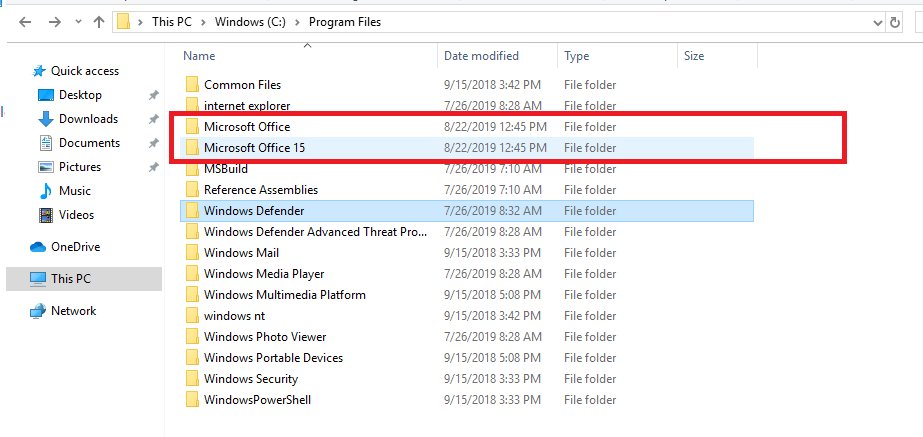
- Press Windows + E to open File Explorer.
- Select This PC in the left pane.
- Double-click Local Disk (C:), or whichever drive Windows is installed on.
- Double-click Program Files for 64-bit apps, or Program Files (x86) for 32-bit apps.
Tip: use the address bar directly. Press Alt + D (or Ctrl + L) in File Explorer, type C:\Program Files and press Enter to jump straight there.
Quick ways to open Program Files
Every route below ends in the same folder. Pick the one that matches where you are on the PC right now.
| Where you are | Fastest route | What to type or click |
|---|---|---|
| Anywhere, keyboard handy | Run box | Windows + R, then %ProgramFiles% |
| File Explorer already open | Address bar | Alt + D, then C:\Program Files |
| Looking for one app's folder | App shortcut or Start search | Right-click the app, Open file location |
| Command Prompt or Terminal open | Command | explorer "%ProgramFiles%" or cd /d "%ProgramFiles%" |
| App is running right now | PowerShell process path | Get-Process -Name <app> -FileVersionInfo |
What is the Program Files folder in Windows 11?
Program Files is the default install folder for desktop programs that are installed for every user on the PC. Windows records it in the %ProgramFiles% environment variable, so installers and scripts can find it even if the drive letter differs.
| Folder | Default path | Environment variable | What goes there |
|---|---|---|---|
| Program Files | C:\Program Files |
%ProgramFiles% |
64-bit desktop apps installed for all users |
| Program Files (x86) | C:\Program Files (x86) |
%ProgramFiles(x86)% |
32-bit desktop apps on 64-bit Windows |
| Common Files | C:\Program Files\Common Files |
%CommonProgramFiles% |
Components shared by several programs |
| WindowsApps | C:\Program Files\WindowsApps |
None | Microsoft Store and other packaged apps, locked down by Windows |
| Per-user Programs | %LOCALAPPDATA%\Programs |
None | Apps installed for one user only, without admin rights |
Program Files vs. Program Files (x86)
You have two Program Files folders because 64-bit Windows runs both 64-bit and 32-bit apps and keeps them apart. A 32-bit (x86) program sees %ProgramFiles% as C:\Program Files (x86), so it installs there automatically.
| Program Files | Program Files (x86) | |
|---|---|---|
| Path | C:\Program Files |
C:\Program Files (x86) |
| Holds | 64-bit apps | 32-bit (x86) apps |
| %ProgramFiles% inside a 64-bit app | Points here | Use %ProgramFiles(x86)% |
| %ProgramFiles% inside a 32-bit app | Use %ProgramW6432% |
Points here |
| Safe to delete? | No | No, 32-bit apps and their shared files live here |
The name is not a version number: x86 is the label for 32-bit Intel-compatible code. The folder is necessary on 64-bit Windows even if you think every app you use is 64-bit.
Method 2: Use the Run box
The Run box accepts environment variables, so you never need to remember the drive letter.
- Press Windows + R to open the Run dialog box.
- Type
%ProgramFiles%and press Enter to open Program Files. - For the 32-bit folder, type
%ProgramFiles(x86)%instead. - For per-user installs, type
%LOCALAPPDATA%\Programs.
Method 3: Open Program Files using Windows Search
Windows Search is the quickest way to reach the folder of a specific app, because it can open the app's file location straight from the results.
- Press Windows + S or select the search box on the taskbar.
- Type the app's name, for example Notepad++.
- Right-click the app in the results and select Open file location.
- If File Explorer opens a Start menu shortcuts folder, right-click the shortcut there and select Open file location again to land in the app's Program Files folder.
Method 4: Open Program Files from Windows Terminal or Command Prompt
To open Program Files in File Explorer from Terminal, use the explorer command. To work in the folder from the command line, change directory instead: cd /d "%ProgramFiles%" in Command Prompt, or Set-Location $env:ProgramFiles in PowerShell.
Always quote the path, because Program Files contains a space.
explorer "%ProgramFiles%"Opens the Program Files folder in a new File Explorer window from Command Prompt. In PowerShell, use explorer $env:ProgramFiles. Swap in %ProgramFiles(x86)% or ${env:ProgramFiles(x86)} for the 32-bit folder.
You should see: A File Explorer window opens on C:\Program Files. After cd /d, the prompt changes to C:\Program Files>.
Method 5: Find an app’s Program Files folder from its shortcut
Every desktop shortcut, Start menu entry and pinned taskbar icon points at a file inside the app's folder.
- From a desktop shortcut: right-click it and select Open file location.
- If File Explorer opens a folder of shortcuts instead of the app folder, right-click the shortcut there and select Open file location again.
- Press Alt + D to read the full path of the folder you land in.
Method 6: Find the install location from Settings
Settings lists every installed app, which helps when you do not know the exact name or publisher to look for in Program Files.
- Select Start > Settings > Apps > Installed apps.
- Type part of the app's name in the search box above the list.
- Note the exact app name and publisher shown under it.
- Open
C:\Program FilesorC:\Program Files (x86)and look for a folder with that name or the publisher's name, since many apps sit inside a publisher folder.
Start lists installed apps and programs too: the most used apps sit at the top, followed by an alphabetical list.
If the app is a Microsoft Store app, its folder is inside WindowsApps and is not meant to be browsed. When you want to remove a program cleanly, use More > Uninstall on the same page rather than deleting its folder.
Method 7: Locate an app’s folder from Task Manager
Open Task Manager with Ctrl + Shift + Esc to see the running app's process name, then ask PowerShell where that process file lives. Run PowerShell as administrator if the process belongs to another user or to the system.
Use 64-bit PowerShell: in 32-bit PowerShell the path of a 64-bit process comes back empty.
Get-Process -Name notepad -FileVersionInfoReplace notepad with the process name from Task Manager, without .exe. -FileVersionInfo returns the file behind the main module of the process, including its full path.
You should see: A FileName column shows the full path, for example C:\Program Files\PowerShell\7\pwsh.exe. Open the folder part of that path in File Explorer.
Why you might not find an app in Program Files
| Type of app | Where it actually lives | How to get there |
|---|---|---|
| Microsoft Store apps | C:\Program Files\WindowsApps\<package name> (protected app folders, read-only) |
Use the app's Start menu entry; the folder is locked by Windows |
| Apps installed for your account only | %LOCALAPPDATA%\Programs in your user profile |
Type %LOCALAPPDATA%\Programs in the Run box |
| 32-bit apps | C:\Program Files (x86) |
Type %ProgramFiles(x86)% in the Run box |
| Games installed through a launcher | The library folder chosen in the launcher, often on another drive | Check the launcher's library or storage settings |
| Portable apps | Wherever you unzipped them | Right-click the shortcut and select Open file location |
Browsers have moved between these locations too: Chrome installs to Program Files for all users, but a per-user install may still sit under your profile.
How to show hidden folders related to Program Files
Program Files itself is visible, but related folders in your profile and on the C: drive can be hidden. Turn on hidden items to see them in File Explorer.
- Open File Explorer with Windows + E.
- Select View on the command bar.
- Point to Show.
- Select Hidden items so it has a check mark.
How to copy the path to Program Files or an app folder
- Open the folder in File Explorer, for example
C:\Program Files\PowerShell\7. - Press Alt + D to select the address bar. The full path is highlighted.
- Press Ctrl + C to copy the current folder path.
- Paste it with Ctrl + V into the Run box, a script or a shortcut. Wrap it in quotes when a command needs it.
How to create a shortcut to a program in Program Files
- Open the app's folder in Program Files and find its
.exefile. - Right-click the
.exeand select Show more options. - Select Send to > Desktop (create shortcut).
- Rename the new desktop shortcut if you like; it keeps working wherever you move it.
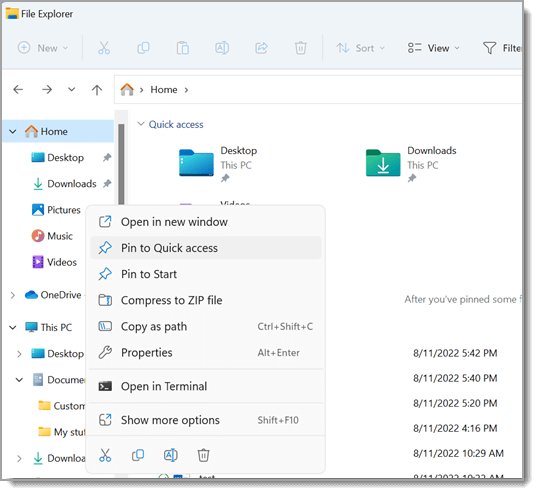
To keep the Program Files folder itself one click away, right-click it and select Pin to Quick access.
Understanding permissions in Program Files
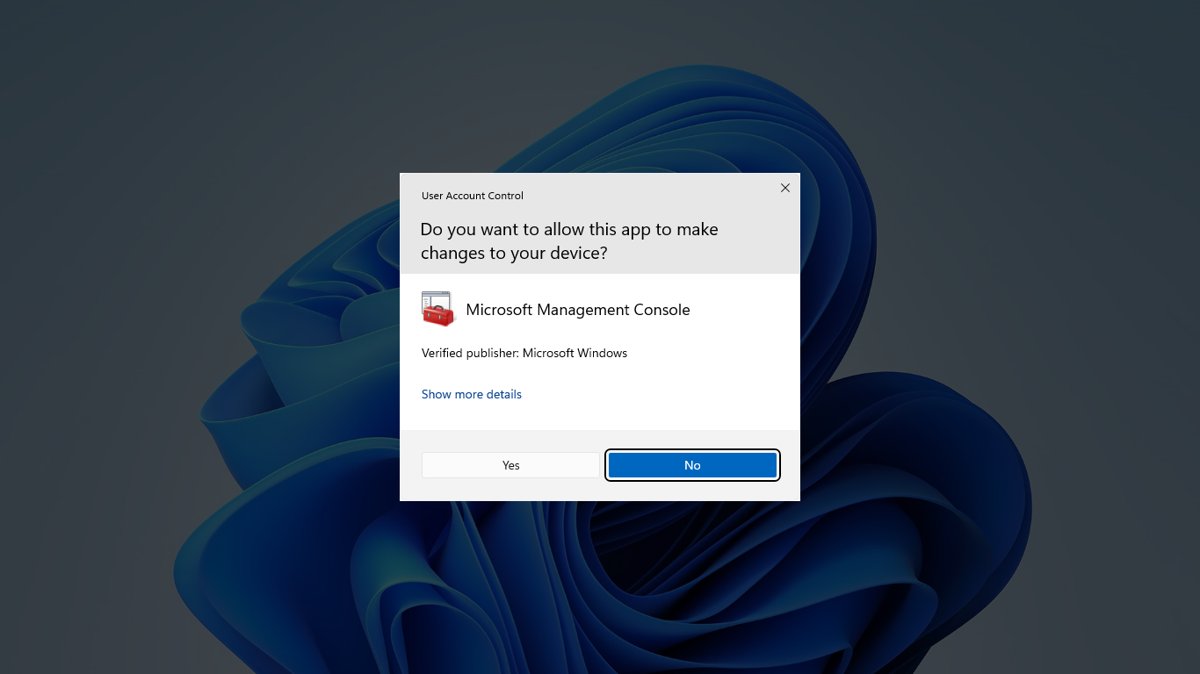
Program Files is a protected folder. Everyone can read and run files there, but changing files needs an administrator access token, so Windows shows a User Account Control prompt.
Older 32-bit apps that try to write into Program Files without that token may get a virtualized per-user copy in your profile instead, which is why a settings file you edit can seem to change back.
| What you want to do | Safe? | Do this instead |
|---|---|---|
| Open, browse and copy files out | Yes | Nothing extra needed |
| Edit an app's config file | Only if the app's maker documents it | Copy the file, edit the copy, then replace it with admin approval |
| Delete an app's folder to remove it | No | Uninstall from Settings > Apps > Installed apps |
| Change files in WindowsApps | No | Packaged app files are read-only and Windows blocks tampered apps from launching |
| Take ownership of Program Files | No | Leave permissions as they are |
How to get to Program Files on another drive
Windows keeps one Program Files folder on the system drive. Programs you install elsewhere go into whatever folder you picked in their installer, often a Program Files folder you created on that drive.
- Press Windows + E and select This PC.
- Open the other drive, for example D:.
- Open the folder you chose during setup, such as
D:\Program FilesorD:\Games. - To see which drives are filling up, open Settings > System > Storage > Advanced storage settings > Storage used on other drives.
To send new Store apps to another drive by default, use Where new content is saved on the same Storage page.
How to search inside Program Files
Search from File Explorer: open Program Files, press Ctrl + E or Ctrl + F to jump to the search box, and type a file name. Searching a non-indexed folder like this is slower than a Start search.
Search using Terminal when you want a full list of matching paths.
Get-ChildItem -Path $env:ProgramFiles, ${env:ProgramFiles(x86)} -Filter *.exe -Recurse -ErrorAction SilentlyContinue | Select-Object FullNameSearches both Program Files folders for .exe files and prints each full path. Change *.exe to a name such as notepad*.exe. -ErrorAction SilentlyContinue hides access-denied messages for protected folders like WindowsApps.
You should see: A FullName list of matching files. In Command Prompt, dir "%ProgramFiles%\notepad*.exe" /s /b gives a similar list.
How to open Program Files as an administrator
File Explorer runs as a standard user even for admins, so the practical way to work in Program Files with full rights is an elevated Terminal.
- Select Start, type Terminal.
- Select Run as administrator in the search results pane.
- Select Yes at the User Account Control prompt.
- Type
Set-Location $env:ProgramFilesand press Enter. - Run the commands you need. When you change files in File Explorer instead, approve the prompt Windows shows for each protected action.
Check which Program Files folder you are in
- Press Alt + D in File Explorer and read the path:
C:\Program Filesis the 64-bit folder,C:\Program Files (x86)the 32-bit one. - In Command Prompt, type
echo %ProgramFiles%and press Enter to see where the variable points on this PC. - If a 32-bit tool reports
C:\Program Files (x86)for%ProgramFiles%, that is expected; typeecho %ProgramW6432%to get the 64-bit folder.
Troubleshooting: Program Files is missing, empty, or access is denied
Program Files is missing from the C: drive
You are looking at the wrong drive, or File Explorer is showing a library or Home instead of the drive.
- Press Windows + R, type
%ProgramFiles%and press Enter; the variable always points at the real folder. - Press Alt + D and check the drive letter in the path.
- Open This PC and confirm which drive is labelled as the Windows drive.
Program Files looks empty or an app's folder is missing
The app is 32-bit, per-user or a Store app, so it lives in a different folder.
- Check
%ProgramFiles(x86)%and%LOCALAPPDATA%\Programsin the Run box. - Right-click the app's shortcut and select Open file location to see the real path.
- Turn on View > Show > Hidden items in File Explorer.
Access is denied when opening or changing a folder in Program Files
The folder is protected and the action needs administrator approval, or it is the locked WindowsApps folder.
- Sign in with an administrator account, or ask the PC's admin to approve the prompt.
- Use an elevated Terminal as shown above for changes.
- Leave WindowsApps alone; reinstall or repair the Store app from Settings > Apps > Installed apps instead.
Program Files folder is very large
Big programs, games and their shared components add up, and leftovers can stay after an uninstall.
- Open Settings > System > Storage and select Installed apps to sort apps by size.
- Uninstall the apps you no longer use from Settings > Apps > Installed apps.
- Only delete a leftover folder by hand after its app no longer appears in Installed apps.
Program Files on Windows 11 FAQ
Where is Program Files in Windows 11?
Program Files is at C:\Program Files on the drive where Windows is installed. 32-bit apps go to C:\Program Files (x86). Press Windows + R and type %ProgramFiles% to open the right folder even if Windows is on a different drive letter.
How do I get to Program Files in CMD?
Type cd /d "%ProgramFiles%" and press Enter to move into the folder, or explorer "%ProgramFiles%" to open it in File Explorer. Keep the quotes, because the folder name contains a space.
Why do I have two Program Files folders?
64-bit Windows keeps 64-bit apps in Program Files and 32-bit apps in Program Files (x86). Windows points 32-bit installers at the x86 folder automatically, so both sets of apps and their shared files stay separate.
What is Program Files (x86)?
Program Files (x86) is the install folder for 32-bit programs on 64-bit Windows. x86 is the name for 32-bit Intel-compatible code. Inside a 32-bit app, the %ProgramFiles% variable points to this folder.
Is Program Files (x86) 64-bit?
No. Program Files (x86) holds 32-bit apps. 64-bit apps install to the plain Program Files folder. Both folders exist on 64-bit Windows 11 because it runs both kinds of programs.
Is Program Files (x86) necessary, and can I delete it?
Yes, it is necessary, and no, do not delete it. 32-bit apps and shared components live there, and removing it breaks them. Uninstall unwanted apps from Settings > Apps > Installed apps instead.
What Program Files can I safely delete?
Delete nothing by hand while its app is still installed. Remove programs through Settings > Apps > Installed apps, which runs their uninstallers. A leftover folder whose app no longer appears in Installed apps is the only thing safe to delete manually.
Why is my Program Files folder so big?
Games, creative suites and developer tools can each take many gigabytes, and their shared components add more. Open Settings > System > Storage > Installed apps to see which apps use the most space, then uninstall the ones you no longer need.
Can I move Program Files from C to D?
Do not move the Program Files folder itself; apps and Windows expect it on the system drive. Instead, uninstall a large app and reinstall it to a folder on D: if its installer lets you pick a location. Store apps can use Where new content is saved in Storage settings.
Can I put Program Files in the D drive?
You can create your own D:\Program Files folder and choose it during setup for apps whose installers ask for a location. Windows' own Program Files folder stays on the system drive, and %ProgramFiles% keeps pointing there.