Open File Explorer with Windows + E, then use the navigation pane on the left to pick a location and the command bar at the top to copy, move, rename, share or delete files.
This guide walks through every part of File Explorer in Windows 11: Home and Quick access, tabs, search, views, the preview and details panes, hidden files, shortcuts and fixes when it misbehaves.
How to open File Explorer in Windows 11
Any of these routes opens the same File Explorer window, which starts on Home by default.
- Press Windows + E on the keyboard.
- Or select the folder icon labelled File Explorer on the taskbar.
- Or right-click Start and select File Explorer.
- Or open Start, type File Explorer and press Enter.
Introduction to File Explorer in Windows 11
File Explorer is the built-in Windows app for browsing drives, folders and files on your PC, on OneDrive and on network locations.
| What you can do | Where in File Explorer |
|---|---|
| Open recent and pinned files | Home |
| Jump to Desktop, Documents, Downloads, Pictures, Music, Videos | Quick access in the navigation pane |
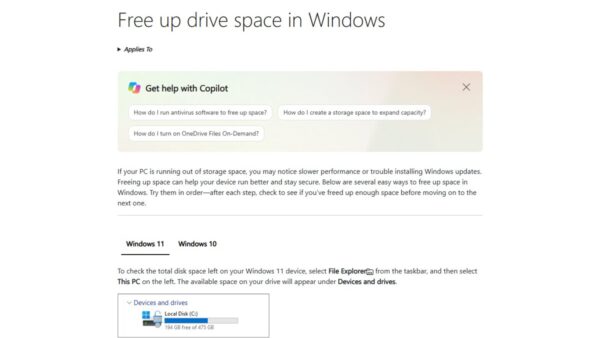
| See every drive and its free space | This PC |
| Copy, move, rename, share and delete | Command bar or right-click menu |
| Find a file by name or content | Search box at the top right |
| Work in several folders in one window | Tabs at the top of the window |
The File Explorer interface explained
| Part | Where it sits | What it does |
|---|---|---|
| Tabs | Very top of the window | Hold several folders in one window; select + to add one |
| Address bar | Below the tabs | Shows the current path; select it or press Alt + D to type a path |
| Search box | Right of the address bar | Searches the current location; Ctrl + E jumps to it |
| Command bar | Below the address bar | New, Cut, Copy, Paste, Rename, Share, Delete, sort, View and See more |
| Navigation pane | Left side | Home, Quick access, OneDrive, This PC, drives and Network |
| Main content area | Centre | Lists the files and folders in the current location |
| Preview or details pane | Right side, when turned on | Previews the selected file or shows its properties |
If the navigation pane is missing, select View > Show > Navigation pane to bring it back.
Understanding File Explorer Home and Quick access
Starting with Windows 11 version 22H2, the page that used to be called Quick access became Home, and Quick access is now the pinned section inside Home and the navigation pane.
| Area | What it shows | How it changes |
|---|---|---|
| Home | Quick access, Favorites and Recent files in one page | Fills automatically as you open files |
| Quick access | Pinned folders, including the six known folders by default | Pin or unpin folders yourself |
| Favorites | Files you mark as favorites | Right-click a file to add it |
| Recent | Files you opened recently | Clear or hide it in Folder Options |
| This PC | Drives and devices | Known folders no longer appear here from 22H2 |
You can also clear the recent files list if you do not want other people to see what you opened.
Using Quick access and favorites
Pinning keeps the folders you use every day one click away in the navigation pane. If you prefer a cleaner sidebar, you can turn Quick access on or off entirely.
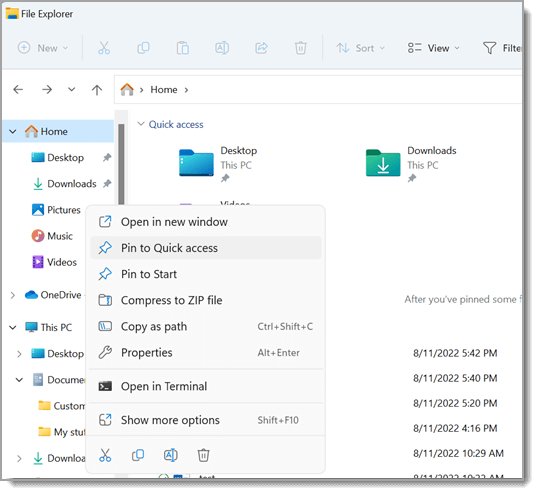
- Right-click the folder you want to keep handy, or press and hold it on a touch screen.
- Select Pin to Quick access; the folder now appears under Quick access in Home and the navigation pane.
- To remove one, right-click it in Quick access and select Unpin from Quick access.
- To restore a known folder you unpinned, open Home, select the Up arrow beside the address bar, right-click the folder and select Pin to Quick access.
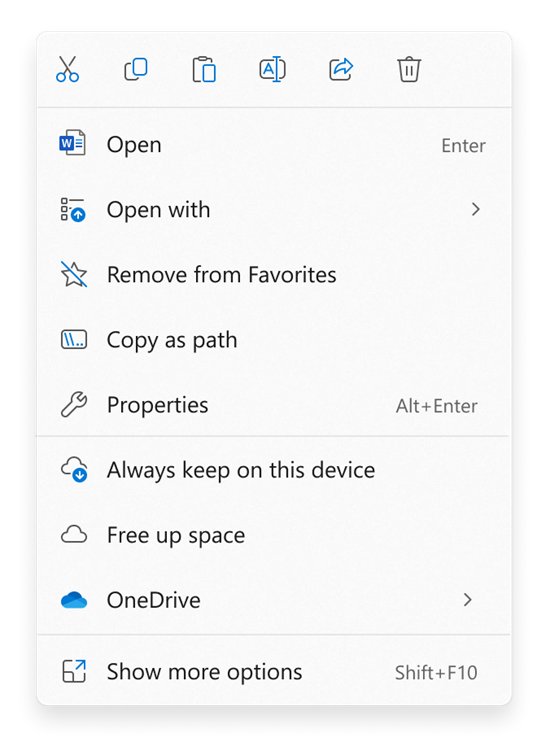
- Right-click a file and select Add to Favorites to list it in the Favorites section of Home.
Navigating files and folders
- Select a location in the navigation pane, such as Documents or This PC.
- Double-click a folder in the main area to open it.
- Select a folder name in the address bar to jump straight back to it.
- Press Alt + Left arrow to go back, Alt + Right arrow to go forward and Alt + Up arrow to move up one level.
- Press Alt + D or Ctrl + L, type a full path such as
C:\Users, and press Enter to go directly there.
Press Ctrl + Shift + E to expand every folder in the navigation pane tree to the current location.
How to use File Explorer tabs
Tabs let you keep several folders open in one window instead of juggling separate windows.
- Select the + next to the current tab, or press Ctrl + T, to open a new tab.
- Right-click a folder and select Open in new tab to open it beside the current one.
- Press Ctrl + Tab to move to the next tab and Ctrl + Shift + Tab for the previous one.
- Press Ctrl + 1 to Ctrl + 9 to jump straight to that tab number.
- Press Ctrl + W, or select the X on a tab, to close it.
Managing files and folders
Creating folders and selecting several items at once are the two jobs behind almost every file clean-up.
- Open the location where you want a new folder.
- Select New > Folder on the command bar, or press Ctrl + Shift + N.
- Type a name and press Enter.
- To select a range of files, select the first one, hold Shift and select the last one.
- To pick individual files, hold Ctrl and select each one.
- Press Ctrl + A to select everything in the folder.
How to copy, move, rename, and delete files
In Windows 11 the right-click menu shows Cut, Copy, Paste, Rename, Share and Delete as labelled icons at the top.
- Select the file or files.
- To copy, select Copy (or press Ctrl + C); to move, select Cut (or press Ctrl + X).
- Open the destination folder and select Paste, or press Ctrl + V.
- To rename, select the file, press F2, type the new name and press Enter.
- To delete, press Delete or Ctrl + D; the item goes to the Recycle Bin.
- Press Shift + Delete only when you want to delete permanently and skip the Recycle Bin.
Drag with Ctrl held to copy, with Shift held to move, and with Alt held to create a shortcut in the target folder.
How to search for files in File Explorer
Searching in File Explorer covers the folder you are in, so where you start the search matters.
- Open the folder or drive you want to search, or stay on Home to include recent and cloud files.
- Select the search box, or press Ctrl + E or Ctrl + F.
- Type part of the file name or a word inside the file; results appear as you type.
- For a slower but more thorough search across the whole PC, open This PC and search from there.
- Double-click a result to open it, or right-click it and select Open file location.
To search faster, check indexing in Settings > Privacy & security > Searching Windows, and use Advanced indexing options to add or remove locations.
How to change the File Explorer view
File Explorer views and sorting control how much you see per folder, from large thumbnails to a dense details list.
- Select View on the command bar.
- Pick a layout such as Extra large icons, Large icons, List, Details or Tiles.
- Select View > Compact view to reduce the spacing between items.
- In Details view, select a column header such as Name, Date modified or Size to sort by it; select it again to reverse the order.
- Hold Ctrl and scroll the mouse wheel to resize icons, or press Ctrl + Shift + 2 for large icons and Ctrl + Shift + 6 for details.
How to use the preview pane, details pane, and item check boxes
- Select View > Show > Preview pane, or press Alt + P, to see a file's contents without opening it.
- Select View > Show > Details pane, or press Alt + Shift + P, to see size, dates and other properties of the selected item.
- Select View > Show > Item check boxes to add a tick box to every file for easy multi-selection with a mouse or touch screen.
- Repeat the same command to hide any of them again.
Files downloaded from the internet may not preview after the October 2025 security update; open the file's Properties and select Unblock only if you trust it.
How to show file name extensions
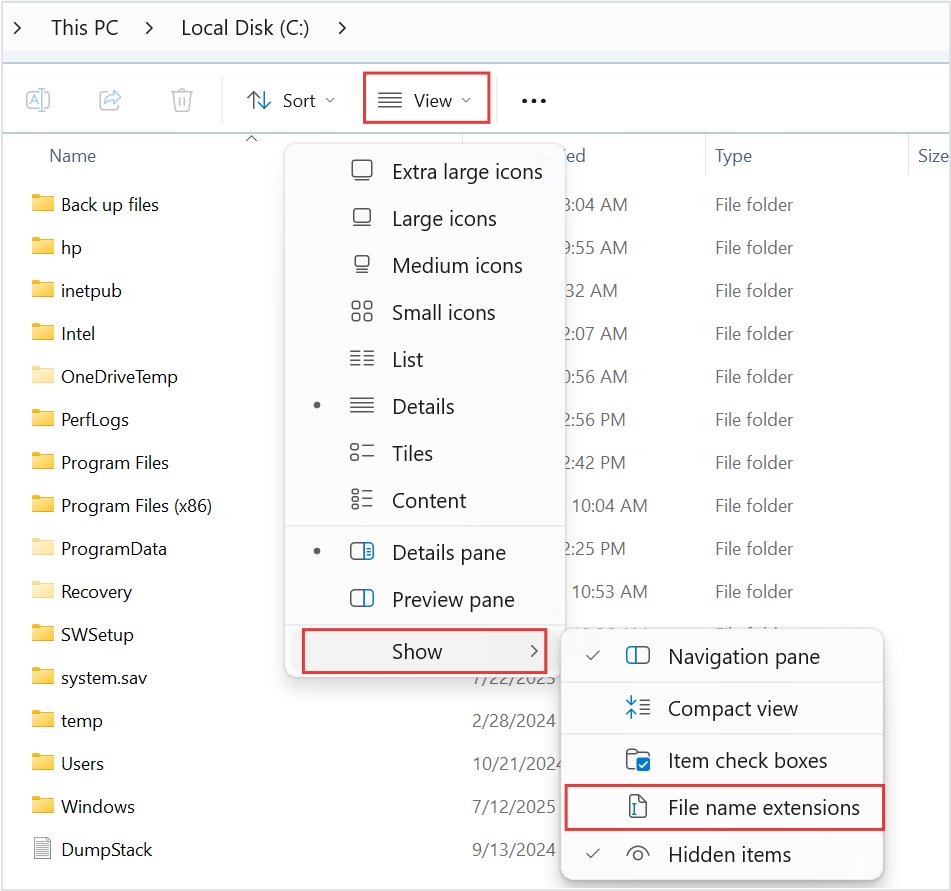
Extensions such as .docx or .exe tell you what a file really is, which helps you spot a disguised file.
- Open File Explorer.
- Select View > Show.
- Select File name extensions so it is ticked.
How to show hidden files in Windows 11
Windows hides some system and app data folders by default, and you can view hidden files and folders from the View menu in a few clicks.
- Open File Explorer.
- Select View > Show.
- Select Hidden items so it is ticked; hidden files and folders now appear faded.
- Select Hidden items again to hide them once you are done.
Customizing File Explorer
Most File Explorer preferences live in Folder Options, and the quickest way to open Folder Options is the See more menu.
- Select See more (the three dots) on the command bar, then Options.
- On the General tab, set Open File Explorer to This PC if you prefer to start on your drives instead of Home, then select Apply.
- Under Privacy on the same tab, clear the recent file, frequent folder and Office.com options to stop Home showing them.
- Clear Include account-based insights, recent, favorite, and recommended files to keep cloud suggestions out of Home.
- Select OK to save.
Advanced features in File Explorer
| Feature | How to use it |
|---|---|
| Create 7-zip and TAR archives | Right-click files and select Compress to, then the archive type |
| Other compression formats | Compress to > Additional options for gzip, BZip2, xz or Zstandard |
| Share a file | Select it and choose Share on the command bar |
| Properties | Select an item and press Alt + Enter |
| Older menu commands | Right-click and select Show more options, or Shift + right-click |
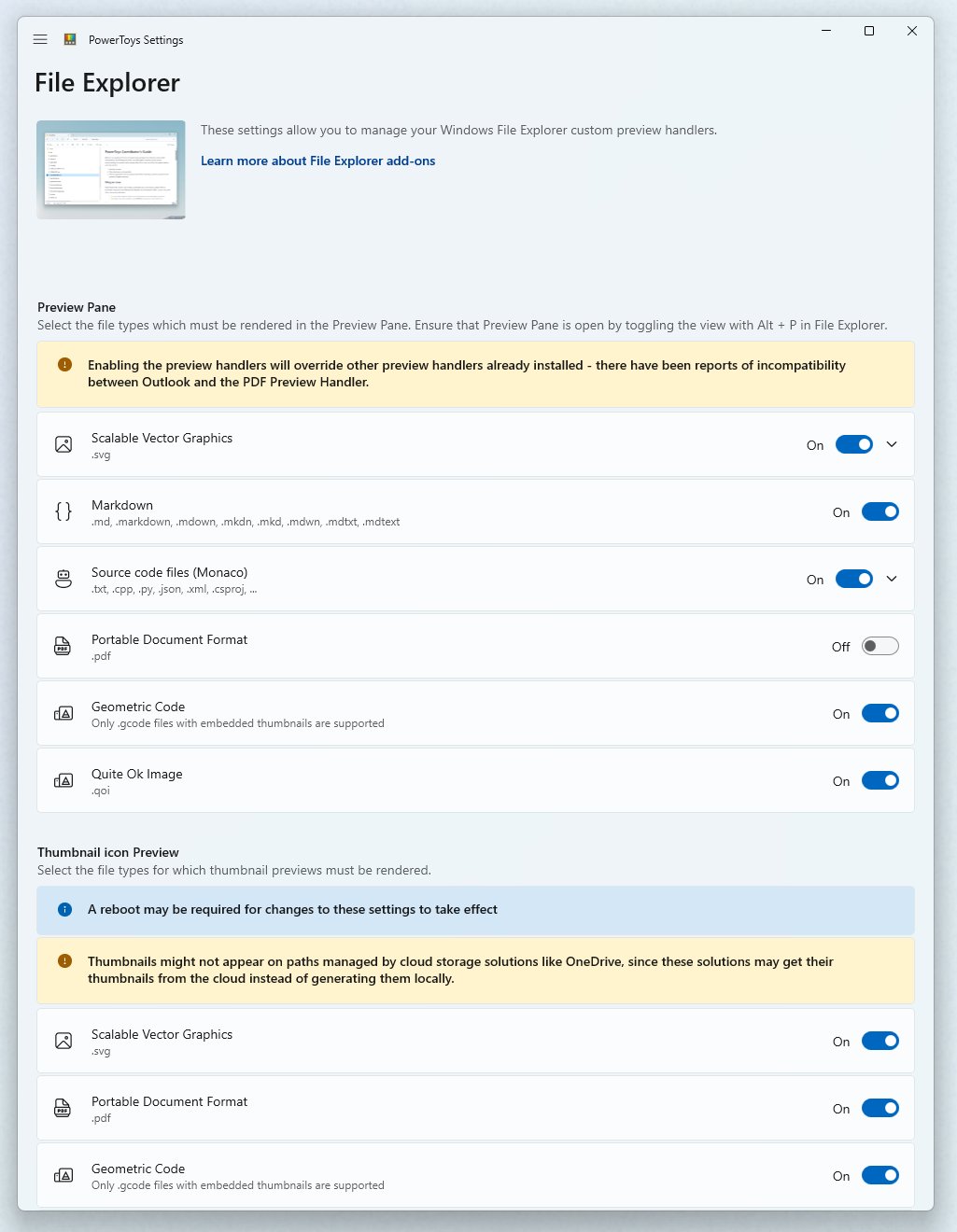
| Extra preview types | Microsoft PowerToys File Explorer add-ons preview SVG, PDF, Markdown and source code files |
Keyboard shortcuts for File Explorer
| Shortcut | What it does |
|---|---|
| Windows + E | Open File Explorer |
| Ctrl + N | Open a new window |
| Ctrl + T / Ctrl + W | Open a new tab / close the current tab |
| Ctrl + Shift + N | Create a new folder |
| F2 | Rename the selected item |
| Ctrl + E or Ctrl + F | Jump to the search box |
| Alt + D or Ctrl + L | Jump to the address bar |
| Alt + P / Alt + Shift + P | Show or hide the preview / details pane |
| Alt + Enter | Open properties |
| Shift + Delete | Delete permanently, skipping the Recycle Bin |
| F5 | Refresh the window |
| Shift + F10 | Open the right-click menu for the selection |
Understanding the changes in File Explorer
File Explorer in Windows 11 looks different from Windows 10, and several features arrived in later updates rather than at launch.
| Change | What it means for you |
|---|---|
| Command bar replaces the ribbon | Common actions sit in one row; the rest are under See more |
| Shorter right-click menu | Labelled icons at the top; full menu under Show more options |
| Home replaces Quick access as the start page (22H2) | Recent and pinned files appear on one page |
| Known folders pinned in Quick access (22H2) | Desktop, Documents and the others leave This PC |
| Tabs | Several folders in one window |
| 7-zip and TAR archive creation | No extra app needed for common archive types |
There is no supported switch back to the Windows 10 layout; Show more options is the official way to reach the classic menu commands.
Getting a new File Explorer through Settings
New File Explorer features such as tabs reach your PC through Windows Update, so a missing feature usually means a missing update.
- Select Start > Settings > Windows Update.
- Select Check for updates.
- Select Download & install for any update offered, including feature updates.
- Restart the PC when prompted.
- Open File Explorer again and look for tabs above the address bar and Home in the navigation pane.
How to install and use third-party file explorers
Third-party alternatives for File Explorer add features such as dual panes, but File Explorer stays the system file manager and still opens for many Windows actions. Install alternatives only from the Microsoft Store or the developer's official site.
- Open Microsoft Store from Start.
- Search for file manager and open a listing to read its publisher, rating and permissions.
- Select Get or Install on the app you choose.
- Open the app from Start and pin it to the taskbar if you plan to use it daily.
- To remove it later, go to Settings > Apps > Installed apps, select the More icon next to it and select Uninstall.
If you only need extra preview types, Microsoft PowerToys adds them to File Explorer itself instead of replacing it.
How to get help with File Explorer in Windows 11
Windows has built-in help for File Explorer, from a quick taskbar search to the Get Help app.
- Select Search on the taskbar and type your question, such as show hidden files.
- Open the Microsoft Support result for a step-by-step article.
- For guided help, open Start, type Get Help and open the app.
- Sign in with your Microsoft account when asked, describe the problem and follow the suggested solution or troubleshooter.
Use the Get Help app when File Explorer keeps crashing, search returns nothing or a fix needs a troubleshooter or a Microsoft support contact; a quick taskbar search is enough for how-to questions.
How to check File Explorer is set up the way you want
- Press Windows + E and confirm it opens on the page you chose, Home or This PC.
- Check that your pinned folders appear under Quick access in the navigation pane.
- Open a folder and confirm file extensions and hidden items show as you set them.
- Press Ctrl + T and confirm a new tab opens.
Troubleshooting File Explorer issues
File Explorer will not open or stops responding
A stuck Explorer process, a pending update or damaged system files.
- Press Ctrl + Shift + Esc, select Windows Explorer on the Processes tab and select Restart.
- Install updates from Settings > Windows Update > Check for updates and restart.
- Run
DISM.exe /Online /Cleanup-image /Restorehealthand thensfc /scannowin Command Prompt opened with Run as administrator.
File Explorer search finds nothing
The location is not indexed or the search started in the wrong folder.
- Search from This PC instead of Home for a full search.
- Open Settings > Privacy & security > Searching Windows and check indexing status.
- Add the missing folder under Advanced indexing options.
The navigation pane or Quick access folders are missing
The pane was hidden or the folders were unpinned.
- Select View > Show > Navigation pane.
- Open Home, select the Up arrow, then right-click each missing folder and select Pin to Quick access.
Tabs do not appear in File Explorer
The PC is missing recent Windows 11 updates.
- Open Settings > Windows Update and install every available update.
- Restart the PC and open File Explorer again.
Tips for efficient file management
These tips and tricks to optimize your file management build on the features above.
| Tip | Why it helps |
|---|---|
| Pin active project folders to Quick access | One click from any window |
| Use tabs instead of extra windows | Drag files between tabs without rearranging windows |
| Turn on file name extensions | Spot the real file type before opening |
| Sort Downloads by Date modified | Newest files sit at the top |
| Search from the narrowest folder | Faster, more relevant results |
| Compress old folders to 7-zip or ZIP | Saves space and keeps archives tidy |
| Review the Recycle Bin before emptying it | Deleted files stay recoverable until then |
FAQs on using File Explorer in Windows 11
What is Windows File Explorer?
File Explorer is the built-in Windows app for browsing and managing files and folders. It shows your drives, OneDrive and network locations, and lets you open, copy, move, rename, share and delete files.
What is File Explorer used for?
File Explorer is used to find, open and organize files. You can create folders, move files between drives, search by name or content, preview files and change what details each folder shows.
How do I get to File Explorer?
Press Windows + E, select the File Explorer icon on the taskbar, or right-click Start and select File Explorer. All three open the same window on Home by default.
How do I use tabs in File Explorer on Windows 11?
Select the plus sign next to the current tab or press Ctrl + T to open a new tab. Right-click a folder and select Open in new tab, and press Ctrl + W to close the active tab.
How do I use Windows 11 File Explorer search?
Open the folder you want to search, select the search box or press Ctrl + E, and type a name or a word inside the file. Search from This PC for a slower, more thorough search.
How do I get File Explorer to work again?
Restart Windows Explorer from Task Manager, install pending Windows updates and restart the PC. If it still fails, run DISM and then sfc /scannow from an elevated Command Prompt.
Can I use the Windows 10 File Explorer in Windows 11?
Windows 11 has no supported setting that restores the Windows 10 File Explorer layout. Select Show more options on the right-click menu to reach the classic commands.
How do I use File Explorer in Windows 10?
Windows 10 File Explorer works the same way but uses a ribbon with Home, Share and View tabs instead of the Windows 11 command bar. Windows 10 support ended on October 14, 2025, so upgrading is recommended.
How does File Explorer work in Windows?
File Explorer reads the folders on each drive and shows them in the main area, while the navigation pane lists your main locations. Search uses the Windows index to return results quickly.