To open an app's file location in Windows 11, select Start, type the app's name, right-click the result and select Open file location.
That opens the folder holding the app's shortcut; this guide shows how to reach the real program folder, find Microsoft Store apps in WindowsApps, and fix the cases where the option is missing.
The fastest way to open an app's file location in Windows 11
This works for classic desktop programs such as Visual Studio, Chrome or Office, which install a Start menu shortcut.
- Select Start and type the app's name in the Search box.
- Right-click the app in the results and select Open file location.
- In the File Explorer window that opens, right-click the highlighted shortcut and select Properties.
- Read the Target field. It shows the full path to the program's
.exefile, for example a folder underC:\Program Files. - Copy the folder part of that path, paste it into the File Explorer address bar and press Enter to open the real install folder.
If Open file location is not in the menu, the app is almost always a Microsoft Store app. Jump to the PowerShell section below.
Which method should you use?
| Your situation | Use this | Why |
|---|---|---|
| You know the app's name | Search (Method 2) | Two clicks to the shortcut folder |
| You want to browse installed programs | Start menu All list (Method 1) | Shows app folders grouped by publisher |
| The app is running right now | Task Manager (Method 3) | Gives the exact .exe of the running process |
| You already know where it installs | File Explorer (Method 4) | Type the path and you are there |
| You want every app, including Store apps, in one window | Run with shell:appsfolder (Method 5) |
One window lists all installed apps |
| The app is a Microsoft Store app | PowerShell Get-AppxPackage |
Returns the WindowsApps install folder directly |
| A startup entry points to a missing app | Settings (Method 6) | Shows the broken path Windows is looking for |
Understanding Application File Locations
Windows 11 keeps an app's shortcut, its program files and its settings in different folders. Knowing which one you need saves most of the confusion.
System applications ship with Windows and user applications are the ones you install; both land in the locations below depending on how they were packaged.
| Location | What lives there | Access permission |
|---|---|---|
C:\Program Files |
Most 64-bit desktop programs, for example C:\Program Files\Microsoft Visual Studio\2022\<edition> |
Readable by everyone; changes need admin rights |
C:\Program Files (x86) |
Older 32-bit programs, such as Visual Studio 2019 and earlier | Readable by everyone; changes need admin rights |
C:\Program Files\WindowsApps\<package_full_name> |
Microsoft Store and other packaged (MSIX) apps, installed per user | Hidden and locked down; package files are read-only |
C:\Users\<user_name>\AppData |
Per-user settings, caches and some per-user program installs | Hidden folder; your own account has full access |
%ProgramData%\Microsoft\Windows\Start Menu\Programs |
Start menu shortcuts shared by all users | Where Open file location usually lands |
%userprofile%\AppData\Roaming\Microsoft\Windows\Start Menu\Programs |
Start menu shortcuts for your account only | Where per-user apps' shortcuts land |
Organizational structure matters here: the Start Menu folders only hold shortcuts, so the file you usually want is one step further, at the shortcut's target.
Method 1: From the Start Menu
- Select Start, then select All to show every installed app.
- Scroll the alphabetical list, or select any letter and then the letter you want to jump to.
- If the app sits inside a publisher folder, expand that folder first.
- Right-click the app and select Open file location. If the menu shows More, open it to find the option.
- File Explorer opens at the Start Menu Programs folder with the app's shortcut selected.
- Right-click the shortcut, select Properties and use the Target path to reach the program folder.
Method 2: Using Search in Windows 11
Search is the quickest route and works from the taskbar or the Start menu.
- Select Search on the taskbar, or press the Windows key and start typing.
- Type the app's name until it appears as the best match.
- Right-click the app and select Open file location.
- File Explorer opens the folder that holds the item the search result points to, with it selected.
- If the selected item is a shortcut, open its Properties and follow the Target path.
Method 3: Using the Task Manager
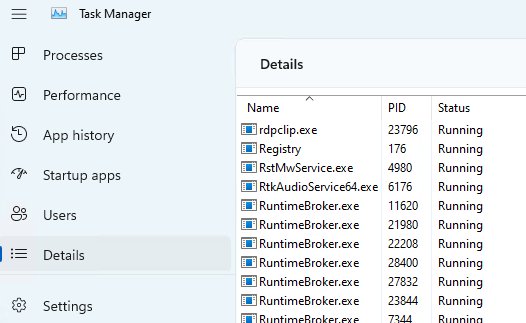
Use this when the app is already running and you want the exact .exe behind the window, including background helpers.
- Press Ctrl + Shift + Esc, or right-click Start and select Task Manager.
- Select More details if Task Manager opens in its compact view.
- Select the Details tab and find the app's process name in the Name column, for example
notepad.exe. - Select File > Run new task, type
powershelland select OK. - Run
Get-Process -Name notepad -FileVersionInfo, replacingnotepadwith the process name without.exe. - Read the FileName column. It shows the full path, for example
C:\Program Files\PowerShell\7\pwsh.exe. - Paste the folder part of that path into the File Explorer address bar and press Enter.
For a process run by another account or by the system, create the task with administrative privileges in the Run new task box; PowerShell needs elevation to read processes you don't own.
Method 4: Using File Explorer Directly
- Press Windows logo key + E to open File Explorer.
- Select the address bar, type
C:\Program Filesand press Enter. - Open the publisher or product folder, for example Microsoft Visual Studio, and look for the app's
.exefile. - If the app is not there, try
C:\Program Files (x86)for older 32-bit software. - For per-user installs, type
%userprofile%\AppDatain the address bar and check Local and Roaming. - If AppData folders do not show while browsing, select View > Show > Hidden items.
Method 5: Using Windows Run Command
The Run box accepts shell folder names and environment variables, so it reaches app folders without clicking through the tree.
- Right-click Start and select Run.
- Type
shell:appsfolderand press Enter. A File Explorer window opens listing every installed app, Store apps included. - To see Start menu shortcuts shared by all users, open Run again, type
%ProgramData%\Microsoft\Windows\Start Menu\Programsand press Enter. - For your own account's shortcuts, type
%userprofile%\AppData\Roaming\Microsoft\Windows\Start Menu\Programsinstead. - Right-click a shortcut in either folder, select Properties and follow the Target path to the program folder.
In the shell:appsfolder window you can drag an app to the desktop or to another folder to create a shortcut to it.
Method 6: Locating Files via Settings
Settings does not open an install folder, but it does two useful jobs: it confirms an app's exact name, and it reveals the path behind a broken startup entry. If Settings will not open at all, see how to fix the Settings app not opening.
- Select Start > Settings > Apps > Installed apps and note the app's exact name for Search or PowerShell.
- To trace a startup app, select Apps > Startup.
- If an entry reads We couldn't find this app, select the icon next to its On / Off toggle.
- Read the registry location or file path Windows shows; that is where the missing program was expected to be.
- To see or change which drive new Store apps install to, open System > Storage > Advanced storage settings > Where new content is saved.
Find a Microsoft Store app's install folder with PowerShell
Store apps usually offer no Open file location entry, because they live in the locked WindowsApps folder. PowerShell reads the folder straight from the app package.
Get-AppxPackage -Name *Calculator* | Select-Object Name, InstallLocationGet-AppxPackage lists the packaged apps installed for your account, the -Name wildcard filters them, and InstallLocation is the package's folder on disk. Replace Calculator with part of the app's name.
You should see: A line such as Microsoft.WindowsCalculator followed by a path starting C:\Program Files\WindowsApps\. Copy that path into the File Explorer address bar to view the folder.
An install on another drive shows that drive's package path instead. Windows can place packages outside C:\Program Files\WindowsApps.
How to check you opened the right folder
- Confirm the File Explorer title bar and address bar show a program folder, not a Start Menu\Programs folder.
- Check that the folder contains the app's
.exefile with the app's own icon. - Compare the path with the shortcut's Target field or the FileName from
Get-Process; they must match. - Double-click the
.exeif you want proof; the same app should start.
Additional Tips for Navigating Between File Locations
| Tip | How to do it | Why it helps |
|---|---|---|
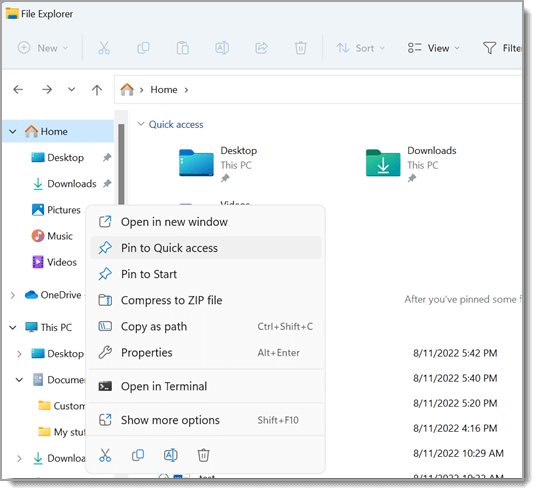
| Keep the folder one click away | Right-click the folder in File Explorer and select Pin to Start | Reopen the program folder from Start |
| Put a shortcut on the desktop | Right-click the .exe or shortcut, select Show more options > Send to > Desktop (create shortcut) |
Skips the search next time |
| Keep a path history | Copy each full path from the File Explorer address bar into a note | Paste it back to jump between shortcut and program folders |
| Launch an app at sign-in | Drag it from shell:appsfolder into shell:startup, as in setting Google Chat to open at startup |
Uses the same folders this guide opens |
| Use caution in WindowsApps | Look, but do not edit, rename or delete package files | Windows blocks a Store app from launching if its files are tampered with |
Potential Issues You May Encounter
Can't open file location for an app: the option is missing
The app is a Microsoft Store (packaged) app with no ordinary shortcut file.
- Note the app's exact name in Settings > Apps > Installed apps.
- Open PowerShell and run
Get-AppxPackage -Name *AppName* | Select-Object Name, InstallLocation. - Paste the InstallLocation path into the File Explorer address bar.
Open file location opens the Start Menu folder, not the program
Start menu entries are shortcuts, so Windows shows where the shortcut is stored.
- Right-click the highlighted shortcut and select Properties.
- Copy the folder part of the Target path.
- Paste it into the address bar and press Enter.
You don't have permission to open the WindowsApps folder
Windows locks packaged app files down and marks them read-only.
- Use the full package path from
Get-AppxPackageinstead of browsing the parent folder. - Leave the folder's ownership and permissions unchanged; changing them can stop Store apps from launching.
- To move a Store app's files to another drive, change Where new content is saved before reinstalling the app.
"We couldn't find this app" or the shortcut target is missing
The app sits on a removable or network drive, its path no longer exists, or it was uninstalled.
- Reconnect the removable or network drive if the path points to one.
- In Settings > Apps > Startup, select the icon next to the toggle to read the broken path.
- Reinstall the app so Windows recreates its program folder and shortcuts.
AppData or ProgramData folders are not visible
Both are hidden folders by default.
- Open File Explorer with Windows logo key + E.
- Select View > Show > Hidden items.
- Or type
%userprofile%\AppDataor%ProgramData%straight into the address bar.
Frequently Asked Questions
How do I open an app's file location in Windows 11?
Select Start, type the app's name, right-click the result and select Open file location. File Explorer opens with the app's shortcut selected. Open that shortcut's Properties and follow the Target path to reach the actual program folder.
How do I open a Microsoft Store app's file location?
Open PowerShell and run Get-AppxPackage -Name *AppName* | Select-Object Name, InstallLocation. The InstallLocation value is the app's folder, normally under C:\Program Files\WindowsApps. Paste it into the File Explorer address bar to open it.
Why can't I open the file location for an app?
The option is missing for Microsoft Store apps because they have no ordinary shortcut file and live in the locked WindowsApps folder. Use Get-AppxPackage in PowerShell to read the install folder, or open shell:appsfolder from Run to see every installed app.
How do I find an application's file location if it is running?
Open Task Manager with Ctrl + Shift + Esc, note the process name on the Details tab, then run Get-Process -Name processname -FileVersionInfo in PowerShell. The FileName column shows the full path to the running program.
Where are apps located in File Explorer?
Most desktop programs install to C:\Program Files, older 32-bit ones to C:\Program Files (x86), and Microsoft Store apps to C:\Program Files\WindowsApps. Per-user installs and app settings sit under C:\Users\yourname\AppData, which is hidden by default.
How do I open the folder that lists all my apps?
Right-click Start, select Run, type shell:appsfolder and press Enter. File Explorer opens a window listing every app installed for your account, including Microsoft Store apps. You can drag an app from it to create a shortcut.
Where are my open apps in Windows 11?
Running apps show on the taskbar, and Task Manager lists every open app and background process. Press Ctrl + Shift + Esc to open Task Manager; the Processes tab groups open apps, and the Details tab shows each process's executable name.
Where is the Files app in Windows 11?
Windows 11's file manager is File Explorer. Press Windows logo key + E to open it. Use its address bar to jump straight to C:\Program Files or any app folder path.
Where do Start menu shortcuts live?
Shortcuts for all users are in %ProgramData%\Microsoft\Windows\Start Menu\Programs, and your own ones are in %userprofile%\AppData\Roaming\Microsoft\Windows\Start Menu\Programs. Open file location on a Start menu app usually opens one of these two folders.
Conclusion
Search for the app, right-click it and select Open file location, then follow the shortcut's Target path; for Microsoft Store apps, go straight to Get-AppxPackage in PowerShell. Search reaches the shortcut in two clicks for any desktop program, while Store apps have no shortcut to follow and PowerShell is the one tool that returns their WindowsApps folder directly.




Fix: this file does not have an app associated with it - Techdows
[…] formats. If you need to find where a desktop program's .exe lives before you pick it, you can open the app's file location from the Start […]