To select multiple files in Windows 11 and Windows 10, hold Ctrl and click each file you want, hold Shift and click to grab a whole range, or press Ctrl + A to select every file in the folder.
This guide covers all seven selection methods in File Explorer, including keyboard-only and touch selection, how to deselect files, and what to do when selection keeps resetting or picks the wrong files.
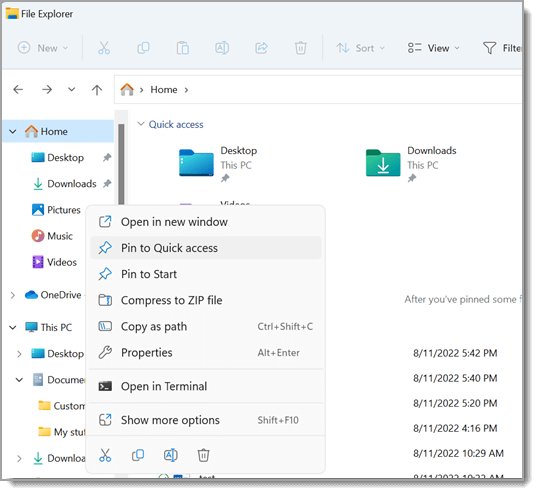
Select multiple files in Windows 11 and 10 with Ctrl, Shift or Ctrl+A
These three moves work the same way in File Explorer on Windows 11 and Windows 10, and on the desktop.
- Press Windows key + E to open File Explorer, then open the folder that holds your files.
- Click the first file you want.
- Hold Ctrl and click each extra file to add it, one at a time, wherever it sits in the list.
- Or hold Shift and click a later file to select everything between the two files.
- Or press Ctrl + A to select all files in the folder at once.
- Release the key, then right-click any highlighted file to copy, move or delete the whole selection.
Comparison table: which selection method to use
| Your situation | Use this | Why |
|---|---|---|
| Files are scattered through the folder | Method 1: Ctrl + click | Toggles one file at a time without touching the rest |
| Files sit next to each other in the list | Method 2: Shift + click | Two clicks select a whole contiguous range |
| No mouse, or you prefer the keyboard | Method 3: Shift + arrow keys, Ctrl + arrow + Spacebar | Every selection move has a key equivalent |
| Files form a block on screen in an icon view | Method 4: drag a selection box | One drag captures every file the box touches |
| You want everything, or everything except a few | Method 5: Ctrl + A, then Ctrl + click to exclude | Fastest way to select all files in a folder or skip a handful |
| You are picking files inside an app's Open window | Method 6: Ctrl or Shift + click in the dialog | Works only when the app allows several files |
| Touchscreen, pen or a fiddly trackpad | Method 7: item check boxes | Each tap changes one file, so the selection never resets by accident |
Prerequisites: get comfortable with File Explorer
Every method below happens in the file list of File Explorer, and the built-in File Explorer help options are there if the window itself misbehaves. A few settings make selection easier to see and control.
| What to set up | Windows 11 | Windows 10 |
|---|---|---|
| Open File Explorer | Press Windows key + E, or select File Explorer on the taskbar | Press Windows key + E, or select File Explorer on the taskbar |
| Show a check box next to each file | Select View > Show > Item check boxes | Select View > Options > Change folder and search options, open the View tab, select Use check boxes to select items, then OK |
| Switch to a list with one file per row | Press Ctrl + Shift + 6 for Details view | Press Ctrl + Shift + 6 for Details view |
| Change icon size to fit more files on screen | Hold Ctrl and turn the mouse wheel | Hold Ctrl and turn the mouse wheel |
| Jump to the top or bottom of a long folder | Press Home or End | Press Home or End |
Details view is the safest layout for range selection, because the order on screen is exactly the order Shift + click follows.
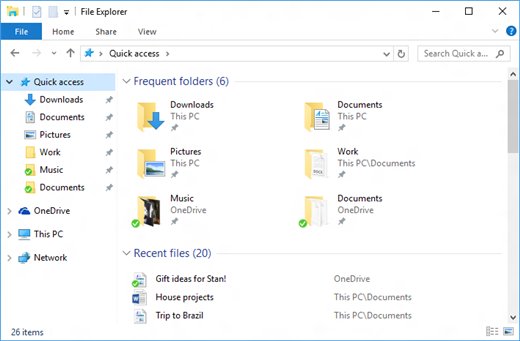
Method 1: Click + Ctrl for non-adjacent files
Ctrl + click toggles the selection state of the file you click and leaves every other selected file alone. That makes it the right tool when the files you need are spread across the folder.
- Open the folder in File Explorer.
- Click the first file you want, without holding any key.
- Hold down Ctrl.
- Click each additional file you want to add to the selection.
- Click a selected file again, still holding Ctrl, to remove it from the selection.
- Release Ctrl once every file you need is highlighted.
Keep the mouse still while you click. Holding Ctrl and dragging a file drops a copy of it wherever you release the button.
Method 2: Shift+click for contiguous ranges
Shift + click extends the selection in one continuous block. Use it to select multiple files in a specific range, such as photos 10 to 40 from one shoot.
- Sort the folder first, for example by Name or Date modified in Details view, so the files you want sit together.
- Click the first file of the range without holding any key.
- Scroll to the last file of the range.
- Hold Shift and click that last file.
- Check that every file between the two clicks is highlighted.
- Hold Ctrl and click any file inside the range that you want to leave out.
The range follows the order on screen, not the order of file names. If the sort changes, the same two clicks select a different set.
Method 3: Keyboard-only selection (fastest for power users)
File Explorer supports every selection move from the keyboard, and the shortcuts are identical in Windows 11 and Windows 10.
- Press Windows key + E to open File Explorer and go to your folder.
- Press F6 until the focus lands on the file list.
- Use the arrow keys to move to the first file you want.
- Hold Shift and press the arrow keys to select a block of files.
- To pick files that are not next to each other, hold Ctrl, move with the arrow keys, and press Spacebar on each file to select or deselect it.
- Press Ctrl + A to select every item in the folder instead.
- Press Shift + F10 to open the context menu for the selected files.
Method 4: Drag a selection box with the mouse
Dragging across a blank area draws a rectangle, and every file it touches joins the selection. It works best in icon views where the files form a visible block.
- Switch to an icon view or Details view so the files you want are visible together.
- Point to a blank spot just outside the first file, not on a file name or icon.
- Press and hold the left mouse button.
- Drag diagonally across the files you want; the box highlights them as it passes.
- Release the button when the last file is inside the box.
- Hold Ctrl and click any file the box caught by mistake to drop it.
If you start the drag on a file instead of blank space, Windows moves that file rather than drawing a box. Press Ctrl + Z to undo an accidental move.
Method 5: Select all, invert selection, and deselect
Ctrl + A selects all files in a folder in one keystroke. Combine it with Ctrl + click to get the effect of an inverted selection: everything except the few files you exclude.
- Open the folder and click once in the file list so it has focus.
- Press Ctrl + A to select all files and subfolders in the folder.
- Hold Ctrl and click each file you want to leave out; it is deselected while the rest stay selected.
- To deselect a single file in any selection, hold Ctrl and click it.
- To clear the whole selection, click one file without holding a key so only that file stays selected, then hold Ctrl and click it.
Ctrl + A also selects subfolders. Ctrl + click those away before you delete or move, or the folders go with the files. The same Ctrl + A and Delete pair is the quickest way to clear temp files in Windows 10.
Method 6: Multi-select in common file dialogs (Open/Save prompts)
Open dialogs in Windows apps use the same file list as File Explorer, so Ctrl + click, Shift + click and Ctrl + A work there too. The catch is that each app decides whether its Open dialog accepts more than one file.
- In the app, choose File > Open, Upload or Attach, whichever opens the file picker.
- Go to the folder that holds your files.
- Hold Ctrl and click each file, or click the first file and Shift + click the last one.
- Check that every file you picked stays highlighted.
- Select Open to hand every selected file to the app.
- If only one file stays highlighted, the app accepts a single file; open the others one at a time.
A Save or Save As prompt saves the one document you are working on, so multi-select is an Open-dialog feature.
Method 7: Touch and pen selection quirks
Touchscreens and pens have no Ctrl or Shift key to hold. Item check boxes solve that: each tap on a check box adds or removes one file, and tapping elsewhere does not wipe the others.
- Turn on item check boxes: in Windows 11 select View > Show > Item check boxes.
- In Windows 10, select View > Options > Change folder and search options, open the View tab, select Use check boxes to select items, then OK.
- Tap the check box next to each file you want.
- Press and hold any selected file to open its context menu, the touch equivalent of a right-click.
- Tap a ticked check box again to remove that file from the selection.
How to check which files are selected in File Explorer
- Press Ctrl + Shift + 6 to switch to Details view, so each selected file shows as a highlighted row.
- Turn on item check boxes; every selected file now shows a ticked box.
- Scroll from the top with Home to the bottom with End and look for files you did not mean to include.
- Hold Ctrl and click any highlighted file that should not be there to drop it before you act.
Why multi-select matters (and when it’s easy to mess up)
One selection lets you copy, move, delete or share dozens of files in a single action. The same speed makes mistakes expensive, because the action hits every highlighted file.
| Action on the selection | Shortcut | What can go wrong |
|---|---|---|
| Copy | Ctrl + C, then Ctrl + V in the destination | Hidden extra files in the selection are copied too |
| Move | Ctrl + X, then Ctrl + V | Files vanish from the source folder; Ctrl + Z undoes the last action |
| Delete to Recycle Bin | Delete or Ctrl + D | A stray Ctrl + A selection deletes the whole folder's contents |
| Delete permanently | Shift + Delete | Skips the Recycle Bin, so there is no easy way back |
| Drag to another folder | Shift + drag moves, Ctrl + drag copies | A plain click instead of a drag replaces the selection with one file |
| Rename | F2 | Renames the file in focus; check what is selected first |
Once the files are selected, you can copy them to a USB drive or move files to another PC in one go.
Gotchas and troubleshooting when selection won’t behave
Your click is changing focus and the selection resets
A plain click without Ctrl or Shift selects only the file you clicked and clears everything else.
- Hold Ctrl before every click after the first one.
- Turn on item check boxes so each click changes only one file.
- If you lost a long selection, press Ctrl + A and Ctrl + click the files to exclude instead of rebuilding it.
Shift+click selects the wrong files after sorting changed
Shift + click selects everything between two files in the current on-screen order, which changes when you re-sort.
- Sort the folder by the column you need before you start selecting.
- Click the first file without holding a key to set the start of the range.
- Hold Shift and click the last file.
- If the folder re-sorts or refreshes, repeat the two clicks.
You're in a different view mode than you think
In icon views, files wrap across rows, so a range or drag box covers files in an order that is hard to read.
- Press Ctrl + Shift + 6 to switch to Details view.
- Redo the selection in the single-column list.
- Switch back to your preferred view with Ctrl + Shift and a number from 1 to 9; 2 is Large icons.
Selection box doesn't capture everything
The drag started on a file, or the files you need run off the visible window.
- Start the drag on blank space, outside every file name and icon.
- Hold Ctrl and turn the mouse wheel to shrink icons so the whole group fits on screen.
- For long lists, use Shift + click instead of a drag.
Folder is huge and Windows is lagging while you select
Scrolling and dragging through thousands of items is slow, and every scroll risks a stray click.
- Press Ctrl + Shift + 6 for Details view to fit more files per screen.
- Press Ctrl + F and search for a name or extension to narrow the list.
- Press Ctrl + A in the search results to select only the matching files.
The app won't accept multi-select
Apps choose whether their Open dialog allows several files, and many accept only one.
- Hold Ctrl and click a second file in the dialog to confirm only one stays highlighted.
- Open the files one at a time in that app.
- Look in the app's own menu for a separate import or batch option that takes a folder.
Why is my computer selecting multiple files on its own?
Sticky Keys lets you press key combinations one key at a time, so a single press of Ctrl or Shift can change your next click, or ClickLock highlights items without the mouse button held down.
- In Windows 11, press Windows key + U, select Keyboard, and turn Sticky keys off.
- In Windows 10, go to Start > Settings > Ease of Access > Keyboard and turn off Sticky Keys.
- Avoid pressing Shift five times in a row, which turns Sticky Keys on or off.
- Open Start > Settings > Bluetooth & devices > Mouse > Additional mouse settings in Windows 11, or Start > Settings > Devices > Mouse > Additional mouse options in Windows 10.
- On the Buttons tab, clear Turn on ClickLock and select OK.
Ctrl-click sometimes doesn't add files
Ctrl + click toggles, so clicking an already selected file removes it, and a slight drag with Ctrl held copies the file instead.
- Check whether the file was already highlighted before you clicked it.
- Keep the mouse still while clicking.
- If a copy of the file appeared, press Ctrl + Z to undo it.
Frequently asked questions about selecting multiple files in Windows
How do I select multiple files in Windows 11?
Open the folder in File Explorer, click the first file, then hold Ctrl and click each extra file. Hold Shift and click to select a range, or press Ctrl + A to select every file. Item check boxes from View > Show add a tick box to each file.
How do I select multiple files in Windows 10?
The same keys work in Windows 10: Ctrl + click adds single files, Shift + click selects a range, and Ctrl + A selects all. For check boxes, open View > Options > Change folder and search options and select Use check boxes to select items on the View tab.
How do I quickly select multiple files on a PC?
Press Ctrl + A to select everything in the folder, then Ctrl + click any files you want to leave out. For a block of files, click the first one and Shift + click the last one. Both take two or three actions, whatever the number of files.
How do I select multiple files to delete in Windows?
Select the files with Ctrl + click, Shift + click or Ctrl + A, then press Delete to move them all to the Recycle Bin. Shift + Delete removes them permanently without using the Recycle Bin, so check the selection in Details view first.
How do I select multiple files to copy in Windows 10?
Select the files, press Ctrl + C, open the destination folder and press Ctrl + V. You can also hold Ctrl and drag the selection to the destination, which drops a copy there. Holding Shift while dragging moves the files instead.
How do I select multiple files on a computer without a mouse?
Press F6 to move focus to the file list, then hold Shift and press the arrow keys to select a block. For scattered files, hold Ctrl, move with the arrow keys and press Spacebar on each one. Ctrl + A selects all.
Why does Shift+click select the wrong files?
Shift + click selects everything between the first and last file in the current on-screen order. If the folder is sorted differently than you expect, or you did not click a start file first, the range covers the wrong files. Sort first, then repeat the two clicks.
How do I deselect one file while keeping the rest selected?
Hold Ctrl and click the file you want to remove. Ctrl + click toggles only that file, so every other selected file stays highlighted. With item check boxes turned on, tapping the ticked box does the same thing.
Can I select multiple files and then open only one?
Yes, but clicking or double-clicking a file without Ctrl or Shift replaces the selection with that one file. Finish the group action first, such as copying or moving, then double-click the one file you want to open.
Does multi-select work in both Windows 10 and Windows 11?
Yes. Ctrl + click, Shift + click, Ctrl + A, drag selection and the keyboard shortcuts work the same in both versions. Only the route to item check boxes differs: View > Show in Windows 11, and Folder Options in Windows 10.
Why is my computer selecting multiple files by itself?
Sticky Keys or ClickLock is the usual cause. Sticky Keys lets one press of Ctrl or Shift apply to your next click, and ClickLock highlights items without holding the mouse button. Turn both off in Settings and the Mouse Properties Buttons tab.
Bottom line: the best way to select multiple files in Windows
Use Ctrl + click for scattered files, Shift + click for a range, and Ctrl + A when you want everything; turn on item check boxes if you use touch or keep losing selections. Those three shortcuts cover almost every selection in two or three actions on both Windows 11 and Windows 10, and check boxes remove the one real risk: a stray plain click wiping a long selection.
Finder on a Mac uses its own modifier keys, so the steps to select multiple files on a Mac differ from these.