The Recycle Bin in Windows 11 is an icon on the desktop, and when it is missing you bring it back from Settings > Personalization > Themes > Desktop icon settings.
This guide covers where the Recycle Bin lives, every way to open it, how to restore or hide the icon, how to change its storage size, and why deleted files sometimes never reach it.
Where is the Recycle Bin in Windows 11/10?
The Recycle Bin is a Windows folder that holds the files you delete from your PC until you restore them or empty it.
It sits on the desktop as an icon in both Windows 11 and Windows 10, so the desktop is the first place to look.
- Press Windows logo key + D to minimise open windows and show the desktop.
- Look for the icon labelled Recycle Bin among your desktop icons.
- Double-click Recycle Bin to open it and see your deleted files.
If the desktop shows no icons at all, or shows other icons but no Recycle Bin, the icon is switched off rather than gone. The next sections turn it back on.
Which way to open the Recycle Bin should you use?
Every route below opens the same Recycle Bin. Match what you see on your screen to a row.
| What you see | Do this | Why |
|---|---|---|
| The Recycle Bin icon is on the desktop | Double-click it | The quickest route, no setup |
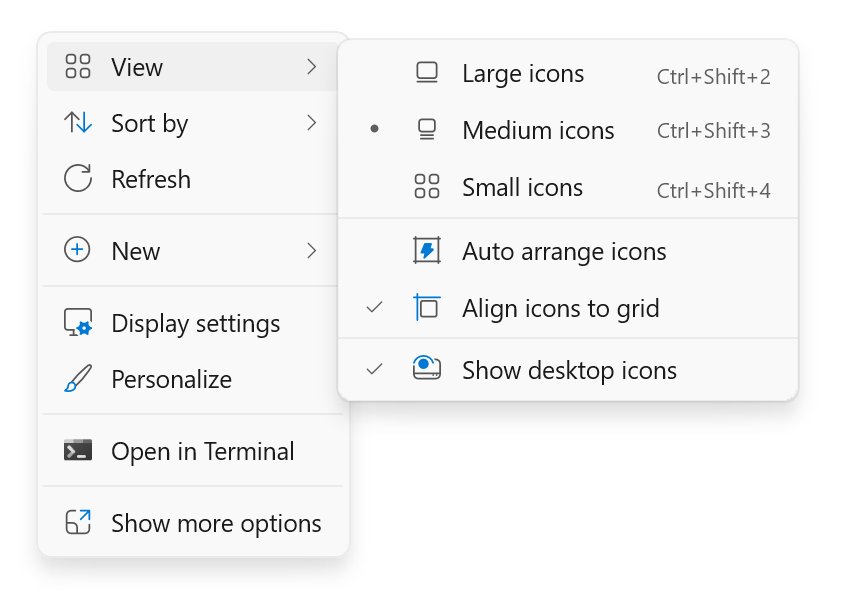
| The desktop is completely empty | Right-click the desktop > View > Show desktop icons | All desktop icons are hidden, not deleted |
| Other icons show, but no Recycle Bin | Turn on Recycle Bin in Desktop icon settings | The Recycle Bin icon alone is switched off |
| You work in File Explorer all day | Pin the Recycle Bin to Quick access | It stays one click away in File Explorer |
| A work or school PC with no Recycle Bin anywhere | Ask your IT admin | A policy can remove the icon from the desktop and File Explorer |
| You deleted the file in OneDrive or SharePoint online | Open the recycle bin on that website | Cloud deletions do not land in the PC's Recycle Bin |
Can’t find Recycle Bin on desktop
Microsoft lists two causes for a missing Recycle Bin: all desktop icons are hidden, or only the Recycle Bin icon is turned off.
Fix the first cause first, because no icon appears while desktop icons are hidden.
- Right-click an empty part of the desktop.
- Select View and make sure Show desktop icons has a check mark. Select it if it does not.
- If other icons now show but the Recycle Bin is still missing, right-click the desktop again and select Personalize.
- Select Themes, then select Desktop icon settings under Related settings.
- Check the Recycle Bin box.
- Select Apply, then OK.
The same window also brings back the This PC desktop icon, Network and your user folder.
Use Windows Search or the Start menu
When the right-click menu on the desktop is awkward to reach, open the same setting from Start or from search.
- Select Start, then select Settings.
- Go to Personalization > Themes.
- Select Desktop icon settings.
- Check Recycle Bin and select OK.
- To use search instead, press Windows logo key + S, type themes, and open the Settings result. Then repeat steps 3 and 4.
Once the icon is back on the desktop, you can open it with a double-click, or right-click it to reach its other commands.
Display Recycle Bin in This PC folder of Windows 11
Windows 11 has no setting that adds the Recycle Bin to the This PC view; doing that needs registry edits, which are left out here.
Pinning the Recycle Bin to Quick access gives the same result: it stays visible in File Explorer next to your drives and folders.
- Make sure the Recycle Bin icon is on the desktop, using the steps above.
- Right-click Recycle Bin on the desktop.
- Select Pin to Quick access.
- Press Windows logo key + E to open File Explorer.
- Select Recycle Bin under Quick access on the Home page or in the navigation pane.
Windows 11 gave the Recycle Bin a modern right-click menu in 2021. To remove the pin later, right-click it in File Explorer and select Unpin from Quick access.
Restore deleted files from the Recycle Bin in Windows 11
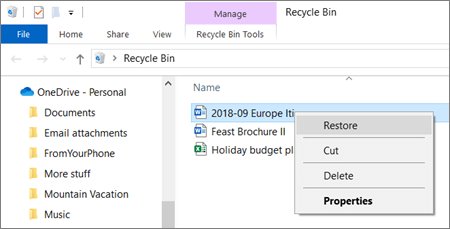
Restoring a file puts it back in the folder it was deleted from, with its original name.
- Double-click Recycle Bin on the desktop to open it.
- Select the files or folders you want back. Hold Ctrl to pick several.
- Right-click the selection and select Restore.
- Open the original folder to confirm the files are back.
Files that are no longer in the Recycle Bin need a backup such as File History, or the Microsoft Store app Windows File Recovery.
How to check the Recycle Bin is working
A quick test with a throwaway file proves the icon is back and deleted files are landing in it.
- Right-click the desktop and select New > Text Document to create a test file.
- Select the new file and press Delete (or Ctrl + D). This moves it to the Recycle Bin.
- Double-click Recycle Bin and check that the test file is listed.
- Right-click the test file and select Restore. It reappears on the desktop.
- Delete the test file again when you are done.
If the test file never shows up in the Recycle Bin, jump to the troubleshooting section below.
How to change Recycle Bin storage size settings in Windows 11
Every drive keeps its own Recycle Bin, so the size limit is set per drive in the Recycle Bin Properties window.
A larger limit keeps deleted files around longer; a smaller one returns free disk space sooner.
- Right-click Recycle Bin on the desktop and select Properties.
- Select the drive you want to change in the list at the top of the window.
- Choose the custom size option and type a new maximum size in megabytes (MB).
- To have Windows ask before every deletion, check the option to display a delete confirmation dialog.
- Select Apply, then OK.
On a managed PC, the Maximum allowed Recycle Bin size policy (User Configuration > Administrative Templates > Windows Components > File Explorer) caps the bin as a percentage of each volume, and users cannot change it.
If Properties is missing from the right-click menu, the Remove Properties from the Recycle Bin context menu policy is turned on. Only an administrator can change that.
How to remove Recycle Bin from desktop in Windows 11
Hiding the icon does not turn off the Recycle Bin. Deleted files still go there, and you can still reach it from Quick access if you pinned it.
- Select Start > Settings > Personalization > Themes.
- Select Desktop icon settings.
- Clear the Recycle Bin check box.
- Select Apply, then OK.
To hide every desktop icon instead, right-click the desktop, select View and clear Show desktop icons. While icons are hidden, your desktop files are still in File Explorer under Desktop.
Fix a missing or empty Recycle Bin in Windows 11
Can't find the Recycle Bin on the desktop or laptop screen
Desktop icons are hidden, or the Recycle Bin icon is turned off in Desktop icon settings.
- Right-click the desktop, select View and check Show desktop icons.
- If the Recycle Bin is still missing, open Settings > Personalization > Themes > Desktop icon settings.
- Check Recycle Bin and select OK.
Why can't I access my Recycle Bin on a work or school PC?
The Remove Recycle Bin icon from desktop policy hides it from the desktop, File Explorer and Open dialogs; the Hide and disable all items on the desktop policy removes every icon.
- Check whether Desktop icon settings lets you tick Recycle Bin. If the change does not stick after you sign out and back in, a policy is in control.
- Contact your IT administrator and ask whether the Recycle Bin icon policy applies to your account.
- Until it changes, ask the admin to restore deleted files from backup, because the policy hides the icon rather than the deleted files.
Why is nothing in my Recycle Bin after I delete files?
The files were deleted with Shift + Delete, removed automatically by Storage Sense, or a policy sends deletions straight past the Recycle Bin.
- Remember that Shift + Delete removes a file permanently without moving it to the Recycle Bin. Use Delete or Ctrl + D instead.
- Open Start > Settings > System > Storage > Storage Sense and check the setting Delete files in my recycle bin if they have been there for over:. Pick a longer period, or turn it off.
- On a managed PC, ask your admin whether the Do not move deleted files to the Recycle Bin policy is on. With it enabled, File Explorer deletes files permanently.
- For a file you already lost, try File History or Windows File Recovery from the Microsoft Store, and stop using the drive to avoid overwriting it.
A file deleted from OneDrive is not in the Recycle Bin
Files deleted from OneDrive online, including online-only files, never reach the PC's Recycle Bin.
- Sign in at onedrive.com.
- Select Recycle bin in the navigation pane.
- Select the files and restore them. Personal accounts keep deleted items for 30 days; work or school accounts keep them for 93 days unless an admin changed it.
Can't find the recycle bin in SharePoint
SharePoint keeps its own recycle bin on each site, separate from the Windows Recycle Bin.
- Open the SharePoint site the item was deleted from. In Teams, open the channel's Files tab, select More, then Open in SharePoint.
- Select Recycle bin in the Quick Launch bar on the left.
- If there is no such link, select the Settings gear, then Site contents. The recycle bin is at the top right of that page.
- Items stay for 93 days from the original deletion. After that, or if the site bin was emptied, ask a site collection administrator.
Recycle Bin in Windows 11: frequently asked questions
What is the Recycle Bin?
The Recycle Bin is a Windows folder that holds files you delete from your PC. Files stay there until you restore them, empty the bin, or Storage Sense removes them, so an accidental deletion can usually be undone.
Where can I find the Recycle Bin in Windows 11?
The Recycle Bin is an icon on the Windows 11 desktop. Press Windows logo key + D to show the desktop and double-click Recycle Bin. If the icon is missing, turn it on in Settings > Personalization > Themes > Desktop icon settings.
Why can't I see my Recycle Bin?
Either all desktop icons are hidden or the Recycle Bin icon is switched off. Right-click the desktop and check View > Show desktop icons, then tick Recycle Bin in Desktop icon settings. On a work PC, a policy may hide it.
Why don't I have a Recycle Bin?
Every Windows 11 and Windows 10 PC has a Recycle Bin, even when its icon is hidden. Turn the icon back on in Desktop icon settings. If an organisation manages the PC, an administrator policy may remove the icon from the desktop and File Explorer.
Why is nothing in my Recycle Bin?
Files skip the Recycle Bin when you delete them with Shift + Delete, when a policy turns it off, or when they were deleted from OneDrive online. Storage Sense can also empty items after a set number of days, which you can change in Storage settings.
Where is the Recycle Bin in Windows 10?
Windows 10 keeps the Recycle Bin on the desktop, just like Windows 11. If it is missing, open Settings > Personalization > Themes > Desktop icon settings and tick Recycle Bin. Windows 10 support ended on October 14, 2025.
How do I locate the Recycle Bin without the desktop icon?
Pin the Recycle Bin to Quick access so it appears in File Explorer, or turn the desktop icon back on from Start > Settings > Personalization > Themes > Desktop icon settings. Hiding the icon does not delete the Recycle Bin or its contents.
Can I recover a file that is not in the Recycle Bin?
Sometimes. Restore it from File History if you back up with it, or use Windows File Recovery, a command-line app from the Microsoft Store. Use the PC as little as possible first, because new files can overwrite the deleted data.
Where is the recycle bin in SharePoint?
Open the SharePoint site and select Recycle bin in the Quick Launch bar on the left. If the link is missing, select Settings > Site contents and use the recycle bin link at the top right. Items are kept for 93 days.
Bottom line: where the Recycle Bin is in Windows 11
Check View > Show desktop icons first, then tick Recycle Bin in Settings > Personalization > Themes > Desktop icon settings, and pin it to Quick access if you live in File Explorer. A missing Recycle Bin is almost always a hidden icon, not a missing feature; the two desktop settings cover the home-PC cases, and a work PC that still hides it is under an admin policy.