To open Folder Options in Windows 11, open File Explorer and select See more (the three dots) > Options; in Windows 10, select the View tab > Options instead.
This guide covers every route to the same dialog, including Run and Command Prompt, what its General, View and Search tabs control, and the Group Policy setting that blocks it.
Open Folder Options from File Explorer
File Explorer is the route Microsoft documents on both versions. The dialog it opens is the same one Control Panel calls File Explorer Options.
Windows 11
The Options command sits behind the See more menu on the command bar.
- Press Windows logo key + E to open File Explorer.
- Select See more (the three dots) at the right end of the command bar.
- Select Options.
- The Folder Options dialog opens on the General tab.
Windows 10
Windows 10 keeps Options on the ribbon's View tab.
- Press Windows logo key + E to open File Explorer.
- Select the View tab on the ribbon.
- Select Options at the far right of the ribbon.
- If a small menu appears, select Change folder and search options.
Which method should you use?
| Your situation | Use this | Why |
|---|---|---|
| File Explorer is already open | See more > Options (Windows 11) or View > Options (Windows 10) | Two clicks, no typing |
| You prefer the keyboard | Run command control folders |
Works the same on Windows 11 and Windows 10 |
| You want to land on the View or Search tab | rundll32.exe shell32.dll,Options_RunDLL 7 or 2 |
Skips the General tab |
| You are in a script or terminal | control folders in Command Prompt or PowerShell |
One line, no mouse |
| You only want hidden files or extensions | Windows 11 View > Show | No dialog needed at all |
| Every route shows an error message | Check the Group Policy setting | An administrator has blocked the dialog |
Open File Explorer Options Using Windows Search
Windows search finds the dialog under its Control Panel name, File Explorer Options, not Folder Options.
- Select the search box or icon on the taskbar, or press the Windows logo key.
- Type file explorer options.
- Select File Explorer Options in the results (it carries the Control Panel label).
- The dialog opens on the General tab.
Open Folder Options from Control Panel
Control Panel still lists the dialog on both versions, under the name File Explorer Options.
- Press Windows logo key + R, type
controland press Enter to open Control Panel. - Select File Explorer Options. If Control Panel shows categories, switch the view to icons first so every item is listed.
- Switch to the View or Search tab if that is the setting you came for.
Microsoft also lists the canonical name Microsoft.FolderOptions for this item, but documents it only for Windows Vista to Windows 8.1. Use control folders below instead; Microsoft documents it for Windows 2000 and later.
Open Folder Options with the Run Command
Microsoft's Control Panel reference lists control.exe folders as the command that launches the Folder Options window. The Run box accepts it without the .exe.
- Press Windows logo key + R to open the Run box.
- Type
control folders. - Press Enter or select OK.
- Folder Options opens on the General tab.
To open a specific tab, type one of the commands Microsoft documents for each tab instead: rundll32.exe shell32.dll,Options_RunDLL 0 for General, rundll32.exe shell32.dll,Options_RunDLL 7 for View, and rundll32.exe shell32.dll,Options_RunDLL 2 for Search.
Open Folder Options Using Command Prompt or PowerShell
The same command works in Command Prompt, PowerShell and Windows Terminal, because control is a program rather than a shell command. No administrator rights are needed.
control foldersStarts control.exe with the legacy folders argument, which Microsoft documents as launching the Folder Options window. In PowerShell, control.exe folders works identically. The rundll32.exe shell32.dll,Options_RunDLL 7 form opens straight on the View tab.
You should see: The prompt returns immediately and the Folder Options dialog appears with General, View and Search tabs.
How to check you opened the right dialog
- Look at the title bar: it reads Folder Options or File Explorer Options; both names mean the same dialog.
- Confirm three tabs across the top: General, View and Search.
- On General, check for the Open File Explorer to list; that is the setting Microsoft points to for choosing Home or This PC.
- On View, scroll the Advanced settings list to find the hidden files and file extension options.
If you instead see a list of checkboxes under Show, you opened the View menu of the Windows 11 command bar, not the dialog.
What You Can Change in Folder Options
Microsoft's policy documentation sums the dialog up as changing how files and folders open, what appears in the navigation pane, and other advanced view settings. Its settings reference lists what each tab holds.
| Tab | What it controls | Typical reason to open it |
|---|---|---|
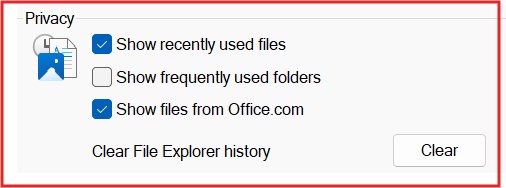
| General | Whether File Explorer opens to Home or This PC (or OneDrive when signed in); opening folders in the same or a new window; single-click or double-click to open items; privacy options for recently used files, frequently used folders and Office files | Make File Explorer start on This PC, or stop recent files showing |
| View | The Advanced settings list: hidden files and folders, extensions for known file types, protected operating system files, drive letters, empty drives, item check boxes, the sharing wizard, compact view, and what the navigation pane shows (libraries, network, This PC) | Show hidden files or file extensions, or reveal system files |
| Search | How File Explorer searches folders: whether it includes system folders and compressed (archived) files, and how it uses the search index | Make searches cover zip files or system directories |
The Quick Access privacy options on the General tab have their own step-by-step guide: turning Quick Access on or off.
Show hidden files and file extensions without Folder Options
The two settings most people open Folder Options for have faster switches in Windows 11. Hidden items matter, for example, when you need to find the AppData folder.
| Goal | Windows 11 shortcut | Folder Options route (Windows 11 and 10) |
|---|---|---|
| Show hidden files and folders | View > Show > Hidden items | View tab > Advanced settings > choose to show hidden files, folders and drives |
| Show file name extensions | View > Show > File name extensions | View tab > Advanced settings > turn off hiding extensions for known file types |
| Show item check boxes | View > Show > Item check boxes | View tab > Advanced settings > use check boxes to select items |
| Extensions, hidden and system files in one place | Settings > System > Advanced > File Explorer (Windows 11 version 25H2 and later) | Not applicable |
Select Apply, then OK, after changing anything inside Folder Options. The Windows 11 Show toggles apply as soon as you select them.
Fix Folder Options when it will not open
An error message appears when you select Options
The policy Do not allow Folder Options to be opened from the Options button on the View tab of the ribbon is enabled. Microsoft states it also blocks the Change folder and search options command.
- On a work or school PC, ask your IT administrator; the setting is usually applied deliberately.
- On your own PC running Pro, Enterprise or Education, open the Local Group Policy Editor (
gpedit.msc). - Go to User Configuration > Administrative Templates > Windows Components > File Explorer.
- Double-click Do not allow Folder Options to be opened from the Options button on the View tab of the ribbon.
- Select Not Configured or Disabled, then OK, and open File Explorer again.
The policy is set but there is no Group Policy Editor
The policy writes the value NoFolderOptions under HKEY_CURRENT_USER\Software\Microsoft\Windows\CurrentVersion\Policies\Explorer, which can be left behind by old software or a past infection.
- Open Command Prompt from the Start menu.
- Run
reg delete HKCU\Software\Microsoft\Windows\CurrentVersion\Policies\Explorer /v NoFolderOptions /f. - Sign out and sign back in, then open Folder Options again.
Some settings inside Folder Options cannot be changed
The Turn on Classic Shell policy locks folder options to the classic folders view and stops single-click being set.
- In the Local Group Policy Editor, go to User Configuration > Administrative Templates > Windows Components > File Explorer.
- Set Turn on Classic Shell to Not Configured.
- Close and reopen File Explorer.
Options is not on the Windows 11 command bar
Windows 11 moved it into the See more overflow menu.
- Select See more (the three dots) on the command bar, then Options.
- If the window is narrow, widen it or use
control foldersfrom the Run box instead.
Frequently Asked Questions
How do I open Folder Options in Windows 11?
Open File Explorer with Windows logo key + E, select See more (the three dots) on the command bar, then select Options. The Folder Options dialog opens on the General tab. Typing control folders in the Run box opens the same dialog.
How do I open Folder Options in Windows 10?
Open File Explorer, select the View tab on the ribbon, then select Options. If a small menu appears, choose Change folder and search options. You can also press Windows logo key + R, type control folders and press Enter.
Is Folder Options the same as File Explorer Options?
Yes. File Explorer Options is the name Control Panel and Windows search use for the Folder Options dialog. Both open the same window with the General, View and Search tabs, and a change made in one shows in the other.
Where do I find Folder Options?
It lives in File Explorer: See more > Options on Windows 11, or View > Options on Windows 10. Control Panel also lists it as File Explorer Options, and the Run command control folders opens it directly.
What command opens Folder Options from Run, Command Prompt or PowerShell?
The command is control folders. It works in the Run box, Command Prompt, PowerShell and Windows Terminal. To land on the View tab, use rundll32.exe shell32.dll,Options_RunDLL 7 instead; the number 2 opens the Search tab.
Can I use Folder Options to show hidden files and file extensions?
Yes. On the View tab, under Advanced settings, choose to show hidden files, folders and drives, turn off hiding extensions for known file types, then select Apply. On Windows 11, View > Show in File Explorer does the same in one click.
Why does Folder Options show an error when I try to open it?
An administrator policy blocks it. The Group Policy setting Do not allow Folder Options to be opened from the Options button on the View tab of the ribbon shows an error for both the Options button and the Change folder and search options command.
How do I open a folder on Windows?
Open File Explorer with Windows logo key + E or its taskbar icon, then double-click the folder. To make one click enough, open Folder Options, and on the General tab choose single-click to open an item.
Bottom Line
Use See more > Options in Windows 11 or View > Options in Windows 10, and keep control folders for when the menus are not handy. Both File Explorer routes are the ones Microsoft documents, while control folders works unchanged on both versions and from any terminal. If every route returns an error, the dialog is blocked by policy, not broken.
Microsoft briefly changed these options in a 2023 Windows 11 preview and then restored File Explorer's Folder Options after feedback.


Windows 10 build 9926 lets you Set File Explorer to open ‘This PC’ as default Folder - Techdows
[…] File Explorer , click on View > Options to open Folder Options, under General tab, choose action as ‘This PC’ for ‘Open File Explorer […]