To clear recent files history in File Explorer, open Options in File Explorer, go to the Privacy section on the General tab and select the button that clears File Explorer history; the recent list in Home (Windows 11) or Quick access (Windows 10) is emptied.
This guide covers that route on both versions, how to remove single files, how to stop the list from filling again, and the other places Windows keeps recent files: jump lists, Start, Office and the Recent Items folder.
Steps to delete or clear recent files in File Explorer
This is the one-click route, and it works the same way on Windows 11 and Windows 10. Only the way you open Options differs.
- Open File Explorer from the taskbar or the Start menu.
- On Windows 11, select See more (the three dots) on the command bar, then select Options. On Windows 10, select the View tab, then select Options.
- Stay on the General tab of the window that opens.
- Under Privacy, select the button that clears File Explorer history.
- Select OK to close the window.
- Open Home (Windows 11) or Quick access (Windows 10) and confirm the recent files list is empty.
Clearing only empties the list. The list starts filling again the next time you open a file, so use Method 2 if you want it to stay empty.
What recent files means in Windows 11 and Windows 10
Windows does not keep one recent files list. It keeps shortcuts to opened documents in your profile and several features read from them, while some apps keep a list of their own.
| Where you see recent files | Windows version | What clears it |
|---|---|---|
| File Explorer Home (called Quick access before Windows 11 version 22H2) | Windows 11 | Method 1, or Method 3 for single files |
| File Explorer Quick access recent files and frequent folders | Windows 10 | Method 1, or Method 3 for single files |
| Recent and favorited Office.com files in Home | Windows 11 | Account-based files setting in Method 2 |
| Recent Items folder (document shortcuts in your profile) | Both | Method 6 |
| Jump lists on the taskbar and Start | Both | Method 8 |
| Recommended section of Start | Windows 11 only | Method 9 |
| Recent list inside Word, Excel and PowerPoint | Both | Method 10 |
| Recent list inside other apps | Both | Method 11 |
Every entry is a pointer to a file. None of these lists holds the file itself.
Clear, hide or turn off recent files in Windows: which to use
| Your situation | Use this | Why |
|---|---|---|
| You want the list empty right now | Method 1: clear history in File Explorer Options | One click empties File Explorer history |
| One file should not be on the list | Method 3: remove that single entry | The rest of the list stays useful |
| You never want File Explorer to show recent files | Method 2: clear the Privacy check boxes | The list stops displaying instead of refilling |
| You do not want to see Home or Quick access at all | Method 4: open File Explorer to This PC | File Explorer opens on your drives instead |
| Recent files still appear in taskbar menus or Start | Methods 8 and 9 | Jump lists and Start are controlled in Settings |
| A Word or Excel file name still shows | Method 10 | Office keeps its own recent list |
| The PC is shared or managed by IT | Method 12 or Method 13 | A policy clears or blocks history for every sign-in |
Method 1: Clear recent files from File Explorer Options
File Explorer Options (called Folder Options in older versions) holds the Privacy section with the button that clears File Explorer history. The steps below split by version because the menu that opens it moved.
- Windows 11: open File Explorer and select See more (three dots) on the command bar.
- Windows 11: select Options.
- Windows 10: open File Explorer, select the View tab and select Options.
- On the General tab, find the Privacy section at the bottom.
- Under Privacy, select the button that clears File Explorer history.
- Select Apply, then OK.
Clearing removes list entries only; the files themselves stay where they are.
Method 2: Stop File Explorer from showing recent files
Clearing is temporary. To keep the list empty, turn off the Privacy check boxes so File Explorer shows only your pinned folders.
- Open Options in File Explorer as in Method 1.
- On the General tab, go to the Privacy section.
- Clear the check box for recently used files.
- Clear the check box for frequently used folders if you want those gone too.
- On Windows 11, also clear Include account-based insights, recent, favorite, and recommended files to stop Office.com files from appearing in Home.
- Select Apply, then OK.
If you turn these options back on later, files you removed from the list can show up again. You can also hide Quick Access in File Explorer if you never use it.
Method 3: Remove individual recent files instead of clearing everything
Removing one entry hides only that file from the list. The file stays where it is on disk.
- Open File Explorer and select Home (Windows 11) or Quick access (Windows 10).
- Find the file under the recent files list.
- Right-click the file, or press and hold it on a touch screen.
- Windows 10: select Remove from Quick access.
- Windows 11: select the remove option in the menu, not Delete.
- Repeat for any other file you want off the list.
Choosing Delete by mistake sends the actual file to the Recycle Bin, so read the menu label before you click.
Method 4: Change File Explorer to open This PC instead of Home or Quick Access
If File Explorer opens on This PC, recent files are not the first thing someone sees on your screen.
- Open Options in File Explorer (Windows 11: See more > Options; Windows 10: View > Options).
- On the General tab, open the Open File Explorer to list.
- Select This PC.
- Select Apply, then OK.
- Close File Explorer and open it again to see it start on This PC.
This setting hides the list from the landing page only. Home or Quick access still lists recent files in the navigation pane until you clear or turn them off.
Method 5: Clear File Explorer history from Control Panel
Control Panel opens the same File Explorer Options window, which helps when File Explorer itself is slow to load or you are already in Control Panel.
- Open Control Panel from the Start menu search.
- Type File Explorer Options in the Control Panel search box.
- Select File Explorer Options in the results.
- On the General tab, under Privacy, select the button that clears File Explorer history.
- Select OK.
Method 6: Clear recent items from the Recent Items folder
Windows saves a shortcut for each document you open in your profile's Recent Items folder, at %APPDATA%\Microsoft\Windows\Recent. Deleting those shortcuts removes the history behind several lists at once.
- Press Windows + R to open Run.
- Type
%APPDATA%\Microsoft\Windows\Recentand press Enter. - Press Ctrl + A to select every shortcut in the folder.
- Press Delete.
- Close the folder and reopen File Explorer.
The items in this folder are shortcuts (.lnk files). Deleting them does not delete the documents they point to.
Method 7: Clear File Explorer address bar history
Paths you typed into the File Explorer address bar show in its drop-down list. Microsoft does not describe a separate switch for that list, so clear File Explorer history and then check whether the drop-down is empty.
- Close every open File Explorer window.
- Open File Explorer and open Options (Method 1).
- Under Privacy, select the button that clears File Explorer history, then OK.
- Close File Explorer and open it again.
- Select the arrow at the right end of the address bar and check whether the old paths are gone.
Searches you run from the taskbar search box are stored separately. Clear those in Settings > Privacy & security > Search permissions > Clear device search history on Windows 11, or Settings > Search > Permissions & History on Windows 10.
Method 8: Clear taskbar and Start menu jump lists
A jump list is the menu you get when you right-click an app on the taskbar. It shows recently opened files for that app, and the File Explorer jump list shows recent folders.
- Open Settings and select Personalization > Start.
- Turn off the toggle that shows recently opened items in Jump Lists (on Windows 11 it also controls recent files in Start and File Explorer).
- Turn it back on if you want jump lists to work again with a fresh, empty history.
- To drop a single entry instead, right-click the app's taskbar icon, right-click the file in the jump list and choose the remove option.
- Unpin any entry you pinned to the jump list; pinned items are not cleared by the toggle.
You can jump straight to the Start settings page by typing ms-settings:personalization-start in Run.
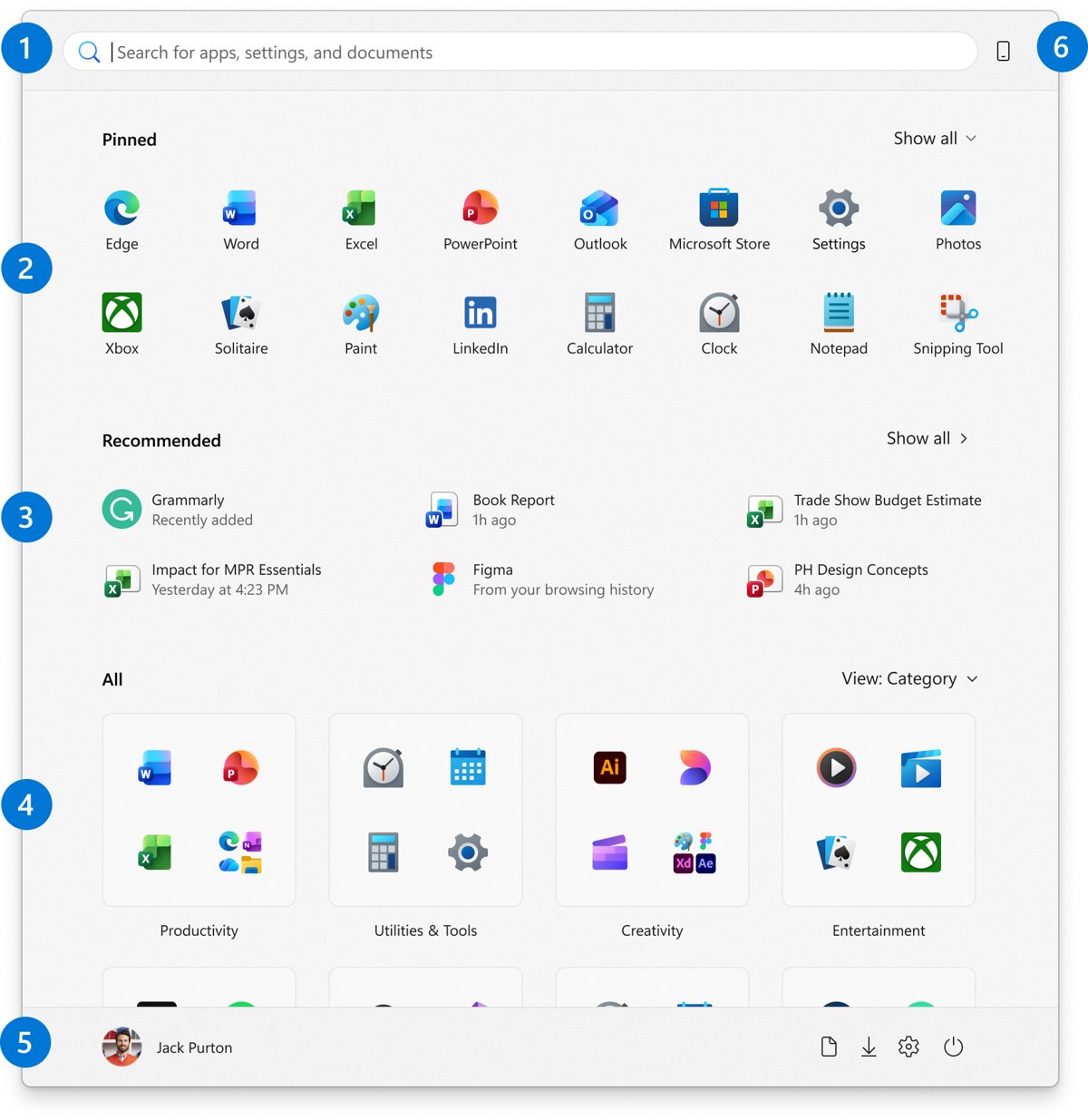
Method 9: Clear Start menu recommendations in Windows 11
The Recommended section of the Windows 11 Start menu lists recently added apps, frequently used apps and recently opened files. Windows 10 has no Recommended section.
- Select Start, right-click the bottom of the Start menu and select Start settings.
- Turn off the toggle for recently opened items or recommended files.
- Turn off the recently added apps and most used apps toggles if you want those hidden too.
- Open Start again; with every provider off, the Recommended section collapses.
- To remove one file instead, right-click it in Recommended and choose the remove option.
On work PCs, the Remove Recommended section from Start Menu policy hides the whole section. Settings toggles you cannot change are usually set by such a policy.
Method 10: Clear Microsoft Office recent documents
Word, Excel and PowerPoint keep their own recent list on the Open page. Clearing File Explorer history does not touch it.
- Open Word, Excel or PowerPoint and select File > Open.
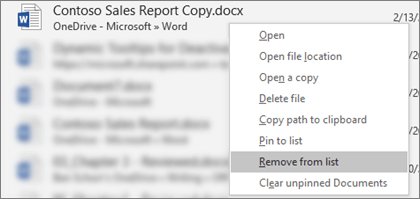
- Right-click any file in the recent list.
- Select Clear unpinned Documents (the wording names the item type for each app).
- Select Yes to confirm.
- To remove a single file, right-click it and select Remove from list, never Delete file.
- To hide the list for good, go to File > Options > Advanced, find Display and set Show this number of Recent Documents to 0.
Delete file removes the file from your system, which is why the label matters here.
Method 11: Clear recent files for specific apps
Many desktop apps keep a recent list in their own File menu. Use this table to find which control covers which app.
| App type | Where its recent list lives | How to clear it |
|---|---|---|
| Microsoft Office apps | File > Open recent list | Method 10 |
| Apps that use Windows jump lists | Right-click the taskbar icon | Method 8 |
| Apps with their own File menu list | The app's File menu | Use the app's own clear or remove option |
| Every app at once on a managed PC | Shortcuts at the bottom of File menus | Do not keep history of recently opened documents policy (Method 12) |
The policy in Method 12 is the only Windows-wide switch. With it on, apps stop showing document shortcuts at the bottom of their File menu.
Method 12: Use Group Policy to disable recent files on shared or managed PCs
Group Policy is available on Windows 11 and Windows 10 Pro, Enterprise and Education. Two user policies under Start Menu and Taskbar control recent document history.
- Press Windows + R, type
gpedit.mscand press Enter. - Go to User Configuration > Administrative Templates > Start Menu and Taskbar.
- Double-click Do not keep history of recently opened documents, select Enabled and select OK to stop Windows and apps creating recent shortcuts.
- Or double-click Clear history of recently opened documents on exit, select Enabled and select OK to wipe Recent Items and jump lists at every sign-out.
- Sign out and sign back in so the policy applies.
If you later disable Do not keep history of recently opened documents, shortcuts saved before you turned it on reappear. Pinned jump list items are not hidden by either policy.
Method 13: Clear recent files using registry settings
The Start menu policies write their values to HKEY_CURRENT_USER\Software\Microsoft\Windows\CurrentVersion\Policies\Explorer. Use the registry to check or remove them, especially on Windows Home, where the Group Policy editor is not included.
- Press Windows + R, type
regeditand press Enter, then select Yes at the prompt. - Go to
HKEY_CURRENT_USER\Software\Microsoft\Windows\CurrentVersion\Policies\Explorer. - Look for the value ClearRecentDocsOnExit; when present and on, recent document shortcuts and jump lists clear at sign-out.
- Look for the value NoRecentDocsMenu; when present and on, the Recent Items menu is hidden from Start.
- Delete a value to return that setting to not configured, then sign out and back in.
Back up the key first with File > Export. On a PC with Group Policy, set these through Method 12 instead, so the editor and the registry stay in step.
How to check File Explorer recent files history is cleared
- Close all File Explorer windows and open File Explorer again.
- Select Home (Windows 11) or Quick access (Windows 10): the recent files area should be empty or show only pinned folders.
- Open the address bar drop-down and check whether old paths are still listed.
- Right-click File Explorer and Word on the taskbar to confirm their jump lists are empty.
- On Windows 11, open Start and check the Recommended section.
- Open one test document, then confirm it appears again if you kept history on, or stays off the list if you turned it off.
To see what Windows is tracking from now on, find recent files in Windows 11 from the same places.
What clearing recent files does not delete
| Item | Removed by clearing recent files? | Where to handle it |
|---|---|---|
| The documents themselves | No, only shortcuts to them | Delete the file in File Explorer if you want it gone |
| Pinned folders and pinned jump list items | No | Unpin them by hand |
| Office recent documents list | No | Method 10 |
| Windows activity history | No | Settings > Privacy & security > Activity history > Clear history (Windows 10: Privacy > Activity history > Clear) |
| Device search history | No | Clear device search history in search settings |
| Browser download lists | No | The browser's clear browsing data page |
| File History backups | No | File History is a separate backup feature |
| Temporary files | No | Disk cleanup tools |
Temporary files are a separate cleanup job: you can delete temporary files in Windows without touching your recent lists.
How to clear browser downloads that appear related to File Explorer
Files you download show in the browser's download list as well as in your Downloads folder. Clearing the browser list removes the list only; the downloaded files stay on disk.
- Microsoft Edge: select Settings and more > Settings > Privacy, search, and services.
- Edge: select Clear browsing data, then Choose what to clear next to Clear browsing data now.
- Edge: pick a Time range, tick Download history and select Clear now.
- Google Chrome: select More (three dots) > Delete browsing data.
- Chrome: choose a time range such as All time, tick download history and select Delete data.
- Open your Downloads folder in File Explorer and delete any files you no longer want.
Troubleshooting: recent files still show after clearing
Recent files are still in Home or Quick access right after clearing
An open File Explorer window is still showing the old list.
- Close every File Explorer window.
- Open File Explorer again and check Home or Quick access.
- If the list is still there, restart the PC and check again.
Some entries never go away
Pinned items are kept on purpose; clearing only removes automatic entries.
- Look for a pin icon next to the item.
- Right-click it and select the unpin option.
- Clear File Explorer history in File Explorer Options again.
Office or cloud files still appear in Windows 11 Home
Home also lists recent and favorited Office.com files from your account.
- Open Options in File Explorer.
- Under Privacy, clear Include account-based insights, recent, favorite, and recommended files.
- Select Apply, then OK.
Recent files still show in the taskbar menu
Jump lists are cleared separately from File Explorer history.
- Open Settings > Personalization > Start.
- Turn the recently opened items toggle off, then on again.
- Right-click the taskbar icon to confirm the jump list is empty.
Old files come back after a while
Shortcuts are still in the Recent Items folder, or a setting was turned back on.
- Empty
%APPDATA%\Microsoft\Windows\Recentas in Method 6. - Recheck the Privacy check boxes in File Explorer Options.
- Use Method 12 if the PC is shared and the list must stay empty.
The recent items toggle in Settings is greyed out
A policy that hides recent jump lists also locks the matching Settings toggle.
- Run
gpedit.mscand check Do not keep history of recently opened documents under Start Menu and Taskbar. - Set it to Not Configured if you set it yourself.
- On a work or school PC, ask your IT admin, because the policy comes from them.
If File Explorer itself misbehaves, the built-in File Explorer help options list the support routes Windows offers.
Recommended privacy setup for a shared Windows PC
On a family or office PC, each person should have their own Windows account first. Recent files are stored per user, so separate accounts already keep histories apart.
| Setting | Where | Recommended value |
|---|---|---|
| Show recently used files | File Explorer Options > Privacy | Off |
| Show frequently used folders | File Explorer Options > Privacy | Off |
| Account-based and recommended files (Windows 11) | File Explorer Options > Privacy | Off |
| Open File Explorer to | File Explorer Options > General | This PC |
| Recently opened items in Start and jump lists | Settings > Personalization > Start | Off |
| Clear history of recently opened documents on exit | Group Policy (Pro and above) | Enabled |
| Office recent documents | File > Options > Advanced | 0 |
How to turn recent files back on in File Explorer
- Open Options in File Explorer.
- Under Privacy, tick the recently used files and frequently used folders check boxes again.
- Set Open File Explorer to back to Home (Windows 11) or Quick access (Windows 10) if you changed it.
- Turn the recently opened items toggle back on in Settings > Personalization > Start.
- Set any Group Policy you enabled back to Not Configured.
- Select Apply and OK, then open a file to start the list again.
Cleared history does not come back. Only files you open from now on appear in the list.
Clear recent files history in Windows: questions answered
How do I clear recent file history in Windows 11?
Open File Explorer, select See more > Options, and on the General tab, under Privacy, select the button that clears File Explorer history. The Home recent list is emptied. Clear jump lists and Start recommendations separately in Settings > Personalization > Start.
How do I clear recent files history in Windows 10?
In File Explorer, select the View tab, then Options, and under Privacy select the button that clears File Explorer history. Quick access then shows only pinned folders until you open new files. Clear the check boxes in the same section to stop recent files showing again.
How do I delete only one file from recent files history?
Right-click the file in Home or Quick access and choose the remove option, such as Remove from Quick access on Windows 10. Do not choose Delete, which moves the actual file to the Recycle Bin. The rest of the list stays as it was.
How do I clear recent document history in Word or Excel?
Select File > Open, right-click any file in the recent list and select Clear unpinned Documents, then Yes. Set Show this number of Recent Documents to 0 under File > Options > Advanced to keep the list empty.
Does clearing recent files delete my files?
No. Recent files lists hold shortcuts, not the files themselves. Clearing File Explorer history, emptying the Recent Items folder or clearing jump lists removes only those pointers. Your documents stay in their folders until you delete them yourself.
Is clearing File History the same as clearing recent files history?
No. File History is a Windows backup feature that saves copies of your files to another drive. Recent files history is the list of recently opened items in File Explorer. Clearing recent files does not change File History backups.
How do I clear recent history automatically when I sign out?
On Windows Pro, Enterprise or Education, enable Clear history of recently opened documents on exit under User Configuration > Administrative Templates > Start Menu and Taskbar in Group Policy. Recent Items and jump lists then clear at every sign-out.
How do I clear most recent files from the Start menu?
On Windows 11, open Settings > Personalization > Start and turn off the recently opened items toggle. The files disappear from Recommended. To remove one file, right-click it in Recommended and choose the remove option.
How do I clear recent activity history in Windows?
Go to Settings > Privacy & security > Activity history and select Clear history on Windows 11. On Windows 10, go to Settings > Privacy > Activity history and select Clear. This is separate from File Explorer recent files.
Bottom line: should you clear or turn off recent files in File Explorer?
Clear File Explorer history in File Explorer Options for a one-off cleanup, and turn off the Privacy check boxes plus the Start toggle if you never want recent files shown. Clearing alone refills the list the next time you open a file, while the check boxes and Start toggle stop File Explorer, jump lists and Start from showing it at all. Shared or managed PCs are best served by the sign-out policy in Method 12.