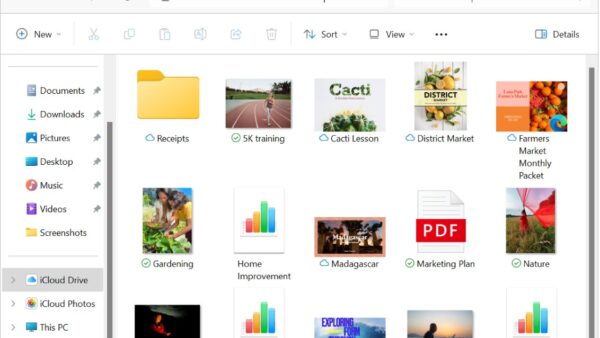
Press Windows + E to open File Explorer on Windows 11, or select the folder icon on the taskbar.
This guide covers nine ways to launch File Explorer, how to choose the folder it opens to, and what to do when it will not open.
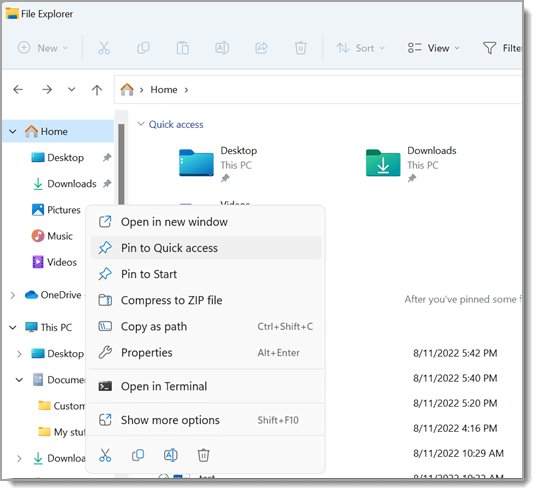
Open File Explorer using a keyboard shortcut (Windows + E)
The keyboard shortcut is the quickest route because it works from any app, any desktop and any window that has focus.
- Hold the Windows logo key on your keyboard.
- Press E once and release both keys.
- Wait for File Explorer to open on Home, its default landing page.
- Press Windows + E again any time you want a second File Explorer window.
Inside File Explorer, Ctrl + N opens another window and Ctrl + T opens a new tab in the same window. If you prefer one folder per window, you can disable File Explorer tabs.
How to open File Explorer in Windows 11/10: which method to use
Every route below starts the same program, explorer.exe. Pick the one that matches what you can reach right now.
| Your situation | Use this method | Why it fits |
|---|---|---|
| Keyboard in reach | Windows + E | One key combination from anywhere |
| Mouse only | Taskbar folder icon | File Explorer is pinned to the taskbar by default |
| Taskbar icon was unpinned | Start menu or Windows Search | Both list File Explorer as an app |
| You already use the Quick Link menu | Right-click Start (Windows + X) | File Explorer is one of its entries |
| You want a one-click icon on the desktop | Desktop shortcut | Drag File Explorer from Start > All |
| You are working in a terminal | Command Prompt: start explorer | Can also open a specific folder path |
| Taskbar or desktop is missing | Task Manager > Run new task | Starts explorer.exe when the shell has crashed |
| Start menu will not open | Run box (Windows + R) | Needs only the keyboard |
Open File Explorer from the taskbar
Windows 11 pins File Explorer to the taskbar during setup, so the yellow folder icon is there unless someone removed it.
- Look along the taskbar at the bottom of the screen for the yellow folder icon.
- Select the icon once to open a File Explorer window.
- Right-click the icon instead to see its jump list of recent and pinned folders.
- Select a folder in the jump list to open File Explorer straight in that location.
If the icon is gone, open File Explorer another way, right-click its taskbar button while it runs and select Pin to taskbar.
Open File Explorer from the Start menu
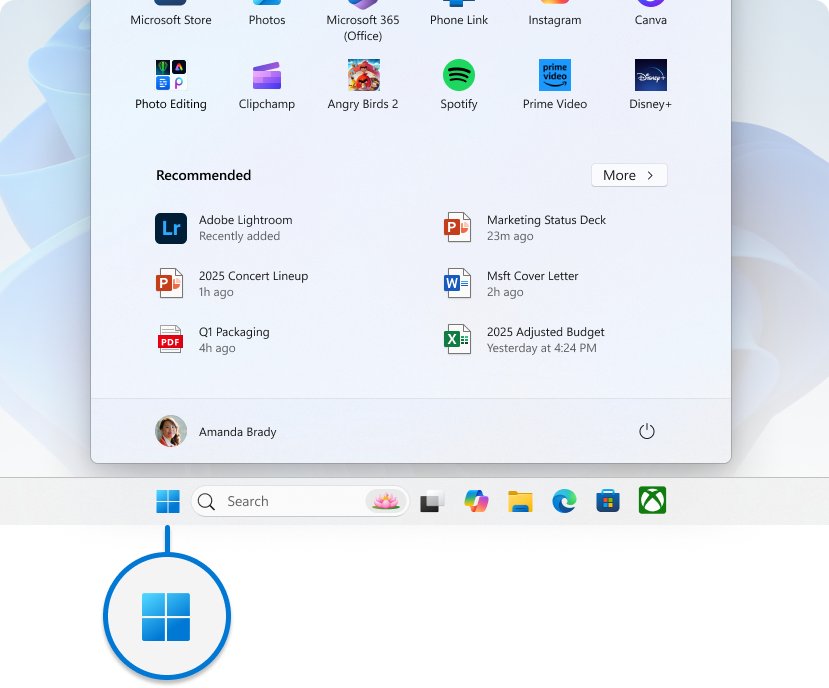
- Select Start on the taskbar or press the Windows logo key.
- Select File Explorer in the Pinned section if it appears there.
- If it is not pinned, select All and scroll the alphabetical list to File Explorer.
- Select File Explorer to open it.
- Right-click File Explorer in the list and select Pin to Start to keep it in the pinned grid.
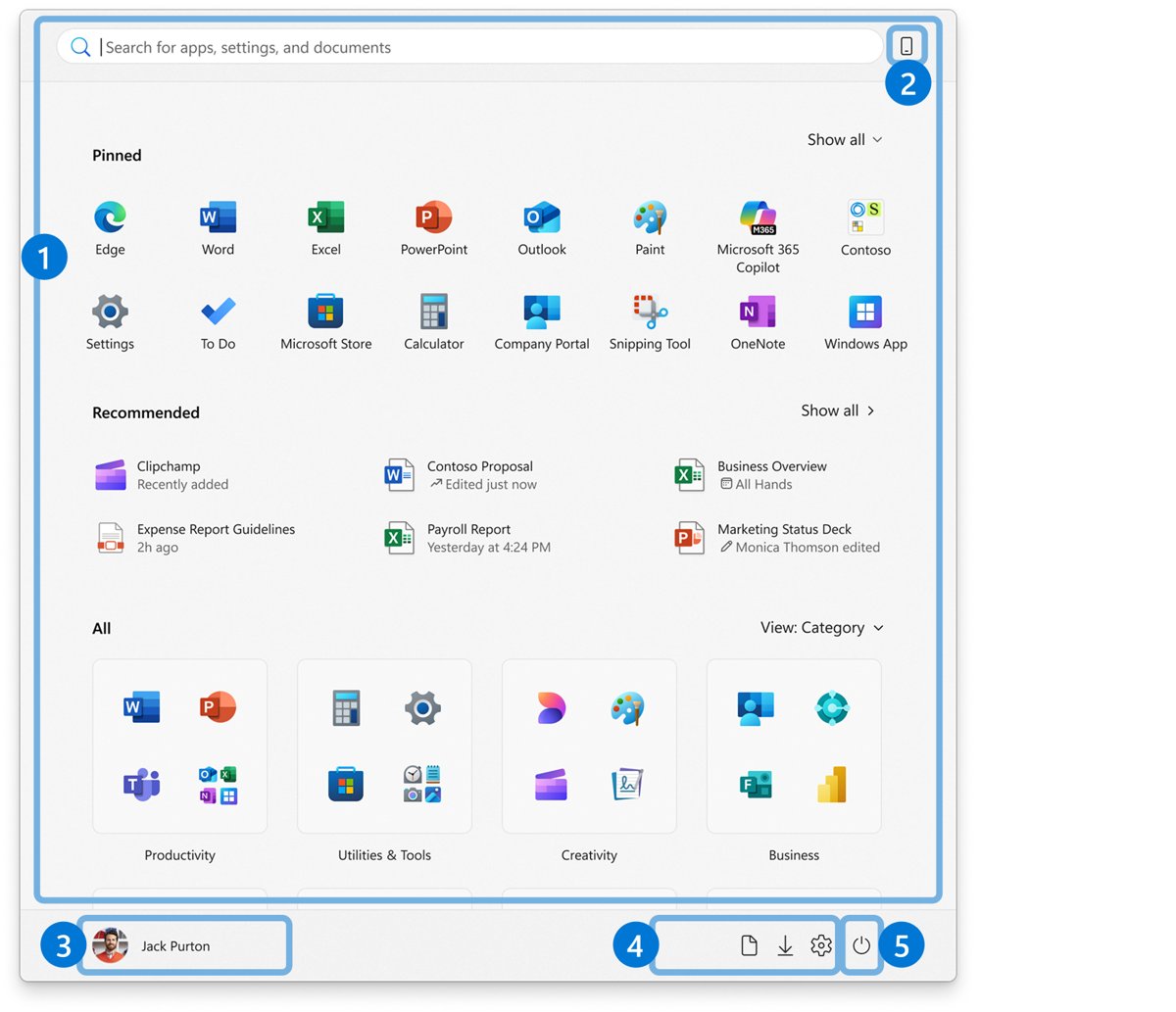
Start can also show folder buttons next to the power button. Right-click the bottom of Start, select Start settings, select Folders and turn on entries such as Documents, Downloads or Personal folder. Each button opens that folder in File Explorer.
Open File Explorer from Windows Search
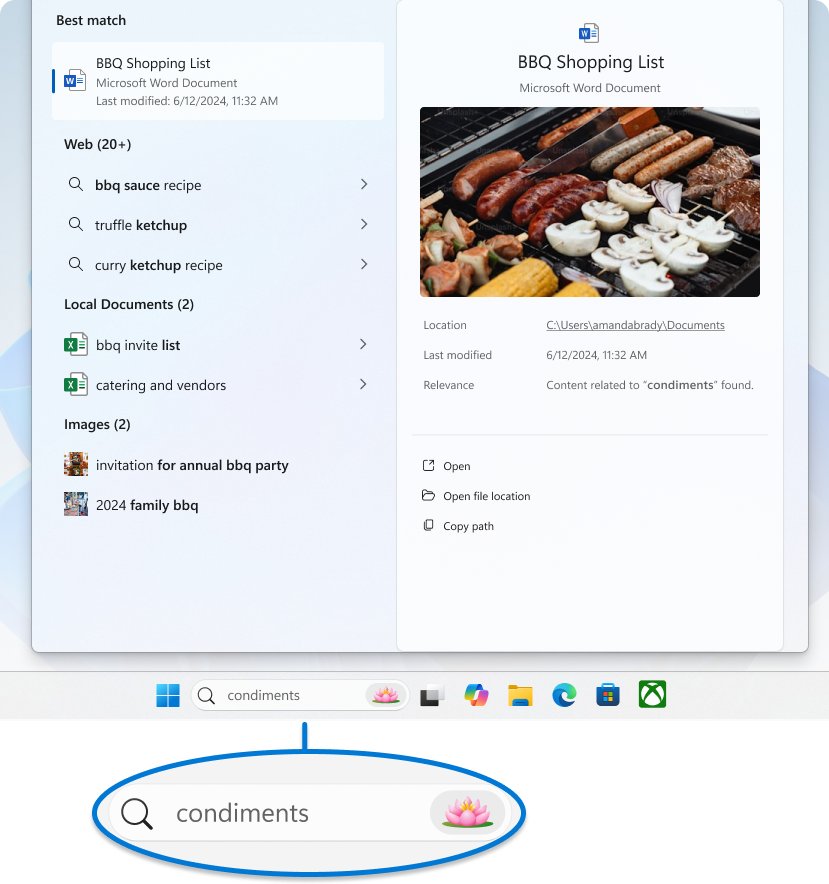
- Select Search on the taskbar, or press the Windows logo key and start typing.
- Type file explorer.
- Select File Explorer in the results, or press Enter.
- Right-click the result and select Pin to taskbar if you want a permanent taskbar button.
Open File Explorer from the power user menu (Windows + X)
Microsoft calls this list the Quick Link menu. Pressing Windows + X does the same as right-clicking Start.
- Right-click Start, or press and hold it on a touchscreen.
- Alternatively, press Windows + X on the keyboard.
- Select File Explorer in the menu that opens.
Open File Explorer from the Run box
- Press Windows + R to open the Run dialog box.
- Type
explorer.exein the Open field. - Select OK or press Enter.
- Check that a File Explorer window opens on Home.
Open File Explorer using Command Prompt
Once you open Command Prompt, the start command searches for the program you name and launches it, whatever folder the prompt is in.
If you give start a name that matches a folder instead of a program, it opens Explorer.exe on that folder.
start explorerLaunches explorer.exe in a new File Explorer window. To open a particular folder, give its path instead, for example start C:\Users, which opens Explorer on that folder.
You should see: A File Explorer window appears on top of Command Prompt and the prompt returns immediately.
Open File Explorer using a desktop shortcut
A desktop shortcut gives you a double-click target that survives taskbar and Start changes.
- Press the Windows logo key to open Start.
- Select All to show the full app list.
- Scroll to File Explorer in the alphabetical list.
- Drag File Explorer out of Start and drop it on an empty part of the desktop.
- Double-click the new shortcut to confirm it opens File Explorer.
Open File Explorer from Task Manager
Use this route when the taskbar, Start menu or desktop icons have vanished, which usually means explorer.exe has stopped.
- Press Ctrl + Shift + Esc to open Task Manager. Ctrl + Alt + Del followed by Task Manager also works.
- If Windows Explorer is listed under processes, right-click it and select Restart.
- If it is not listed, select Run new task (on older layouts, File > Run new task).
- Type
explorer.exein the box. - Press Enter or select OK.
Starting explorer.exe this way brings back the taskbar and desktop as well as a File Explorer window, because explorer.exe is also the Windows shell.
How to check File Explorer opened correctly
- Look for a window open on Home, with sections such as Recommended, Favorites and Recent, and the navigation pane on the left.
- Check that the pinned known folders, Desktop, Documents, Downloads, Pictures, Music and Videos, appear as pinned folders in Quick access.
- Select This PC in the navigation pane and confirm your drives are listed.
- If the navigation pane is missing, select View > Show > Navigation pane to bring it back.
Make File Explorer open to This PC instead of Home
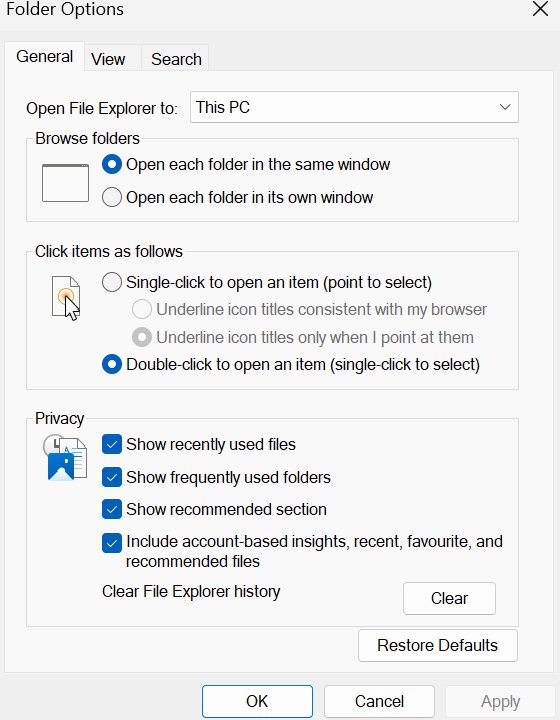
Since Windows 11 version 22H2, File Explorer opens to Home (formerly Quick access). Switch it if you prefer seeing drives first, or pin your drives to Quick access and keep Home as the start page.
- Open File Explorer with Windows + E.
- Select See more (the three dots) on the command bar.
- Select Options.
- In Open File Explorer to, choose This PC.
- Select Apply, then OK, and press Windows + E to test it.
Fix File Explorer not opening on Windows 11
File Explorer won't open or start
A pending update, a stuck explorer.exe process or damaged system files.
- Open Task Manager with Ctrl + Shift + Esc, right-click Windows Explorer and select Restart.
- Select Start > Settings > Windows Update > Check for updates and install what is offered.
- Restart the PC even if no update asks for it, so pending updates finish installing.
- Open Command Prompt as administrator and run
DISM.exe /Online /Cleanup-image /Restorehealth, thensfc /scannow. - If File Explorer still fails, use Settings > System > Recovery > Reset PC with Keep my files.
Blank screen with only a mouse cursor, no taskbar or desktop
explorer.exe, which also draws the taskbar and desktop, is not running.
- Press Ctrl + Shift + Esc, or press Ctrl + Alt + Del and select Task Manager.
- Select Run new task.
- Type
explorer.exeand press Enter.
File Explorer icon missing from the taskbar
The pin was removed; File Explorer itself is still installed.
- Select Search on the taskbar and type file explorer.
- Right-click File Explorer in the results.
- Select Pin to taskbar.
Opening File Explorer on Windows 11 FAQ
What is the keyboard shortcut to open File Explorer in Windows 11?
Press Windows + E. The shortcut opens a new File Explorer window from anywhere in Windows 11 and Windows 10. Press it again for another window, or use Ctrl + N inside File Explorer.
Where is File Explorer in the Windows 11 Start menu?
File Explorer usually sits in the Pinned section of Start. If it is not pinned, select All and scroll the alphabetical list to File Explorer, then right-click it and select Pin to Start.
How do I open File Explorer from Command Prompt?
Type start explorer and press Enter. To open a specific folder instead, type start followed by the folder path, such as start C:\Users, and Explorer opens on that folder.
How do I open File Explorer from the Run box?
Press Windows + R, type explorer.exe and press Enter. The Run box needs only the keyboard, so it works when the Start menu or taskbar is not responding.
How do I open File Explorer if the taskbar has disappeared?
Press Ctrl + Shift + Esc to open Task Manager, select Run new task, type explorer.exe and press Enter. That restarts the Windows shell, which brings back the taskbar along with File Explorer.
How do I make File Explorer open to This PC?
In File Explorer, select See more > Options, set Open File Explorer to to This PC and select Apply. File Explorer then opens on your drives instead of Home.
Is File Explorer the same as Windows Explorer?
Yes. Both names refer to explorer.exe. The app is called File Explorer, while Task Manager lists the running process as Windows Explorer, because explorer.exe is also the default Windows shell that draws the taskbar and desktop.
How do I put File Explorer back on the taskbar?
Search for file explorer from the taskbar, right-click the result and select Pin to taskbar. You can also right-click the File Explorer button while it is open and choose Pin to taskbar.
How do I open a new tab in File Explorer?
Press Ctrl + T while File Explorer is active. Ctrl + W closes the current tab and Ctrl + Tab moves to the next one, so several folders fit in one window.
Once the window is open, the built-in File Explorer help options answer layout, search and permissions questions.
Several ways to launch File Explorer on Windows 11: which to remember
Remember Windows + E for daily use and Ctrl + Shift + Esc > Run new task > explorer.exe for the day the taskbar disappears. The shortcut is the fastest route from any app, and the Task Manager route is the only one that still works when explorer.exe itself has stopped running.