Local holds app data that stays on this PC, LocalLow holds data written by low-integrity apps such as sandboxed browsers, and Roaming holds settings that can follow your account to other PCs.
All three sit inside the hidden AppData folder in your user profile. This guide shows where each one lives, how to open it in seconds, what belongs in it, and what you can safely clean out.
How to open the folders quickly
The Run box expands environment variables, so you never have to show hidden files first. Local and Roaming each have their own variable; LocalLow does not, so it uses your profile path.
- Press Windows logo key + R to open the Run box.
- Type
%appdata%and select OK to open the Roaming folder. - Press Windows logo key + R again, type
%localappdata%and select OK to open the Local folder. - For LocalLow, type
%userprofile%\AppData\LocalLowin the Run box and select OK. - To see all three side by side, type
%userprofile%\AppDataand select OK.
The same strings work in the File Explorer address bar. Press Windows logo key + E, click the address bar, paste the string and press Enter.
What are Local, LocalLow & Roaming folders in Windows 11
Windows gives every user account its own copy of these folders. Programs decide which one to write to, based on whether the data should travel with you and how much trust the process has.
| Folder | What it is for | Typical contents |
|---|---|---|
| Local | Data for this PC only (Microsoft calls it "nonroaming") | Caches, large databases, Store app packages, the classic Outlook .ost file |
| LocalLow | The one profile folder a low-integrity process is allowed to write to | Data from sandboxed browsers, plug-ins and some games |
| Roaming | Per-user settings that can move between PCs with a roaming profile | Start menu shortcuts, the Startup folder, Send To items, Recent items, app settings |
Microsoft's own description of the Roaming folder is "a common repository for application-specific data". The Local folder is described as "a data repository for local (nonroaming) applications".
The AppData Folder: An Overview
AppData sits directly under your profile folder, next to Documents and Desktop. Microsoft's guidance tells developers not to write to the profile root and to use the AppData locations instead.
| Fact | Detail |
|---|---|
| Location | C:\Users\<your user name>\AppData |
| Scope | Per user; each account on the PC has its own AppData |
| Visibility | Hidden in File Explorer until you turn on hidden items |
| Subfolders | Local, LocalLow and Roaming |
| Older name | Windows XP used Application Data and Local Settings\Application Data instead |
If you only need to reach the top folder, the techdows guide on how to find the AppData folder in Windows 11 and Windows 10 covers every route.
Default paths for Local, LocalLow, and Roaming
These are the default locations Microsoft lists in its known-folder reference. They are the same on Windows 11 and Windows 10.
| Folder | Default path | Shortcut variable | Windows XP equivalent |
|---|---|---|---|
| Local | %USERPROFILE%\AppData\Local |
%LOCALAPPDATA% |
%USERPROFILE%\Local Settings\Application Data |
| LocalLow | %USERPROFILE%\AppData\LocalLow |
None | Did not exist |
| Roaming | %USERPROFILE%\AppData\Roaming |
%APPDATA% |
%USERPROFILE%\Application Data |
On a typical PC, %USERPROFILE% resolves to C:\Users\<your user name>.
Local Folder
Local is for anything that belongs to this machine: large files, caches and data that would be pointless on another PC. Microsoft says local app data has no general size limit.
| What you will find | Path under Local |
|---|---|
| Store and packaged app data | Packages\<package name> |
| Classic Outlook offline mailbox (.ost) | Microsoft\Outlook |
| Windows history folder | Microsoft\Windows\History |
| Application shortcuts | Microsoft\Windows\Application Shortcuts |
| Temporary Internet Files | Microsoft\Windows\Temporary Internet Files |
| New Teams cache | Packages\MSTeams_8wekyb3d8bbwe\LocalCache\Microsoft\MSTeams |
Local is never copied to a server by Roaming User Profiles, so it is where large or machine-specific data belongs.
LocalLow Folder
LocalLow exists because of Windows integrity levels. A process running at low integrity, such as Protected Mode Internet Explorer, cannot write to most of your profile. Microsoft lists %USERPROFILE%\AppData\LocalLow as the file system location where low-integrity processes can create files and subfolders.
| Property | LocalLow |
|---|---|
| Who writes here | Processes running at low integrity (sandboxed code) |
| Registry counterpart | HKEY_CURRENT_USER\Software\AppDataLow |
| Environment variable | None; use %USERPROFILE%\AppData\LocalLow |
| Old-style CSIDL constant | None; it only has the known-folder ID FOLDERID_LocalAppDataLow |
Microsoft warns developers that data coming from a lower-integrity process cannot be trusted. That is why LocalLow is kept apart from Local.
Roaming Folder
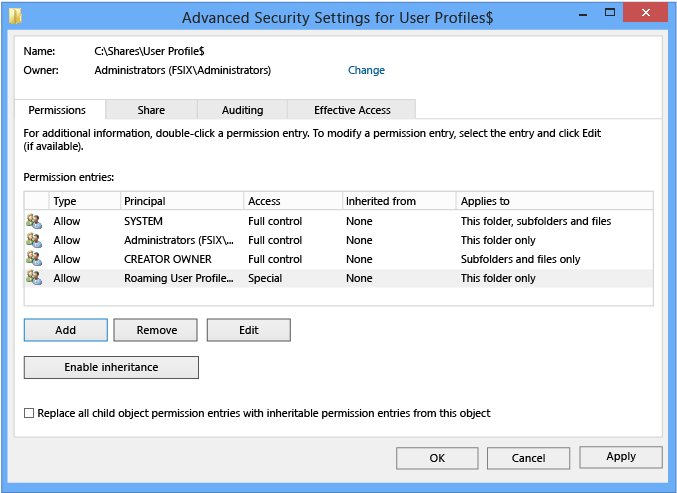
Roaming holds per-user settings that an organisation can move to a server. Roaming only travels when an administrator sets up Roaming User Profiles or Folder Redirection; otherwise it behaves like any folder on this PC.
| What you will find | Path under Roaming |
|---|---|
| Your Start menu programs | Microsoft\Windows\Start Menu\Programs |
| Your Startup folder | Microsoft\Windows\Start Menu\Programs\StartUp |
| Send To menu items | Microsoft\Windows\SendTo |
| Recent items | Microsoft\Windows\Recent |
| Libraries | Microsoft\Windows\Libraries |
| Classic Teams cache | Microsoft\Teams |
Classic Outlook also keeps data such as email signatures and the spelling dictionary in AppData, which is why a slow redirected AppData can make Outlook hang.
Comparing the Three Folders
When an app's instructions just say "check AppData", match your situation to a row to know where to look first.
| You are looking for | Look in | Why |
|---|---|---|
| An app's settings or config file | Roaming | Settings meant to follow the user go here |
| A cache that has grown large | Local | Caches and big data sets are kept off the roaming profile |
| A Microsoft Store app's data | Local\Packages | Packaged apps get a private per-app folder there |
| Browser plug-in or sandboxed game data | LocalLow | Low-integrity processes can only write here |
| A shortcut in your Start menu or Startup folder | Roaming | Both are Roaming known folders |
| Data that should not leave this PC | Local | Local is excluded from roaming by design |
Local vs. LocalLow vs. Roaming at a glance
| Property | Local | LocalLow | Roaming |
|---|---|---|---|
| Known-folder ID | FOLDERID_LocalAppData | FOLDERID_LocalAppDataLow | FOLDERID_RoamingAppData |
| CSIDL | CSIDL_LOCAL_APPDATA | None | CSIDL_APPDATA |
| Variable | %LOCALAPPDATA% | None | %APPDATA% |
| Writable by low-integrity processes | No | Yes | No |
| Copied by Roaming User Profiles | No | Not stated by Microsoft | Yes |
| Redirectable with Folder Redirection | No | No | Yes (listed as AppData/Roaming) |
| Typical size | Largest | Small | Small to medium |
The "typical size" row reflects Microsoft's guidance that large data sets go in local storage, not a measured figure.
How to show AppData in the Explorer tree
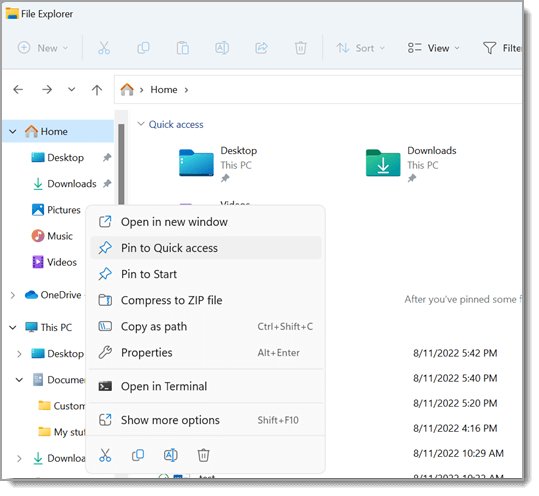
Turn on hidden items once, then pin the folder so it stays in the left pane.
- Press Windows logo key + E to open File Explorer.
- Select View > Show, then select Hidden items.
- Open
C:\Users\<your user name>; the faded AppData folder now appears. - Right-click AppData, Local, LocalLow or Roaming and select Pin to Quick access.
- Open the pinned folder from the navigation pane on the left from now on.
Settings has the same switch: open Settings > System > Advanced, expand File Explorer and turn on Show hidden and system files. If the left pane itself is missing, select View > Show > Navigation pane.
Check which AppData path your PC really uses
Run this in Command Prompt to print the paths Windows is handing to apps for your account.
echo %APPDATA% %LOCALAPPDATA%Prints the current Roaming and Local paths for the signed-in user.
You should see: You see C:\Users\<your user name>\AppData\Roaming and C:\Users\<your user name>\AppData\Local. A path starting with \\ means Roaming is redirected to a network share.
Why the default path may be wrong
The table of default paths describes a fresh, unmanaged profile. Several documented features change where the data really lands.
| Cause | What happens to the path |
|---|---|
| Folder Redirection by Group Policy | AppData/Roaming can point to a share such as \\server\share\<user>\AppData |
| Roaming User Profiles | Roaming is copied from a file share at sign-in and merged back at sign-out |
| User Shell Folders registry value | The AppData value under HKEY_CURRENT_USER\Software\Microsoft\Windows\CurrentVersion\Explorer\User Shell Folders sets where Roaming points |
| Packaged (MSIX) desktop apps | New files the app creates in AppData go to a private per-app location and only appear to be in AppData |
| Old documentation | Paths such as Documents and Settings\<user>\Application Data are Windows XP locations |
Microsoft names a network-redirected AppData folder as one cause of classic Outlook freezing, because every read and write waits on the network.
Packaged apps may use private storage
Apps from the Microsoft Store and MSIX-packaged desktop apps do not always write where a classic program would. Windows gives each packaged app its own per-user data store, with root folders for local, roaming and temporary files.
| Behaviour | Detail |
|---|---|
| Where the data sits | Under %LOCALAPPDATA%\Packages\<package name> |
| New files written to AppData (Windows 10 version 1903 and later) | Redirected to a private per-user, per-package location, then merged so the app sees them in AppData |
| Existing AppData files | The app can still modify them in place |
| Uninstall | Windows removes the app's data stores and its redirected AppData writes |
| Roaming app data for Store apps | No longer supported as of Windows 11 |
That is why Microsoft's fix for a broken Windows 11 search points to %USERPROFILE%\AppData\Local\Packages\MicrosoftWindows.Client.CBS_cw5n1h2txyewy, not to Roaming.
Can you delete files from AppData?
Yes, but only per app and only with the app closed. Deleting a folder resets that app to a first-run state, and deleting the whole Roaming or Local folder breaks many programs at once.
Delete a specific app's cache folder only when that app's vendor tells you to, quit the app first, and never delete Local, LocalLow or Roaming themselves. Settings, sign-ins, offline mailboxes and saved data live in these folders. Microsoft's own Teams guidance warns that clearing a cache deletes diagnostic logs and is not a general first fix.
For Store apps, the built-in reset is safer than deleting files: open Settings > Apps > Installed apps, select … next to the app, choose Advanced options and select Reset.
Changing AppData environment variables
Editing %APPDATA% in the Environment Variables dialog is not how Windows relocates Roaming. The documented, supported route is Folder Redirection through Group Policy on a domain. Microsoft documents no equivalent for Local or LocalLow.
- On a PC with the Group Policy Management Console, select Start, type Group Policy Management and open it.
- Expand the domain or organisational unit that holds the users.
- Right-click an existing GPO and select Edit, or create one with Create a GPO in this domain, and link it here.
- Expand User Configuration > Policies > Windows Settings > Folder Redirection.
- Right-click the AppData/Roaming folder in the list and select Properties.
- On the Target tab, choose a setting and enter a path in the form
\\server\share\FolderName. - Select OK, then run
gpupdate /forceon the client or wait for the next policy refresh.
Folder Redirection needs an Active Directory domain with the client joined to it. On a home PC there is no supported switch that moves AppData.
Best Practices for AppData Management
| Do this | Because |
|---|---|
Use %appdata% and %localappdata% instead of typed paths |
They still work if the profile is redirected or renamed |
| Quit an app before touching its folder | Open files cannot be removed cleanly and the app may rewrite them |
| Copy a folder somewhere safe before deleting it | You can put it back if the app loses settings |
| Prefer an app's own reset or clear-cache option | The vendor knows which files are safe to lose |
| Leave Packages folders to Windows | Packaged app data is removed when you uninstall the app |
| Keep large data out of Roaming | Large Roaming folders slow sign-in and sign-out on roaming profiles |
Troubleshooting Issues Related to AppData
You cannot find the Roaming folder
AppData is hidden in File Explorer, so browsing to your user folder does not show it.
- Press Windows logo key + R.
- Type
%appdata%and select OK. - If you want to browse instead, select View > Show > Hidden items in File Explorer.
The Local folder is missing from your user folder
Local sits inside the hidden AppData folder, not directly in C:\Users\<your user name>.
- Press Windows logo key + R.
- Type
%localappdata%and select OK. - Check the address bar; it should end in AppData\Local.
%appdata% opens a network location or loads slowly
Roaming is redirected by Folder Redirection or the User Shell Folders registry value.
- Run
echo %APPDATA%in Command Prompt and note the path. - On a work PC, ask your IT department; the redirection is set by policy.
- On a PC you manage yourself, open Registry Editor and check the AppData value under
HKEY_CURRENT_USER\Software\Microsoft\Windows\CurrentVersion\Explorer\User Shell Folders. - Microsoft's Outlook fix sets that value to
%USERPROFILE%\AppData\Roaming; sign out and back in after changing it.
An app misbehaves and support says to clear its AppData cache
A corrupted cache in the app's AppData folder.
- Right-click the app's icon on the taskbar and select Quit.
- Open the exact folder the vendor names, for example
%appdata%\Microsoft\Teamsfor classic Teams. - Delete the files and folders inside it, not the folder above it.
- Restart the app and wait while it rebuilds the cache.
Development note: known-folder APIs
Code should ask Windows for these folders rather than building paths from strings. SHGetKnownFolderPath returns the path for a KNOWNFOLDERID and replaces the older SHGetFolderPath, which is now only a wrapper around it.
| Folder | KNOWNFOLDERID | GUID | Legacy CSIDL |
|---|---|---|---|
| Local | FOLDERID_LocalAppData | {F1B32785-6FBA-4FCF-9D55-7B8E7F157091} | CSIDL_LOCAL_APPDATA |
| LocalLow | FOLDERID_LocalAppDataLow | {A520A1A4-1780-4FF6-BD18-167343C5AF16} | None |
| Roaming | FOLDERID_RoamingAppData | {3EB685DB-65F9-4CF6-A03A-E3EF65729F3D} | CSIDL_APPDATA |
The returned path has no trailing backslash, and the caller must free it with CoTaskMemFree. Packaged apps should use ApplicationData.LocalFolder, LocalCacheFolder and TemporaryFolder instead.
FAQ
Where is the Roaming folder in Windows 11?
The Roaming folder is at C:\Users\<your user name>\AppData\Roaming by default. The %APPDATA% variable points straight to it, so typing %appdata% in the Run box or the File Explorer address bar opens it even while AppData is hidden.
How do I open the Roaming folder?
Press Windows logo key + R, type %appdata% and select OK. File Explorer opens directly in Roaming. The same string works when pasted into the File Explorer address bar, and it follows the folder if your administrator has redirected it.
How do I view the Roaming folder in File Explorer?
Turn on hidden items first. In File Explorer select View > Show > Hidden items, then open your user folder, then AppData, then Roaming. Right-click it and select Pin to Quick access to keep it one click away.
Where is the Local folder?
The Local folder is at C:\Users\<your user name>\AppData\Local. Type %localappdata% in the Run box or the File Explorer address bar to open it. It holds caches, Store app data under Packages and other data that stays on this PC.
Where do I find a roaming file for a specific app?
Open %appdata% and look for a folder named after the app or its publisher. Many programs nest their folder under the publisher's name, for example Microsoft\Teams for classic Teams. If it is not there, check %localappdata% and LocalLow.
What is the difference between Local, LocalLow and Roaming?
Local keeps data on this PC only. LocalLow is the one profile folder low-integrity, sandboxed processes can write to. Roaming holds per-user settings that Roaming User Profiles or Folder Redirection can move to a server and follow you between domain PCs.
Why are they separated into three folders?
Each folder answers a different question: should this data follow the user, and how much is the writing process trusted? Separating them keeps large caches off roaming profiles and keeps untrusted low-integrity writes away from normal app data.
Can I delete everything in AppData LocalLow, Roaming or Local?
No. These folders hold settings, sign-ins and saved data for most installed programs, and emptying them breaks those apps. Delete only one app's cache folder, with the app closed, when the app's vendor tells you to.
Does the Roaming folder sync with my Microsoft account?
No. Roaming only moves between PCs when an administrator enables Roaming User Profiles or Folder Redirection, usually on domain accounts. Microsoft also ended roaming app data for Store apps as of Windows 11.
Is there a %LOCALLOWAPPDATA% variable?
No. Windows defines %APPDATA% for Roaming and %LOCALAPPDATA% for Local, but LocalLow has no variable of its own. Use %userprofile%\AppData\LocalLow in the Run box or the address bar instead.
The Bottom Line
Reach the folders with %appdata%, %localappdata% and %userprofile%\AppData\LocalLow, and treat them as each app's private storage rather than a place to clean by hand. The variables always resolve to the right place, even on redirected profiles, and deleting app data is only safe one app at a time with the app closed.


Where is the Temp Folder in Windows 11 and How to Access it - Techdows
[…] AppData holds far more than Temp. The guide to finding the AppData folder explains its Local, LocalLow and Roaming subfolders. […]