A missing Camera Roll folder in Windows 11 usually comes back after you reset where new photos are saved, recreate the folder on the C: drive, or restore your write permission on it.
This guide shows where Camera Roll normally lives, the three fixes in the order Microsoft lists them, how to confirm the Camera app saves again, and what to do when the camera itself is missing.
Where is Camera Roll on Windows 11?
Camera Roll sits inside your Pictures folder, at %USERPROFILE%\Pictures\Camera Roll. Open it directly before you start fixing anything, because the folder is often there but hidden behind a moved Pictures folder.
- Press Win + E to open File Explorer.
- Click the address bar at the top of the window.
- Type
%USERPROFILE%\Pictures\Camera Rolland press Enter. - If the folder opens, your photos are there and the folder is not missing.
- If Windows says it cannot find the path, go to the fixes below.
Which Camera Roll fix should you use?
| What you see | Try this first | Why |
|---|---|---|
| Camera app shows an error when you take a photo | Reset Where new content is saved | A stale save location points to a drive or folder that no longer exists |
| No Camera Roll folder under Pictures or on the C: drive | Create a new Camera Roll folder and add it to the library | The Camera app needs a folder in the Camera Roll library to save into |
| Folder exists but nothing new appears in it | Check Write permission on the folder | The Camera app cannot save into a folder your account cannot write to |
| Save location is an external drive | Reconnect the drive or switch back to This PC (C:) | Photos cannot save to a disconnected device |
| You cannot tell where photos go at all | Use Open Folder in the Camera app | It opens the exact folder the last photo was saved to |
What is Camera Roll in Windows 11/10
Camera Roll is a per-user known folder that Windows has used since Windows 8.1. It holds photos and video taken with the built-in camera, mainly through the Windows Camera app, and you can browse them in the Microsoft Photos app.
| Folder | Default path | What it holds |
|---|---|---|
| Pictures | %USERPROFILE%\Pictures |
Your pictures library, parent of the two folders below |
| Camera Roll | %USERPROFILE%\Pictures\Camera Roll |
Photos and video from the built-in camera |
| Saved Pictures | %USERPROFILE%\Pictures\Saved Pictures |
Pictures you saved from other apps |
Camera Roll is also a library, so the folder Windows saves into is whichever folder is included in the Camera Roll library. That is why adding a new folder to the library is one of the fixes.
It is a sibling of the other user folders, the same way you can find the Documents folder under your user profile, while screenshots go to a separate Screenshots folder inside Pictures.
Fix Camera Roll missing in Windows 11/10
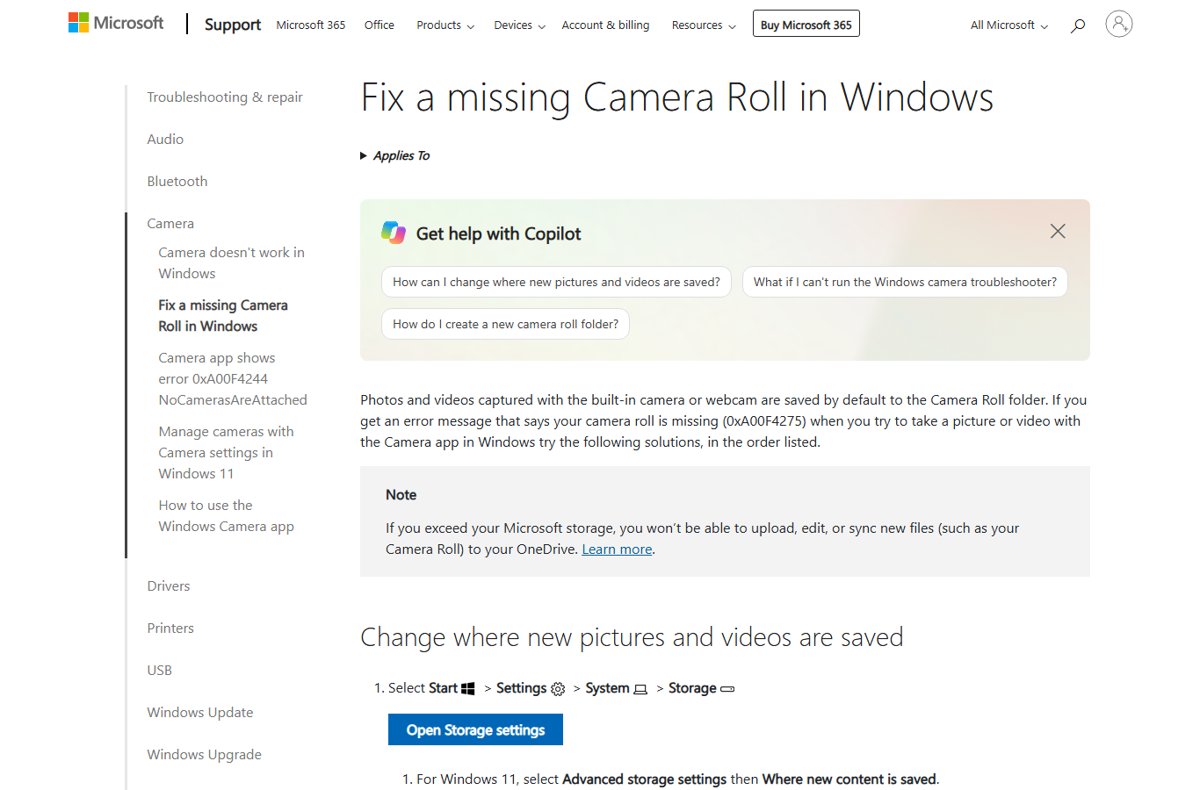
Microsoft's first fix for a missing Camera Roll, including error 0xA00F4275 in the Camera app, is to reset the save location for new photos and videos. Switching away and back makes Windows set the location up again.
- Open Start, then go to Settings > System > Storage.
- On Windows 11, select Advanced storage settings, then Where new content is saved. On Windows 10, select Change where new content is saved.
- Check the location under New photos and videos will save to. If it is an external drive, connect it.
- Open the drop-down under New photos and videos will save to and pick a different location, then select Apply.
- Switch back to your original location, usually This PC (C:), and select Apply again.
- Open the Camera app and take a test photo.
If the drop-down offers only one location, skip the switch and move to the next fix.
Create a new Camera Roll folder and add it to the library
If the folder itself is gone, make a new one and point the Camera Roll library at it. Microsoft's steps create it at the root of the OS drive.
- Open Start, then open File Explorer.
- Select This PC, then your OS drive, usually OSDisk (C:).
- On Windows 11, select New > Folder. On Windows 10, select New folder on the Home tab.
- Name the folder Camera Roll.
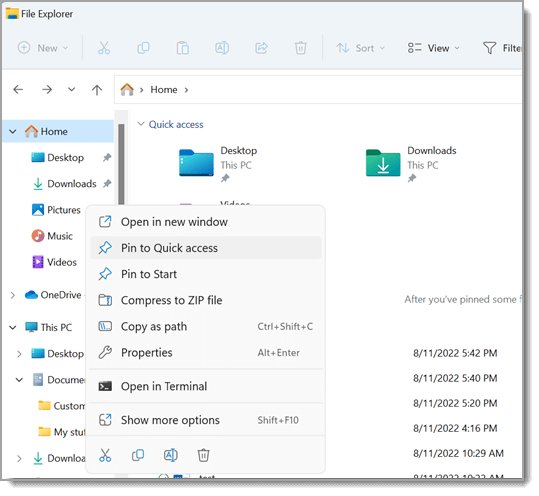
- Right-click the new Camera Roll folder. On Windows 11, select Show more options first.
- Select Include in library > Camera Roll.
- Take a test photo in the Camera app.
Check Camera Roll folder write permissions
The Camera app saves as your user account. If that account lost write access to Camera Roll, the folder looks present but stays empty or triggers an error.
- In File Explorer, open Pictures.
- Right-click Camera Roll and select Properties.
- Open the Security tab.
- Under Group or user names, select the account you are signed in with.
- In the permissions box, confirm Allow is selected next to Write.
- Close the dialog and take a test photo.
Changing permissions needs an administrator account.
Find Camera Roll photos from the Windows Camera app
When the folder is not where you expect, let the Camera app tell you. It opens the exact folder each photo was saved to, even after Pictures was moved.
- Open the Camera app and take a photo.
- Select the thumbnail in the Camera roll at the bottom right corner.
- Select the ellipsis (…) in the top right corner.
- Select Open Folder.
- Note the path in the File Explorer address bar. That is your current Camera Roll.
If OneDrive backs up your Pictures folder, Camera Roll goes with it, so the path shown may sit inside your OneDrive folder rather than under your user profile.
Windows 11 default camera folder setting vs Windows 10
| Windows version | Path to the save location setting | Setting name |
|---|---|---|
| Windows 11 | Settings > System > Storage > Advanced storage settings > Where new content is saved | New photos and videos will save to |
| Windows 10 | Settings > System > Storage > Change where new content is saved | New photos and videos will save to |
| Both | File Explorer > Pictures > Camera Roll | Default folder, %USERPROFILE%\Pictures\Camera Roll |
How to check the Camera Roll folder works again
- Open the Camera app and take one photo.
- Confirm no error appears and a thumbnail shows in the Camera roll at the bottom right.
- Select the thumbnail, select …, then Open Folder.
- Confirm File Explorer opens the Camera Roll folder and the new photo is listed with today's date.
Fix Windows 11 camera not found and Camera Roll errors
Camera not found in Windows 11
The camera is disabled in Settings, so the Camera app has nothing to save from.
- Open Start > Settings > Bluetooth & devices > Cameras.
- Look under Disabled cameras.
- Select your camera and select Enable. This needs an administrator account.
- Reopen the Camera app.
Pictures folder shows an error in OneDrive backup
Pictures is backed up but its subfolders are not all selected.
- Select the OneDrive cloud icon in the notification area, then the Help & Settings icon, then Settings.
- Open the Sync and backup tab and select Manage backup.
- Make sure Pictures, Screenshots and Camera Roll are all selected, then select Save changes.
Camera app error 0xA00F4275 after unplugging a drive
New photos and videos are set to save to an external drive that is no longer connected.
- Reconnect the external drive and take a test photo.
- If you no longer use that drive, open Where new content is saved in Storage settings.
- Set New photos and videos will save to to This PC (C:) and select Apply.
Windows 11 internal camera not working at all
The camera may be off, blocked by privacy settings or not detected, which is a separate problem from the folder.
- Check the camera is listed under Connected cameras in Bluetooth & devices > Cameras.
- Turn on the camera in Windows 11 and allow camera access for apps.
- Return to the Camera Roll fixes once the camera preview shows a picture.
Windows 11 Camera Roll folder FAQ
Where is Camera Roll on Windows 11?
Camera Roll is at %USERPROFILE%\Pictures\Camera Roll by default. Open File Explorer, select Pictures and open Camera Roll. If OneDrive backs up Pictures, check the Pictures folder inside OneDrive as well.
What is Camera Roll in Windows 11?
Camera Roll is a known folder and library that holds photos and video from the built-in camera. The Windows Camera app saves into it. It sits beside Saved Pictures inside your Pictures folder.
Where is my Camera Roll folder if it is not under Pictures?
Take a photo in the Camera app, select the thumbnail, select … and choose Open Folder. File Explorer opens the folder the photo was saved to, and its path shows in the address bar.
How do I fix the camera in Windows 11 when the folder is fine?
Open Settings > Bluetooth & devices > Cameras and check the camera appears under Connected cameras. If it is under Disabled cameras, select it and choose Enable, which needs administrator rights.
Where is my camera in Windows 11?
Your cameras are listed in Settings > Bluetooth & devices > Cameras. To take photos, open the Camera app from the Start menu. Photos it takes are saved to Camera Roll.
Can I change the Camera Roll location in Windows 11?
Yes, for the drive. Open Settings > System > Storage > Advanced storage settings > Where new content is saved and choose a drive under New photos and videos will save to, then select Apply.
Can I delete the Camera Roll folder?
You can, but the Camera app then has nowhere to save and may show an error. If you deleted it, create a new Camera Roll folder and use Include in library > Camera Roll to register it again.
Why does the Camera app not save photos to Camera Roll?
The usual causes are a save location on a disconnected drive, a deleted Camera Roll folder, or missing Write permission on the folder. Fix them in that order, then take a test photo.